Redwood: Use Additional Item Actions
You can refresh an item, add the item to Clipboard, and edit attributes using the Edit icon in Product Management.
Refresh Item
Use the Refresh icon as shown in the following screenshot to view the latest updates that were done on the item through import maps, REST services, or SOAP web services. This refreshes the item page and shows the latest item data.
.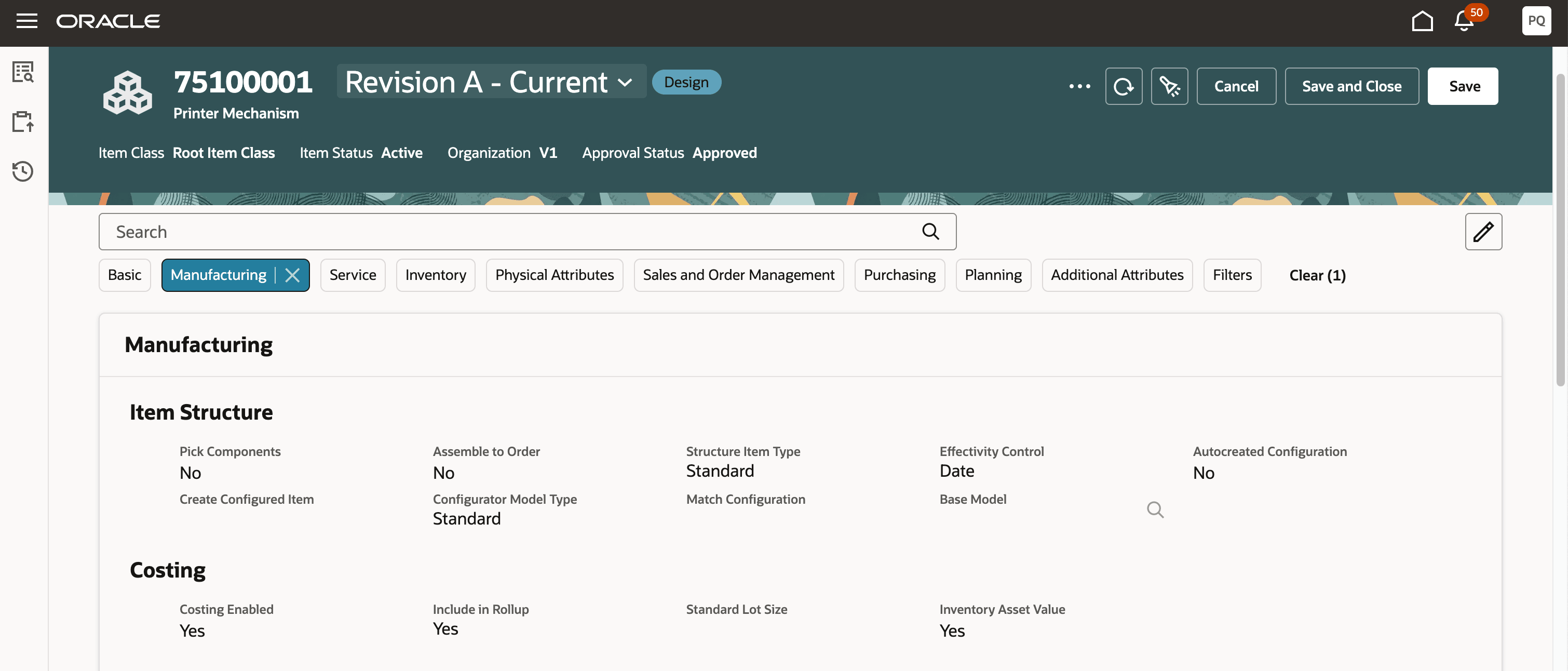
Refresh Item Page Using Refresh Icon
Add Item to Clipboard
Quickly add the item to the Clipboard using the Clipboard action available in the Actions menu as shown in the following screenshot. This adds the item to the Clipboard.
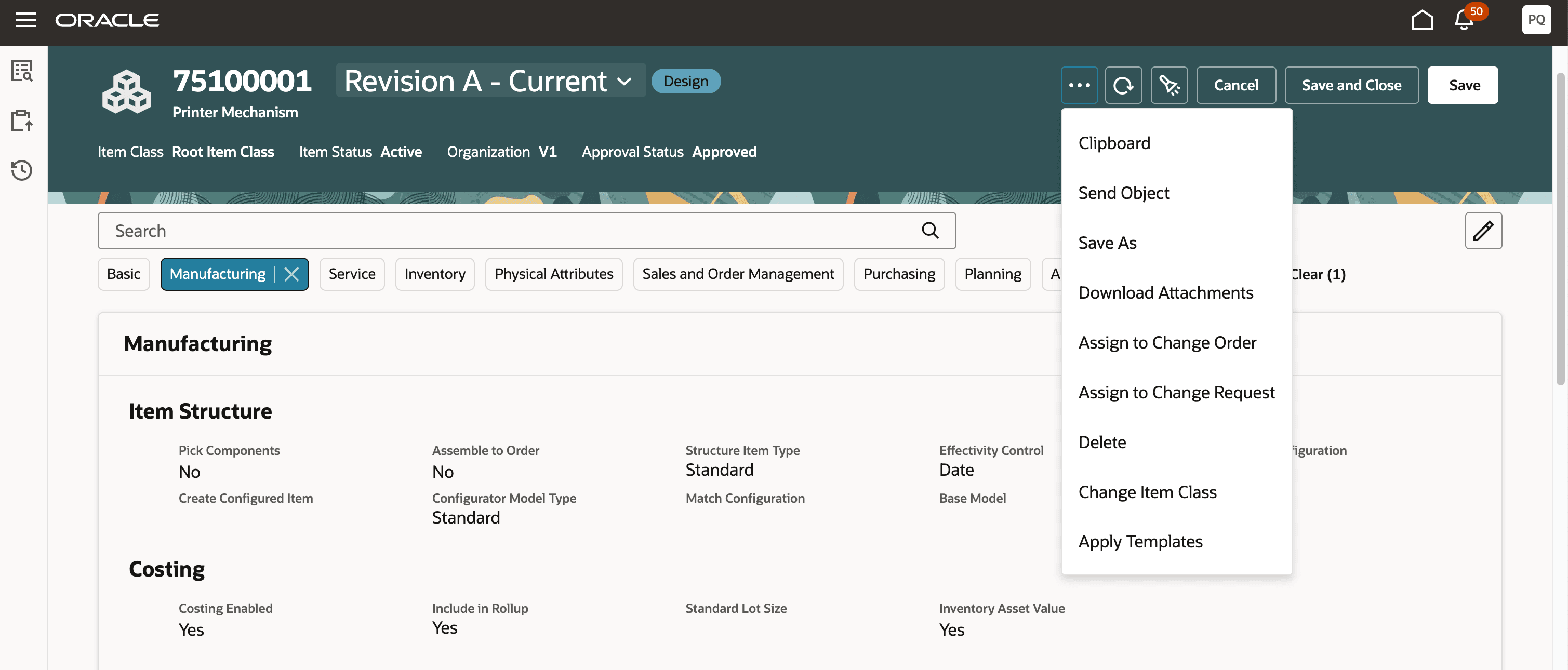
Add Item to Clipboard
Highlight Change Order Context
When you open an affected item in change order context, the change order number is highlighted clearly indicating the change order.
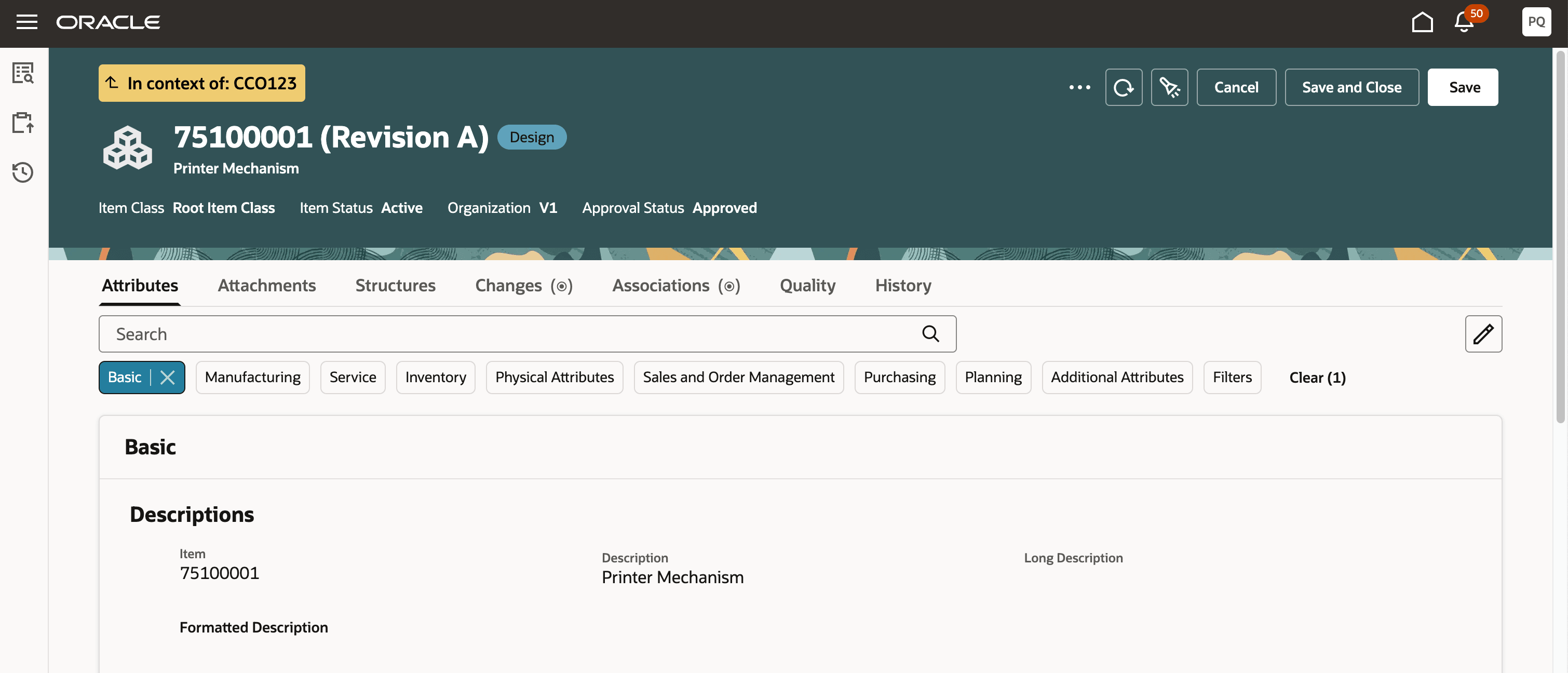
Highlighted Change Order
Edit Attributes Using Edit Icon
When you open an existing item, all the attributes are in read only mode. To edit the operational and extended flexfield attributes, click the Edit icon on the Attributes tab as shown in the following screenshot.
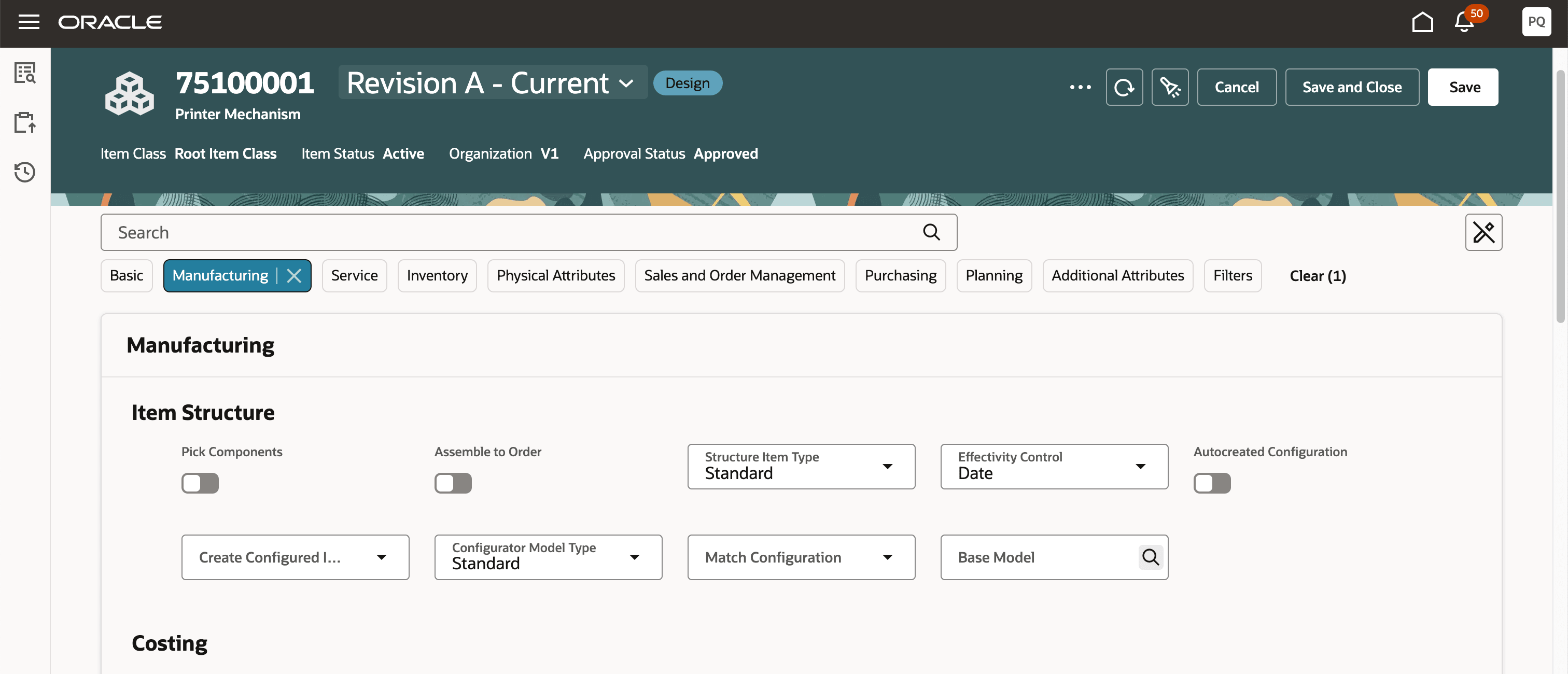
Edit Attributes Using Edit Icon
This feature drives business value through the following benefits:
- Easily recognize the highlighted change order context that indicates you are viewing the affected item in the context of the change order.
- Easily distinguish between view and edit modes of the item.
- View the latest item data when there are asynchronous updates to the item.
- Quickly add the item to the clipboard for easy access whenever needed.
Steps to enable and configure
You don't need to do anything to enable this feature.
Tips and considerations
You can change the item class of an item and route this change through the change order.
Key resources
- Refer to the Other Actions When Creating or Editing an Item section in the Oracle Fusion Cloud SCM: Using Product Master Data Management guide, available on the Oracle Help Center.
Access requirements
Users who are assigned a configured job role that contains these privileges can access this feature:
- To view and edit items on Redwood pages:
- View Item Redwood Items (EGP_VIEW_REDWOOD_ITEM_PRIV)
- Manage Item Redwood Items (EGP_MANAGE_REDWOOD_ITEM_PRIV)
- To create a change order from the item, either through a Needs Approval rule or by using the Assign to action:
- Create Change Order (EGO_CREATE_CHANGE_ORDER_PRIV)
- Manage Change Orders (ACA_MANAGE_CHANGE_ORDERS_PRIV)
- Access Change Types Using a REST Service (EGO_GET_CHANGE_TYPES_REST_PRIV)
These privileges were available prior to this update.