Redwood: Create Purchase Orders with Credit Lines
Create purchase order lines with negative amounts using a Redwood page. For example, you can use a negative amount line to represent credit for an equipment trade-in.
These screen captures illustrate how credit lines are captured in the Redwood application.
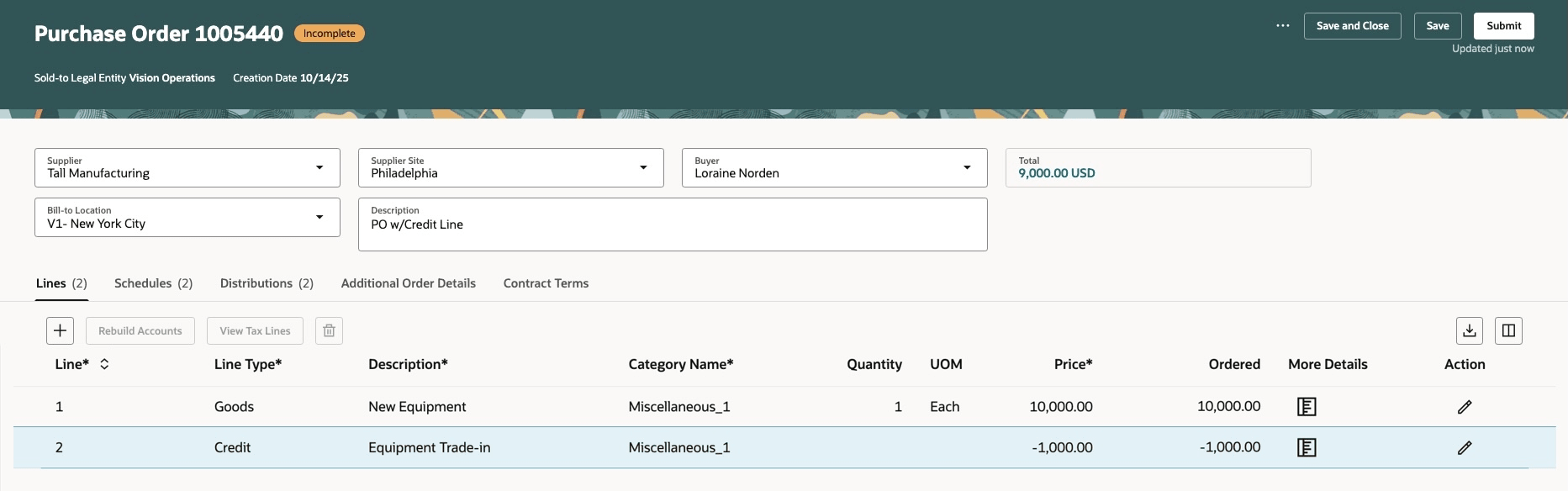
Buyer Enters Credit Line on a PO
The Total drawer shows the breakdown of the PO amount, including the amount before the credit is applied, the amount of the credit, and the final amount.
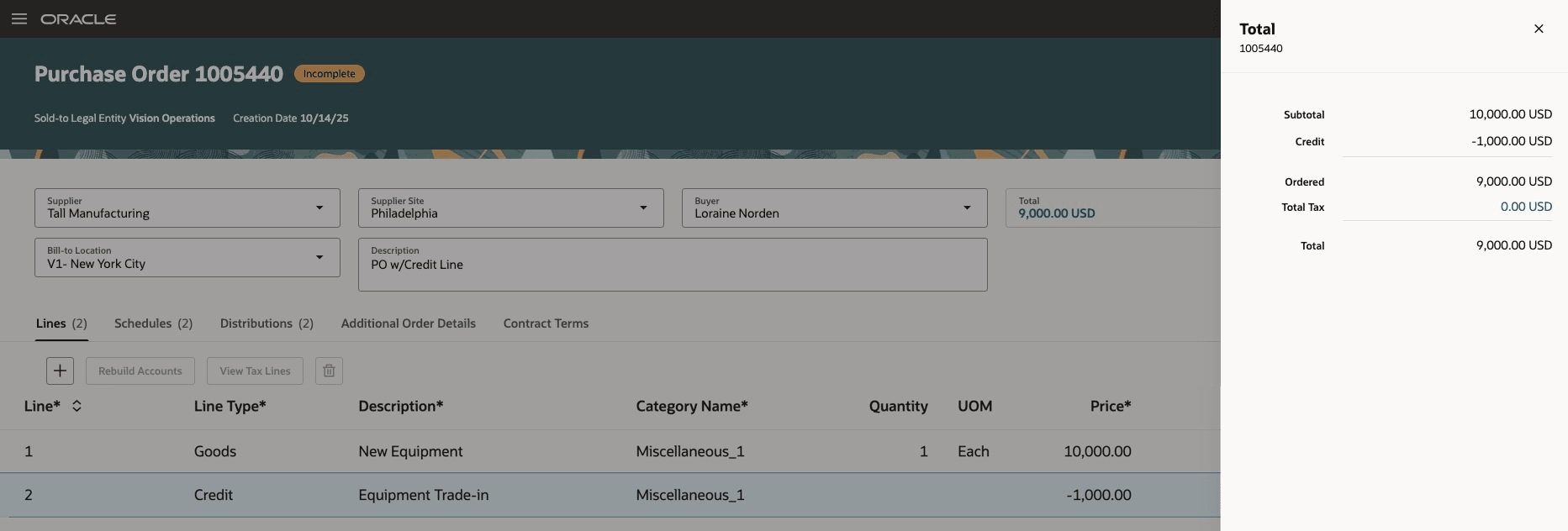
Total Amount Shows Breakdown of PO Costs
The credit column, introduced in Update 25C, can be exposed in the search results of the purchase orders page for both buyers and suppliers.
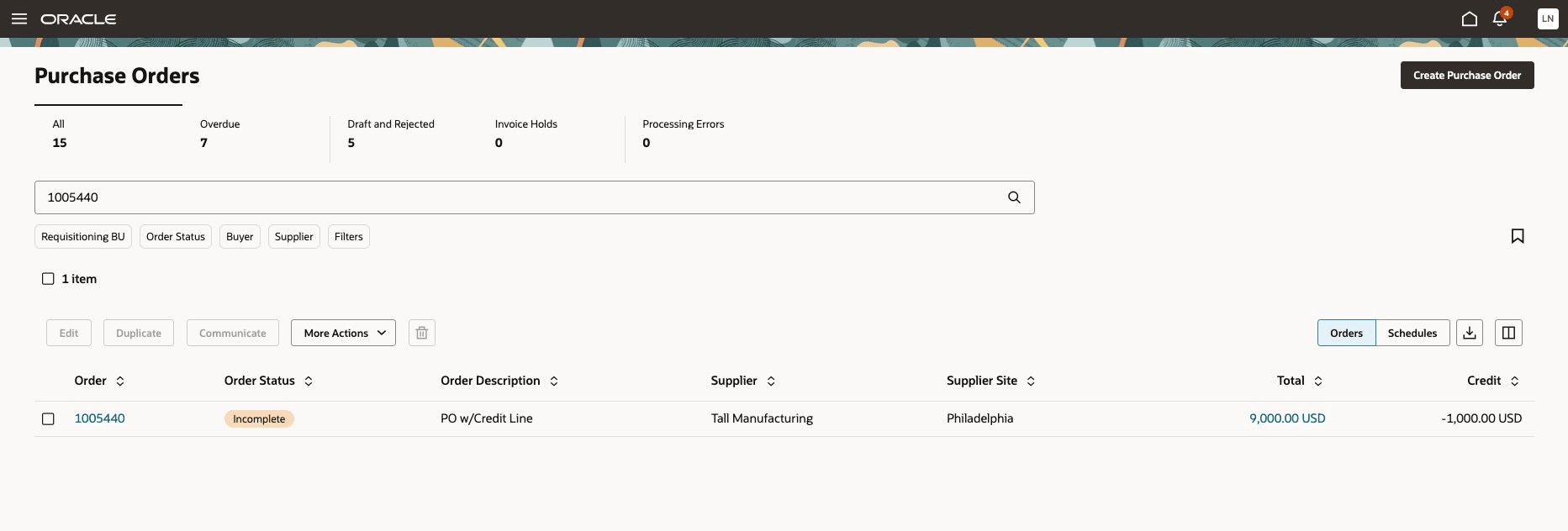
Purchase Orders Search Results Showing Credit Value
Steps to enable and configure
You don't need to do anything to enable this feature.
Key resources
- To enable Redwood for Purchasing, see the Getting Started with Redwood in Purchasing topic on the SCM Resource Center in Customer Connect.
- For more information regarding this feature, including tips and considerations, refer to the How You Create Purchase Order Lines with Negative Amounts topic.
- To know more about how to create and invoice purchase order lines with negative amount, see Create and Invoice Purchase Order Lines with Negative Amounts Readiness Training.
Access requirements
No specific privileges are needed to create or update purchase orders with credit lines.