Redwood: Create and Edit Purchase Orders for Complex Services with Progress Payment Schedules
Define progress payment schedules for acquiring complex, high-value services with long lead times using a Redwood page.
The progress payment schedules can be categorized into two types: lump sum and rate-based.
- Lump Sum: Specify the purchase order schedule type as a lump sum if payment needs to be released based on the stage of work completion. For this schedule type, specify the work description and the associated cost.
- Rate: Specify the purchase schedule type as a rate if payment needs to be released based on the units of work completed. For this schedule type, specify the work description, unit price, quantity, and unit of measure.
To create purchase orders for procurement of complex services, you can either use predefined Complex Work Style document style or create a new style with progress payments terms enabled.
These screen captures illustrate the feature.
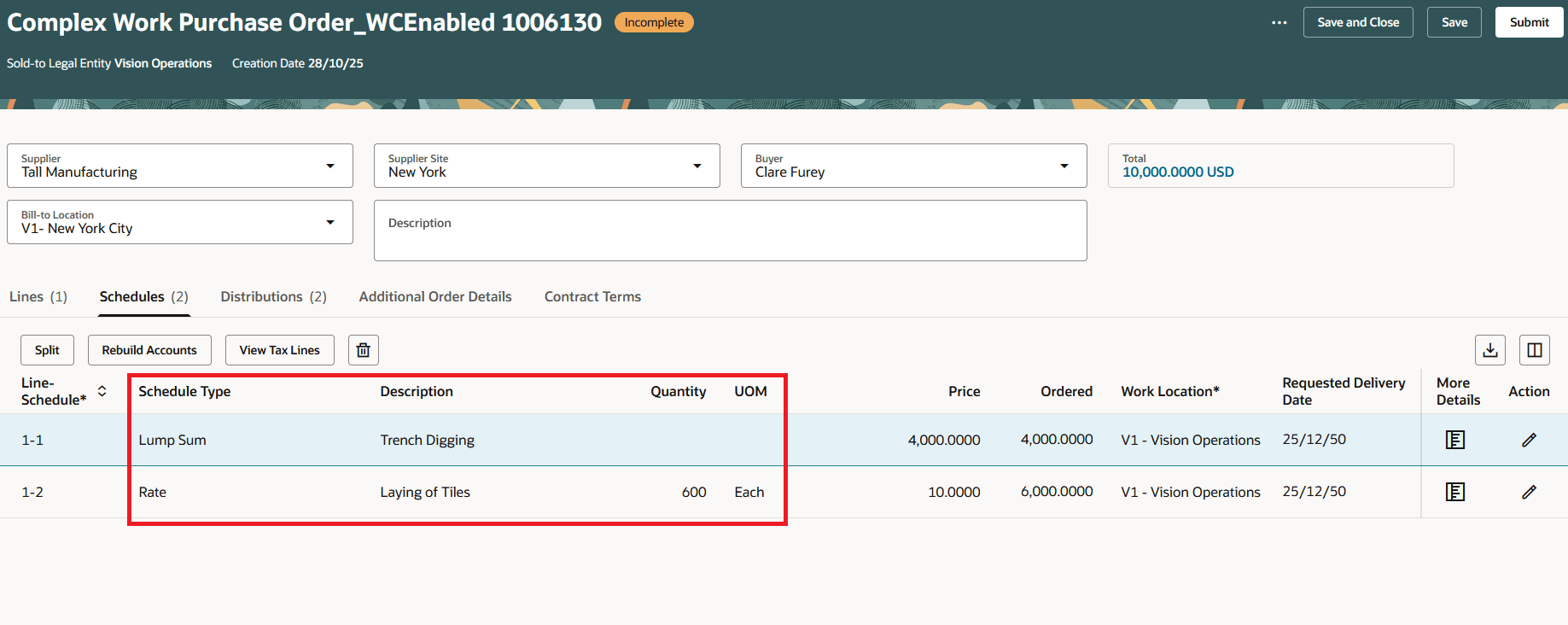
Create and Edit Complex Work Purchase Order with Rate and Lump Sum Schedules
When creating a change order, you can modify these progress payment schedule attributes: Type, Description, and Price. You can modify the schedule's type and description until a receipt or invoice is created. If you modify any of these attributes using the seeded change order template, the application will create an external change order.
Buyers, suppliers, and requesters can now view details of the progress payment schedules when viewing a complex work purchase order. When viewing a progress payment schedule, they can review the statement of work, total contract amount, total tax, and additional details in the Line details section.
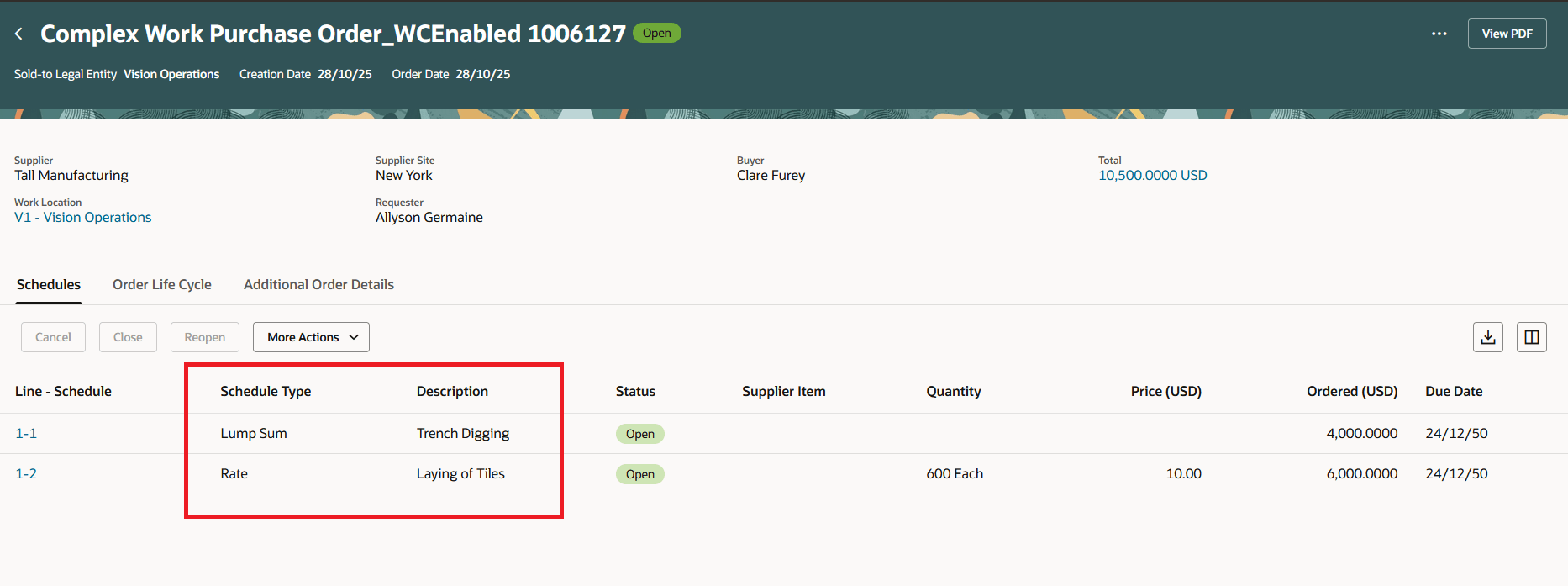
View Complex Work Purchase Order with Rate and Lump Sum Schedules
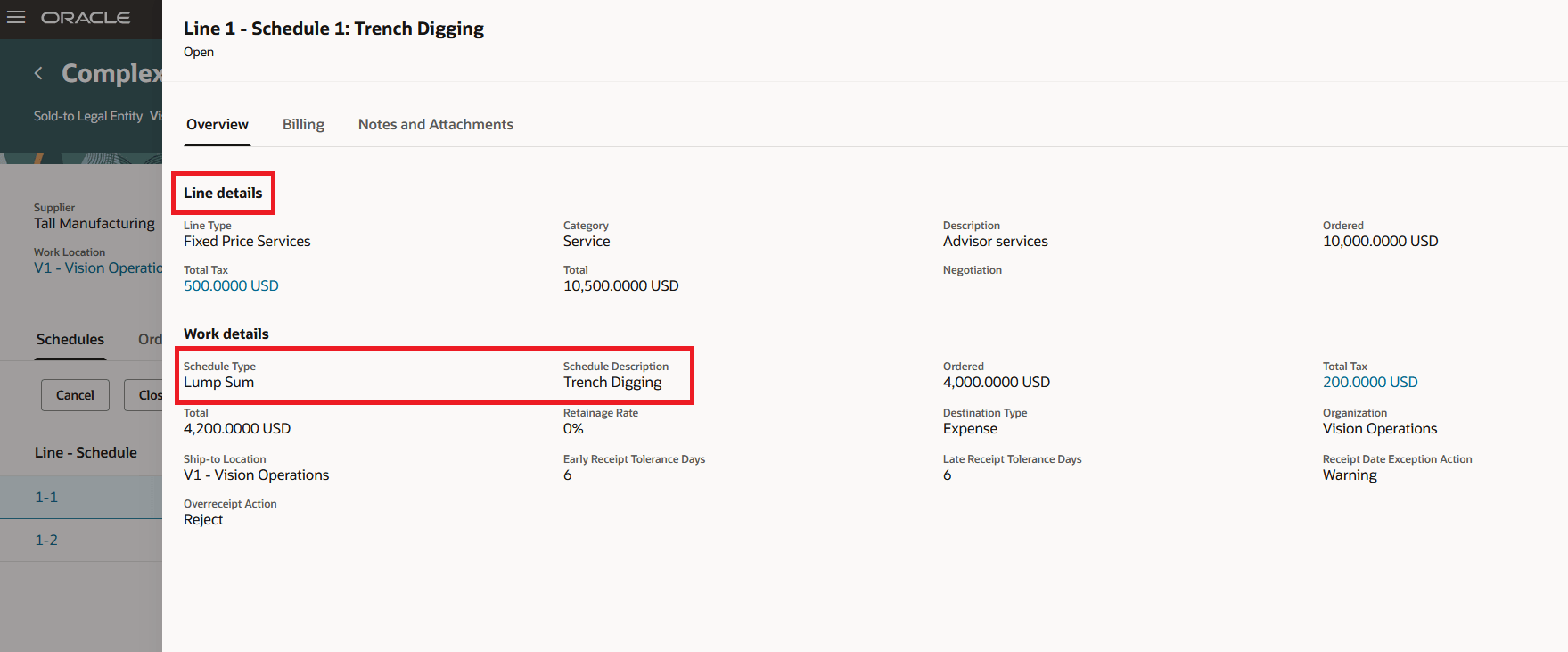
Line Details and Schedule Details for the Lump Sum Schedule
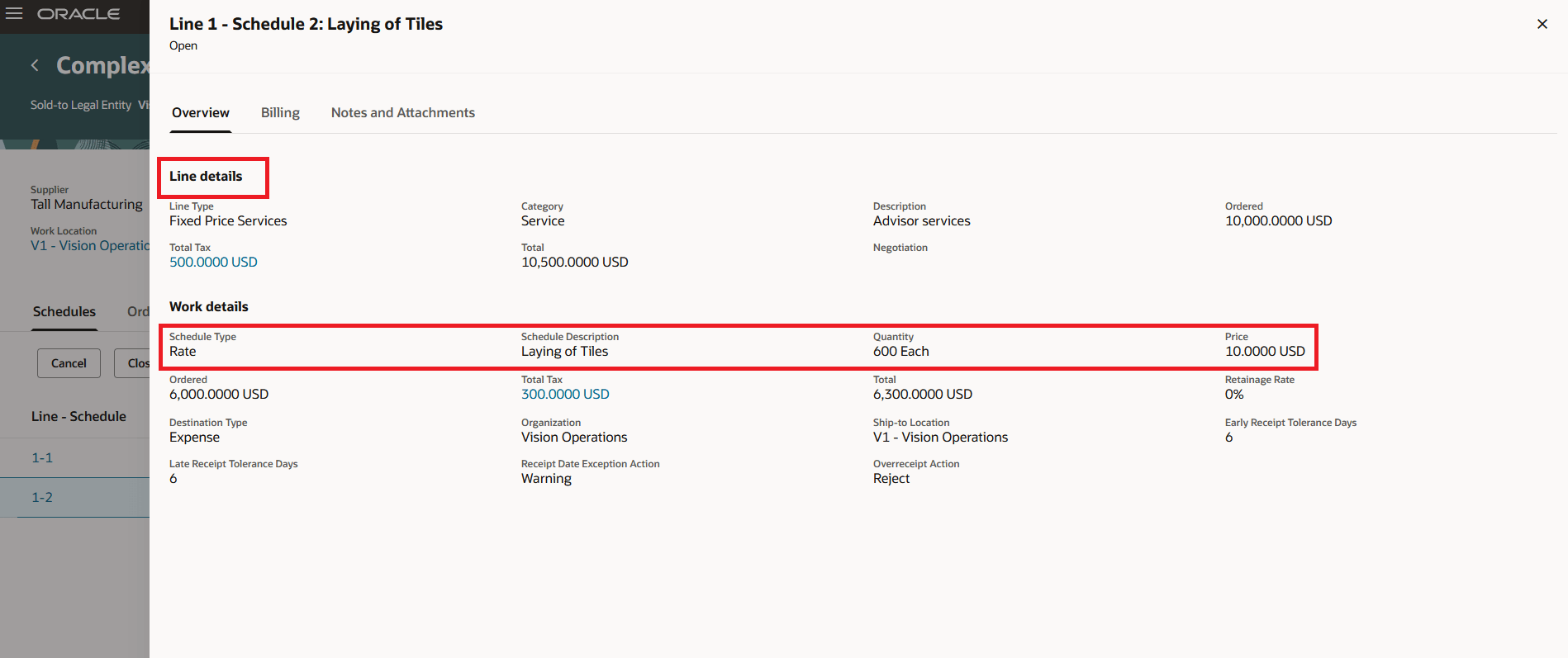
Line Details and Schedule Details for the Rate-Based Schedule
Buyers and suppliers can also view the progress payment schedules while acknowledging a complex work purchase order.
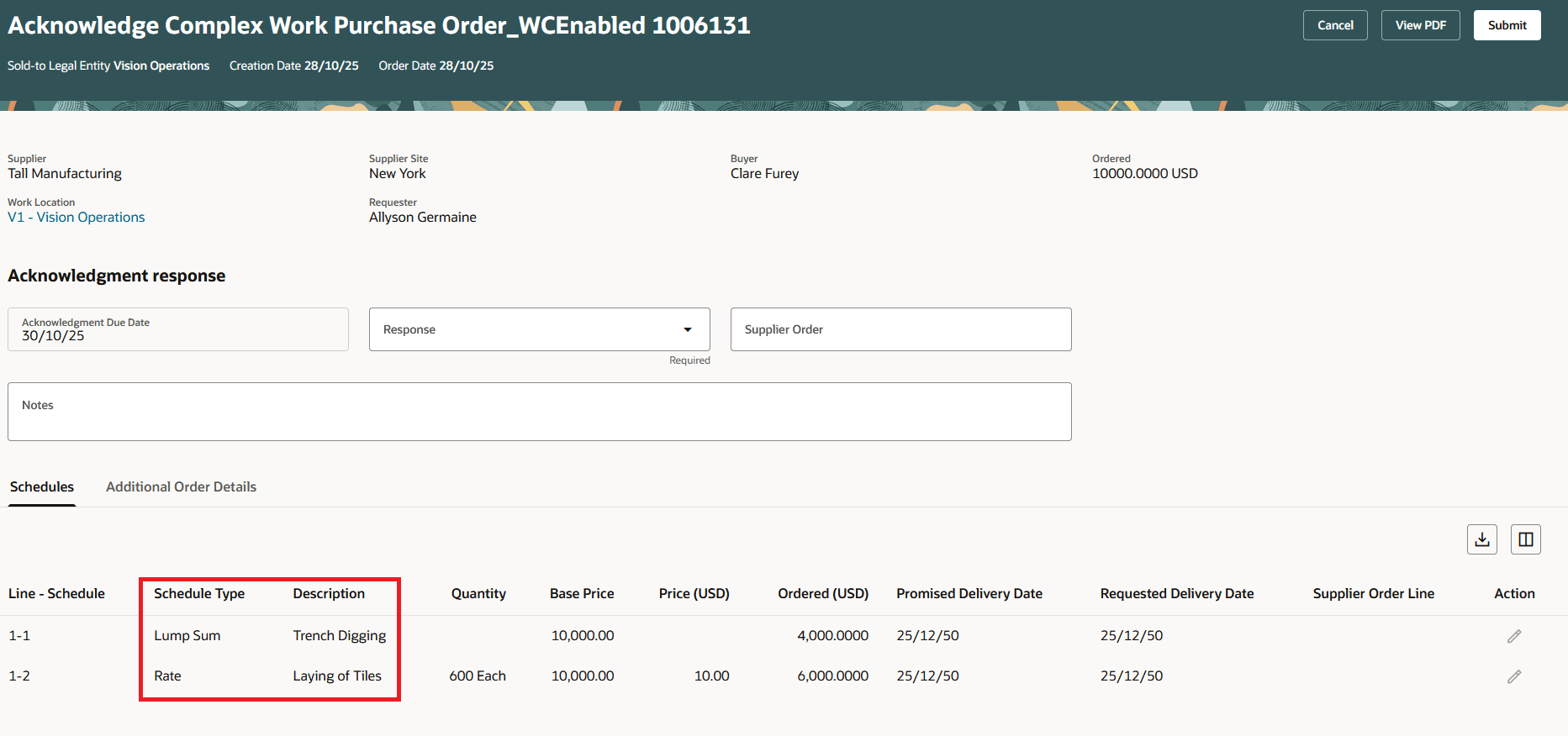
Acknowledge Complex Work Purchase Order with Lump Sum and Rate based Schedules
When viewing purchase orders with progress payment schedules, buyers, suppliers, and requesters can create and view work confirmations if the document style of the purchase order has work confirmation enabled.The Order Life Cycle tab displays key information related to the total amount of work completed, retainage, and retainage amount released against a complex work purchase order. The work confirmations approved against each of the progress payment schedules can also be viewed from the Order Life Cycle tab.
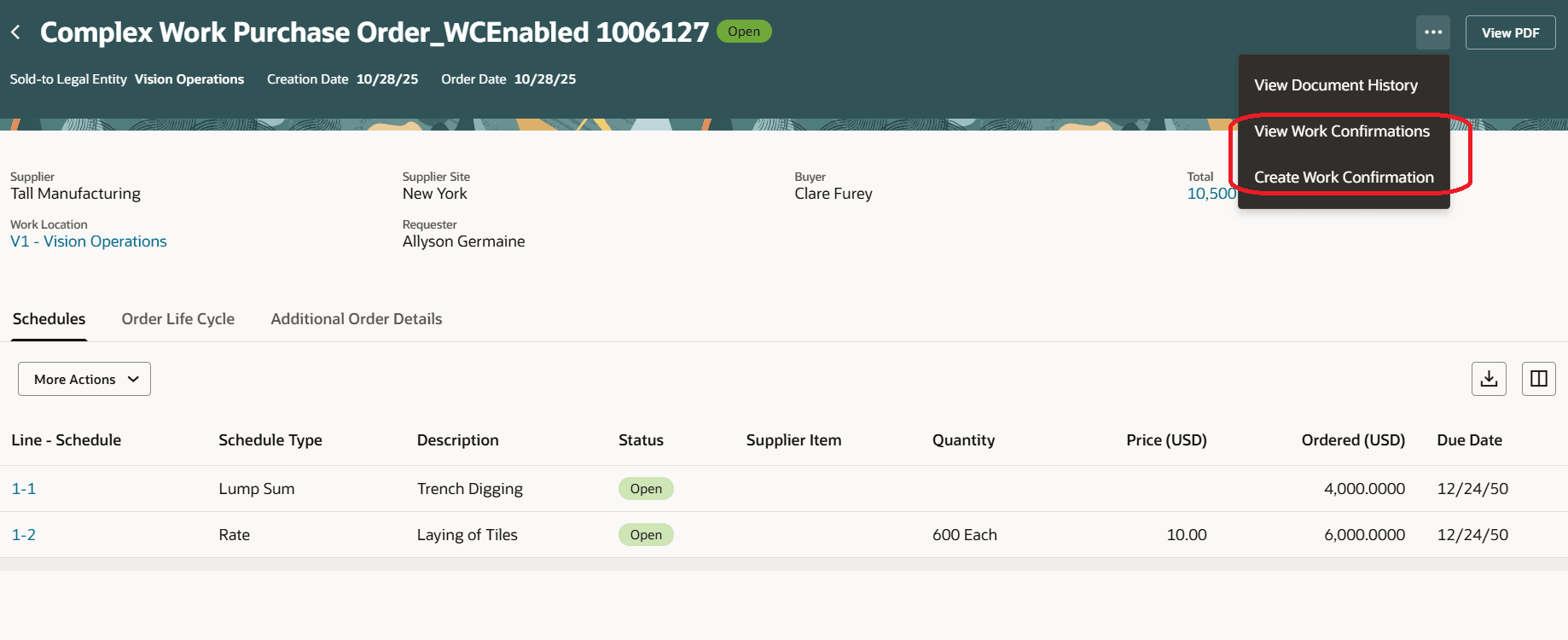
Create and View Work Confirmations actions on View Purchase Order page
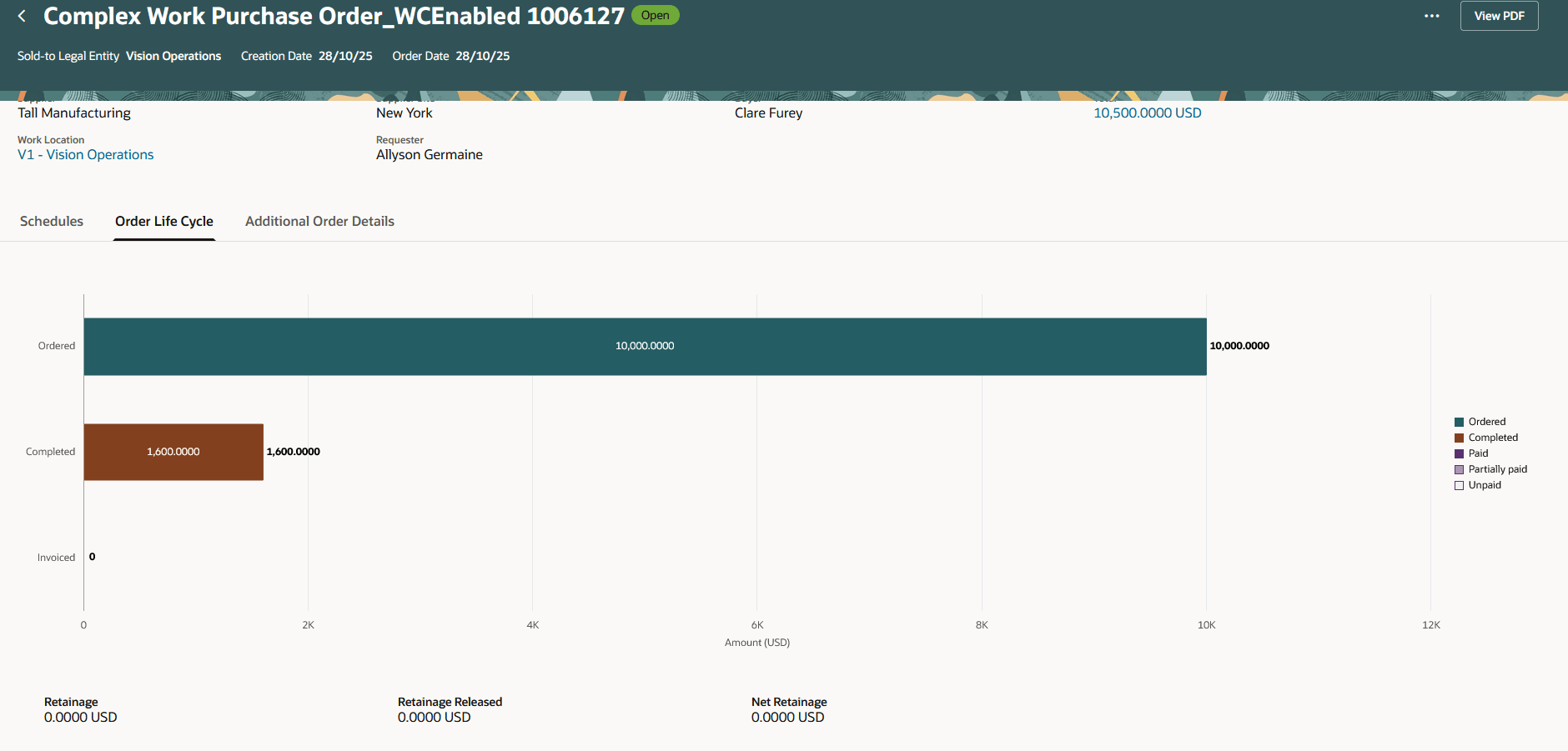
View Retainage Terms and Work Completion Details in the Purchase Order Lifecycle
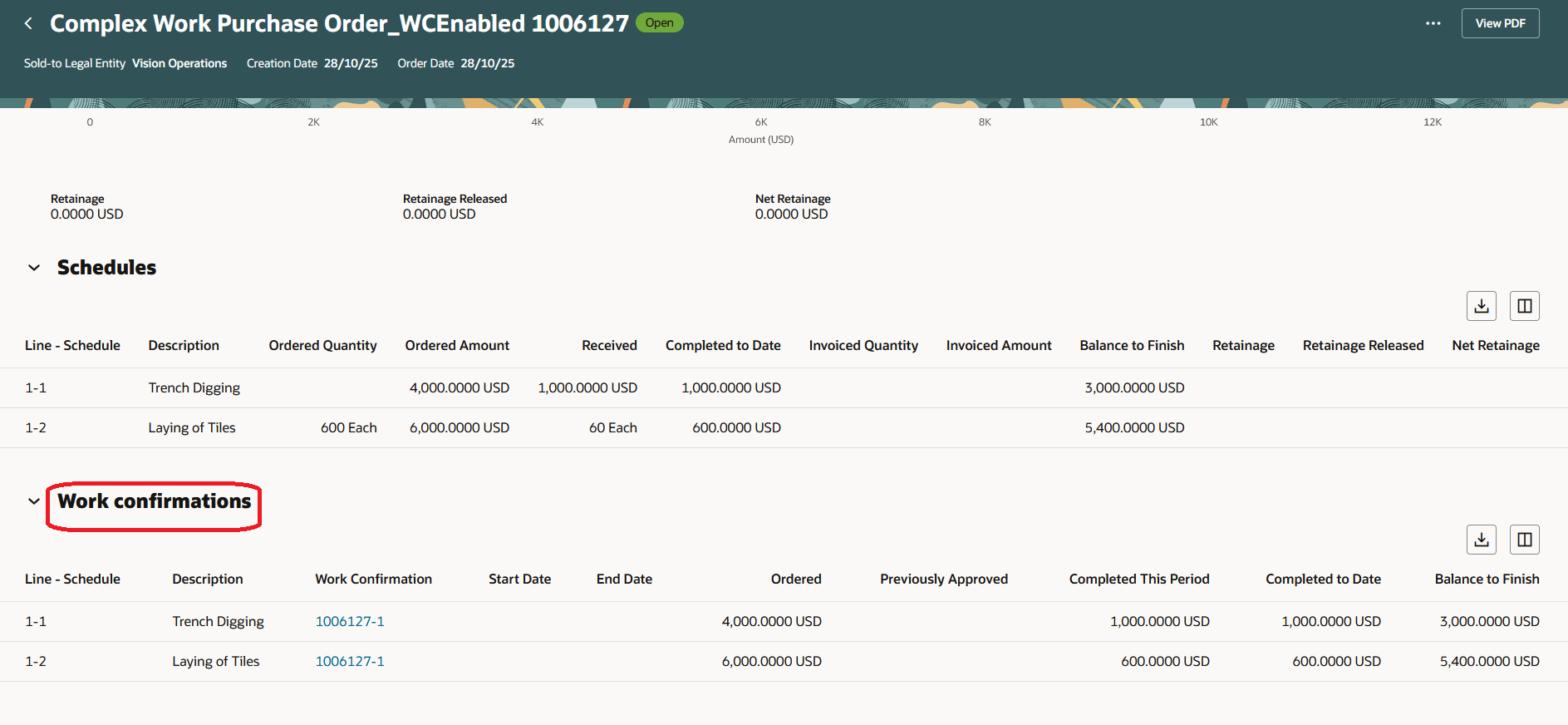
View Work Confirmations Created for Progress Payment Schedules in the Purchase Order Lifecycle
When modifying an approved complex work purchase order, you can view these two fields if the document style has work confirmation enabled:
- Completed to Date: Specifies the total amount of work completed for the progress payment schedule.
- Balance to Finish: Specifies the value of work remaining to be completed for the progress payment schedule.
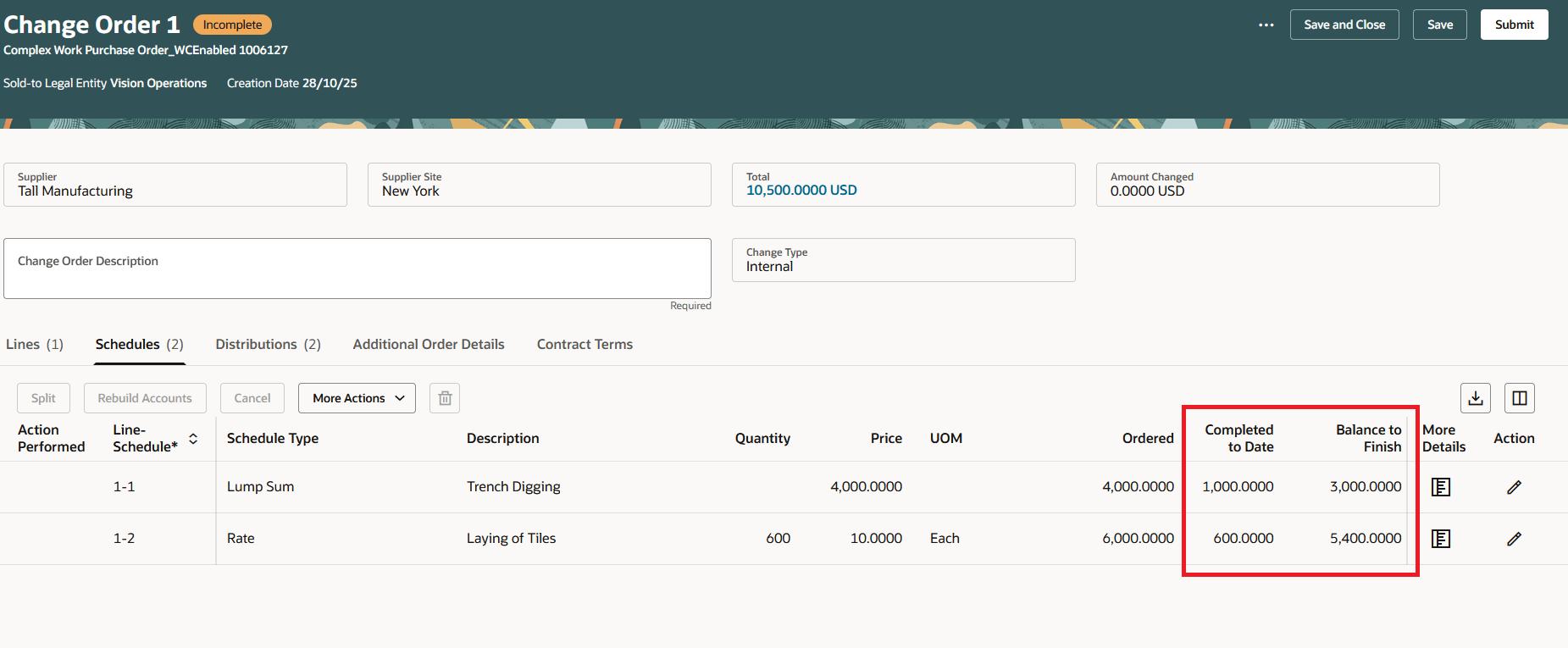
Review Completed to Date and Balance to Finish When Updating an Approved Purchase Order
Steps to enable and configure
You don't need to do anything to enable this feature.
Tips and considerations
- You can create purchase orders with retainage terms if the document style has retainage enabled.
- You can create purchase orders with progress payment schedules if the document style has progress payments enabled.
- You can create and manage work confirmations for a purchase order if the document style of the purchase order has work confirmation enabled.
- The Order Life Cycle tab displays retainage terms if the document style has retainage enabled.
- The Order Life Cycle tab displays the receipts if the document style doesn’t have work confirmation enabled.
- The Order Life Cycle tab displays the work confirmation details if the document style has work confirmation enabled.
- You can now view the purchase order line description and schedule type from the Schedules tab of the Redwood Purchase Orders page. You can use the column management to expose these fields.
- When copying a purchase order, all progress payment schedule-related attributes are retained in the new document.
- You can process requisition lines into progress payment schedules using the Redwood Process Requisitions page.
- Support for extensibility capabilities is available for the Progress Payment schedule attributes.
Key resources
- To enable Redwood for Purchasing, see the Getting Started with Redwood in Purchasing topic on the SCM Resource Center in Customer Connect.
- For details on how to create and manage progress payment schedules, refer to the Create Purchase Orders for Complex Services with Progress Payment Schedules feature, available in Oracle Fusion Cloud Procurement What's New, update 21C.
- For details on how to create and manage work confirmations, refer to the Create Work Confirmations for Purchase Orders with Progress Payment Schedules feature, available in Oracle Fusion Cloud Procurement What's New, update 22B.
- For information about using Oracle Visual Builder Studio to extend your Redwood application pages, see Oracle Fusion Cloud HCM and SCM: Extending Redwood Applications for HCM and SCM Using Visual Builder Studio.
Access requirements
No specific privileges are needed to create or update purchase orders with progress payment schedules.