Redwood: Search and Manage Contracts from List Page
You can now opt in to the Redwood experience to search and manage contracts directly from the Contracts list page. This redesigned workspace provides a faster, intuitive, and highly configurable interface powered by Adaptive Search (Elasticsearch). Users can search across contract fields, apply multiple dynamic filters, group records, sort columns, mark favorites, manage columns, and access both list page-level and contract record-level Actions. The list page displays only buy-intent contracts and always shows the latest version. A Create Contract button is available directly on the page, enabling quick and streamlined contract creation.
Adaptive Search powers real-time filtering using text, LOV, numeric, date, and amount-based fields, including configurable ranges such as Last 30 Days, Last Quarter, Last 6 Months for date fields, and value ranges (such as greater than, less than, and between) for amount fields. Users can group results by key attributes (for example, Status, Contract Type, Business Unit), personalize their workspace with saved searches, select from different record sets, mark favorites, and benefit from persistent session behavior.
The Actions menu provides capabilities such as Save, Export, Manage Columns, Sort by Relevance, and Manage Saved Searches. Each contract row includes contextual actions such as Preview, with additional actions enabled based on contract lifecycle status.
An intelligent incompatibility flag evaluates each contract and determines whether it can be opened in Redwood. Contracts that are not compatible are automatically routed to the classic Contracts UI, ensuring uninterrupted access to all contract details. A contract is considered incompatible with Redwood if it meets any of the following conditions:
- Contract with structured or simplified terms
- Contract has fulfillment lines created from classic UI
- Contract status is HOLD
- Contract types with AdobeSign and OneSpan E-signature enabled
- Contract has deliverables
All such contracts will automatically open in the classic contract management UI, preserving full functionality.
Key Capabilities
- Adaptive Search powered filtering, grouping, and sorting
- Dynamic “Add Filter” with support for multiple simultaneous criteria
- Configurable columns with Manage Columns and resize-to-fit options
- Saved searches with support for default views and user personalization
- Favorites marking and session-persistent search criteria
- Adaptive Search powered filtering, grouping, and sorting
- Dynamic “Add Filter” supporting multiple simultaneous criteria across text, LOV, numeric, date fields
- Range-based filtering for dates and amounts, including configurable options such as Last 30 Days, Last Quarter, Last 6 Months, and numeric range options (greater than, less than, between)
- Grouping by Status, Contract Type, Business Unit, Primary Party, and other configured attributes, with collapsible groups
- Configurable columns using Manage Columns, with horizontal scrolling and Resize Columns to Fit Screen
- Saved searches with default view support, personalization, visibility options, and persistent session behavior
- Record set selection (e.g., My Contracts, All Contracts, I Own, I Am on the Team etc) for customized results
- Favorites marking
- Create Contract button directly on the list page for contract creation
- Actions menu supporting Save, Export, Manage Columns, Sort by Relevance, Manage Saved Searches
- Contract record-level contextual actions such as Preview, with additional actions based on contract status
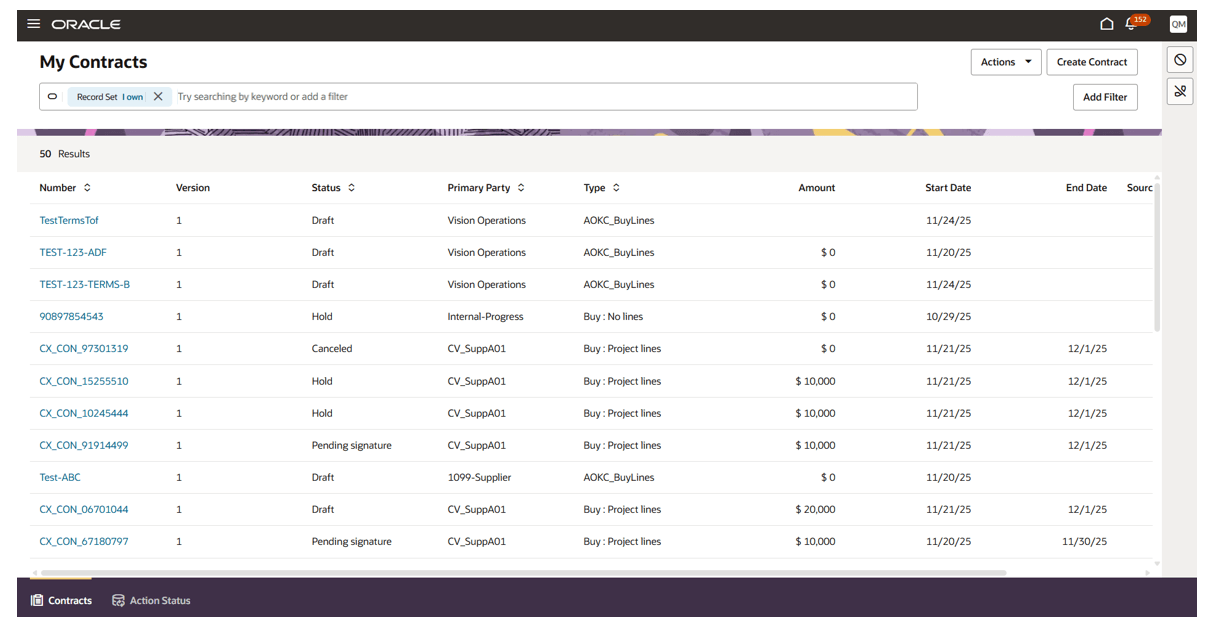
Contract List Page
- Modern, responsive Redwood user experience
- Faster, flexible contract search with advanced filtering and grouping
- Increased user productivity via personalization
Steps to enable and configure
Use the Opt In UI to enable this feature. For instructions, refer to the Optional Uptake of New Features section of this document.
Offering: Enterprise Contracts No Longer Optional From: Update 26A
1. Enable Adaptive Search Feature
-
Navigate to Setup and Maintenance
-
Ensure that the Sales functional area is selected.
-
From the Actions menu, Click on Go to Offerings
Go to Offerings from Actions
-
On the Offerings page, select Sales.
-
Click on Opt In Features.
-
Opt In Features from Sales Offerings
-
-
In the Opt In features: Sales page:
-
Ensure that Sales is enabled (check-marked).
-
Ensure that Sales Foundation is also enabled (check-marked).
-
Enable Sales
-
2. Enable the Redwood Contract Management Opt-In
- Go to Setup and Maintenance.
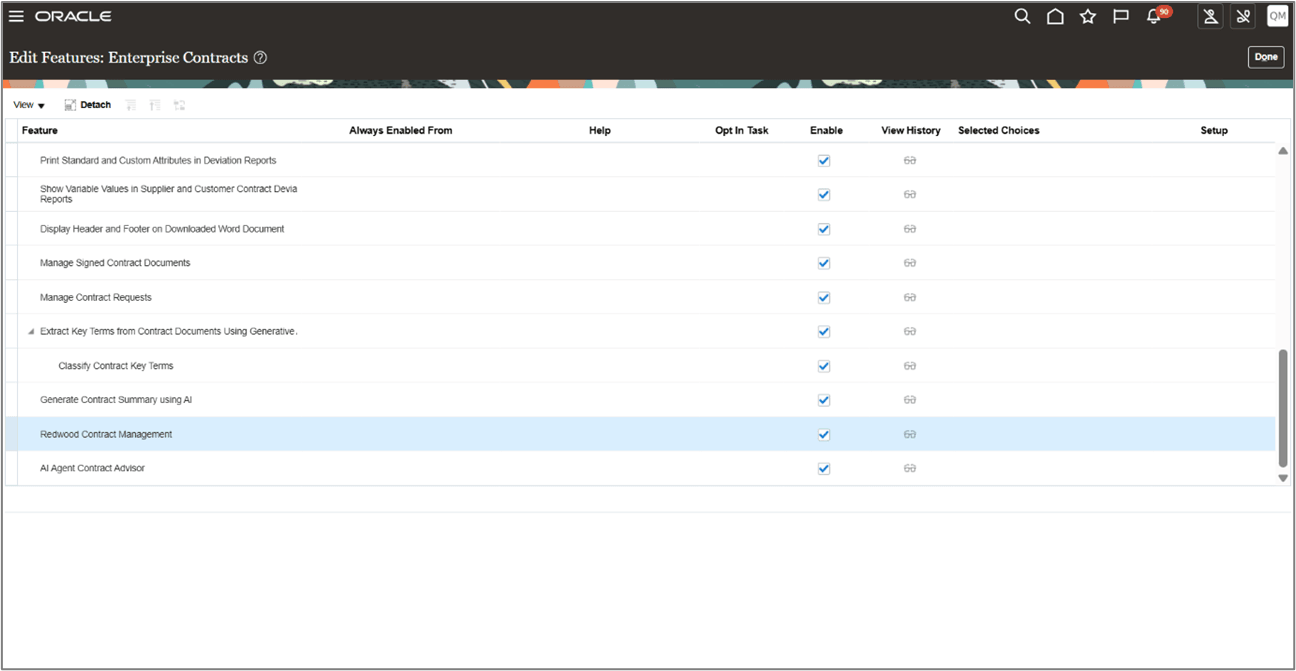
- Navigate to Setup: Enterprise Contracts -> Change Feature Opt-In.
Redwood Contract Management Opt-in
- Search for and enable Redwood Contract Management
(Opt-in code: ORA_OKC_ENABLE_REDWOOD_MANAGE_CONTRACTS). - Click Save and Close.
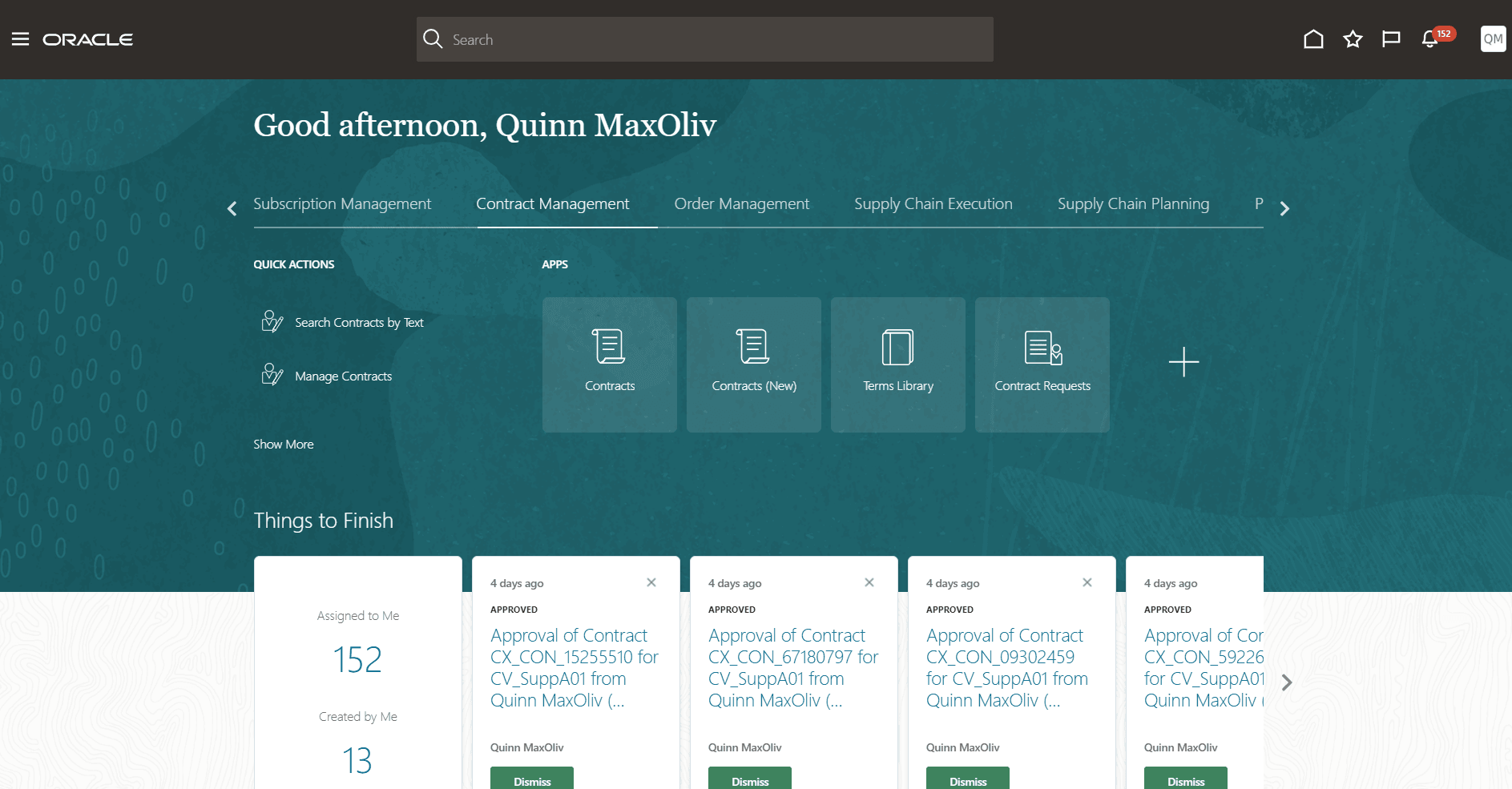
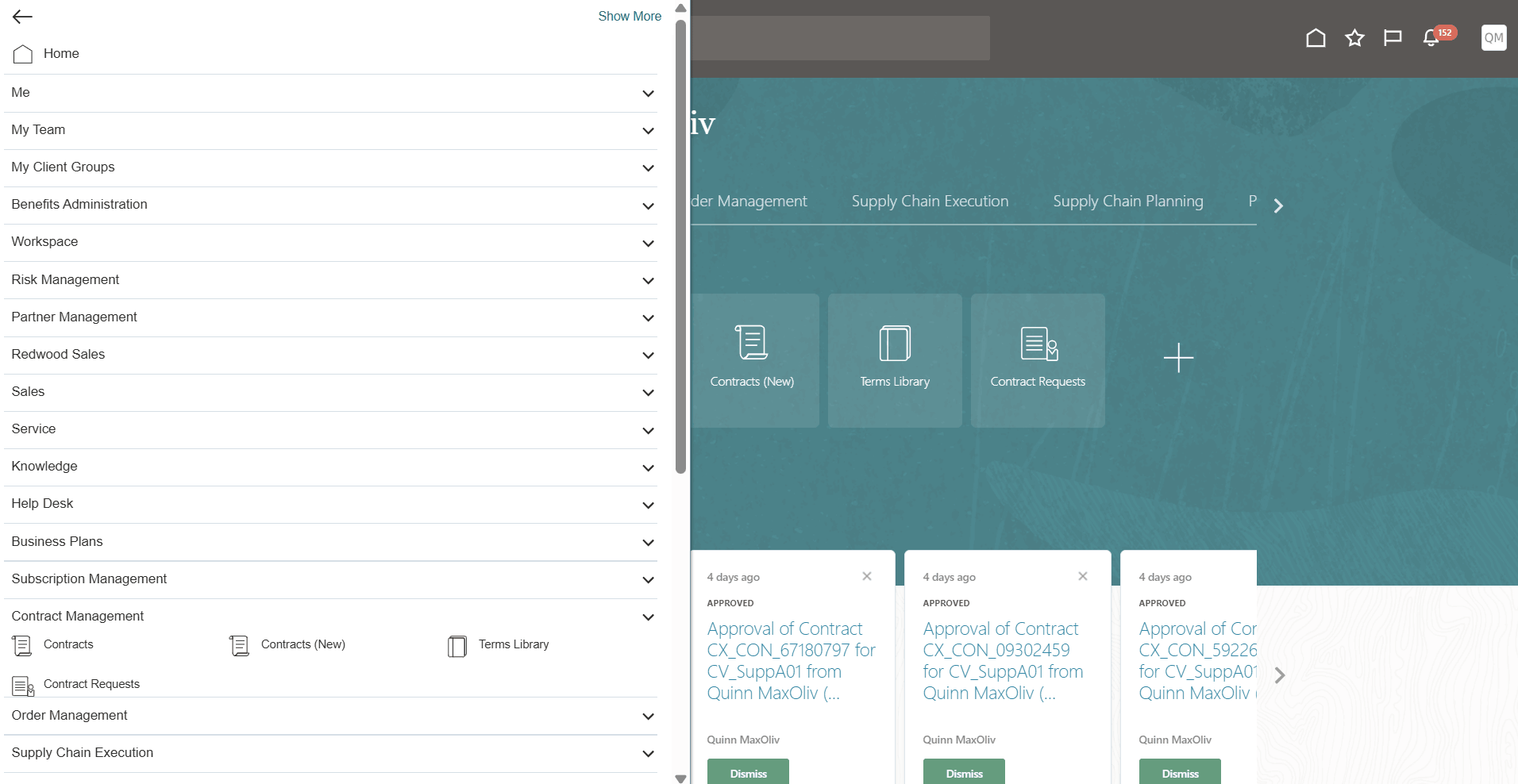
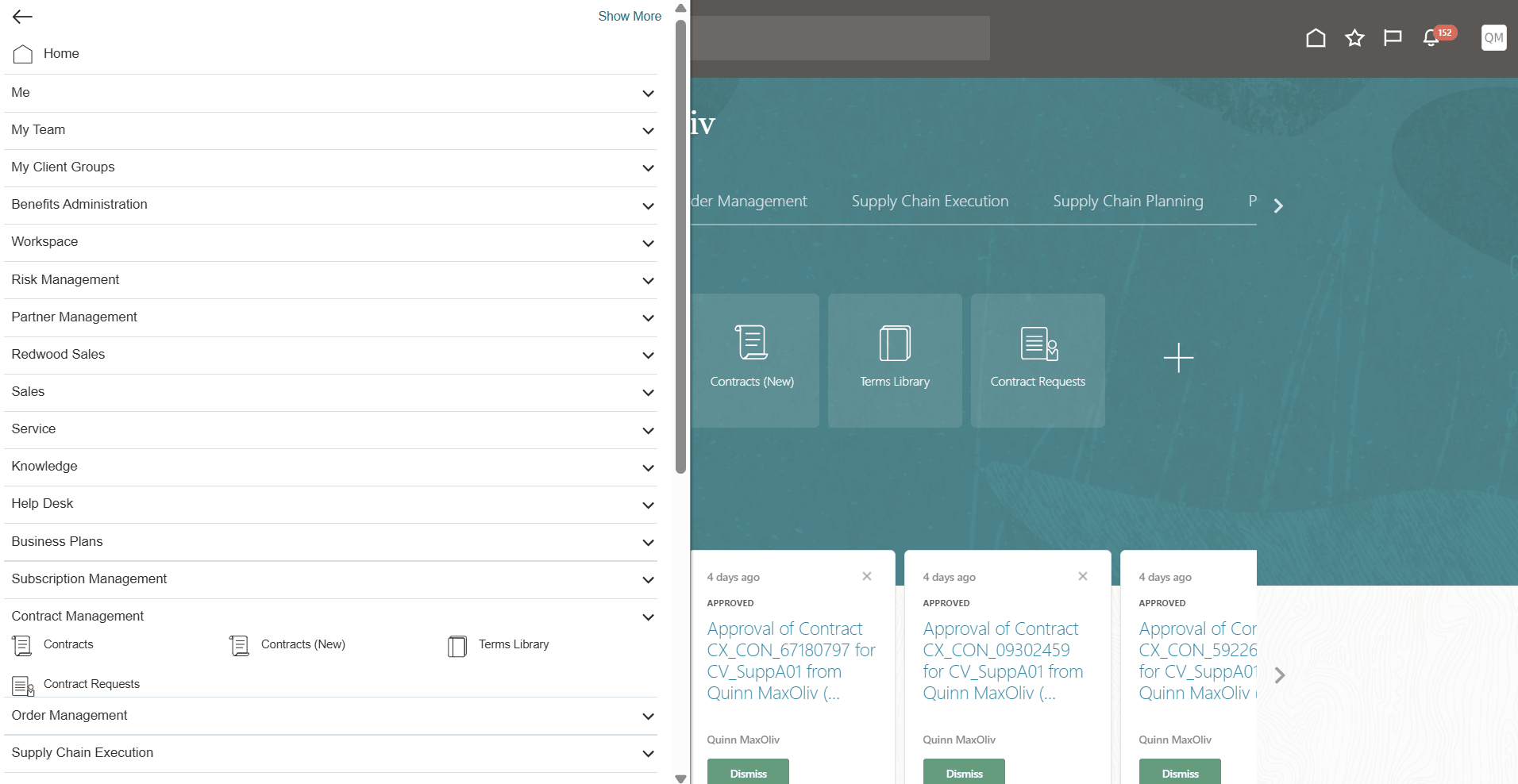
- A new Contracts (New) option will now appear under Contract Management in the navigator.
Contracts (New) Option
Contracts (New) Option from Left Menu
3. Enable and Configure Adaptive Search for Contracts
Go to Setup and Maintenance -> Configure Adaptive Search -> Setup, then complete the following in order:
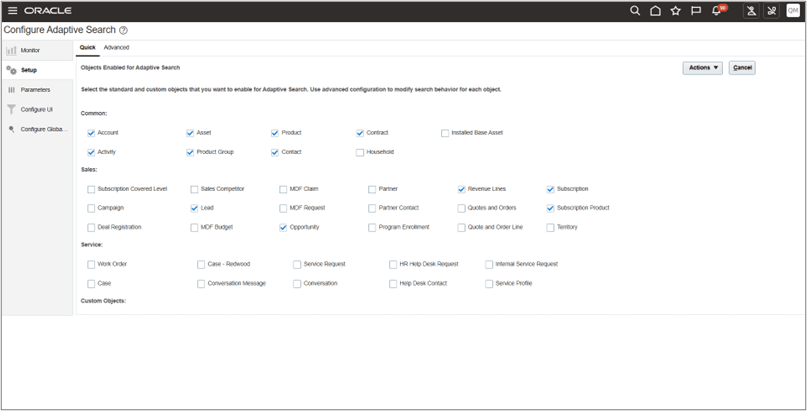
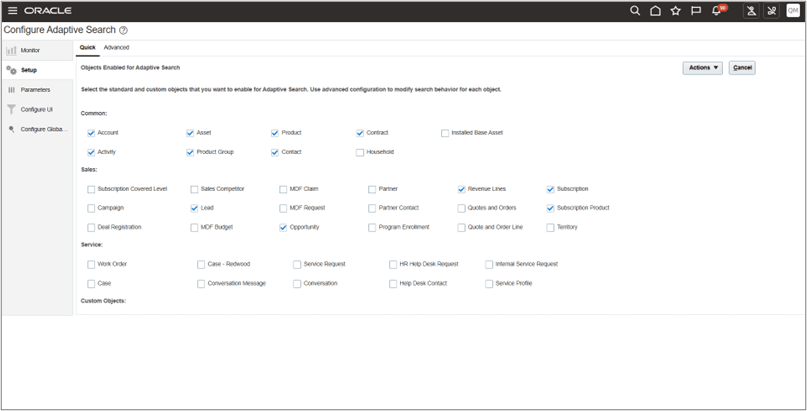
- Quick Tab - Enable the Object
-
Under the Quick subtab, locate Contract and check the box to enable it for Adaptive Search.
Adaptive Search - Setup (Quick)
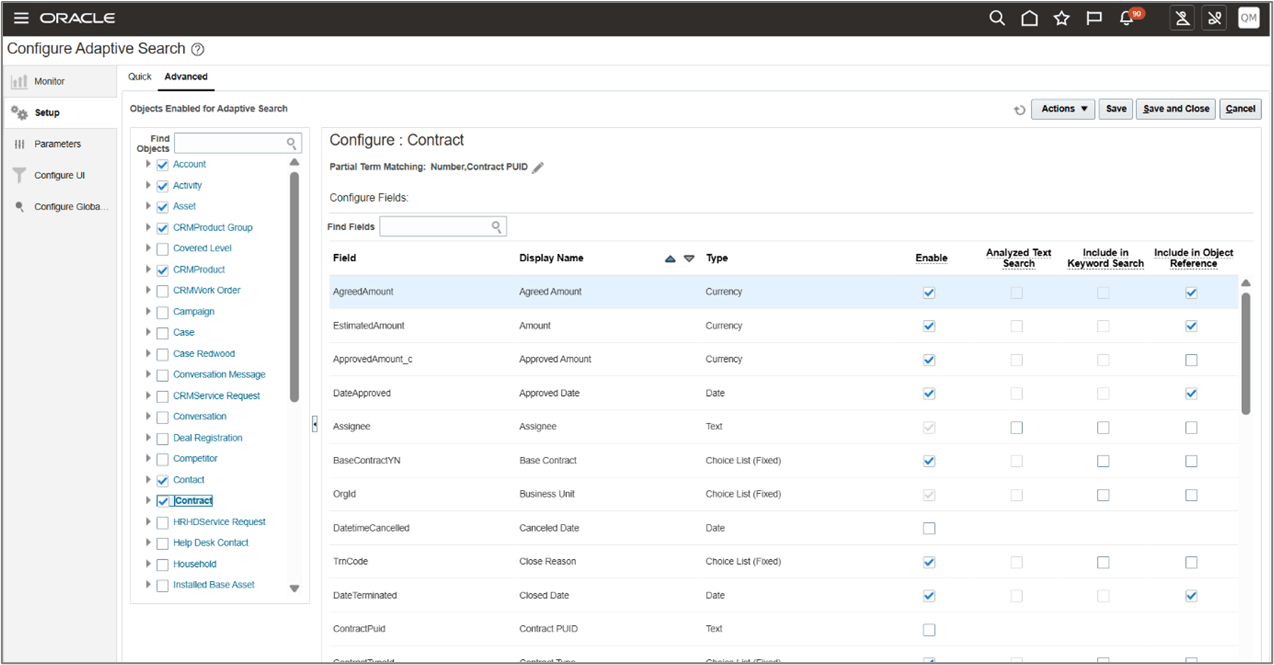
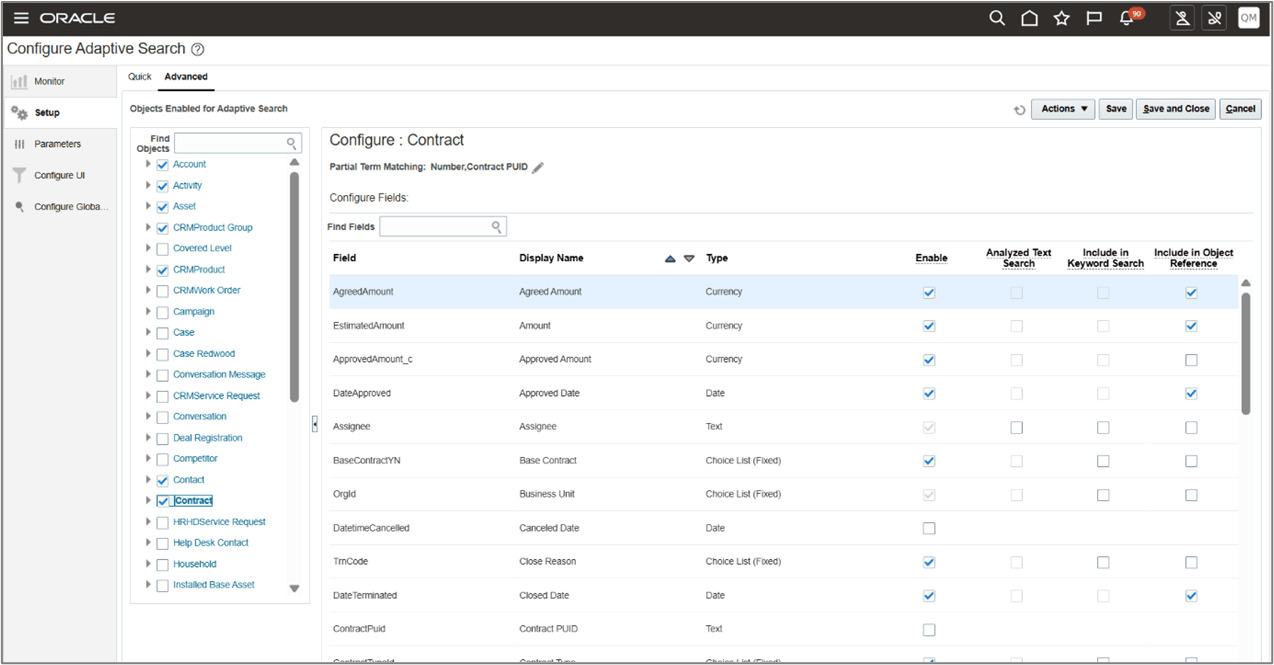
- Advanced Tab - Enable Search, Fuzzy Logic and Keyword Search Support
- Switch to the Advanced subtab.
- In the object tree on the left, expand Contract (Header / Lines / Parties).
- For each required field (e.g., Contract Number, Name, Status, Primary Party, Amount, Dates, etc.):
- Enable - Makes the field available to Adaptive Search (Elasticsearch) so it can be indexed and queried. Without this, the field will not participate in search, filters, grouping, or sorting.
- Analyzed Text Search - Enables fuzzy logic and advanced text processing for free-text search, providing capabilities such as spelling tolerance and partial word matching. For example, searching for “agreemenr” will still return results for “agreement”.
- Include in Keyword Search - Allows the field to be used when users type directly into the global search bar at the top of the Redwood list page. In other words, the field participates in the keyword search performed without adding a specific filter
- Include in Object Reference - Not Applicable
Adaptive Search - Setup Advanced
- Publish
- From the Configure Adaptive Search page, click Setup -> Quick or Advanced. You can perform the publish either from the Quick tab or the Advanced tab
- From the Actions menu, select Partial Publish or Full Publish
- You can choose to publish only those objects which have changed their configuration by performing a partial publish. This avoids having to perform a full publish every time there is a configuration change. Also, this significantly reduces the publishing time when changing Adaptive Search configuration. Based on your need you can select either Partial Publish or Full Publish and then click on Publish from the popup.
-
Note: Publishing Adaptive Search changes may take a significant amount of time to complete. Depending on the volume of contract data, the publish process can take up to 12 hours. It is recommended to perform the publish action during off-hours to avoid any impact on users. Also, If you receive a message that Application Composer changes are being synced, you must wait until the sync process completes before using the Setup tab. You can use other features of the application in the meantime.
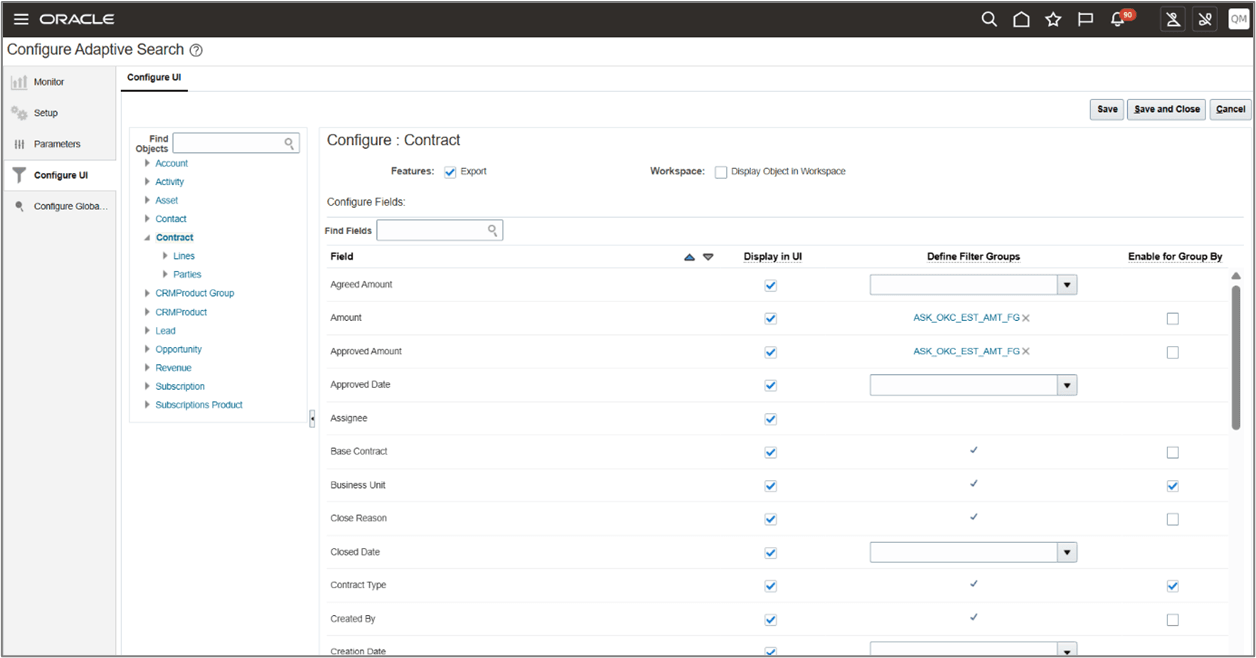
- Configure UI Tab - Control What appears in Redwood List Page
- Go to the Configure UI tab.
- Select Contract from the object list.
- Under Features, enable:
- (Optional) Export - Export controls the availability of the Export option that allows the user to export data as a csv file. In contracts redwood, it will be available under the actions menu of contracts list page.
- In the fields table:
- Enable Display in UI for all fields that should appear as columns or filters
- (Optional) Define Filter Groups for date or numeric segmentation (e.g., Today, Last Quarter, 0–30 Days, etc.)
- (Optional) Enable Group By to support grouping in the Redwood list page
Adaptive Search - Configure UI
Tips and considerations
- Displays only buy-intent contracts, latest version only.
- Filtering, grouping, and column options are strictly governed by Configure UI settings
Key resources
- For detailed guidance on Adaptive Search setup, privileges and best practices refer to: https://docs.oracle.com/en/cloud/saas/sales/fassr/overview-of-adaptive-search-setup.html
Access requirements
To view and work with contracts in the Redwood Contracts list page, users must have the appropriate functional privilege and object sharing rules assigned. Both are required for the list page to return contract records.
Functional Privilege (Required)
Users must be granted the following privilege:
- OKC_VIEW_CONTRACT_PRIV – Allows users to view contract records.
Object Sharing Rules (Minimum of one rule required)
- Contract visibility on the list page is controlled through Access Group object-sharing rules. Users must have at least one applicable Access Group rule assigned, such as All Contracts, Contract Owner Read Access, Contract Owner Full Access, or any other rule configured by your organization, in order to see the relevant contract records on the Contracts list page.
For Additional Information refer to : https://docs.oracle.com/en/cloud/saas/sales/fasrd/run-setup-assistant.html#u30250326