Redwood: Release a Purchase Order from a Contract That Fulfills Requisition Demand
You can now create a purchase order from a contract to fulfill requisition demand using the Redwood Enterprise Contracts page. When you process a requisition from the Process Requisition page with the sourcing method "Initiate contract", a contract with requisition reference and lines is created in Enterprise Contracts to fulfill the requisition demand.
The screenshot below illustrates a staged document created from the Process Requisition page where the selected sourcing method is "Initiate contract".
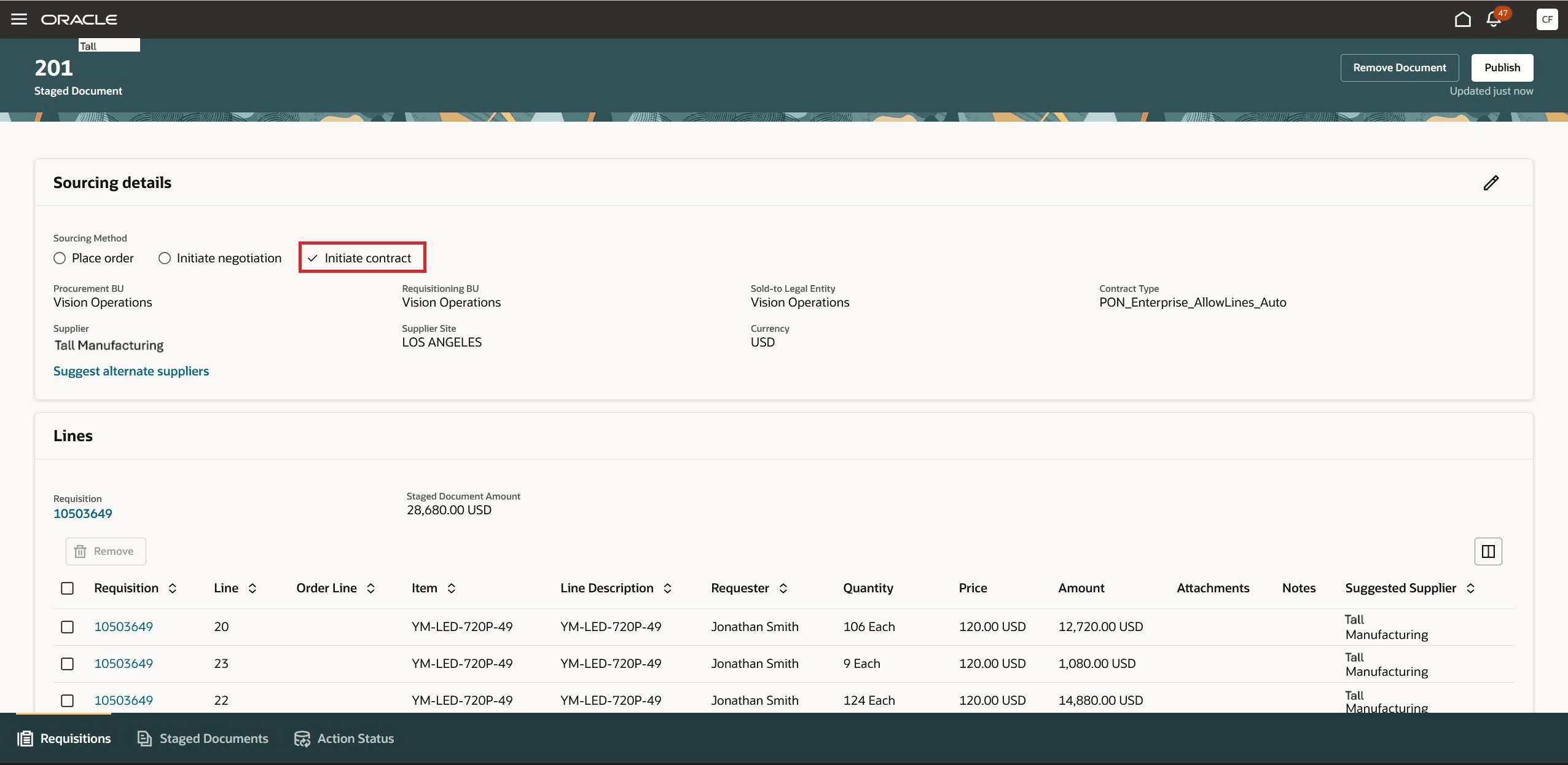
Staged Document with the Initiate Contract Sourcing Method
You can access the contract created in reference to the requisition from the Redwood Contracts List page, which is accessible through Contracts (New) work area present under Contracts Management. After a contract is approved and active, you can create a purchase order from it. In the current release, the fulfillment process operates at the contract header level, allowing a single purchase order to be generated for each contract.
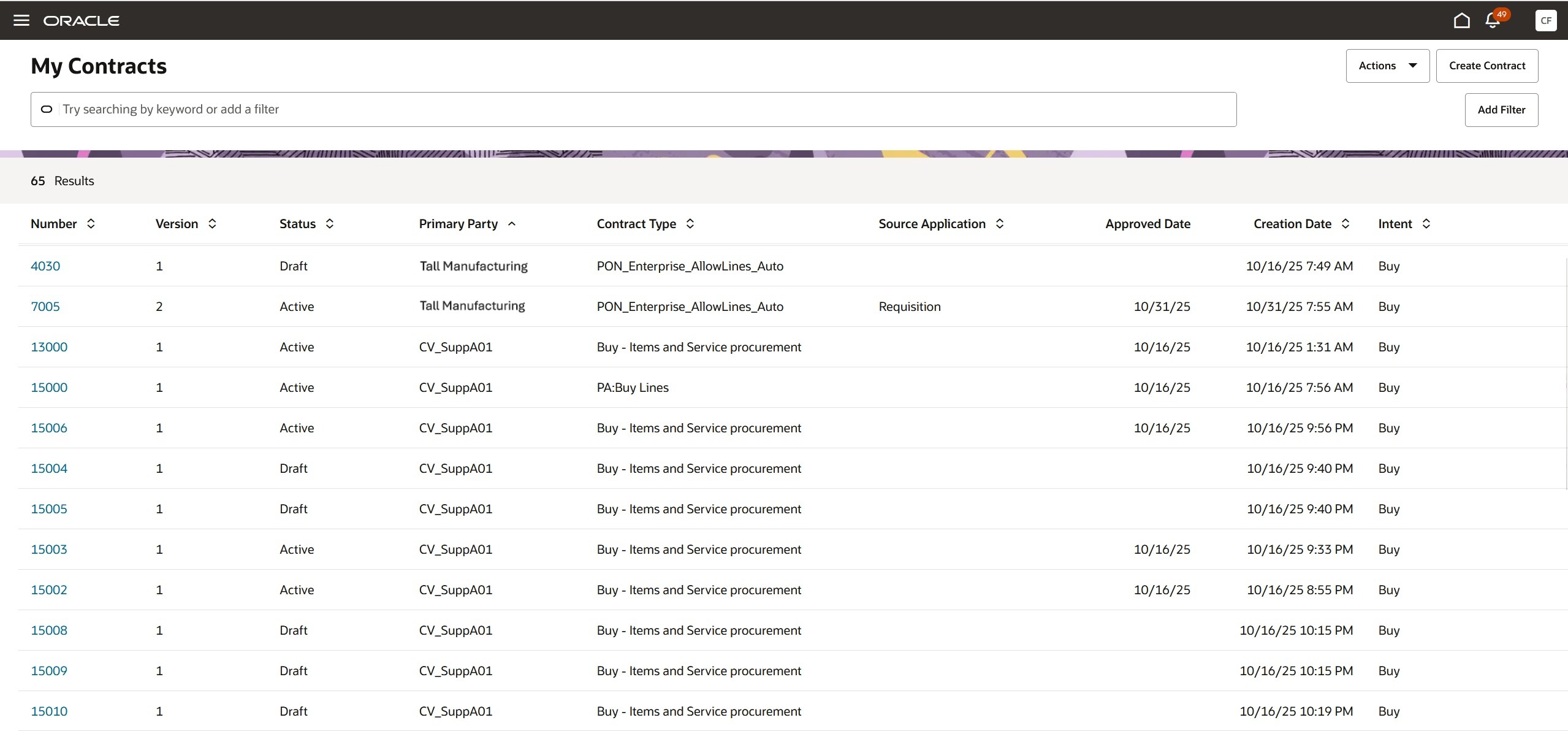
Redwood Contracts List Page
In the Redwood Contracts UI, the requisition reference is displayed in the Source document section of the Overview tab. To initiate the fulfillment process, select the Create Purchasing Document action, which opens a drawer where you can enter all required information. If you check the Autosubmit for approval checkbox, the purchase order will be automatically submitted upon creation. When ready, click Create.
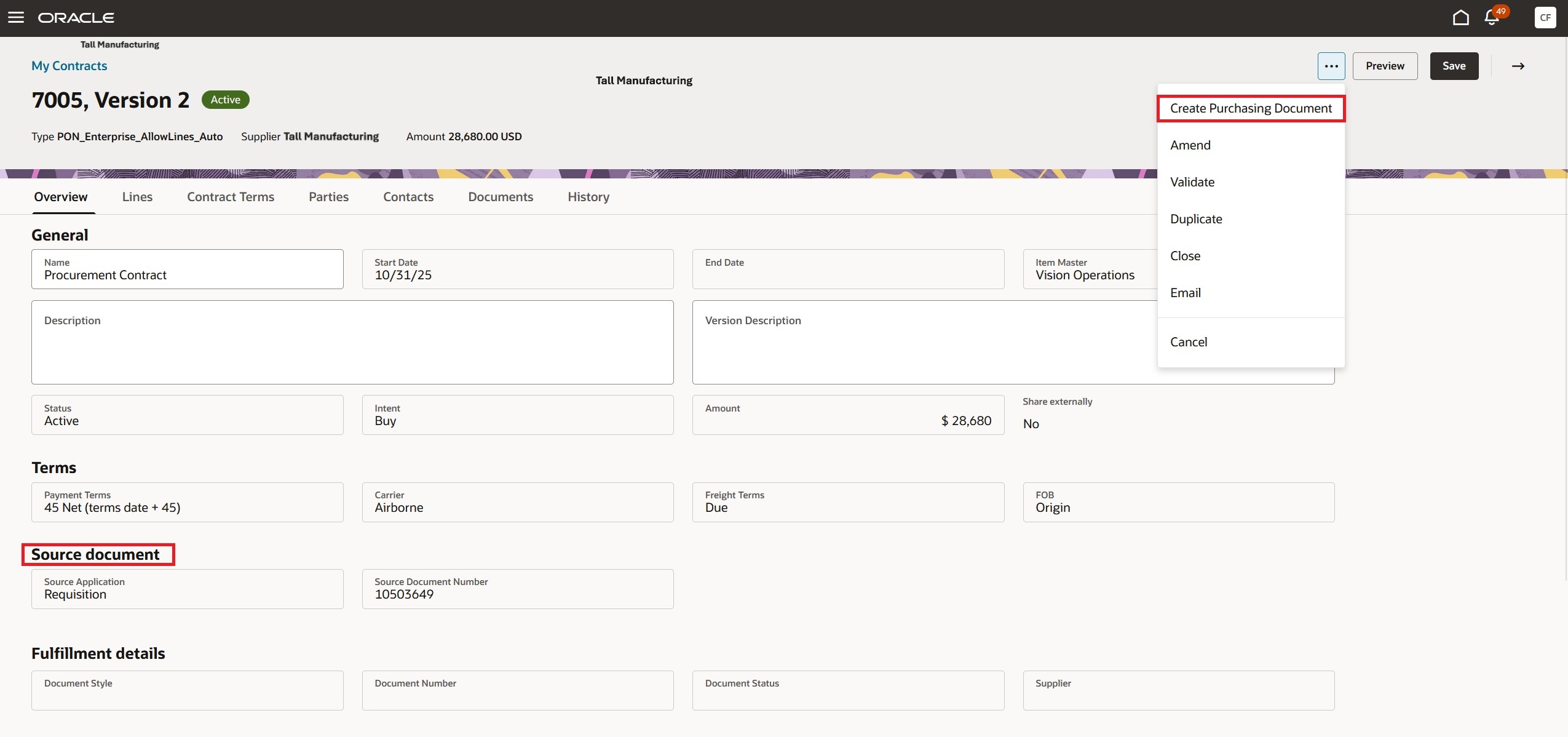
Create Purchasing Document Action on the Redwood Contracts Page
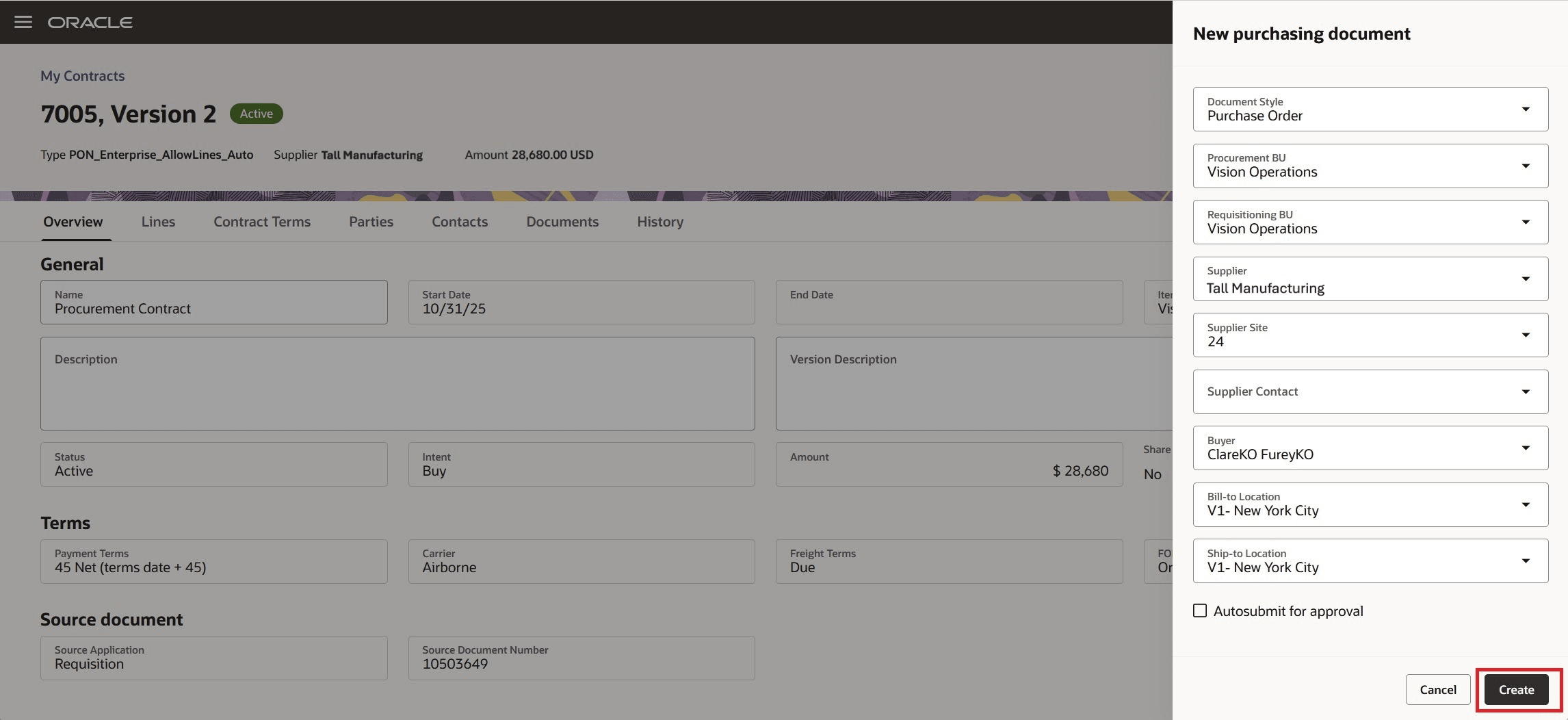
New purchasing document Drawer on the Redwood Contracts Page
After the purchase order is created, a confirmation message appears with the order number. You can find fulfillment details in the Fulfillment details section of the Overview tab. To review process details, click the Process ID which opens a drawer. To view purchase order information, click the Document Number to navigate to the Redwood Purchase Order page.
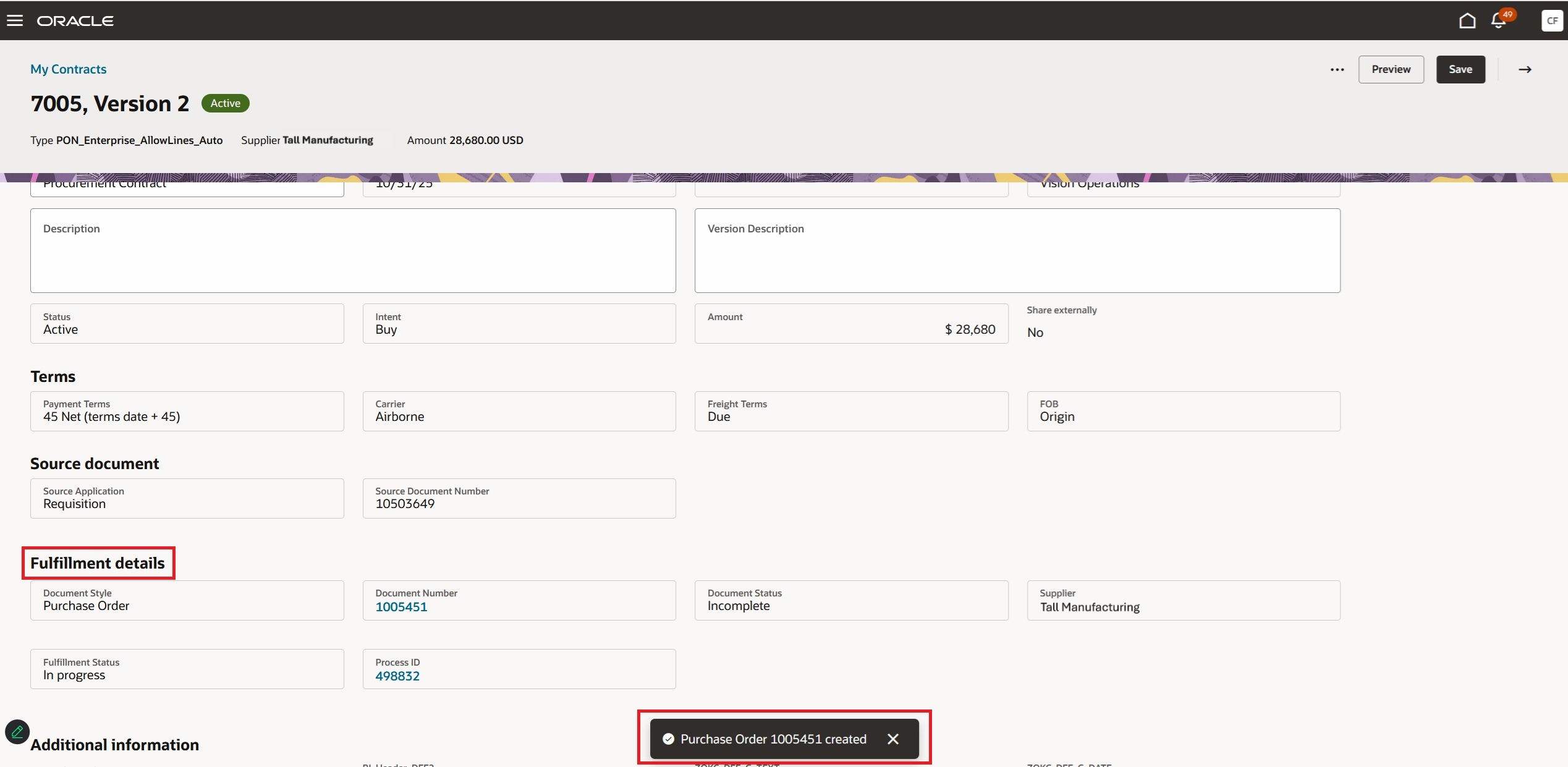
Fulfillment Details on the Redwood Contracts Page
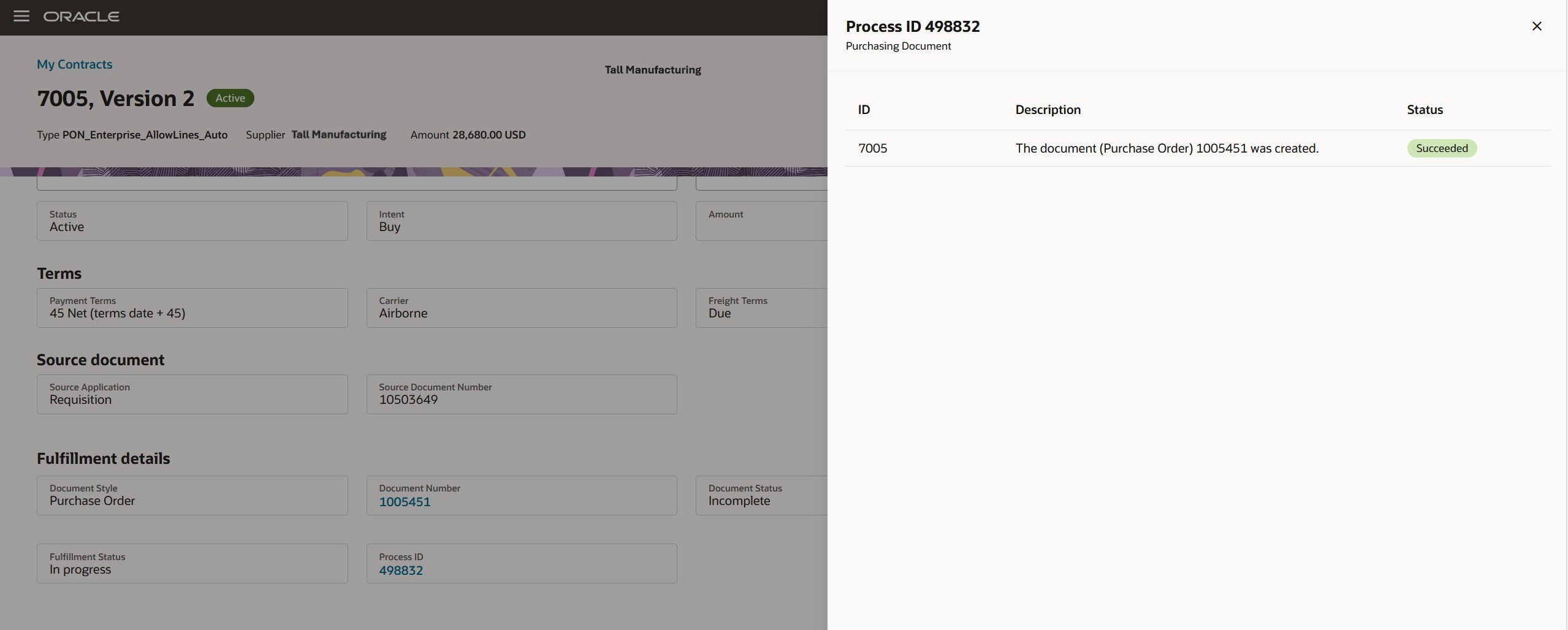
Process details Drawer on the Redwood Contracts Page
For any failure that occur during the Create Purchasing Document process, you will see a banner message with a drill down to view the error details.
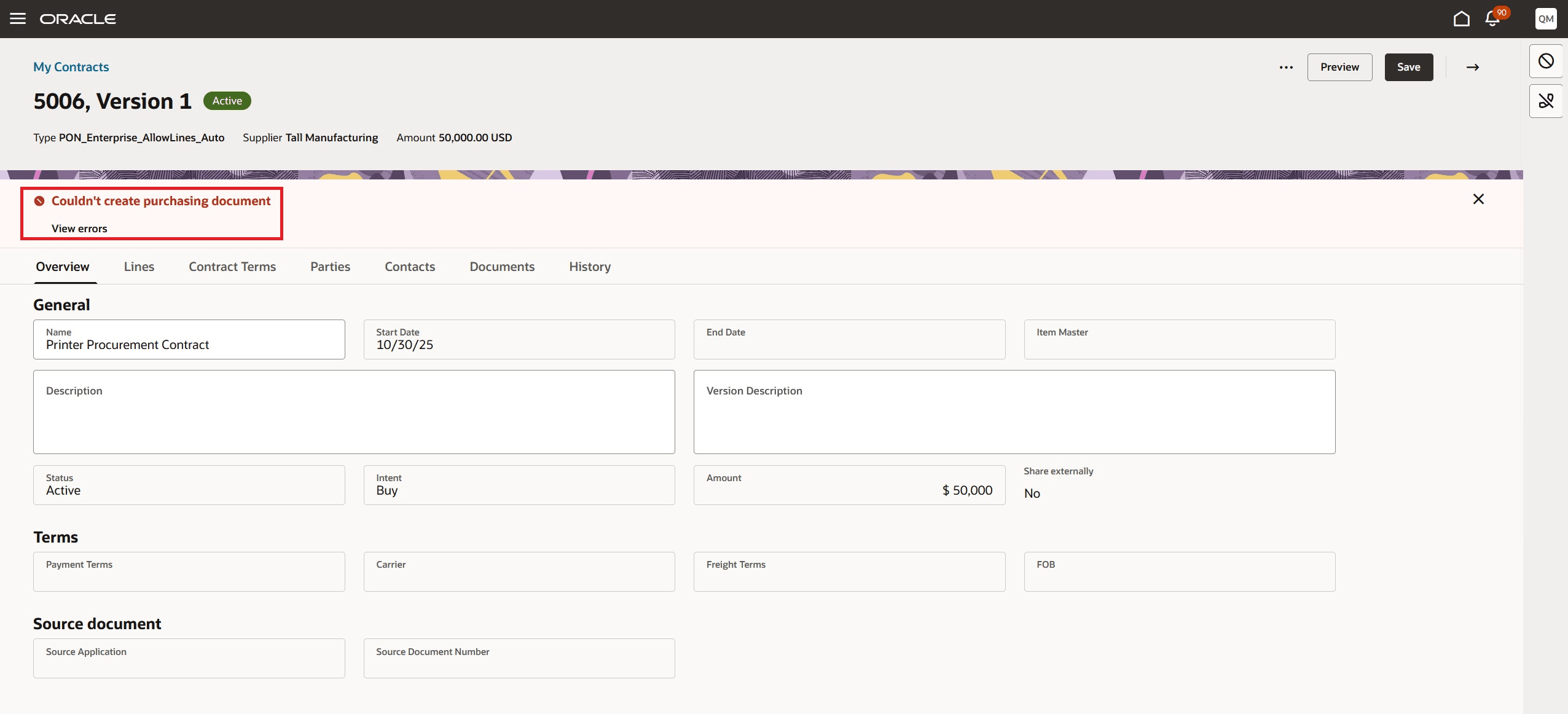
Create Purchasing Document Failure Banner
In the fulfillment process detailed in this document, where requisition demand is fulfilled using a contract, the requisition line references are transferred to the purchase order and are accessible on the Distribution tab of the purchase order.
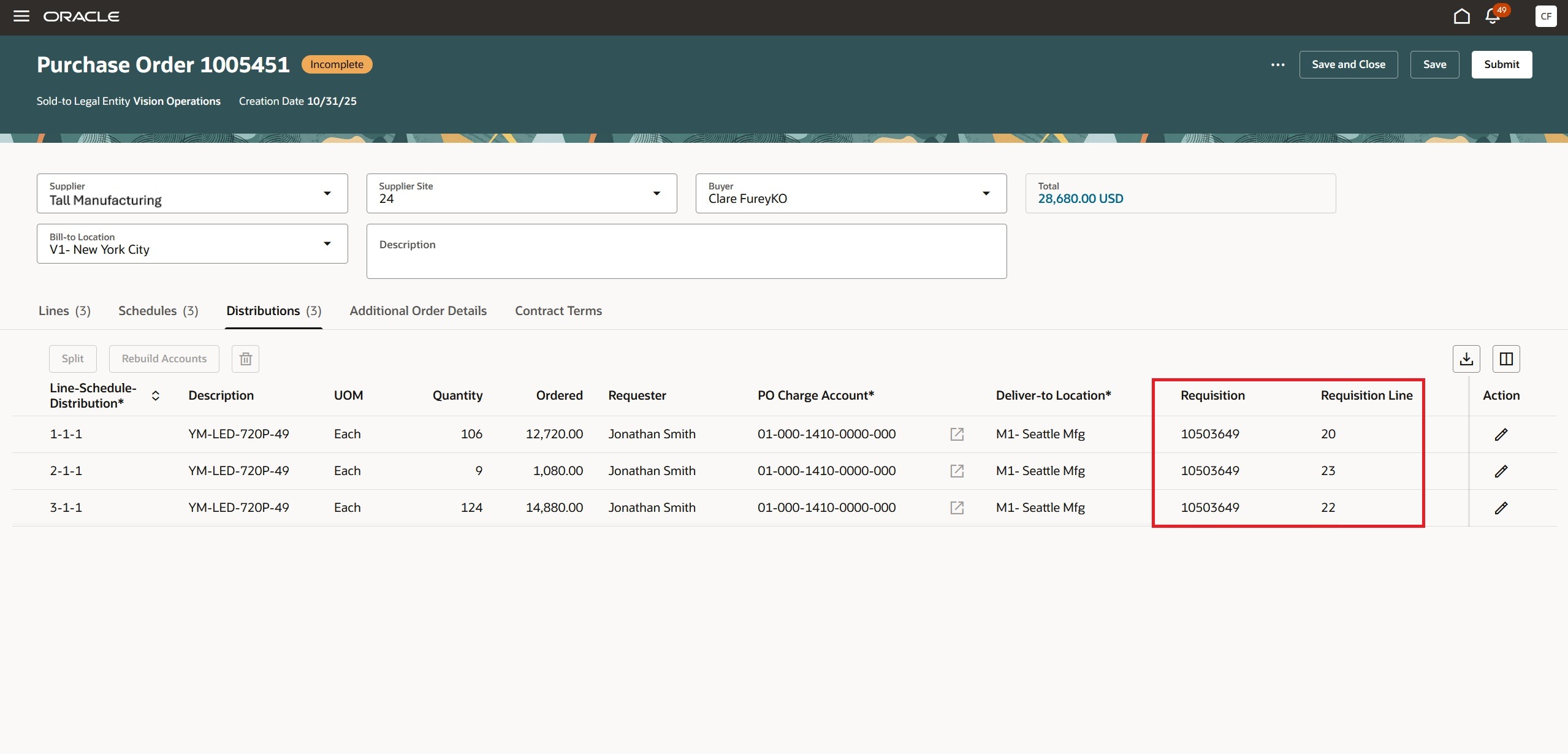
Purchase Order Drill Down from the Contracts Page
The contract number associated to the purchase order appears on the Additional Order Details tab of the purchase order and can also be used to drill down to the contract document.
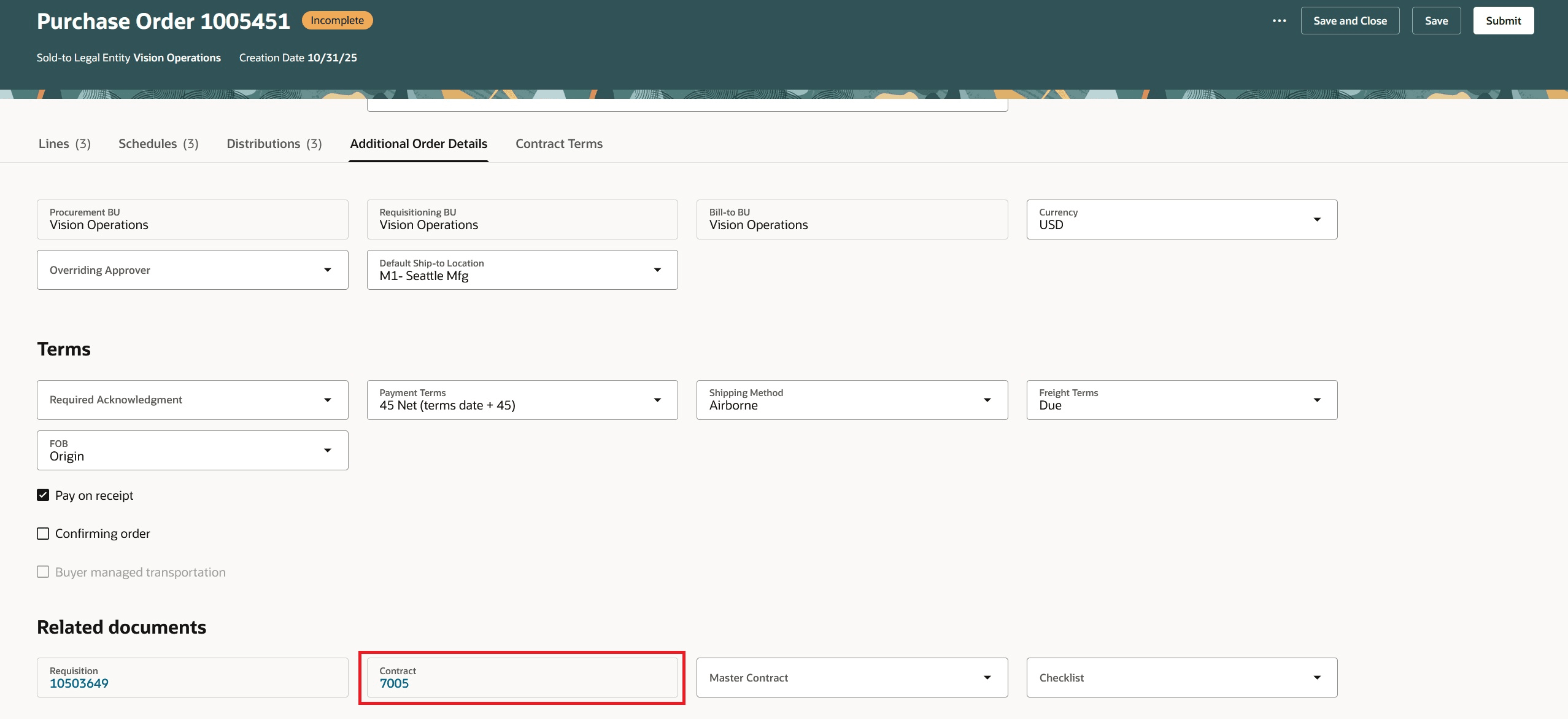
Contract Reference on the Purchase Order Page
Steps to enable and configure
You don't need to do anything to enable this feature.
Tips and considerations
-
Accessing the Redwood Purchase Order page requires the necessary privileges to view the purchase order when drilling down on the document number. For details on privileges for view purchase order, refer to the Redwood: View Purchase Orders feature, available in Oracle Fusion Cloud Procurement What's New, update 25A. This will work only if you’re set up as an agent in the Manage Procurement Agent setup task for the Procurement BU in which you’re attempting to view the purchase order.
-
The capability to perform fulfillment at the contract line level isn't included in this release.
-
You can also use the process described in this document to create a purchase agreement. Whether the Create Purchasing Document action generates a purchase order or a purchase agreement depends on the contract type selected in the staged document.
-
If the fulfillment outcome of the selected contract type on a staged document is a purchase order, the requisition lines are taken out of the buyer’s pool for processing and no longer appear on the Process Requisitions page. However, if the fulfillment outcome is an agreement, the requisition lines stay in the buyer’s pool and continue to display on the Process Requisitions page.
-
If a contract is generated from a sourcing award that has backing requisition lines, the requisition demand is not consumed and the lines remain in the buyer’s pool for processing.
Key resources
- For information about processing requisition lines with a sourcing method of contract, refer to the Redwood: Process Requisition Lines into Supplier Contracts feature, available in Oracle Fusion Cloud Procurement What's New, update 26A.
- For information about managing contacts on the Redwood Enterprise Contracts page, refer to the Redwood: Create and Manage Procurement Contracts feature, available in Oracle Fusion Cloud Sales Force Automation What's New, update 26A.
Access requirements
Users who are assigned a configured job role that contains these privileges can access the Contracts (New) Redwood work area and search for contracts:
- Manage Contract Work Area (OKC_MANAGE_CONTRACT_WORK_AREA_PRIV)
- Search Contracts (OKC_SEARCH_CONTRACT_PRIV)
Users who are assigned a configured job role that contains this privilege can access the Edit Contract Redwood UI:
- Edit Contract (OKC_EDIT_CONTRACT_PRIV)
Users who are assigned a configured job role that contains this privilege can Create Purchasing Documents from the Redwood Contract UI:
- Manage Contract Fulfillment (OKC_MANAGE_CONTRACT_DELIVERABLE_PRIV)
These privileges were available prior to this update.