Redwood: Evaluate and Score Responses as Team Members
Scoring team members can now evaluate supplier responses with an improved, easy-to-use Redwood interface. Team members can independently review and score the supplier responses for the sections assigned to their respective scoring teams. After the scoring is complete, the application automatically averages all submitted scores to generate the supplier’s overall score.
Category managers can open, reopen, or close scoring from the View Negotiation or Monitor Scoring pages.
Scoring team members can access and submit their scores using the Score Responses action on the View Negotiation page.
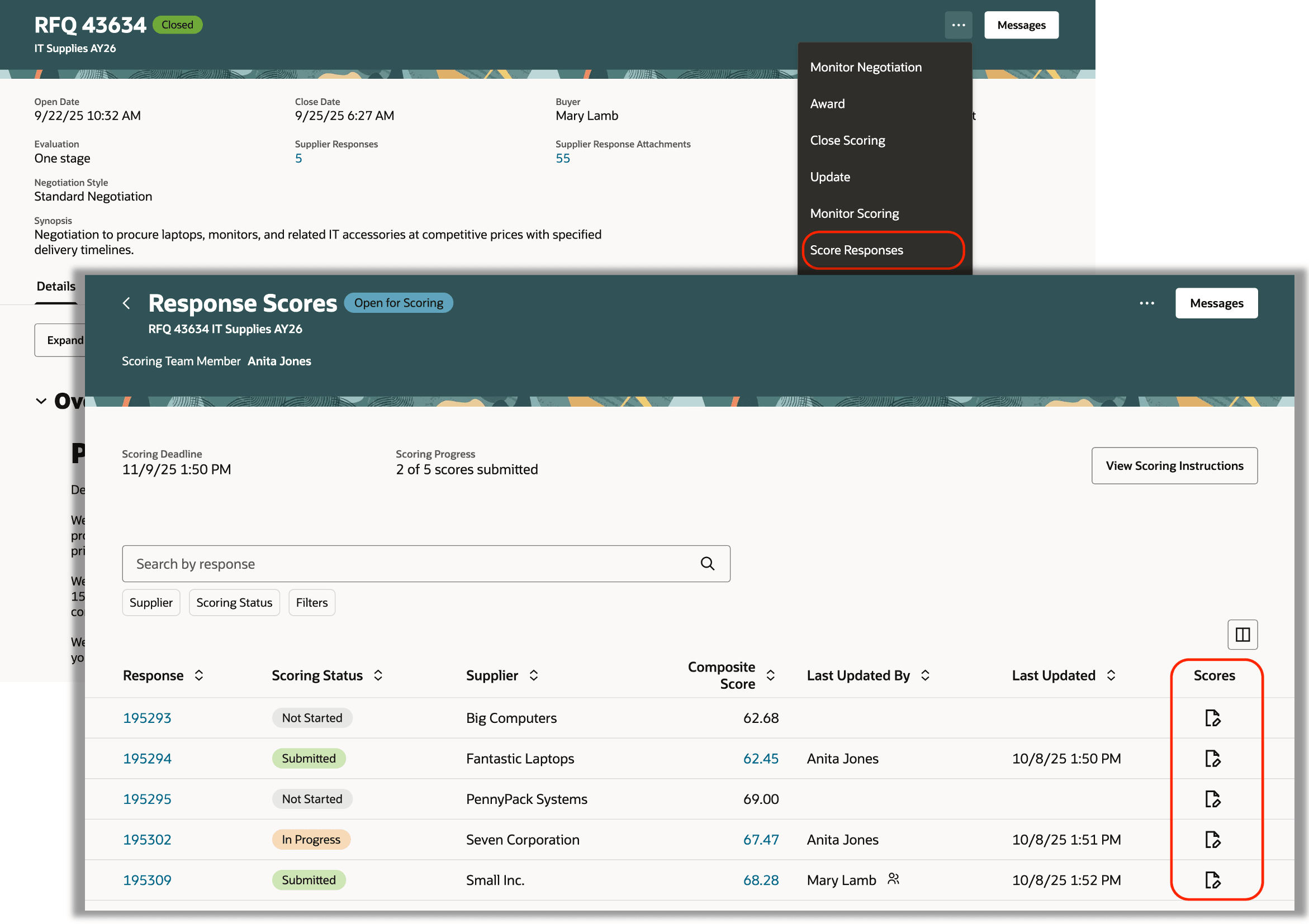
Use Score Responses Action in View Negotiation Page to Enter Scores
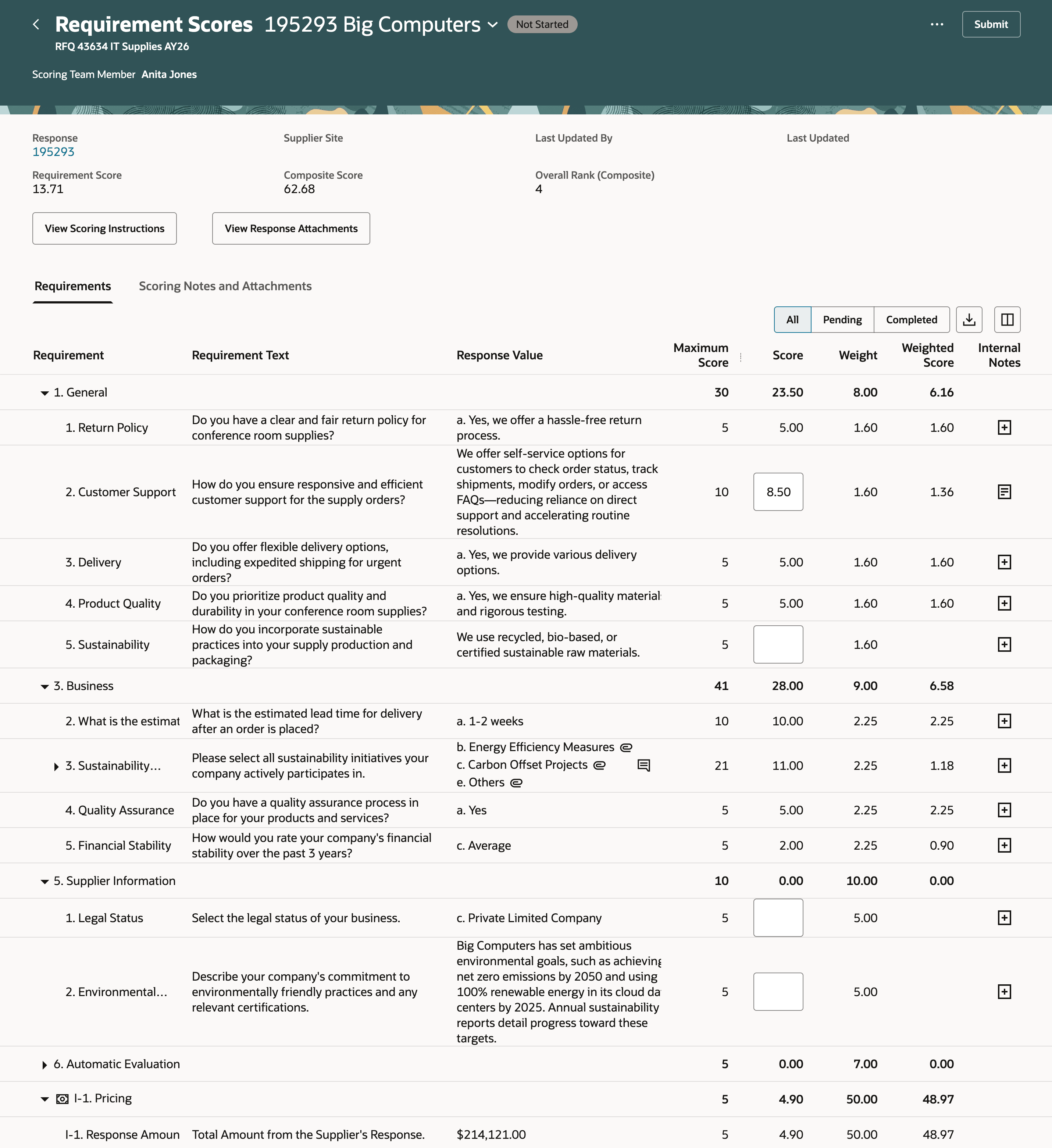
Enter and Submit Scores in Requirement Scores Page
Key enhancements in the Redwood experience compared to the classic application:
- Filter by Scoring Progress - Quickly view all, pending, or completed requirements to focus on items that need attention.
- View Response Attachments - Easily view and download all supplier attachments across requirements at once, without opening each one individually.
- Internal Notes and Attachments Tab - Use a dedicated tab to add internal comments and attachments, keeping all evaluator notes organized.
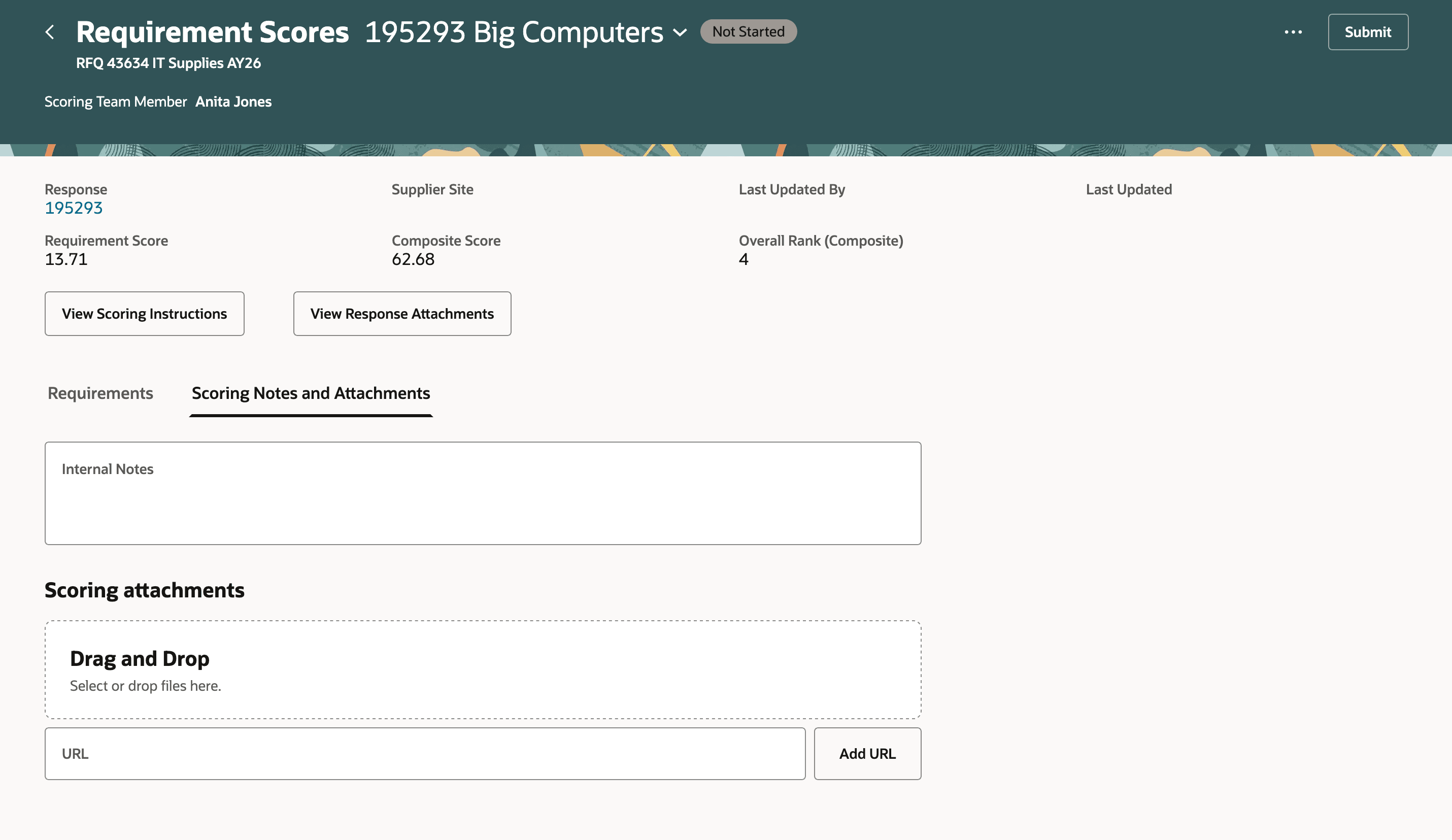
Add Scoring Notes and Attachments for a Response
- Response Switcher - Quickly move between supplier responses while scoring. Scores and comments autosave as you switch, and scorers can submit scores per response or submit all together from the Response Scores page for improved efficiency.
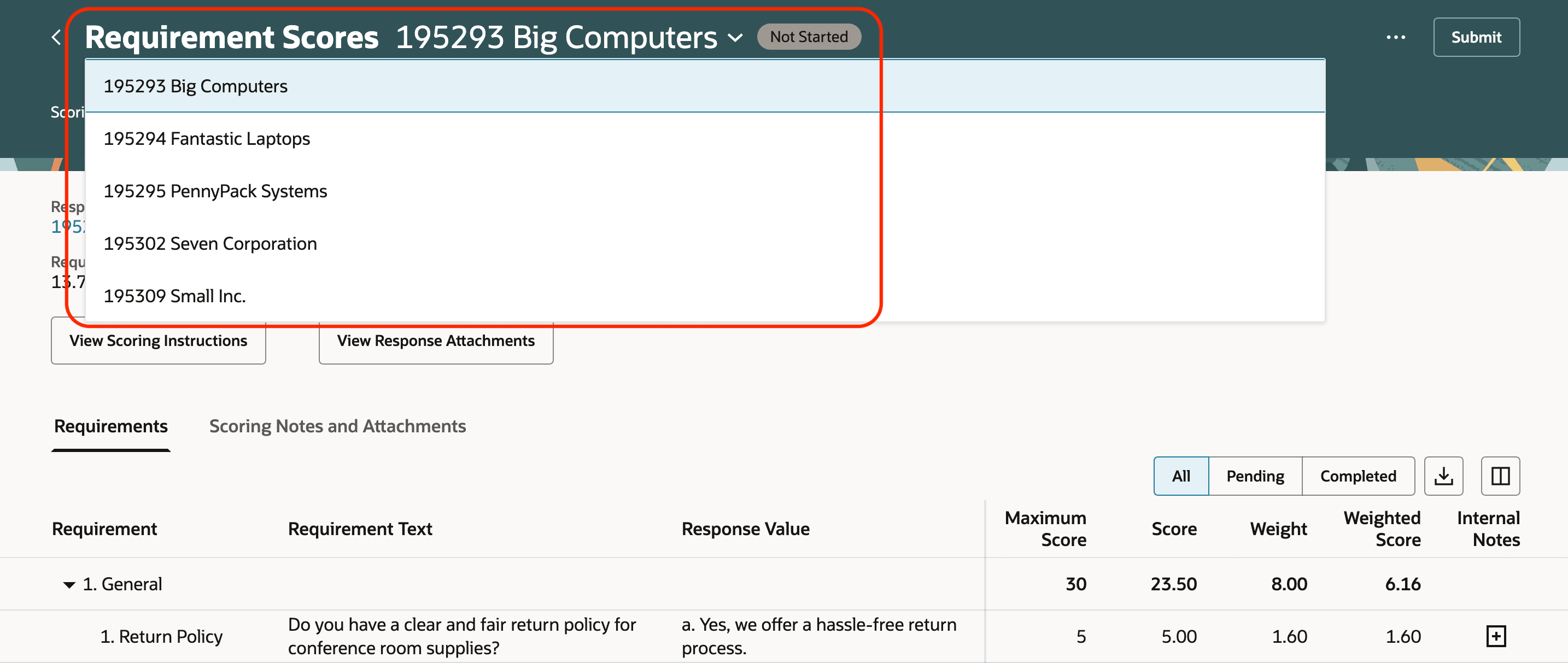
Response Switcher in Requirement Scores Page
Category managers can also enter scores on behalf of team members from the Monitor Scoring page, ensuring timely completion and consistency in the evaluation process.
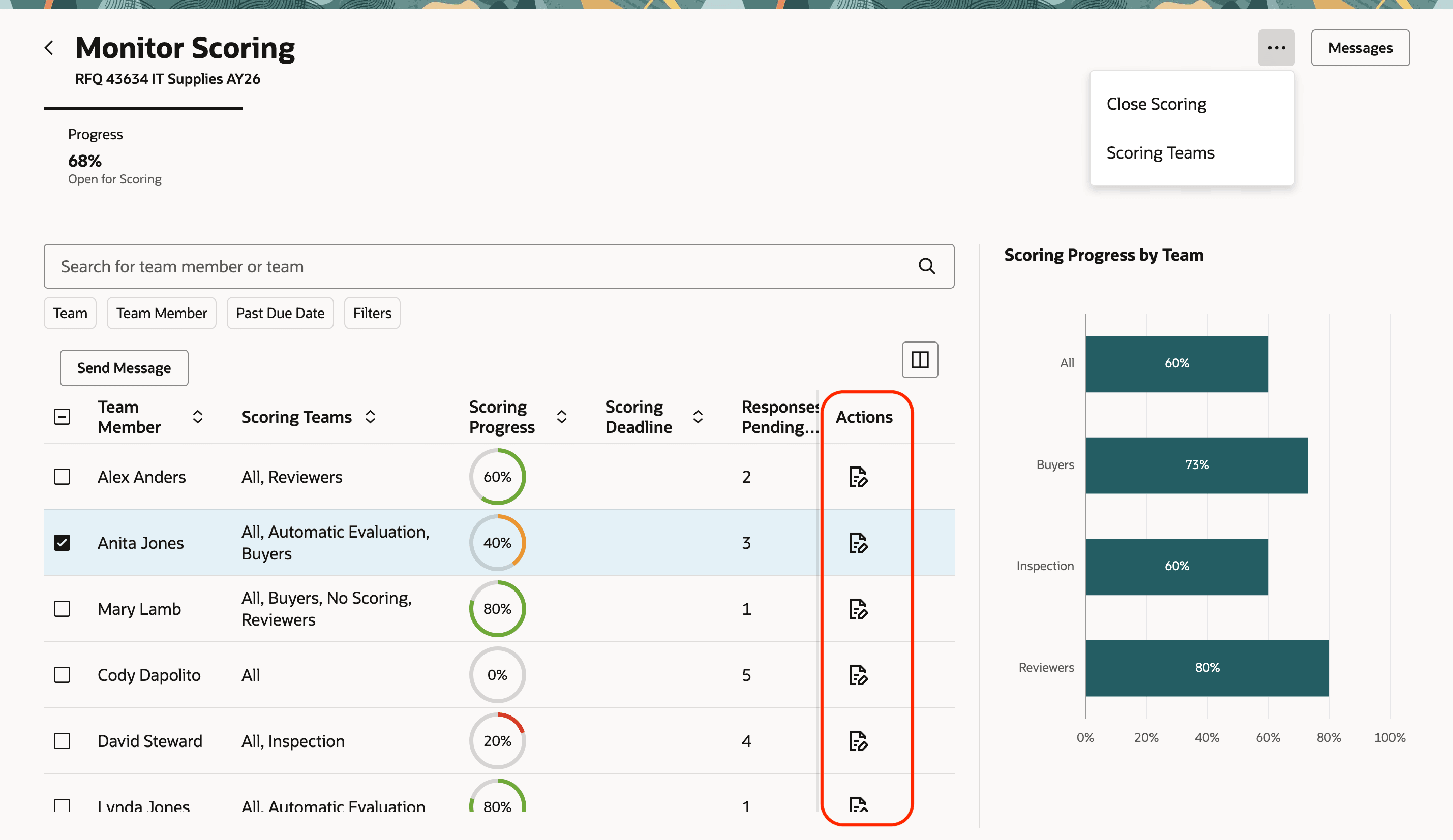
Score Responses on Behalf of Another Scoring Team Member
In addition to the Redwood UI, category managers can also score offline by using the ADFdi enabled scoring spreadsheet. Bulk entry and update of data is easier to accomplish using the spreadsheet.

Download Spreadsheet to Scores Responses Offline and Submit Scores for All Responses
After the scoring is closed for the negotiation, category managers can override the score or the composite score. This allows the category manager to make adjustments when business judgment or qualitative factors such as supplier risk, past performance, or clarifications received after scoring need to be considered in addition to the system calculated result. Overriding the score ensures that the final award decision reflects both objective scoring and strategic evaluation.
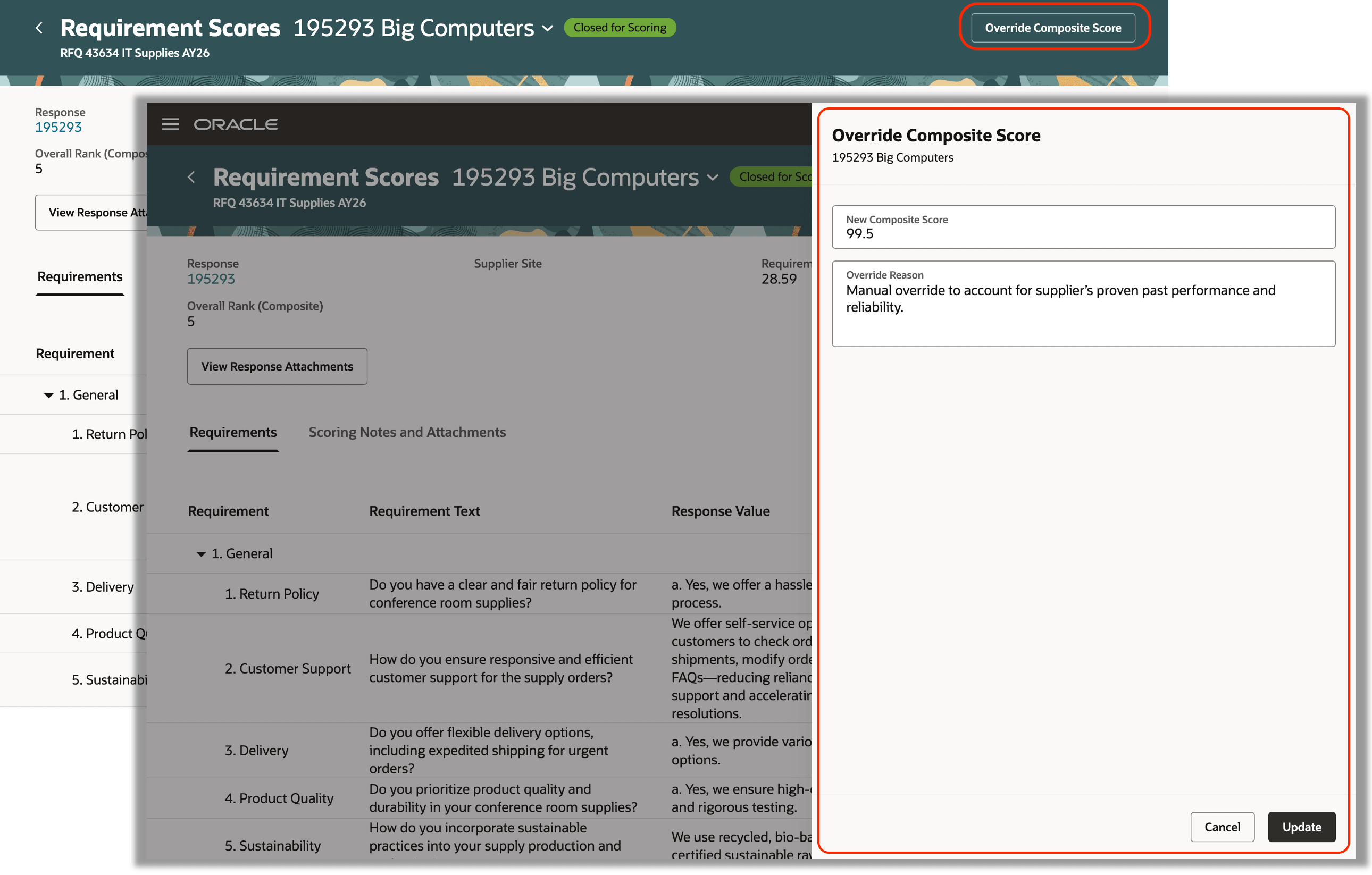
Override Overall Score or Composite Score
Category managers can also reset the overridden score to revert it back to the original system computed value.
With this feature, category managers can also evaluate and score supplier responses for negotiations that aren't enabled for team scoring, using the same Redwood scoring experience.
This feature helps organizations to evaluate and award suppliers more effectively, ensuring that the most qualified suppliers are identified through a fair, consistent, and insight driven process.
Steps to enable and configure
To use this feature, you must enable this profile option if you haven't already.
- Redwood Pages for Sourcing Enabled (ORA_PON_SOURCING_REDWOOD_ENABLED).
For instructions on enabling a profile option, refer to the Set Profile Option Values topic.
Tips and considerations
- You can navigate to the Requirement Scores page by selecting the overall score or composite score hyperlink from multiple pages, such as View Response and Monitor Negotiation, to view the detailed requirement scores.
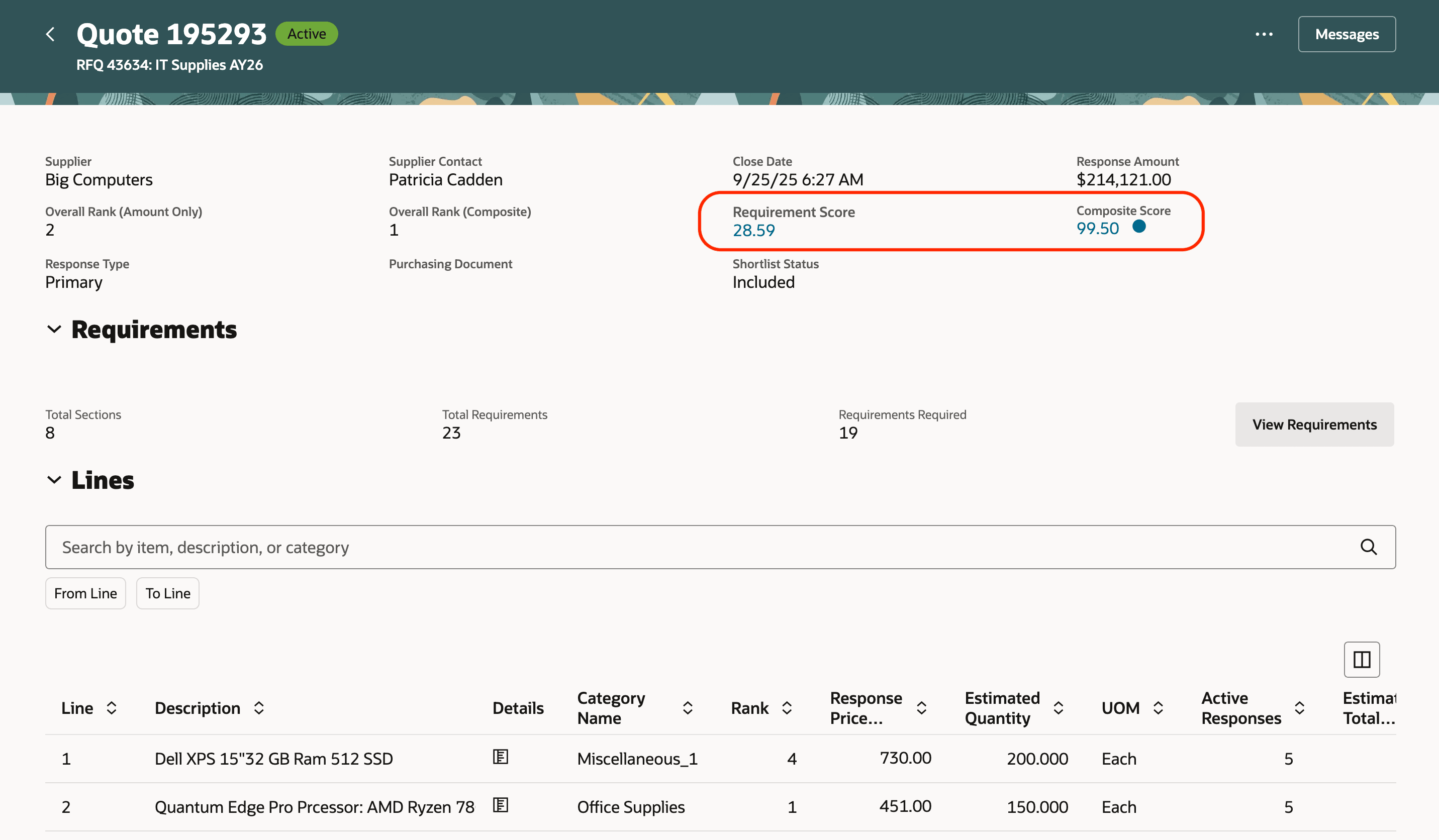
Navigate to Requirement Scores from View Response Page
- You must install the ADFdi add-in to use the spreadsheet to score offline.
Key resources
- For information about using Oracle Visual Builder Studio to extend your Redwood application pages, see Oracle Fusion Cloud HCM and SCM: Extending Redwood Applications for HCM and SCM Using Visual Builder Studio.
- Refer to Overview of Guided Journeys in the Oracle Fusion Cloud Human Resources: Implementing and Using Journeys guide, available on the Oracle Help Center.
Access requirements
Users who are assigned a configured job role that contains this privilege can access this feature:
- Close Supplier Negotiation Scoring (PON_CLOSE_SUPPLIER_NEGOTIATION_SCORING) to open, reopen, or close scoring.
- Score Supplier Negotiation Response (PON_SCORE_SUPPLIER_NEGOTIATION_RESPONSE) to score responses.
- Manage Supplier Negotiation Scoring (PON_MANAGE_SUPPLIER_NEGOTIATION_SCORING_PRIV) to monitor scoring progress and view scores of individual scorers.
- Update Response Scores for Another Member (PON_UPDATE_OTHER_MEMBER_SCORES_PRIV) to score responses on behalf of another scorer.
- Override Supplier Negotiation Response Score (PON_OVERRIDE_RESPONSE_SCORE_PRIV) to override overall score for a response.
These privileges were available prior to this update.