Redwood: Manage Sealed Negotiations
Category managers can now manage sealed negotiations, for both single-stage and two-stage negotiations in Redwood.
For single stage sealed negotiations (RFQ, RFI, auctions), you can perform the following actions from the View Negotiation page:
- Unlock: Unlocks the sealed negotiation after it has been closed, to access the negotiation responses.
- Unseal: Unseals the sealed negotiation after it has been unlocked. The suppliers can now view other suppliers’ responses.
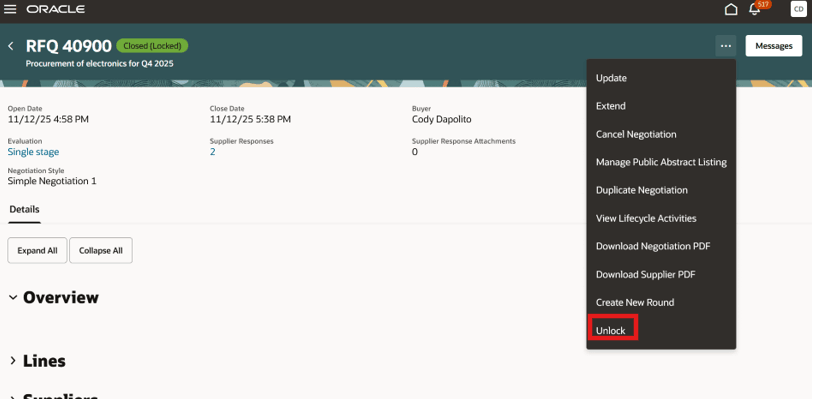
Unlock Sealed Negotiation
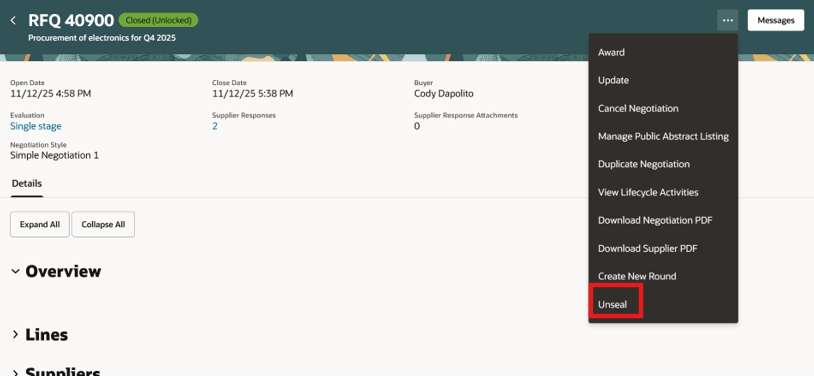
Unseal Sealed Negotiation
Click Single Stage in the Evaluation field to view a timeline panel with the date and username for each action taken.
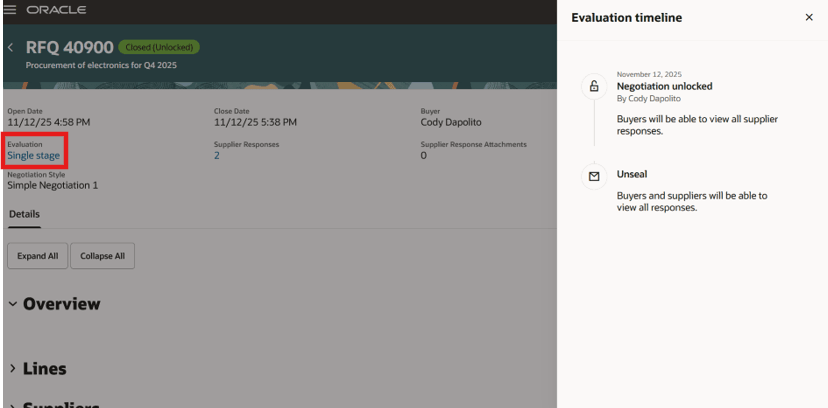
Lifecycle Actions for Single Stage Sealed Negotiation
For two-stage sealed RFQs, you can perform the following actions:
- Unlock technical stage: Unlocks the first stage of the two-stage negotiation. The user can then view the responses to technical stage requirements and notes added to lines, they also have the option to create a surrogate response for this stage.
- Unseal technical stage: Unseals the first stage after it's unlocked.
- Close technical stage: Closes the first stage so the second stage can be opened. User can no longer make changes in the first stage and won't be able to create a surrogate response in the first stage.
- Reopen technical stage: Reopens the closed first stage so that any required changes can be made, and then it can be closed again.
- Unlock commercial stage: Unlocks the second stage of the negotiation. Buyers can then view all requirements and line details, they also have the option to create a surrogate response in this stage.
- Unseal commercial stage: Unseals the second stage of the negotiation. Suppliers can view the complete response details of other supplier responses and see the rank of their response.

Unseal and Complete Stage One for Two-Stage RFQ
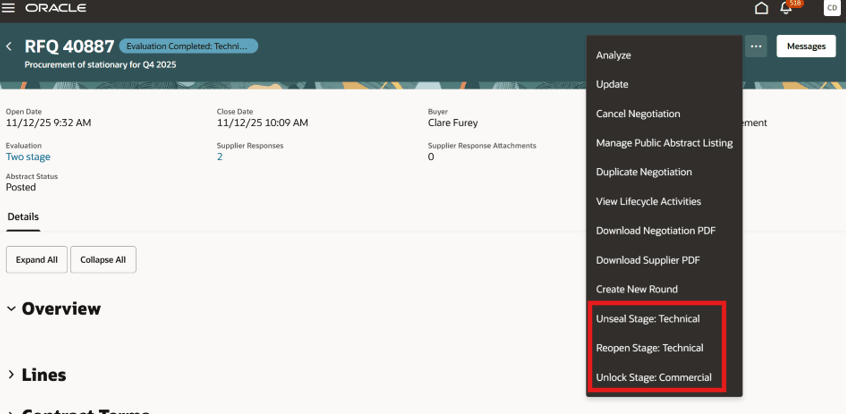
Unlock Stage Two for Two-Stage RFQ
Click Two Stage in the Evaluation field to view a timeline panel showing the date and username for each lifecycle action taken.
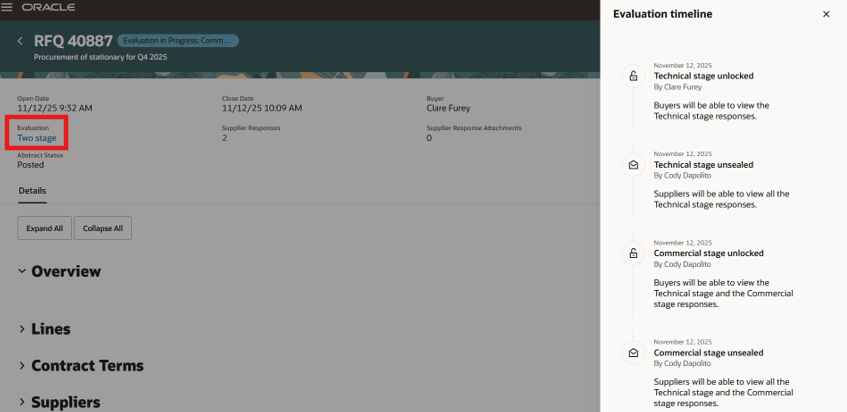
Timeline for Two-Stage RFQ
Here's an improvement in Redwood as compared to the classic application:
A new evaluation timeline panel is available to show a clear visual overview of the entire negotiation process for both single-stage and two-stage sealed negotiations. You can easily see all previous actions, and upcoming steps in the cycle.
Steps to enable and configure
Use the Opt In UI to enable this feature. For instructions, refer to the Optional Uptake of New Features section of this document.
Offering: Supply Chain Planning
Use the Opt In UI to enable this feature. For instructions, refer to the Optional Uptake of New Features section of this document.
Offering: Supply Chain Planning <need to turn this off>
To use this feature, you must enable these profile options if you haven't already.
- Redwood Pages for Sourcing Enabled (ORA_PON_SOURCING_REDWOOD_ENABLED).
- Redwood Page to Create Negotiation Enabled (ORA_PON_CREATE_NEGOTIATION_REDWOOD_ENABLED)
For instructions on enabling a profile option, refer to the Set Profile Option Values topic."
Implementing Applications
Each profile option contains specific values that determine how it affects the application. You can add or modify the values for each profile option.
Tips and considerations
- A sealed negotiation is identified by its status, which displays as Locked, Sealed, Unlocked, or Unsealed for both single-stage and two-stage sealed negotiations.
- Unsealing the second stage of a two-stage negotiation is irreversible. After unsealing, suppliers can view other suppliers' responses.
- Unsealing a single-stage negotiation is also irreversible. Suppliers can see responses from other suppliers once unsealed.
- While a negotiation is sealed, clicking a supplier response in the Suppliers section doesn't open the response page. The page is accessible only after the negotiation is unlocked. Only after the negotiation is unlocked, the user will be navigated.
- The names of the first and second stages can be configured by updating the PON_TWO_PART_TYPE lookup under Manage Sourcing Lookups in the Setup and Maintenance page.
Key resources
- For information about using Oracle Visual Builder Studio to extend your Redwood application pages, see Oracle Fusion Cloud HCM and SCM: Extending Redwood Applications for HCM and SCM Using Visual Builder Studio.
Access requirements
Users who have been assigned a job role that contains these existing privileges can access the lifecycle actions for single stage sealed negotiations and navigate to other pages or take other actions from this panel:
- PON_VIEW_SUPPLIER_NEGOTIATION_PRIV: Allow users to review a supplier negotiation.
- PON_UNLOCK_SUPPLIER_NEGOTIATION-SEALED_PRIV: Allows users to unlock sealed negotiations.
- PON_UNSEAL_SUPPLIER_NEGOTIATIONS_PRIV: Allows users to unseal sealed negotiations.
Users who have been assigned a job role that contains these existing privileges can access the lifecycle actions for single stage sealed negotiations and navigate to other pages or take other actions from this panel:
- PON_VIEW_SUPPLIER_NEGOTIATION_PRIV: Allows users to review a supplier negotiation.
- PON_UNLOCK_STAGE_ONE_SUPPLIER_NEGOTIATION: Allows users to unlock first stage of a two-stage negotiation.
- PON_UNSEAL_STAGE_ONE_SUPPLIER_NEGOTIATION: Allows users to unseal first stage of a two-stage negotiation.
- PON_COMPLETE_STAGE_ONE_SUPPLIER_NEGOTIATION: Allows users to complete and reopen first stage of a two-stage negotiation.
- PON_UNLOCK_STAGE_TWO_SUPPLIER_NEGOTIATION: Allows users to unlock second stage of a two-stage negotiation.
- PON_UNSEAL_STAGE_TWO_SUPPLIER_NEGOTIATION: Allows users to unseal second stage of a two-stage negotiation.