Procure Goods from Preferred Sources Using Shopping Lists
You can now procure goods from preferred sources using personal or public shopping lists in the Redwood Self Service Procurement application. Before this update, you could only use preferred sources when shopping using catalogs.
This feature is available for both the card and table views of shopping lists and applies to both personal and public shopping lists. With this feature, you will always be presented with the relevant information of the preferred supplier source or internal source to make an informed buying decision. If you are an advanced user, you can view all available supply sources, including available on hand quantity for internal sources and select the appropriate source based on your requirements. You must drill down to the product details to view source-related details, including pricing, and then add the item to the cart.
View and Select the Top Preferred Source
The top preferred source is automatically determined based on:
- The priority specified on the blanket purchase agreement (for supplier-sourced items) or,
- The top-ranked source organization (for internal transfers).
In addition, you can extend the ability to review and select from a list of alternate sources to a select group of users.
Before this update:
- You could only add the item you previously added to the list as-is. If that source was no longer available for any reason, it wasn't available to add to the cart.
- Source organization, on-hand quantity, transfer price, and the unit of issue weren't displayed for internally orderable items before adding the item to the cart in the catalog shopping. As a result, you couldn't always make an informed buying decision.
Select from Available Preferred Sources
Here's how the top preferred source is determined for different item types:
Purchasable only item
This hierarchy is applied to determine the top preferred agreement source:
- Agreement with the highest priority.
- If multiple agreements contain the same highest priority ranking or no agreements carry a priority, then the agreement with oldest creation date.
- If multiple agreements have same creation date, then the agreement with the lowest agreement line.
Internally Orderable only item
The source organization with the highest option rank will be the preferred supply source.
Both Purchasable and Internally Orderable
-
For the expense destination type, the internal source with the highest option ranking will be the preferred source. If an internal source isn't found, then a blanket purchase agreement will be used.
-
For the inventory destination type, the blanket purchase agreement with the highest priority will be the preferred source. If there's no agreement available, then the highest ranked internal source will be used as the supply source.
Note: With the Allow Users to Shop from All Supply Sources during Catalog Shopping privilege, you can select a different source other than the preferred source from the list of available internal and supplier supply sources.
Advanced users can select sources from a list of available sources, while shopping using a shopping list.
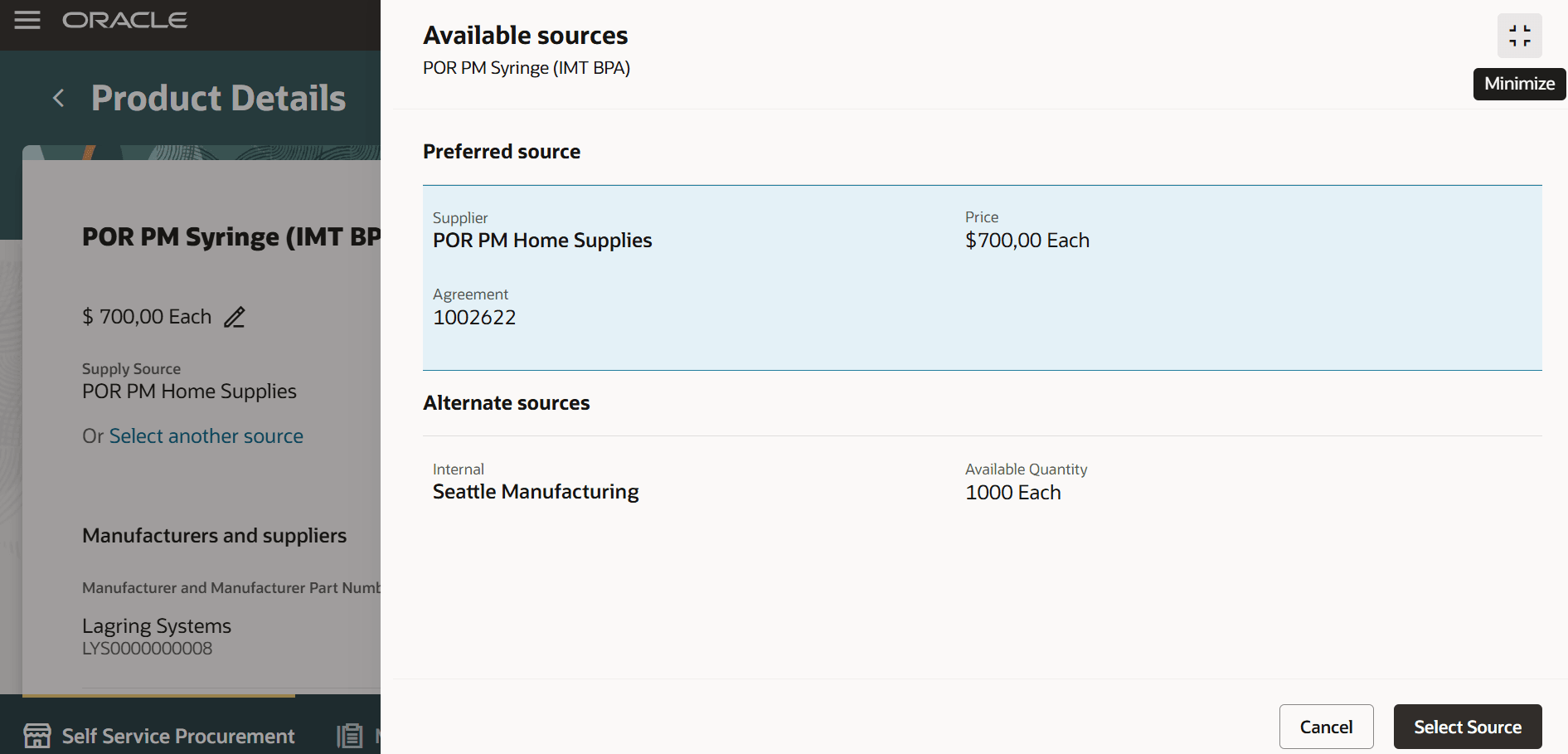
Select Source Drawer Maximized by Default
Note that the Additional sources drawer on the Product Details page is maximized by default.
Adding Items to a Shopping List
When this feature is opted into, any item added from the Product Details page (which is associated to a supplier or internal source) will be added only as a master item. You must drill down into the product details in the shopping list flow to view and select from available sources. However, if this feature isn't enabled for shopping lists, then the items will be added with the source details as-is.
If you had items in your shopping list in a previous release, and you opt into this feature, the items that were previously added with a specific source, supplier or internal, will now appear as a master item. You can drill down to product details to review and select from available sources.
Steps to enable and configure
Use the Opt In UI to enable this feature. For instructions, refer to the Optional Uptake of New Features section of this document.
Offering: Procurement
To use this feature, in addition to opting into the Procure Goods from Preferred Sources Using Shopping Lists feature, you must opt in to the Procure Goods from Preferred Sources during Catalog Shopping feature.
If you’ve already opted in, then you don’t have to opt in again.
Tips and considerations
- While adding an item from the catalog search to a personal shopping list, the supply source will be retained. To add an item from the list to the cart, you must drill down at which point additional sources if available will be displayed.
- You can directly add these items to a shopping cart from the shopping list: Noncatalog requests, smart forms, and description-based agreements.
- An agreement-based line added previously to a shopping list won't be available if the agreement is no longer valid.
- Opt-in Behavior:
- You must enable this feature explicitly if you have already opted into the parent opt-in.
- If you are opting into the parent feature for the first time, this feature will not be enabled automatically. You must do so explicitly.
Key resources
- To know how to provide the required privileges to your requesters to use your own configured role instead of the Requisition Self Service User role, refer to the Privileges Required for a Predefined Role for a Requisition Self Service User topic.
- For more information on how to enable a guided journey for Redwood pages, refer to the Enable a Guided Journey for Redwood Pages topic.
- For information about using Oracle Visual Builder Studio to extend your Redwood application pages, see Oracle Fusion Cloud HCM and SCM: Extending Redwood Applications for HCM and SCM Using Visual Builder Studio.