AI Agent: Planning Stockout Advisor
You can use the AI agent named Planning Stockout Advisor to accelerate stockout resolution in replenishment planning. The AI agent surfaces top stockout items by segment and across segments and quantities the stockout impact. For a selected item-location combination, the Planning Stockout Advisor pinpoints root causes, identifies late supplies and lead-time constraints, and recommends expediting specific orders. The outcome is faster root-cause analysis, fewer stockouts and expedited orders, and improved service and revenue, all with guided decisions.
The Planning Stockout Advisor is available from the predefined template called Planning Stockout Advisor in the AI Agent Studio.
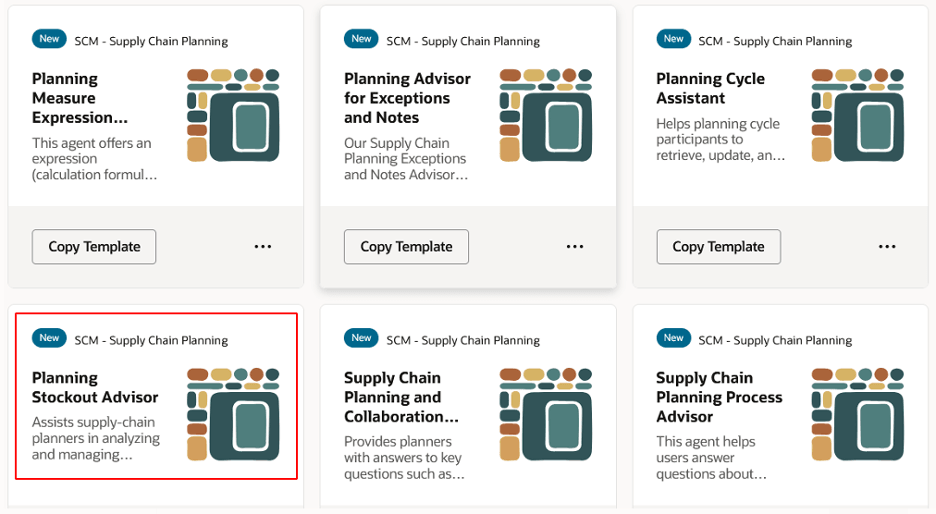
Template for Planning Stockout Advisor in AI Agent Studio
You can make a copy of the template, refine the prompts as needed, and then publish the template. When you enable the Planning Stockout Advisor using the Edit Page in Visual Builder Studio menu item (see the “Steps to Enable” section), the Planning Stockout Advisor is available in the Planning advisor drawer.
Here’s how you can use the Planning Stockout Advisor:
- Select More Actions > Planning Advisor.
The Planning advisor drawer opens.
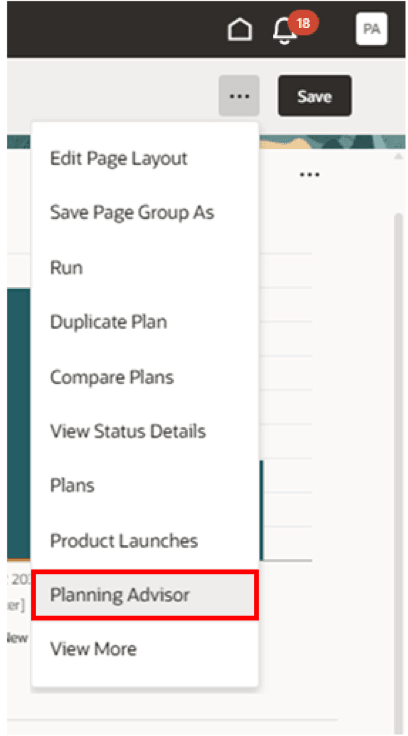
Menu Item for Planning Advisor on More Actions Menu
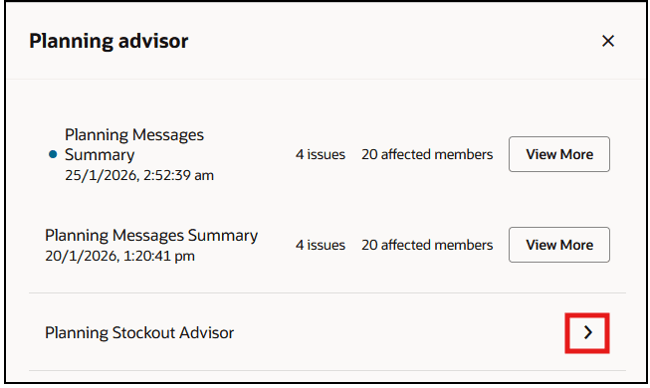
Planning Stockout Advisor in Planning Advisor Drawer
- Select the Planning Stockout Advisor to open the Ask Oracle chat experience.
- Start reviewing stockouts for the plan by selecting the starter question.
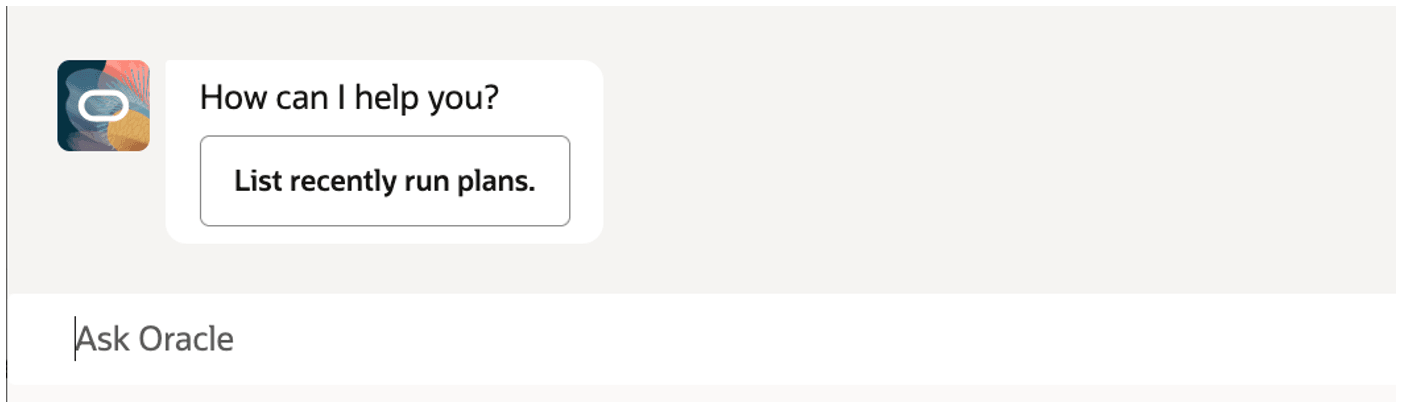
Starter Question for Planning Stockout Advisor
The agent provides a list of recently run plans.
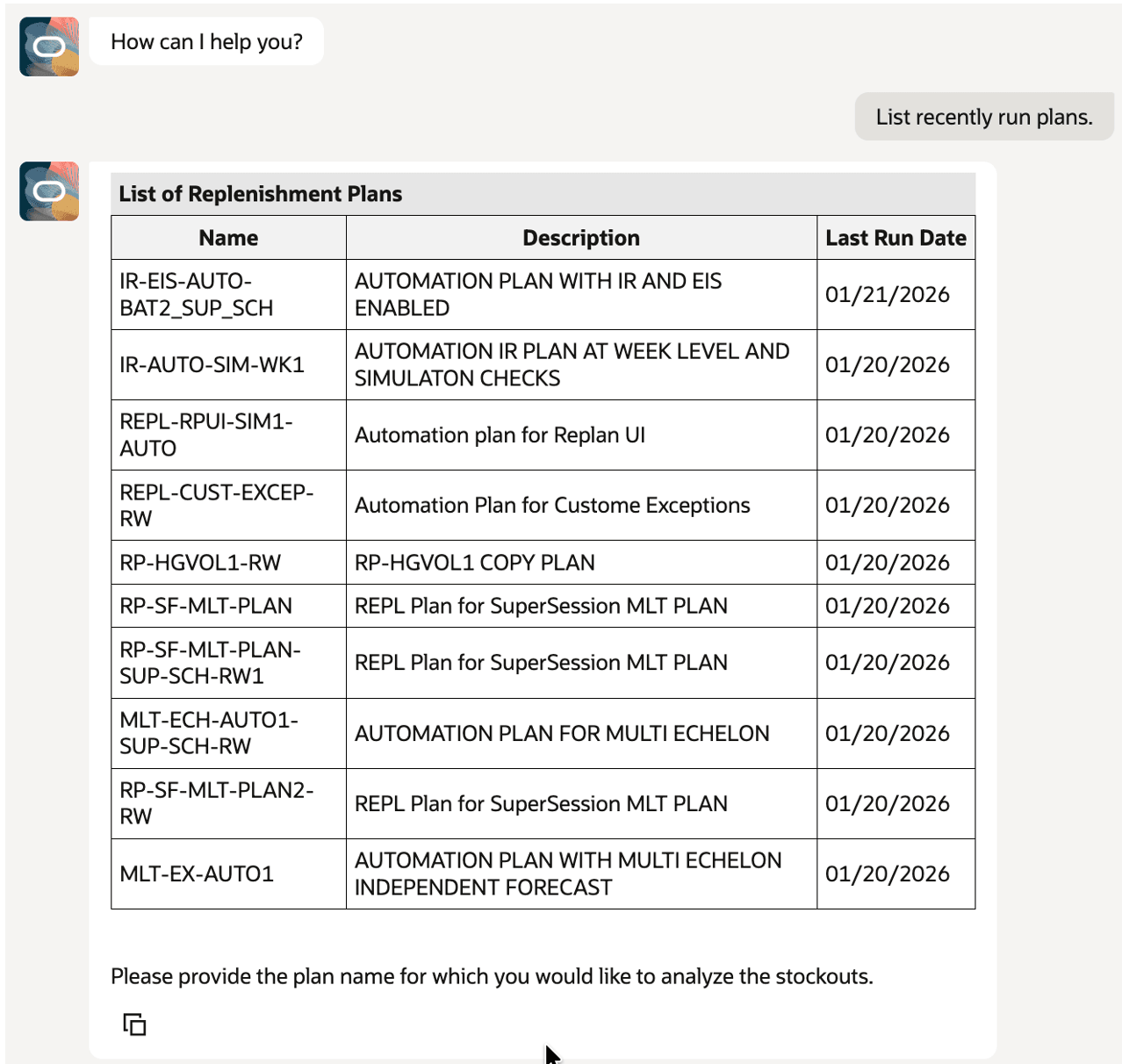
List of Recently Run Replenishment Plans in Planning Advisor Drawer
- Type your plan name.
The Planning Stockout Advisor will provide stockout details for your plan.
-
- Top three stockouts by revenue for each segment
- Top three stockouts by revenue across all segments
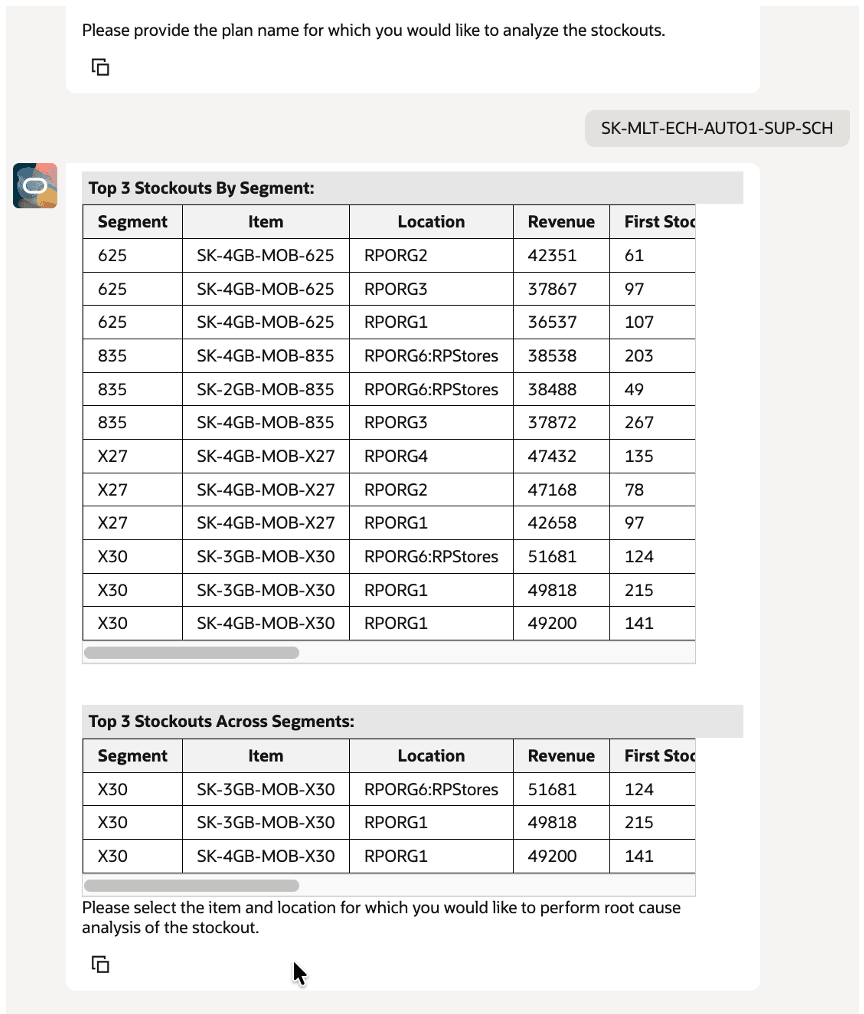
Stockout Details
- Enter the item and location for which you would like to analyze stockout details.
The Planning Stockout Advisor provides the root-cause analysis and resolution recommendations. In this case, an order is arriving late because of lead-time constraints. This order was planned late. If there were a supply constraint at the upstream location, then the Planning Stockout Advisor would provide a root-cause analysis saying the order is arriving late because of this reason.

Root-Cause Analysis by Planning Stockout Advisor
If you want to open the Replenishment Workbench to analyze the plan and expedite the order to resolve the stockout, enter Yes.
A link to the Replenishment Workbench is displayed.
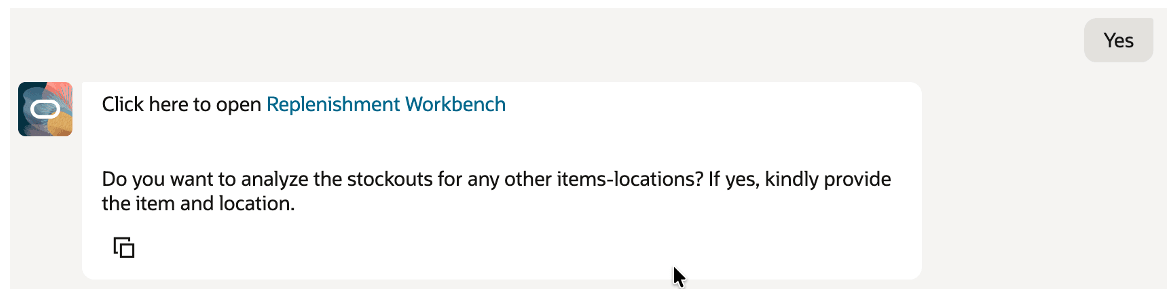
Planning Stockout Advisor with Link to Replenishment Workbench
When you select the link, the Planning Stockout Advisor opens the Replenishment Workbench for the selected item-location combination. You can navigate to the Supplies and Demands table to expedite the order.
If required, you can continue to work with the Planning Stockout Advisor and repeat this process for another item-location combination.
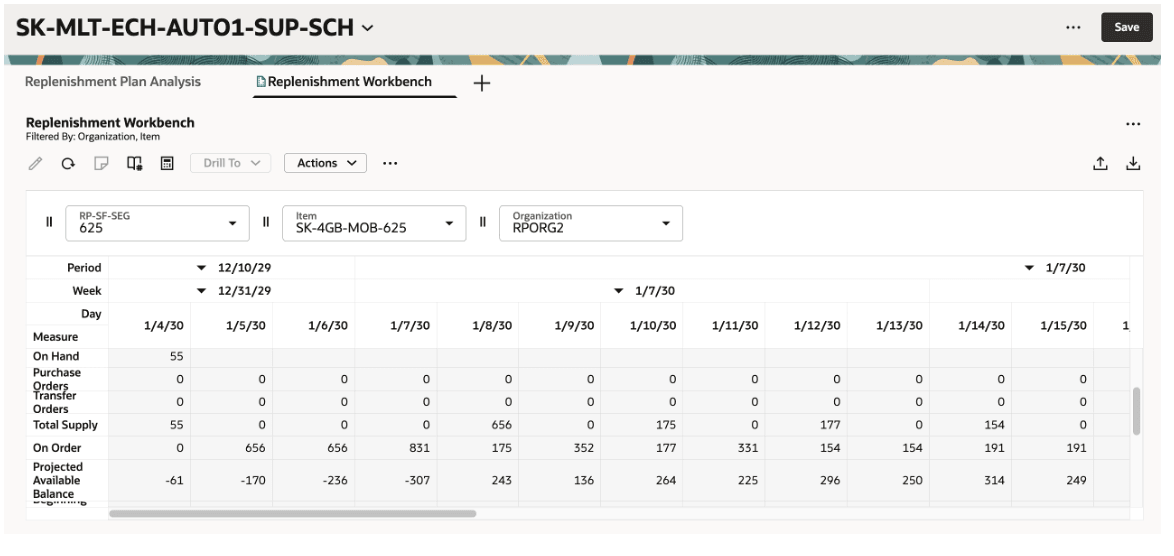
Replenishment Workbench for Item-Location Combination
Steps to enable and configure
Use the Opt In UI to enable this feature. For instructions, refer to the Optional Uptake of New Features section of this document.
Offering: Supply Chain Planning
To enable the Planning Stockout Advisor, follow these steps:
Note: You must have administrator privileges to perform this procedure.
- In the AI Agent Studio, search for the template named Planning Stockout Advisor, and copy it.
In the Copy Template dialog box, enter an agent team suffix, and select Continue.
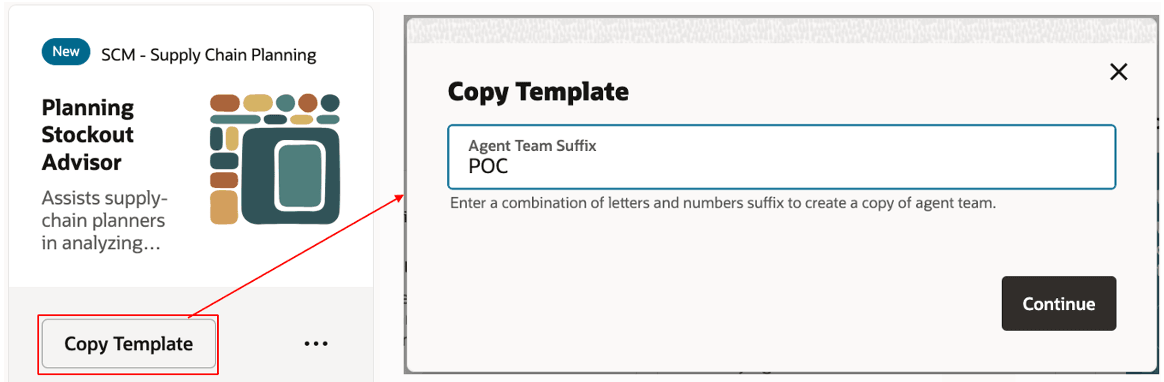
Template Named Planning Stockout Advisor in AI Agent Studio
- Select the Agent Team Settings icon.
The drawer for the agent team will open.
- Copy the agent team code from the draft template, and refine the agent prompts in the draft as needed.
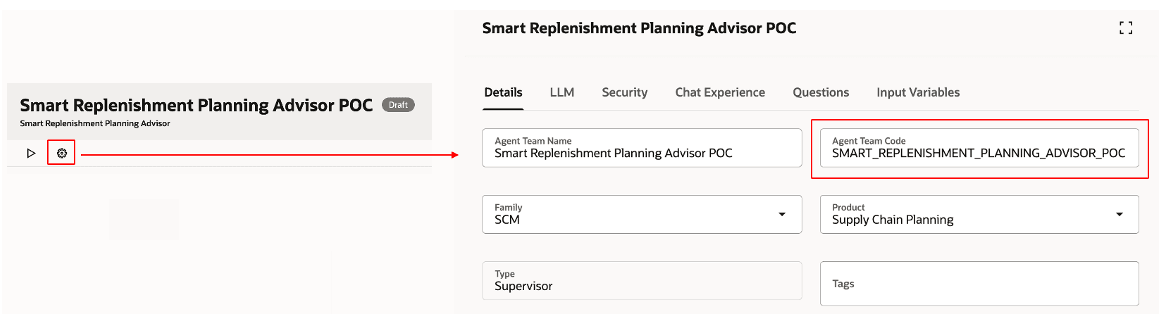
Agent Team Code for Draft Agent Team
- Publish the draft agent team.
- In the Supply Chain Planning work area, on the Settings and Actions menu, in Administration, select Edit Page in Visual Builder Studio.
The page will open in Oracle Visual Builder Studio on a new tab of your browser.
- On the Business Rules panel, in the ReplPlanningStockoutAdvisorAgentTeamCode field, paste the agent team code that you copied from the draft template.
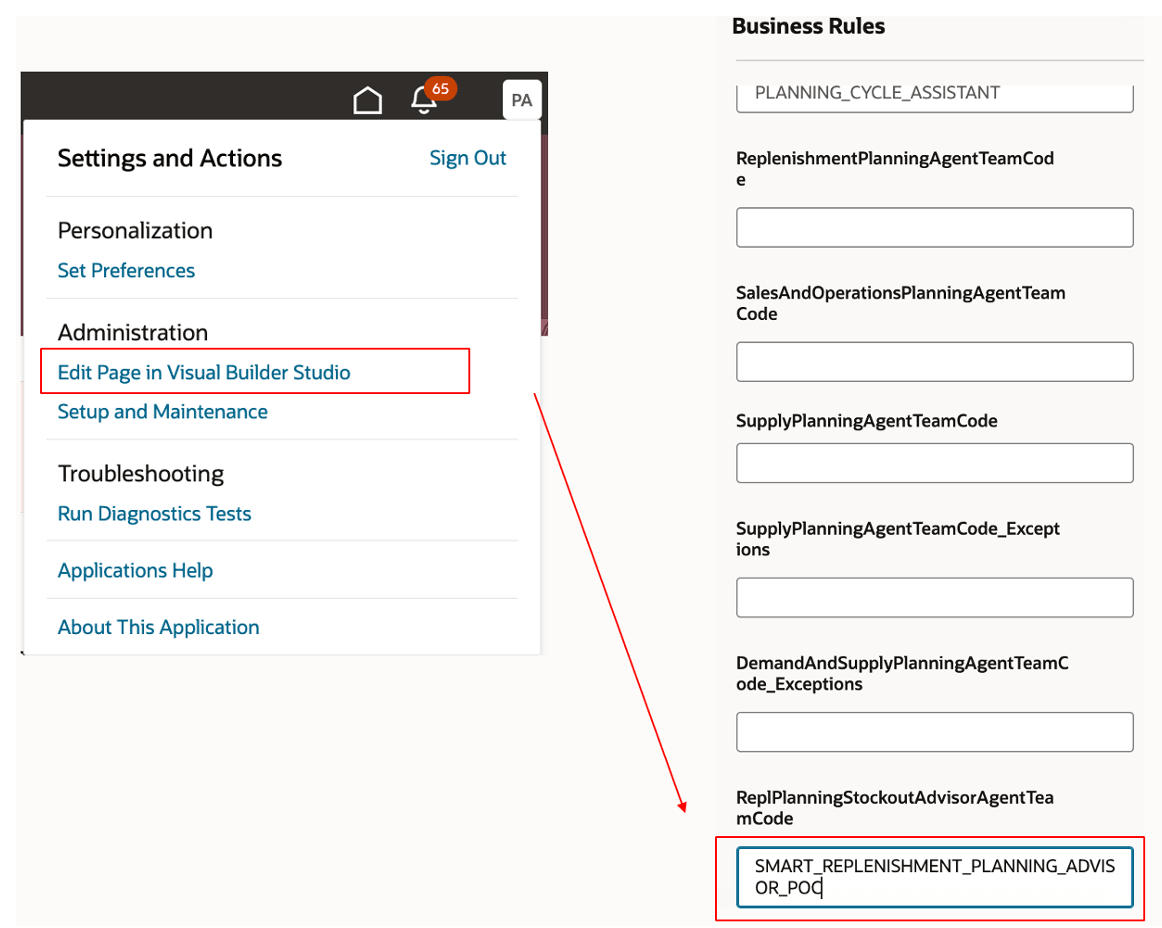
Settings and Actions Menu and Business Rules Panel
- Publish the changes in Visual Builder Studio.
- Verify that the Planning Stockout Advisor is available in the Planning advisor drawer for your plan and displays the starter question and chat input box.
Tips and considerations
If you want to use the AI Agent: Planning Stockout Advisor feature, then you must opt in to its parent feature: Replenishment Planning. If you’ve already opted in to this parent feature, then you don’t have to opt in again.
- When you’re using the Planning Stockout Advisor, provide the exact names for the plan, item, and location.
- The output generated by the AI agent may not always be unique, accurate, or complete.
- The Replenishment Workbench may not always open with the selected item-location combination. In such cases, select your item-location combination within the Replenishment Workbench.
- The following response can indicate that there was an error with the request: “Sorry, the assistant is unavailable right now. If the issue persists, contact your help desk.”
You can select the starter question again or log in to the software again to resolve this error.
Key resources
- Access Requirements for AI Agent Studio
- How can I give users access to AI Agents?
- Create AI Agents Using Preconfigured Templates
Access requirements
To access the Oracle AI Agent Studio for Fusion Applications and manage SCM AI agents, users must be assigned a configured job role that contains these duty roles:
- SCM Intelligent Agent Management Duty (ORA_RCS_SCM_AI_AGENT_MANAGEMENT_DUTY)
- Fai Genai Agent SCM Administrator Duty (ORA_DR_FAI_GENERATIVE_AI_AGENT_SCM_ADMINISTRATOR_DUTY)
To interact with AI agents on product pages, users must be assigned a configured job role that contains this duty role:
- Fai Genai Agent Runtime Duty (ORA_DR_FAI_GENERATIVE_AI_AGENT_RUNTIME_DUTY)
To allow users to interact with agents, you must also enable permission groups in the Security Console on those users' configured job roles that contain the Fai Genai Agent Runtime Duty role. You can enable permission groups when you manage the basic information of your configured job roles.
Users' configured job roles must also contain privileges that allow access to the pages where AI agents are enabled.
See Access Requirements for AI Agent Studio (for administrators) and How can I give users access to AI agents (for end-users) for more information.