Redwood: Manage Planning Source Systems Using a New User Experience
You can now use the Redwood user experience to view, create, edit, or delete a planning source system. For a selected planning source system, you can also manage organization list, define flex-field mapping and select data sources.
To populate the planning data repository, you collect data from the planning source systems. You can view, create, edit, or delete a planning source system. To view the planning source system in Redwood, navigate to Supply Chain Planning -> View More -> Actions -> Plan Inputs -> Planning Source Systems.
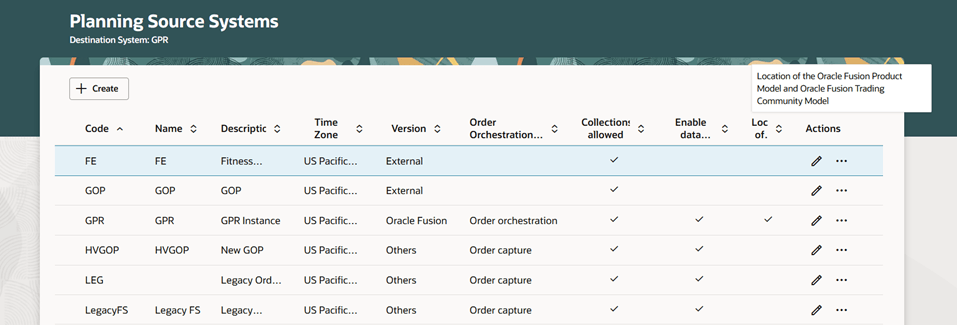
Planning Source Systems
Quick Actions
Quick actions for the Redwood Planning Source Systems page can be accessed based on the profile option Redwood Page for Planning Source Systems Enabled value at the site level. If the profile option value is Yes, then Quick Actions shows Planning Source Systems and opens the new Redwood Planning Source Systems page. If the value is No, then Quick Actions shows Manage Planning Source Systems and navigates to the classic version, Manage Planning Source Systems page.
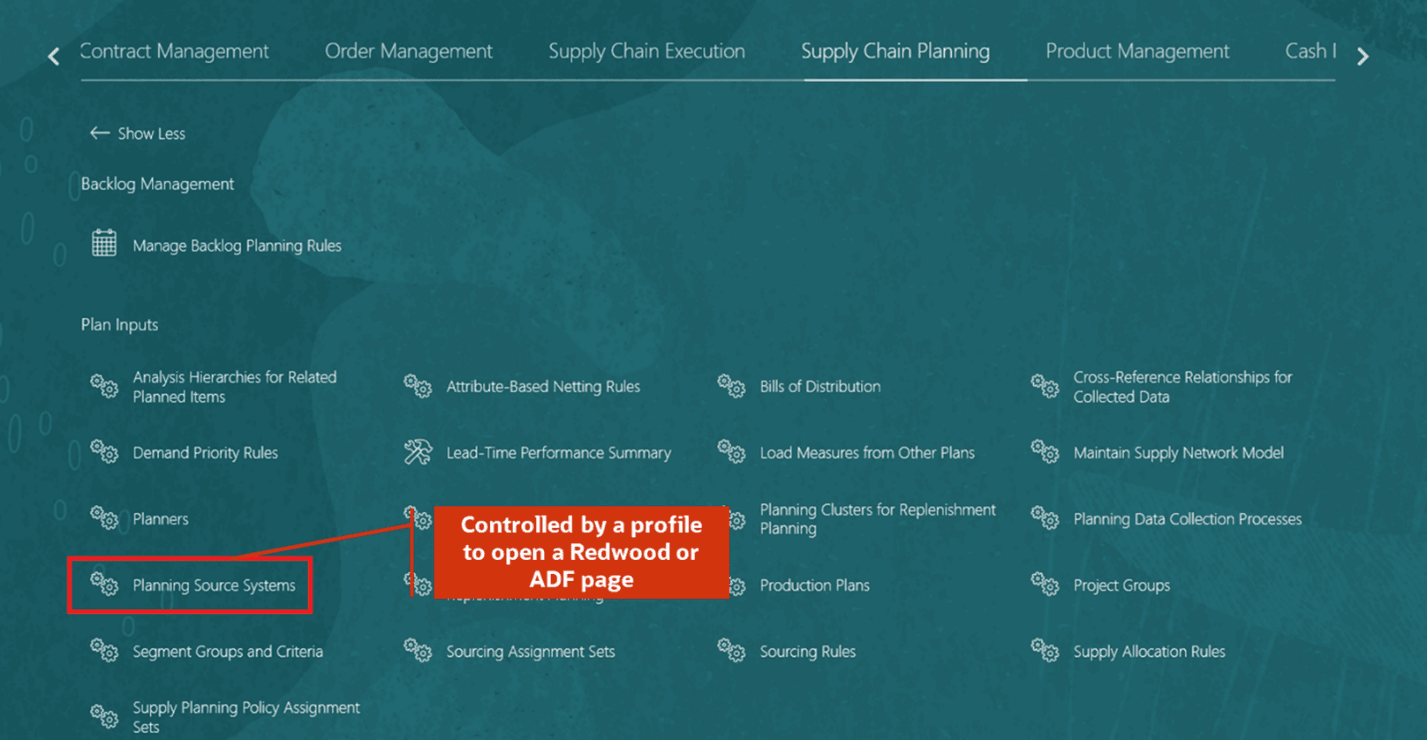
Access Planning Source Systems Page Through Quick Actions
Create Planning Source System
To create a new source system:
- On the Planning Source Systems page, select Create.
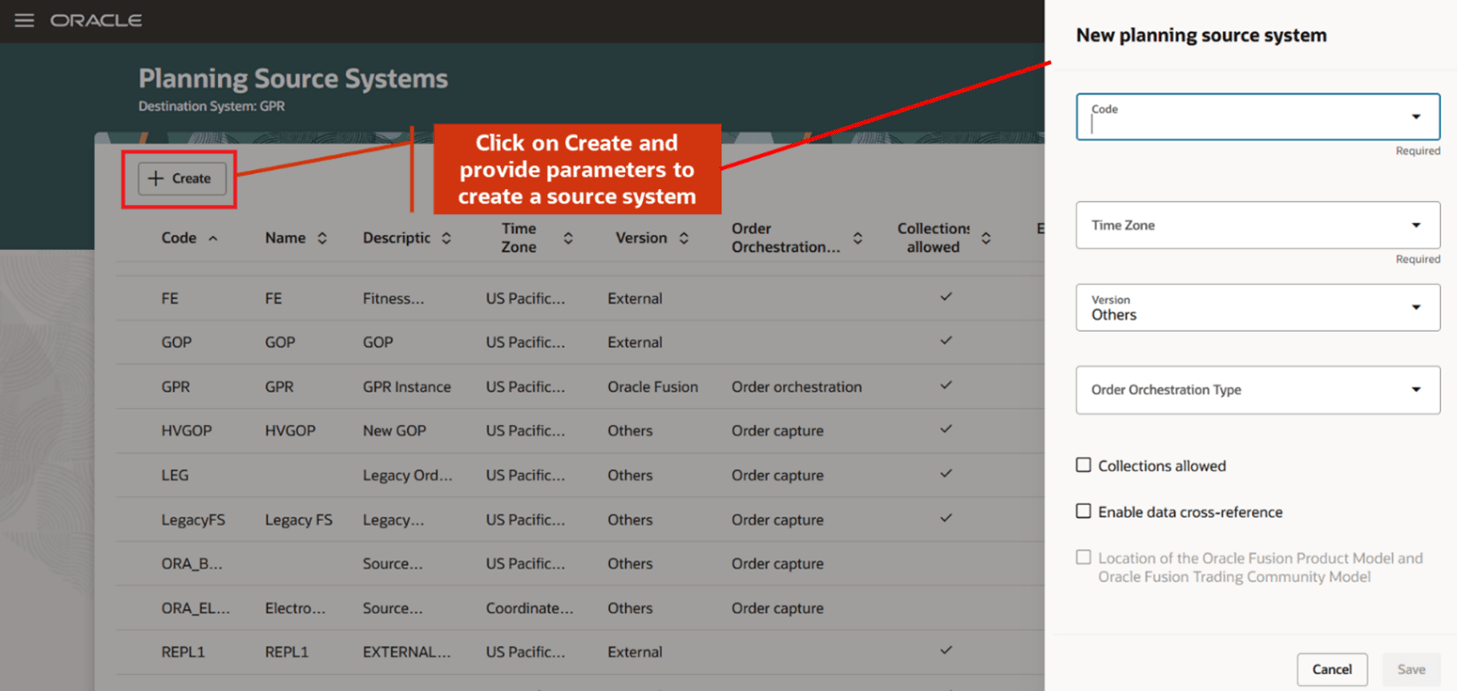
Create Source System
- In the New planning source system drawer, select the code for the source system, that is created in Setup and Maintenance -> Manage Source System Entities.
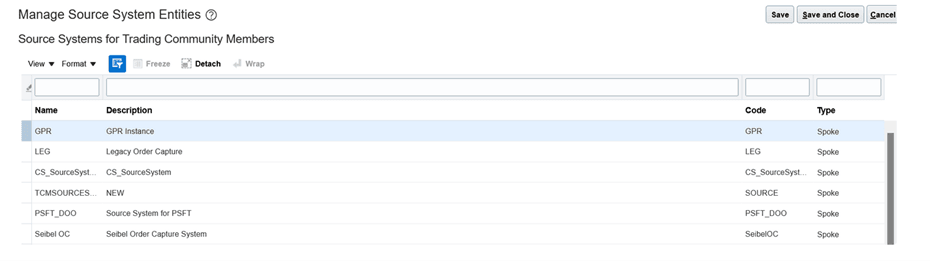
Manage Source System Entities
- Select a time zone.
- Select one of the three versions:
- Oracle Fusion: The Oracle Fusion source system is a source system for data collection.
- Others: Indicates that the source system is another Oracle Fusion Applications Suite. This source system is integrated for the Product Information Management work area, Oracle Trading Community Model, and Oracle Fusion Cloud Order Management.
- External: Indicates that the source system is not connected to any other Oracle Fusion Cloud Applications Suite.
- Select Order Orchestration Type.
For version External, the Order Orchestration Type LOV isn’t populated.
- Collections allowed: Select this option now or later depending on when you want to start collecting the data. This enables the source system for data collections using the file-based import process.
- Enable data cross-reference: Disabled.
- Location of the Oracle Fusion Product Model and Oracle Fusion Trading Community Model: Disabled.
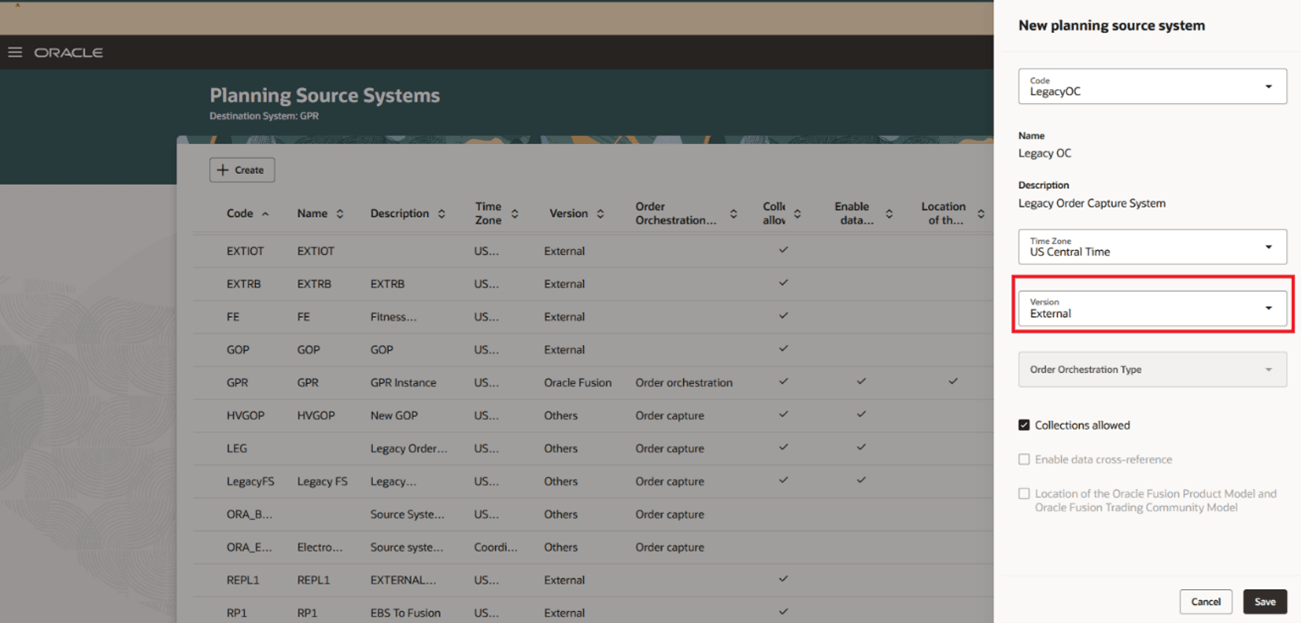
New External Planning Source System.
For version Others, the Order Orchestration Type can either be Order capture or Fulfillment.
- Collections allowed: Select this option to enable collections.
- Enable data cross-reference: Select this option to enable cross-references for locating the correct source value for each cross-referenced entity.
- Location of the Oracle Fusion Product Model and Oracle Fusion Trading Community Model: Disabled.
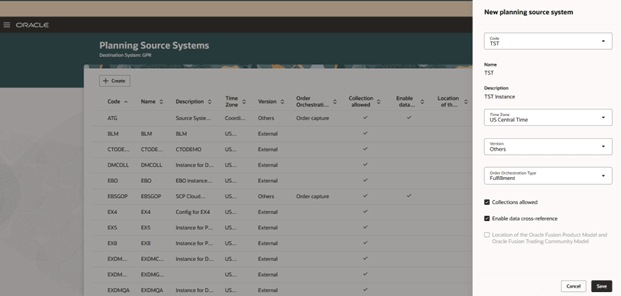
New Planning Source System as Others
For version Oracle Fusion, the order orchestration type as Order Orchestration.
- Collections allowed: Select this option to enable collections.
- Enable data cross-reference: Select this option for locating the correct source value for each cross-referenced entity.
- Location of the Oracle Fusion Product Model and Oracle Fusion Trading Community Model: Select this option to identify the source system that contains the master data for the Product Model and Trading Community Model such as the master records for items, item structures, customer, supplier, and location data. If your enterprise uses Oracle Fusion Applications as the primary source for product and trading community data, select this option for the Fusion source system.
You can only specify one source system as Oracle Fusion at any one time. If you try to define another source system as Oracle Fusion, you will see an error.
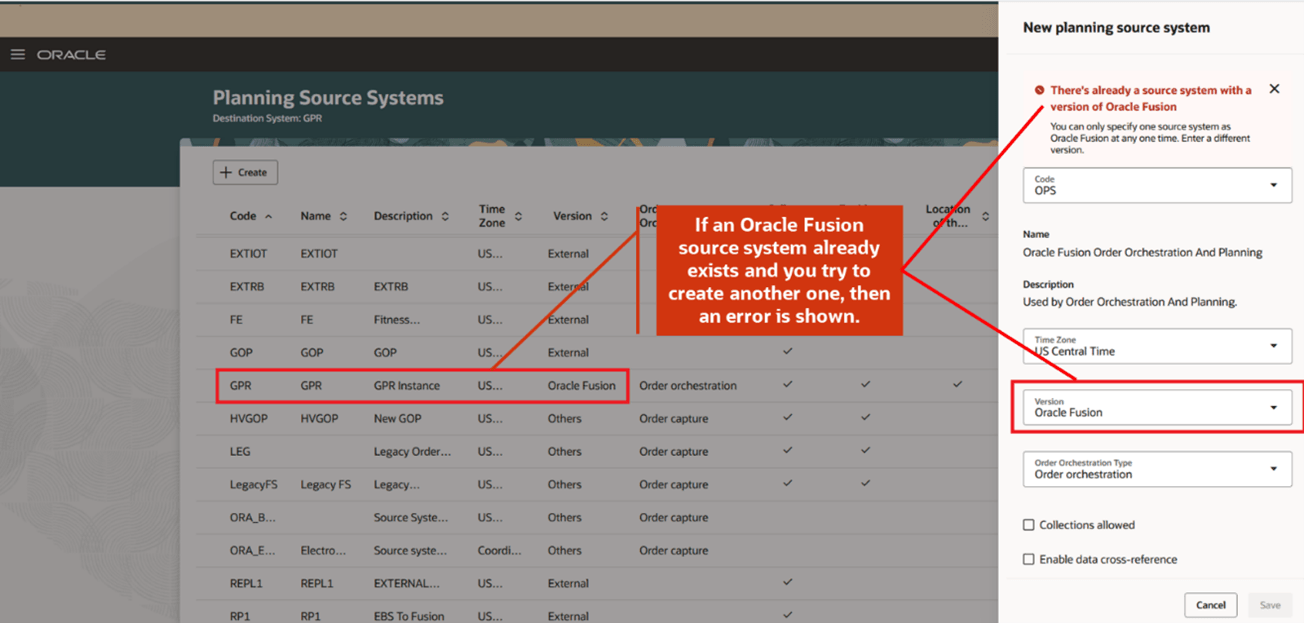
Error Message While Creating a Duplicate Oracle Fusion Source System
Edit Planning Source System
You can edit certain attributes of a source system by clicking on the Edit icon. You can't edit the source system code.
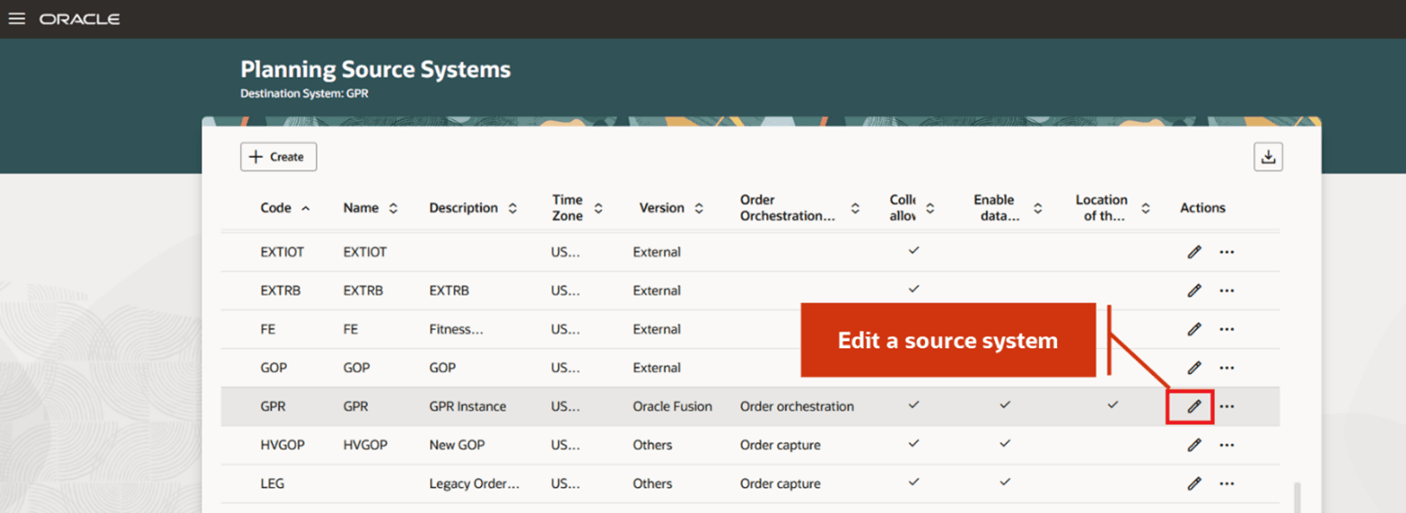
Edit a Source System.
For Oracle Fusion source system, you can only edit the Collections allowed option.
For an External source system, you can edit the time zone and the Collections allowed options.
For version Others, you can't edit the option Location of the Oracle Fusion Product Model and Oracle Fusion Trading Community Model.
Manage Organization List
You can enable organizations for data collections depending on the version of the source system.
- To enable organizations for version Oracle Fusion,
- From the Actions menu, select the Manage Organization List
- Select Refresh to update the organizations list.
Note: While adding organizations to the Oracle Fusion source system to be collected into planning, you must click Refresh and then enable the organizations for collections.
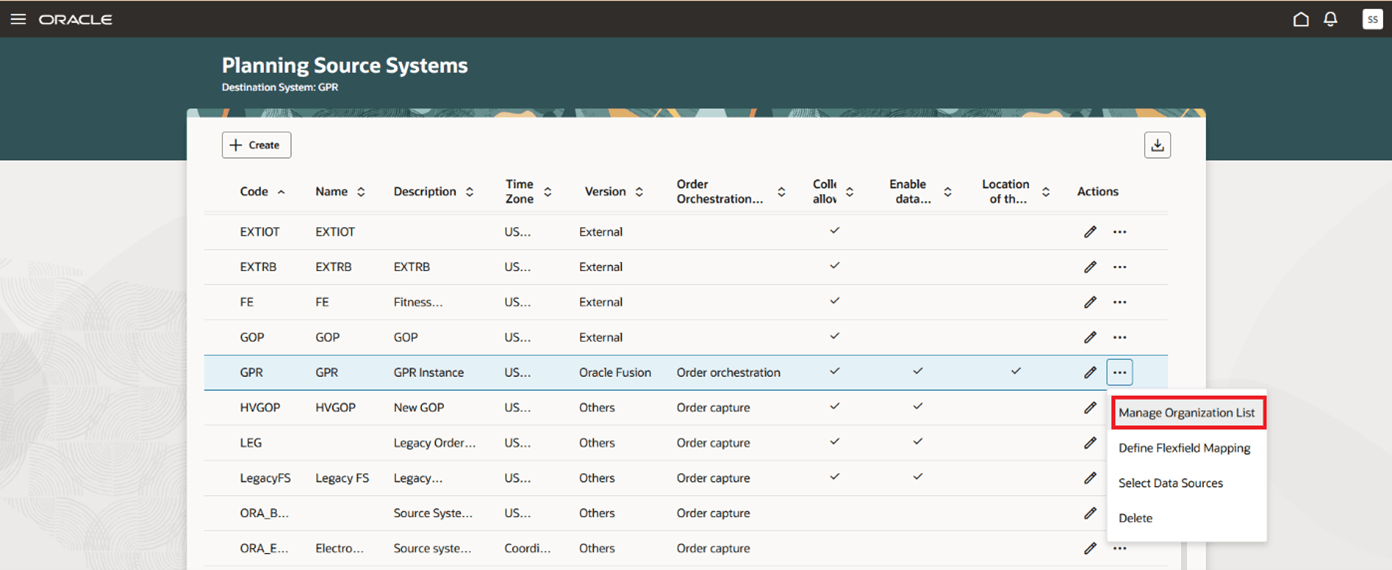
Manage Organization List
- Select the Enable for Collections option for the organizations from which you want to collect data.
- On the Source system organization page, you can:
- Search for an organization or filter by various attributes such as Organization, Organization Type, or Enable for Collections.
- Select one or more organizations and then select Enable for Collections or select Disable for Collections. This enables or removes the selected organizations from the list of collected organizations respectively.
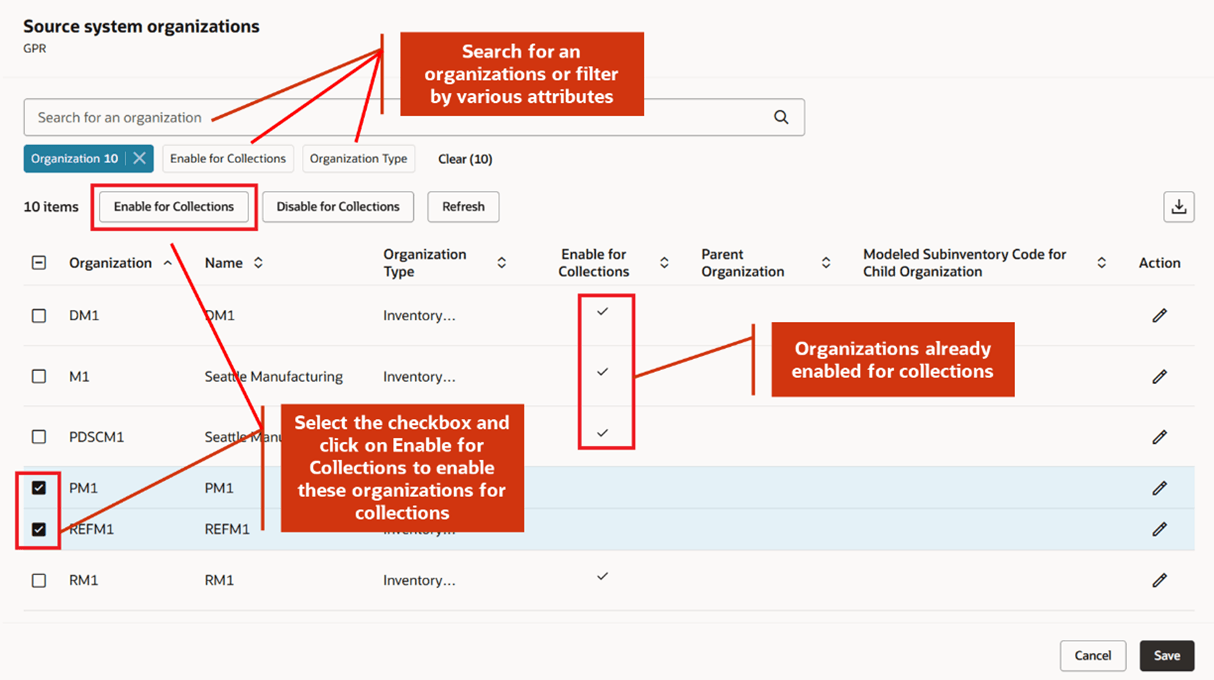
Enable or Disable Organizations for Collections
- Enable the aggregation of supply and demand across multiple child organizations to a parent organization for centralized planning and optimized replenishment. You can designate one organization as a parent organization where the supply and demand across a set of organizations are pooled for the purpose of supply and demand netting, and model child organizations as sub-inventories. Click on Edit to enable the row for update.

Net Pooled Supplies
- For an External or Other source system, the organizations are uploaded via FBDI. These are always enabled for collections.
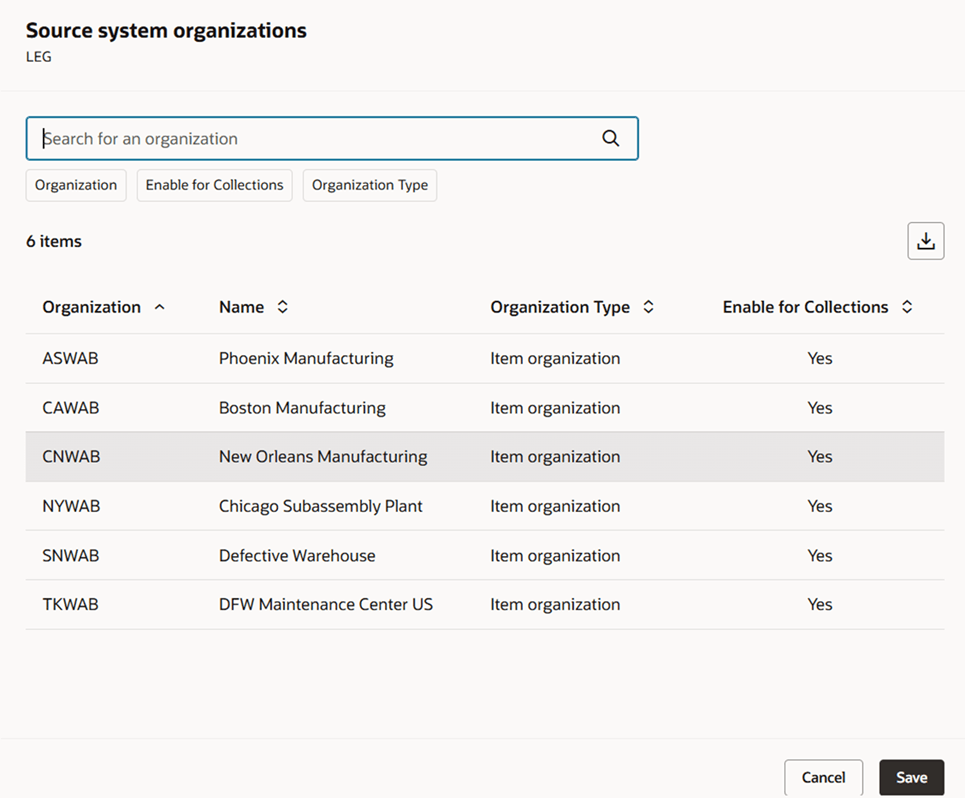
Enable for Collections Option
Define Flexfield Mapping
If your source systems include usage of flexfields to capture additional attributes, you can map the flexfields from the source system to the destination system. The option Define Flexfield Mapping is enabled only for Oracle Fusion source system.
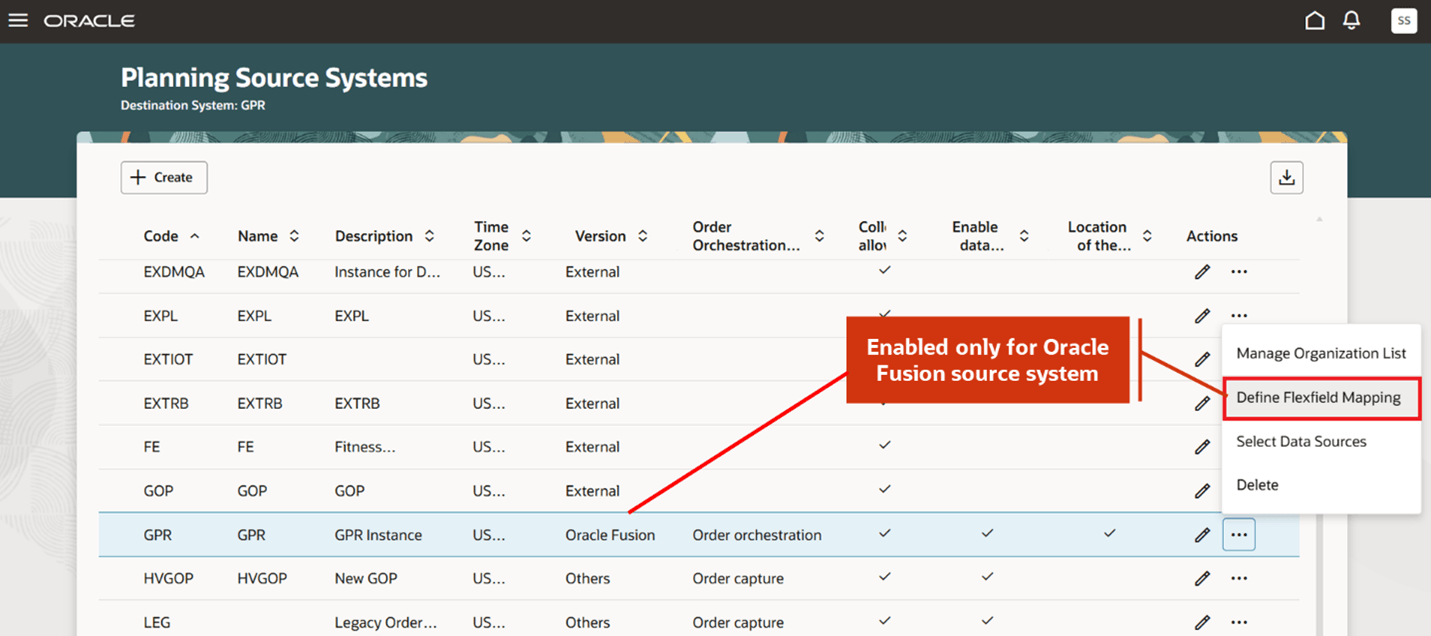
Define Flexfield Mapping
You can map descriptive flexfield segment values from multiple source systems. This enables you to combine flexfield attributes on the same entity from multiple sources. Entities for which you can map flexfields to planning attributes include Items, Purchase orders, Transfer orders, and Work orders.
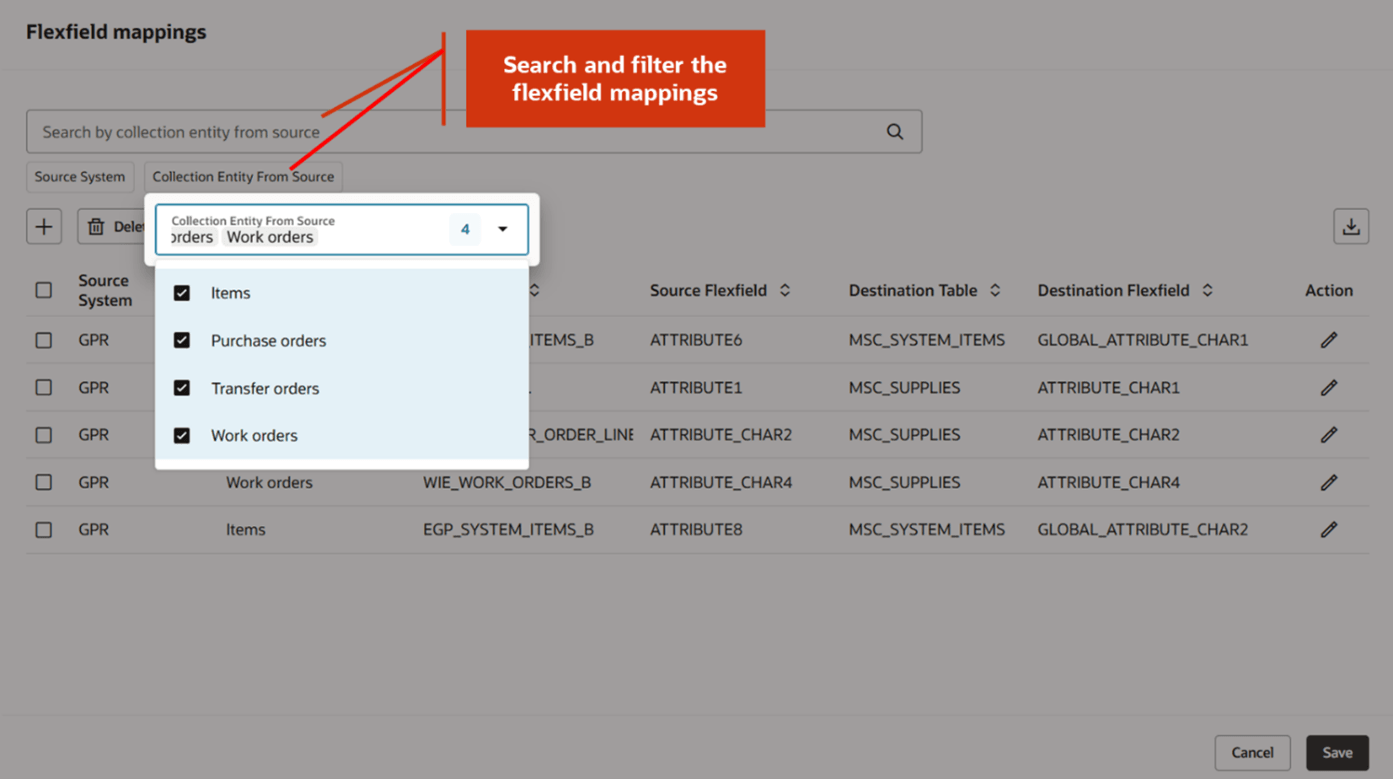
Caption: Searching and Filtering Flexfield Mappings
Creating a flexfield mappting
To create a flexfield mapping:
- Select the Add icon.
- Select the source system as Oracle Fusion source system.
- Select the collection entity from source and its corresponding source table and the flexfield attribute. For entities Purchase orders, Transfer orders, and Work orders the destination table is populated as MSC_SUPPLIES, and for Items the destination table is MSC_SYSTEM_ITEMS.
- Select the corresponding destination flexfield attribute into which you want to map the source flexfield.
- Select the Save icon on the Action menu.
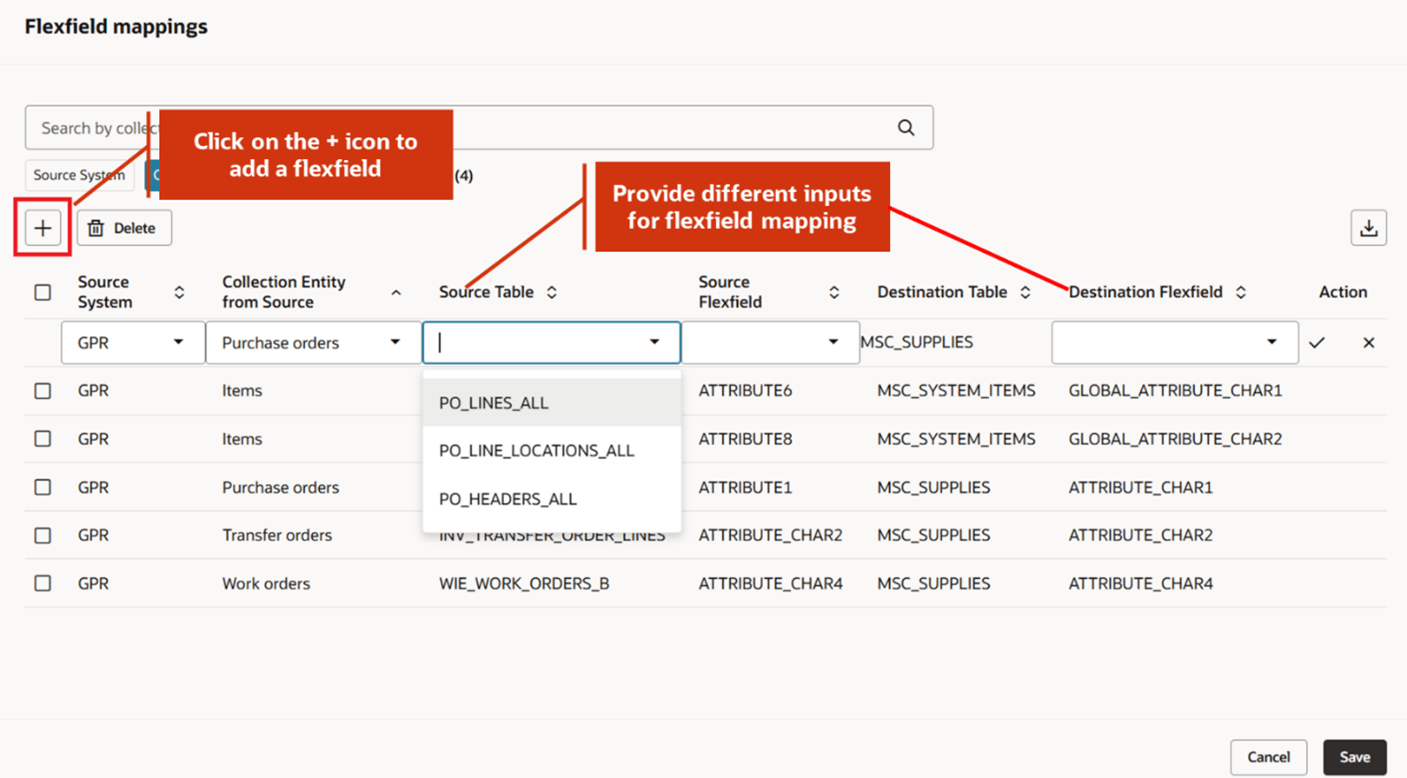
Adding a Flexfield Mapping
Select Data Sources
The option Select Data Sources is only enabled for Oracle Fusion source system. In Oracle Fusion source system, you can upload data in a hybrid mode where the transaction entities for an organization can be collected either from a fusion source system or can be uploaded through FBDI.
For example, contract manufactures can upload work orders into a contract manufacturing organization (supplier modeled as an organization) through FBDI while work orders can also be collected from fusion source system for other organizations. For any given entity and for an organization, you can either collect from fusion source collections or upload through CSV.
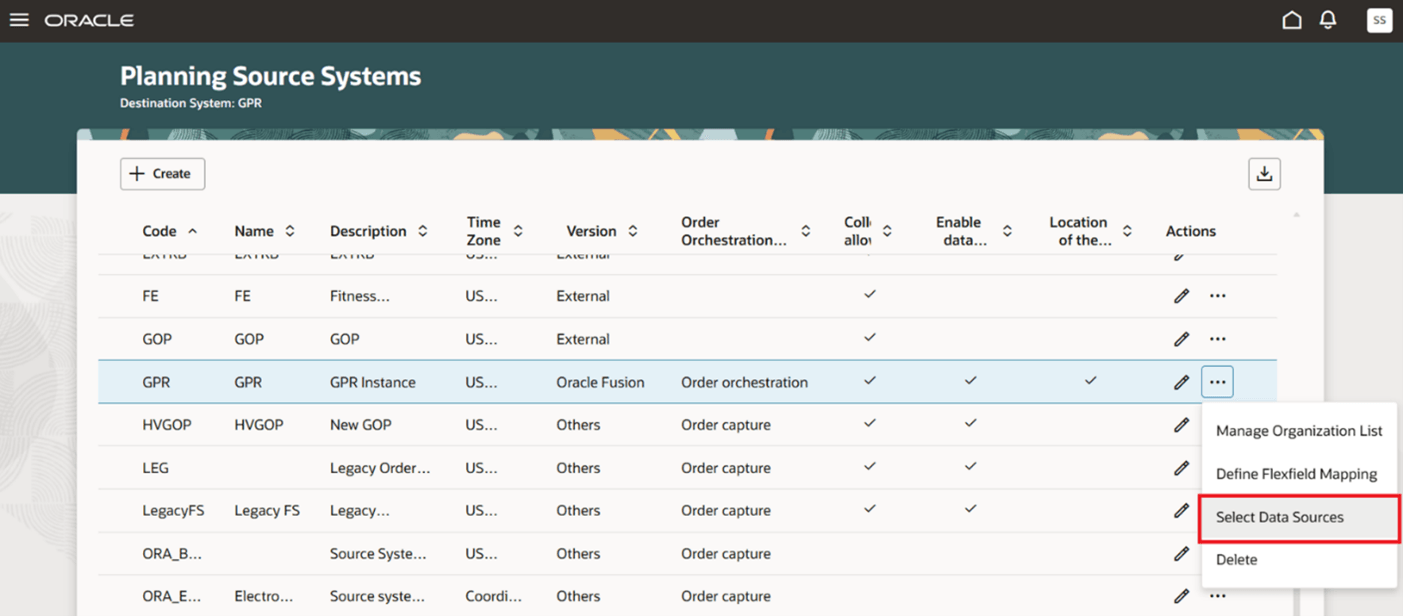
Select Data Sources
To upload data through csv uploads in a Fusion source system, the Active option must be enabled. If it’s not enabled, then other areas in the Select Data Sources are disabled.
You can enable external data for all organization or for selected organizations. When you select the option, Enable external data for selected organizations, the Organizations LOV is enabled and you can select the organizations for which transaction entities are to be loaded through FBDI.
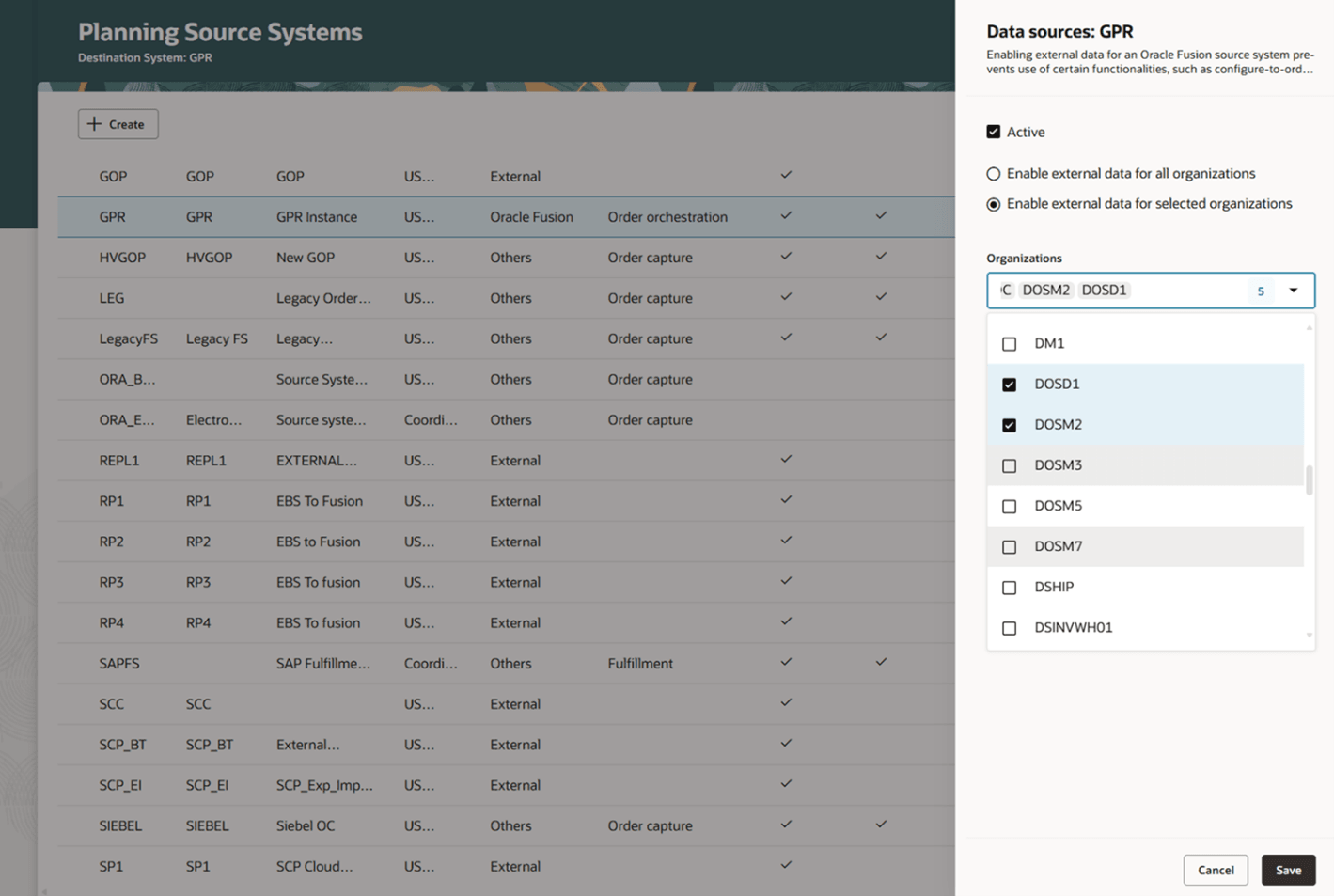
Select Organizations for External Sources.
Functional Area
You can select one or more functional areas for external data loads. Following is the list of functional area and the options to enable external data:
- Inventory and materials management: You can enable external data for either On hand or Transfer order or both.
- Procurement: You can enable external data for Purchase requisitions and purchase orders.
- Order management: You can enable external data for Sales orders and associated reservations.
- Manufacturing: You can enable external data for Work Orders, or Resources, resource availability, work definitions, and item structures or both.
If you select Work orders but don't select Resources, resource availability, work definitions, and item structures for Manufacturing functional area, Work Orders can be loaded through FBDI for the selected organizations, while resources, resource availability, work definitions, and item structures can be collected from the Fusion source.
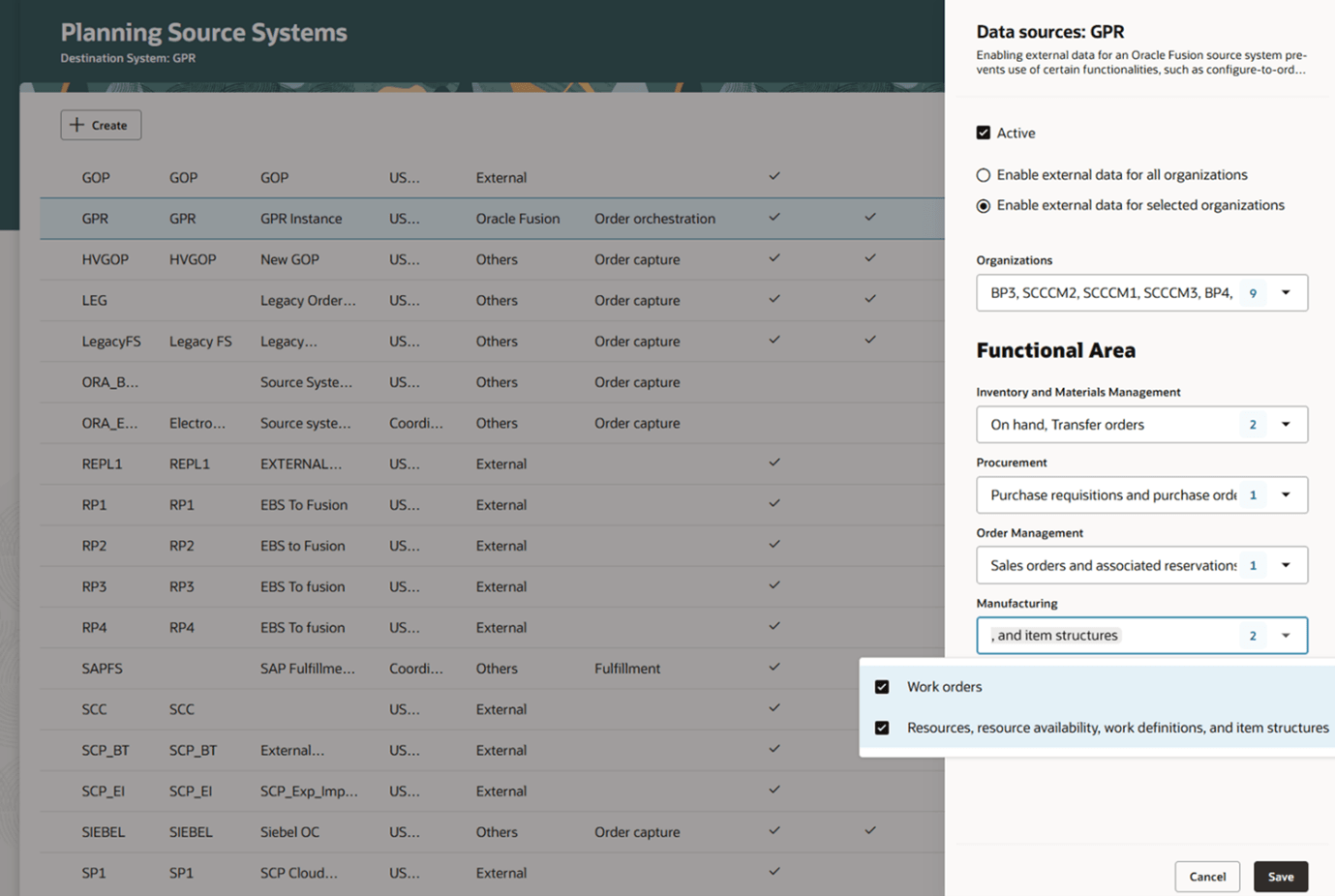
Select Functional Areas.
Save the changes after providing all the inputs.
To delete a source system, submit the scheduled process Delete Source System Configuration and All Related Data.
Steps to enable and configure
Use the Opt In UI to enable this feature. For instructions, refer to the Optional Uptake of New Features section of this document.
Offering: Supply Chain Planning
Tips and considerations
If you want to use the Redwood: Manage Planning Source Systems Using a New User Experience feature, then you must opt in to its parent feature: Replenishment Planning. If you’ve already opted in to this parent feature, then you don’t have to opt in again
Access requirements
Users who are assigned a configured job role that contains these privileges can access this feature:
- MSP_MANAGE_PLANNING_INSTANCE_PRIV (Manage Planning Instance)
- MSC_VIEW_PLANNING_OBJECTS_REST_SERVICE_PRIV (View Planning Objects Using REST Service)