 Redwood: Use Approvals for Receipts
Accurate management of received goods is essential for maintaining inventory control and operational reliability. In organizations, it's important to approve goods receipts, returns, or corrections to confirm that transactions are accurate and properly documented. The same level of oversight may be required for the receipt of service-based purchases to ensure compliance with internal policies and regulatory requirements. You can now configure approval rules for receipts, receipt corrections, and receipt returns performed in Oracle Fusion Cloud Inventory Management and the Redwood Self-Service Receiving application.
Here are the key features:
- Rule Configuration: Lets you define approval conditions based on attributes such as amount, currency, quantity, and so forth, and specify actions including automatically approve, approval required, or information only.
- Routing Options: Route serial or parallel approvals based on application role, hierarchy (job level - management or position), or approval groups.
- Monitoring and Maintenance: Through the Transaction Console, administrators can use the Approval Rules tab to configure, deploy, and update rules, and users can access the Transaction Summary tab to search pending transactions, review completed transactions, and view detailed approval history.
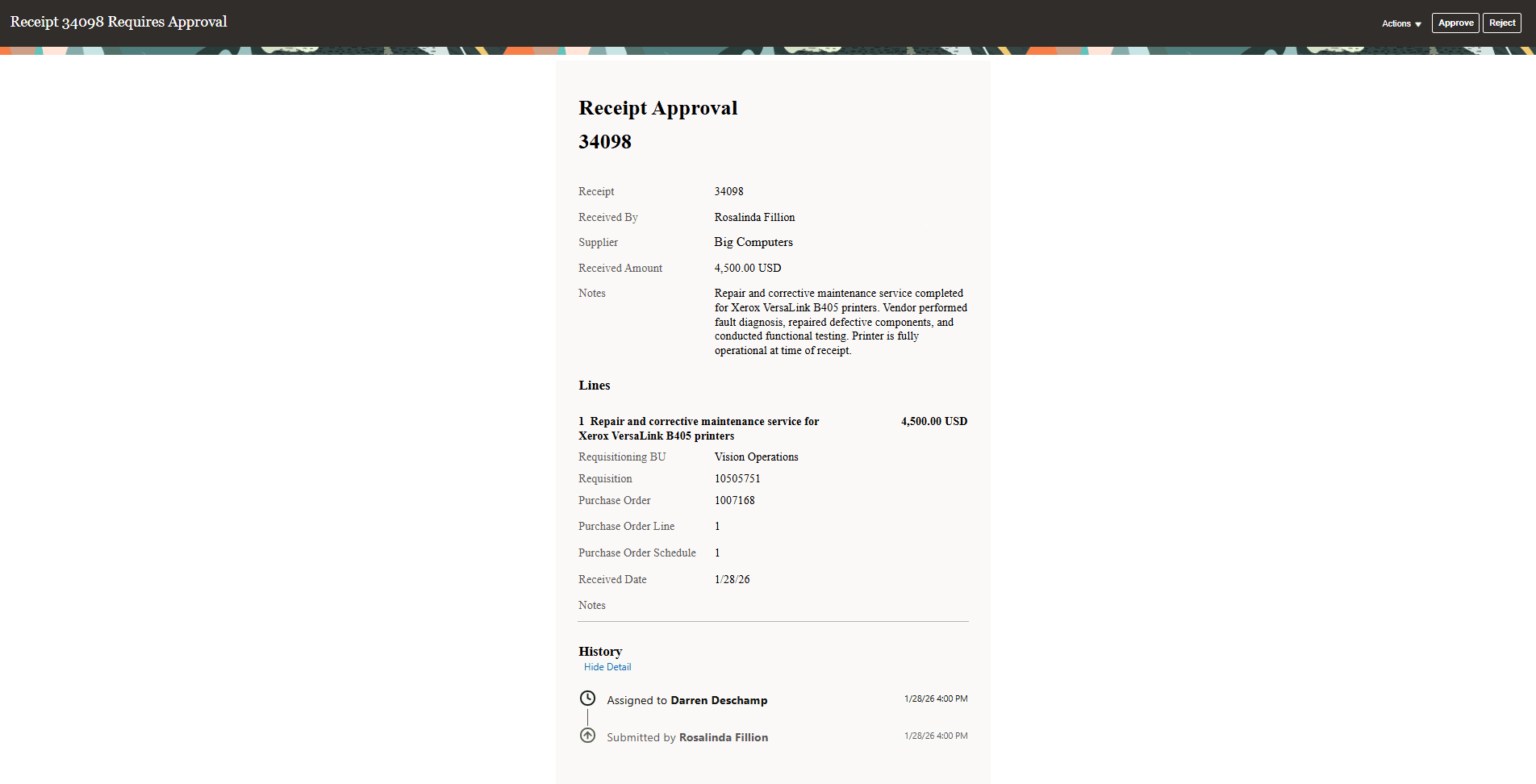
Receipt Approval Notification
The following tables show the attributes that you can use while defining approval rules for receiving transactions. Once approval rules have been configured and a receiving transaction is submitted for approval, this triggers an approval notification to the user.
This table shows the attributes that you can use for approval rules for Self-Service Receiving:
Self-Service Receiving
| Attribute | Receipt | Return | Update |
|---|---|---|---|
| Currency | x | x | x |
| Header Interface ID | x | ||
| Received By | x | ||
| Supplier | x | x | x |
| Total Receipt Amount | x | ||
| Available to Receive Amount | x | ||
| Available to Receive Quantity | x | ||
| Business Unit | x | x | x |
| Matching Basis | x | x | x |
| Purchasing Category | x | x | x |
| Received Amount | x | ||
| Received Quantity | x | ||
| Received UOM | x | ||
| Source Document Type | x | x | x |
| Descriptive Flexfields | x | ||
| Revised Amount | x | ||
| Revised By | x | ||
| Revised Quantity | x | ||
| Returned Amount | x | ||
| Returned By | x | ||
| Returned Quantity | x | ||
| Source Organization | x | ||
| UOM | x | x |
This table shows the attributes that you can use for approval rules for Warehouse Receiving:
Warehouse Receiving
| Attribute | Receipt | Correction | Return |
|---|---|---|---|
| Carrier | x | ||
| Currency | x | x | x |
| Customer | x | x | x |
| Header Interface ID | x | ||
| Received Amount | x | ||
| Receiving Organization | x | x | x |
| Source Organization | x | x | x |
| Supplier | x | x | x |
| Descriptive Flexfields | x | x | x |
| Item | x | x | x |
| Locator | x | x | |
| Purchasing Category | x | x | x |
| Quantity Available to Receive | x | ||
| Received By | x | ||
| Received Quantity | x | ||
| Received UOM | x | ||
| Secondary Received Quantity | x | ||
| Secondary UOM | x | x | |
| Source Document Type | x | x | |
| Subinventory | x | x | |
| Corrected Amount | x | ||
| Corrected Quantity | x | ||
| Corrected UOM | x | ||
| Revised By | x | ||
| Secondary Corrected Quantity | x | ||
| Return Type | x | ||
| Return-from Locator | x | ||
| Return-from Subinventory | x | ||
| Returned Amount | x | ||
| Returned By | x | ||
| Returned Quantity | x | ||
| Returned UOM | x |
This streamlined process eliminates the need for paper-based approvals or desktop-only workflows, reducing bottlenecks and accelerating goods movement through the supply chain.
Steps to enable and configure
Follow these steps to enable or disable approvals for receipts in Redwood Self-Service Receiving:
- On the home page, go to Tools and click the Transaction Console task.
- On the Transaction Console Summary page, navigate to the Approval Rules tab.
- On the Approval Rules tab, search for the Self-Service Receiving Receipt process. The Bypass Approvals checkbox will be checked by default. Click the Configure Rules action.
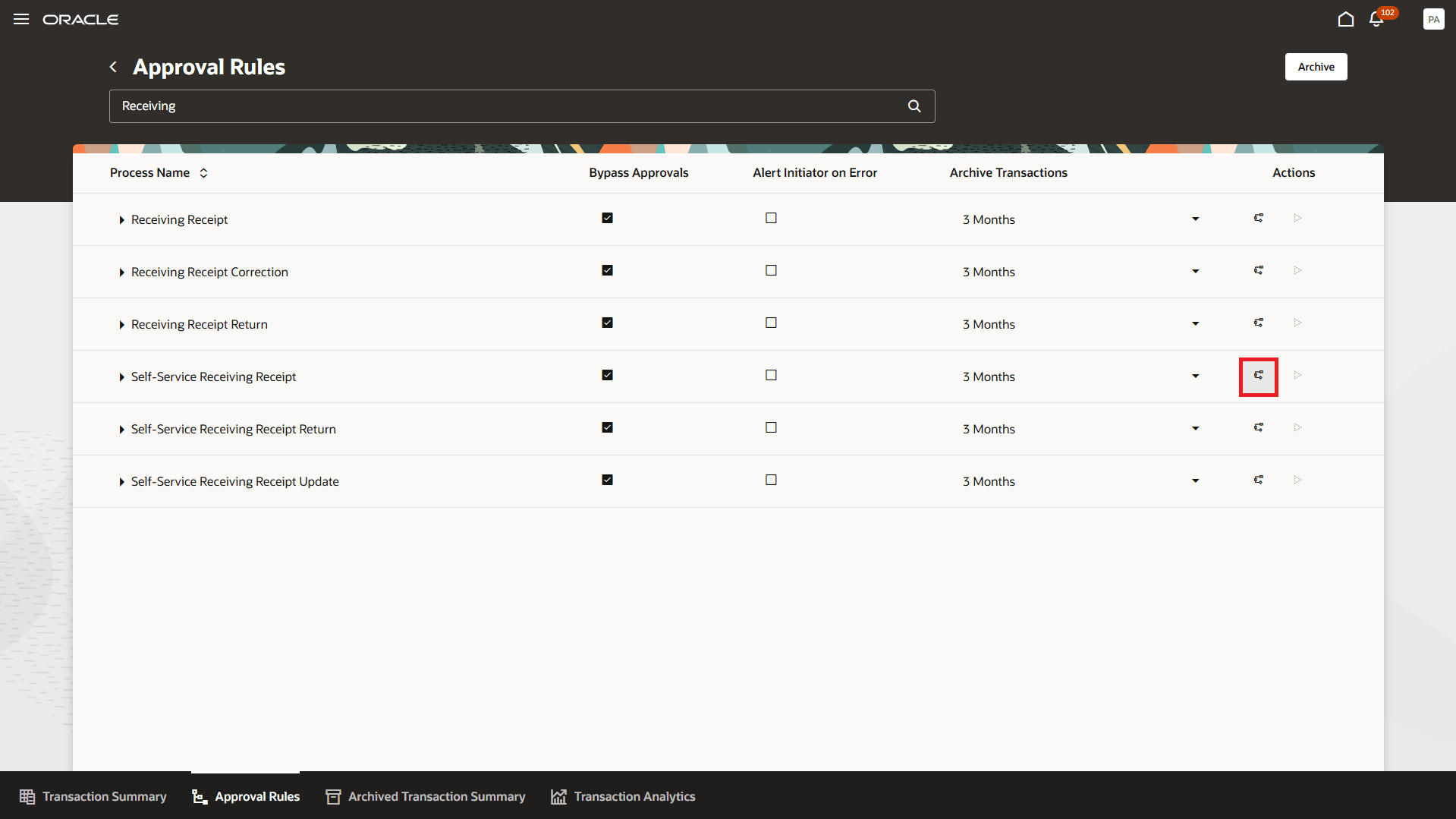
Transaction Console - Approval Rules Tab
- Click Configure in the dialog box.
- Configure the required approval rules on the Manage Participants page, and then click Submit.
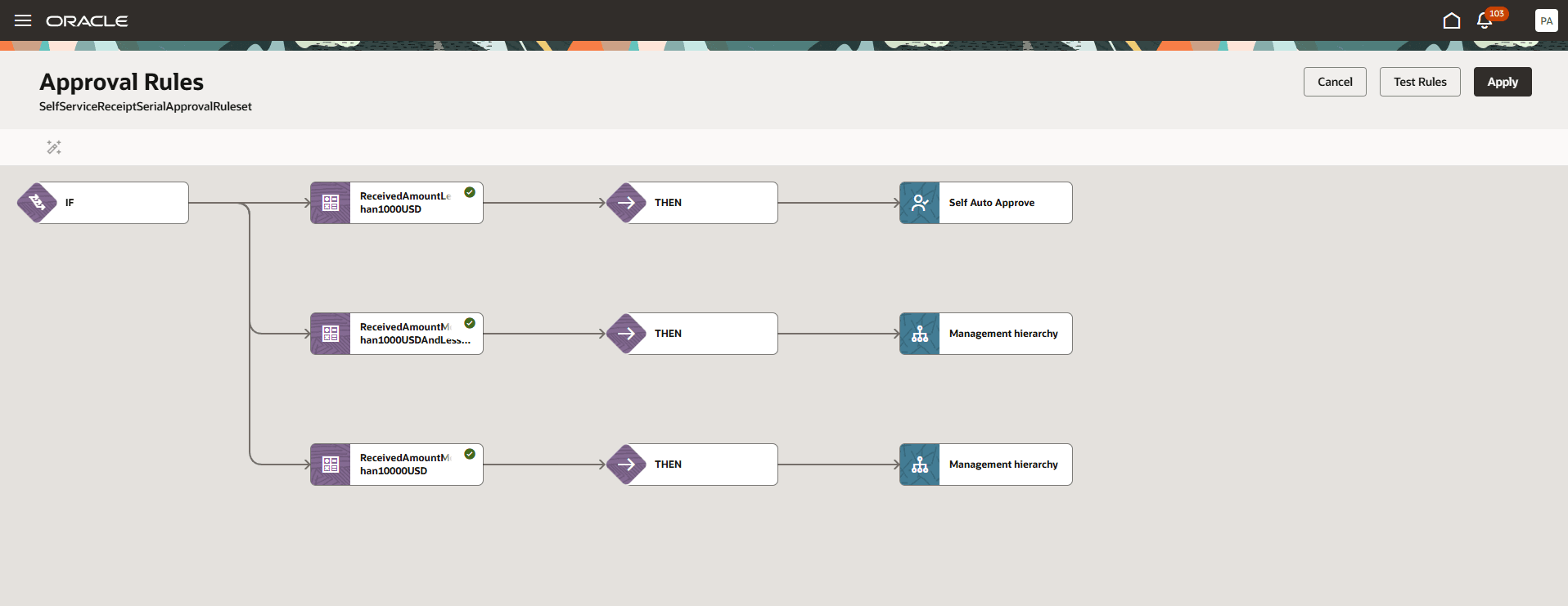
Self-Service Receiving Receipt - Approval Rules
- Search for the Self-Service Receiving Receipt process again and uncheck the Bypass Approvals checkbox.
Follow these steps to enable or disable approvals for updates in Redwood Self-Service Receiving:
- On the home page, go to Tools and click the Transaction Console task.
- On the Transaction Console Summary page, navigate to the Approval Rules tab.
- On the Approval Rules tab, search for the Self-Service Receiving Receipt Update process. The Bypass Approvals checkbox will be checked by default. Click the Configure Rules action.
- Click Configure in the dialog box.
- Configure the required approval rules on the Manage Participants page, and then click Submit.
- Search for the Self-Service Receiving Update process again, and then uncheck the Bypass Approvals checkbox.
Follow these steps to enable or disable approvals for returns in Redwood Self-Service Receiving:
- On the home page, go to Tools and click the Transaction Console task.
- On the Transaction Console Summary page, navigate to the Approval Rules tab.
- On the Approval Rules tab, search for the Self-Service Receiving Receipt Return process. The Bypass Approvals checkbox will be checked by default. Click the Configure Rules action.
- Click Configure in the dialog box.
- Configure the required approval rules on the Manage Participants page, and then click Submit.
- Search for the Self-Service Receiving Return process again, and then uncheck the Bypass Approvals checkbox.
Follow these steps to enable or disable approvals for receipts in Inventory Management:
- On the home page, go to Tools and click the Transaction Console task.
- On the Transaction Console Summary page, navigate to the Approval Rules tab.
- On the Approval Rules tab, search for the Receiving Receipt process. The Bypass Approvals checkbox will be checked by default. Click the Configure Rules action.
- Click Configure in the dialog box.
- Configure the required approval rules on the Manage Participants page, and then click Submit.
- Search for the Self-Service Receiving Receipt process again, and then uncheck the Bypass Approvals checkbox.
Follow these steps to enable or disable approvals for corrections in Inventory Management:
- On the home page, go to Tools and click the Transaction Console task.
- On the Transaction Console Summary page, navigate to the Approval Rules tab.
- On the Approval Rules tab, search for the Receiving Receipt Correction process. The Bypass Approvals checkbox will be checked by default. Click the Configure Rules action.
- Click Configure in the dialog box.
- Configure the required approval rules on the Manage Participants page, and then click Submit.
- Search for the Receiving Receipt Correction process again, and then uncheck the Bypass Approvals checkbox.
Follow these steps to enable or disable approvals for returns in Inventory Management:
- On the home page, go to Tools and click the Transaction Console task.
- On the Transaction Console Summary page, navigate to the Approval Rules tab.
- On the Approval Rules tab, search for the Receiving Receipt Return process. The Bypass Approvals checkbox will be checked by default. Click the Configure Rules action.
- Click Configure in the dialog box.
- Configure the required approval rules on the Manage Participants page, and then click Submit.
- Search for the Receiving Receipt Return process again, and then uncheck the Bypass Approvals checkbox.
The following new profile options have been introduced to set the upper limit for lines in approval notifications:
- ORA_RCV_SELF_SERVICE_RECEIVING_APPROVAL_NOTIF_MAX_LINES (Maximum Lines for Self-Service Receiving Approval Notifications)
- ORA_RCV_RECEIVING_APPROVAL_NOTIF_MAX_LINES (Maximum Lines for Receiving Approval Notifications)
The default value for the profile options is 25.
Tips and considerations
- If E-Signature functionality is enabled for an organization, then it takes precedence over approvals for receipts and corrections.
- Approvals are required for corrections only when the parent transaction status is Receive, Accept or Reject.
- Approvals are supported for returns to supplier, organization, customer, and unreferenced returns.
- If a receipt, correction, or return is rejected during approval, users must recreate the transaction to resubmit it.
- Receiving transactions must be submitted through Redwood pages to trigger approvals.
Key resources
- Oracle Fusion Cloud SCM: Using Receiving guide, available on the Oracle Help Center.
- Oracle Fusion Cloud SCM: Implementing Manufacturing and Supply Chain Materials Management guide, available on the Oracle Help Center.
Access requirements
Users who are assigned a configured job role that contains these privileges or duty roles can access this feature:
- Receiving Self Service Responsive Application User (ORA_RCV_RECEIVING_SELF_SERVICE_PWA_USER_DUTY)
- Manage Receipt for Advanced Receiver with the Responsive Self Service Receiving Application (RCV_MANAGE_RECEIPT_ADVANCED_RECEIVER_PWA_PRIV)
- Create Receipt for Procurement Preparer with the Responsive Self Service Receiving Application (RCV_CREATE_RECEIPT_PROCUREMENT_PREPARER_PWA_PRIV)
- Receiving Transaction Maintenance (ORA_RCV_RECEIVING_TRANSACTION_MAINTENANCE_DUTY)
- Receive Goods Using Responsive Receiving (ORA_RCV_RECEIVE_GOODS_PWA_DUTY_HCM)
Users who are assigned a configured job role that contain these duty roles can access the transaction console to review and approve transactions that are pending approval:
-
Supply Chain Management Transaction Approval Reviewing (ORA_SCM_REVIEW_APPROVAL_TRANSACTIONS_DUTY and ORA_SCM_REVIEW_APPROVAL_TRANSACTIONS_DUTY_HCM - both duty role codes are required)
Users who are assigned a configured job role that contains this duty role can access the transaction console to review and approve transactions that are pending approval, as well as to view and configure approval rules:
- Review HCM Approval Transactions as Administrator (Review HCM Approval Transactions as Administrator)
These duty roles were available prior to this update.