Redwood: Review and Select Lot and Serial Numbers from an ASN or Transfer Order during Receipt
When you receive lot or serial control goods with lot or serial numbers mentioned in an Advance Shipment Notice (ASN) or transfer order, it's important to review and select specific lot or serial numbers, instead of automatically accepting all the numbers provided. For example, a large volume of items are packaged in multiple boxes and the boxes are received by multiple receiving agents. Each agent needs to verify the exact lot or serial numbers they are receiving. Now you can review and select the individual lot and serial numbers present in the ASN or transfer order when you create a receipt.
Use the Record Lots page to record ASN lots and to record transfer order lots. Click the Select ASN Lots button to select lots during receipt or put away transaction.
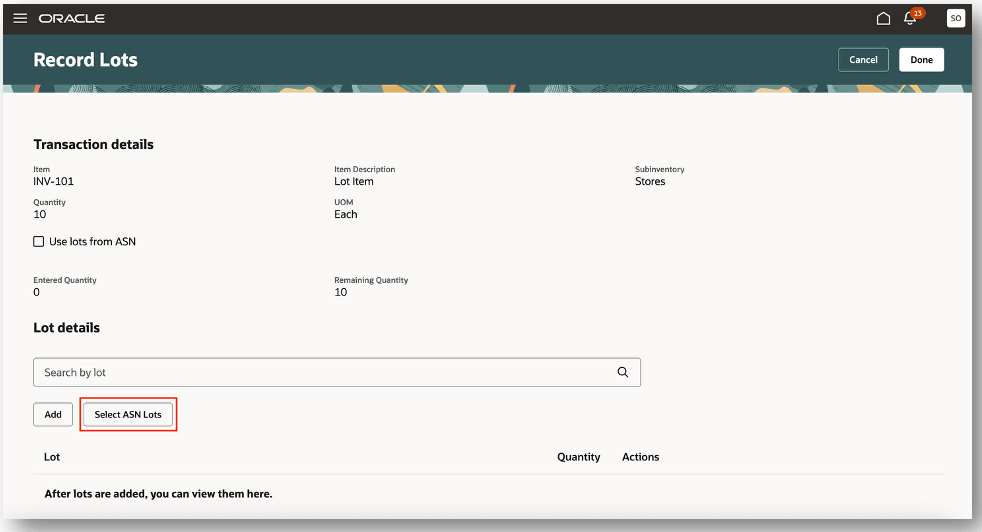
Select ASN Lots
The Select ASN Lots action opens the Select ASN lots drawer. Click the Multiple tab to view the lots associated with the ASN or transfer order. You can enter the associated quantity for each lot by clicking the Edit icon. After you enter the quantity, click the Check icon to confirm the quantity associated with each lot.

Enter Lot Quantity
After you enter the lot quantity, the Selected tab will be updated with the total lot quantity. For example, 3 lots have been selected for a total selected quantity of 10.

Review Entered Lots
You can navigate to the Selected tab to view the individual lots and associated quantity. If you enter a lot incorrectly, click the Delete icon to remove the record and then click Done button to proceed creating the transaction.
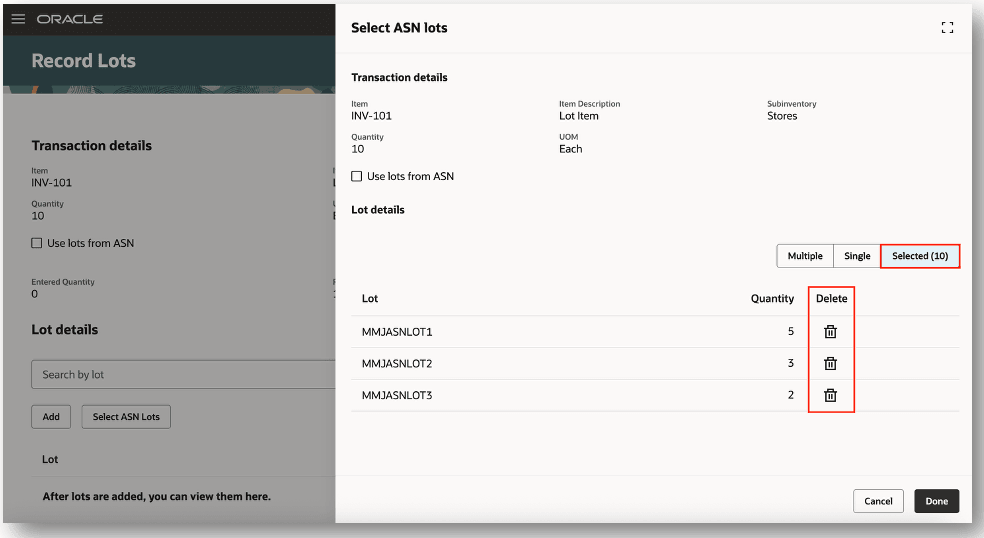
Confirm Lots
Use the Record Serial Numbers page to record ASN serial numbers and record transfer order serial numbers. Click the Select ASN Serial Numbers button to select serial numbers to perform a receipt or put away transaction.

Record Serial Numbers
The Select ASN Serial Numbers action opens the Select ASN serial numbers drawer. Click the Multiple tab to view the serial numbers associated with the ASN or transfer order. You can select individual serial numbers or optionally select all serial numbers.

Select Multiple Serial Numbers
After you select the serial numbers, the Selected tab will be updated with a count of serial numbers selected. You can navigate to the Selected tab to view the individual serial numbers. If you select a serial number incorrectly, click the Delete icon to remove the record and then click the Done button to return to the Record Serial Numbers page to proceed creating the transaction.

Review Selected Serial Numbers
Use the Record Lots and Serial Numbers page to record ASN or transfer order lots and serial numbers. Click the Select Transfer Order Lots and Serial Numbers button to select lots and serial numbers to perform a receipt or put away transaction.

Record Lots and Serial Numbers
The Select Transfer Order Lots and Serial Numbers action opens the Select transfer order lots and serial numbers drawer. You can select a lot and related serial numbers. Click the Multiple tab to view the serial numbers associated with the lot. You can select individual serial numbers or optionally select all serial numbers.

Select Transfer Order Lots and Serial Numbers
After you select the serial numbers, the Selected tab will be updated with a count of serial numbers selected for a given lot. You can navigate to the Selected tab to view the individual serial numbers. If you select a serial number incorrectly, click the Delete icon to remove the record and then click the Done button to return to the Record Lots and Serial Numbers page to proceed creating the transaction.

Review Selected Lots and Serial Numbers
This feature reduces errors and increases flexibility in your receiving process by allowing users to review and select exactly which lot or serial numbers they are receiving.
Steps to enable and configure
You don't need to do anything to enable this feature.
Tips and considerations
This feature is applicable to selection of lot and serial numbers from an ASN or transfer order during receipt or put away
Key resources
- Oracle Fusion Cloud SCM: Using Receiving guide, available on the Oracle Help Center.
- Oracle Fusion Cloud SCM: Implementing Manufacturing and Supply Chain Materials Management guide, available on the Oracle Help Center.
- Oracle Fusion Cloud SCM: Security Reference for Manufacturing and Supply Chain Materials Management guide, available on the Oracle Help Center.
Access requirements
If you have access to the Expected Shipment Lines and Awaiting Put Away pages, you can use this feature to record your lots and serial numbers.