AI Agent: Inventory Task Allocation Assistant
Tasking helps warehouse managers ensure that operators complete the activities required to keep operations running smoothly. A critical part of this process is ensuring tasks are assigned to the right operators. Currently, task assignment depends on manual allocation by managers or self-assignment by operators. Manual assignment is often time-consuming and inefficient, while self-assignment assumes all operators are equally proactive and responsive. To optimize task management, you need the ability to automatically assign tasks based on factors such as shift schedules, operator competencies, throughput, and workload balancing.
To address this need, you can use the Inventory Task Allocation Assistant AI agent. This workflow-based AI agent automatically assigns open inventory tasks to qualified workers. It's designed to run in the background at scheduled intervals and helps balance workload across the warehouse by considering shift availability, worker capacity, task priorities, and worker performance metrics.
Here's what the Inventory Task Allocation Assistant AI Agent can do:
- At each scheduled run, the Inventory Task Allocation Assistant retrieves open, unassigned inventory tasks from Workforce Scheduling–enabled zones.
- Identifies organizations that are eligible for automatic task allocation based on configured inclusion and exclusion rules.
- Determines active shifts that overlap with the evaluation window by using the department time zone defined in the schedule generation profile.
- Retrieves workers assigned to the active shifts who are qualified for the task’s zone and activity.
- Evaluates each worker’s current task load and performance metrics, including average task completion time and completed task volume.
- Applies organization-specific rules to control task allocation behavior, including worker capacity limits, task assignment windows relative to shift start and end times, and task type prioritization.
- Assigns tasks using a balanced workload strategy, where tasks are first assigned to the worker with the fewest active tasks, and ties are resolved by selecting the worker with better performance metrics.
NOTE: This feature requires Oracle HCM Workforce Scheduling to be set up, with worker schedules generated, published, and integrated with Inventory Management. Refer to the What’s New documentation for the 26A feature Redwood: Assign On-Shift Employees to Tasks for more information about the Workforce Scheduling integration with Inventory.
This feature increases operational efficiency by ensuring every task is assigned, tasks are completed efficiently, and workloads are evenly distributed.
Steps to enable and configure
To enable permission groups for roles, complete these steps:
- In the Setup and Maintenance work area, search for the Manage Administrator Profile Values task using the search link in the Tasks panel tab.
- Search for the Enable Security Console External Application Integration (ORA_ASE_SAS_INTEGRATION_ENABLED) profile option and set the Site profile level to Yes.
You can use AI Agent Studio to use or copy a preconfigured agent template to create agents for your business processes. To automatically add a suffix to all artifacts in your agent team, you can use the Copy Template instead of Use Template button. When you copy a template, you're directly taken to the agent team canvas where you can edit the agent team settings, agents, tools, and topics. The Use Template option takes you through a step-by-step process for configuring each artifact in the agent team.
Agent Template: Inventory Task Allocation Assistant
To define task allocation rules, complete these steps:
- In Oracle AI Agent Studio, navigate to the Agent Team tab and edit the agent team used for Inventory Task Allocation.
- Open the agent and select the Task Assignment Rules node, which is the first node in the workflow and is used to define task allocation rules.
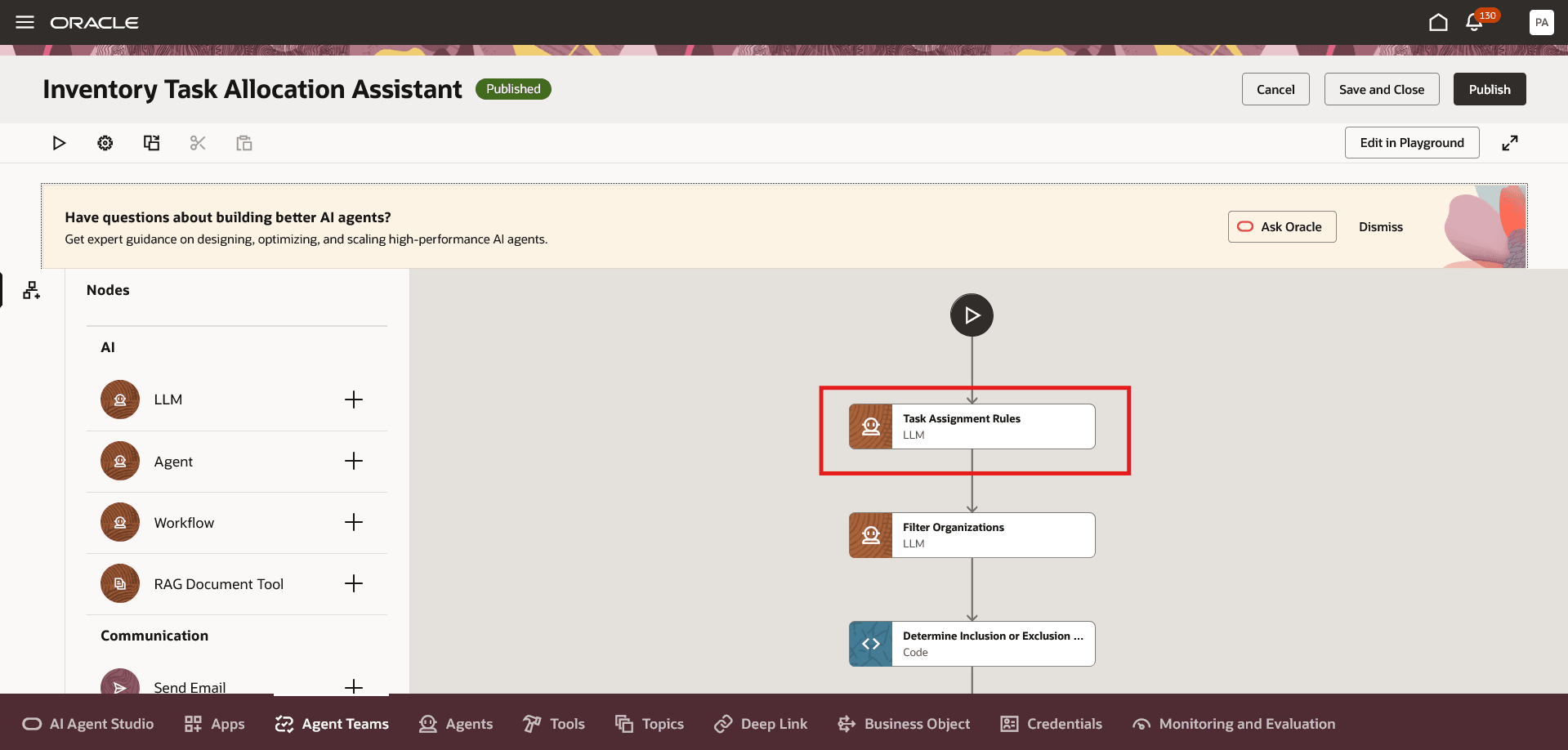
Inventory Task Allocation Assistant
- Click the Actions menu (three dots) and select Edit.
- On the Details tab, locate the Prompt field. A predefined rule template is provided, where all lines prefixed with ## are treated as comments and aren't executed.
- By default, Include All Organizations is set to Yes.
- To enable automatic task assignment only for a specific set of organizations, set Include All Organizations to No, remove the ## prefix from the Organizations Inclusion list, and provide a comma-separated list of organization names.
- To exclude specific organizations and enable automatic task assignment for the remaining organizations, set Include All Organizations to No, remove the ## prefix from the Organizations Exclusion list, and provide a comma-separated list of organization names.
- You can then define organization-specific rules by adding a rule block for each organization. For each organization, you can configure the following:
- Maximum Number of Tasks Allowed per Worker - Defines the maximum number of tasks that can be assigned to a worker within the organization. When all workers reach this limit, any remaining tasks remain unassigned. During the next scheduled run, remaining tasks are assigned as workers complete existing tasks and become available.
- Assignment Window Before Shift Start - Defines how early tasks can be assigned before a shift begins. For example, if the assistant runs every hour and you want tasks to be assigned one hour before shift start, set this value to 1.
- Assignment Window After Shift Start - Defines how long into a shift tasks can continue to be assigned. For example, to stop assigning tasks during the last two hours of an eight-hour shift, set this value to 6. This rule can be used in combination with the Assignment Window Before Shift Start to control assignment across shifts.
- Task Type Assignment Order – Defines the priority order in which different task types are assigned, allowing certain task types to be prioritized over others.
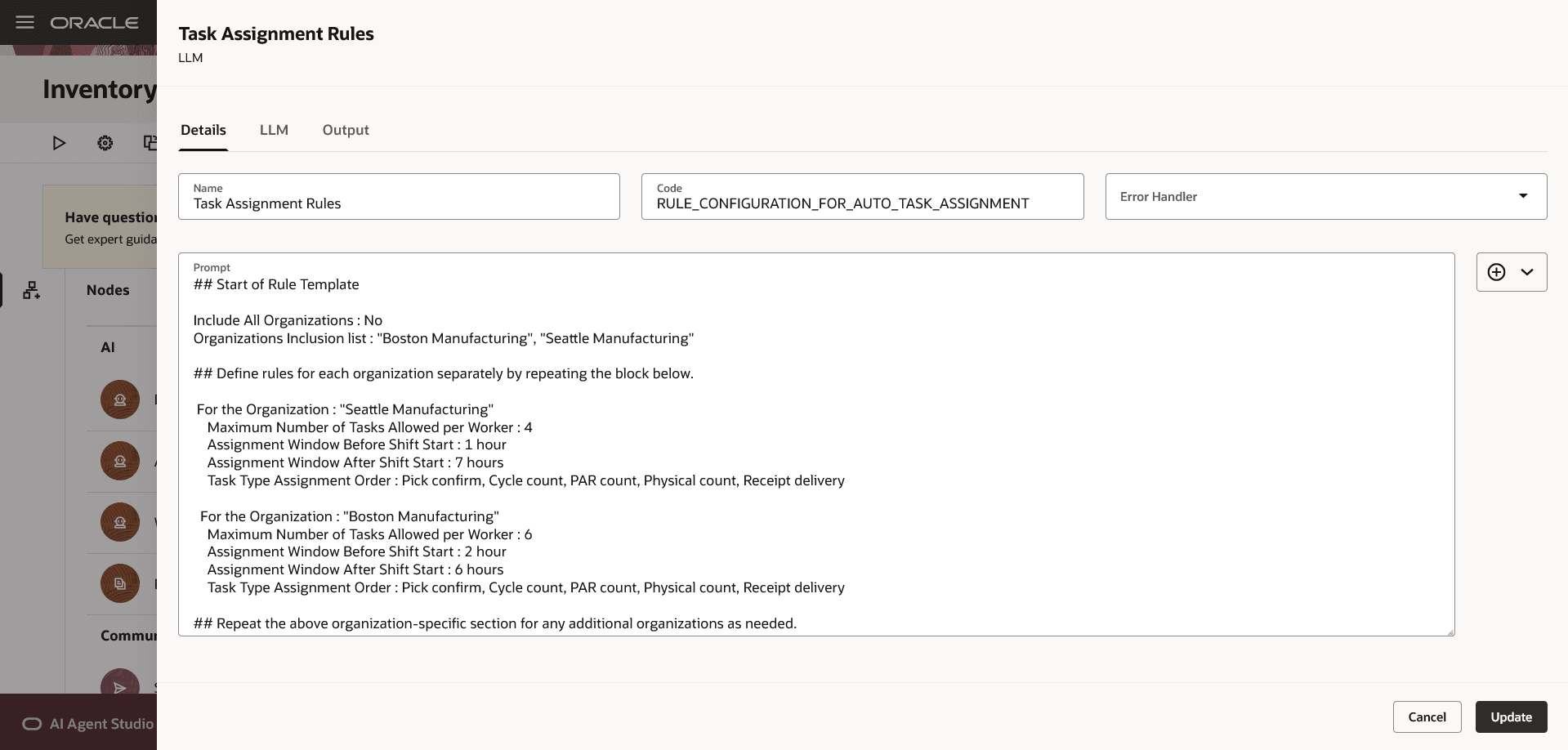
Task Assignment Rules - Prompt
To schedule the agent to run periodically, complete these steps:
- Click the Agent Team Settings icon.
- Navigate to the Triggers tab and click Add to create a Schedule trigger.
- Define the schedule by specifying either a fixed interval or a recurring execution pattern.
For information on using AI Agent Studio, see How do I use AI Agent Studio?
Tips and considerations
- Use AI Agent Studio to schedule the assistant to run as frequently as needed to identify unassigned inventory tasks and assign them to qualified workers. The scheduling frequency depends on how often tasks are created in your organization and how many tasks you want to assign to workers at any given time, with additional tasks dispatched automatically as workers complete existing tasks.
- In this update, the integration between Inventory Management and Workforce Scheduling is enhanced to consider worker competencies during task assignment.
- You can define the competencies required to perform an activity type in a zone as part of Inventory Zone definition.
- When competencies are used in schedule generation, only workers who are scheduled with the required competencies are considered for task assignment within the zone.
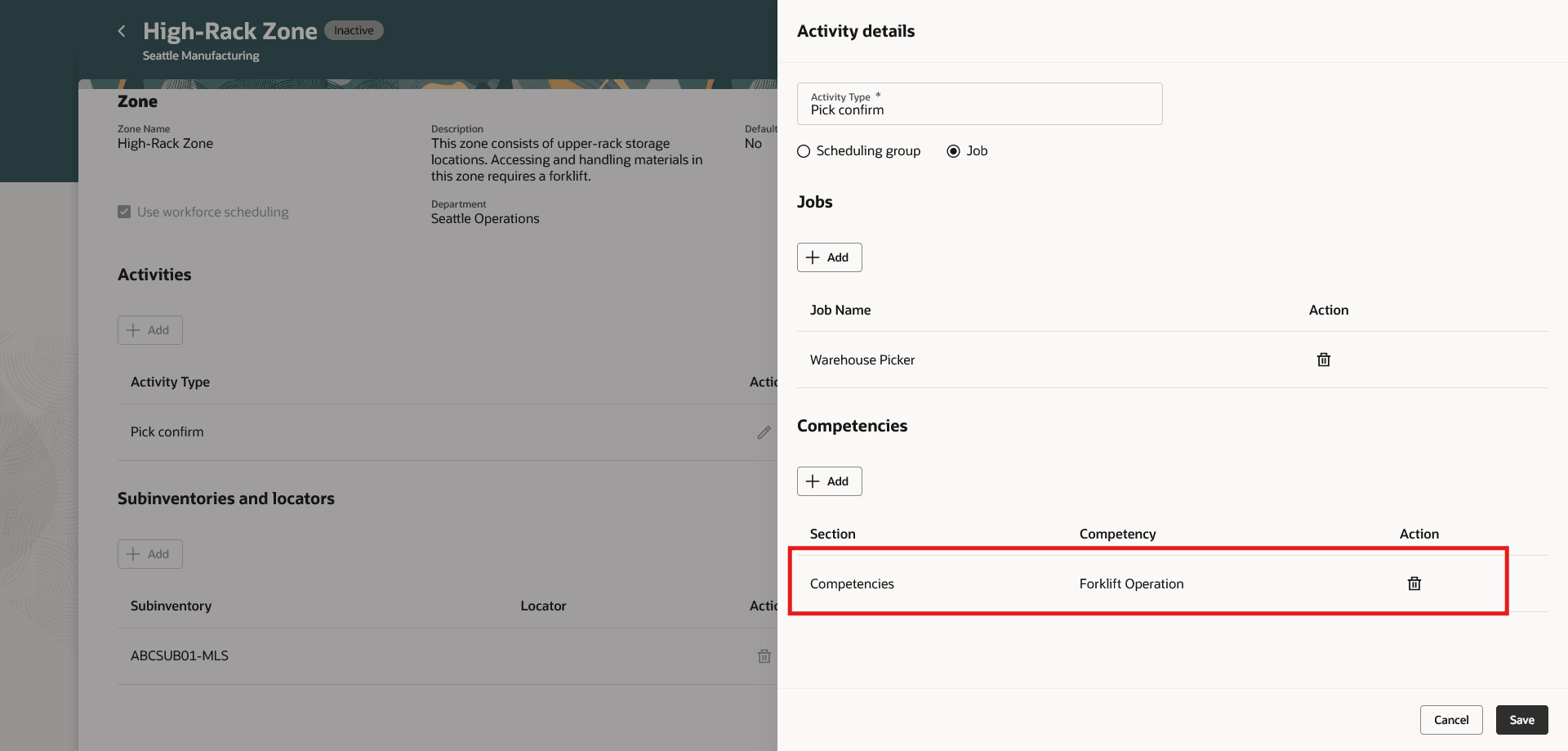
Inventory Zones
- New instance sets are added to data security policies to control access to Workforce Schedule and Scheduling Workload Plan data for inventory organizations that a user is authorized to access.
- Prior to this update, access to this data was granted through areas of responsibility.
- With this update, you can create data security policies for job roles and assign instance sets that provide access to Workforce Schedule and Scheduling Workload Plan data for departments mapped to inventory organizations through inventory zone and department mappings.
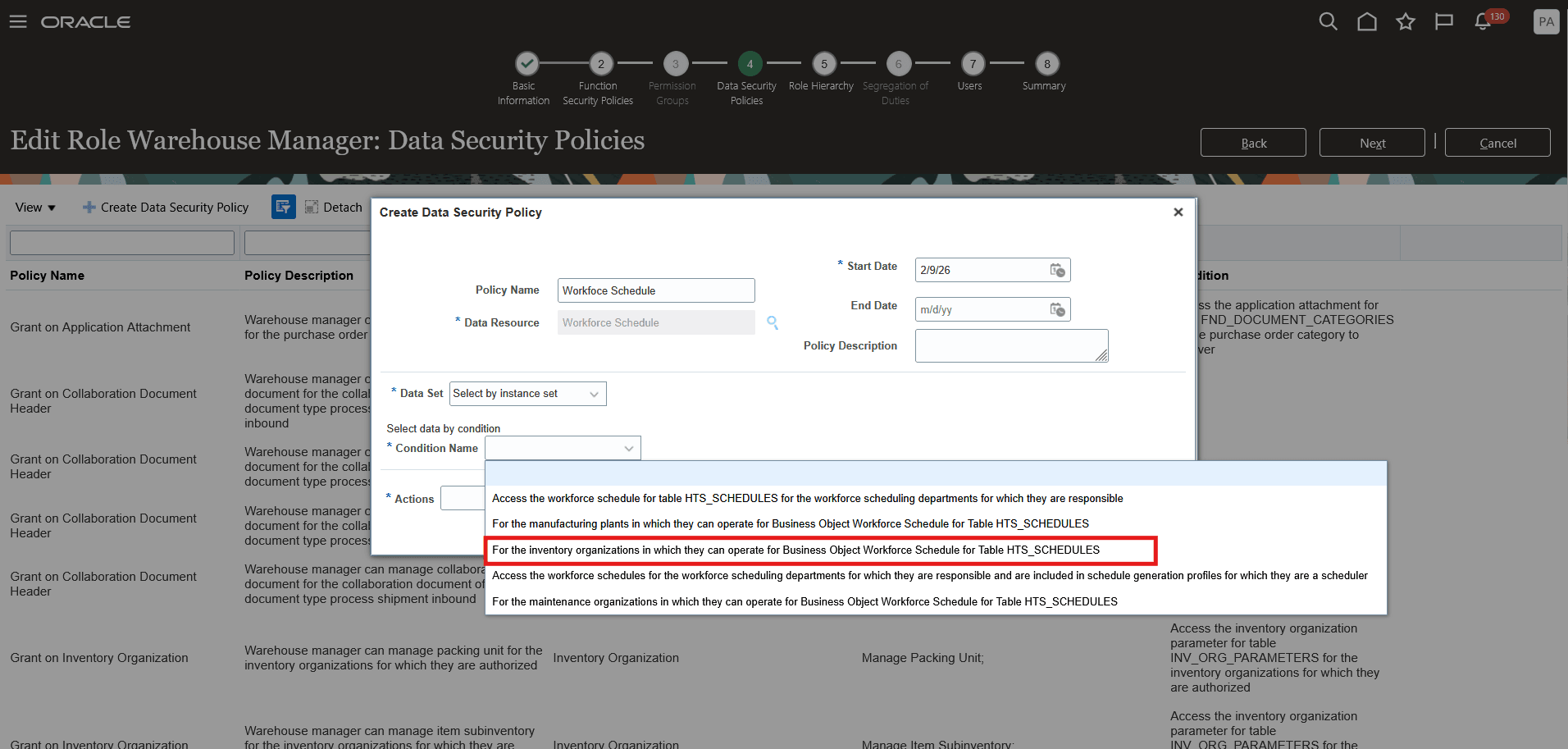
Data Security Policy - Instance Set
Key resources
- Oracle Fusion Cloud SCM: Using Inventory Management guide, available on the Oracle Help Center.
- Oracle Fusion Cloud SCM: Implementing Manufacturing and Supply Chain Materials Management guide, available on the Oracle Help Center.
- Oracle Fusion Cloud Human Resources: Implementing and Administering Workforce Scheduling guide, available on the Oracle Help Center.
- Oracle Fusion Cloud Human Resources: Implementing Global Human Resources guide, available on the Oracle Help Center.
- Access Requirements for AI Agent Studio
- How can I give users access to AI agents?
- Create AI Agents
Access requirements
To access the Oracle AI Agent Studio for Fusion Applications and manage SCM AI agents, users must be assigned a configured job role that contains these duty roles:
- SCM Intelligent Agent Management Duty (ORA_RCS_SCM_AI_AGENT_MANAGEMENT_DUTY)
- SCM Intelligent Agent Management Duty (ORA_RCS_SCM_AI_AGENT_MANAGEMENT_DUTY_HCM)
- Fai Genai Agent SCM Administrator Duty (ORA_DR_FAI_GENERATIVE_AI_AGENT_SCM_ADMINISTRATOR_DUTY)
To interact with AI agents in product pages, users must be assigned a configured job role that contains this duty role:
- Fai Genai Agent Runtime Duty (ORA_DR_FAI_GENERATIVE_AI_AGENT_RUNTIME_DUTY)
To allow users to interact with agents, you must also enable permission groups in the Security Console on those users' configured job roles that contain the Fai Genai Agent Runtime Duty role. You can enable permission groups when you manage the basic information of your configured job roles.
See Access Requirements for AI Agent Studio (for administrators) and How can I give users access to AI agents (for end-users) for more information.
To interact with the Inventory Task Allocation Assistant agent, users must be assigned a configured job role that contains these privileges:
- Review Inventory Task Assignments Using Responsive Inventory (INV_REVIEW_INVENTORY_TASK_ASSIGNMENTS_USING_RESPONSIVE_INVENTORY_PWA_PRIV)
- View Schedule Generation Profiles (HTS_VIEW_SCHEDULE_GENERATION_PROFILE_PRIV)
- View Shifts (HTS_VIEW_SHIFTS_PRIV)