Redwood: Track Work in Process Between Operations During Production Execution
Some manufacturing environments require greater control over the automatic flow of completed quantities between work order operations. Manual control of Work in Process (WIP) quantities can help in scenarios such as resource bottlenecks, inspection holds, or strategic production sequencing requirements. This new feature allows manufacturers to track WIP quantities as they progress between operations, providing transparent visibility and control at every stage of production. Operators can indicate completed work at their stations, while material handlers can manually move these quantities to subsequent operations, ensuring that each operation can clearly see what is ready to execute and what is in queue. Key capabilities include:
- Manual movement of WIP from one operation to the next with precise tracking of quantities and statuses.
- Real-time visibility into WIP quantities across operations for operators and supervisors.
When you enable a work center for manual movement of Work in Process (WIP), completed quantities at an operation are not automatically transferred to the "Ready" status of the subsequent operation. Instead, these quantities are added to the "To-Move" pool for the completed operation. This indicates that the quantity is awaiting transfer to the next operation. The operator must explicitly perform the Move Work in Process action to move quantities from the "To-Move" pool of the current operation to the "Ready" pool of the next operation.
Work in Process (WIP) can be transferred from one operation to another, regardless of whether the operation is carried out at a workstation or not. The following screenshot shows the option to move WIP quantities to the next operation without initiating execution at a workstation. A similar option is available when executing production without workstations.
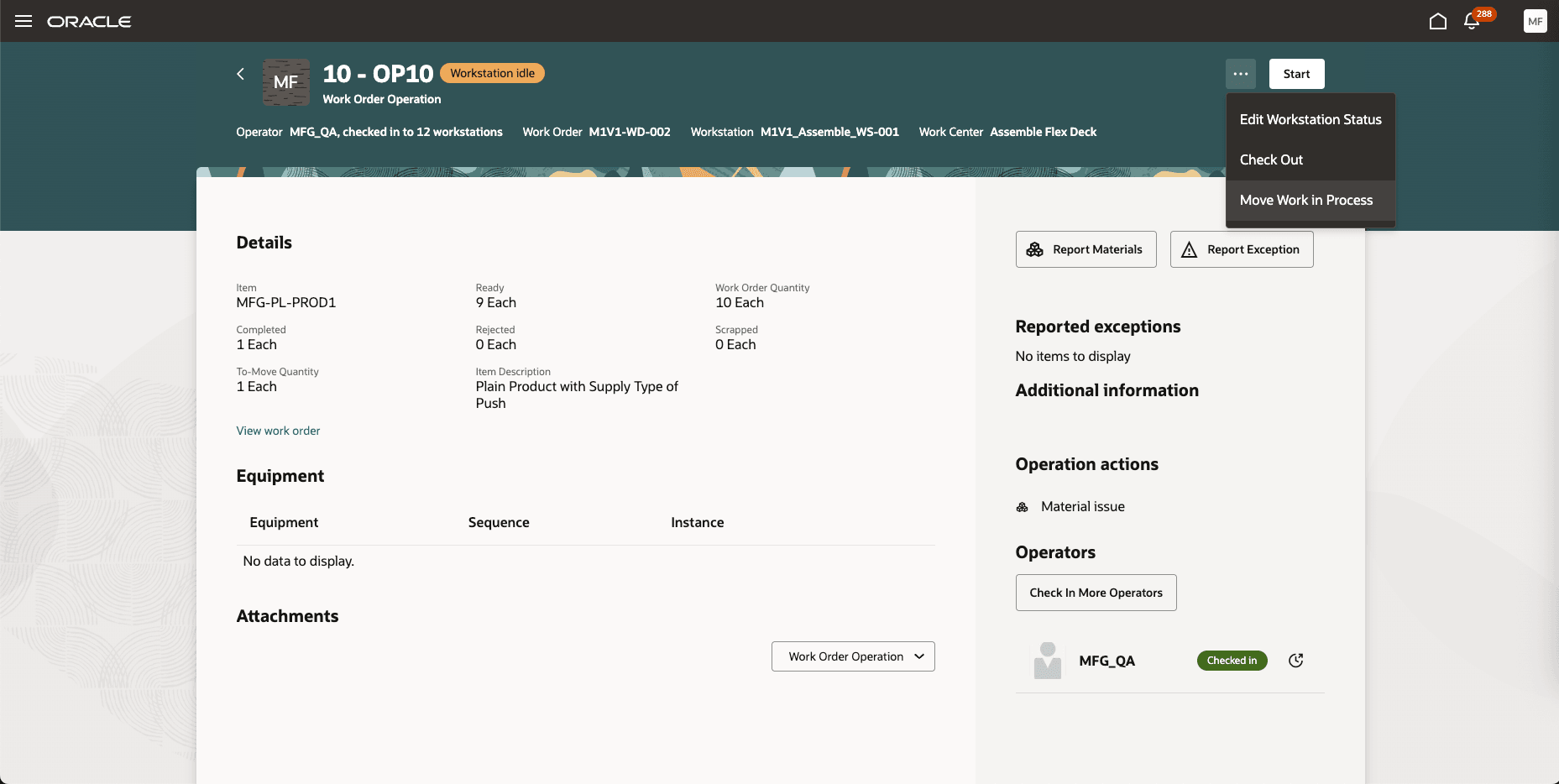
Move Work in Process Without Starting Operation Execution at a Workstation
The following screenshot shows how operators can enter the Work in Process quantity to be moved:
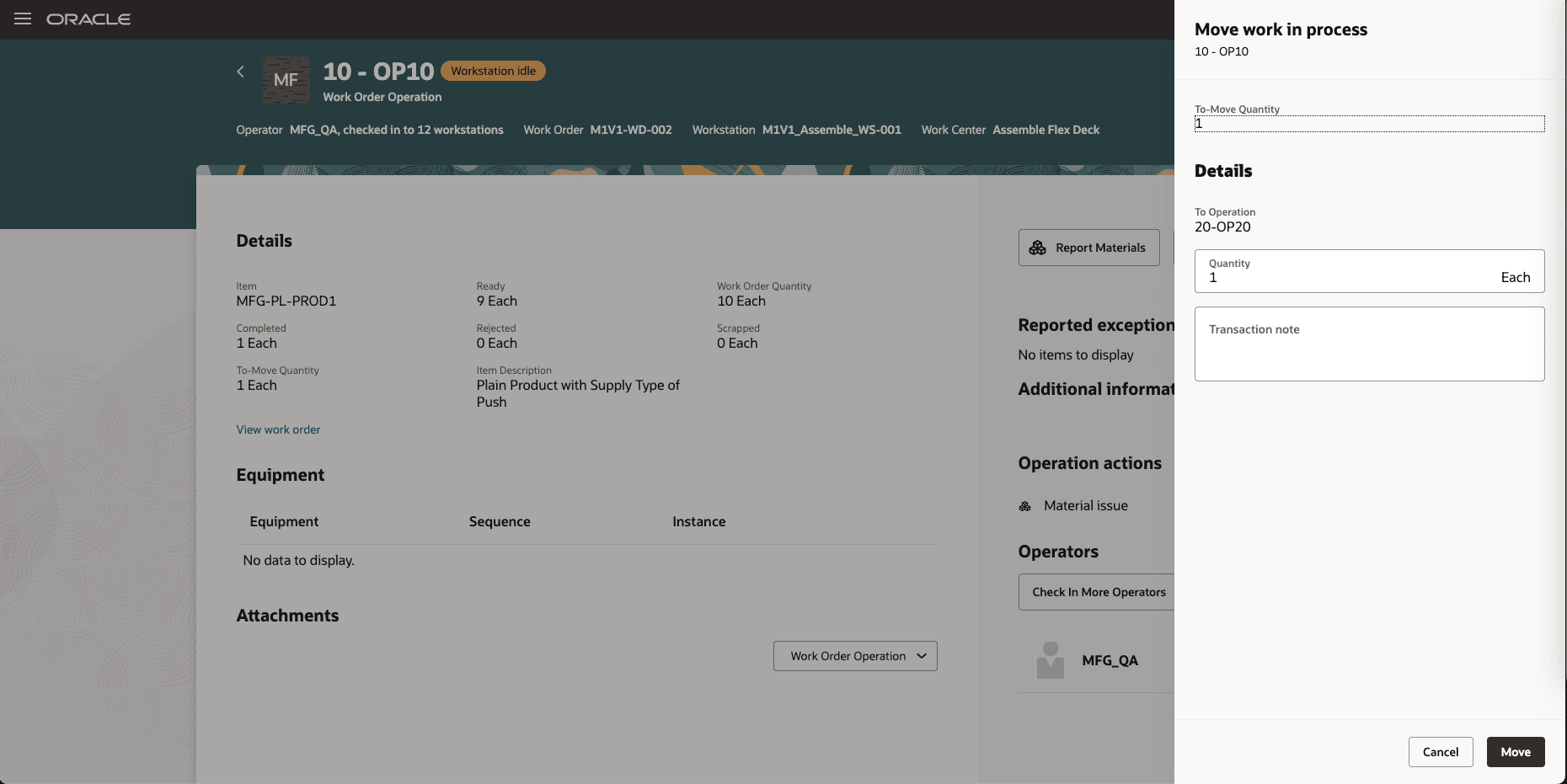
Move Work in Process Drawer
The following screenshot shows the option to move Work in Process quantities to the next operation while an operation is being executed at a workstation. A similar option is available when executing production without workstations.
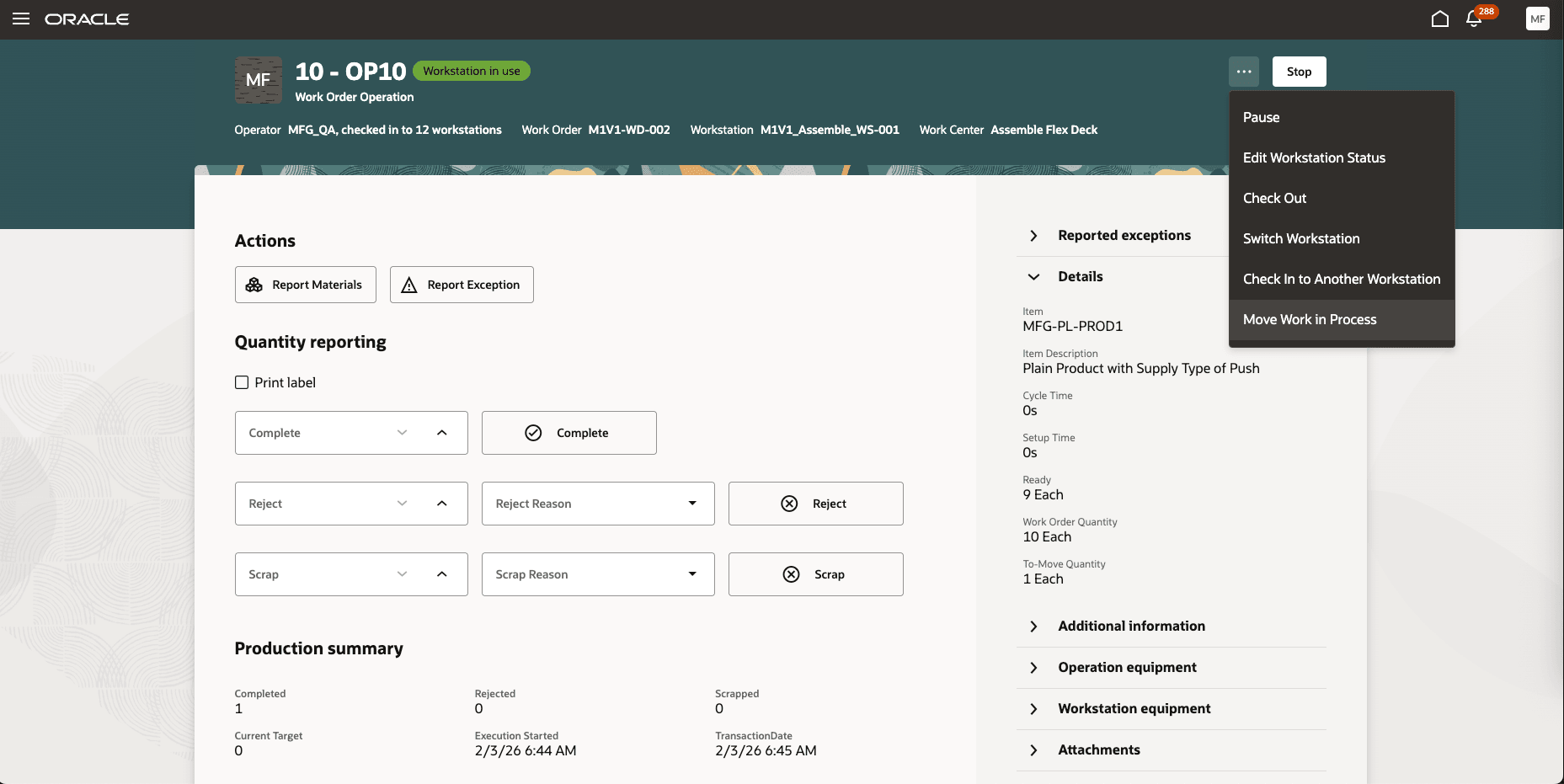
Move Work in Process While Executing an Operation at a Workstation
The following screenshot shows an option to filter operations based on the 'To Move' quantity, which represents the amount available to be moved: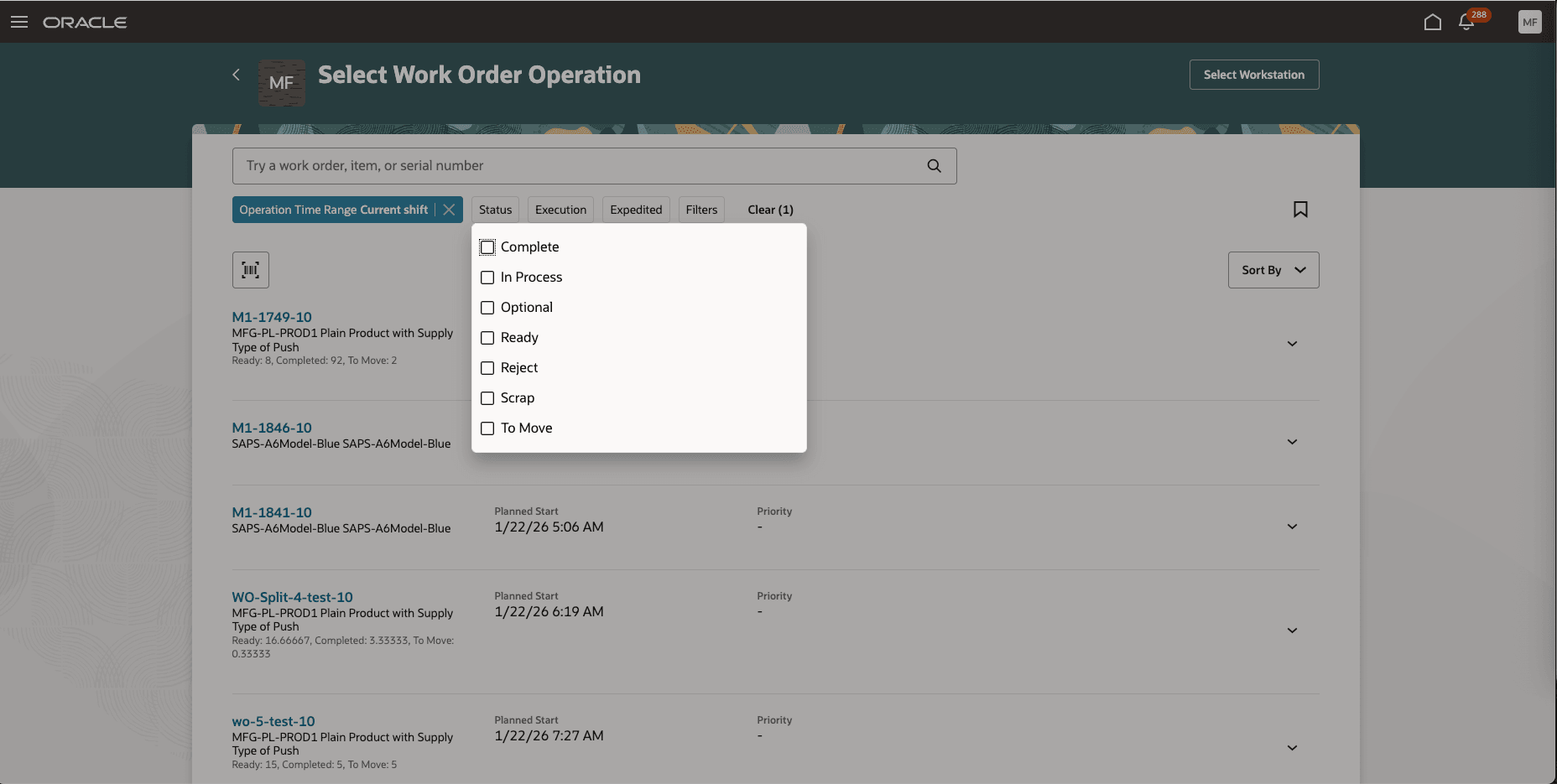
Filter Operations by To Move Quantity
The option to move the WIP is also available through the mobile interface. The following screenshots show the option to move Work in Process quantities using the mobile interface:
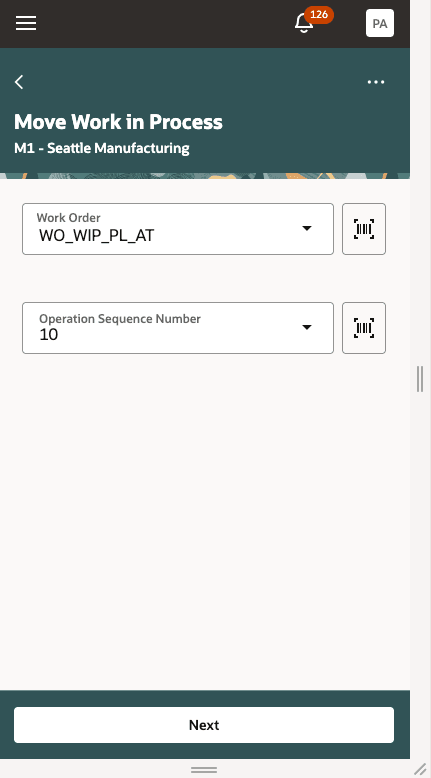
Select Work Order Operation
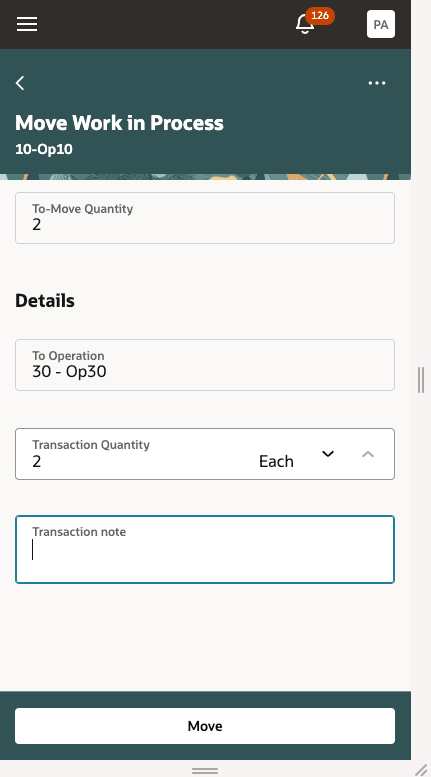
Enter Quantity to Move
Using the ability to track and control WIP movement in the production process, supervisors can quickly address delays, eliminate bottlenecks, and increase throughput. This results in reduced queue times, on time handoffs, and improved equipment utilization.
Here's the demo of these capabilities:
Steps to enable and configure
Use the Opt In UI to enable this feature. For instructions, refer to the Optional Uptake of New Features section of this document.
Offering: Manufacturing and Supply Chain Materials Management No Longer Optional From: Update 26D
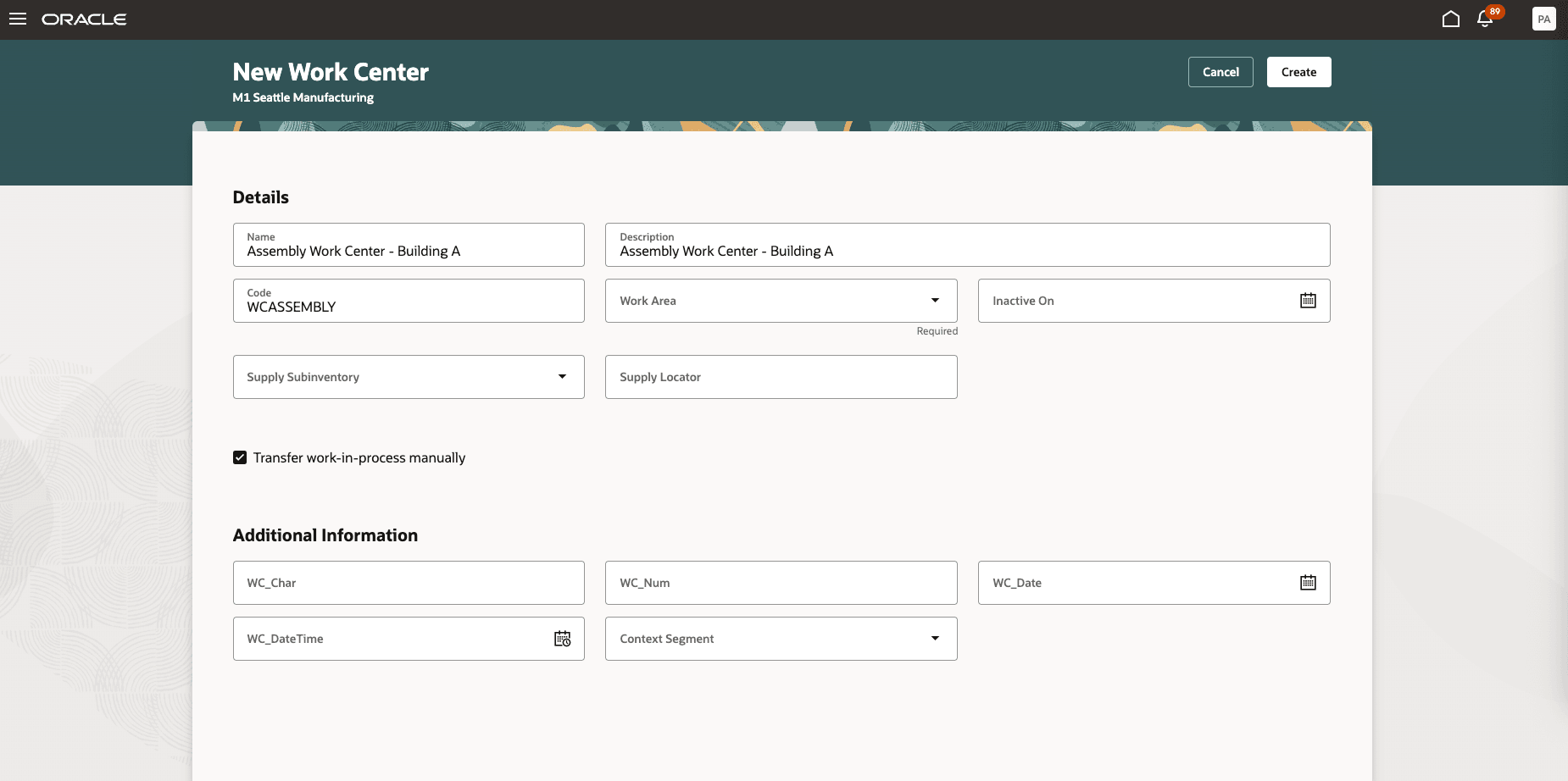
- Enable the “Transfer work-in-process manually” flag in the work center setup to activate manual WIP movement.
The following screenshot shows the 'Transfer work-in-process manually' flag that enables WIP to be moved manually in the work center:
Tips and considerations
- Enable the “Transfer work-in-process manually” flag in the work center setup to activate manual WIP movement.
- WIP tracking is supported for discrete and process in-house manufacturing operations, but does not apply to flow, orderless, or supplier operations.
- WIP tracking is not supported for work orders with parallel operations. WIP is moved automatically for operations in such work orders.
- Use Descriptive Flexfields if you require additional staging location details during the move transaction.
Key resources
- Watch the Track Work in Process Between Operations During Production Execution demo.
- Refer to the Oracle Fusion Cloud SCM: Using Manufacturing guide, available on the Oracle Help Center.
- Refer to the Oracle Fusion Cloud SCM: Implementing Manufacturing and Supply Chain Materials Management guide, available on the Oracle Help Center.
Access requirements
Users who are assigned a configured job role that contains the following privilege can access this feature:
- WIP_TRANSFER_OPERATION_WIP_PRIV