Redwood: Migrate Configurator Rules
Migrate your configurator rules from Oracle E-Business Suite or Oracle Fusion Configurator to Redwood. Use a simple process with File-Based Data Import (FBDI) to automatically convert your rules into the logic and formula rules that Redwood requires. After you migrate, use the new functionality in the easy-to-use Product Management work area instead of the Configurator Models work area.
Realize these benefits:
- Move to Redwood faster using a simple FBDI process that converts your existing rules with minimal manual effort.
- Reduce operational overhead eliminating proprietary scripts, complex integrations, and one-off rule maintenance.
- Improve data quality with automated validation and transformation that maintains your rule logic clean and consistent.
- Adopt a future-ready rule framework so that you stay aligned with Oracle’s latest capabilities and release cycles.
- Standardize migrations with a repeatable, predictable process that you can use across multiple models and business units.
Try it:
-
Download the ConfiguratorRedwoodRuleConversionTemplate.xlsm file from the Configurator Rules section, under Product Lifecycle Management, of the File-Based Data Import (FBDI) for Oracle SCM guide, available on the Oracle Help Center.
-
In this file, add the rules that you want to convert and then select Create CSV > Generate CSV File. The ConfiguratorRedwoodRuleConversion.zip file is generated and saved to your system.
-
On the Home page, go to Tools > File Import and Export work area.
-
On the Overview page, upload the ConfiguratorRedwoodRuleConversion.zip file that you created earlier and associate it with the scm/configuratorRule/import account as shown in the following screenshot.
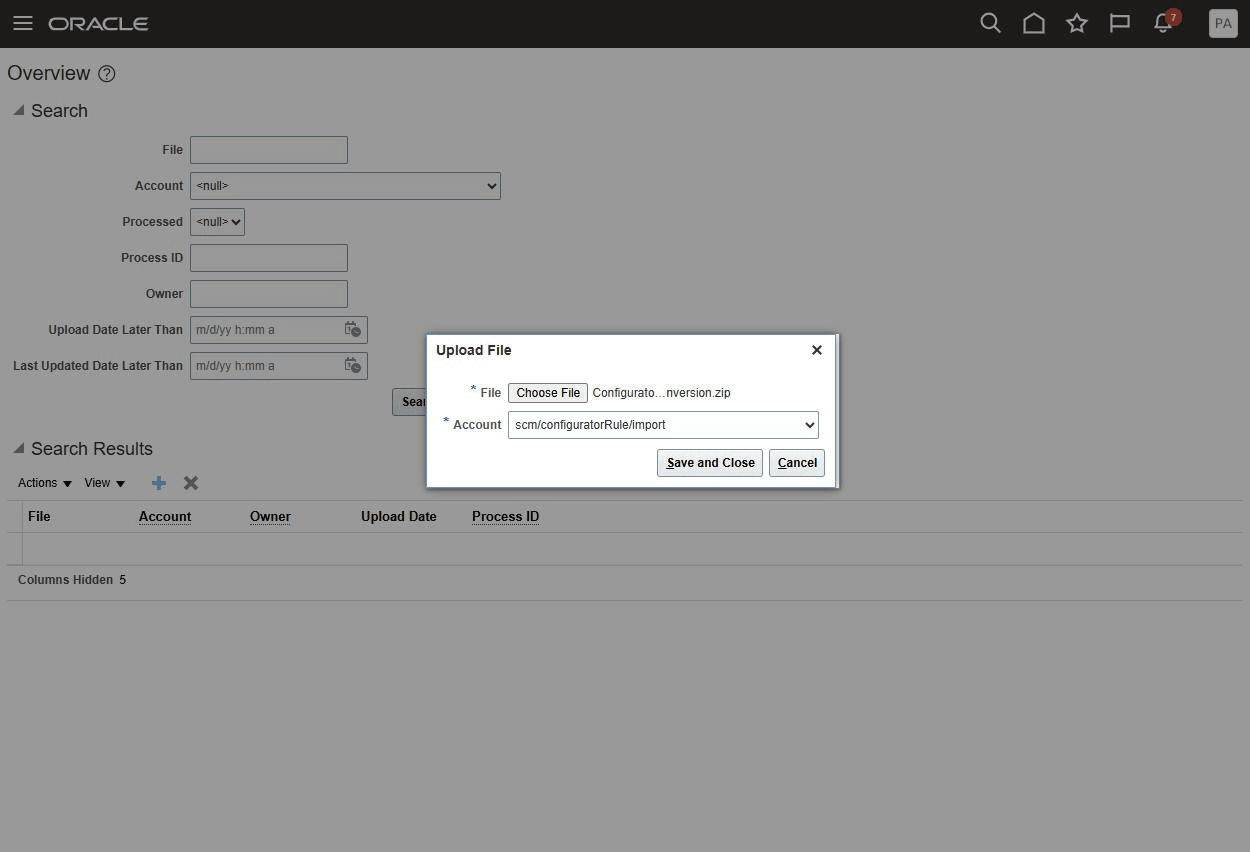
File Import and Export Overview Page – Upload File
-
Go to Home > Tools > Scheduled Processes and search for the Load Interface File for Import scheduled process as shown in the following screenshot.
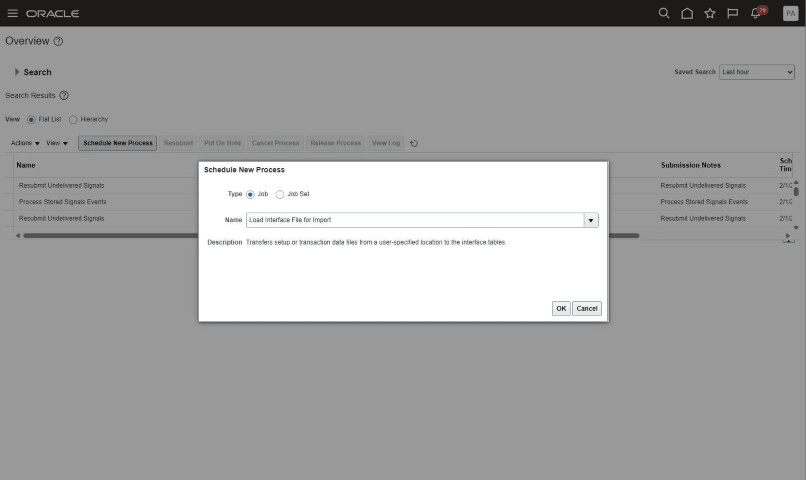
Load Interface File for Import Scheduled Process
- Specify the following parameter values:
- Import Process: Convert Configurator Rules
- Data File: RedwoodConfiguratorRuleConverter.zip
- Select Submit.
- Examine the log to verify that the Load Interface File for Import scheduled process finished successfully.
- In the Scheduled Processes work area, search for the Convert Configurator Rules scheduled process and enter the Batch ID corresponding to your interface load, specified in your spreadsheet.
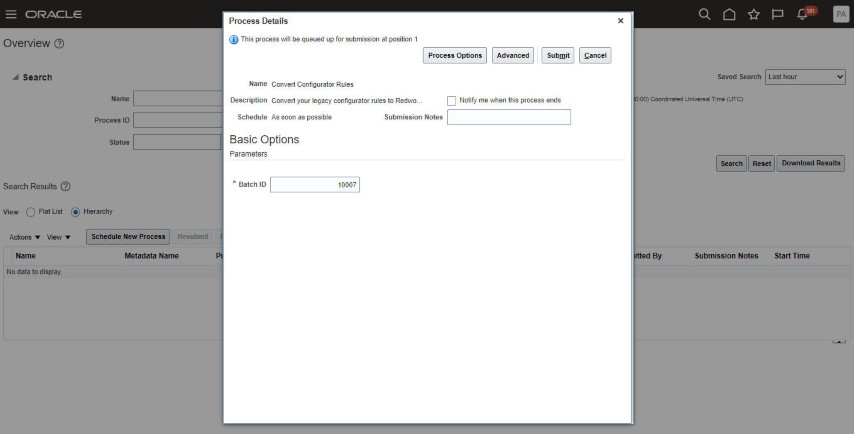
Convert Configurator Rules Scheduled Process - Batch ID
- Examine the log to verify that the Convert Configurator Rules scheduled process finished successfully.
Steps to enable and configure
To use the Redwood: Migrate Configurator Rules feature, opt in to the Redwood: Author Configurator Rules in Product Management feature. If you've already opted in to this feature, no further action is required.
Tips and considerations
- Configurator rules become active in production on the effective date specified for the rule in the conversion template. As a best practice, use a future effective date for rule conversion. Then, create a change order for that effective date and add the model to the change order so you can review and test the converted rules before they take effect.
- When a rule with the REQUIRES operator is converted, it's created as two IMPLIES rules. For example, Item_A REQUIRES Item_B becomes Item_A IMPLIES Item_B and Item_B IMPLIES Item_A.
- When multiple rules are separated by semicolons in the source rule text within the conversion template, they're created as separate Redwood Configurator rules with a -## suffix added to the Target Redwood Rule Name, where ## identifies each converted rule.
- Rules with nested subgroups are converted to formula rules.
- You can convert constraint and default rules from the classic Oracle Configurator or legacy systems to Redwood only if the rules use the IMPLIES, EXCLUDES, or REQUIRES operators, comparison operators such as <, <=, >, >=, <>, =, or the ADD TO keyword. For example:
- Model_A.Option_Class_A.Standard_Item_A IMPLIES Model_A.Option_Class_B.Standard_Item_B
- Model_A.Option_Class_A.Standard_Item_A EXCLUDES Model_A.Option_Class_B.Standard_Item_B
- Model_A.Option_Class_A.Standard_Item_A REQUIRES Model_A.Option_Class_B.Standard_Item_B
- Add (Model_A.Option_Class_A.Standard_Item_A * 5) to Model_A.Option_Class_B.Standard_Item_B
- (Model_A.Option_Class_A.Standard_Item_A + Model_A.Option_Class_B.Standard_Item_B) > 5 IMPLIES Model_A.Option_Class_C.Standard_Item_C
Key resources
Refer to the Oracle Fusion Cloud SCM: Modeling Configurations for SCM guide, available on the Oracle Help Center.
Access requirements
Users who are assigned a configured job role that contains this privilege can access this feature:
- Manage Configurator Rules (CZ_MANAGE_RULES_PRIV)
This privilege was available prior to this update.