Redwood: Create and Revise Requests for Recurring Billing on Sales Orders
Create an invoice for a sales order according to a recurring billing plan. Attach that plan to an order line, then send the invoice to your customer according to the plan's frequency. For example, one time each month or one time each quarter.
Oracle Order Management will interface the line to Oracle Receivables. Receivables will create invoices according to the billing plan, then send invoice details to Order Management.
Realize this benefit:
- Work more efficiently and accurately. You can now automatically bill your item, coverage, or subscription periodically according to a billing plan instead of having to create a single invoice with more than one payment.
Try It
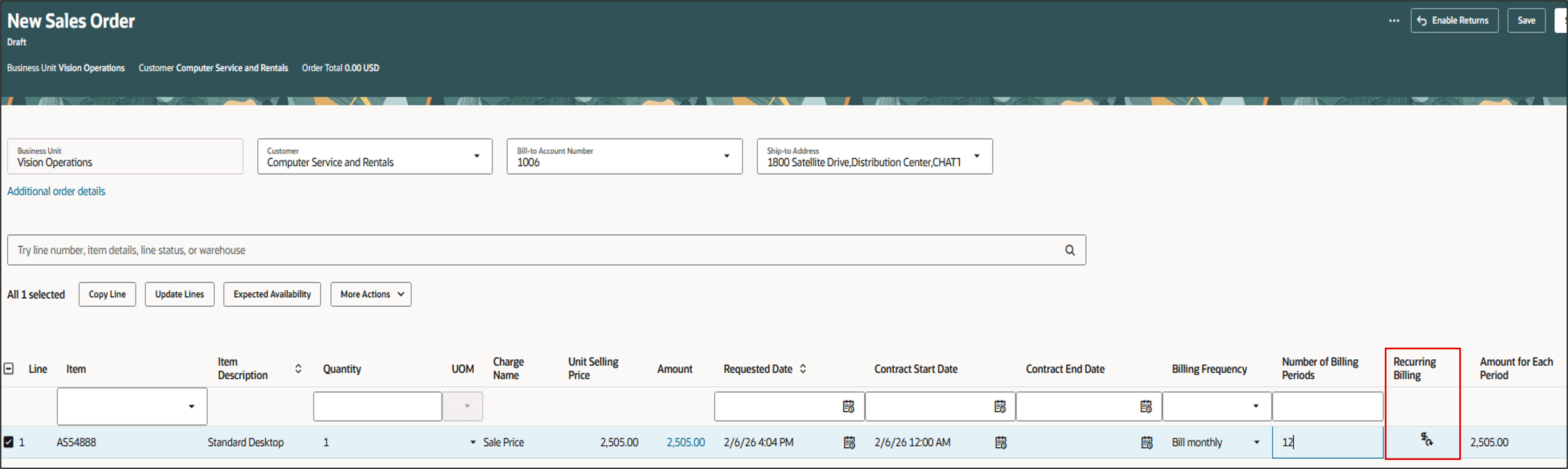
Create a new sales order and set details on the order line:
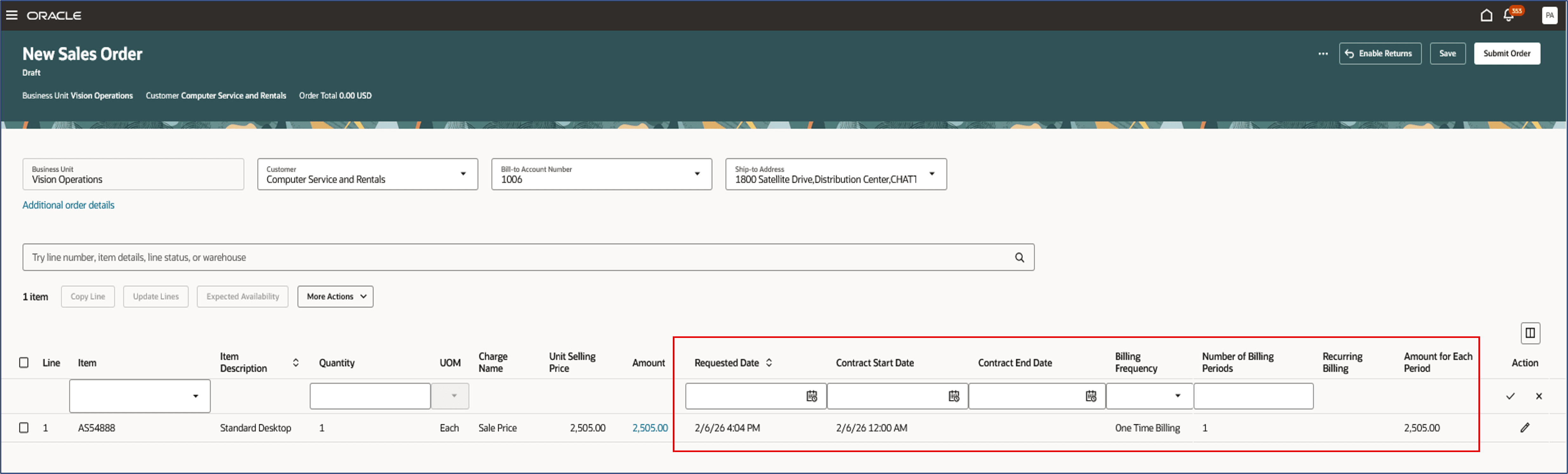
Notice:
- Set the item, price, quantity, and contract start date. The contract end date is optional, but required for a coverage or subscription.
- The Billing Frequency defaults to One Time.
- The Number of Billing Periods defaults to 1.
\If the item:
- Is a standard item. Amount for Each Period equals Amount divided by Number of Billing Periods.
- Is a coverage or subscription. Amount for Each Period equals Amount for Total Duration divided by Number of Billing Periods.
Assume you need to split billing according to a recurring billing plan, such as monthly for 12 months. Edit the line, then set Billing Frequency to Bill Monthly and set Number of Billing Periods to 12:
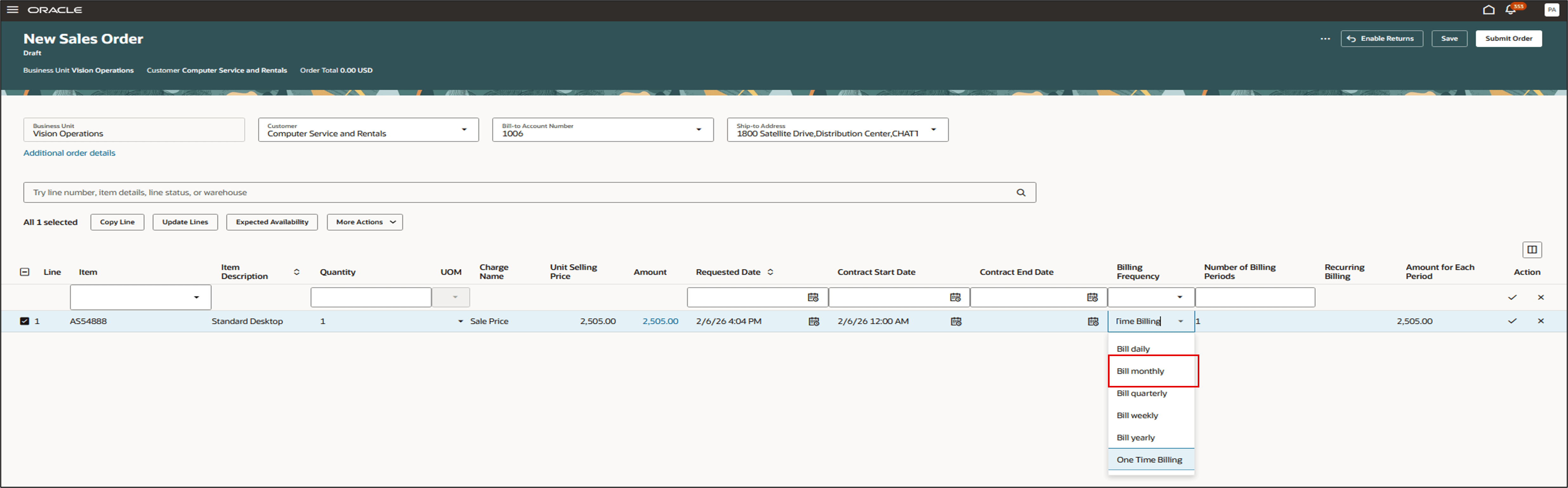
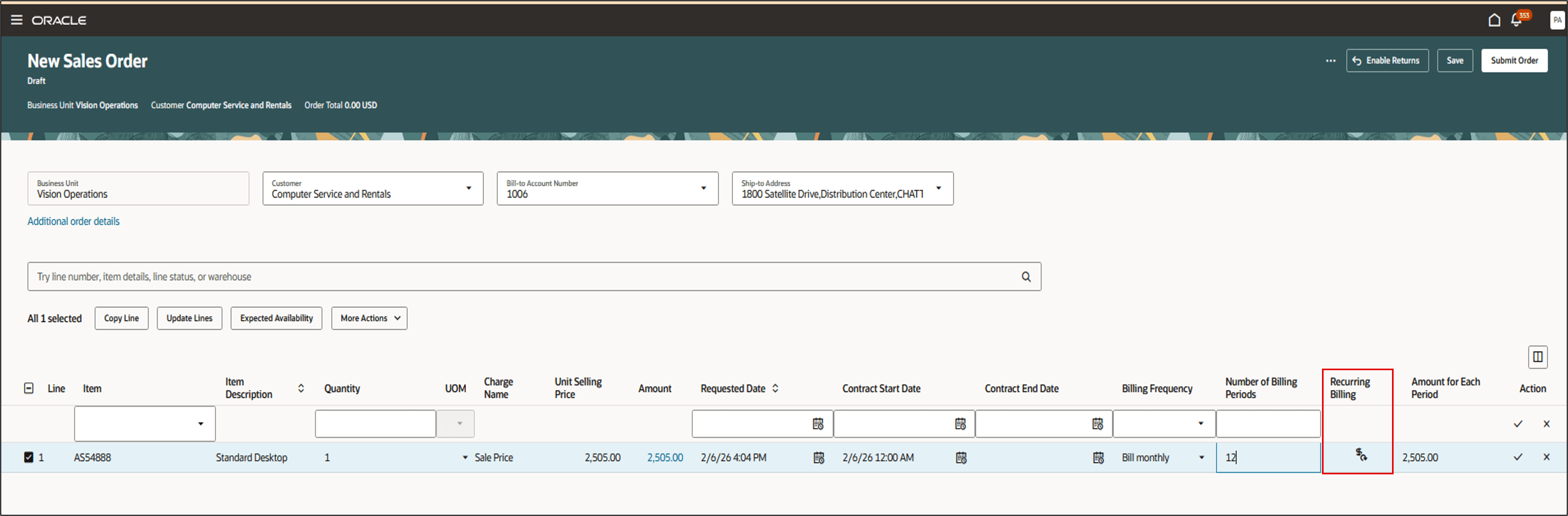
Save the line then notice that the Amount for Each Period displays a value.
If you need to add more detail, then click the icon in the Recurring Billing column:
Add your detail:
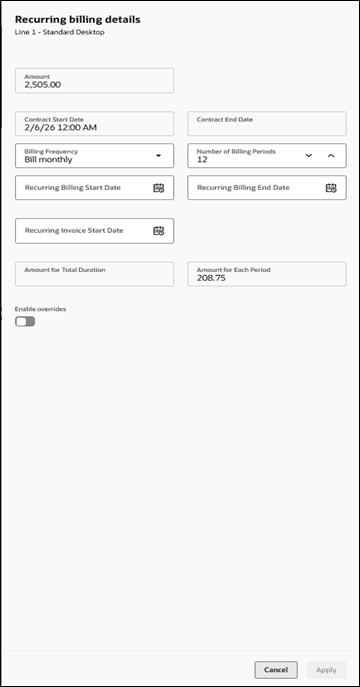
Notice:
- The dialog displays the contract dates, amount, amount for total duration, and amount for each period from the order line. You can't update them.
- You can modify the billing frequency and number of billing periods, as necessary.
The Amount for Each Period equals one of:
- Amount divided by Number of Billing Periods, or
- Amount for Total Duration divided by Number of Billing Periods
Partial Billing Period
If you use a partial billing period, then enable the Enable Overrides option:
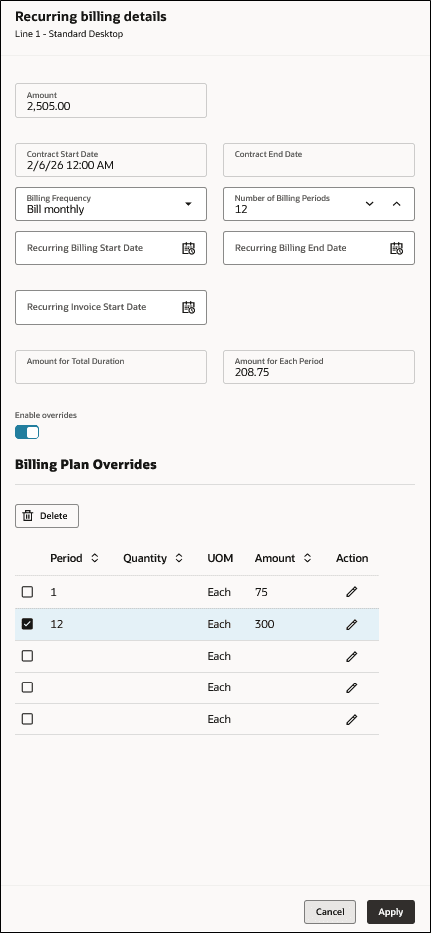
Notice:
- You can add up to 5 overrides and set the quantity and amount for each period.
- You must set the amount for the first period and the last period.
- You can use the Recurring Invoice Start Date for a recurring invoice only to control the second invoice date. Order Management always uses the order date to set the date for the first invoice.
Use these attributes only when you have a partial billing period:
-
Recurring Billing Start Date
- Recurring Invoice Start Date
For details about a partial billing period, see Example 4 in Integrate Recurring Billing between Order Management and Receivables.
Configured Items, Coverages, and Subscriptions
Cascade for a configured item works like:
|
What You Do |
Result |
|
Add billing plan on the root item. |
Billing plan cascades to child lines except for an option class or included item. Cascade happens when you click the tick mark icon. |
|
Add billing plan on a configure option. |
No cascade. The add applies only on the configure option. |
|
Modify billing plan on the root item. |
Billing plan cascades from the root item to child lines except for the option class and included items. The cascade overrides any earlier change that you made on child options and child lines. |
|
Modify billing plan on a configure option. |
No cascade. The modification applies only on the configure option. |
Cascade for a coverage or subscription works like:
|
What You Do |
Result |
|
Create or modify billing plan for a coverage or subscription. |
Applies on only that coverage or subscription. |
|
Add a billing plan to a coverage or subscription for a standard item. |
Applies on only that coverage or subscription. You can also specify the same or a different billing plan on that item's line. |
|
Add a billing plan to coverage or subscription for a configured item. |
Billing plan cascades from the parent item's coverage or subscription to its child lines. |
|
Modify the billing plan for a coverage or subscription for the child line of a configured item. |
No cascade. Applies only to the child. |
View Invoice Details
Bill the sales order over multiple periods, click View Details in the Fulfillment Details column, then examine details about each invoice:
You can also click View Recurring Billing Plan to get more of the billing plan's detail.
Copy Sales Order
Create a copy of a sales order, then specify whether to copy the billing plan from the original order to the copy:
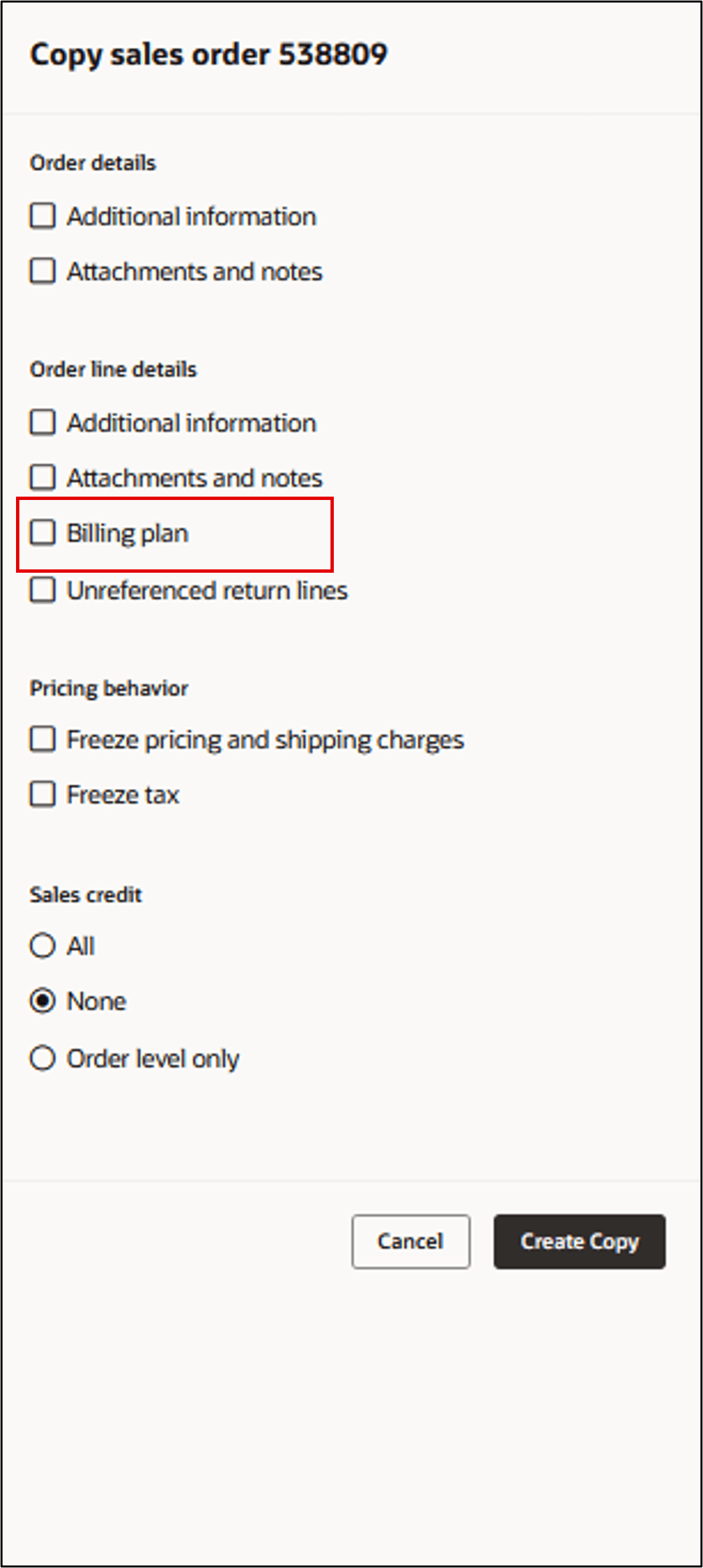
If you:
- Enable the billing plan option. Order Management copies the billing frequency, number of billing periods, and overrides to the copy. It doesn't copy any dates from the original order.
- Don't enable the billing plan option. Order Management doesn't copy any part of the billing plan.
Return Orders
Returns work just like they do before update 26B. You must use a referenced return to end recurring billing with or without credit. The order date on the referenced return determines when recurring billing ends.
Import Through FBDI and REST API
You can import a billing plan's detail just like you did before update 26B, and then send it to Oracle Receivables for billing. You can use FBDI or REST API to:
- Create an order line that has a billing plan.
- If you haven't already interfaced the order line to Receivables, then you can modify the billing plan's attributes.
- End billing or issue credit for periods that you already billed.
Steps to enable and configure
You don't need to do anything to enable this feature.
Tips and considerations
If you integrate Order Management with Oracle Subscription Management:
- Order Management sends order line details only for coverages and subscriptions to Subscription Management, and Subscription Management sends that data to Oracle Receivables so Receivables can do the recurring billing.
- Order Management disables the Recurring Billing icon on the order line for coverages and subscriptions, so you can't navigate to the Recurring Billing Details page.
- You can specify only the Billing Frequency and Number of Billing Periods on the order line for coverages and subscriptions.
If you have a coverage or subscription, then we recommend that you integrate Order Management with Subscription Management so the integration can manage billing between Subscription Management and Receivables.
Notice:
- If you must use other attributes in the billing plan for your coverage or subscription, such as partial period dates or overrides, then you must disable the integration to Subscription Management so Order Management can send the order line directly to Receivables.
- If you integrate Order Management with Oracle Revenue Management, then you can't override your billing plan.
Migrate Recurring Billing to Subscription Management
If you want to migrate to Oracle Subscription Management to manage billing for your coverages and subscriptions, and you want to use your Oracle Order Management to Oracle Receivables integration to end recurring billing, then you must use a return order line that references the original order line that has the recurring billing.
You must specify the precise date that you want to end billing. Use the return's Order Date attribute in the Order Management work area or the Cancellation Effective Date attribute on the DOO_ORDER_BILLING_PLANS_INT worksheet in file-based data import.
If you interface a return line that doesn't have the correct date to Receivables, then you can't:
- Send a different end date through a subsequent return line that references the same original line.
- Delete the row to manage future billing because you can't delete an interfaced row.
Instead, you must invoice the pending billing line that you don't want, then manually credit the invoice in Receivables.
Assume you use Order Management to bill a subscription from January 1 through December 31 and send it to Receivables. You migrate to Subscription Management in July.
You use the Order Management to Receivables integration to end all billing in July.
The return line that you create to end billing must have the correct end date. You must set the return's Order Date or Cancellation Effective Date to July. If you provide an incorrect date, such as September, then:
- Your Order Management to Receivables integration will bill July and August.
- You must manually credit the July invoice and the August invoice directly in Receivables.
Key resources
- Integrate Recurring Billing Between Order Management and Oracle Receivables
- Overview of Integrating Order Management with Subscription Management
- Overview of Integrating Order Management with Oracle Receivables
Access requirements
No new privileges were added for this feature.