Redwood: Amend, Renew, and End Coverages and Subscriptions on Sales Orders
Use Order Management's redesigned pages to amend, renew, or end a coverage or subscription. You can now also add a coverage to more than one asset on the order line.
Get these benefits:
- Reduce complexity and manual effort. Amend, renew, or end a coverage or subscription directly on a new page.
- Work more efficiently and improve productivity. Cover more than one asset on a single order line. Manage large sales orders that reference a lot of assets more quickly and accurately.
Steps to enable and configure
Use the Opt In UI to enable this feature. For instructions, refer to the Optional Uptake of New Features section of this document.
Offering: Sales
To use the redesigned pages start by opting in, and then set up the index.
How to Opt In
Opt-in to the Redwood: Create and Manage Sales Orders feature in the Order Management offering and then opt into these features in the Sales offering:
- Order Management >Order Management > Redwood: Create and Manage Sales Orders.
- Sales > Subscriptions > Integrate Order Management with Subscription Management
- Integrate Order Management with Subscription Management to Process Subscriptions
- Integrate Order Management with Subscription Management to Process Coverages
Set Up the Index
After opting into the features, make sure all the necessary attributes are available.
- Go to Home > Order Management > Show More > Index Management for Sales Orders > Sales Order.
- On the Sales Order - Configure Index page, sort the attribute column in ascending order, then verify that the index has these attributes:
- Line Category
- Canceled (Order Line Attributes)
- Canceled (Cancellation)
- Open (Order Attributes)
- Open (Order Line Attributes)
- Item
- Add any missing attributes then click Save > Rebuild. Notice the messages for example 'Process submitted Job: 237741'. Go to the Scheduled Processes work area to monitor progress if needed.
- Click Cancel > Sales Order Line.
- On the Sales Order Line - Configure Index page, sort the attribute column in ascending order, then verify that the index has these attributes:
- Line Category
- Canceled
- Open (Order Attributes)
- Open (Order Line Attributes)
- Item
- Item Subtype
- UOM
- Add any missing attributes and click Save > Rebuild. Notice the message, for example 'Process submitted Job: 237741'. If necessary, you can go to the Scheduled Processes work area and monitor progress.
Using the Redesigned Pages
Here’s a quick look at how to create a new sales order once everything is set up.
- Go to Home > Order Management > Order Management (New) > Create Sales Orders (New). Enter header information for amendment order.
- Click on the header actions and select Manage Subscriptions and Coverages. Navigate to the relevant order line and choose the Action Type (Amend, Renew, End, etc.). Select the subscription that you want to update.
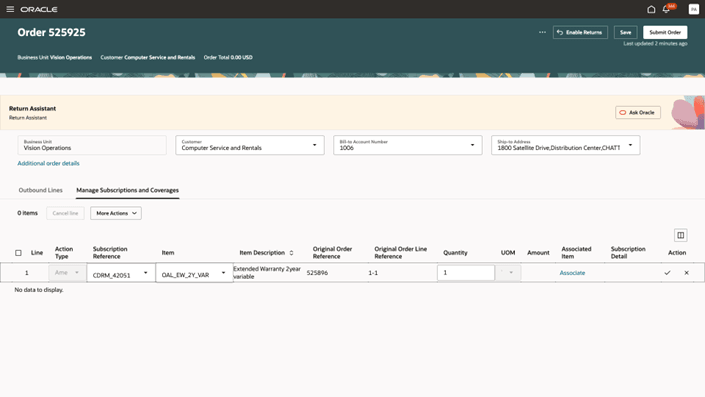
- Click Associate in the Associated Item attribute, then select the assets.
- For Amend or Renew: Select the assets or order line for the new subscription.
- For End. Select the assets that you need to remove from the coverage.
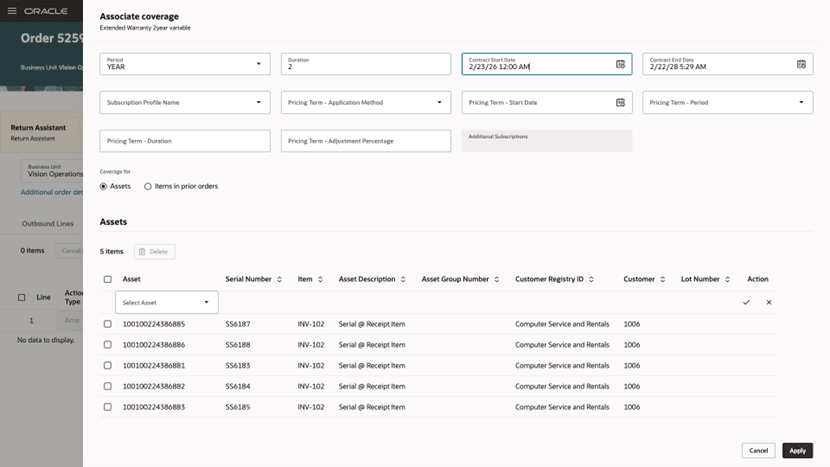
Apply More Than One Asset
Streamline how sales orders are created and ensure adding and managing assets is done accurately. It’s no longer required to add a separate coverage line for each asset.
- Click Associate to connect assets when adding a coverage line. Click the Assets option, then add the assets, such as 100106870239434.
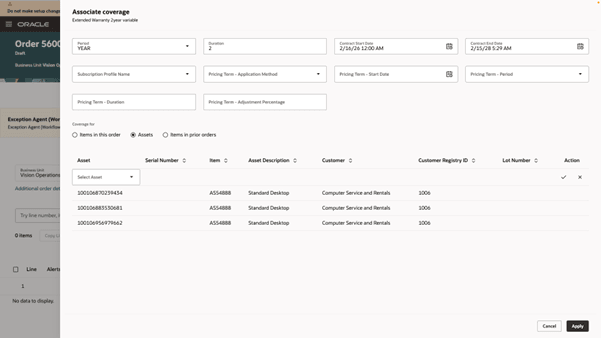
-
Click Apply, then Order Management to create the lines according to the item and each asset's unit of measure.
In this feature, we also enabled additional actions and the business rules for the Manage Subscriptions and Coverages tab. To use the business rules, create business rules under the Service Line region. Use this region to add and remove columns.
Tips and considerations
To use a product or subscription different from the current coverage or subscription, be sure to change the item before navigating to the associated page.
Key resources
Overview of Integrating Order Management with Subscription Management
Access requirements
Users who are assigned a configured job role that contains these privileges can access this feature:
- Initiate Order (FOM_CREATE_ORDER_PRIV)
- View Orders (FOM_VIEW_ORDERS_PRIV)
- Revise Order (FOM_REVISE_ORDER_PRIV)
- Search Subscriptions (OSS_SEARCH_SUBSCRIPTIONS_PRIV)
These privileges were available before this update.