Redwood: Include More Charges and Items When You Publish Price Books
You could create a price book in update 25D, publish it, and then send it to your partners or customers starting in update 26A. You can now include more charge types in update 26B, such as a rate plan usage, and more types of items, such as models. If you set up customer pricing, then you can also create and publish price books for customers and groups.
Realize these benefits:
- Create a price book for one or more customers, customer groups, or customer accounts. Include price lists, items, item categories, units of measure, and so on in your book.
- Publish a price book for a specific customer or customer account.
- Use line quantity tiers in discounts.
- Copy a price book and use it to create a new one.
You create a customer price book in the same way that you that you create a price book in update 25D or update 26A, but you have more choices in update 26B.
Before 26B, you could create a book only according to pricing strategies. Now you can use the Based On section to choose a strategy, a customer, or group:
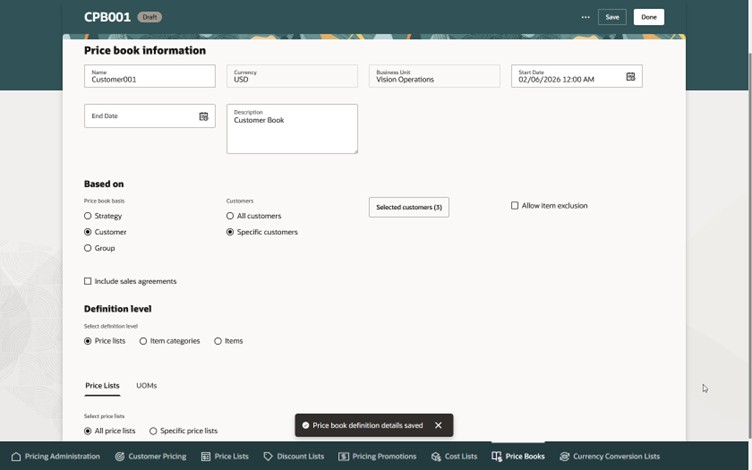
Set the attributes in the Price Book Information section, set Based On to Customer, then click All Customers or Specific Customers.
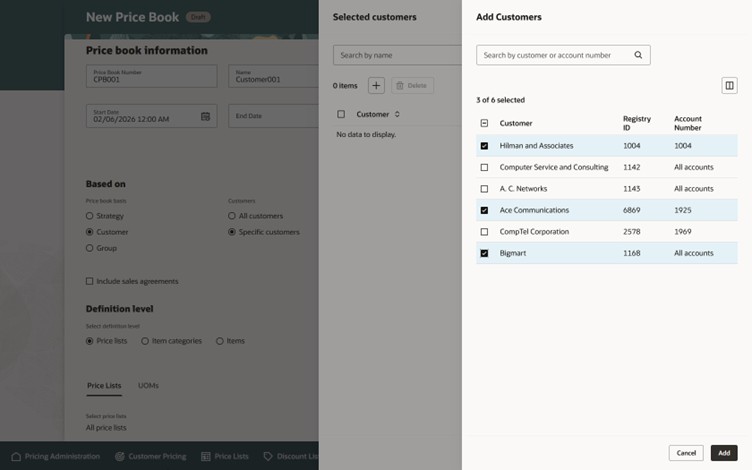
For this example, click Specific Customers > Selected Customers, then add them:
Click Update, then select the Generate action.
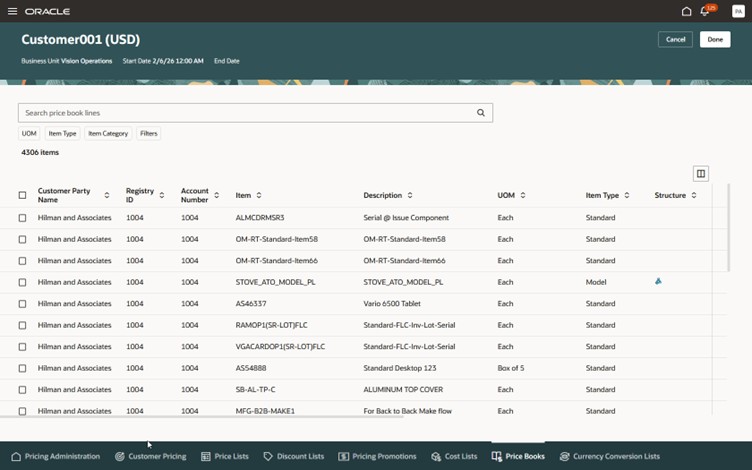
Notice that the price book lines have some attributes that are new with update 26B, such as Registry ID, and Account Number:
Publish
As an option, click Publish to publish your price book after you generate it:
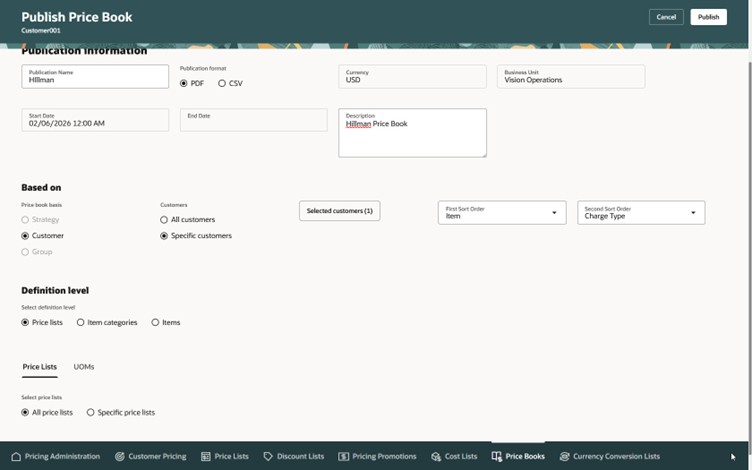
- The Based On attribute defaults to the value that you used when you generated the price book.
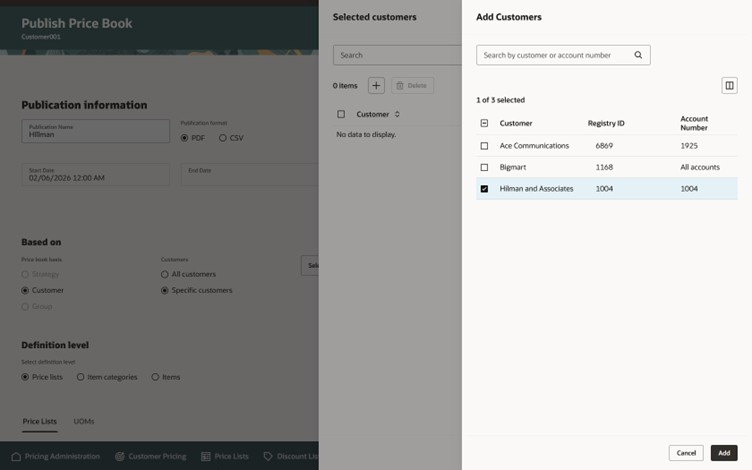
- If you generate the price book for more than one customer, then you can publish it for one or more customers.
if you want to publish only some of the customers, then select Specific Customers, then select them:
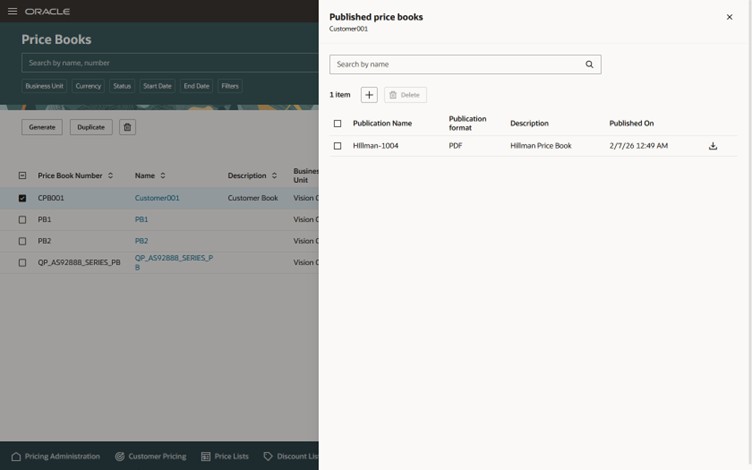
Pricing will publish each customer’s book as a PDF file. You can download it:
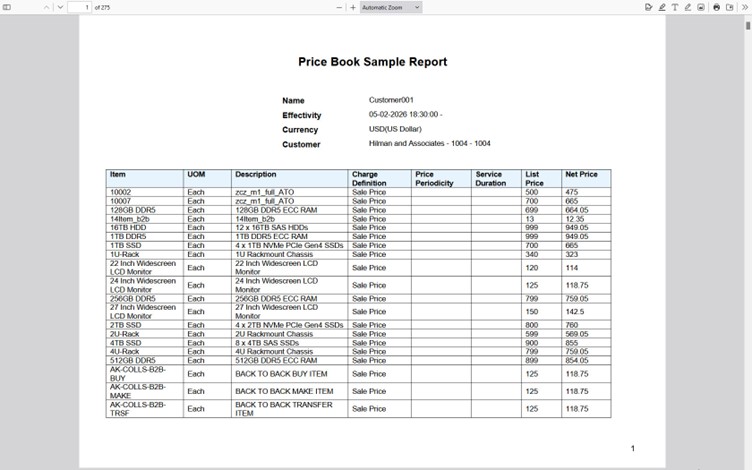
For example:
Steps to enable and configure
If you want to use the Redwood: Include More Charges and Items When You Publish Price Books, then you must opt in to its parent Redwood: Create Price Books to Price Sales Orders feature. If you already opted in to the parent, then you don't have to opt in again.
Tips and considerations
You can create a price book only on Pricing's redesigned pages.
You can't include these items or pricing on a price book in update 26B:
- Discount on a configured item
- Coverage
- Document discount on a pricing tier
- Amount discount on a pricing tier
If your price list has one of them, then the price won't include it and the price book report will display an error. You can still generate the book and use it for pricing.
If you modify a pricing algorithm, and if that modification causes an error when you generate the price book, then you must remove your modification and generate again.
Key resources
- Redwood: Create Price Books to Price Sales Orders
- Manage Price Lists
- REST API for Oracle Supply Chain Management Cloud
Access requirements
Users who are assigned a configured job role that contains these privileges can access this feature:
- Manage Pricing Rules (QP_MANAGE_PRICING_RULES)
- View Price Lists (QP_VIEW_PRICE_LISTS_PRIV)
- Manage Price Lists (QP_MANAGE_PRICE_LISTS_PRIV)
- Manage In-Progress Price Lists (QP_MANAGE_IN_PROGRESS_PRICE_LISTS_PRIV)
- Generate Price Book (QP_GENERATE_PRICE_BOOK_PRIV) Generate a price book from user-selected parameters.
- View Price Books (QP_VIEW_PRICE_BOOKS_PRIV) Allows viewing of price books.
- Manage Price Books (QP_MANAGE_PRICE_BOOKS_PRIV) Allows creation, update, deletion, and viewing of price books.
- Delete Price Books (QP_DELETE_PRICE_BOOKS_PRIV) Allows deletion of price books.
These privileges were available before this update.
- Publish Price Books (QP_PUBLISH_PRICE_BOOK_PRIV) Publish a price book that was previously generated.
These privileges are new for this feature in this release.