Redwood: Use the New Formulas Page to Create and Manage Pricing Formulas
Use the new formulas page to create and manage pricing formulas. You can also select a formula, then view all the charges for items where Oracle Pricing used that formula to calculate the items' charges. Reuse a formula to recalculate an item's charges.
Realize these benefits:
- Make pricing more agile. You can easily create and update your pricing formula, and that helps you respond to market changes or pricing strategies, keeping your business competitive.
- Make your pricing more consistent. View all items and charges that you use with a formula so you can consistently apply pricing logic across your items.
- Adjust price more quickly and work more efficiently. Reuse a formula instead of creating a new one so you can recalculate charges and update your pricing and respond more quickly to market and cost changes. Reduce repetitive manual work and make sure your pricing charges are accurate and up-to-date.
Use the new Formulas page to create and manage formulas. Before this update, you could only view formulas by looking at each item in a price list.
You can now have a unique name for each formula and a central place to manage them across items and price lists.
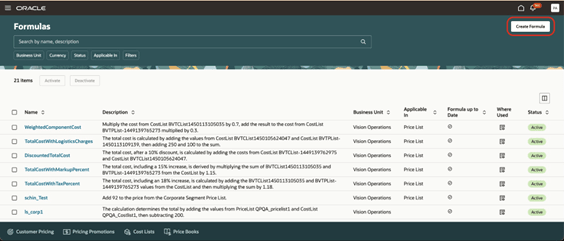
- Go to Home > Order Management > Pricing Administration > Actions > Formulas, then click Create Formula:
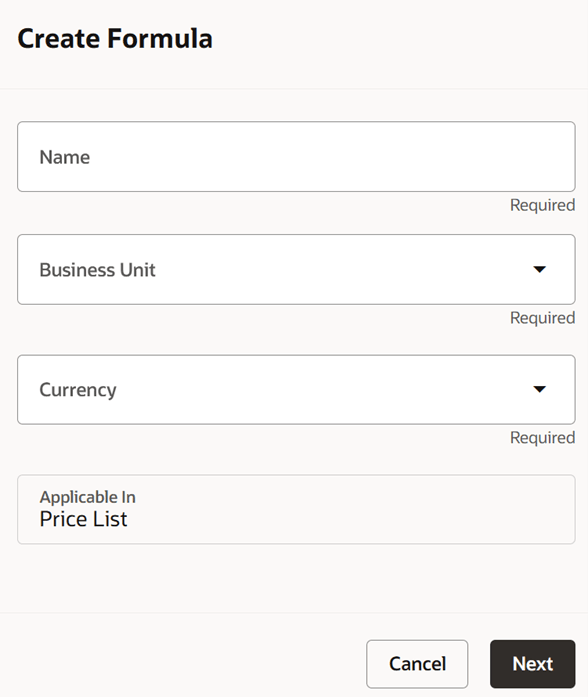
- Set your values, then click Next:
Note:
-
Enter a unique formula name.
-
Select the business unit where you want to use the formula.
-
Select the currency that you want the formula to use when it calculates charges.
-
The Applicable In attribute defaults to Price List. You can use a formula to calculate charges only for an item in a price list in this update. You will be able to use it with more entities in future updates.
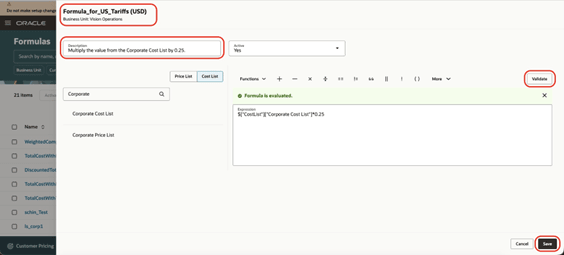
- Specify your formula:
Note:
-
The title displays the formula's name and currency. For example, Formula_for_US_Tariffs (USD).
-
The subtitle displays the business unit where Pricing will apply the formula. For example, Vision Operations.
-
Search for and select the price list or cost list that you want to use with the formula, such as Corporate Price List.
-
Enter your expression.
-
Click Validate to validate the formula's syntax. An AI assistant will automatically enter a description.
Manage Your Formulas
Search for your formula, then click its name:
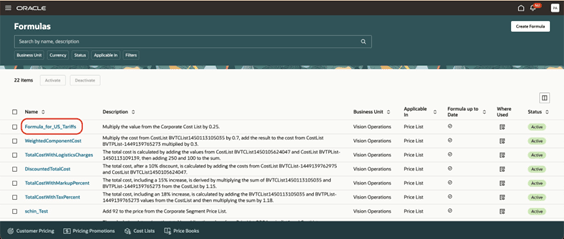
Select the items where you want to apply the formula, then click Update Prices:
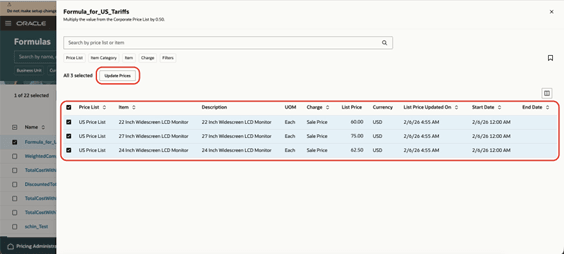
Pricing will run the Process Mass Actions for Pricing scheduled process.
Notice the Formula up to Date attribute:
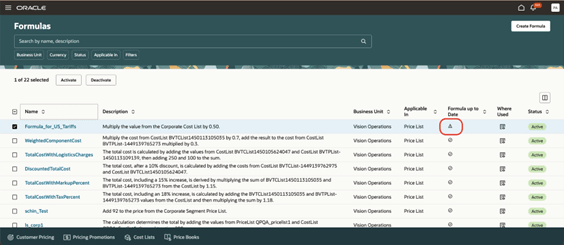
Formula up to Date contains one of:
- Circle. The formula is up to date and there are no updates.
- Triangle. You updated an entity that the formula references, such as a price list. You must manually run the Check for Formula Updates and Generate Alerts scheduled process.
You can also click Check Formula Updates on the Formulas page to determine whether you updated any of the pricing entities that the formula references.
Click the icon in the Where Used column to identify all the items that use this formula to calculate charges:
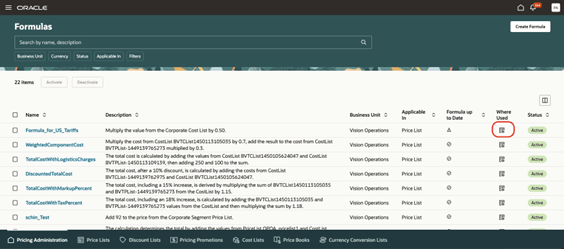
Steps to enable and configure
You don't need to do anything to enable this feature.
Tips and considerations
You must migrate any formulas that you set up before update 26B. Go to the Formulas page, then click Migrate Formulas Now in the message. If there's no message, you don't need to do anything:
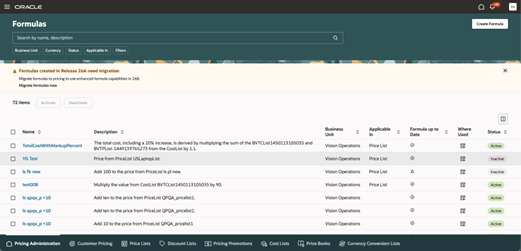
Verify that you see the Formulas Migration Completed message, then click Download Migration Report in that message:
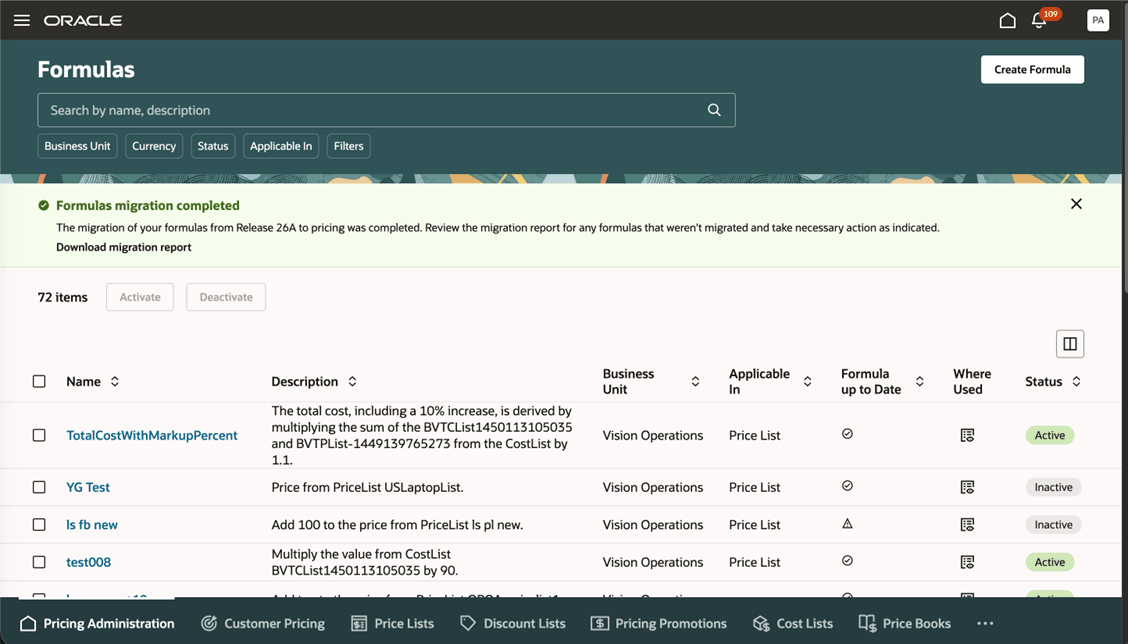
Note:
-
The report displays the count of formulas that Pricing successfully migrated.
-
The migration will append formulas that have the same name with _01, _02, and so on. It does this to make sure each formula has a unique name.
-
The report will list formulas that it couldn't migrate and each of those formula's expression. You can create them manually.
Scheduled Processes
If necessary, you can use the Scheduled Processes work area to view the process log and troubleshoot errors for the Process Mass Actions for Pricing scheduled process.
You can also use that work area to run the Check for Formula Updates and Generate Alerts scheduled process, and you can schedule it to run at regular intervals.
Key resources
Access requirements
Users who are assigned a configured job role that contains these privileges can access this feature:
- Manage Formulas (QP_MANAGE_FORMULAS_PRIV)
- View Formulas (QP_VIEW_FORMULAS_PRIV)
These privileges are introduced during this update.