Redwood: Analyze Item Rule Set Impact
You can use the new Redwood user interface to analyze the impact of adding a new rule set or modifying an existing rule set for existing items. Use the Analyze Item Rule Set Impact task on the Product Management home page as shown in the following screenshot to search, create, edit, or delete the item rule set impact analysis.
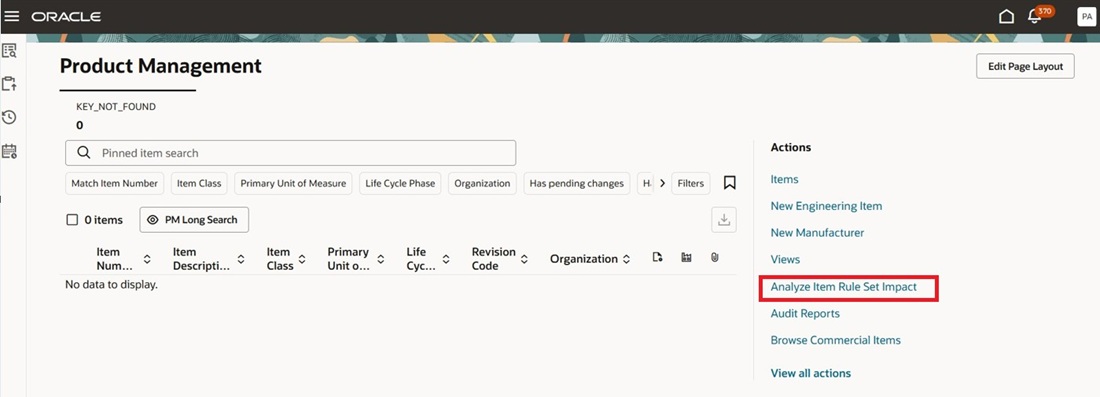
Analyze Item Rule Set Impact Task
The Analyze Item Rule Set Impact page displays the existing impact analysis as shown in the following screenshot.
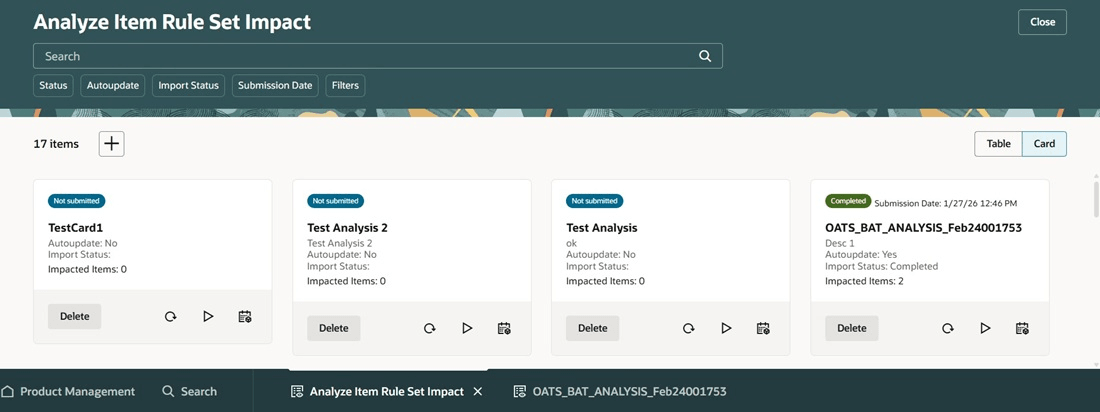
Analyze Item Rule Set Impact Page
To create a new impact analysis, select Add. The Create Item Rule Set Impact Analysis drawer appears on the right side where you can specify the name, description, and autoupdate setting. Select Create to create the impact analysis and open it in Edit mode.
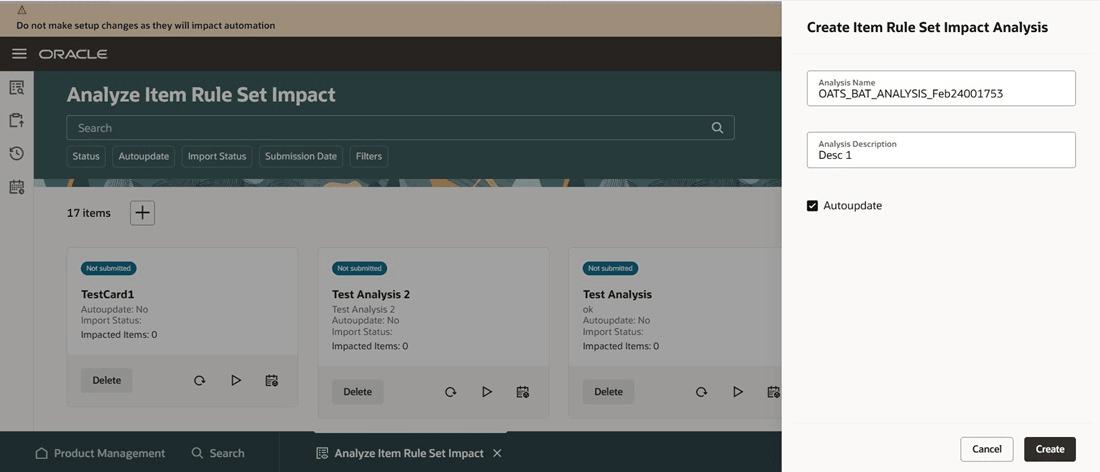
Create Item Rule Set Impact Analysis Drawer
On the Scope tab, select Add to select the items to include in the analysis scope.
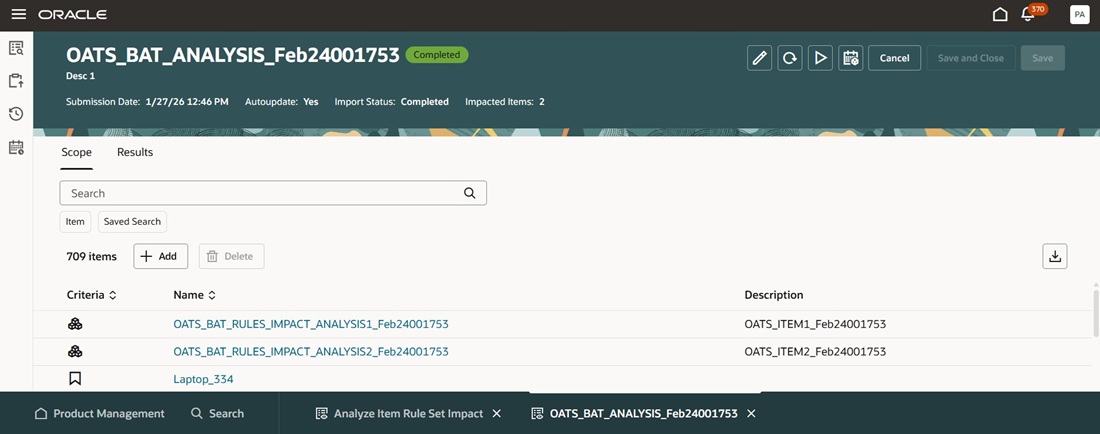
Item Rule Set Impact Analysis Scope Tab
The Search and select items drawer is displayed. Search and select the items and select Add Items. The items are added to the table of criteria in the analysis scope on the Scope tab.
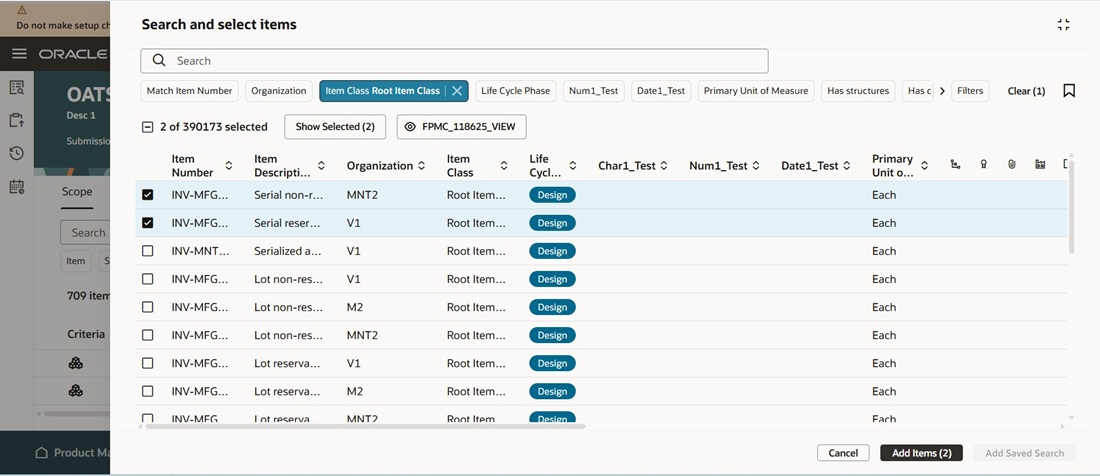
Search and Select Items Drawer
You can also add a saved search to the criteria table. In the Search and select items drawer, select the Saved Search icon, to display the Saved Searches drawer. Select any existing saved search, or create a new saved search, and select Apply. Based on the selected saved search, the saved searches are added to the Search and select items. Select the required saved searches and select Add Saved Search.
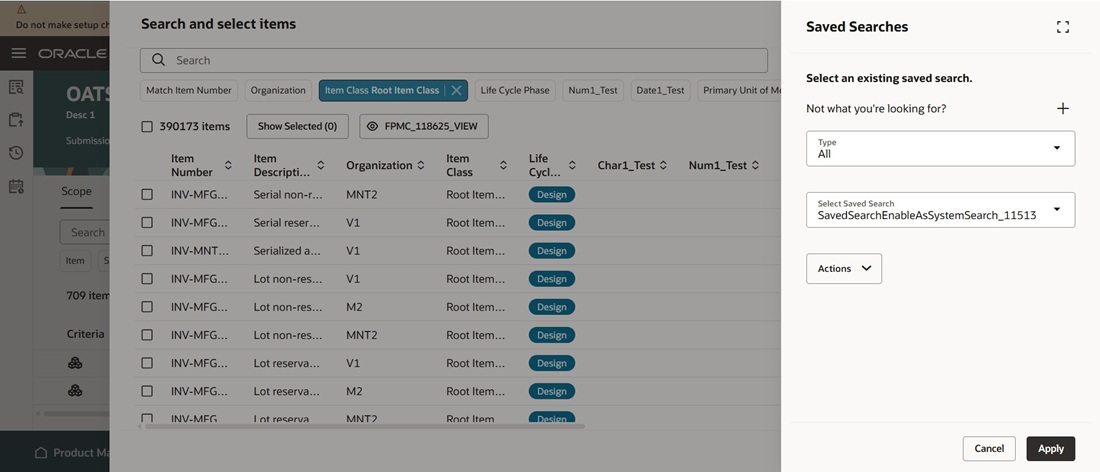
Select Saved Search Drawer
After you've completed the scope criteria for the analysis, select Save. Select Submit to run the Analyze Item Rule Set Impact scheduled process immediately. Alternatively, you can select the Schedule icon. The Analyze Item Rule Set Impact Scheduling options box is displayed, where you can specify a schedule for when the analysis process runs and select Submit. The Analyze Item Rule Set Impact scheduled process will run at the specified schedule.
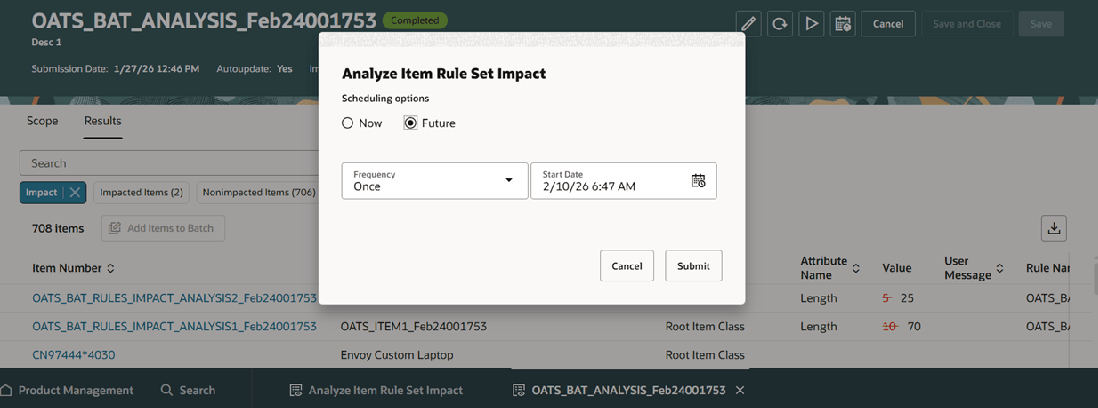
Analyze Item Rule Set Impact Scheduling Options
The Results tab displays the results of the analysis for all the items specified in the analysis scope on the Scope tab. You can filter the results using the Impacted Items and Nonimpacted Items filters. Also, you can view attribute values before and after the changes made by assignment rules, see user messages triggered by validation rule sets, and identify the rule that impacted the item.
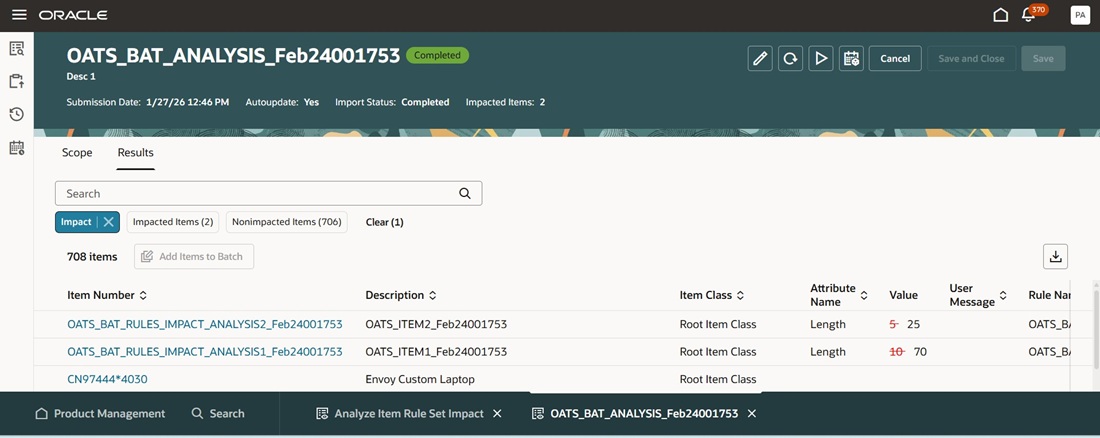
Impact Analysis Results Tab
This feature benefits your business by proactively identifying and resolving potential data issues before they disrupt business operations. Businesses gain greater control, reduce risk, and ensure product data remains consistent, accurate, and compliant, minimizing errors and potential cost infractions.
Steps to enable and configure
Follow these steps to enable or disable this feature:
- In the Setup and Maintenance work area, search for and select the Manage Administrator Profile Values task.
- On the Manage Administrator Profile Values page, search for and select the ORA_EGO_RULES_IMPACT_REDWOOD_ENABLED profile option code.
- In the Profile Values section, set the Site level to Yes or No. The default value is No.
- Yes = display the Analyze Item Rule Set Impact task
- No = hide the Analyze Item Rule Set Impact task
- Select Save and Close. Changes in the profile value will affect users the next time they sign in.
Tips and considerations
- You can search and add up to 200 items to the analysis scope at a time. You can use saved search or perform multiple iterations to add more than 200 items.
- You can select items on the Results tab and select Add Items to Batch to add items to a new or existing batch so that they can be imported into production.
Key resources
- The Analyze Rule Impact section in the Oracle Fusion Cloud SCM: Implementing Product Management guide, available on the Oracle Help Center.
- Extend SCM Redwood Application Pages Using Visual Builder Studio What's New documentation, available on the Oracle Help Center.
Access requirements
Users who are assigned a configured job role that contains the following privileges can access this feature:
- View Rule Impact Analysis (EGO_RW_VIEW_RULE_IMPACT_ANALYSIS_PRIV)
- Manage Rule Impact Analysis (EGO_RW_MANAGE_RULE_IMPACT_ANALYSIS_PRIV)
- Manage Item Rule Set Analysis REST (EGO_RULE_IMPACT_ANALYSIS_REST_PRIV)
These privileges are new in this update.