Redwood: Allow Duplicate Items to be Added in Quality Workflows and Control Product Line Visibility
A new REST API auditAnalysis is introduced that takes Change ID or Change Notice and Organization Code as request parameters, and returns a list of entry and exit criteria that haven't been fulfilled for each of the current and future statuses.
Optionally, you can also specify the StatusCode to restrict the audit to a single status.
The response payload contains the following:
- SequenceNumber: Unique sequence number of the status in workflow
- StatusName: Name of the workflow status
- StatusCode: Unique code of the workflow status
- Entry Criteria: You can’t enter this status without fixing the error
- Exit Criteria: You can’t exit this status without fixing the error
- Item Number: Item number of the affected objects, when the violation occurs on change line descriptive flexfields
- Severity: Indicates if this is a warning or an error
- Message: Detailed information about the criteria that has been violated.
The entry and exit criteria rules can be written based on the following attributes:
- Workflow attributes
- Workflow descriptive flexfields
- Workflow extensible flexfields
- Change line descriptive flexfields
You can also audit lifecycle phase inconsistencies between parent and child affected items. The response payload contains the affected item number and the following message:
- Item <Child Item Number> can't be in a lower lifecycle phase than the parent item.
For example, Change order is in Open status, and Audit will return the following violations:
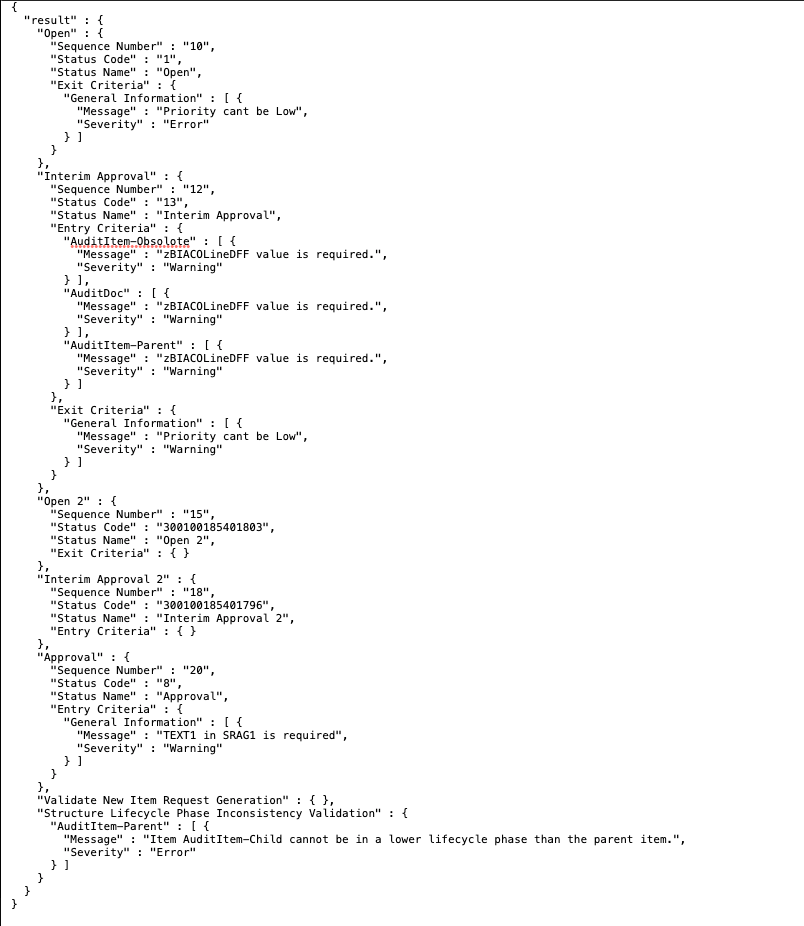
Audit Analysis Sample for Current and Future Status of Change Order Using REST API
At your discretion, you can specify the following additional query parameters in your request body:
- StatusCode: Supported status types are Open, Interim Approval and Approval
Passing the StatusCode invokes the audit analysis to audit only the entry and exit criteria for the specified status, regardless of the object’s current status.
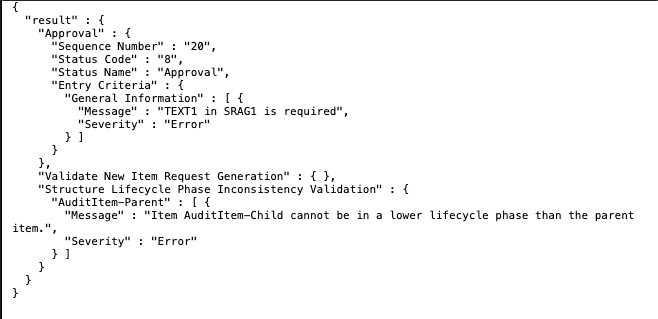
Audit for Approval Status
In Problem Reports and Corrective Actions, you can now add the same affected item multiple times to better support your business needs. If you add an item that already exists, a toast message will briefly appear to inform you. Each instance of the same affected item has a unique line number for easy identification, and you can enter different values in the line descriptive flexfields as required.
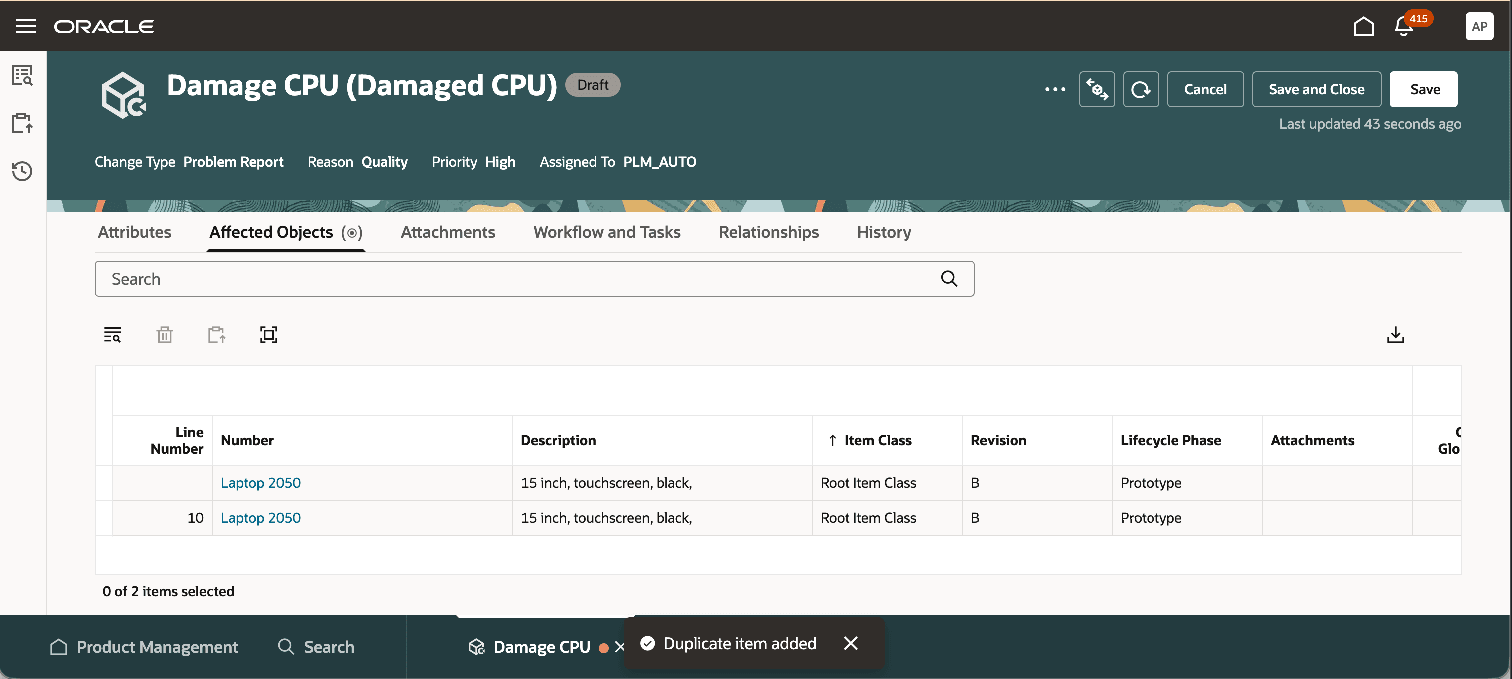
Add Same Affected Items Multiple Times in Problem Report
You can also use the following clients to add duplicate affected items to Problem Reports and Corrective Actions:
- REST
- FBDI
You can also review duplicate affected items in the summary report for problem report and corrective actions.
In addition, you can now review change line context descriptive flexfields in the summary report for change orders.

Change Line Context Descriptive Flexfields in Change Order Summary Report
The Workflow history will show the Old Value and New Value in either the Base Language or Session Language. You can use the button to switch between the base and session languages.
The Language column added to the History table indicates the language in which the Old Value and New Value are recorded.
A new profile option, "Item and Document Product Lines Hidden in Redwood," is now available. When enabled, this option hides the Product Line attribute for affected items in change orders viewed in the Redwood interface.
- If you manage product lines using extensible flexfields, enabling this profile option provides a cleaner and simpler view, reducing potential confusion.
- If you continue to use Catalog Product Lines, this change will not affect your workflow, and you can proceed as usual.
You can now check the status of the scheduled process for change line scheduling and activation directly from the change order by clicking the process ID in the Affected Objects table.
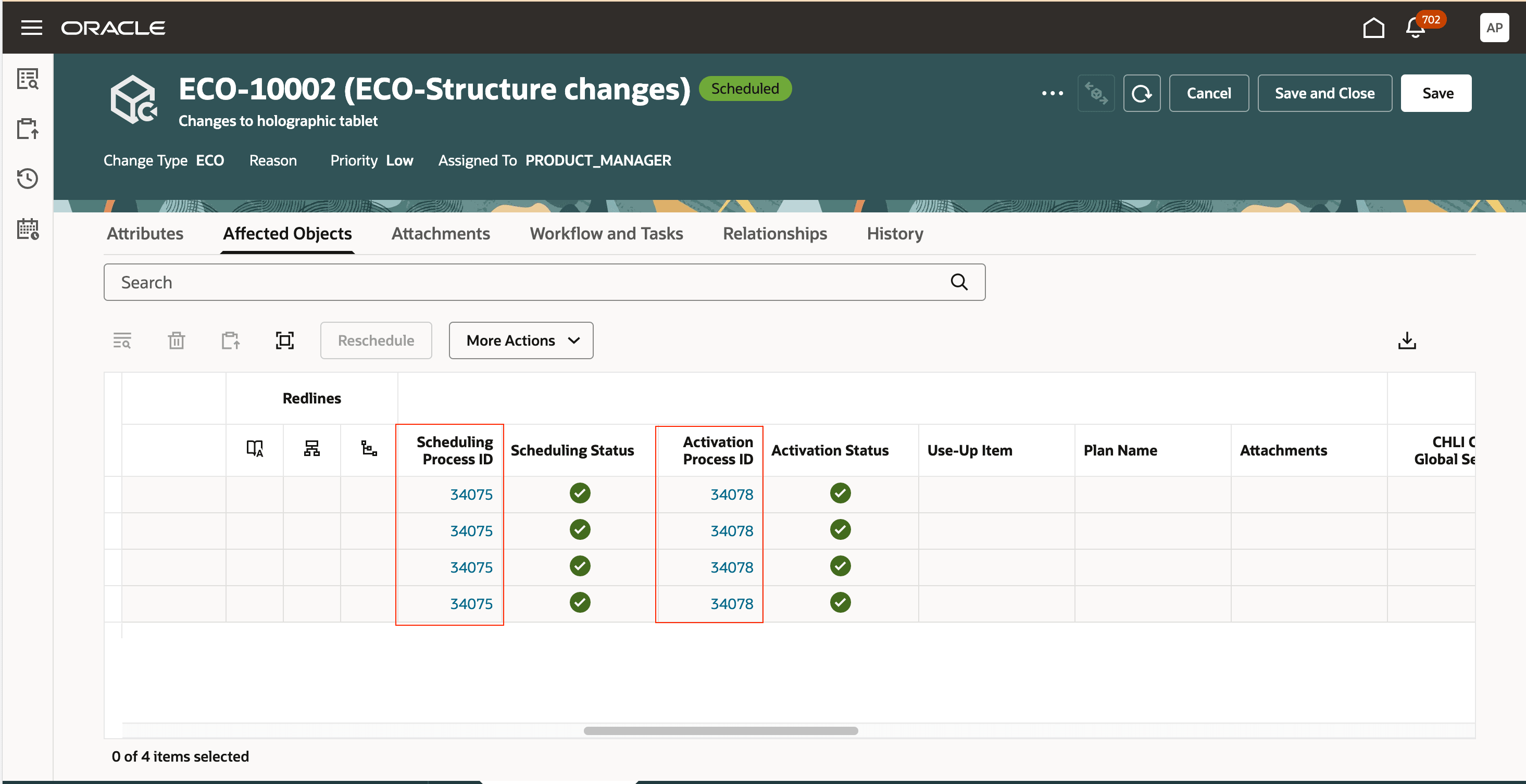
Process IDs of Scheduling and Activation Jobs on the Change Order
The workflow history search can also be accessed by clicking History from the Audit and governance actions on the Product Management landing page. Earlier this was only possible from Search section in Actions.
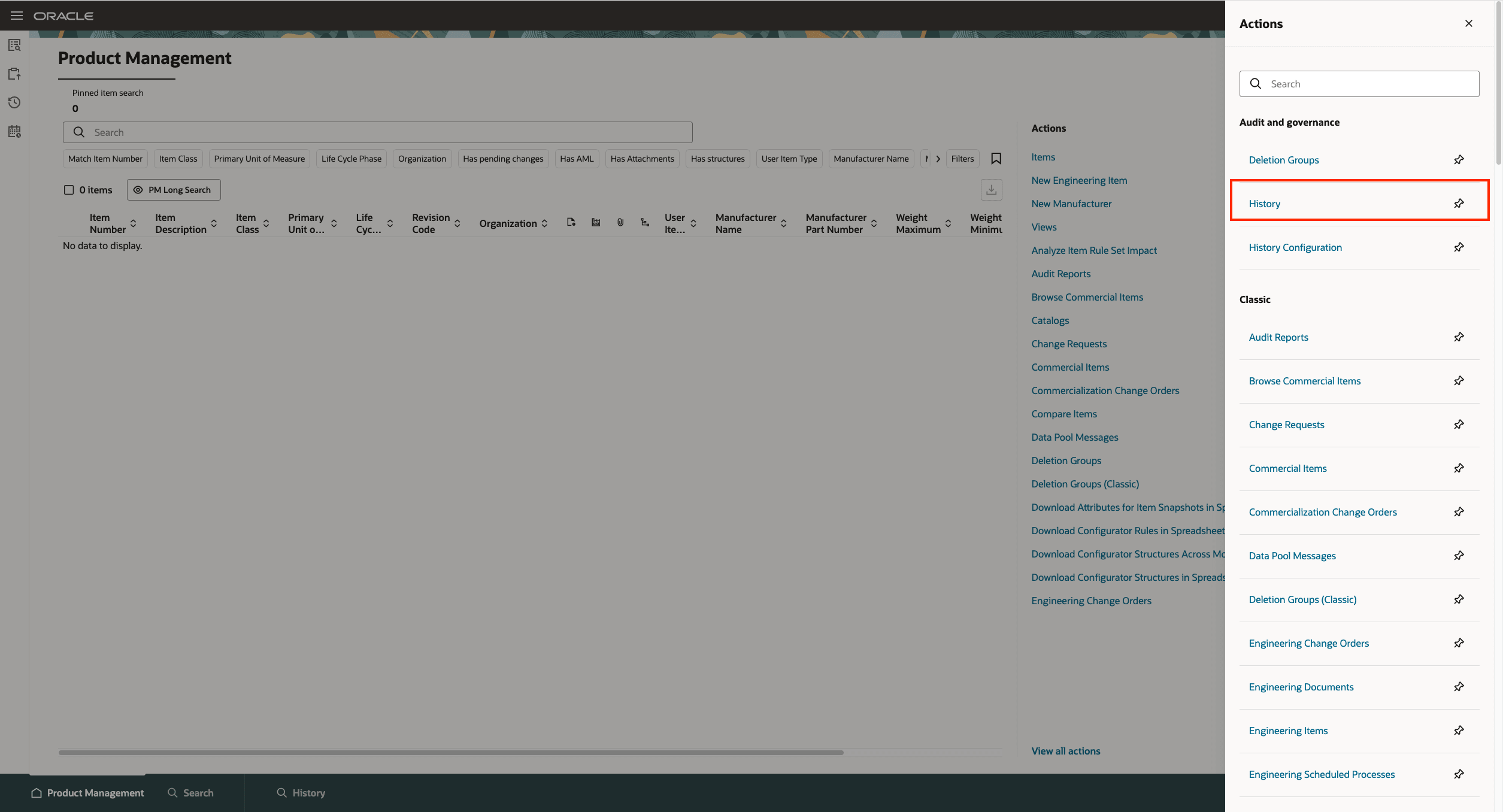
History Search from Audit and governance
This feature benefits your business in the following ways:
- Enables efficient, programmatic workflow auditing using REST APIs.
- Streamlines the management of affected items across your workflows by allowing you to add and view duplicate affected items using the Redwood user interface, REST or FBDI.
- Improves Change Summary Report reviews of affected items with comprehensive in-context descriptive flexfield data.
Overall these benefits drive better compliance, improve productivity, and enable faster decision-making.
Steps to enable and configure
To hide Product Lines on the Redwood page, ensure that the Redwood Workflow is set to Enable. To do this, set the administrator profile value for ORA_ACA_WORKFLOW_REDWOOD_ENABLED to Y, and then set the profile option value "ORA_ACA_RW_ITEM_HIDE_PRODLINE" to Yes. Here’s how:
-
In the Setup and Maintenance work area, access the Manage Administrator Profile Values task.
-
Search for the profile option code ORA_ACA_RW_ITEM_HIDE_PRODLINE.
-
Set the Profile values as Yes.
Note: The profile option value is set to No by default.
Create a Data Security Policy when Access Control Lists is not enabled:
-
Sign in to Security Console.
-
Search for the configured role for which you want to configure the data security policy. Click Actions > Edit Role.
-
On the Edit Role page, click Data Security Policies.
-
Click Create Data Security Policy (plus icon). On the Create Data Security Policy dialog box, enter the following:
-
Policy Name: <unique name>.
-
Data Resource: Search for and add the resource named EGO_ENGINEERING_CHANGES_B.
-
Data Set: Select Select by Instance Set.
-
Condition Name: Select Access the item changes for table EGO_ENGINEERING_CHANGES_B for the item changes they have access to.
-
Actions: Select all the actions.
-
Click OK and click Next.
-
-
Save your changes.
Tips and considerations
-
If you audit a change order without specifying a status in the query, the REST service will return violations for all statuses. Violations for the current and next statuses will be marked as errors, while those for future statuses will be warnings.
-
To manage product lines with extensible flexfields, create a new extensible flexfield.
-
Duplicate affected items are only supported in problem reports and corrective actions.
-
To update the base language data in the workflow audit history for existing workflow objects, run the data script as part of the upgrade process and Rebuild the Workflow History Index to see the updated base language values in Workflow History.
Key resources
Oracle Fusion Cloud SCM Using Product Development Guide, available on the Oracle Help Center.
Access requirements
User who can view or manage a change order, change request, problem report and corrective action can run audit analysis
For change orders:
- View Change Order (ACA_VIEW_CHANGE_ORDERS_PRIV) or
- Manage Change Orders (ACA_MANAGE_CHANGE_ORDERS_PRIV)
For change requests:
- View Change Request (ACA_VIEW_CHANGE_REQUESTS_PRIV) or
- Manage Change Requests (ACA_MANAGE_CHANGE_REQUESTS_PRIV)
For problem reports:
- View Problem Report (ACA_VIEW_PROBLEM_REPORTS_PRIV) or
- Manage Problem Report (ACA_MANAGE_PROBLEM_REPORT_PRIV)
For corrective and preventive actions:
- View Corrective Action (ACA_VIEW_CORRECTIVE_ACTIONS_PRIV) or
- Manage Corrective Action (ACA_MANAGE_CORRECTIVE_ACTION_PRIV)
To run the change order details report:
- Generate Item Change Order Report (EGO_GENERATE_ITEM_CHANGE_ORDER_REPORT_PRIV)
- Get BIP Report Definitions (EGI_GET_BIP_REPORT_DEFINITIONS_REST)
To search for workflow objects in Redwood pages:
- Get Search View REST (EGP_GET_SEARCH_VIEW_REST_PRIV)
- GET Product Management Index REST (EGP_GET_PM_INDEX_REST_PRIV)
- Access Product Management Change Search(EGO_VIEW_PRODUCT_MANAGEMENT_CHANGE_SEARCH_PRIV)