Redwood: Create Qualification Initiatives
Enable a simple and modern experience for creating and managing supplier qualification initiatives. The streamlined experience lets you easily select the suppliers you wish to qualify, the responders, and the applicable qualification areas. You can generate questionnaires and launch the initiative. The redesigned search, view, and edit initiative pages not only improve usability but also increase efficiencies for identifying the qualification areas needed for a set of suppliers and sending out the resulting questionnaires.
To assist qualification managers execute initiatives aligned with your internal policies you can configure guided journeys with tailored instructions.
Search Initiatives
The Initiatives search page lets you easily find information about initiatives, identify those requiring your attention to take appropriate actions. Key search features include:
- Metrics Scorecard
The scorecard provides an overview of the key performance indicators (KPIs) to help you monitor and manage initiatives across stages. The scorecard values displayed are based on your assigned privileges. The following scorecards are available:
- Draft or In Progress: Displays the total number of initiatives that are in a draft status or in progress.
- All: Shows the total number of initiatives you have access to.
You can select a scorecard to view the associated initiatives. Click Edit Page Layout to create custom initiative scorecards by adding OTBI-based KPIs and data visualizations relevant to your business.
- Search Bar
For a selected scorecard, you can search for an initiative by name or number. Keywords entered in the search bar are matched across all searchable attributes like name, description etc, with the most relevant results appearing first.
Refine your search results using filters such as procurement BU, status, owner, and supplier. Additional filtering options are available in the Filters panel, including launch date, response due date, and others. In the selected filter chip, you can also view the count of initiatives that meet the conditions of your applied filters.
Click the Saved Searches icon to create and manage your saved searches. You can define saved searches and set them as default to quickly retrieve initiatives based on your requirements, saving time by not having to reapply search criteria each time.
- Search Result Table
Search results are displayed in a dynamic search table. Depending on the status of each initiative, you can take actions such as edit, duplicate, cancel, delete, or monitor the initiative.
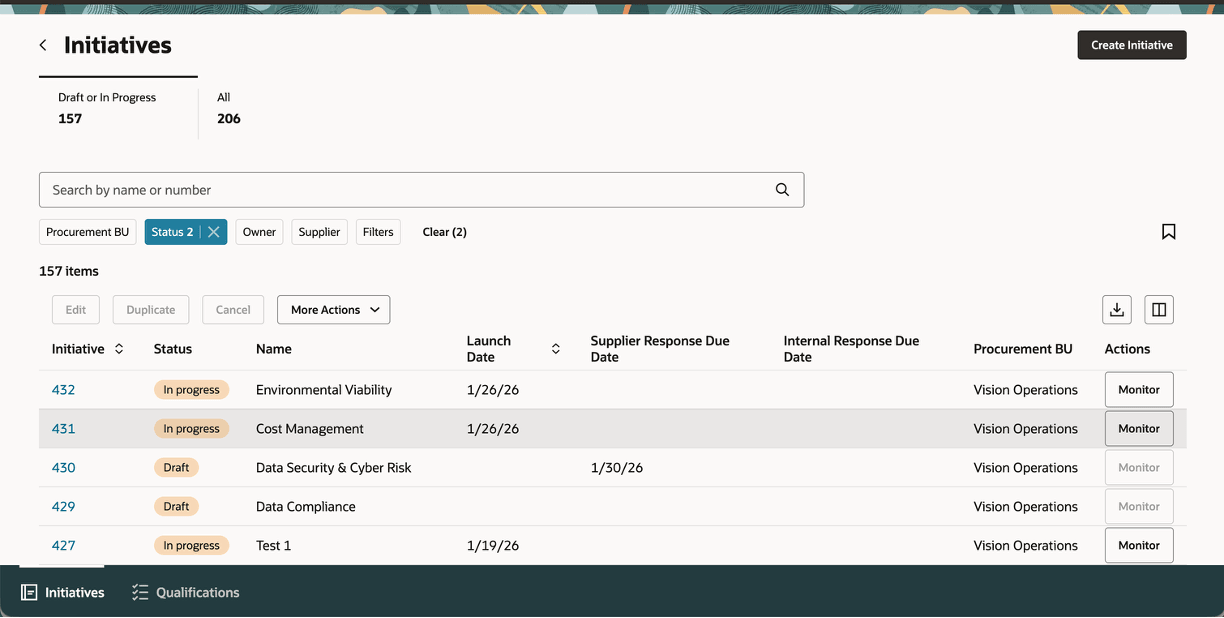
Initiatives Search Page
Create and Launch Initiative
You can create a new initiative by clicking the Create Initiative button on the Initiatives Search page. A new initiative is created in draft status containing two sections - overview and questionnaires.
Under Overview, provide all the information required to create and launch the initiative. The key information includes:
- Initiative Header Information and Additional Information: Some of the header fields like name and owner are defaulted. Additionally you can provide description, internal notes, and details specific to your company in the additional information region.
- Questionnaire Controls: Define controls for the questionnaire behavior. For example use the options under 'Questionnaire Responses' to decide how responses to the questionnaire should be managed.
- Evaluation Team: Manage the evaluation team members in the Evaluation team drawer. The initiative owner and all the qualification owners are the default evaluation team members, but you can add or delete additional members based on requirement.
- Qualification Areas: Add the qualification areas and related fields such as revision, description, and owner are defaulted automatically. Use Select and Add to search qualification areas using filters such as Procurement BU or Global and add them in bulk to the initiative. If a qualification area is revised after being added to the initiative, you can update to the latest revision by clicking Uptake Latest Revision.
- Suppliers: Click the plus icon to add suppliers one at a time. For each selected supplier, you can provide additional information, such as supplier site and supplier contact. You must specify an internal responder if the qualification area contains internal questions. For every supplier and qualification area added, you can review any existing or in-progress qualifications by clicking the Existing Qualifications and Qualifications In Progress icons.
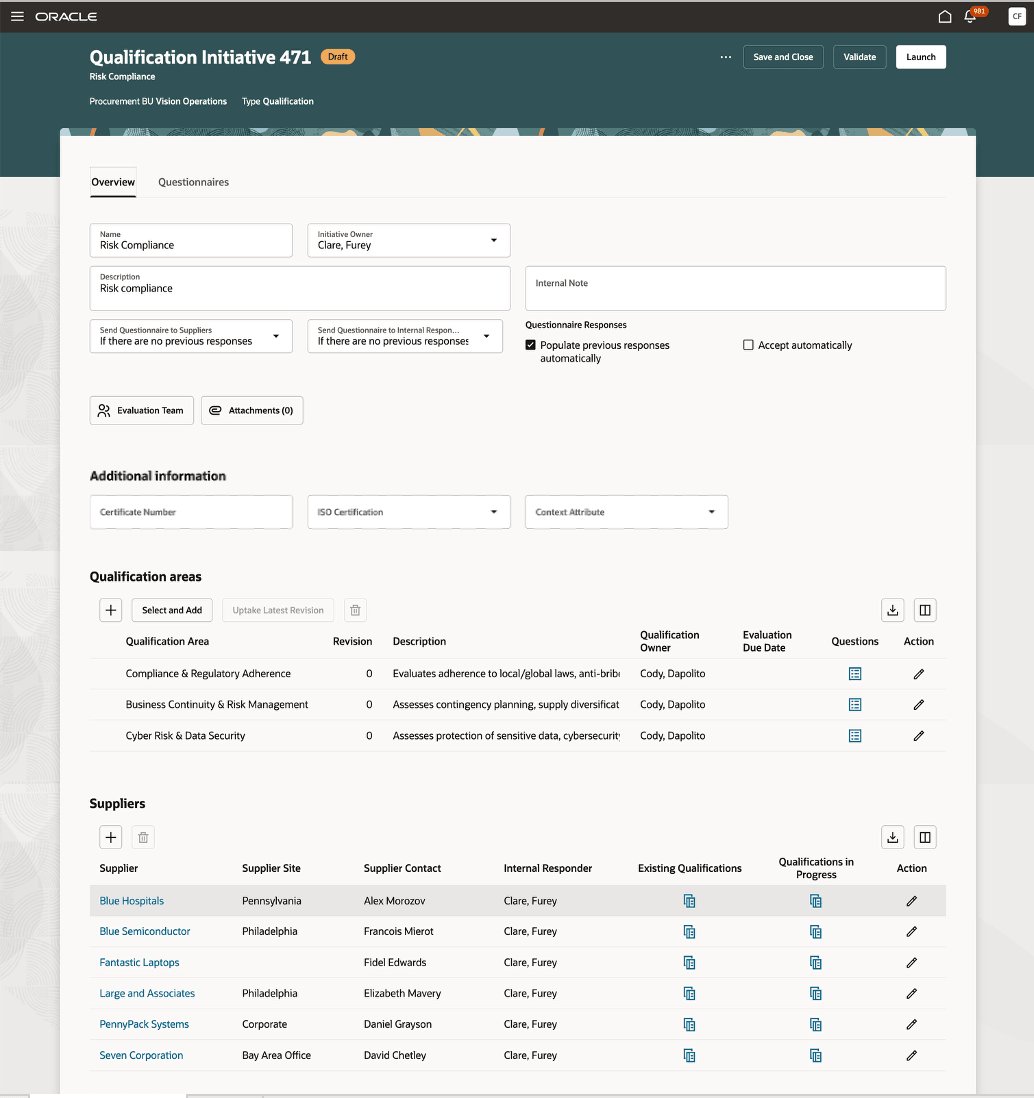
Initiative - Overview tab
Under Questionnaires section, you can review the questionnaire, which includes all branching questions, to be sent to suppliers or internal responders in the supplier's or internal responder's view. Each qualification area is a separate questionnaire section you can click on to view the respective questions.
- Set reminders and due dates as well as provide an introduction for the questionnaire. You can also include instructions for each section to help suppliers and internal responders complete the questionnaire.
- Use Translations to author translations for the questionnaire introduction, section name and instructions.
After all the required details are added and reviewed, you can validate and launch the initiative.
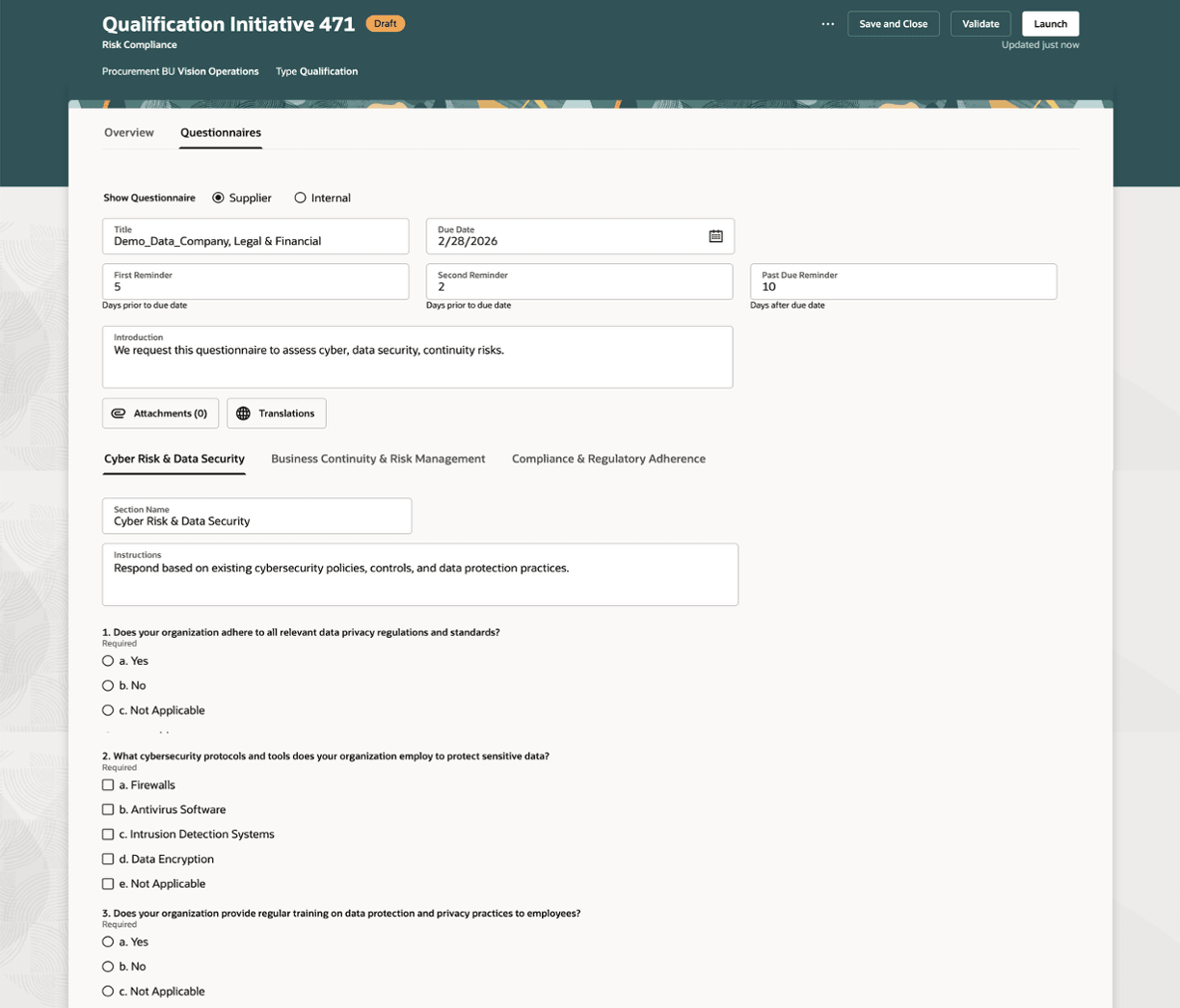
Initiative - Questionnaire tab
View and Edit Initiative
After an initiative is created locate it on the Initiative Search page and use the Edit button to make changes if its in Draft or In Progress status. For In Progress initiatives, you can't add additional qualification areas or suppliers, nor can you modify the questionnaire. Other fields such as initiative name, description, and internal note can be edited.
You can also view an initiative by clicking the initiative number hyperlink on the search page for any initiative with a status of In Progress, Cancelled, or Completed. Initiatives in the Draft status will open in edit mode.
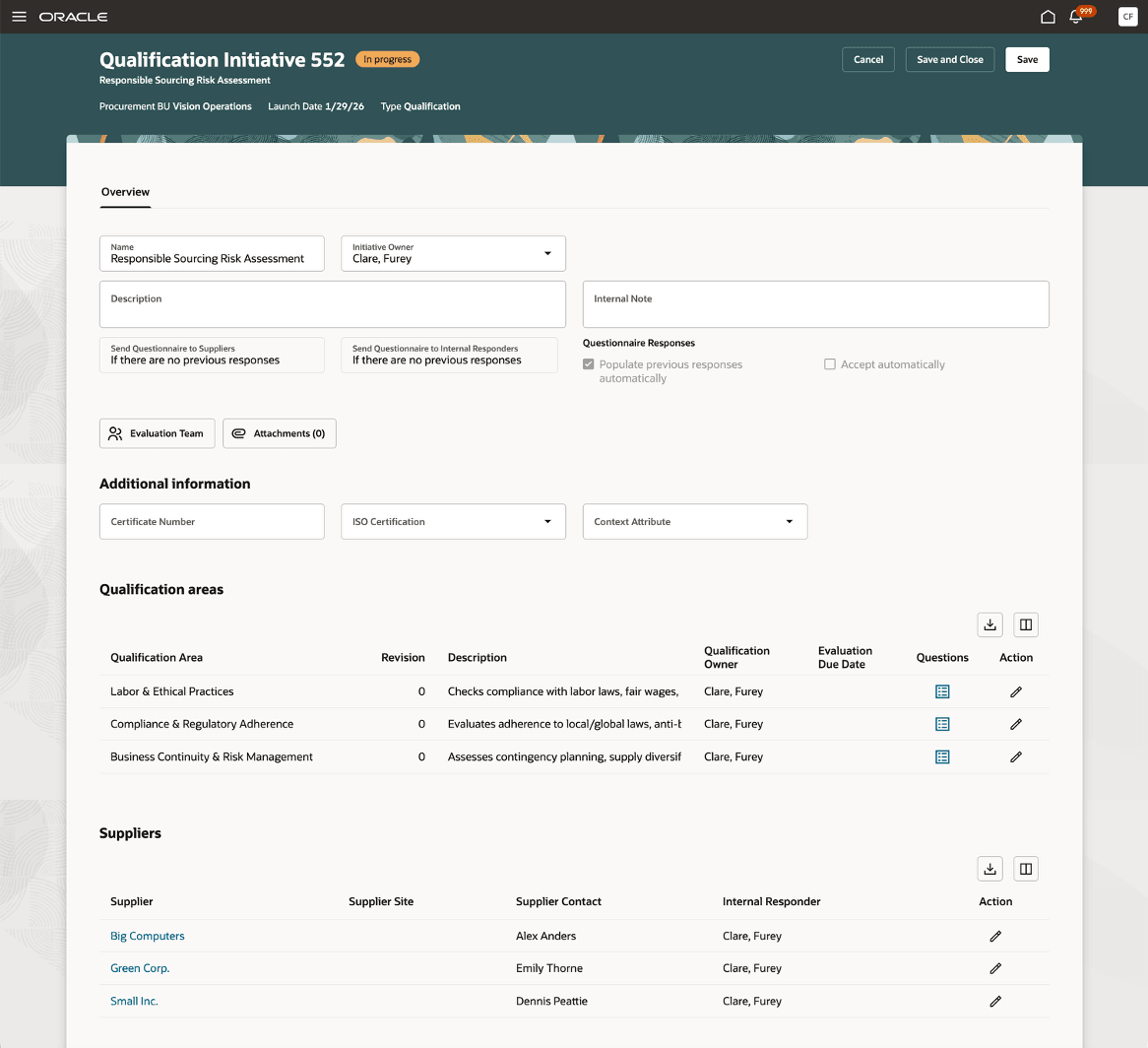
Edit Initiative - In Progress
Steps to enable and configure
To use this feature, you must enable the following profile options and set up elastic search for initiatives:
- Redwood Supplier Qualification Page Enabled (ORA_POQ_SUPPLIER_QUALIFICATION_REDWOOD_ENABLED). Enable this existing profile option if you haven't already.
- Redwood Qualification Initiatives Pages Enabled (ORA_POQ_QUALIFICATION_INITIATIVES_REDWOOD_ENABLED). By default, this new profile option is enabled.
For instructions on enabling a profile option, refer to the Set Profile Option Values topic.
- Set up elastic search for initiatives by running the ESS job to create index definition and perform initial ingest to OSCS scheduled process with the Reingest parameter set to fa-prc-poq-initiatives.
Tips and considerations
- The ability to modify the sections and questions of a questionnaire is not supported. The questionnaire is rendered based on the order you add the qualification areas and the order of questions within each area.
- The following search filters are not supported: Pending Evaluation, Pending responses, and Pending Responses Acceptance. Use the Monitor action to review these details for an Initiative.
- The maximum number of initiatives shown in the search results is 10,000.
- Initiatives for assessments and internal survey are planned for a future update.
Key resources
- For information about using Oracle Visual Builder Studio to extend your Redwood application pages, see Oracle Fusion Cloud HCM and SCM: Extending Redwood Applications for HCM and SCM Using Visual Builder Studio.
- Refer to Overview of Guided Journeys in the Oracle Fusion Cloud Human Resources: Implementing and Using Journeys guide, available on the Oracle Help Center.
- For information about adding your own KPIs and visualizations to your page, see Flexible Reporting in Redwood Dashboards.
Access requirements
Users who are assigned a configured job role that contains these privileges can access this feature:
- Search Supplier Qualification Initiative (POQ_SEARCH_SUPPLIER_QUALIFICATION_INITIATIVE_PRIV)
- Edit Supplier Qualification Initiative (POQ_EDIT_SUPPLIER_QUALIFICATION_INITIATIVE_PRIV)
- Create Supplier Qualification Initiative (POQ_CREATE_SUPPLIER_QUALIFICATION_INITIATIVE_PRIV)
- View Supplier Qualification Initiative (POQ_VIEW_SUPPLIER_QUALIFICATION_INITIATIVE_PRIV)
- Cancel Supplier Qualification Initiative (POQ_CANCEL_SUPPLIER_QUALIFICATION_INITIATIVE_PRIV)
- Launch Supplier Qualification Initiative (POQ_LAUNCH_SUPPLIER_QUALIFICATION_INITIATIVE_PRIV)
- Delete Supplier Qualification Initiative (POQ_DELETE_SUPPLIER_QUALIFICATION_INITIATIVE_PRIV)
- View Supplier Qualification (POQ_VIEW_SUPPLIER_QUALIFICATION_PRIV)
- Research Suppliers (PON_ANALYZE_NEGOTIATION_SUPPLIER_PRIV)
Users who are assigned a configured job role that contains this privilege can edit the page layout to add custom KPI and visualizations:
- Edit Page Layout of the Supplier Qualification Page (POQ_EDIT_SUPPLIER_QUALIFICATION_LANDING_PAGE_LAYOUT_PRIV)
These privileges were available prior to this update.