Redwood: Monitor Qualification Initiatives
You can now enable a simple and modern experience for monitoring in-progress qualification initiatives within Oracle Supplier Qualification Management. The streamlined experience lets you easily search for and monitor an initiative, send reminders, and view qualifications ready for evaluation. The redesigned pages not only improve usability but also increase efficiencies for monitoring responder activities and completing qualifications for the initiative. For example, you can now see at a glance whether an initiative is complete for all suppliers for a given qualification area.
Additionally, you can configure guided journeys to offer tailored instructions aligned with your SQM policies.
You can access this page from the Search Initiatives or the View Initiative page.

Monitor Qualification Initiative Page
Gain quick insights at a glance with key metrics such as the total number of suppliers under evaluation, suppliers whose evaluations are complete, questionnaires with overdue responses, qualifications pending evaluation, and the percentage of completed qualifications.
If you're an administrator, you can use the Edit Page Layout button to configure this page by adding your own metrics and visualizations. You can create OTBI-based KPIs and data visualizations that best represent your business and help initiative owners monitor key performance indicators regularly.
Response status
Use the response status bar graph to track progress on Internal and Supplier questionnaires. Clicking a bar filters the result in the suppliers table to show only suppliers with responses in the selected status category. Questionnaire statuses are grouped into three categories:
- Pending responses - Includes statuses such as Draft, Not Started and Resubmission Required.
- Pending acceptance - Includes statuses such as Submitted and Pending Change Management.
- Completed or canceled responses - Includes statuses such as Accepted, Closed and Canceled.
Response schedule
Displays key dates such as the initiative launch date and questionnaire due dates. Selecting View Reminders opens the Reminders drawer that shows when reminders for both supplier and internal responders are scheduled. You can also click the Send Response Reminder button to send reminder notifications instantly for all questionnaires in the initiative that are pending or overdue.
Qualification progress
View the list of qualifications created by the initiative along with their evaluation progress. A qualification is marked as Complete after all suppliers have been evaluated for that qualification area.
Suppliers Tab
The table on the Suppliers tab provides a consolidated view of all suppliers involved in the initiative, along with their questionnaire response statuses and access to related actions. You can search by the supplier name or filter by questionnaire response status. View the supplier details by clicking the supplier name in the table. The following actions are available from the Suppliers table:
Review and Accept Responses
Initiative owners can review submitted questionnaires from the:
- Monitor Qualification Initiative page, or
- Review Response link available in the notification
Under the Accept Responses column of the table in the Supplier tab, click the Supplier or Internal button to review the submitted responses from the respective responder. Initiative owners can review responses, comments, attachments, and previous response history. They can add notes, then either accept the responses or return them to the responder for additional details. Initiative owners can also return questionnaire responses directly from the monitor page without entering the review and accept flow.
After a questionnaire response is accepted, all associated qualifications for the respective supplier move to the Ready for Evaluation status, enabling qualification owners and evaluation team members to proceed with the evaluation.
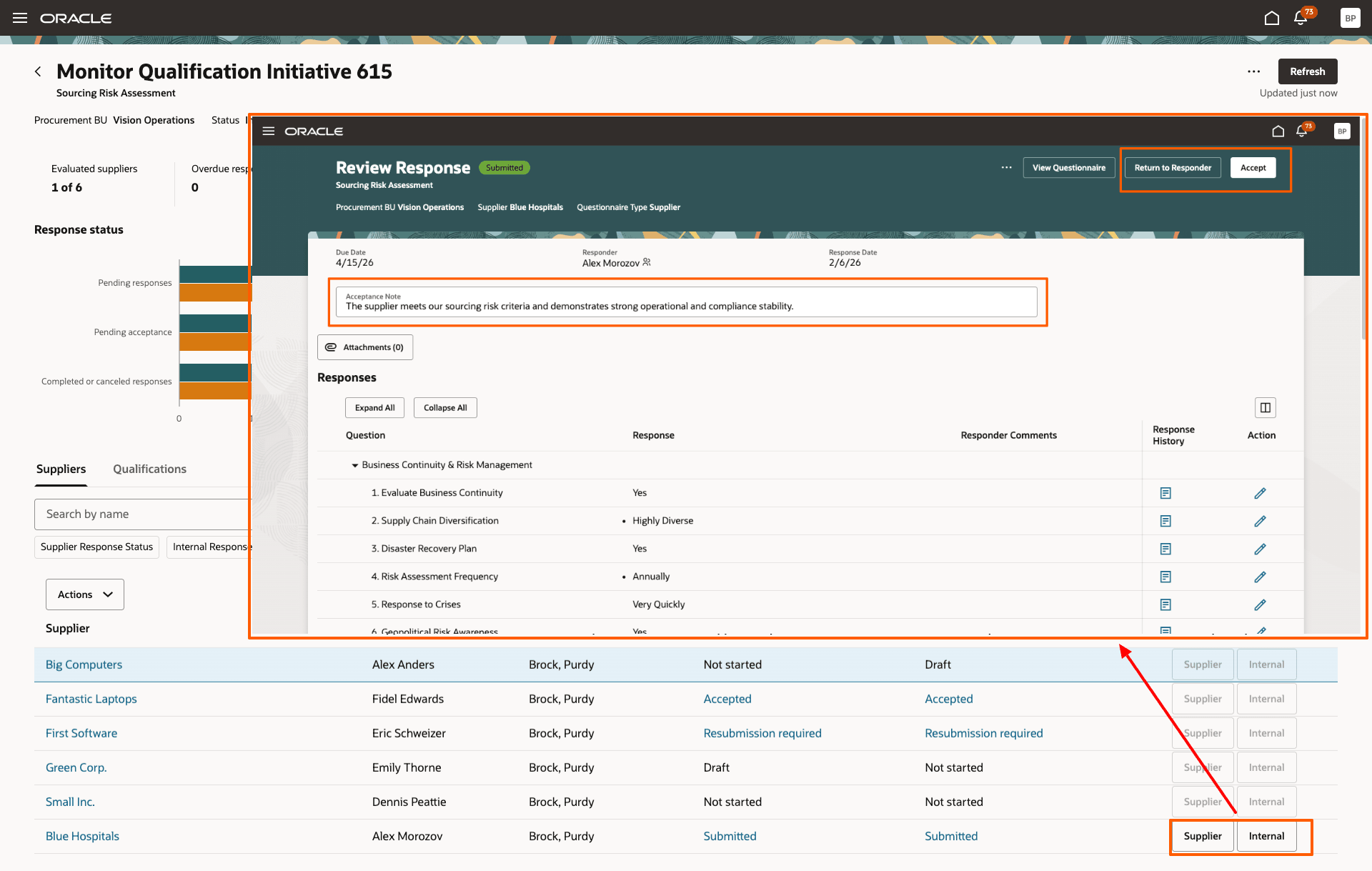
Review Response Page
View Questionnaire Response
After questionnaire responses are submitted or accepted, initiative owners can review the responses along with any acceptance notes recorded during the acceptance process. Questionnaire responses can be viewed by:
- Selecting Actions > View Questionnaire Response > Supplier or Internal
- Clicking the status link under the supplier or internal Response status column
Respond to Questionnaire
Initiative owners can create a surrogate response on behalf of a supplier or an internal responder from the Actions menu by selecting Respond to Questionnaire, and then choosing Supplier or Internal, depending on the type of questionnaire. Before updating the responses, you can specify the responder from whom the information was received and the date the response was provided.
Similar to a regular response, you can save a surrogate response as a draft before submission. Once completed, you can submit the questionnaire. The responder field in the header clearly indicates that the response was submitted as a surrogate and identifies the user who entered it.

Create Surrogate Response Drawer
View PDF
You can download the questionnaire presented to suppliers or internal responders as a PDF. If responses have already been submitted, the PDF includes the selected responses. The ability to download the questionnaire PDF with responses included is a new enhancement on this page.
Cancel Qualifications
As the initiative owner, you can cancel a supplier’s outstanding qualifications directly from the Monitor Qualification Initiative page if the supplier no longer needs to be evaluated.
Qualifications Tab
The table in the Qualifications tab displays all qualifications created by the initiative. By default, the page shows qualifications that are Ready for Evaluation. You can search and filter the list by supplier or qualification name. Click the qualification number to view qualification details, or select the Evaluate action to proceed with evaluating qualifications that are ready for evaluation.

Qualifications Tab
From the Monitor Qualification Initiative page, you also have the option to view, edit, duplicate, or cancel the initiative.
Steps to enable and configure
To use this feature, you must enable the following profile options.
- Redwood Supplier Qualification Page Enabled (ORA_POQ_SUPPLIER_QUALIFICATION_REDWOOD_ENABLED). Enable this existing profile option if you haven't already.
- Redwood Qualification Initiatives Pages Enabled (ORA_POQ_QUALIFICATION_INITIATIVES_REDWOOD_ENABLED). By default, this new profile option is enabled.
For instructions on enabling a profile option, refer to the Set Profile Option Values topic.
Tips and considerations
Monitor Initiatives for assessments and internal survey are planned for a future update.
Key resources
- Refer to the What's new for Update 26B: Redwood: Create Qualification Initiatives for details on the create initiative feature using a new user experience.
- For information about using Oracle Visual Builder Studio to extend your Redwood application pages, see Oracle Fusion Cloud HCM and SCM: Extending Redwood Applications for HCM and SCM Using Visual Builder Studio.
- Refer to Overview of Guided Journeys in the Oracle Fusion Cloud Human Resources: Implementing and Using Journeys guide, available on the Oracle Help Center.
- For details about adding your own key performance indicators (KPIs) and visualizations to your page, see: Flexible Reporting in Redwood Dashboards.
Access requirements
Users who are assigned a configured job role that contains this privilege can access this feature:
- Monitor Supplier Qualification Initiative (POQ_MONITOR_SUPPLIER_QUALIFICATION_INITIATIVE_PRIV)
This privilege was available prior to this update.
Users who are assigned a configured job role that contains these privileges can drill down to pages or perform actions:
- Create Supplier Qualification Questionnaire Response as Surrogate for Internal (POQ_CREATE_SUPP_QUAL_QUESTIONNAIRE_RESPONSE_AS_SURROGATE_FOR_INTERNAL_PRIV)
- Create Supplier Qualification Questionnaire Response as Surrogate for Supplier (POQ_CREATE_SUPP_QUAL_QUESTIONNAIRE_RESPONSE_AS_SURROGATE_FOR_SUPPLIER_PRIV)
- Accept Supplier Qualification Questionnaire Response (POQ_ACCEPT_SUPP_QUAL_QUESTIONNAIRE_RESPONSE_PRIV)
- Review Supplier Qualification Questionnaire Response (POQ_REVIEW_SUPP_QUAL_QUESTIONNAIRE_RESPONSE_PRIV)
- Cancel Supplier Qualification (POQ_CANCEL_SUPPLIER_QUALIFICATION_PRIV)
- Evaluate Supplier Qualification (POQ_EVALUATE_SUPPLIER_QUALIFICATION_PRIV)
- View Supplier Qualification (POQ_VIEW_SUPPLIER_QUALIFICATION_PRIV)
- Edit Supplier Qualification Initiative (POQ_EDIT_SUPPLIER_QUALIFICATION_INITIATIVE_PRIV)
- View Supplier Qualification Initiative (POQ_VIEW_SUPPLIER_QUALIFICATION_INITIATIVE_PRIV)
- Cancel Supplier Qualification Initiative (POQ_CANCEL_SUPPLIER_QUALIFICATION_INITIATIVE_PRIV)
- Research Suppliers (PON_ANALYZE_NEGOTIATION_SUPPLIER_PRIV)
- Create Supplier Qualification Initiative (POQ_CREATE_SUPPLIER_QUALIFICATION_INITIATIVE_PRIV)
- View Question Response History (POQ_VIEW_QUESTION_RESPONSE_HISTORY_PRIV)
- View Supplier Business Classification (POZ_VIEW_SUPPLIER_BUSINESS_CLASSIFICATION_PRIV)
- View Supplier Qualification Questionnaire Response (POQ_VIEW_SUPP_QUAL_QUESTIONNAIRE_RESPONSE_PRIV)
These privileges were available prior to this update.
Users who are assigned a configured job role that contains this privilege can Edit the page layout to add custom KPI and visualizations.
- Edit Page Layout of the Supplier Qualification Page (POQ_EDIT_SUPPLIER_QUALIFICATION_LANDING_PAGE_LAYOUT_PRIV)
This privilege was available prior to this update.