Redwood: Manage Approved Supplier Lists
Use a Redwood page to manage the list of approved suppliers for items or categories. For each item or category, you can approve a supplier or supplier site for a specific ship-to organization or for all ship-to organizations.
You can define one Approved Supplier List (ASL) entry for the combination of item, category, ship-to organization, supplier, and supplier site. The ASL status determines whether the supplier is authorized to source the item or category, and it controls whether purchase orders for the item or category can be approved. For each entry, you can also specify supplier item attributes for your purchase orders, such as Purchasing UOM, Country of Origin, Minimum Order Quantity, and Fixed Lot Multiple. Newly added entries appear at the top of the table until you perform another search, filter, or sort of the results.
Select the Procurement BU to view and define ASL entries for different Procurement BUs.
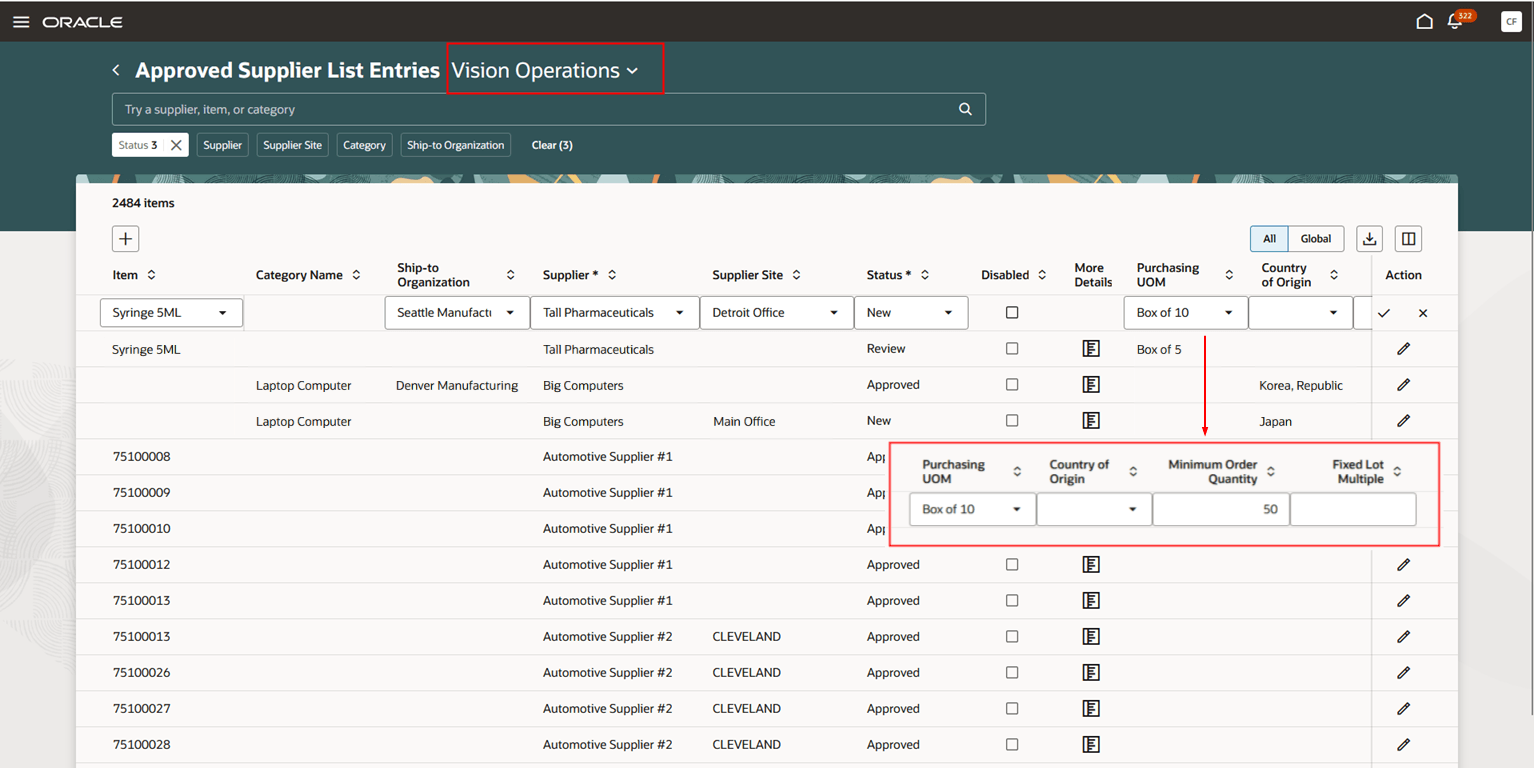
Approved Supplier List Entries
Approved Supplier List Details
Use the More details drawer to enter additional information for the ASL entry using descriptive flexfields. You can also link blanket purchase agreements or contract purchase agreements as source documents for the ASL. Category-level ASLs can only be sourced from contract purchase agreements.
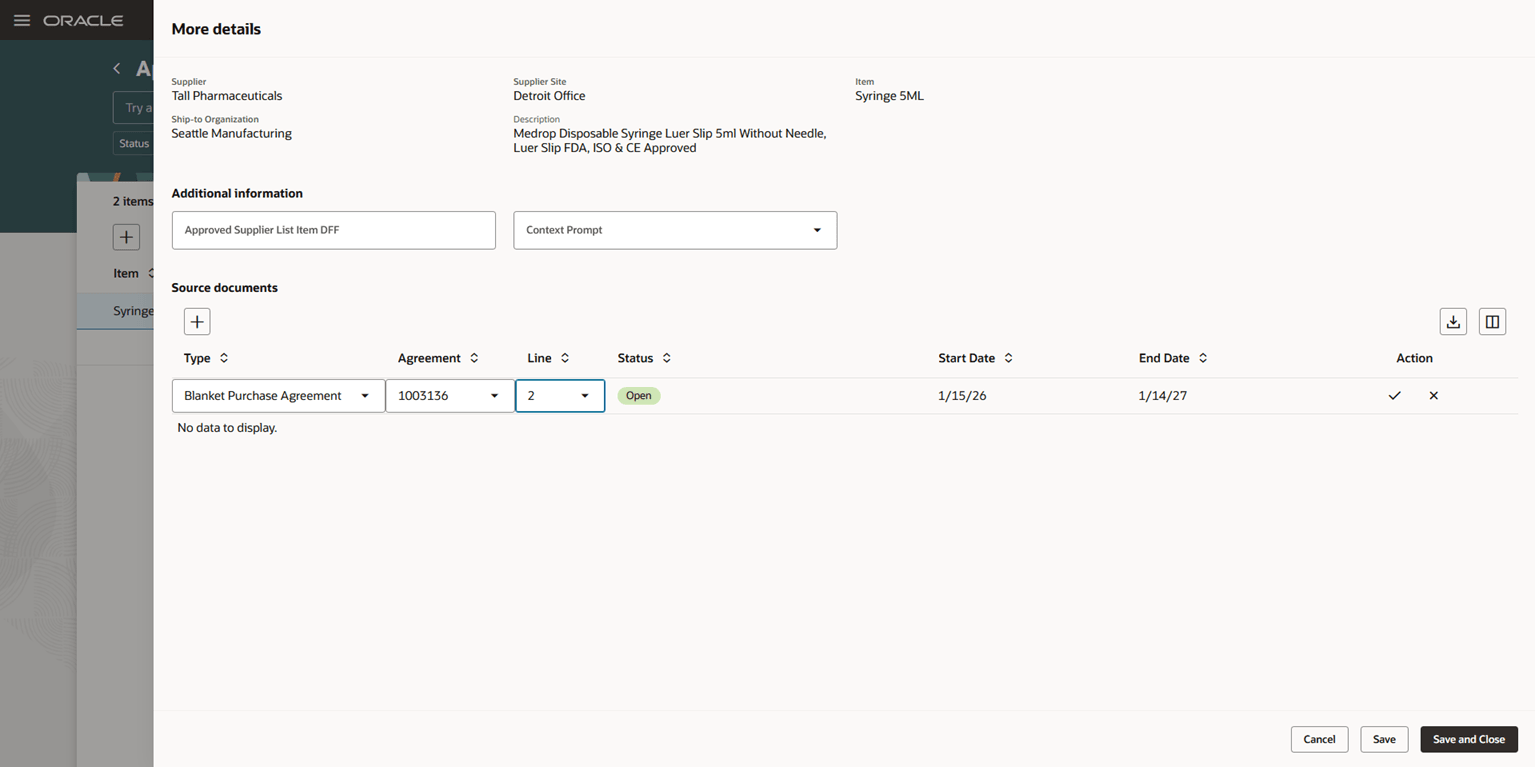
Approved Supplier List Entry Details
Steps to enable and configure
- Run the Migrate Supplier Item Attributes from Global Approved Supplier List Entries scheduled process to migrate the ship-to organization specific supplier item attributes of the global ASL entries into their own independent ship-to organization ASL entries, prior to switching over from the classic page to the Redwood page.
Note: Refer to the Tips and Considerations section for more information.
- To access the new Approved Supplier List Entries page, you must enable the Redwood Page for Approved Supplier List Entries Enabled (ORA_PO_ASL_REDWOOD_ENABLED) profile option. By default, this profile option is disabled.
To enable the profile option, follow these steps:
- In the Setup and Maintenance work area, search for and select the Manage Administrator Profile Values task.
- On the Manage Administrator Profile Values page, search for and select the ORA_PO_ASL_REDWOOD_ENABLED profile option code.
- In the Profile Values section, set the Site level to Y.
- Click Save and Close. Changes in the profile value will affect users the next time they sign in.
- If you haven't enabled Redwood for Purchasing, see the Getting Started with Redwood in Purchasing topic on the SCM Resource Center in Customer Connect.
Tips and considerations
- If you have previously managed ASL entries using the classic page, please note the changes in the Redwood page compared to the classic page.
- Only ASL entries with Direct business type are supported in the Redwood page.
- The classic page supports direct, manufacturer, and distributor ASLs. If you have existing manufacturer or distributor ASLs, the manufacturer ASLs will no longer be displayed on the Redwood page and the distributor ASLs will be displayed and function as regular direct ASLs.
- If you want to use the manufacturer information in your purchase orders, you can associate the manufacturers to the master items. With the Populate Trading Partner Item Details Automatically from the Item Master Definition While Creating Purchase Orders feature in update 21A, the manufacturer and manufacturer part number on the purchase order line can be derived from the master item.
- Only one supplier item attribute record per ASL entry is supported in the Redwood page.
- The classic page supports one supplier item attribute record for a ship-to organization ASL entry. For a global ASL entry, it supports one global supplier item attribute record, as well as multiple ship-to organization specific supplier item attribute records. The Redwood page supports:
- one ship-to organization specific supplier item attribute record for a ship-to organization ASL entry.
- one global supplier item attribute record for a global ASL entry.
- Prior to switching over from the classic page to the Redwood page, you should run the Migrate Supplier Item Attributes from Global Approved Supplier List Entries scheduled process to migrate the ship-to organization specific supplier item attributes of the global ASL entries into their own independent ship-to organization ASL entries, otherwise you won't be able to view your existing ship-to organization specific supplier item attributes for global ASL entries on the Redwood page.
- You can run the scheduled process even if you don't have existing ship-to organization specific supplier item attributes for global ASL entries. In this case, no supplier item attributes will be migrated.
- You can run the scheduled process again if new ship-to organization supplier item attribute records were added onto global ASL entries after the process was previously run.
- For example:
- An existing global ASL entry for item: KN95 Facemask, ship-to organization: <N/A>, supplier: Tall Pharmaceuticals, has three supplier item attribute records:
- (Global attribute) ship-to organization: <N/A>, Purchasing UOM: Box of 5, Minimum Order Quantity: 20
- (Ship-to organization attribute) ship-to organization: Seattle Manufacturing, Purchasing UOM: Box of 10, Minimum Order Quantity: 50
- (Ship-to organization attribute) ship-to organization: Denver Manufacturing, Purchasing UOM: Each, Minimum Order Quantity: 100
- After the scheduled process is run, there will be three ASL entries:
- (Global ASL) item: KN95 Facemask, ship-to organization: <N/A>, supplier: Tall Pharmaceuticals, with Purchasing UOM: Box of 5, Minimum Order Quantity: 20
- (Ship-to organization ASL) item: KN95 Facemask, ship-to organization: Seattle Manufacturing, supplier: Tall Pharmaceuticals, with Purchasing UOM: Box of 10, Minimum Order Quantity: 50
- (Ship-to organization ASL) item: KN95 Facemask, ship-to organization: Denver Manufacturing, supplier: Tall Pharmaceuticals, with Purchasing UOM: Each, Minimum Order Quantity: 100
- An existing global ASL entry for item: KN95 Facemask, ship-to organization: <N/A>, supplier: Tall Pharmaceuticals, has three supplier item attribute records:
- The classic page supports one supplier item attribute record for a ship-to organization ASL entry. For a global ASL entry, it supports one global supplier item attribute record, as well as multiple ship-to organization specific supplier item attribute records. The Redwood page supports:
- Descriptive flexfields for supplier item attributes are no longer supported on the Redwood page.
- Descriptive flexfields for source documents are no longer supported on the Redwood page.
- Only ASL entries with Direct business type are supported in the Redwood page.
Key resources
For information about using Oracle Visual Builder Studio to extend your Redwood application pages, see Oracle Fusion Cloud HCM and SCM: Extending Redwood Applications for HCM and SCM Using Visual Builder Studio.
Access requirements
Users who are assigned a configured job role that contains these existing privileges can access this feature:
- Search Approved Supplier List Entry (PO_SEARCH_APPROVED_SUPPLIER_LIST_ENTRY_PRIV)
- Change Approved Supplier List Entry (PO_CHANGE_APPROVED_SUPPLIER_LIST_ENTRY_PRIV)
Users who are assigned a configured job role that contains these privileges can run the scheduled process to migrate the ship-to organization specific supplier item attributes of the global ASL entries into their own independent ship-to organization ASL entries:
- Manage Scheduled Job Definition (FND_MANAGE_SCHEDULED_JOB_DEFINITION_PRIV)
This privilege was available prior to this update.
- Migrate Supplier Item Attributes from Global Approved Supplier List Entries (PO_MIGRATE_SUPPLIER_ITEM_ATTRS_FROM_GLOBAL_ASL_ENTRY_PRIV)
This privilege is new in this update.