Configure Attribute Display
You can now specify, which item extensible flex field, work definition operation or work order header descriptive flex field that is included in a production schedule will be displayed in the schedule views. Previously, all attributes were displayed in the Dispatch List and the Flow Schedules table. The first ten attributes were displayed in the Gantt chart operation tooltips, which impacted the performance and caused visual clutter.
To select the attributes that you want to be displayed in the scheduled view,
- Define your item and manufacturing attribute groups.
- Run a Scheduling Organization Refresh.
- Navigate to the scheduling organization's attributes page and open the attributes tab.
- Enable or disable the attribute that you want to show or hide in scheduled view under the column Display in Schedule Views. The enabled attributes appear in the Dispatch List, the Work Orders table, the Flow Schedules table, and the work order operation tooltips in the Gantt chart.
Note that this feature is independent of the existing feature Use for Highlighting in the Gantt Chart.
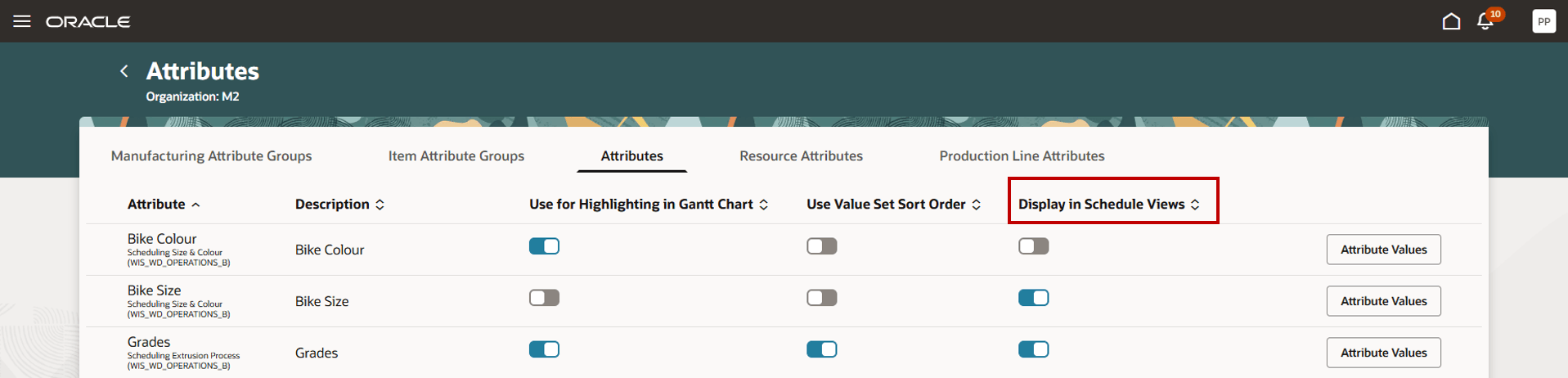
Specifying Attribute Properties
Steps to enable and configure
Use the Opt In UI to enable this feature. For instructions, refer to the Optional Uptake of New Features section of this document.
Offering: Supply Chain Planning
Tips and considerations
If you want to use the Configure Attribute Display feature, then you must opt in to its parent feature: Production Scheduling. If you’ve already opted in to this parent feature, then you don’t have to opt in again
Access requirements
Users who are assigned a configured job role that contains this privilege can access this feature:
- Edit Production Schedule (MSC_EDIT_PRODUCTION_SCHEDULE_PRIV)
This privilege was available prior to this update.