View Additional Information About a Supplier
You can now directly view additional supplier information on a requisition line. Along with key supplier attributes such as Supplier Type, Supplier Number, and Corporate Website, the requisition line also displays supplier site and contact details. The additional details (except additional contact email) are always displayed from the supplier master for the supplier, site, and contact present on the requisition line for existing suppliers. The additional contact email is displayed from the requisition line.
For new suppliers, the information that the preparer provided on the line is displayed.
The additional supplier details link opens a drawer with these details:
|
Supplier Details |
Supplier Site Details |
Supplier Contact Details |
|---|---|---|
|
Supplier Number D-U-N-S Number Supplier Type Tax Organization Type Alternate Name Corporate Website |
Site Name Site Address Phone Fax |
Supplier Contact Job Title Phone Additional Contact Email |
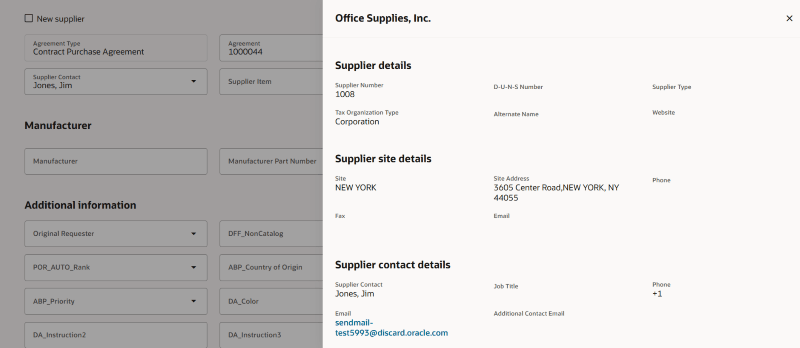
Supplier Additional Details Drawer
New supplier details are also available in the additional details drawer.
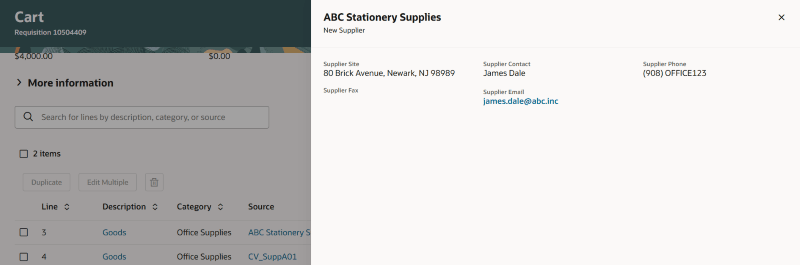
New Supplier Additional Details Drawer
- The additional details drawer is available from these pages:
- Shopping > Search Results - Table View.
- Shopping > Product Details (also includes Shopping List drill down to Product Details).
- Shopping > Product Details > Additional Sources Drawer (also includes Shopping List drill down to Product Details).
- Shopping Lists Details - Table View (View pages).
- Create Request (Smart Form).
- Enter Requisition Line.
- Shopping Cart (List and Table view).
- Edit Line Details.
- Requisition Details (Private and Public view).
- Line Details drawer.
Steps to enable and configure
You don't need to do anything to enable this feature.
Tips and considerations
- If the line has a supplier contact, then additional contact email is displayed in the Supplier contact details section; else, in the Supplier details section.
- The drawer will hide the site or contact sections if they aren't active. If the supplier isn't active, then the drawer will display a message indicating that supplier details aren't available.
- Email and Corporate Website details are linked and will open in a new browser tab when clicked.
- On Create and Edit pages, the additional details link will be displayed only when the supplier is a read-only attribute:
- When the line references an agreement.
- Supplier is disabled for user edit in the smart form configuration.
- Making the field Read-only using business rules won't enable the link.
- Extensibility:
- Any changes you want to make using business rules requires a separate rule to be created on the Shopping home page. The rule you create will apply to all the pages where the link to the additional supplier details drawer is displayed.
- You can change the additional details drawer to hide or show sections or one or more attributes within a section.
- You must create an exclusive rule with these contexts or attributes:
- Business Unit.
- User Roles.
- Requisition Details View Mode (this helps you decide if the changes you make must be available on the Requisition Details page when navigating from a public link or within the application).
- You can also create rules based on the fields displayed in the drawer and the additional ones enlisted here:
- Supplier ID.
- Supplier Site ID.
- Supplier Contact ID.
- You can also disable the contextual action using Extensibility. There are two constants available on the Shopping home page. By default, both constants are set to False. Similar to the business rules capabilities, disabling the constant from the home page will disable it on all pages.
- For Public Requisition Details page use the Disable Supplier Hyperlink on Public Requisition Details constant.
- For all other pages use the Disable Supplier Hyperlink constant.
Note: These constants aren't supported when you access the application pages using a bookmarked URL.
Key resources
- To know how to provide the required privileges to your requesters to use your own configured role instead of the Requisition Self Service User role, refer to the Privileges Required for a Predefined Role for a Requisition Self Service User topic.
- For information about using Oracle Visual Builder Studio to extend your Redwood application pages, see Oracle Fusion Cloud HCM and SCM: Extending Redwood Applications for HCM and SCM Using Visual Builder Studio.