Create Requisitions with Credit Lines
You can now create requisition lines with negative amounts to show credits or discounts you have negotiated with suppliers. For example, you can use a negative amount line to show credit for an equipment trade-in. To create a credit line, select a line type with the Credit setting enabled when you fill out a Noncatalog Request, Smart Form, or use the Enter Requisition Line page.
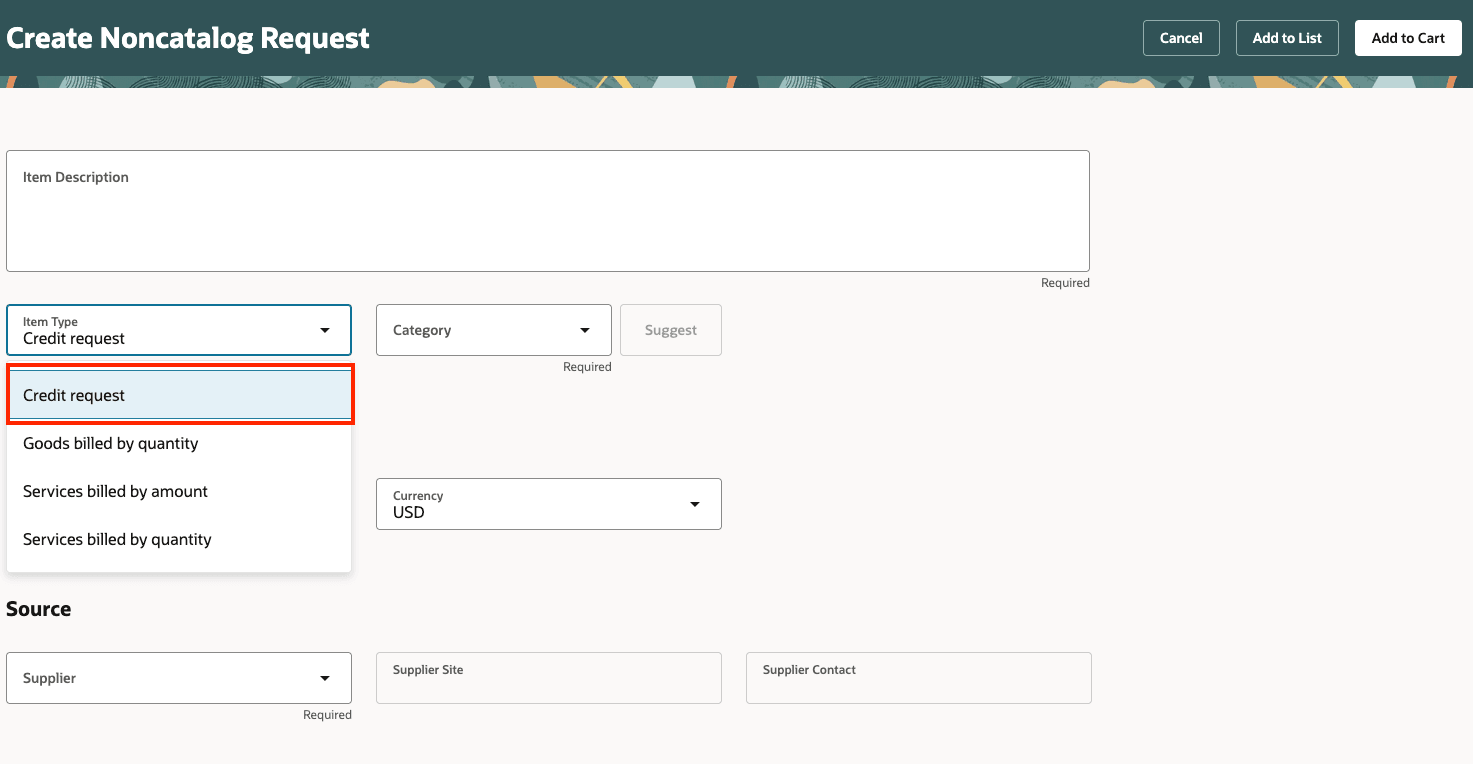
Noncatalog Request Showing Credit Line
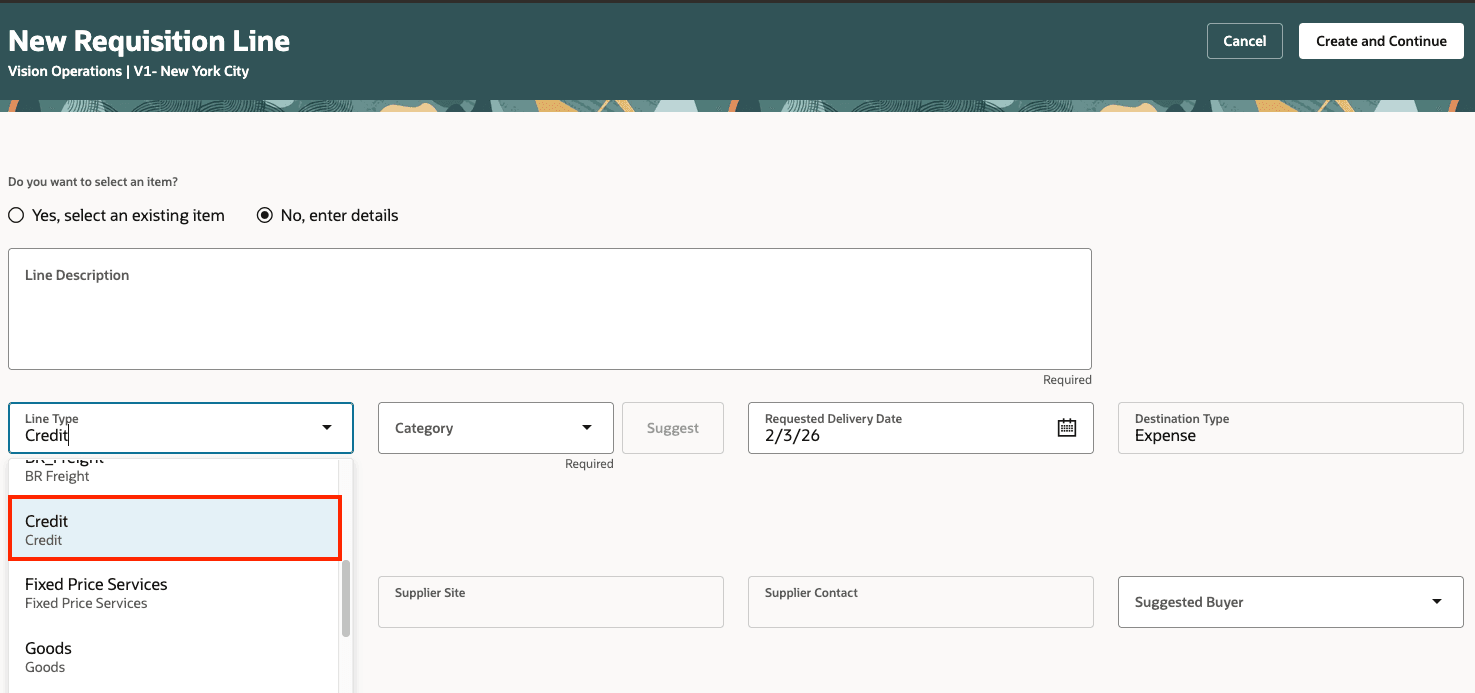
Enter Requisition Line Page with Credit Line
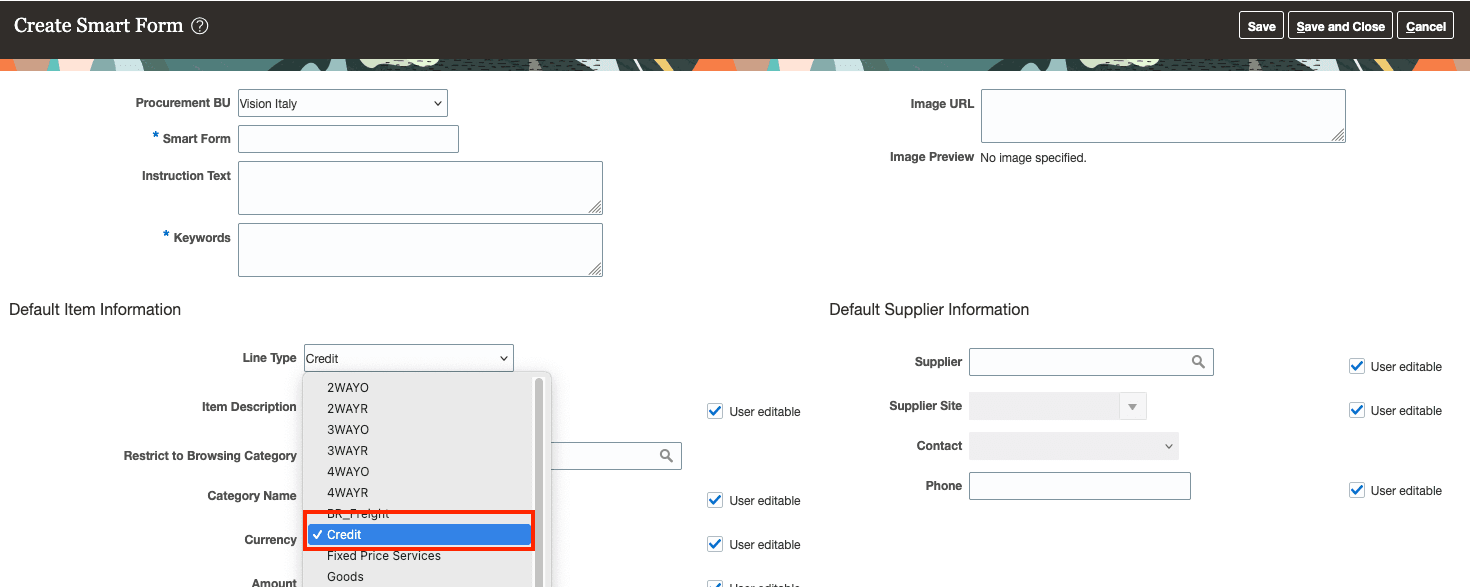
Create Smart Form Showing Credit Line
Here are some of the considerations for using this feature:
- Greater Flexibility: Offer more purchase options, including trade-in credits, rebates, and discounts after negotiation.
- Process Efficiency: Eliminate the need for manual workarounds when capturing credits, improving compliance and making audits easier.
- Accurate Record Keeping: Capture ordered items, discounts or credits, and the total amount payable in the same requisition document.
Steps to enable and configure
Use the Opt In UI to enable this feature. For instructions, refer to the Optional Uptake of New Features section of this document.
Offering: Procurement
Tips and considerations
- You can’t create a credit line if the requisitioning business unit is in Brazil and fiscal document processing is enabled.
- Credit lines must be amount-based lines.
- The Negotiated by Preparer option is selected for credit lines and you can't change this setting.
- The value of a credit line must be 0 or a negative number.
Key resources
- To know more about how to use the Redwood Self Service Procurement application, refer to the Procure Goods and Services Using the Redwood Self Service Procurement Application readiness training.
- To know how to provide the required privileges to your requesters to use your own configured role instead of the Requisition Self Service User role, refer to the Privileges Required for a Predefined Role for a Requisition Self Service User topic.
- For information about using Oracle Visual Builder Studio to extend your Redwood application pages, see Oracle Fusion Cloud HCM and SCM: Extending Redwood Applications for HCM and SCM Using Visual Builder Studio.
Access requirements
Users who are assigned a configured job role that contains this privilege can access this feature:
- Manage Requisition with the Responsive Self Service Procurement Application (POR_MANAGE_REQ_WITH_PWA_PRIV)
This privilege was available prior to this update.