Navigate Directly to Different Requisition Lines
You can now directly access line details from the shopping cart to view more information about a specific line. The line description link when clicked opens the line details drawer.
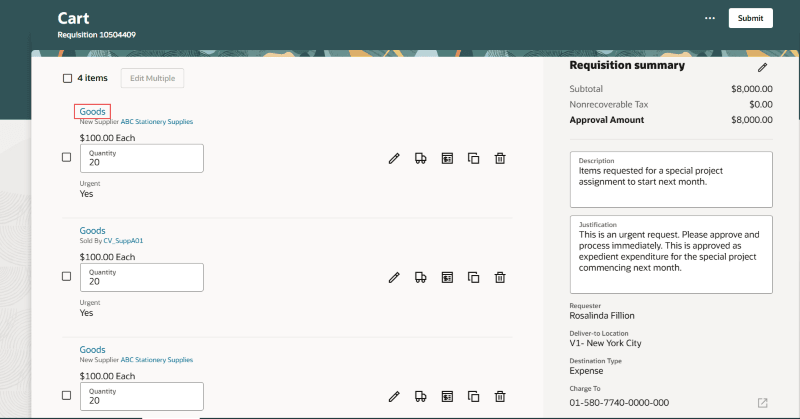
Access Line Details Directly from the Shopping Cart

Navigate Between Lines in the Details Drawer
You can access a different line while editing any line without returning to the cart.

Navigate Between Lines While Editing
You can also search using description (Contains search) or line number (for instance, Line 1) to select the line to navigate.
Both these enhancements improve usability by reducing the need for additional navigation and clicks in the requisition creation flow.
Steps to enable and configure
You don't need to do anything to enable this feature.
Tips and considerations
- The line description link is available from both the list view and table view of the shopping cart.
- When you navigate from the table view of the cart (whether to view or edit lines):
- If you filter the lines in the cart in a table view, then you can navigate only within the subset of those lines.
- Also, the navigation between the lines will follow the sort order of results in the cart.
- Only lines in these statuses are eligible for navigation (whether to view or edit lines):
- Returned.
- Withdrawn.
- Rejected.
- Incomplete (new line).
- When editing lines, the navigator is automatically hidden if the requisition contains only one eligible line.
- When you duplicate one or more lines in the cart and then view the line details, the lines are displayed in the order they were created. Any duplicate lines are placed at the end.
Key resources
For information about using Oracle Visual Builder Studio to extend your Redwood application pages, see Oracle Fusion Cloud HCM and SCM: Extending Redwood Applications for HCM and SCM Using Visual Builder Studio.