Redwood: Use Additional Business Rules - Make Additional Fields Hidden, Read-Only, or Required
Business rules allow you to control the appearance and behavior of fields within various Redwood pages. This can include hiding fields that aren't necessary for your business process or making extra fields required for every transaction. In this update, the available business rules have been expanded to include additional functionality. These enhancements give you more control over how users interact with inventory and logistics transactions, helping reduce errors, simplify data entry, and enforce business policies without customization.
In this update, the available business rules have been expanded to support additional field-level and section-level configurations. These enhancements allow you to control whether fields are hidden, read-only, or required across key inventory and receiving pages. This helps to:
- Prevent unintended updates to critical fields
- Simplify the user experience by hiding unnecessary information
- Improve data accuracy by enforcing required fields
Read-Only Behavior for DFFs and Lot DFF Sections
You can now configure descriptive flexfields (DFFs) and lot DFF sections to support read-only behavior on these pages:
- Create miscellaneous transaction
- Expected shipment lines
- Lot and serial
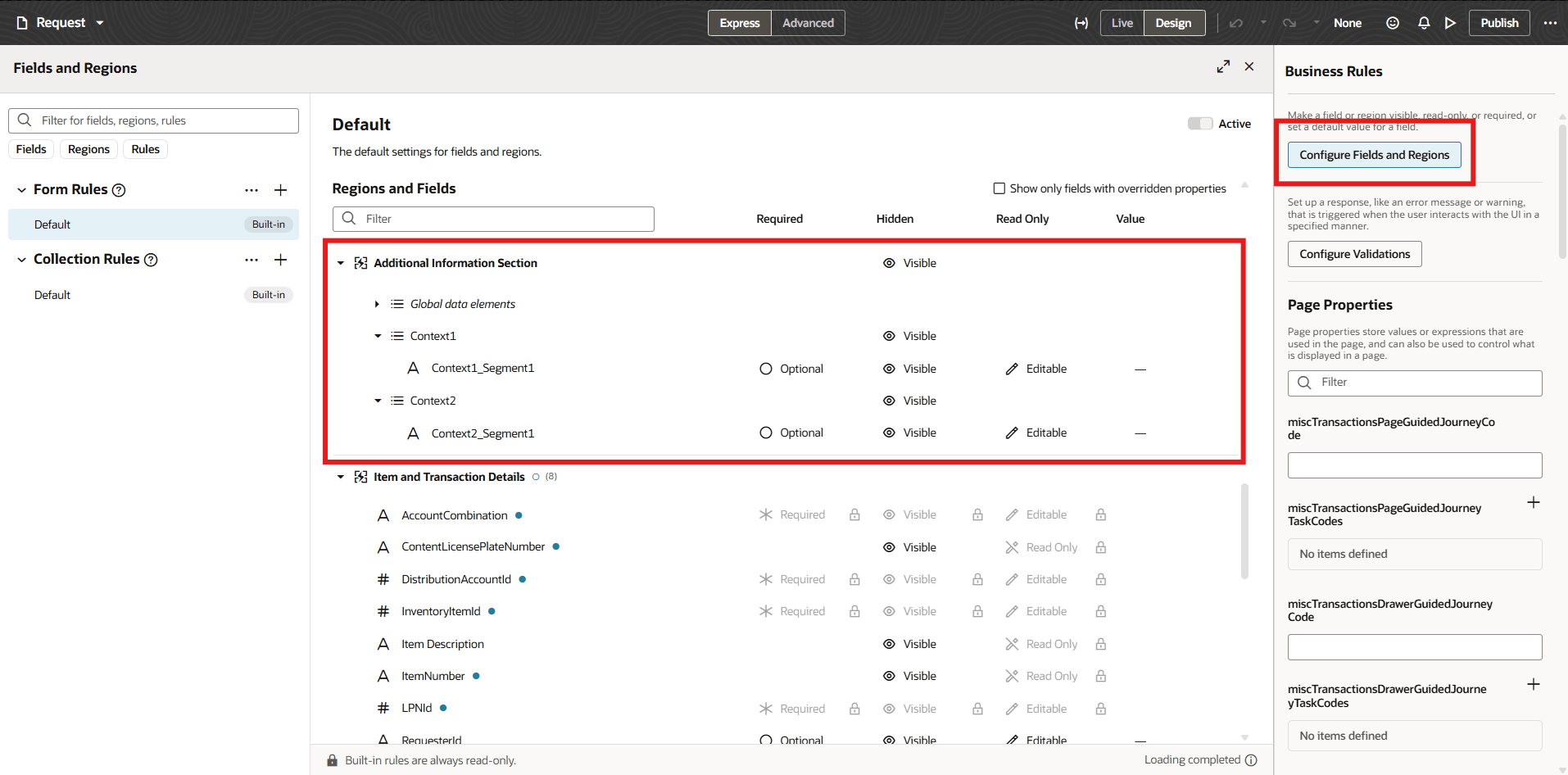
Additional Information Section in Business Rules
Hide Informational Sections
You can now hide informational sections on Self-Service Receiving pages. A new section has been introduced to hide these fields:
- If you have a problem with your order
- Exclude this order from the receipt
This helps streamline the receiving flow and reduces user confusion by removing nonessential content.
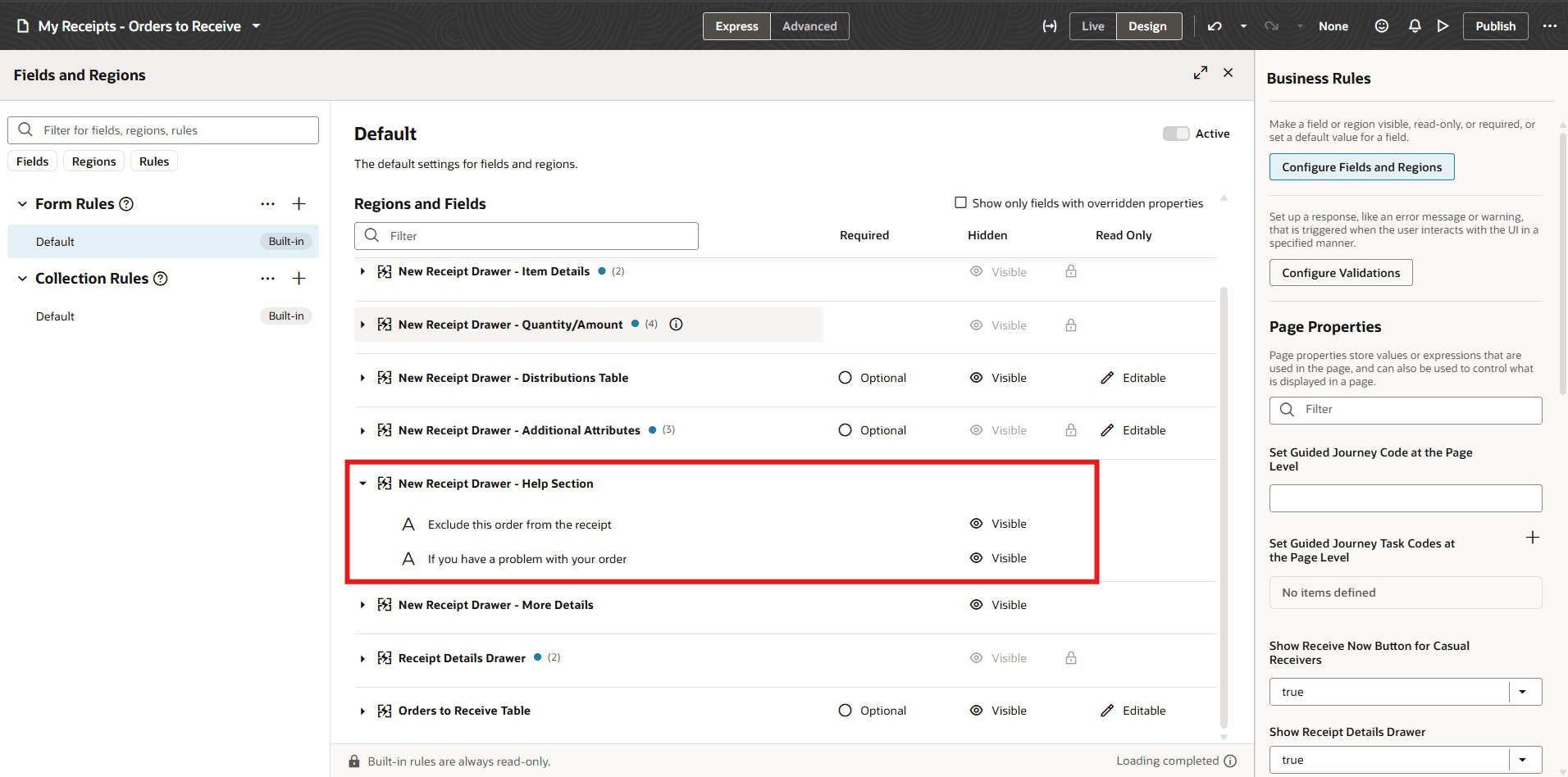
New Receipt Drawer - Help Section
Make Fields Required Using Business Rules
You can now enforce mandatory fields using business rules. For example, you can make the Reason field required on the Redwood Record Cycle Count page to ensure that inventory adjustments are always properly justified.
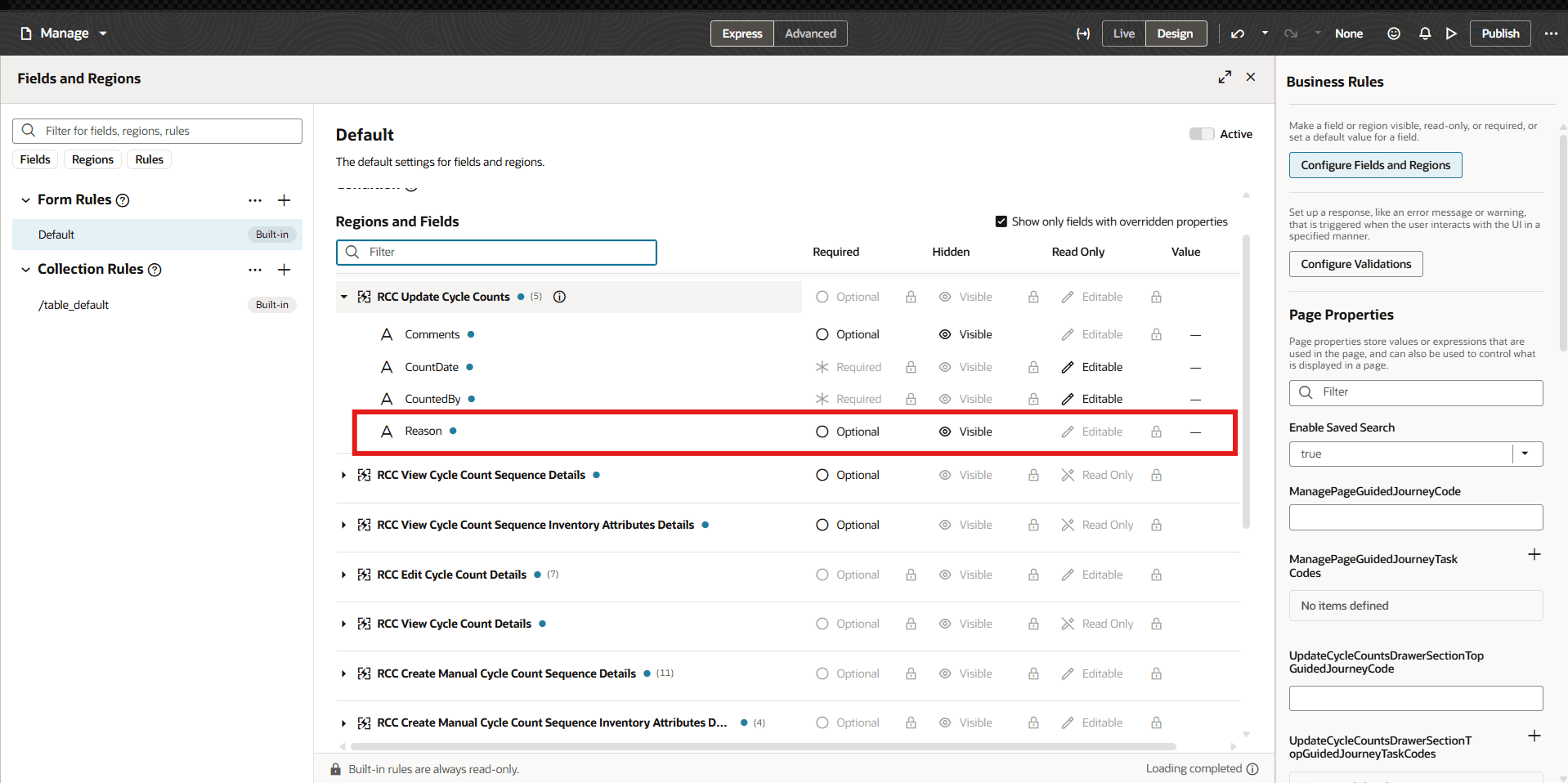
Reason Field Available in Business Rule
These enhancements provide greater flexibility in controlling field behavior and visibility, helping you enforce business processes consistently while maintaining a clean and user-friendly Redwood experience.
This feature provides you more control and flexibility in how specific pages behave in the application.
Steps to enable and configure
Leverage the Visual Builder Studio to expose your applications. To learn more about extending your application using Visual Builder, visit Oracle Help Center > your apps service area of interest > Books > Configuration and Extension.
Tips and considerations
- You can determine whether you can extend a specific page using Visual Builder Studio by using the Edit Page in Visual Builder Studio task from the Setting and Actions menu.
- Keep the Pages list closed while you work in Visual Builder Studio Express mode to get a cleaner view of the page you’re extending.
Key resources
- Follow the instructions here to Access Visual Builder Studio and start extending your application pages in Visual Builder Studio.
- Refer to these resources for additional information:
Access requirements
To extend application pages using Visual Builder Studio, you must be assigned a configured job role that contains this privilege:
-
Administer Sandbox (FND_ADMINISTER_SANDBOX_PRIV)
This privilege was available prior to this update.