Redwood: Calculate and Adjust LPN Weight and Volume When Packing or Repacking
License Plate Numbers (LPNs) represent a group of items packaged together to move, ship, and transact items efficiently. For instance, a thousand serialized circuit boards packed in a box, multiple boxes packed in a case, and multiple cases packed on a pallet. You can assign LPNs at any one of these levels, but when assigned at the higher levels, such as cases and pallets, it's important that the LPN details reflect an accurate weight and volume relative to what is packed in the LPN.
At present, when goods are packed and ready to be shipped, the weight and volume of the LPN is automatically calculated and available. However, if you pack goods into an LPN outside of the shipping process or create an LPN that isn't tied to a container item, then the LPN weight and volume aren't automatically calculated, and you can't manually enter them.
Now, you can automatically calculate the weight and volume anytime you pack or repack an LPN or assign a container item to an existing LPN. Additionally, you can manually override an LPNs weight and volume in case you need to account for additional packaging material.
To update LPN weight and volume:
- Navigate to the Item Quantities page and select the LPN tab.
- Select one or more LPNs.
- Click More Actions and choose Update Weight and Volume.
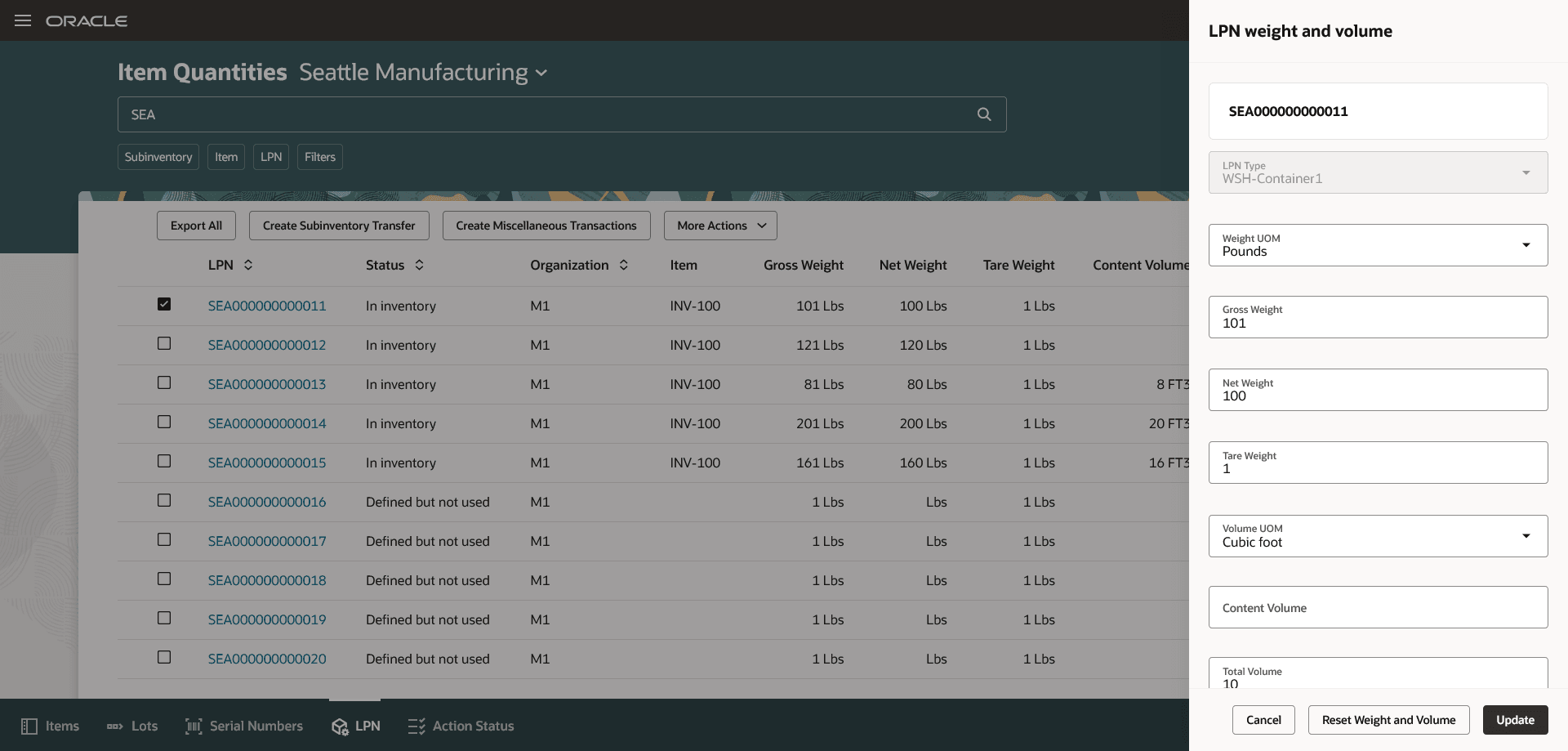
Item Quantities Redwood Page
You can update weight and volume for single or multiple LPNs in one go. After you manually update weight or volume, the system will stop auto-calculation for that LPN, even if the LPN contents change, until the values are reset to system defaults.
To restore system calculated values:
- Select the LPN.
- Click More Actions and choose Reset Weight and Volume.
This resets the weight and volume back to the system defaults. After reset, the system will resume auto-calculation of the weight and volume whenever the LPN contents change.
You can also perform a bulk reset using the Reset LPN Weight and Volume scheduled process. Use parameters such as Organization, LPN Type, LPN, Status, Subinventory, and Locator to specify the criteria for selecting the LPNs to be reset.
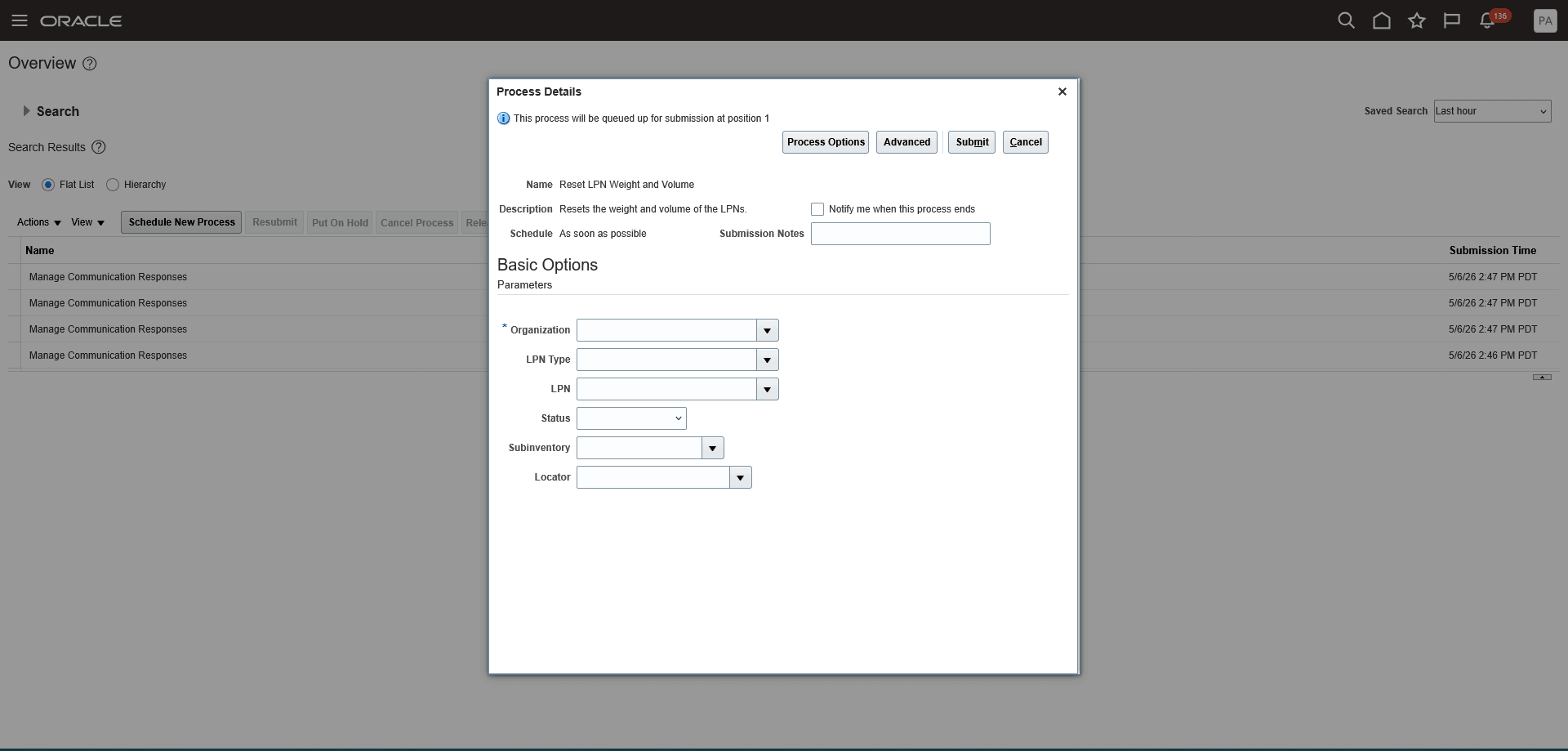
Reset LPN Weight and Volume Scheduled Process
You can also update the weight and volume using the LPN Repack and Stocking Inquiry mobile pages. After you scan or select the LPN, click More Actions (three-dot), and then select Update Weight and Volume.
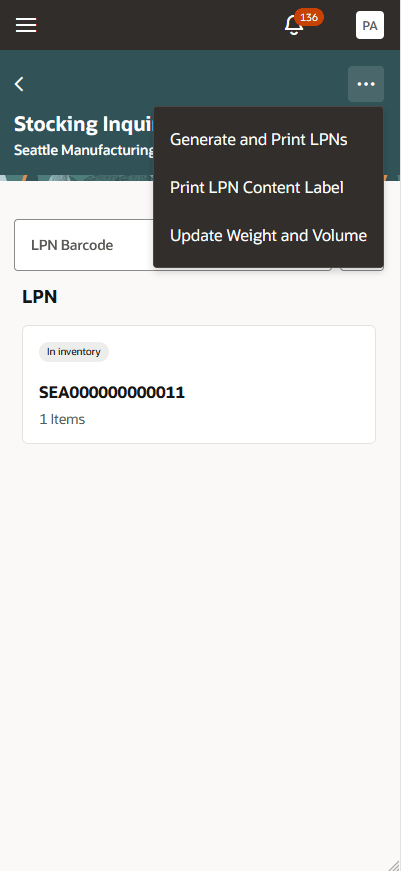
Stocking Inquiry
This feature improves the accuracy of your LPN details and helps ensure more accurate documentation of goods packed in those LPNs.
Steps to enable and configure
Use the Opt In UI to enable this feature. For instructions, refer to the Optional Uptake of New Features section of this document.
Offering: Manufacturing and Supply Chain Materials Management No Longer Optional From: Update 27A
Key resources
- Oracle Fusion Cloud SCM: Implementing Manufacturing and Supply Chain Materials Management guide, available on the Oracle Help Center.
Access requirements
Users who are assigned a configured job role that contains this duty role can access this feature:Advanced Inventory Transaction Duty (ORA_INV_ADVANCED_INVENTORY_MAINTENANCE_DUTY)
This duty role was available prior to this update.
The Advanced Inventory Transaction Duty duty role is not assigned to any predefined job roles. In the Security Console, you must manually assign the duty role to a configured job role.
To access Reset LPN Weight and Volume scheduled process, you'll need a configured job role that contains this privilege: Reset LPN Weight and Volume (AIM_RESET_LPN_WEIGHT_AND_VOLUME_PRIV)
This privilege is new in this update.