AI Agent: Inbound Goods Advisor
Cross-docking enhances operational efficiency of your warehouse personnel by reducing the number of steps required to fulfill outbound demand. In Oracle Fusion Cloud Advanced Inventory Management, you can use cross-docking to move eligible goods to an outbound staging area after potential cross-docking opportunities are available. However, it doesn’t automatically associate those goods with specific outbound demand or update the demand status.
The Inbound Advisor AI agent identifies cross-docking opportunities and automatically executes the required fulfillment steps to stage inventory for outbound demand and prepare it for shipment. For goods ineligible for cross-docking, the agent recommends optimal put away locations based on historical transaction data. When historical data is insufficient, the agent bases its recommendations on existing put away prioritization rules.
Use the following steps to access the Inbound Advisor AI agent:
- From the Tools menu, select AI Agent Studio.
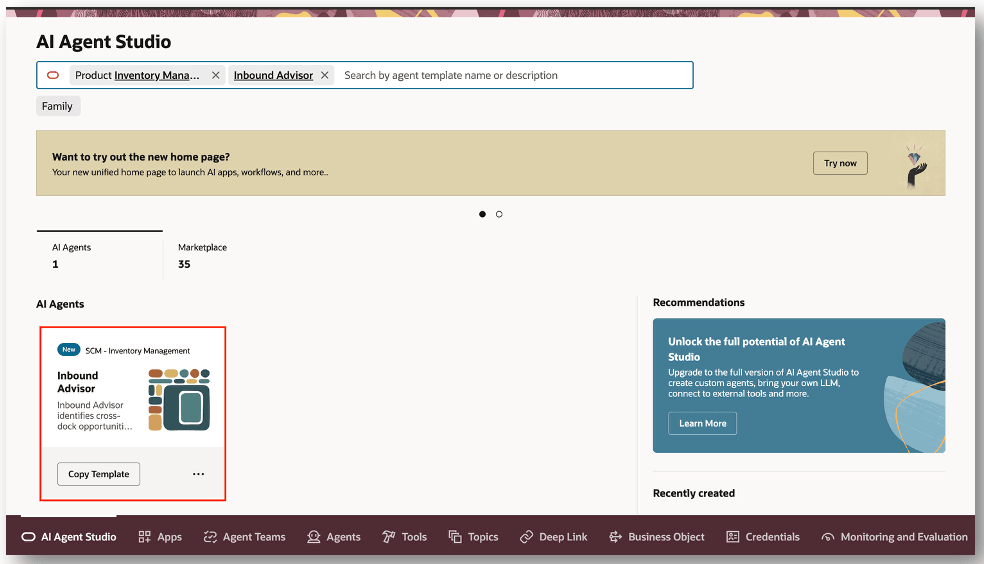
AI Agent Studio
- Open the Workflows tab in AI Agent Studio.
- Search for and select the AI agent.
- Copy the predefined template by selecting the Duplicate icon.
- Specify an agent team suffix when you duplicate the template.
- Select the Workflows tab and search the duplicate template.
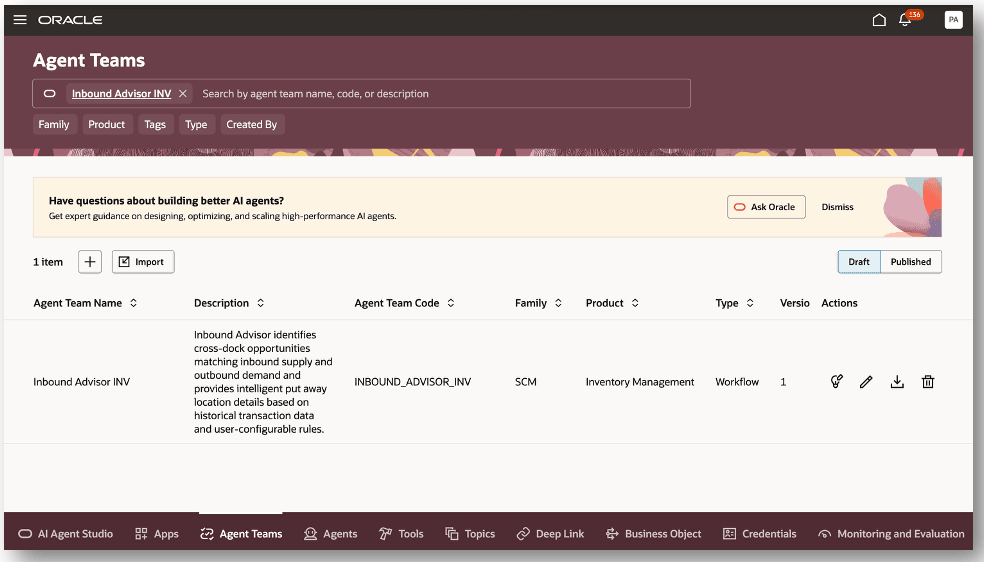
AI Agent: Inbound Advisor
The Inbound Advisor combines two separate AI agents:
-
Inventory Cross Dock Advisor: To generate cross-dock suggestions.
-
Put Away Advisor: To generate put away suggestions.
Inbound Advisor: Sub-Agents
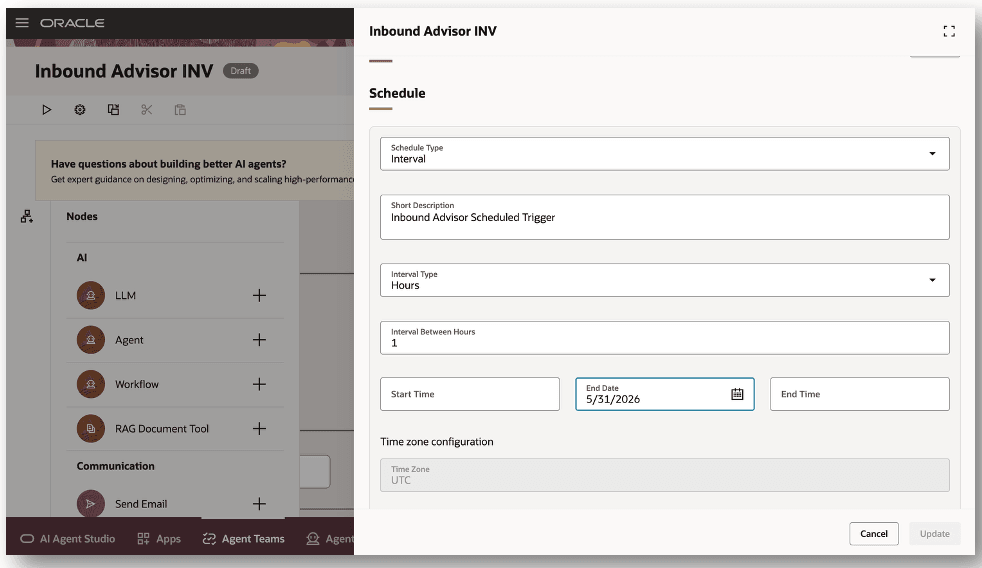
For your organization, you may want to run the AI agent at specific intervals. For example, you can schedule the AI agent to run every hour. The AI agent will use the inbound supply, receipts, and outbound demand details to suggest cross-dock opportunities. Additionally, you can schedule the AI agent to suggest put away locations for the received goods.
Schedule Trigger
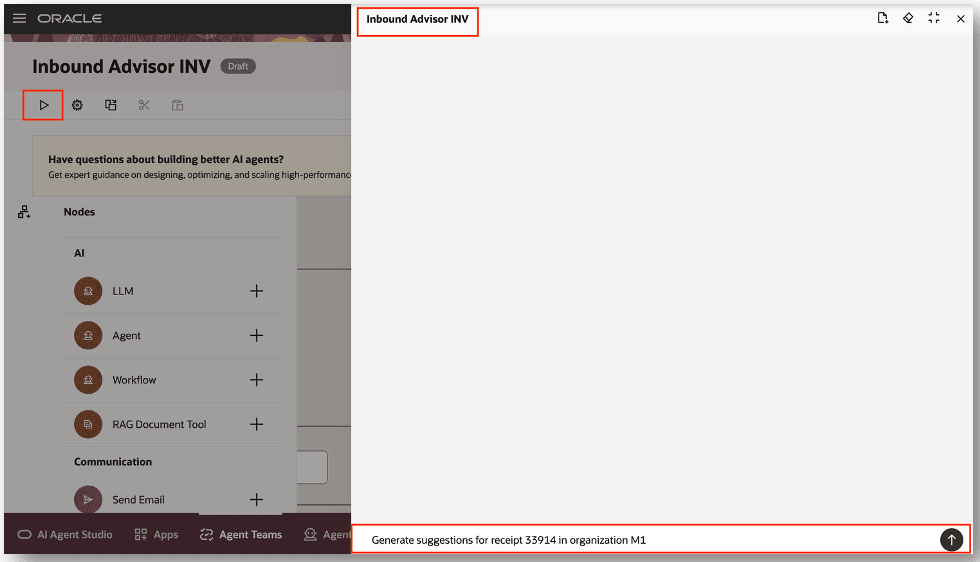
You can invoke the AI agent using a prompt, for use cases where you want to run the AI agent between scheduled intervals.
For example, let’s say you have received a rush item and you want to fulfill eligible cross-dock demands. You can enter a Generate suggestions for receipt 33914 in organization M1 prompt, and then select the Arrow icon to submit the request.
A confirmation message is displayed indicating that both cross-dock and put away suggestions completed successfully.
These are some sample prompts you can use with the Inbound Advisor AI agent:
-
Generate suggestions for receipt 33914 in organization M1.
-
Regenerate suggestions for receipt 33914 in organization M1.
-
Regenerate the put away suggestions for organization M1 and receipt 456.
-
Generate the suggestions again for put away in organization M1 and receipt 456.
-
Regenerate put away suggestions. Organization M1. Receipt 456.
Cross-docking is supported for both opportunistic and planned cross-docks. Opportunistic cross-docking matches material that has been received with demand. Whereas planned cross-docking matches incoming supply yet to be received with demand.
Inbound Advisor Prompt
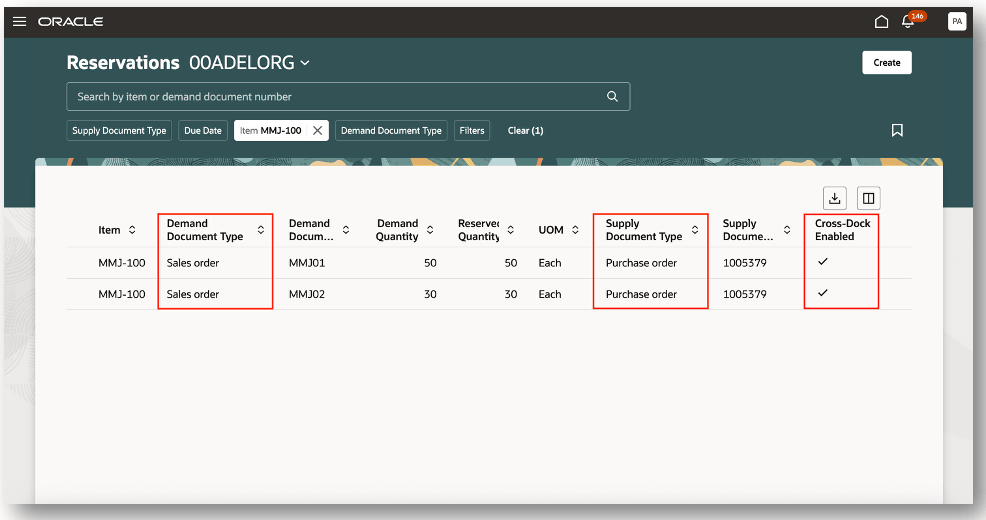
The enhanced reservations process flow supports cross-docking and automatically creates a reservation when a cross-dock demand document is matched with a cross-dock supply document.
A new Cross-Dock Enabled column is available for you to identify cross-dock specific reservations. The cross-dock indicator is removed when the reservation is transferred from the supply document to on-hand inventory.
Cross-Dock Reservations
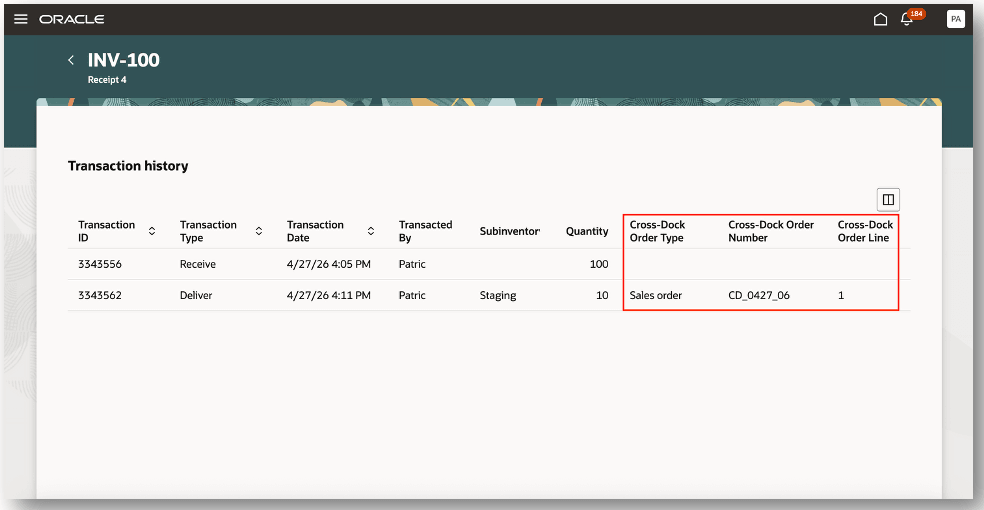
The enhanced Receiving Transaction History page helps you view cross-dock specific information. Use the Cross-Dock Order Type, Cross-Dock Order Number, and the Cross-Dock Order Line columns to view the receiving transactions associated with cross-dock demand documents.
Receiving Transaction History
You can select the Include existing reservations from the Advanced Inventory Parameters task using Setup and Maintenance work area to include existing reservations for cross-dock processing and to update or delete cross-dock reservations.
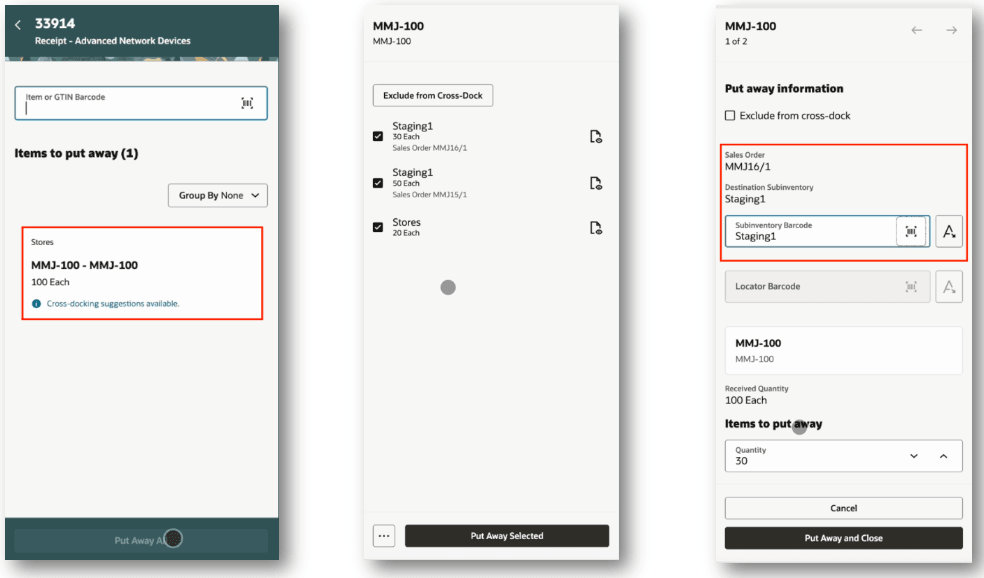
After running the Inbound Advisor AI agent, you can navigate to the Put Away Goods mobile page and search for your receipt number. An informational note on the item card indicates that cross-docking suggestions are available.
Select the item card to review the cross-dock suggestions. The cross-dock suggestions show the suggested subinventory, item and quantity, and associated demand document. Items to be cross-docked will be moved to a staging subinventory to fulfill outbound demand, such as a sales order or transfer order. The cross-docking feature helps your organization bypass labor-intensive storage and picking processes, reducing fulfillment time.
You may have scenarios where you want to bypass cross-docking for selected orders. For example, if goods are received in a damaged condition and you want to exclude the order from cross-docking. In such cases, you can exclude one or more items from cross-docking by selecting the Exclude from cross-dock checkbox.
You must have the Exclude Demand Document from Cross-Dock privilege to enable the Exclude from cross-dock checkbox.
A configured job role must include the Exclude Demand Document from Cross-Dock (AIM_EXCLUDE_DEMAND_CROSS_DOCK_PRIV) privilege to access Exclude from cross-dock.
Cross-Dock Suggestions
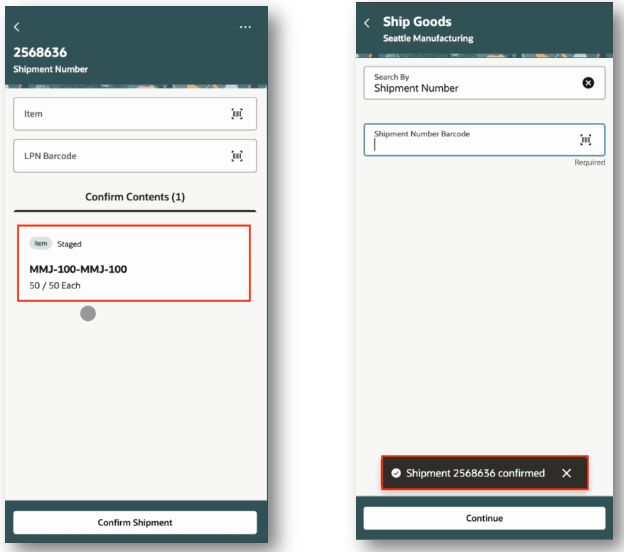
After you complete put away to the staging subinventory, the shipment lines status changes to Staged and is ready for shipment. Go to the Ship Goods page to complete the shipment.
Ship Cross-Dock Orders
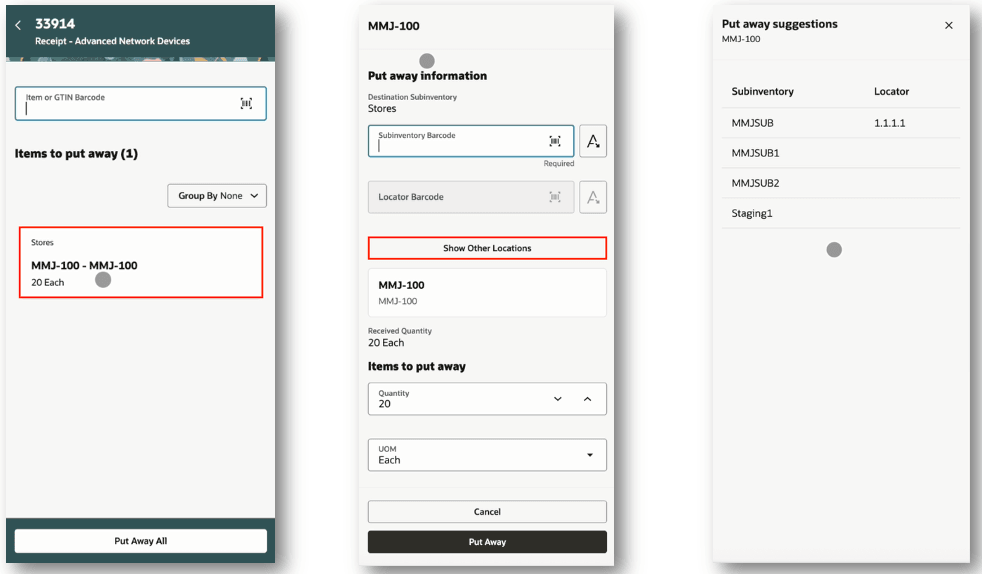
The Inbound Advisor AI agent generates put away suggestions based on historical transaction data and user-configurable rules defined in the Advanced Inventory Parameters page. The agent suggests the optimal put away location based on the most recent put away transaction or the most frequent put away location.
For example, during the put away transaction, the agent uses item, organization, document type, and supplier attributes to determine the appropriate put away location.
Put Away Suggestions
This feature improves operational efficiency by giving you greater visibility into potential cross-docking opportunities, enabling you to execute them without multiple manual steps, and suggesting the optimal put away location when goods are not eligible for cross-docking.
Here's the demo of these capabilities:
Steps to enable and configure
Configure Advanced Inventory Parameters
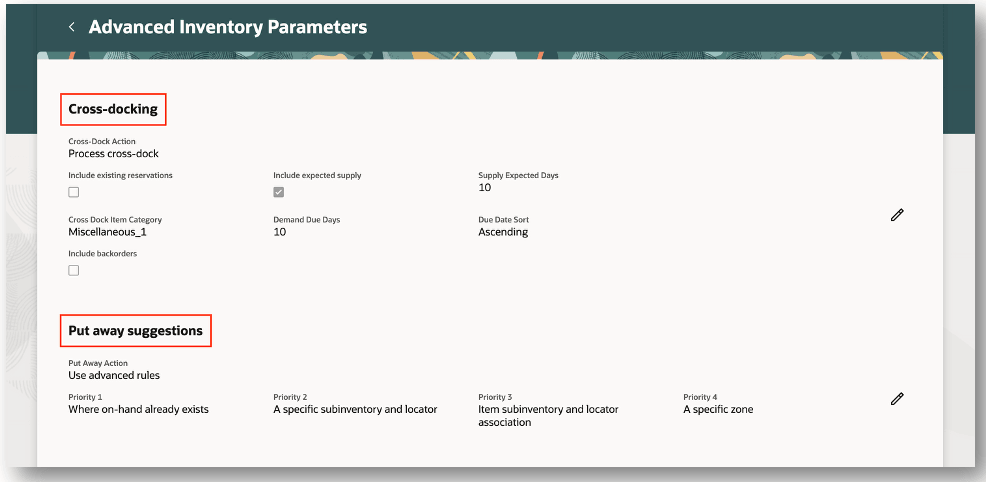
Navigate to the Setup and Maintenance work area and select the Advanced Inventory Parameters task under the Advanced Inventory Management functional area.
Cross-Docking
Limitations
- Cross-docking doesn’t support:
- Purchase order schedules with multiple projects and tasks.
- Purchase orders with multiple distributions.
- Nonreservable and nonshippable items.
- Work order demand or movement request demand.
- In addition:
- Kanban and Periodic Automatic Replenishment (PAR) requests aren’t considered for inbound supply.
- Inbound documents are considered only after they're fully received. Partial receipts aren't considered.
Configuration
- To enable cross-docking, select the Cross-Dock Action on the Advanced Inventory Parameters setup page.
- Select the Process cross-dock if you want the AI agent to identify and process cross-dock suggestions.
- The Include existing reservations checkbox is only available when you select the Process cross-dock action.
- Configure the remaining cross-dock parameters as needed to control the eligible supply, demand, and items.
Put Away Suggestions
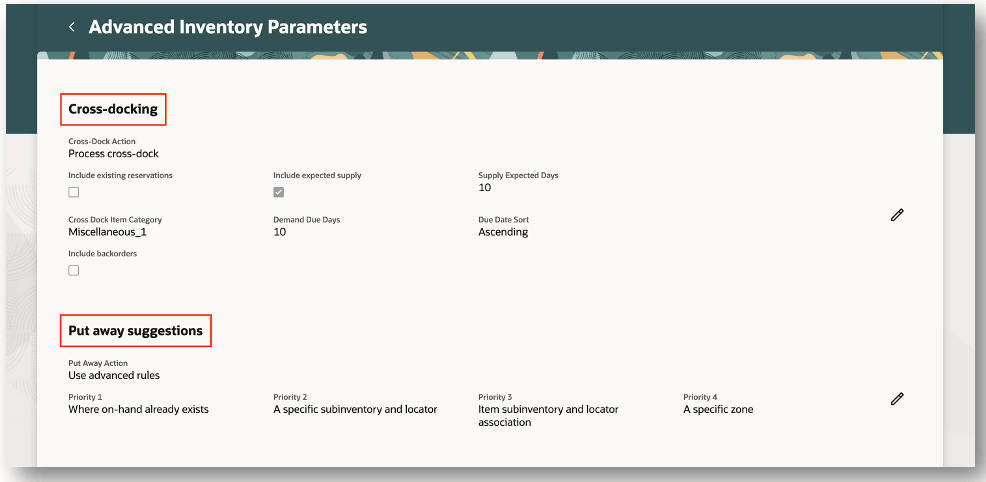
To enable Put away suggestions, select the Put Away Action on the Advanced Inventory Parameters setup page.
- Use basic rules: Generate put away suggestions using the following priorities: A specific zone, A specific subinventory and locator, Item subinventory and locator association, or an existing on-hand quantity.
- Use advanced rules: Generate put away suggestions using the AI agent, based on historical put away transactions.
Advanced Inventory Parameters
Key resources
- Oracle Fusion Cloud SCM: Using Inventory Management guide, available on the Oracle Help Center.
- Oracle Fusion Cloud SCM: Implementing Manufacturing and Supply Chain Materials Management guide, available on the Oracle Help Center.
- Access Requirements for AI Agent Studio
- How can I give users access to AI agents?
- Create AI Agents
Access requirements
To access the Oracle AI Agent Studio for Fusion Applications and manage SCM AI agents, users must be assigned a configured job role that contains these duty roles:
- SCM Intelligent Agent Management Duty (ORA_RCS_SCM_AI_AGENT_MANAGEMENT_DUTY)
- SCM Intelligent Agent Management Duty (ORA_RCS_SCM_AI_AGENT_MANAGEMENT_DUTY_HCM)
- Fai Genai Agent SCM Administrator Duty (ORA_DR_FAI_GENERATIVE_AI_AGENT_SCM_ADMINISTRATOR_DUTY)
To interact with AI agents in product pages, users must be assigned a configured job role that contains this duty role:
- Fai Genai Agent Runtime Duty (ORA_DR_FAI_GENERATIVE_AI_AGENT_RUNTIME_DUTY)
In the Security Console, filter by Roles and Permission Groups to find this duty role.
To allow users to interact with agents, you must also enable permission groups in the Security Console on those users' configured job roles that contain the Fai Genai Agent Runtime Duty role. You can enable permission groups when you manage the basic information of your configured job roles.
Users' configured job roles must also contain privileges that allow access to the pages where AI agents are enabled.
See Access Requirements for AI Agent Studio (for administrators) and How can I give users access to AI agents (for end-users) for more information.
To set up this feature, you'll need a configured job role that contains this new duty role, which is not assigned to any predefined job roles:
- Advanced Inventory Management Administration Duty (ORA_INV_ADVANCED_INVENTORY_MANAGEMENT_ADMINISTRATION_DUTY)
This duty role was available prior to this update.
To interact with the Inbound Advisor agent, users must be assigned a configured job role that contains this privilege:
- Access Inbound Advisor Agent (AIM_ACCESS_INBOUND_ADVISOR_AGENT_PRIV)
This privilege is new in this update.
To access the action Exclude from cross-dock, users must be assigned a configured job role that contains this privilege:
- Exclude Demand Document from Cross-Dock (AIM_EXCLUDE_DEMAND_CROSS_DOCK_PRIV)
This privilege is new in this update.