 Redwood: Improve Usability with the New Receive Part UI
The new Receive Parts page makes it easier to find, review, and receive eligible parts in one place. Receive parts one line at a time or select multiple lines to receive together.
The page supports serialized, non-serialized, and lot-controlled items, with helpful defaults and validations to improve accuracy. Search results show only parts that are ready to receive from eligible transfer orders and in-transit shipments that are ship confirmed and use standard receipt or direct delivery routing.
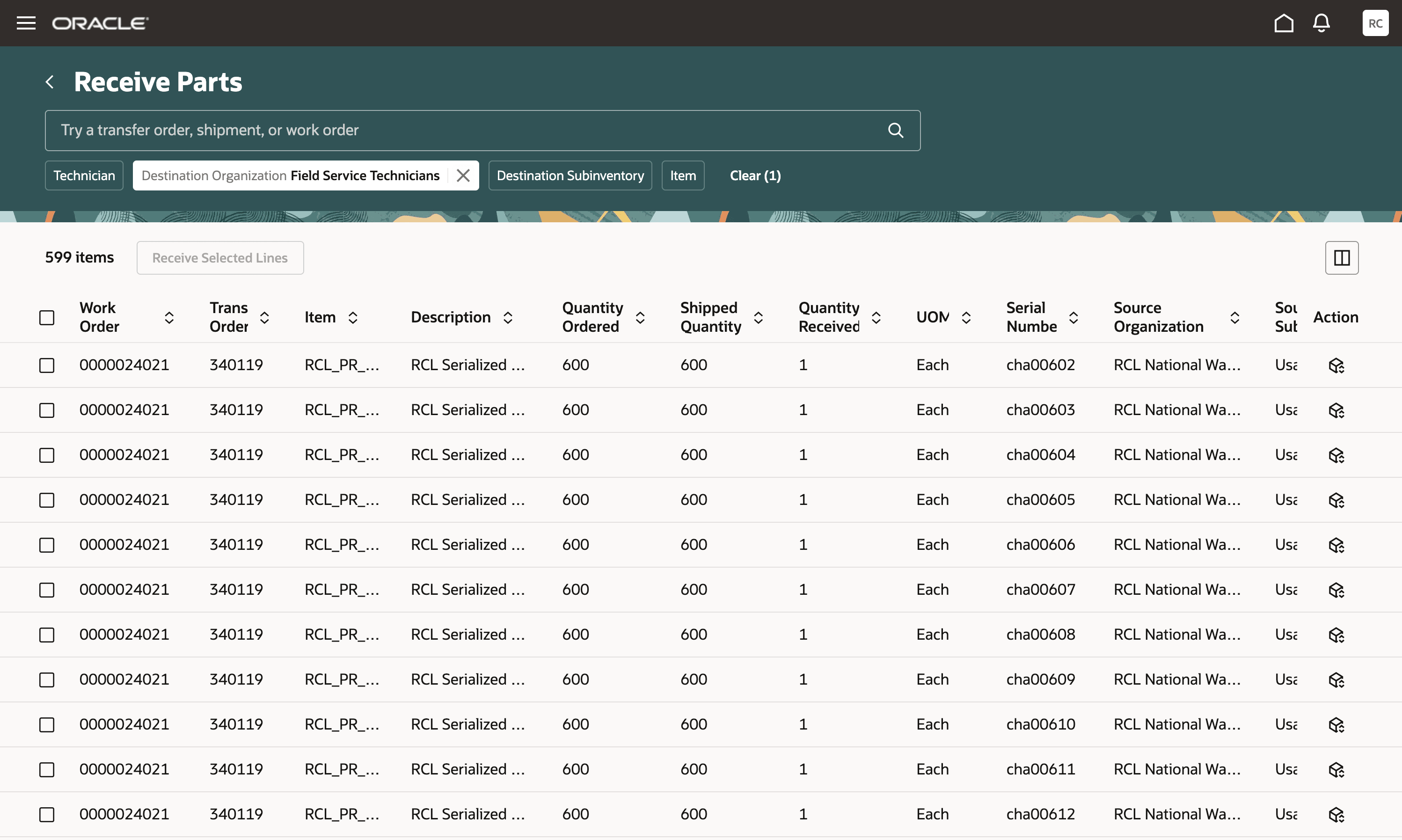
Receive Parts Search List
Line-level Receiving
Select a row, then select Receive from the Actions menu to open the Receive parts drawer. The drawer shows fields based on the item type.
- For non-serialized items: Enter or update the receiving quantity.
- For lot-controlled items: Enter the quantity or review lot details.
- For serialized items: The serial number displays and the quantity is fixed at one.
The system defaults values such as subinventory and quantity where applicable. A locator is required when the item is locator-controlled. The system validates required fields prior to submission and ensures that the receiving quantity doesn’t exceed the available receivable quantity. After the transaction is submitted or canceled, the panel closes and the search results refresh automatically.
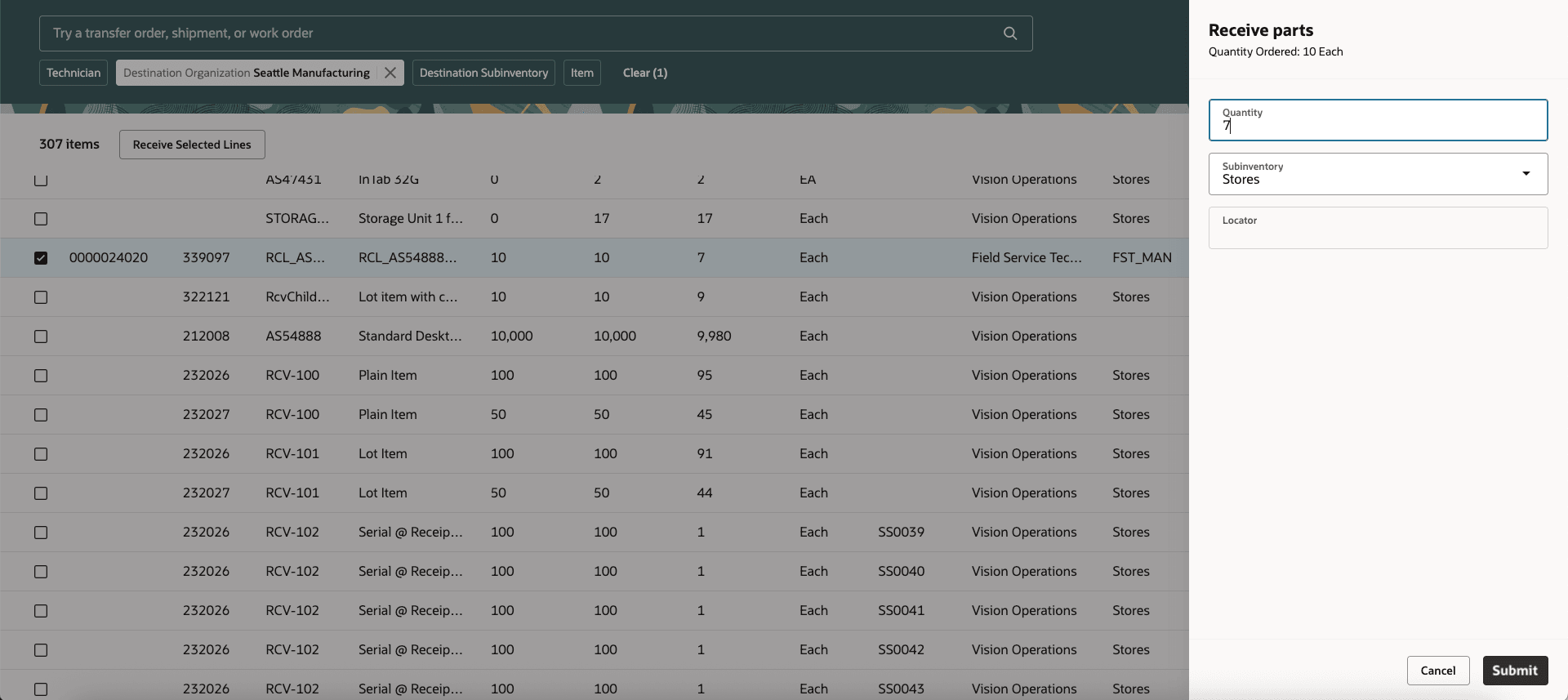
Receive Parts for Plain Item
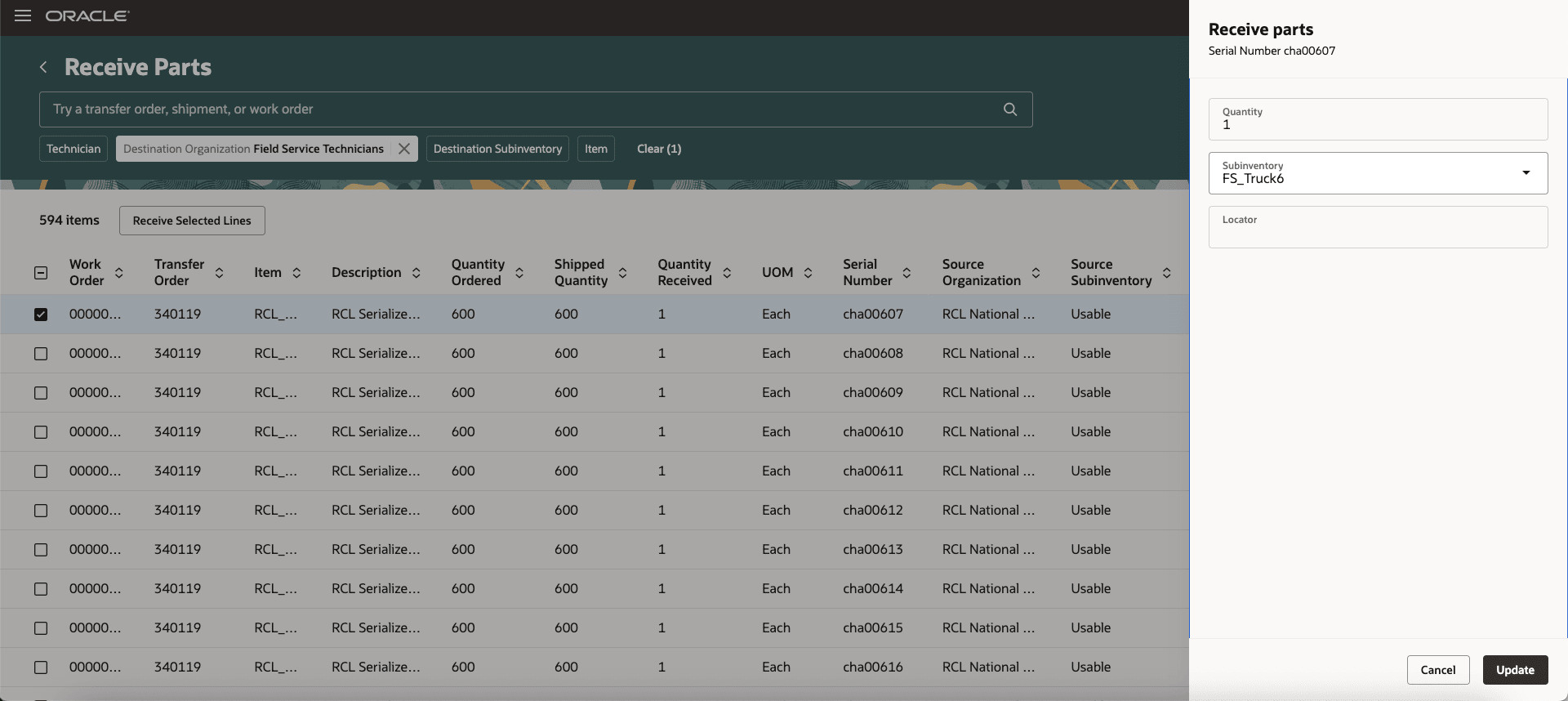
Receive Parts for Serialized Item
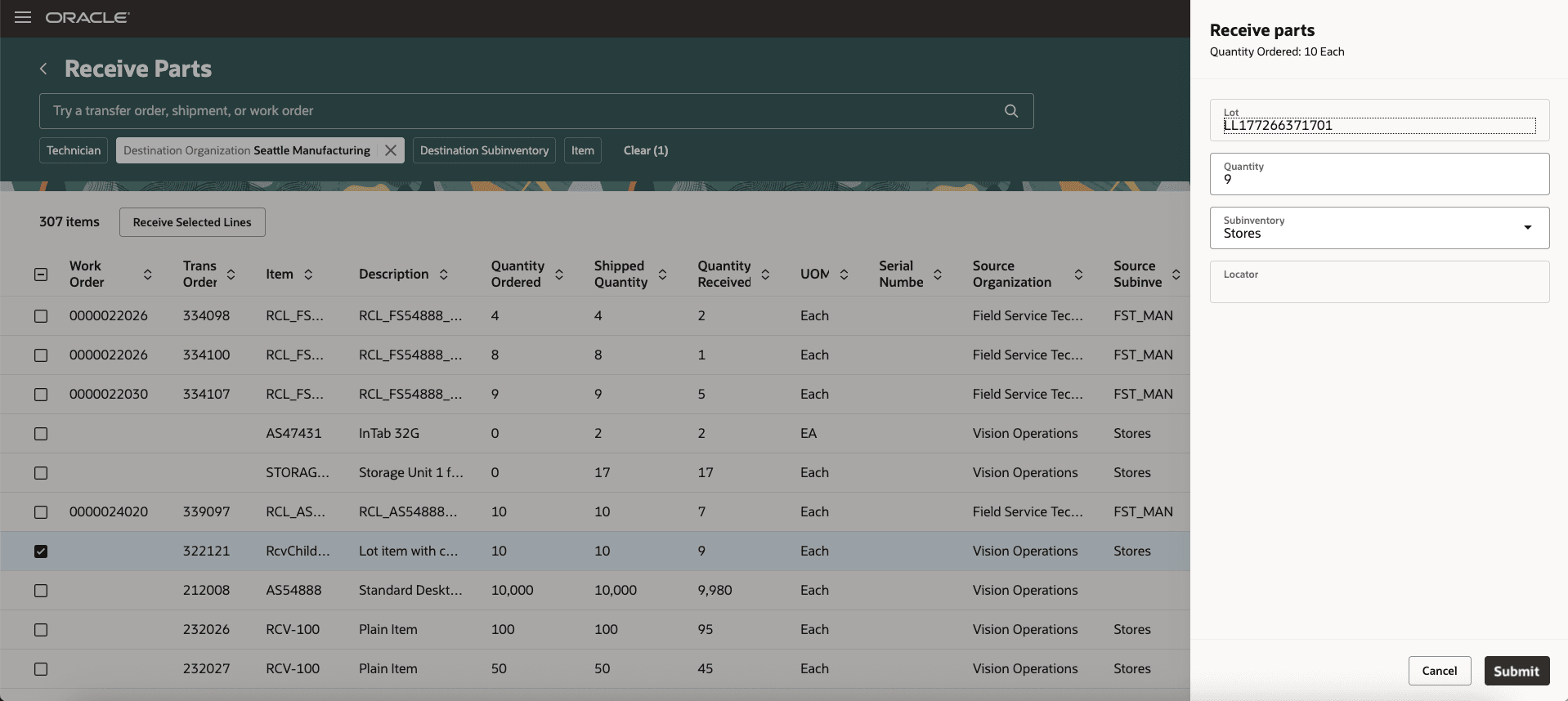
Receive Parts for Lot Item
Bulk Receiving
Select multiple rows, then select the Receive Selected Lines button to receive them together. The Receive parts drawer displays the number of selected lines and lets you enter common values such as subinventory and locator where applicable.
The system supports mixed item types and validates the selected lines before submission. When all selected lines are received, the page displays Selected lines received. When only some selected lines are received, the page displays Selected lines partially received. After the action is completed or cancelled, the drawer closes and the search results refresh automatically.
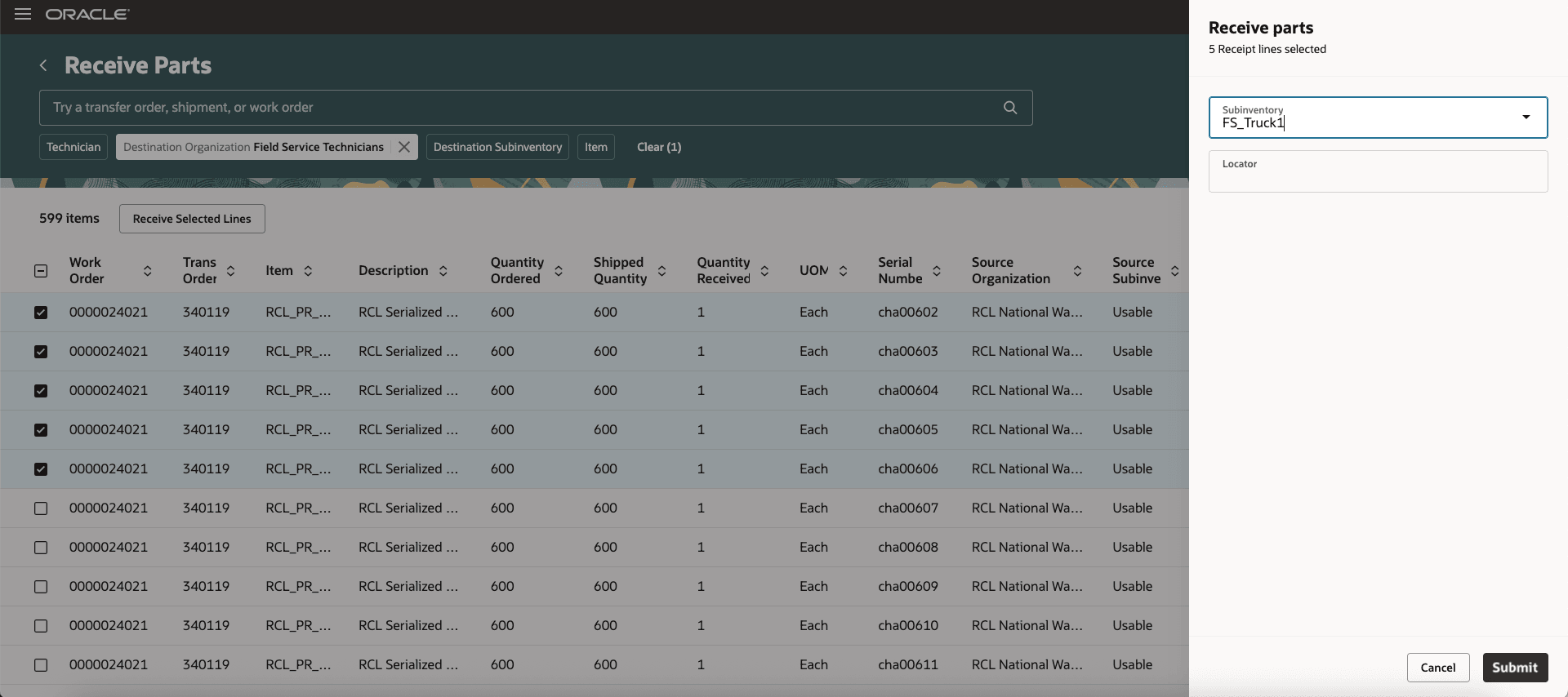
Receive Parts in Bulk
By allowing parts to be received faster and with fewer manual steps, this feature brings search, review, and receiving tasks together on a single page.
It also improves productivity by supporting both single-line and bulk receiving. A single line can be received when transaction-specific details need to be reviewed, or multiple selected lines can be received together when the same values apply.
Steps to enable and configure
To access the page, users must have the required privilege and enable the ORA_RCL_RECEIVE_PARTS_REDWOOD_ENABLED profile option.
Tips and considerations
- Use line-level receiving when users need to review or update details for a single transaction.
- Use bulk receiving when multiple eligible lines can be received together using common values such as subinventory or locator.
- For serialized items, the receiving quantity is fixed at one to preserve serial tracking accuracy.
- For locator-controlled items, users must provide locator information before submitting the receiving transaction.
- For locator-controlled items, locator information is required before submitting the receiving transaction.
- Search results refresh after receiving actions to show current transaction statuses and remaining receivable quantities.
Access requirements
The following are existing privileges. Users who are assigned a configured job role that contains these privileges can access this feature.
- Access Receive Parts (RCL_ACCESS_RECEIVE_PARTS_PRIV)
- Access Receive Parts for Technician (RCL_FSTECH_ACCESS_RECEIVE_PARTS_PRIV)