Redwood: Copy and Edit Work Orders in Maintenance Supervision
Maintenance supervisors can now copy an existing work order directly from Maintenance Supervision and immediately edit the newly created work order. The application copies key work order header attributes along with associated operations, materials, and resources, while setting the new work order planned start date and time to the current date and time. Both single-asset and multiple-assets work orders can be copied. Work orders created for an asset route can't be copied. Document references and operation resource instances aren't copied to the new work order, and if the original work order references a work definition, the work definition isn't copied and only the operations are copied. Any project details aren't copied from the original work order to the new work order.
In Maintenance Supervision, supervisors can select search and select an existing work order, click on the More Actions next to the work order status and select Copy from the drop-down menu. A new work order is created with all the key information and the planned start date and time is set to the current date and time.
The following screenshot shows the new action to copy a work order from the Manage Work Orders page.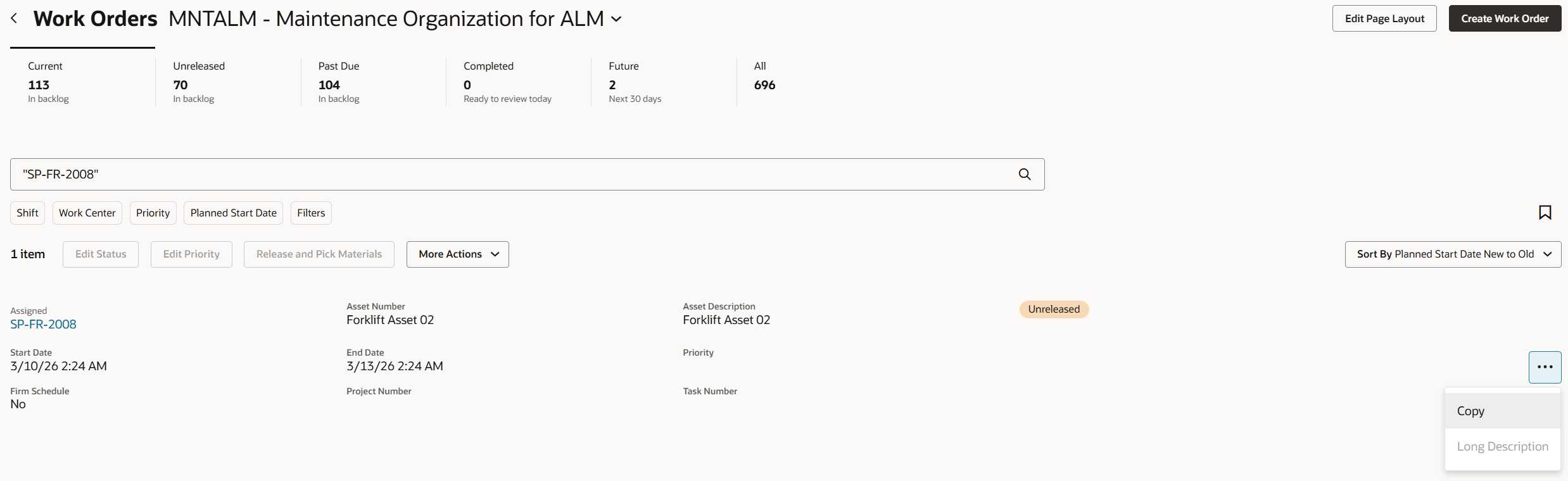
New action to copy a work order from the Manage Work Orders page
Supervisors can quickly create new work orders, accelerating the creation of repetitive or follow-up work orders. This reduces data entry effort, speeds work order creation, and improves productivity when managing recurring maintenance activities.
Steps to enable and configure
You don't need to do anything to enable this feature.
Access requirements
No additional user roles or privileges are required to use this feature.