Modify Downtime and Reason Codes for Workstations
Production supervisors and operators can review and correct workstation downtime timelines and reason codes to improve availability tracking and reporting accuracy. Operators can update the actual start and end times when pausing or resuming during real-time work execution at a workstation in Production Execution. Supervisors can add or edit downtime records for up to 7 days in the past.
To preserve timeline integrity, the system blocks edits that conflict with quantity reporting or other protected execution events, and prevents gaps or overlaps when changes are applied.
Tasks Performed by Production Supervisors and Operators
Production Supervisors
Production supervisors can now review and correct workstation availability records after production events have occurred. From the workstation availability timeline, supervisors can view all recorded segments, such as In-Use, Idle, and Down with their start times, end times, duration, and reason codes, and can correct downtime duration, update reason codes, or reclassify a segment status (for example, from Down to Idle) based on additional shop floor insights.
The application validates all edits against reported operation quantities and automatically adjusts adjacent segments to maintain timeline continuity, preventing gaps or overlaps. For example, if a downtime segment recorded from 10:00 to 11:00 is corrected to end at 10:30, the system automatically reclassifies the remaining 10:30–11:00 interval as an appropriate state. All confirmed changes trigger real-time recalculation of downtime totals and OEE.
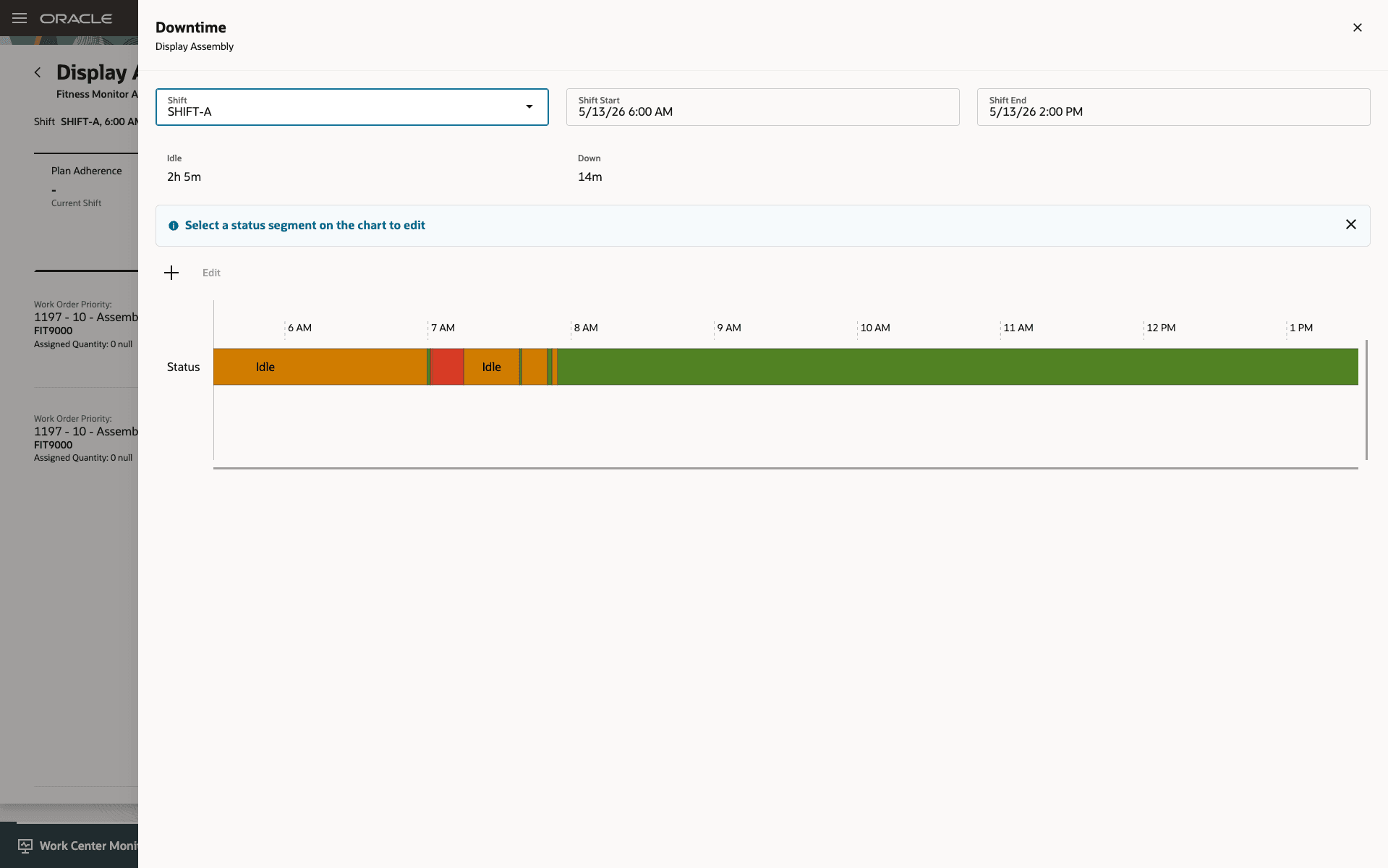
Edit Downtime - Supervisor
Production Operators
Operators can now correct downtime start time, end time, and reason codes during active production within their current shift based on the privileges assigned to them. When pausing a workstation, operators select a reason code and can optionally enter the actual downtime start time. When resuming work, operators enter the downtime end time and can confirm or update the reason code for that interval.
The application validates entered times against work order operation transactions to ensure downtime is only recorded in intervals where no production activity was reported. For example, if a quantity transaction was reported at 09:20 and another at 09:45, a downtime entry must fall within that window and cannot start before 09:20 or extend beyond 09:45. This prevents downtime records from overlapping with active production reporting and ensures timeline integrity. Adjustments can only be made at the time of creating or completing a downtime entry, and completed records cannot be modified retrospectively.
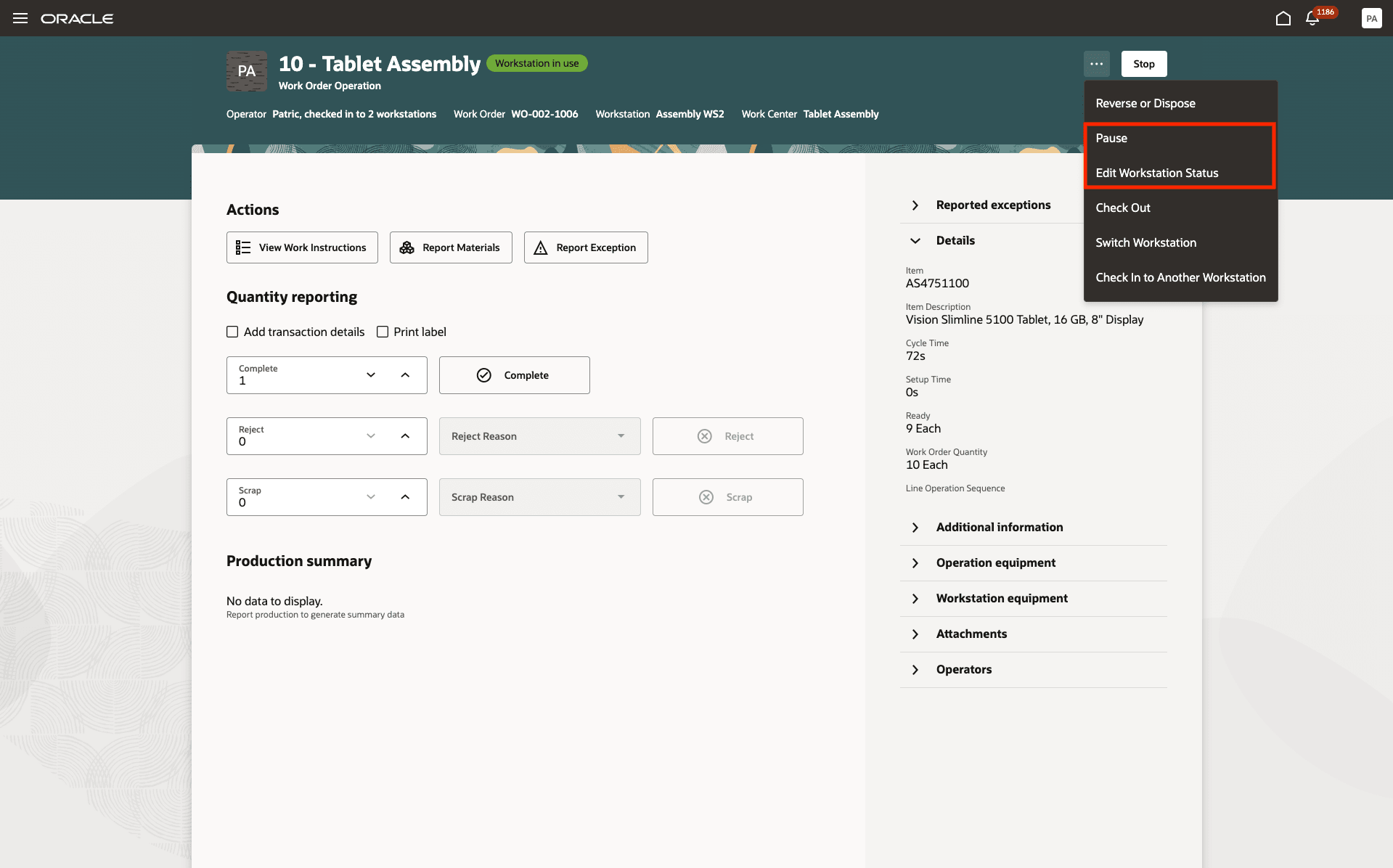
Edit Workstation Status - Operator
The high-level operator actions include pausing and resuming production execution, recording downtime details, and updating workstation status information.
Pause
Operators can pause a workstation or operation by recording the appropriate downtime reason and status, and can optionally enter a custom start time if the downtime began earlier than when it was recorded. The application validates the entered time and updates workstation availability tracking in real time.
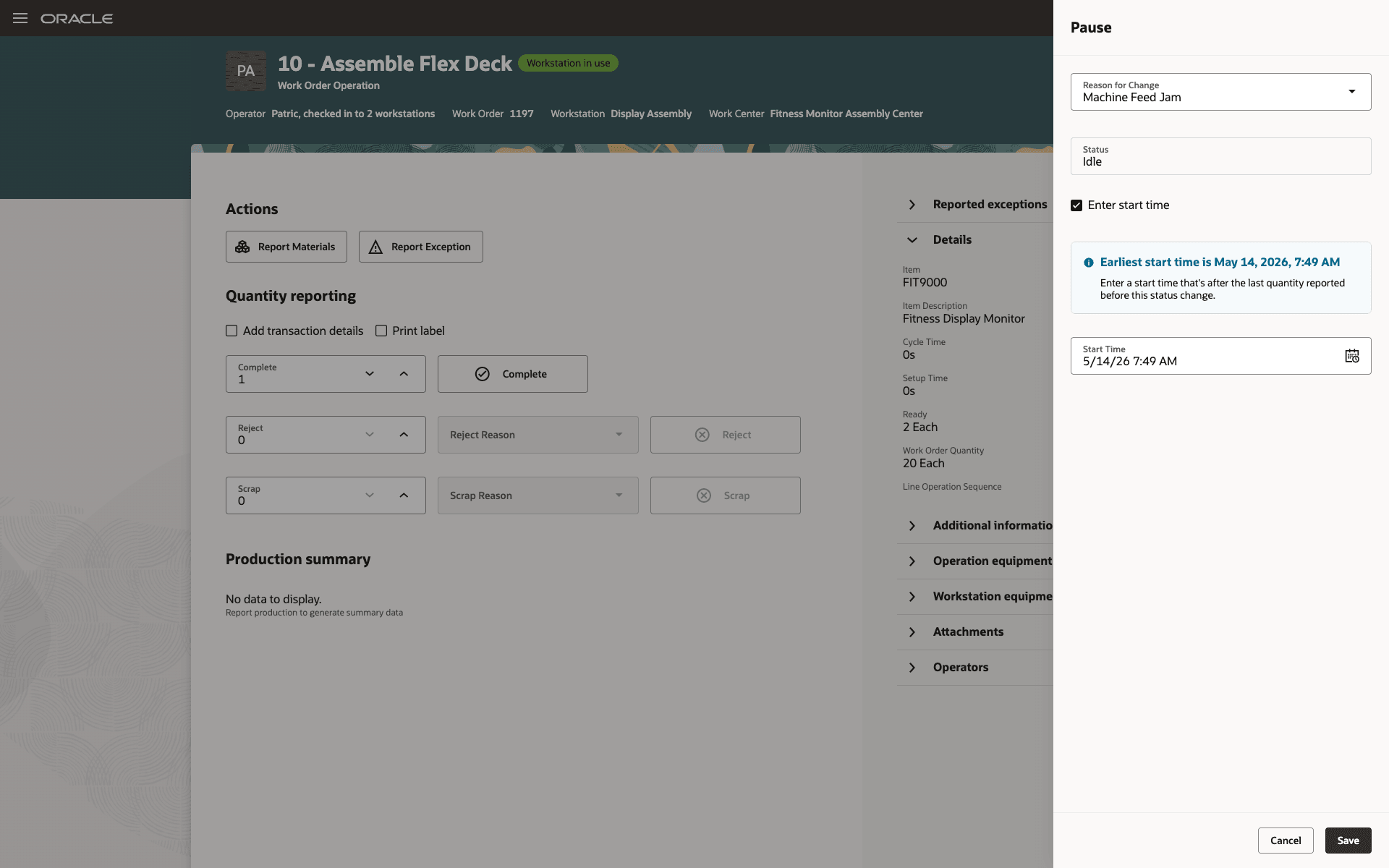
Pause Workstation - Operator
Resume
Operators can resume production after a downtime and record the actual time when execution restarted. This helps ensure workstation availability and production timelines accurately reflect shop floor activity.
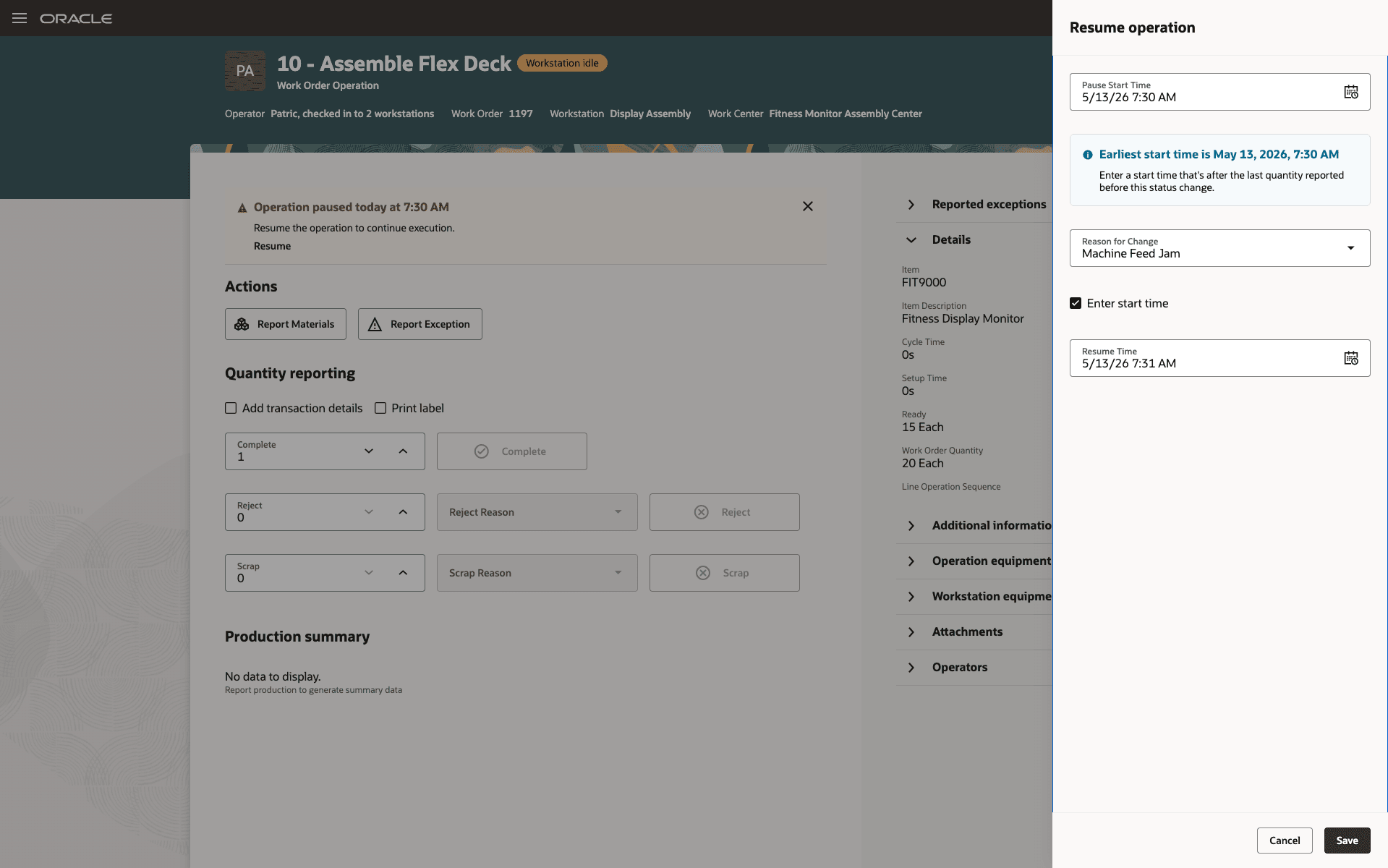
Resume Workstation - Operator
Edit Workstation Status
Operators and supervisors can update workstation status details when recorded information doesn’t match actual shop floor conditions. The application validates status changes and maintains a continuous workstation timeline across the shift.
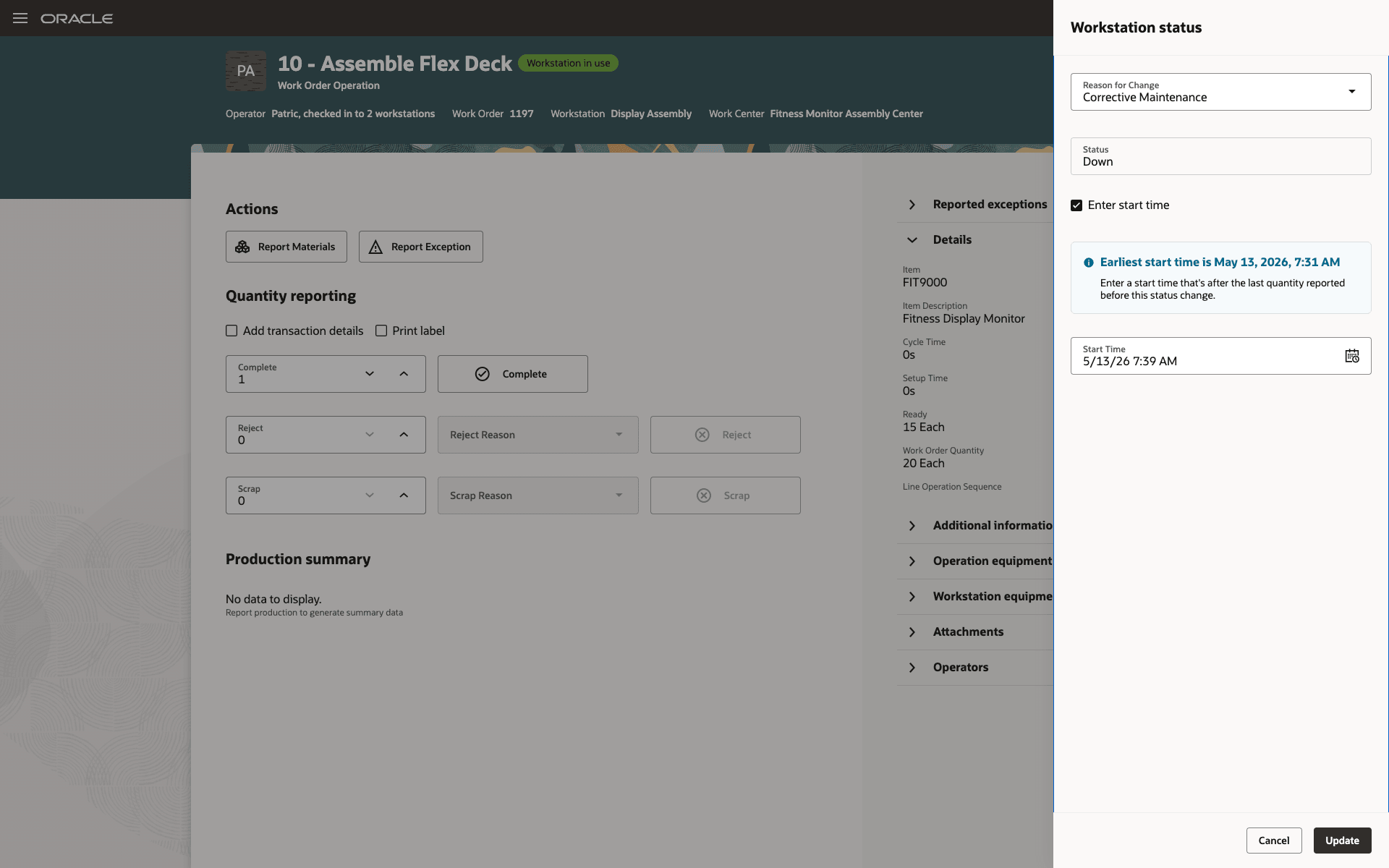
Edit Workstation Status - Operator
To summarize, the following actions can be performed by the operator:
- Pause - The operator can enter a reason code and optionally edit the pause start time.
- Resume - The operator can review/confirm the previously entered reason code and optionally edit both the pause start time and pause end time.
- Edit Workstation Status - The operator can enter a reason code and optionally edit the pause start time.
Manufacturing teams can improve downtime and reason-code data quality, resulting in more reliable availability/performance calculations and stronger continuous-improvement analysis.
Here's the demo of these capabilities:
Steps to enable and configure
No additional setup is required. Assign the appropriate access privileges to the operator role to enable this feature.
Tips and considerations
- Supervisors cannot modify a downtime segment that spans across two shifts.
- Operators can update downtime records only during the current execution session and within the active shift.
- Supervisors can review and correct downtime records, including modifying durations, reason codes, and valid state transitions, subject to applicable validation rules.
- Review role assignments carefully, as operator capabilities differ.
Key resources
- Oracle Fusion Cloud SCM: Using Manufacturing guide, available on the Oracle Help Center.
- Oracle Fusion Cloud SCM: Implementing Manufacturing and Supply Chain Materials Management guide, available on the Oracle Help Center.
Access requirements
Users who are assigned a configured job role that contains these privileges can access this feature:
Privileges
- Manage Workstation Downtime (WIP_MANAGE_WORKSTATION_DOWNTIME_PRIV)
- Supervise Production (WIP_SUPERVISE_PRODUCTION_PRIV)
- View Production Shift Details (WIP_GET_PROD_SHIFT_DETAILS_PRIV)
Duty Roles
- Workstation Status Management Duty (ORA_WIE_WORKSTATION_STATUS_MANAGEMENT_DUTY)
- Workstation Status Correction Duty (ORA_WIE_WORKSTATION_STATUS_CORRECTION_DUTY)
Privileges
- Manage Workstation Downtime (WIP_MANAGE_WORKSTATION_DOWNTIME_PRIV)
Duty Roles
- Workstation Status Management Duty (ORA_WIE_WORKSTATION_STATUS_MANAGEMENT_DUTY)
By default, the seeded Production Supervisor role inherits the required privileges and duty roles, and no additional setup is required. For Production Operators, perform the following steps:
- Open the Security Console and create or use a custom Production Operator role. Don’t modify the seeded role directly.
- Add the following duty roles to the custom role:
- ORA_WIE_WORKSTATION_STATUS_MANAGEMENT_DUTY
- ORA_WIE_WORKSTATION_STATUS_CORRECTION_DUTY
- Add the privilege WIP_MANAGE_WORKSTATION_DOWNTIME to the custom role or inherit it through a custom duty role based on your security setup.
- Save and publish the security changes.
- Assign the custom role to the required operator users.
- Sign out and sign in again for the changes to take effect.
- Validate in Smart Operations that downtime controls are available and functioning as expected, based on the assigned privileges.
Note: This feature isn’t controlled through an opt-in. Access is managed through role and privilege configuration.