Dispense Materials to Batches
In process manufacturing industries requiring high regulatory compliance such as Life Sciences, Pharmaceuticals, and Food Processing, materials are often dispensed (weighed, measured, and issued) to support process execution on the factory floor. This feature introduces a new dispensing capability for Process Manufacturing to capture dispensing activities and support reversals (return of material that were not used).
Key Capabilities
-
A new dispensing user experience for process manufacturing that enables you to:
- Set up dispensing areas and booths on the production floor to indicate the dispensing location (including subinventory and locator details to help identify the material delivery location).
- Add specific instructions for dispensing that operators need to follow when dispensing materials.
- Dispense materials for batches and execution runs in a batch and record the dispensing transactions.
- Issue dispensed materials directly to work orders or batches for production consumption.
- Use source, target, or full container modes to measure and dispense material from bulk to dispensing containers to be used in production.
- Reverse dispensing (return) support
- Supports reversal of dispensing so that materials that were prepared/dispensed but not used can be returned, improving reconciliation and reducing ad hoc corrections.
Designate a location in your plant to dispense materials by defining a dispense area. A dispense area needs to be mapped to a subinventory and is used to perform all dispensing activities in your plant.
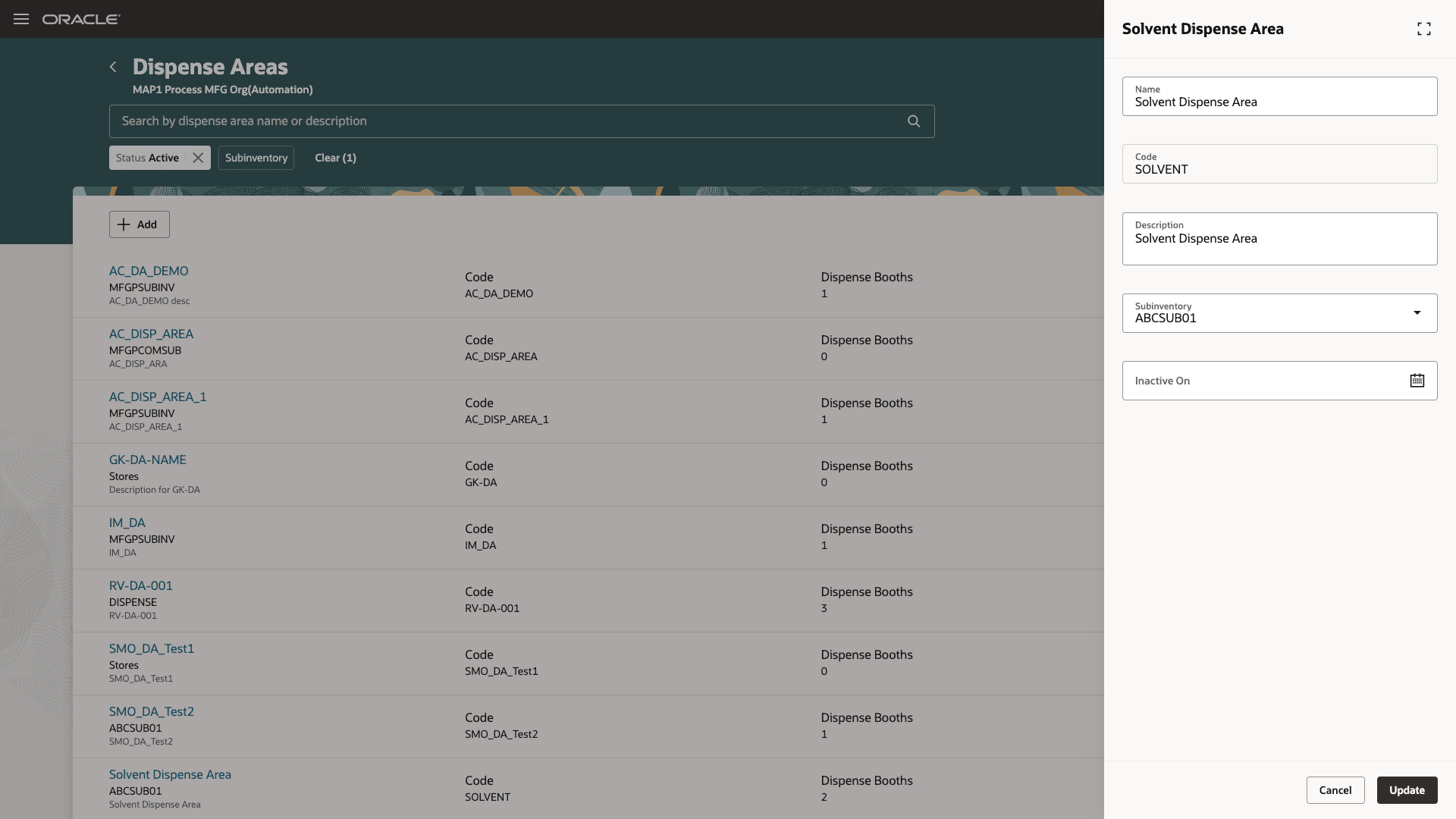
Dispense Area
You can attach dispense booths to the newly created dispense areas if you use separate workstations for different operators or different materials. You need to associate the dispense booths to locators when you create them. Note that the dispense booths are necessary if the subinventory that you have associated with the dispense area is locator controlled.
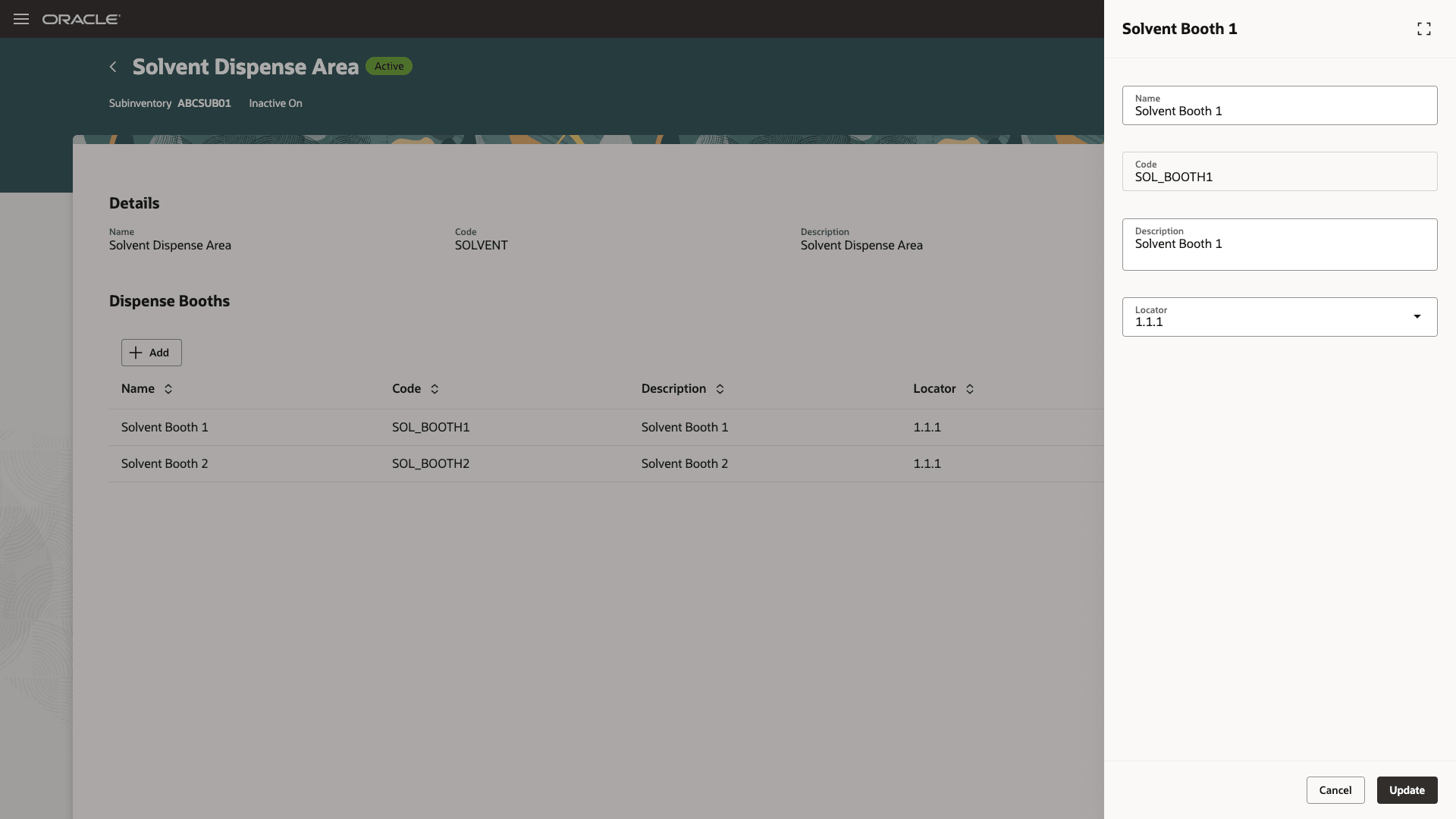
Dispense Booths are Associated with Dispense Areas
A dispense rule is defined to identify the items that require dispensing in a manufacturing plant. You would need to associate a dispense area where you perform the dispensing and the Unit of Measure (UOM) for the material. The UOM is typically the primary unit of measure for the item or a unit of measure that is convertible to the primary UOM.
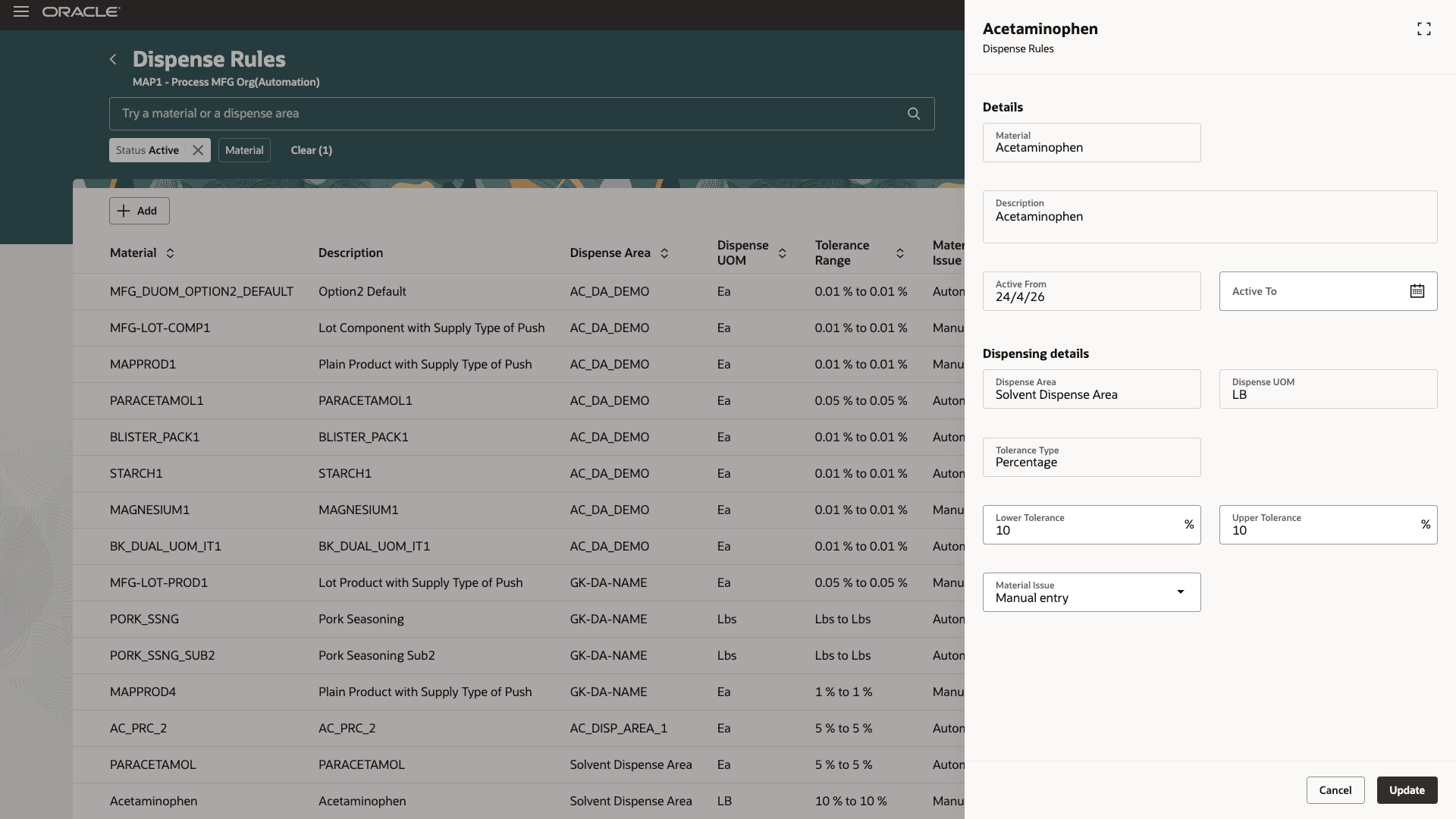
Dispense Rules
Once you create a dispense rule, the new Dispensing Required column in the Recipe/Work Definition page is set to Yes.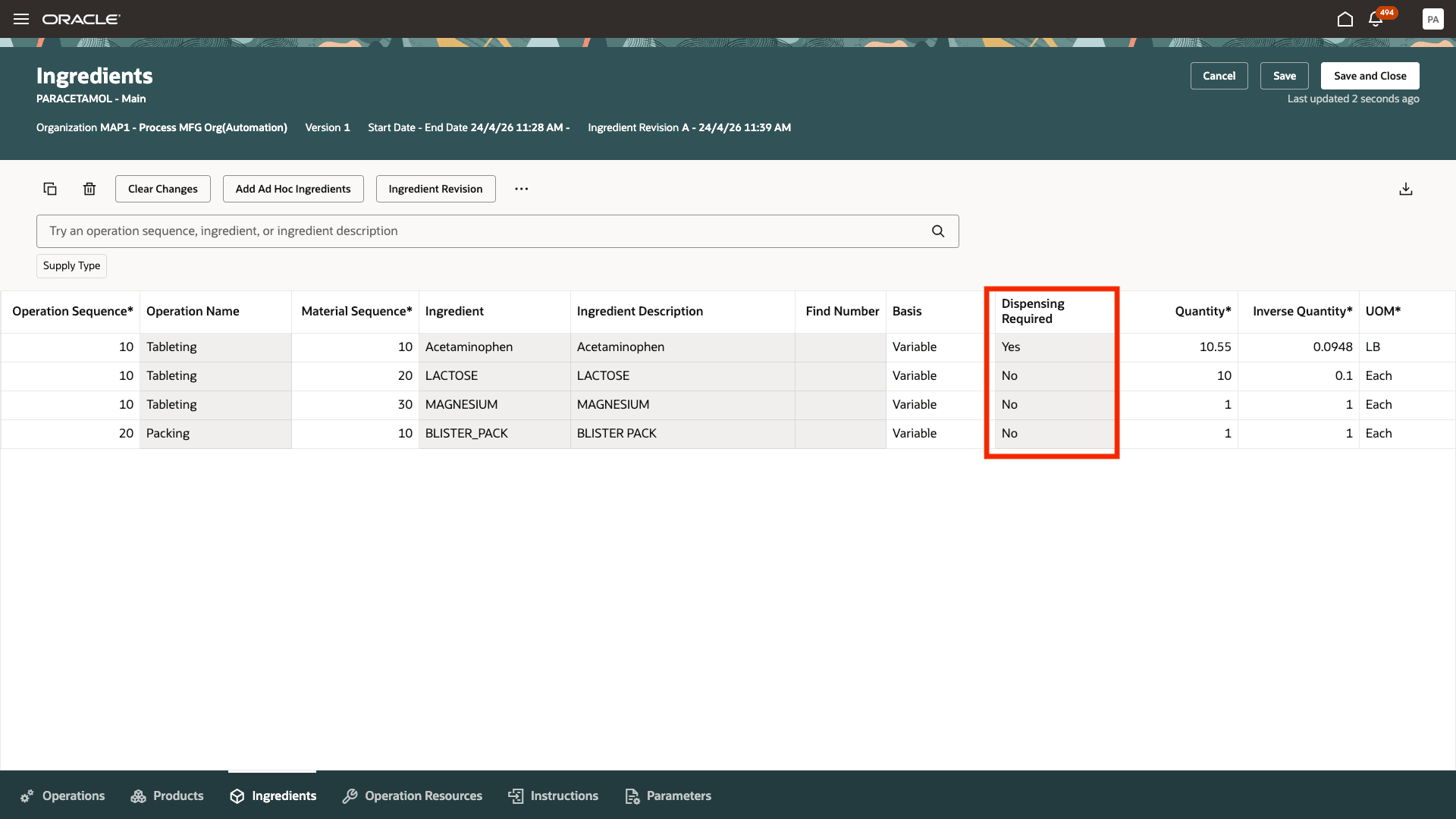
New Indicator in the Recipe (Work Definition) Page
When you create a batch using this recipe, the subinventory associated with the dispense area is used as the supply subinventory.
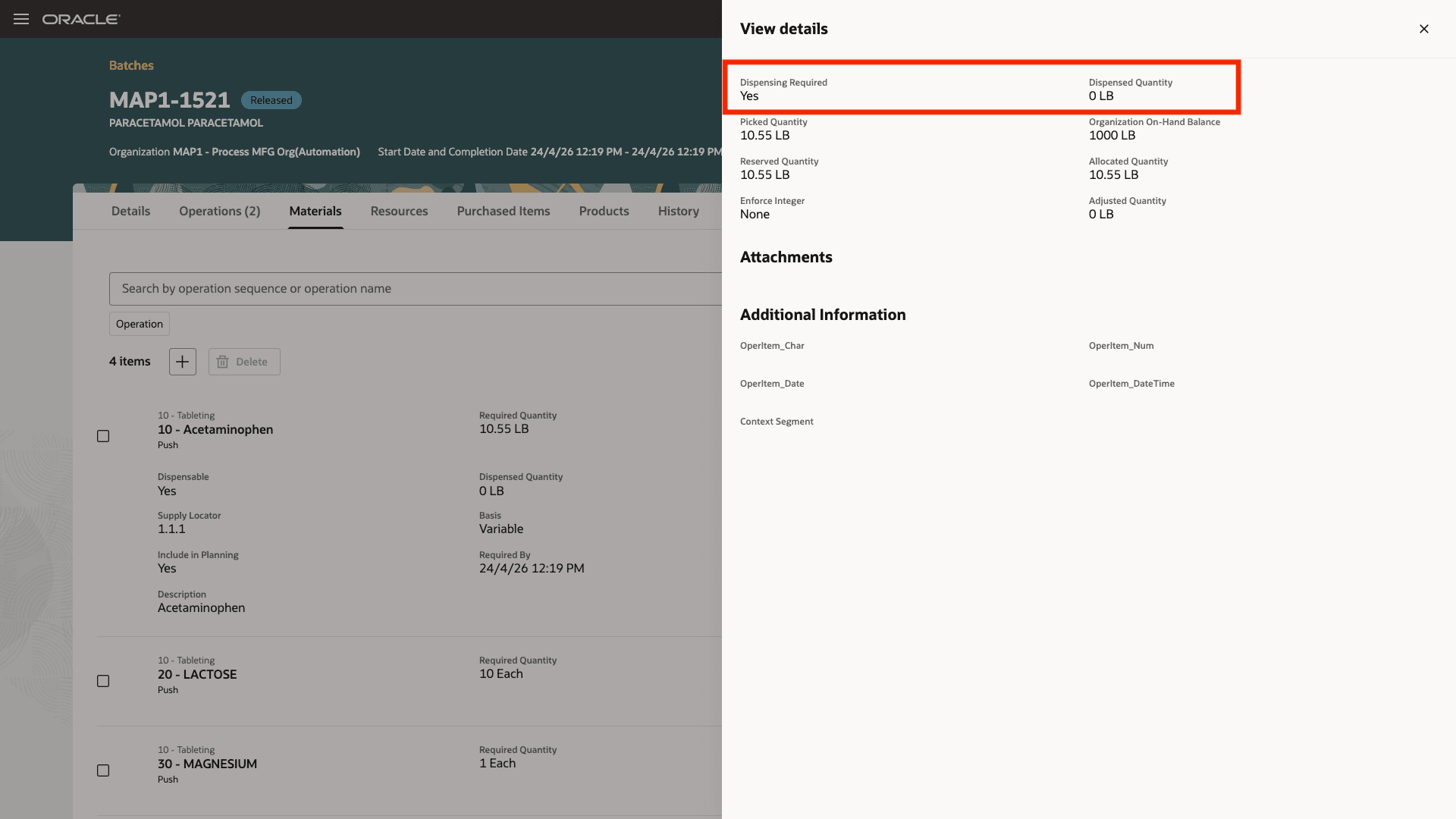
New Indicator for Items that Require Dispensing
Once you have performed the detailed reservations for such work order lines, they show up in the Pending tab of the Material Dispensing page. You can search for materials that need to be dispensed using the material, product, batch, or the due dates. Click Dispense to start the dispensing process.
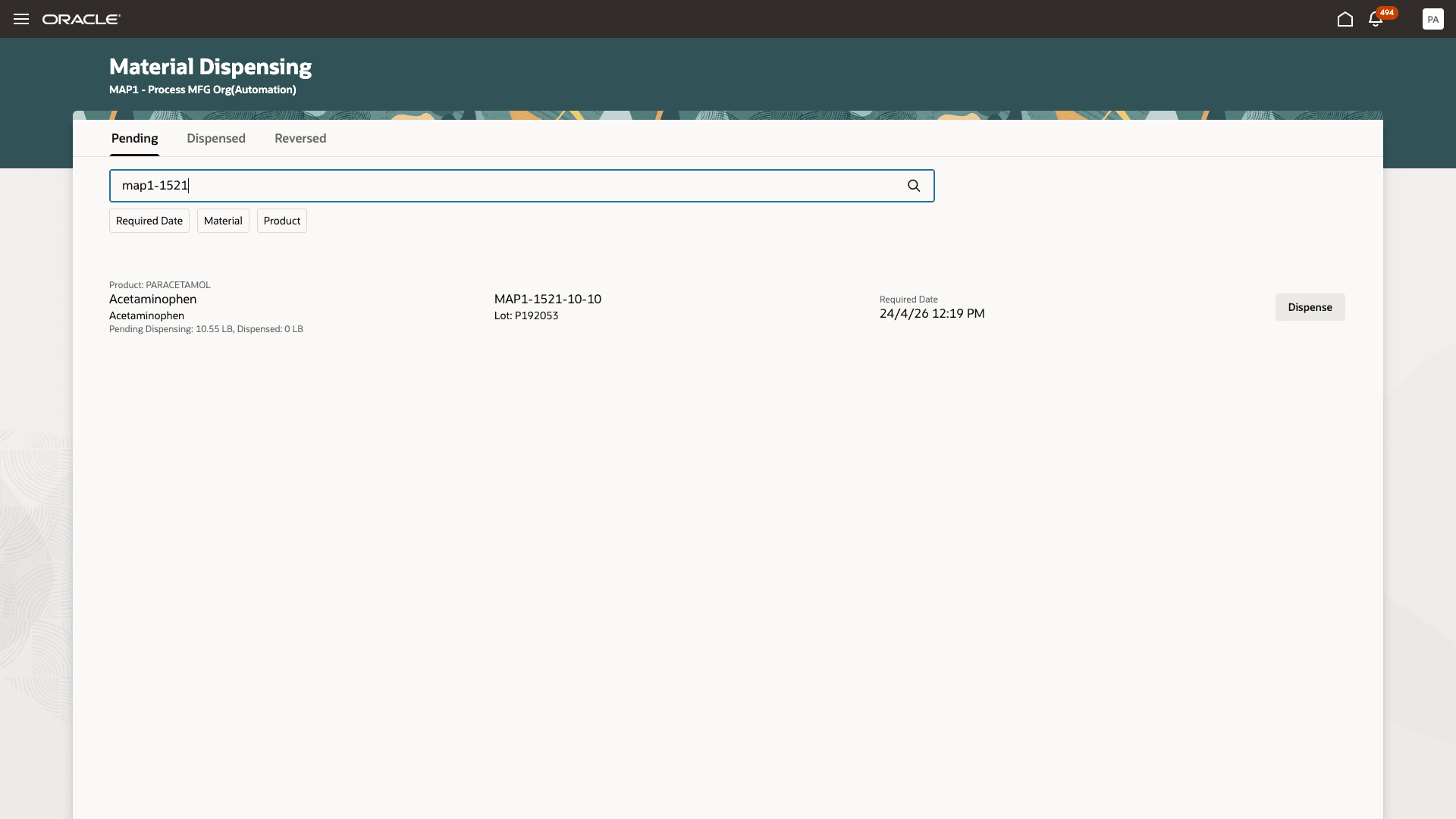
Materials Pending Dispensing
A dispense transaction number is generated based on the plant parameter setting. If the subinventory is locator enabled, then you can choose the booth for dispensing.
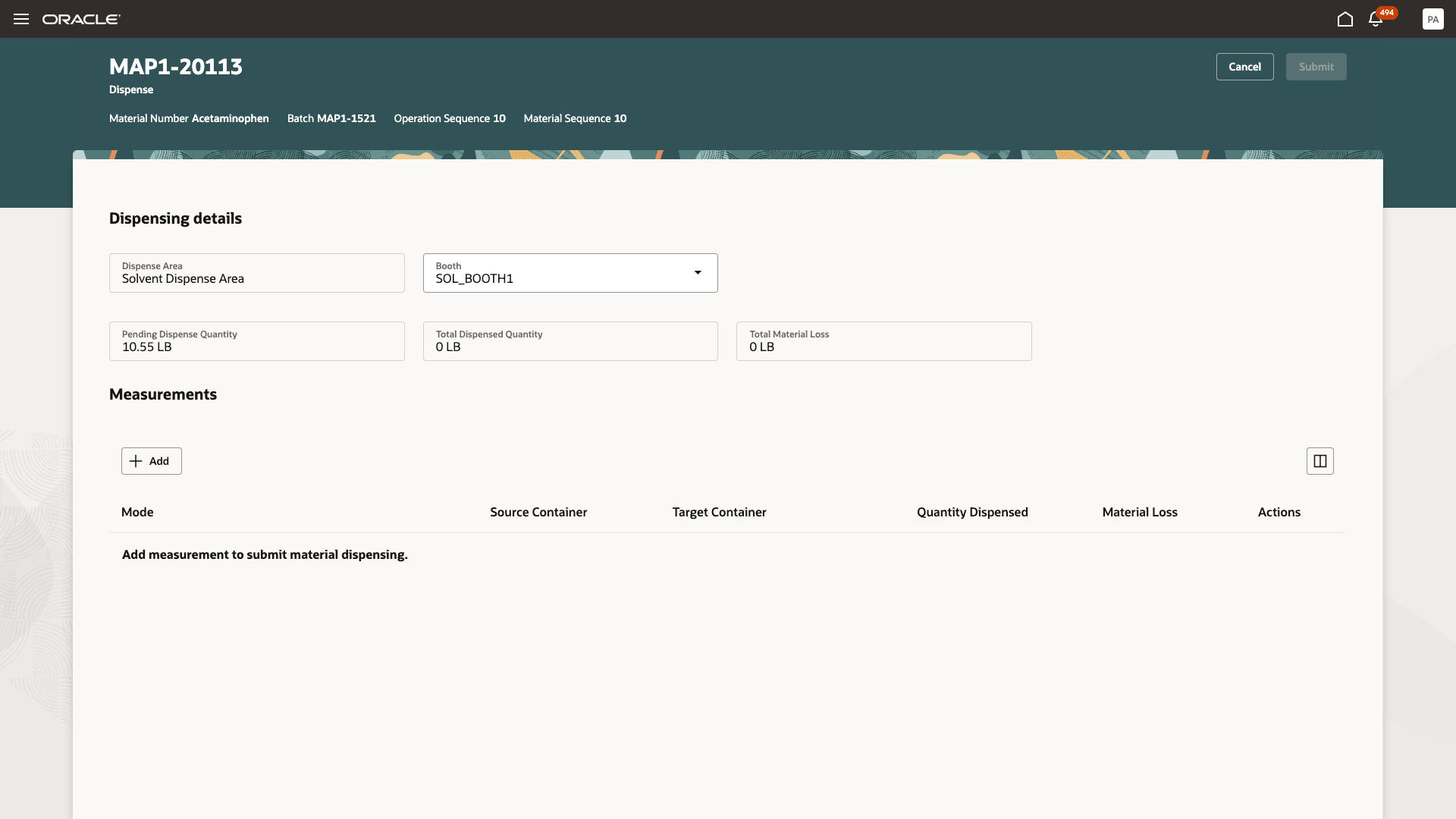
Dispense Transaction
You can use one of the following modes to dispense the material:
- Source Container
- Target Container
- Full Container
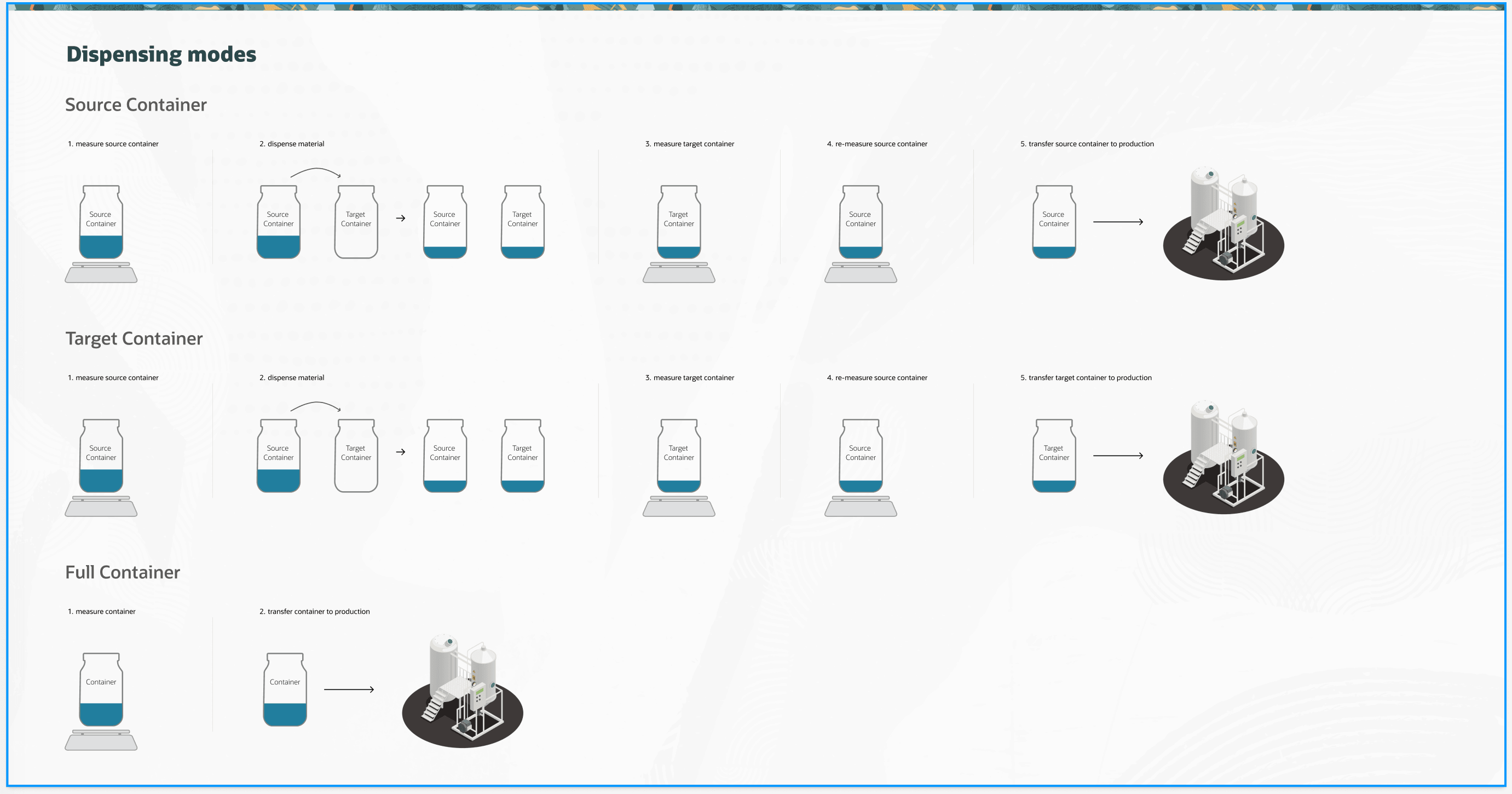
Dispensing Modes
After you choose the mode, you can enter the measurements of the source and target containers in the dispense UOM. If you have multiple containers to be measured to ensure that the whole quantity is dispensed, you can add multiple measurements so that the entire quantity is dispensed.
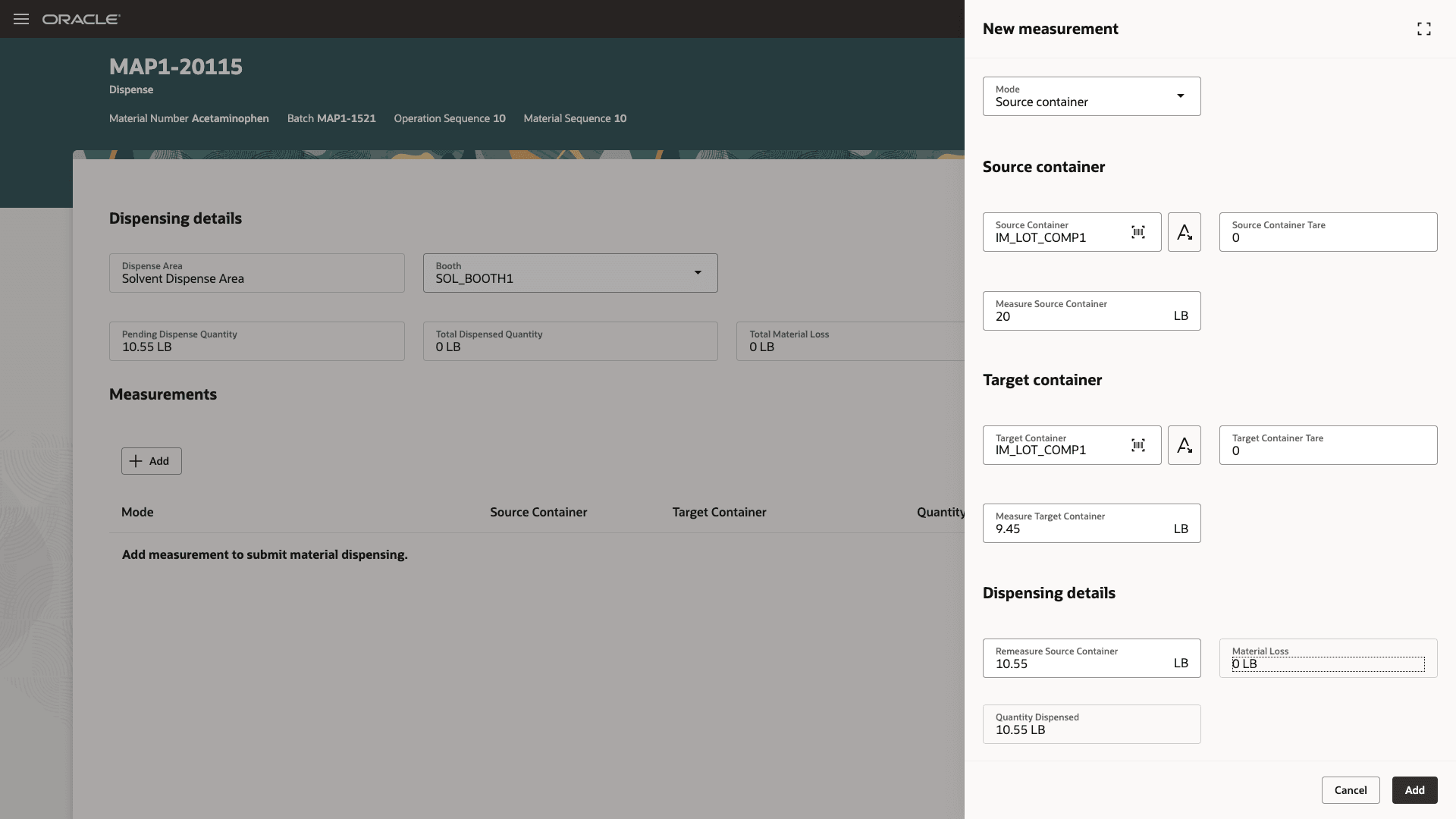
Measurements
When you have dispensed the materials, you can either automatically issue the materials or can manually report it based on the dispense rule setting. If you are reporting it manually, you can issue the material to the extent that's dispensed. The "To Transact" quantity is updated based on the dispensed quantity and the quantity that you have already issued.
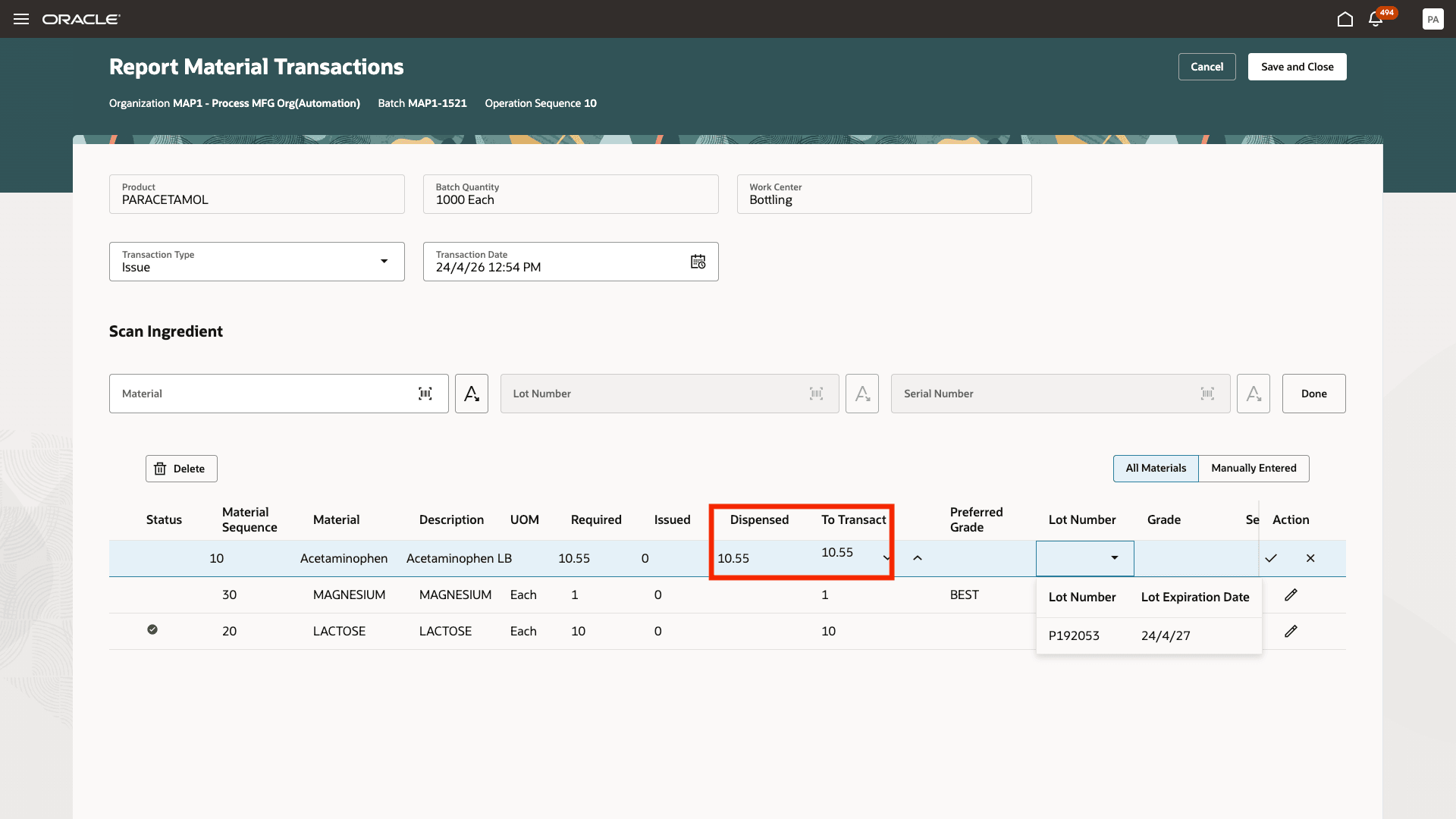
Report Material Transaction Shows Dispensed Quantity and Lot Number Information
If the original batch is canceled and you don't require the material anymore, you can perform a material return and then reverse the dispensed quantity using the Reverse option.
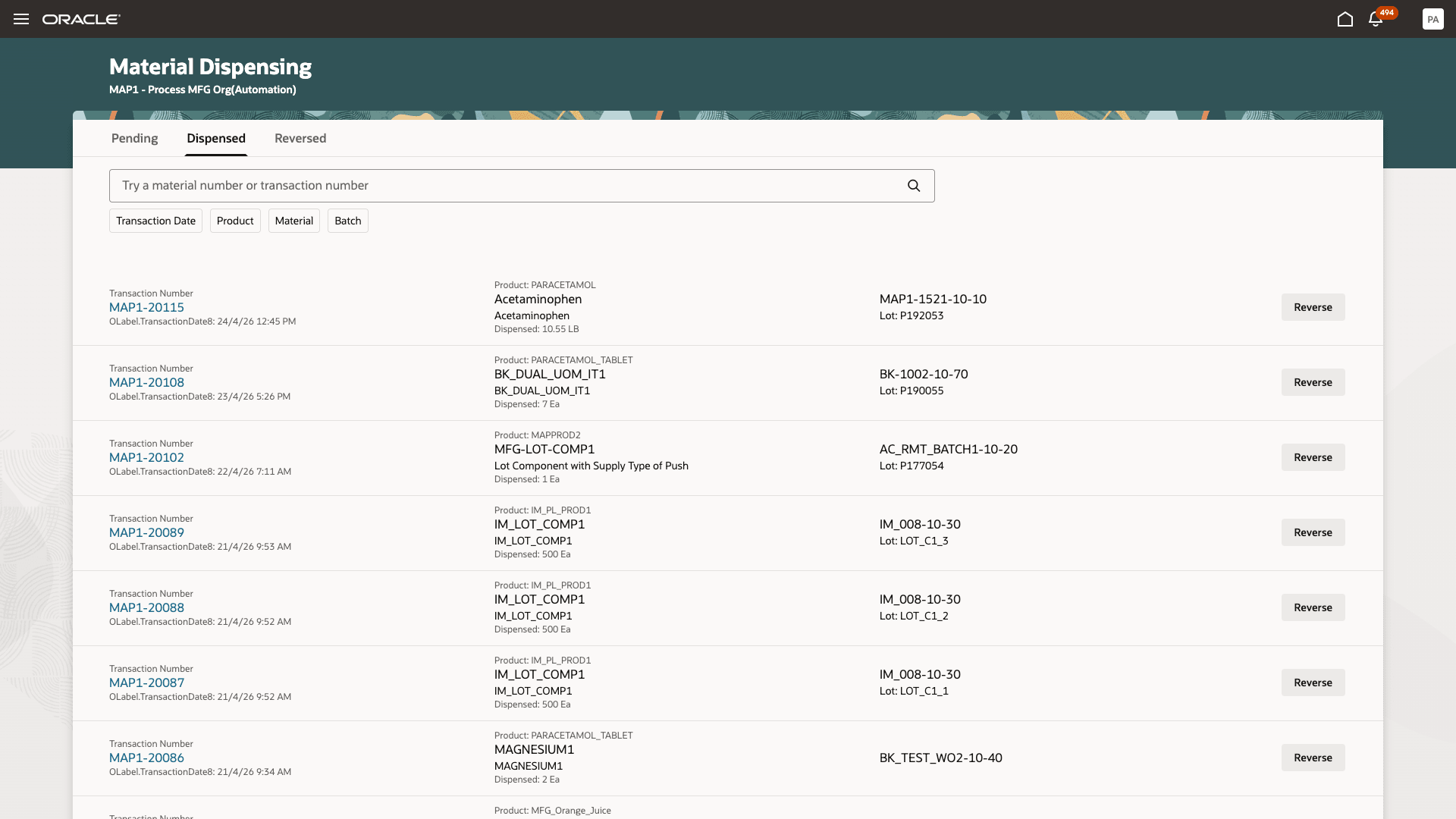
Dispensed Transaction History
REST API changes:
The following REST APIs have been enhanced to show the dispensing information:
- Create process work orders
- Work order material transactions
- Work order resource transactions
Enhanced reports
The following reports have been modified to include the dispense required flag and/or the dispensed quantity:
- Ingredients List Report (Print Components List)
- Recipe Report (Print Work Definition Report)
- Batch Ticket (Work Order Extensible Report)
- Batch Ticket (Work Order Traveler)
- Electronic Record for Work Definition (ERES report)
- Electronic Record for Process Work Order Release
- Electronic Production Record
The new dispensing UI provides the following advantages:
- Improved shop-floor execution efficiency by enabling a purpose-built dispensing flow for process work orders, reducing manual tracking outside the system.
- Increased compliance and accuracy of material issue at production execution.
- Better operational reconciliation using reverse dispensing, helping teams account for unused prepared materials and reduce waste.
- Greater consistency in production records by capturing dispensing activity directly in manufacturing execution, supporting audit and operational review.
- Reduced process variability with a standardized UI-driven approach for dispensing and reversal across process manufacturing lines.
Here's the demo of these capabilities:
Steps to enable and configure
Set up the plant parameters to enable this feature:
- In the Setup and Maintenance work area, search for, and select the Manage Plant Parameters task.
- On the Manage Plant Parameters page, select the required inventory organization.
- In the Work Execution tab, under Manage Production, enable the Allow dispensing of input materials checkbox.
- Once you enable the dispensing option, you can also specify the Prefix and Starting Number for the Dispensing transaction.
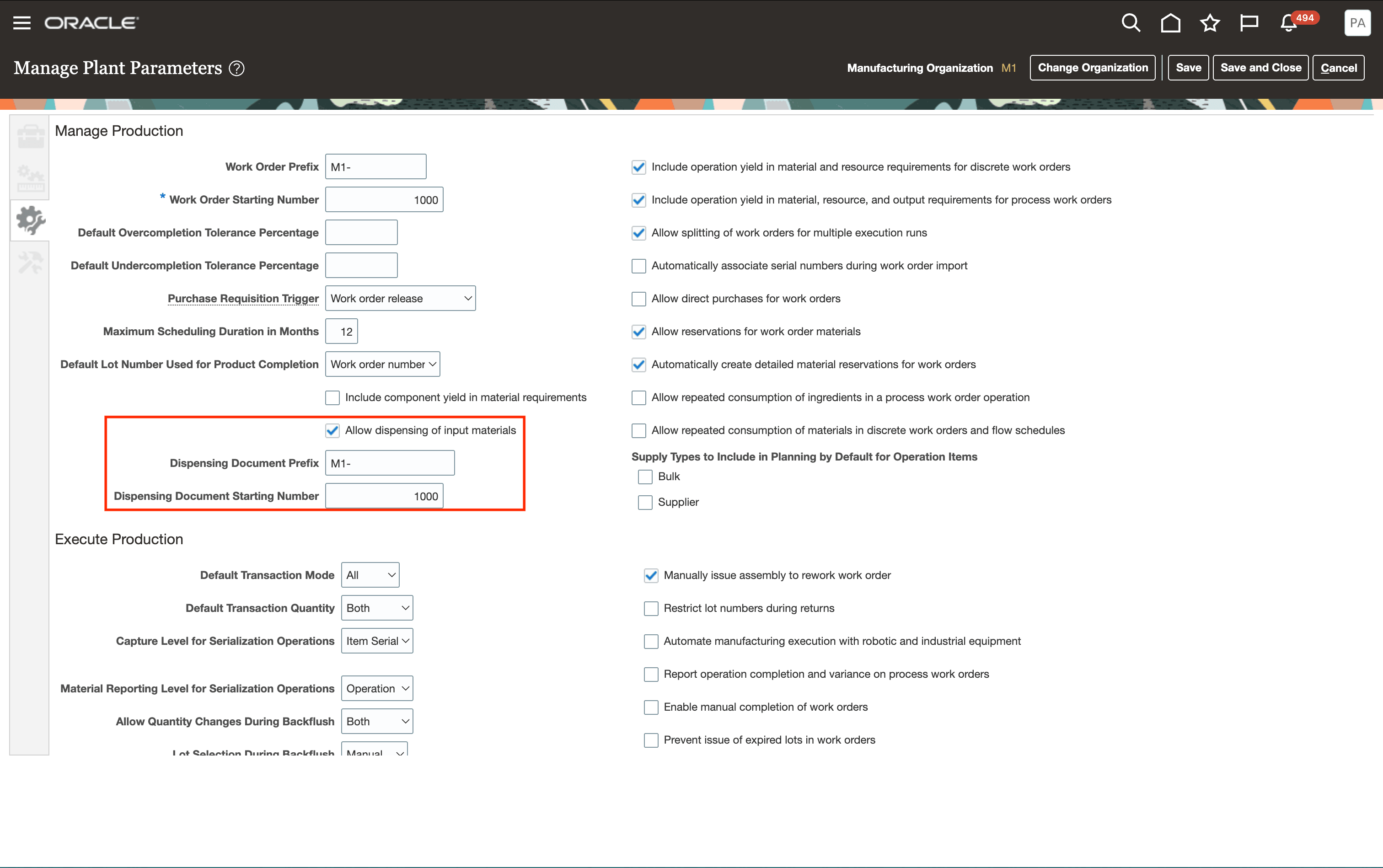
Enable the Dispensing Feature from the Plant Parameters Page
Tips and considerations
- Dispensing is available for process and discrete work orders.
- Items can be lot controlled or plain items, but can't be serial controlled for enabling dispensing.
- If the subinventory chosen is locator controlled, ensure that you define dispense booths. In case the locator information isn't shown in the Batch Materials, ensure that you choose the locator.
- A detailed reservation with subinventory, locator, and lot number (if lot controlled) is necessary to start dispensing of materials. The reservation subinventory must match the supply subinventory specified for the work order operation material.
- The container item should be defined in Product Information Management as an item. Ensure that the item is marked as a Container in the item Physical Attributes section. For the container to be used in dispensing, the weight unit of measure for the container item must be the same as the dispense unit of measure. You can optionally specify the unit weight if you want to record the tare weight at the time of dispensing.
- The "Dispense Required" indicator on the work definition is used to identify if the item requires dispensing as on the current date. It is primarily used to understand if the material requires dispensing if a batch is created today.
- You can't add a dispensable item as an ad-hoc item in a batch. The only way that a dispensable item would be included in a batch is when the batch is created with a recipe that includes the item.
- You can reverse an already dispensed item to the extent to which you have returned the ingredient from the batch.
Key resources
- Watch the Dispense Materials to Batches demo.
- Oracle Fusion Cloud SCM: Refer to the Using Manufacturing guide, available on the Oracle Help Center.
- Oracle Fusion Cloud SCM: Refer to the Implementing Manufacturing and Supply Chain Materials Management guide, available on the Oracle Help Center.
Access requirements
Users who are assigned a configured job role that contains these new privileges can access this feature:
- Manage Dispense Areas (WIS_MANAGE_DISPENSE_AREAS)
- Manage Dispense Rules (WIS_MANAGE_DISPENSE_RULES)
- Dispense Materials to Work Orders (WIP_DISPENSE_MATERIALS)
Guided Journeys: Role Codes
- Use REST Service - Guided Journeys Read Only (Role Code ORA_PER_REST_SERVICE_ACCESS_GUIDED_JOURNEYS_RO)
- Use REST Service - Guided Journey Responses (Role Code ORA_PER_REST_SERVICE_ACCESS_GUIDED_JOURNEY_RESPONSES)
The guided journeys related privileges were available prior to this update.