Manage Process Manufacturing Recipes in a Spreadsheet
Manufacturers need a faster, lower-risk way to author and maintain process manufacturing recipes at scale. Creating or changing recipes one at a time is time-consuming and error-prone, delaying production changes and increasing compliance risk. A spreadsheet-driven bulk edit capability reduces manual effort, ensures consistency across definitions, and supports rapid response to quality, supplier, or process changes while maintaining traceability.
You can now use ADF Desktop Integration (ADFdi) to create and manage process manufacturing recipes using a downloadable Excel template. This feature enables end-to-end recipe management including create, search, update, and delete outside the application UI.
The spreadsheet provides structured sheets to manage the recipes, as follows:
- Recipe & Operations – Define recipe header and operation details.
- Products – Define products, including primary products, co-products, and by-products.
- Ingredients – Define materials and quantities.
- Resources – Define labor, equipment, and usage details.
- Descriptive Flexfields (DFFs) – Capture additional configurable attributes.
A new action Download Recipes to Spreadsheet is available under View All Actions on the Work Definition/Recipe Overview page to access this functionality.
Using ADFdi, you can:
- Create Recipes - Create one or more recipes, including operations, products, ingredients, and resources, in a single upload.
- Search Recipes - Retrieve existing process recipes into Excel for review or modification. Only valid and supported process recipes are returned (see Tips and Considerations).
- Update Recipes - Modify existing recipe data in bulk, including quantities, resources, and attributes.
- Delete Recipes - Delete future-effective recipe versions using the spreadsheet.
How to Use This Feature
1. Launch ADFdi
Use the Download Recipes to Spreadsheet action from the Work Definition Overview or Recipe Overview page.
This downloads a pre-configured Excel template connected to the application.
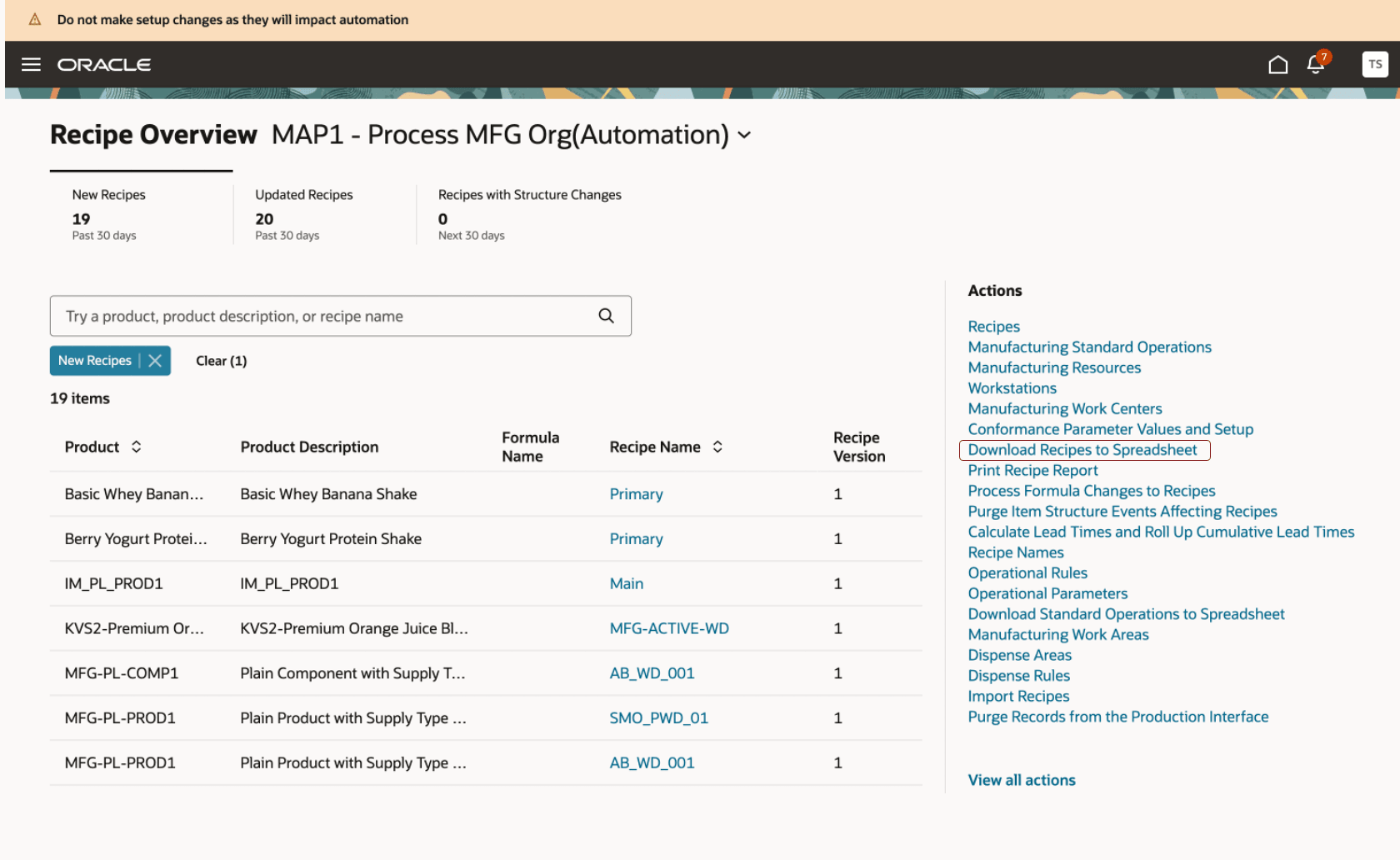
Quick Action from the Overview Page
2. Work in the Excel Template
The template contains four sheets:
- Recipe & Operations
- Products
- Ingredients
- Resources
You can:
- Enter new recipe data.
- Modify existing records.
- Prepare bulk changes offline.
Each sheet is interdependent, so ensure that recipe and operation details are defined first before adding products, ingredients, or resources.
3. Search for Recipes
- Enter search criteria in the template.
- Retrieve existing recipes into Excel.
- Use this data as a base for updates.
Only supported recipes are returned based on system validations.
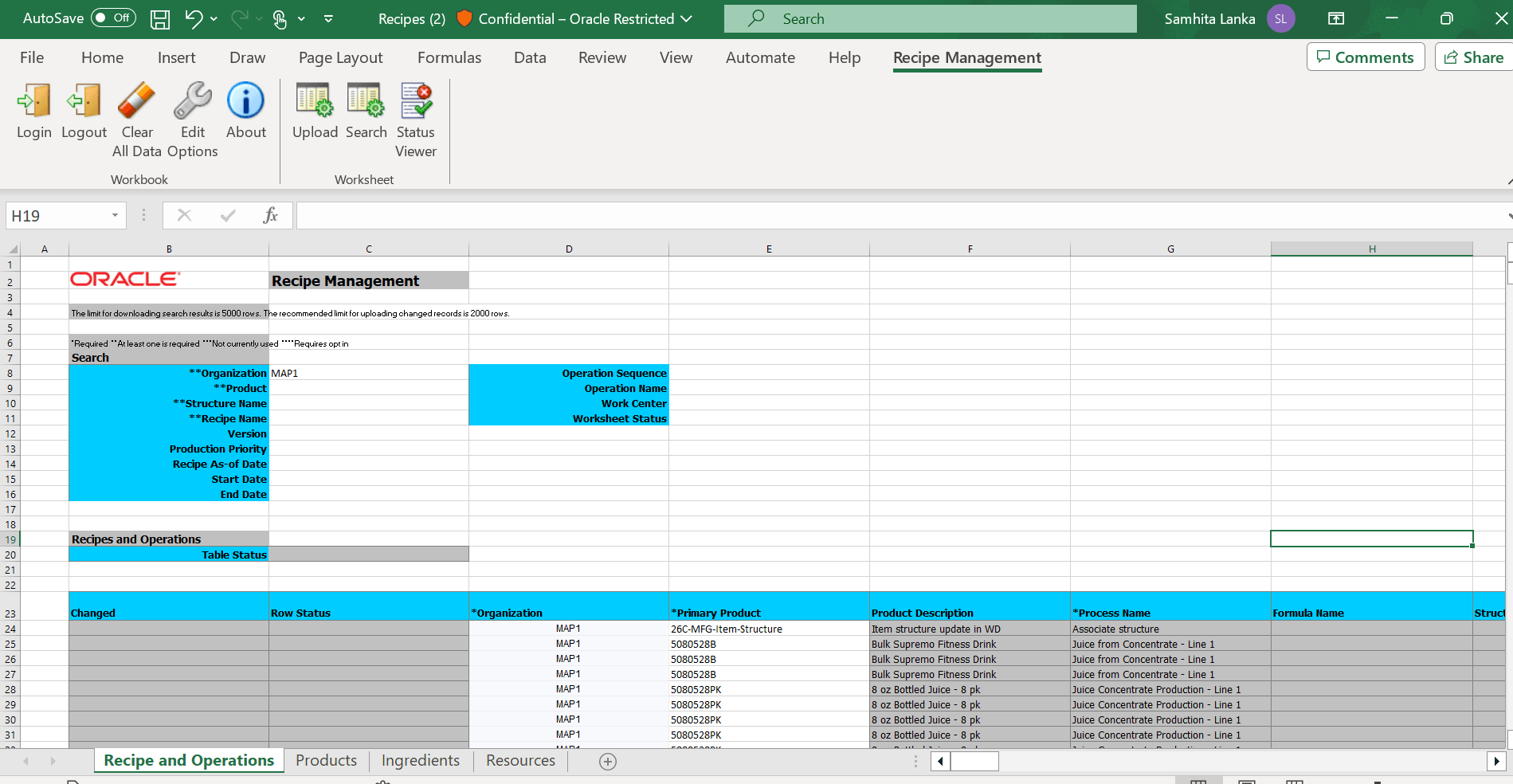
Search for Recipes
4. Upload Changes (Create/Update/Delete)
After editing the spreadsheet:
- Upload the data back to the application.
- The system processes create, update, or delete actions in bulk.
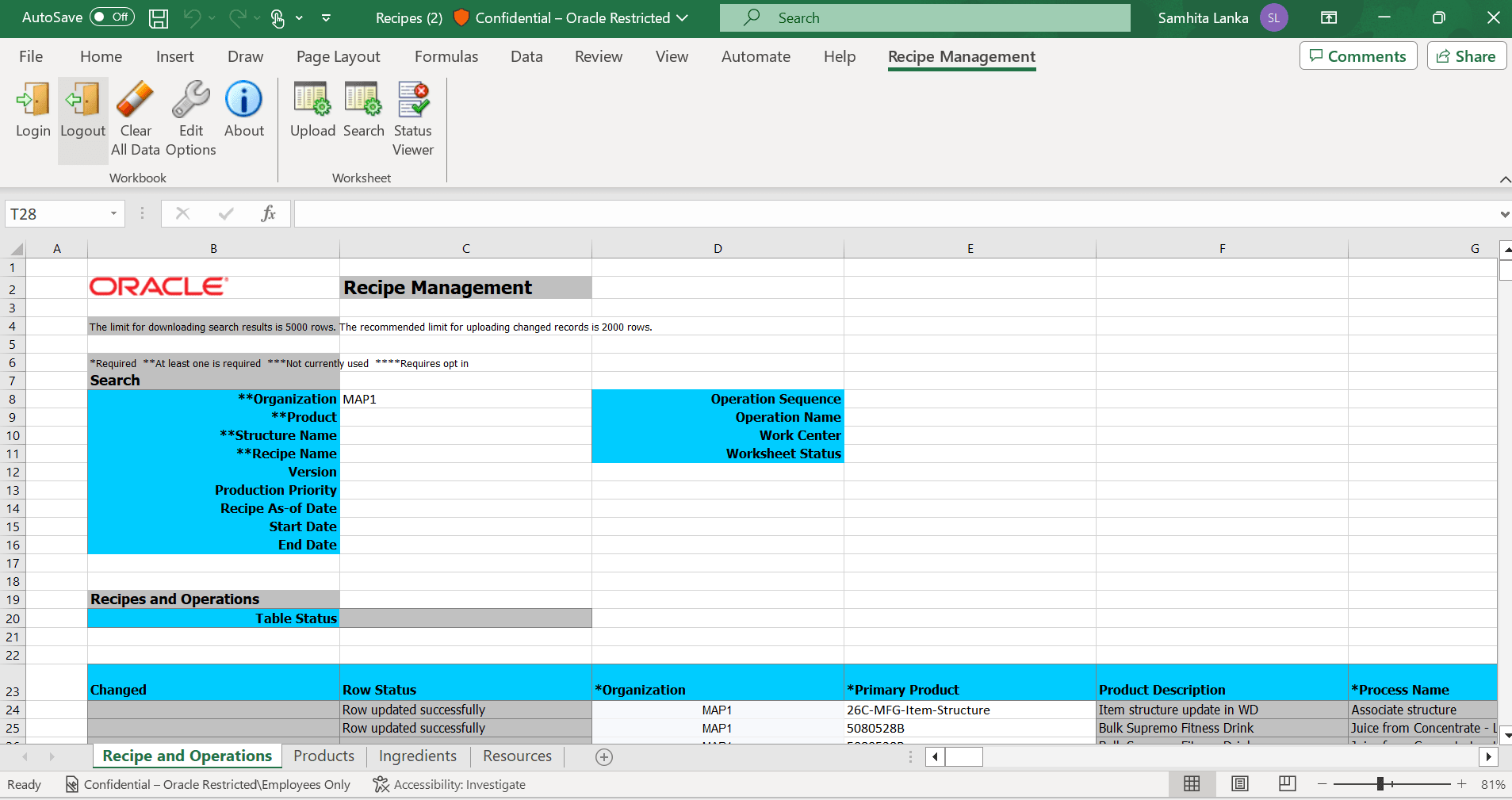
Upload Actions
5. Review Validation Messages
- If errors exist (missing or invalid data), validation messages are displayed directly in Excel for each affected row.
- You must correct these errors and re-upload.
- If the upload is successful:
- The system confirms processing.
- Successfully processed rows are clearly indicated.
Managing recipes in a spreadsheet provides several benefits:
- Enables high-volume recipe management using the familiar Excel interface.
- Reduces manual effort and improves productivity.
- Ensures data accuracy through validations.
Steps to enable and configure
You don't need to do anything to enable this feature.
Tips and considerations
- This feature is available only for the Process Manufacturing work method.
If you need to manage discrete manufacturing work definitions, continue using the “Download Work Definitions to Spreadsheet” action designed for discrete manufacturing. - The spreadsheet supports only standard process manufacturing recipes (non-parallel). Parallel operations are not supported in this release.
Recipes that use parallel operations won’t appear in the spreadsheet and cannot be created or updated using ADFdi.
This is because once parallel operations are enabled for a recipe, the setting cannot be reversed. To avoid creating configurations that cannot be edited later, these recipes must be managed directly in the application UI. - Some scenarios are currently not supported, including:
- Parallel operations and dependencies.
- Global or referenced recipes.
- Recipes in organizations that require electronic records and electronic signatures.
- Operation instructions and parameters.
- The spreadsheet uses process manufacturing terminology. For example:
- Process Name is referred to as Recipe Name.
- Work Definition is referred to as Recipe.
- Work Order is referred to as Batch.
- Output is referred to as Product.
-
Process manufacturing recipes created through the spreadsheet can reference:
- a formula
- an item structure
- or neither, depending on the manufacturing scenario and setup requirements.
- The spreadsheet supports all three configurations and uses process manufacturing terminology where applicable.
- Built-in validations help ensure data accuracy when uploading:
- Each recipe must be unique by organization, name, and version.
- Creating a new version automatically end-dates the previous version.
- Operation sequences must be unique within a recipe.
- Product, ingredient, and resource details must be valid.
- Some fields are automatically disabled based on the setup.
- Certain behaviors depend on plant configuration:
- If calculated batch is enabled, the batch quantity is derived automatically.
- Else, you must enter a valid batch quantity before upload.
- When updating recipes:
- Only current and future effective recipes can be modified.
- Some structural changes like adding operations may require creating a new version.
- Ingredient names cannot be edited directly—you must delete and recreate them.
Key resources
- Oracle Fusion Cloud SCM: Refer to the Using Manufacturing guide, available on the Oracle Help Center.
- Oracle Fusion Cloud SCM: Refer to the Implementing Manufacturing and Supply Chain Materials Management guide, available on the Oracle Help Center
Access requirements
Users who are assigned a configured job role that contains the following privilege can access this feature:
Manage Work Definitions (WIS_MANAGE_WORK_DEFINITION_PRIV)