Redwood: Manage Hold Definitions
Use the Holds Definition setup to create unique holds with code and descriptions, and to indicate if the hold applies to all tasks, or if it is specific to a particular task.
Get these benefits
- Control sales order processing by creating holds with unique codes, types, and business unit applicability.
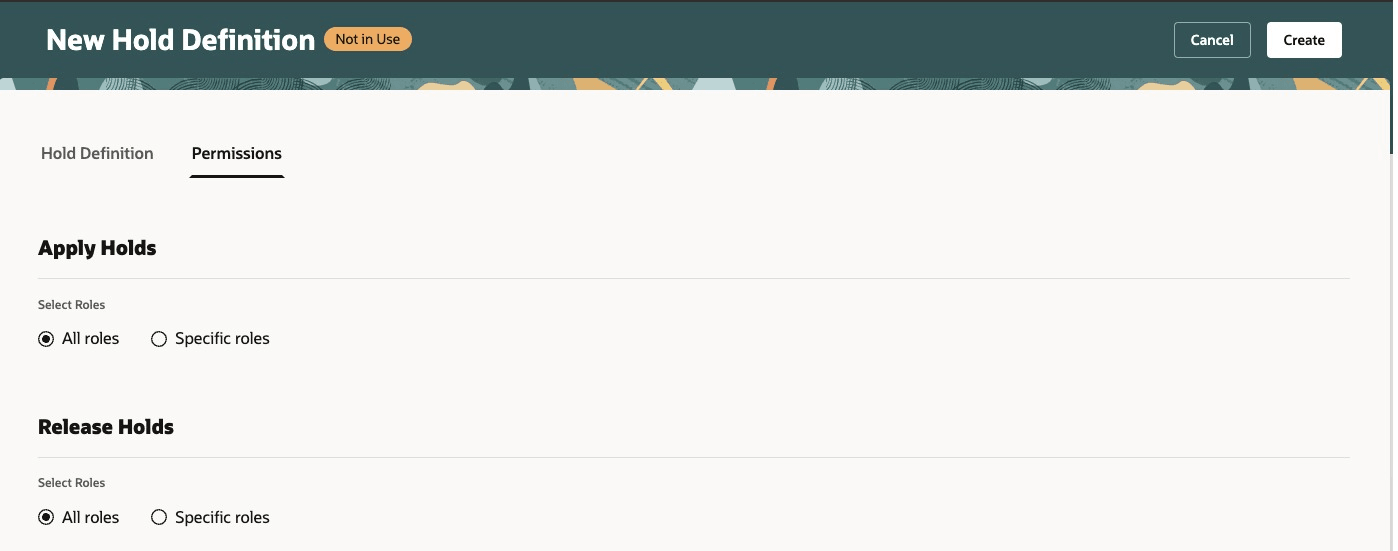
- Assign roles authorized to apply or release holds, with options for all or specific roles.
- Prevent deletion or end-dating of holds applied to sales orders to maintain process integrity.
- Enforce validations to prevent duplicate hold codes or names and ensure logical start and end dates.
- Display hold status including an in use flag when holds are active on orders.
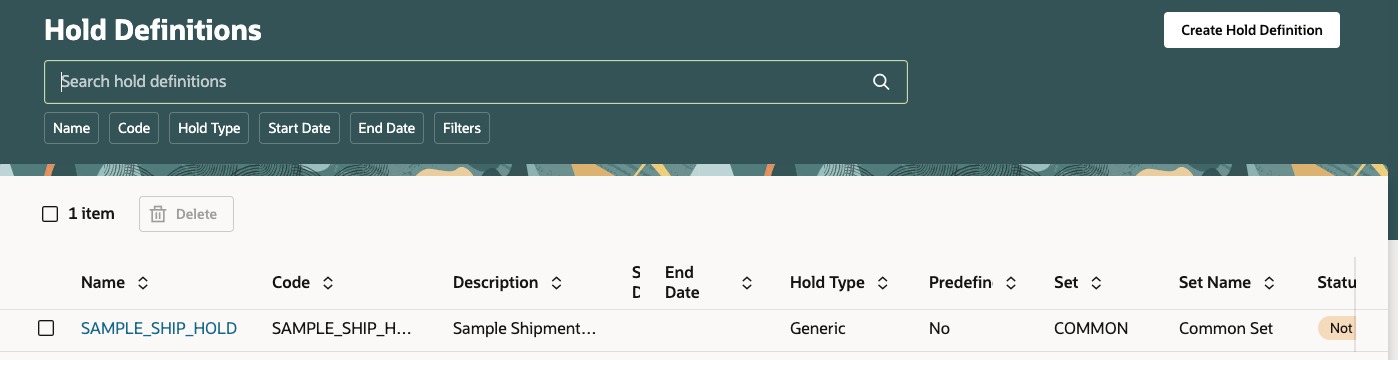
- Use filtering and search options to locate holds by name, code, type, date range, or status.
Improve control over sales order processing by enabling precise hold management tailored to business units and tasks. Streamline holds review and processing with efficient filtering and searching. Reduce risk of data errors by preventing changes to predefined or active holds.
Steps to enable and configure
To access Redwood hold definitions UI
- Sign in to the application.
- Open the functional setup manager.
- Navigate to the Manage hold codes user interface.
Landing Page:
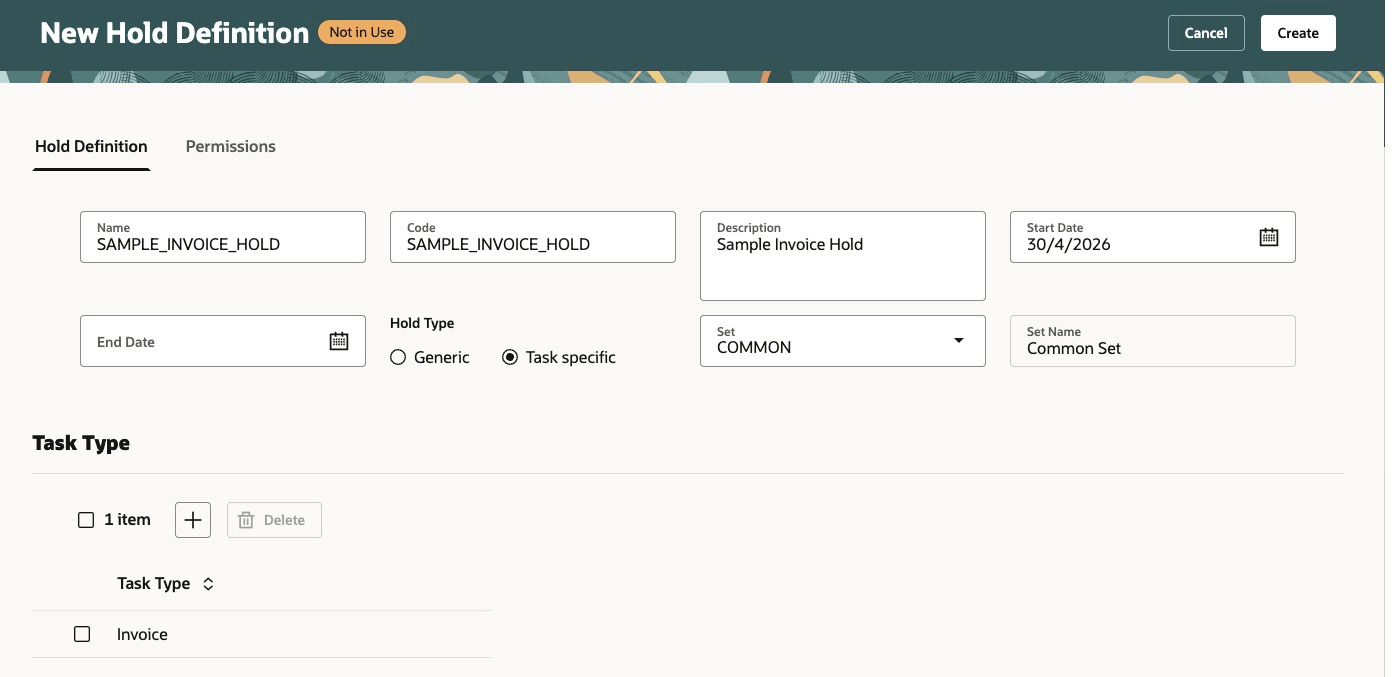
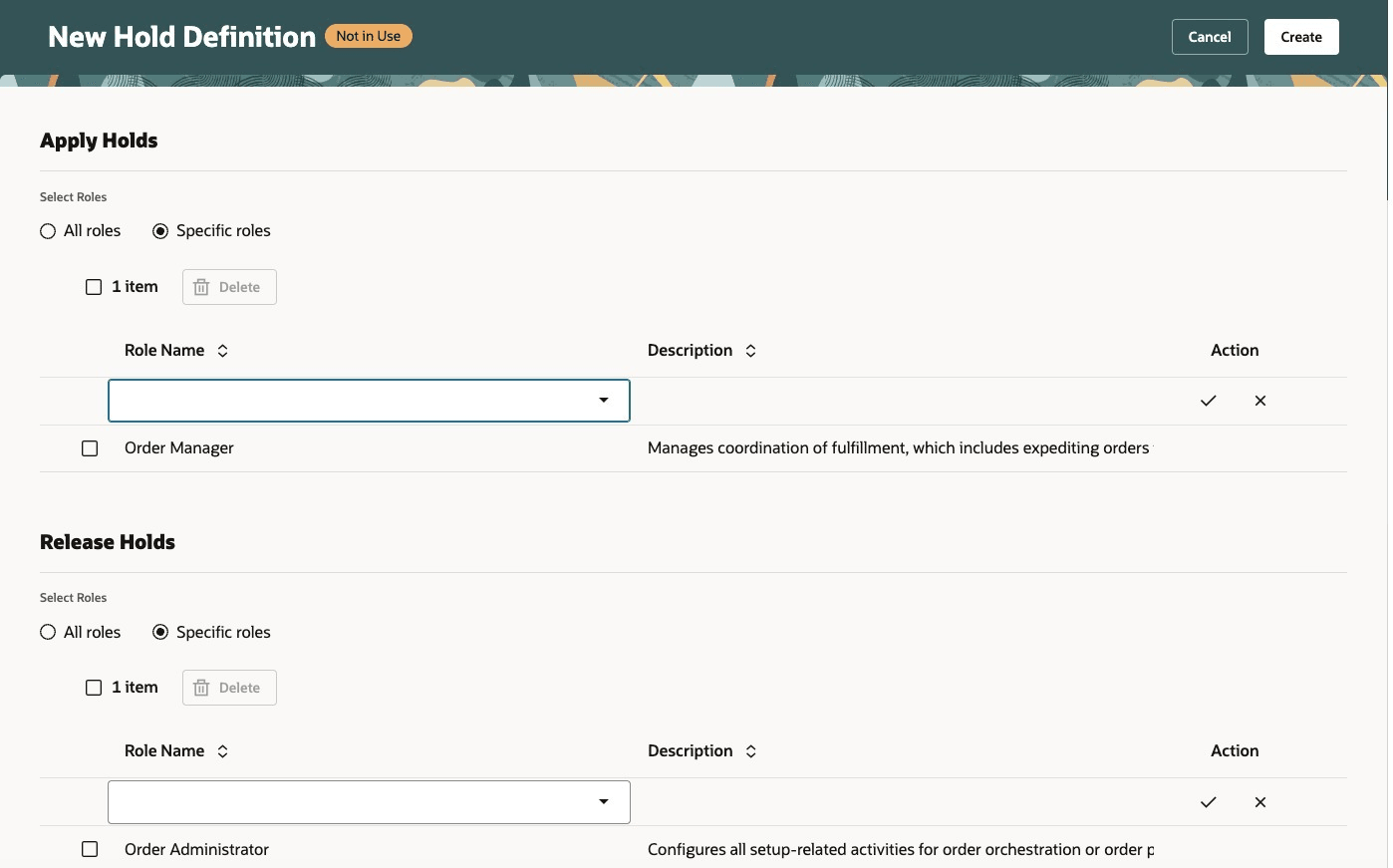
Create Hold Definition:
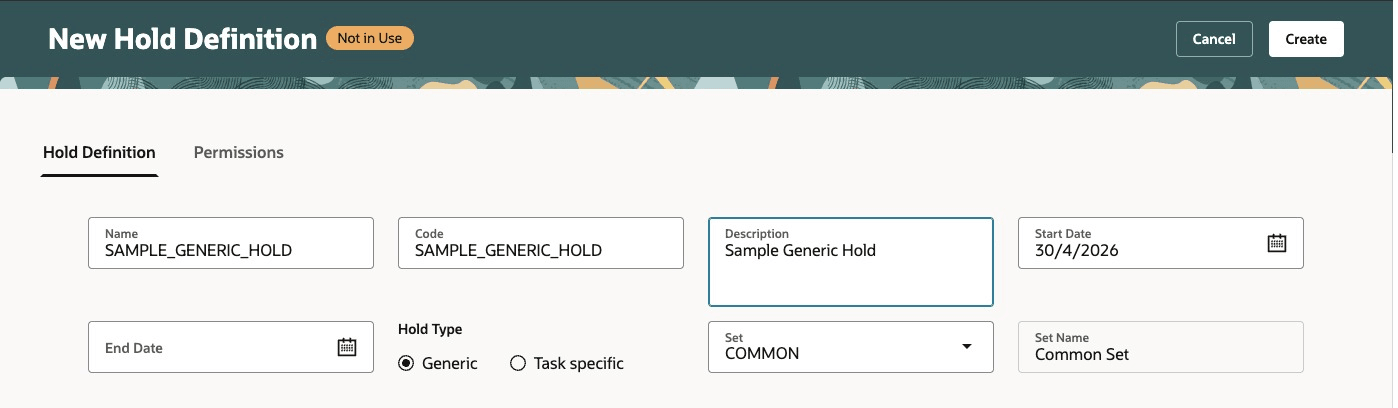
1. Create hold applicable to all task types and for all roles.
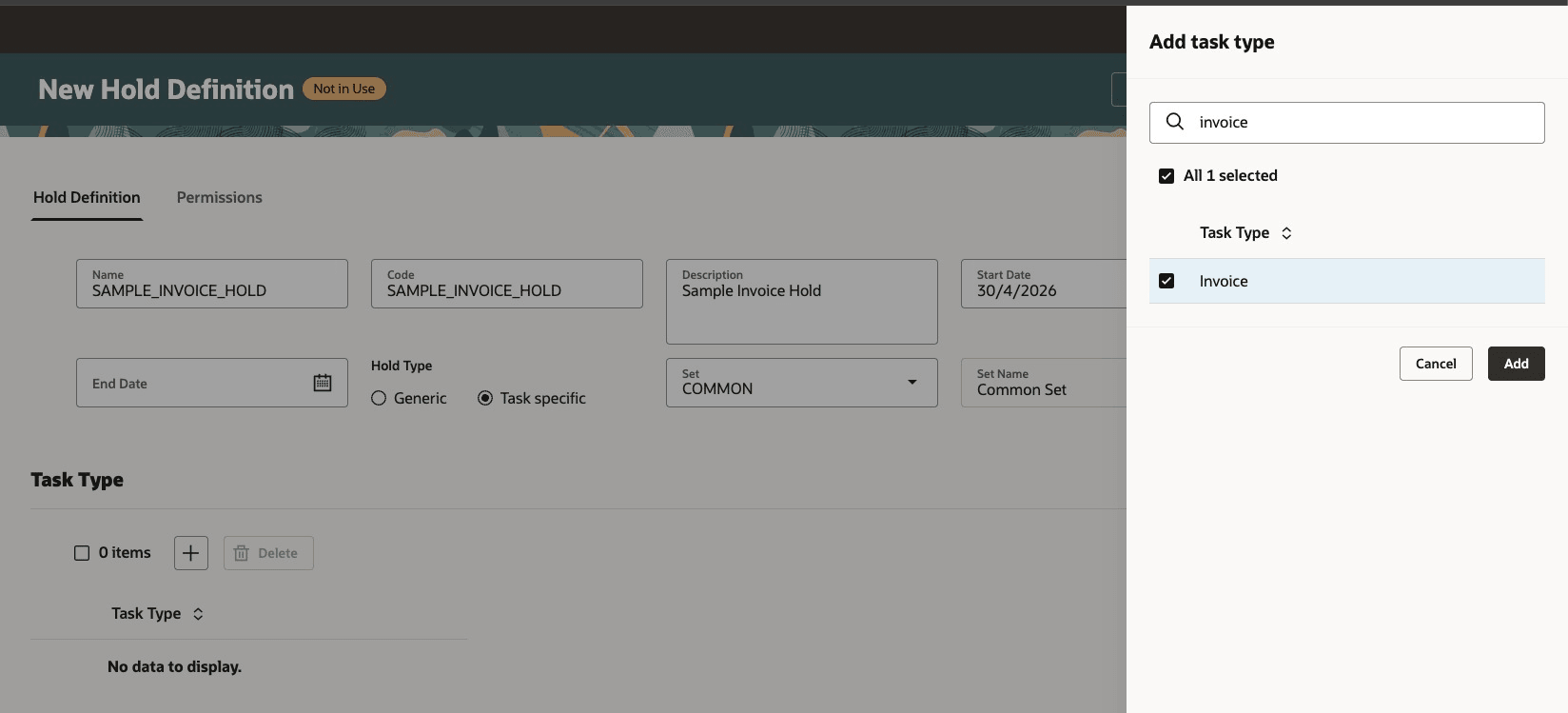
2. Create hold applicable to specific task types and specific roles.
Tips and considerations
- Holds applied to sales orders can't be deleted or end dated to maintain data integrity.
- Switching a hold from task-specific to generic clears all associated tasks and requires confirmation.
- Task-specific holds must have at least one associated task; pause task is excluded.
- Holds for change requests are predefined and read only with no modifications allowed including permissions.
- Validation errors prevent saving holds with duplicate names or codes.
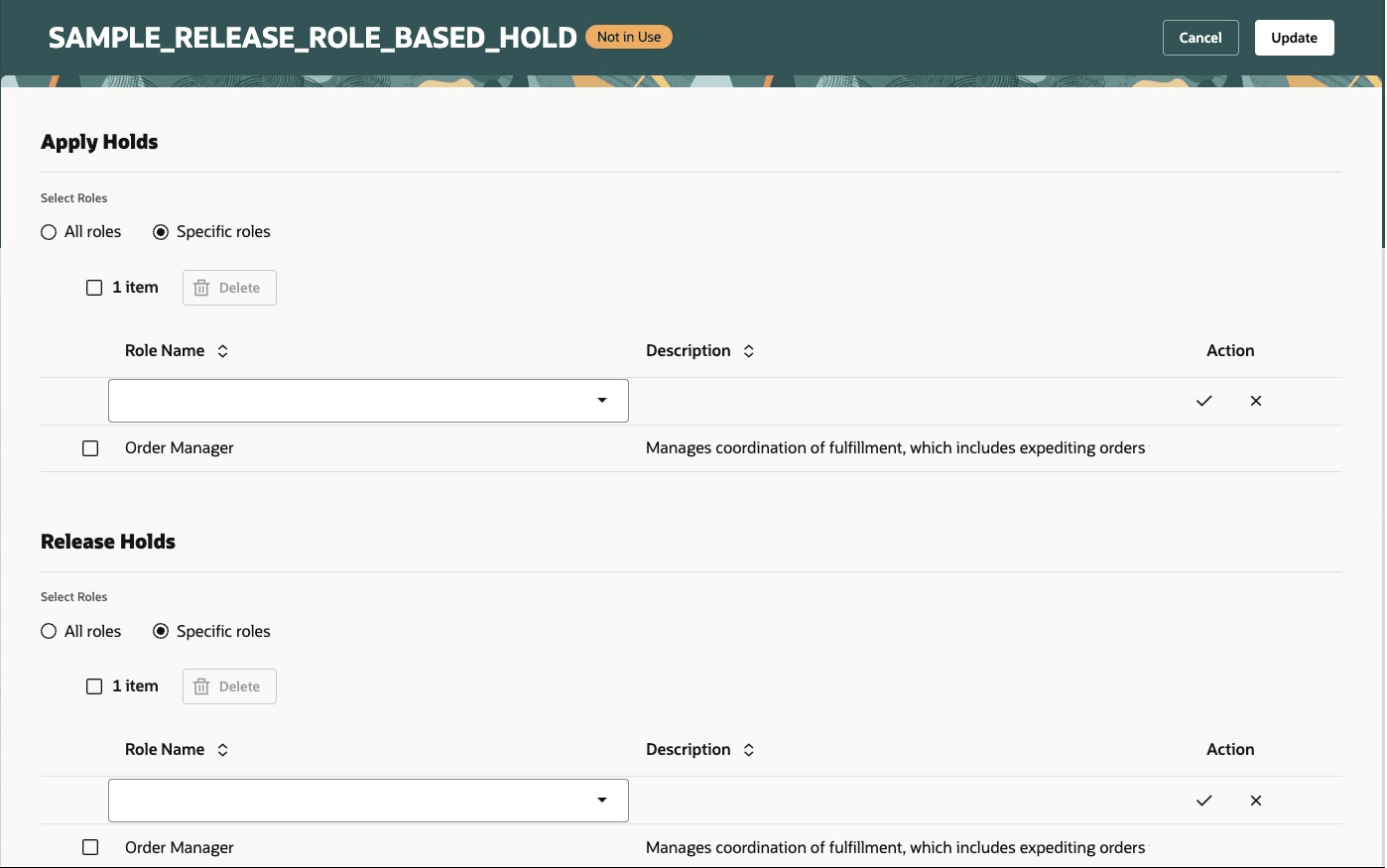
- Roles assigned to apply holds can be all or specific roles. Specific roles must have at least one role selected.
- Switching a role from specific to all roles clears all associated roles and requires confirmation.
- The set field displays sets only to the users that have access. The landing page displays hold details for sets with user access.
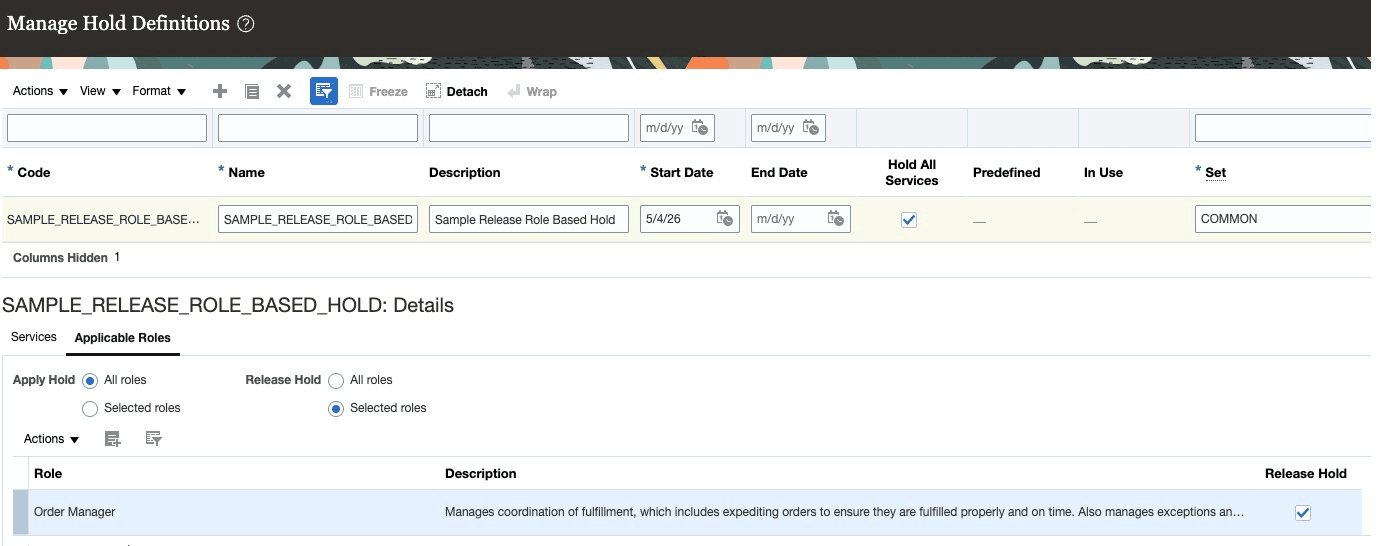
- In the legacy hold setup, the apply hold permissions are assigned to specific roles. Release hold is available to all roles. In Redwood, when a user selects a specific role for release hold, the role assigned for apply hold is also displayed. If that role is not applicable to release the hold, the user can remove it.
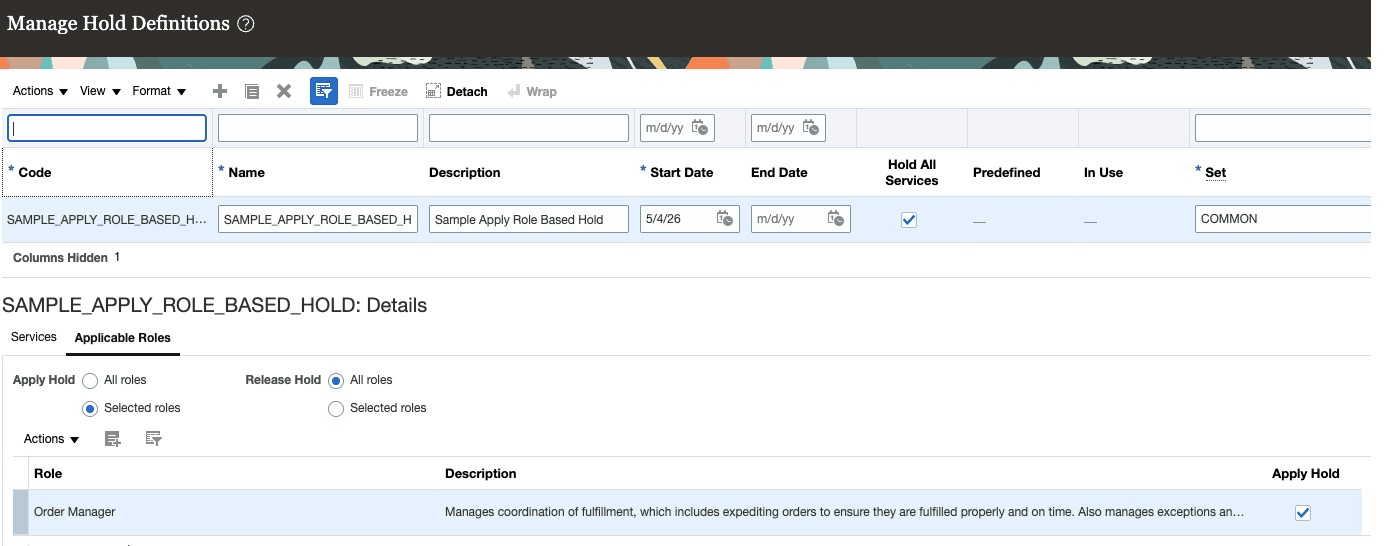
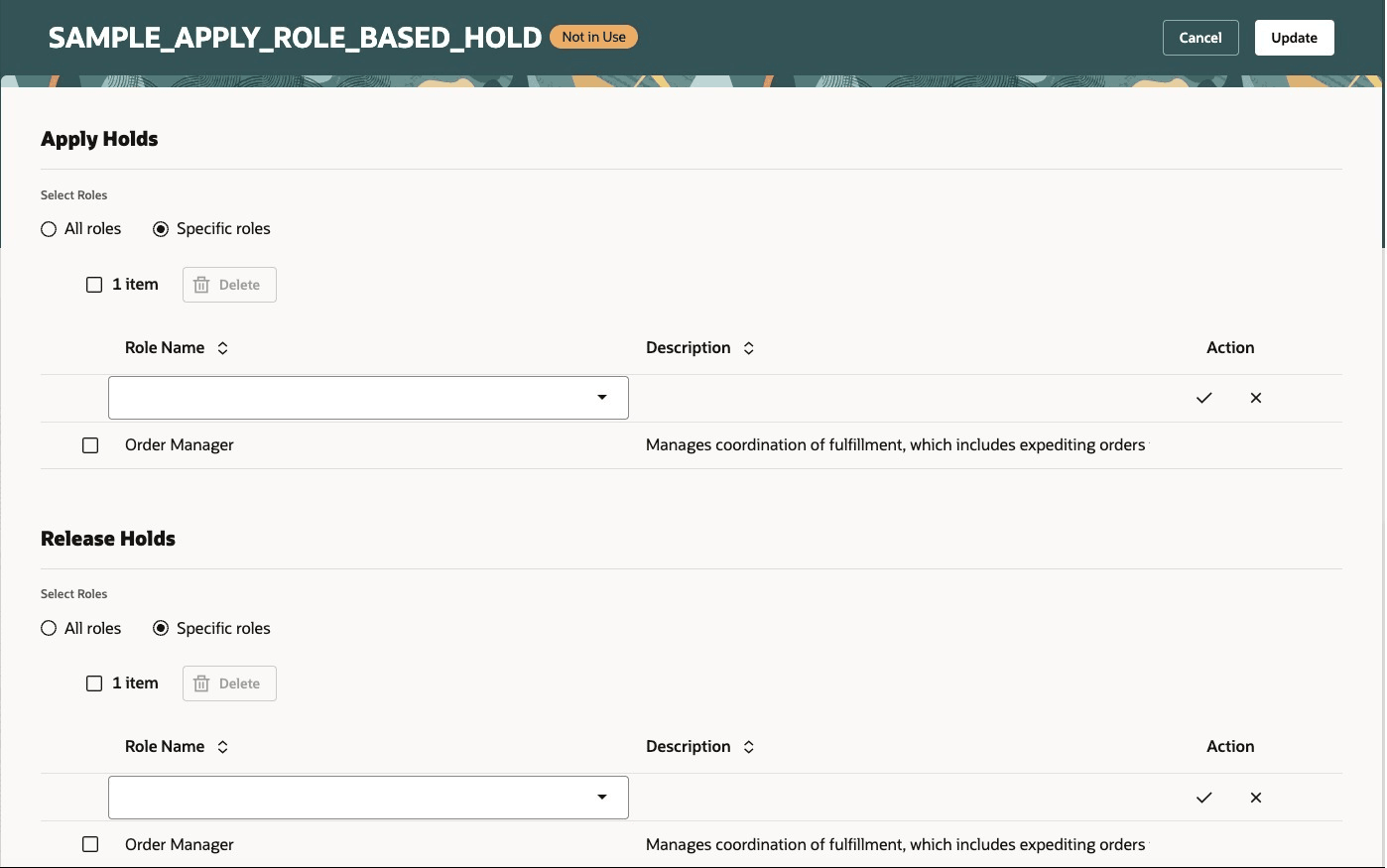
- In the legacy Hold Setup, the Release Hold permission is assigned to a specific role, while Apply Hold is available to all roles. In Redwood, when a user selects a specific role for Apply Hold, the role assigned for Released Hold is also displayed. If that role is not applicable for releasing the hold, the user can remove it.
Key resources
Access requirements
- Functional setup manager access is required to configure hold definitions.
- Redwood UI access is controlled by these profiles:
- Profile Option Code - ORA_FOM_RW_MANAGE_HOLD_CODES
- Profile Display Name - Redwood page for Manage Hold Definitions
- Description - Enable this profile so you can use the Manage Hold Codes setup task in the redesigned Redwood page.