Redwood: Manage External Interface Web Service Details
Use the new Redwood pages to simplify how you manage external web service details. Before this update for 26C the external services could only be managed in the Setup and Maintenance work area.
Get these benefits
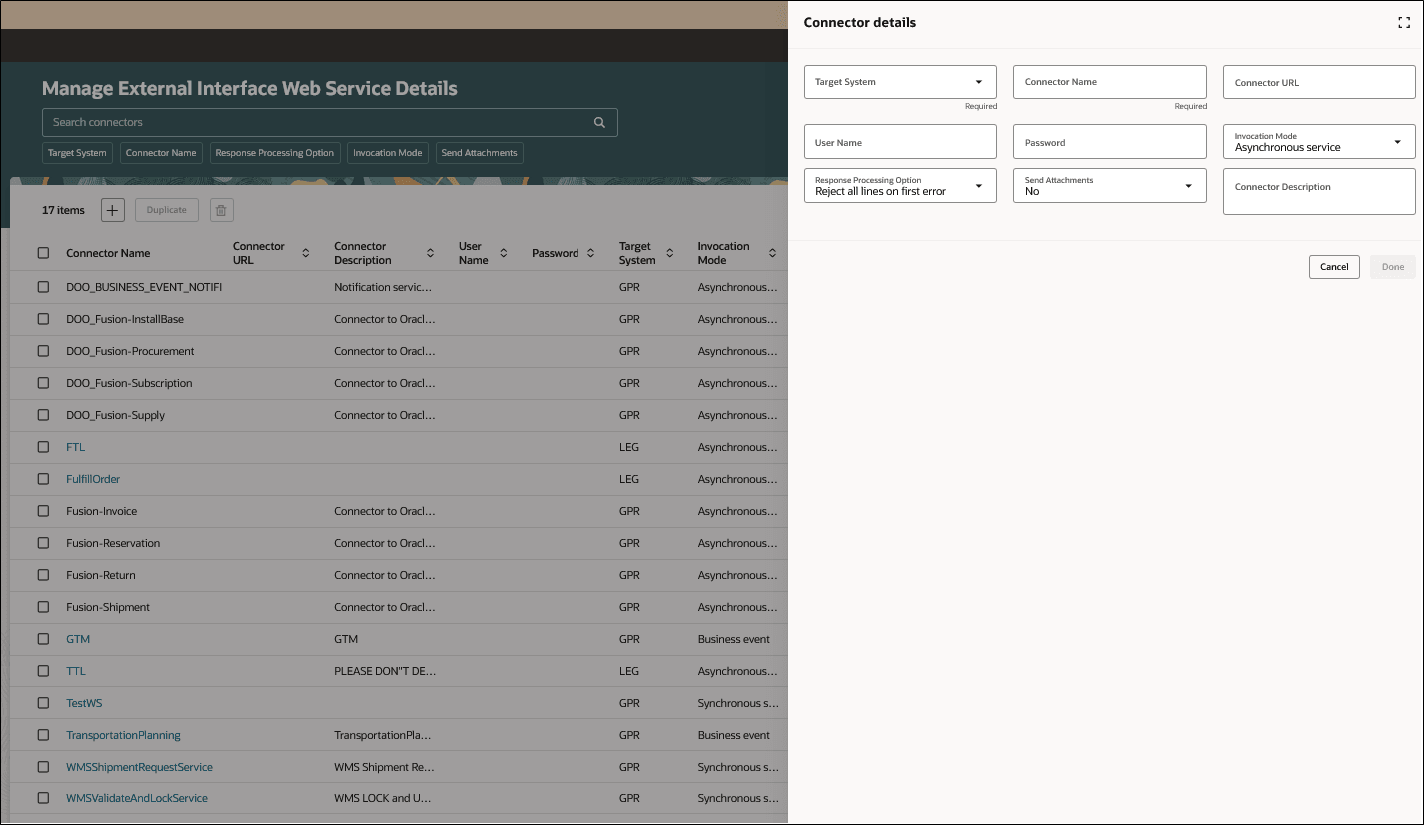
- Configure connector details for a target system, including connector name, connector URL, connector description, invocation mode, and response processing options.
- Set up communication for business events and web service integrations using supported invocation modes.
- Manage connector credentials and validation-driven requirements for user name and password based on invocation mode.
How it works
This setup provides a centralized, configurable connector framework that improves automation and reduces integration overhead by supporting the following tasks:
- Define how Order Management communicates with external systems.
- Configure event-driven or scheduled message flows (e.g., when order is submitted or shipment is completed).
- Use seeded or custom services to push/pull order data.
- Manage endpoints, transformations and retries.
Order Management now provides a Redwood-based setup page for managing external interface web service details. For upgrade customers, this setup will continue to be shown on the classic page, helping preserve continuity unless you have explicitly setup the profile to upgrade to the Redwood experience. For new customers, the Redwood page would be the default.
Use the setup task called Manage External Interface Web Service Details which allows navigation to Redwood or classic setup pages based on seeded-profile setup.
Steps to enable and configure
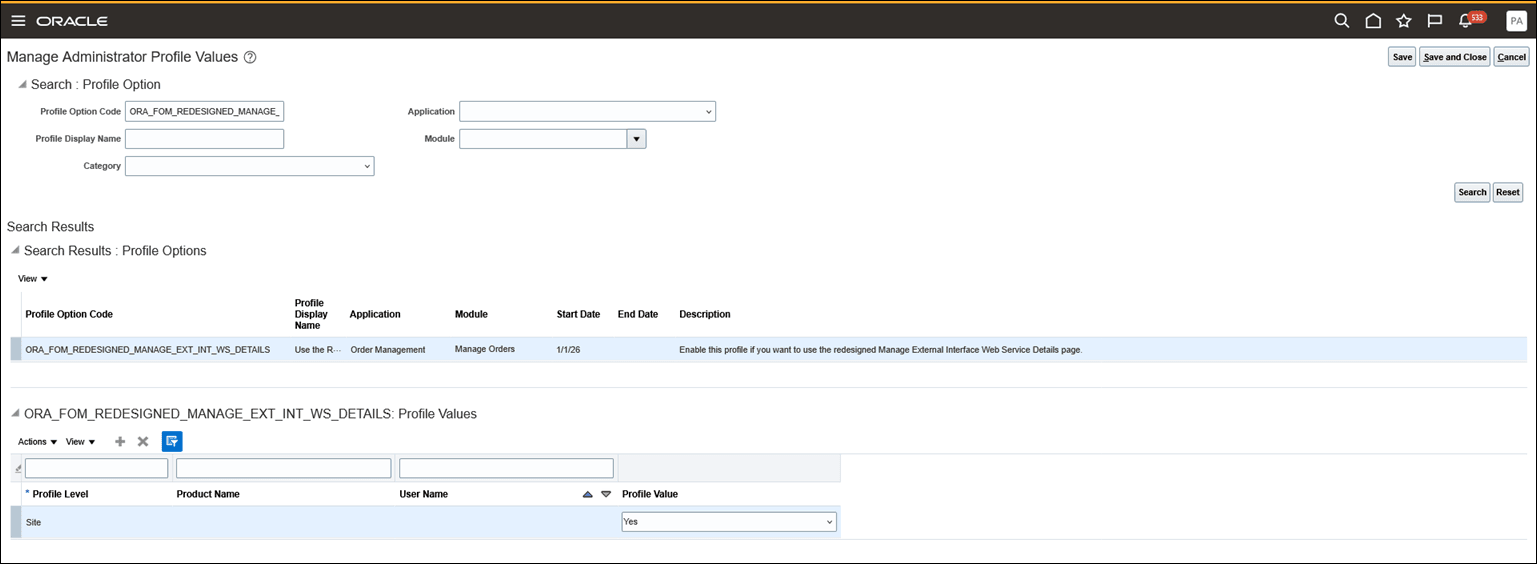
- Open Setup and Maintenance and navigate to Manage Administrator Profile Values.
- Search for the profile option code ORA_FOM_REDESIGNED_MANAGE_EXT_INT_WS_DETAILS and enable it at the site-level by setting the profile value to Yes
- Click Save and Close.
This is the Manage Administrator Profile Values page where you search and enable the profile option.
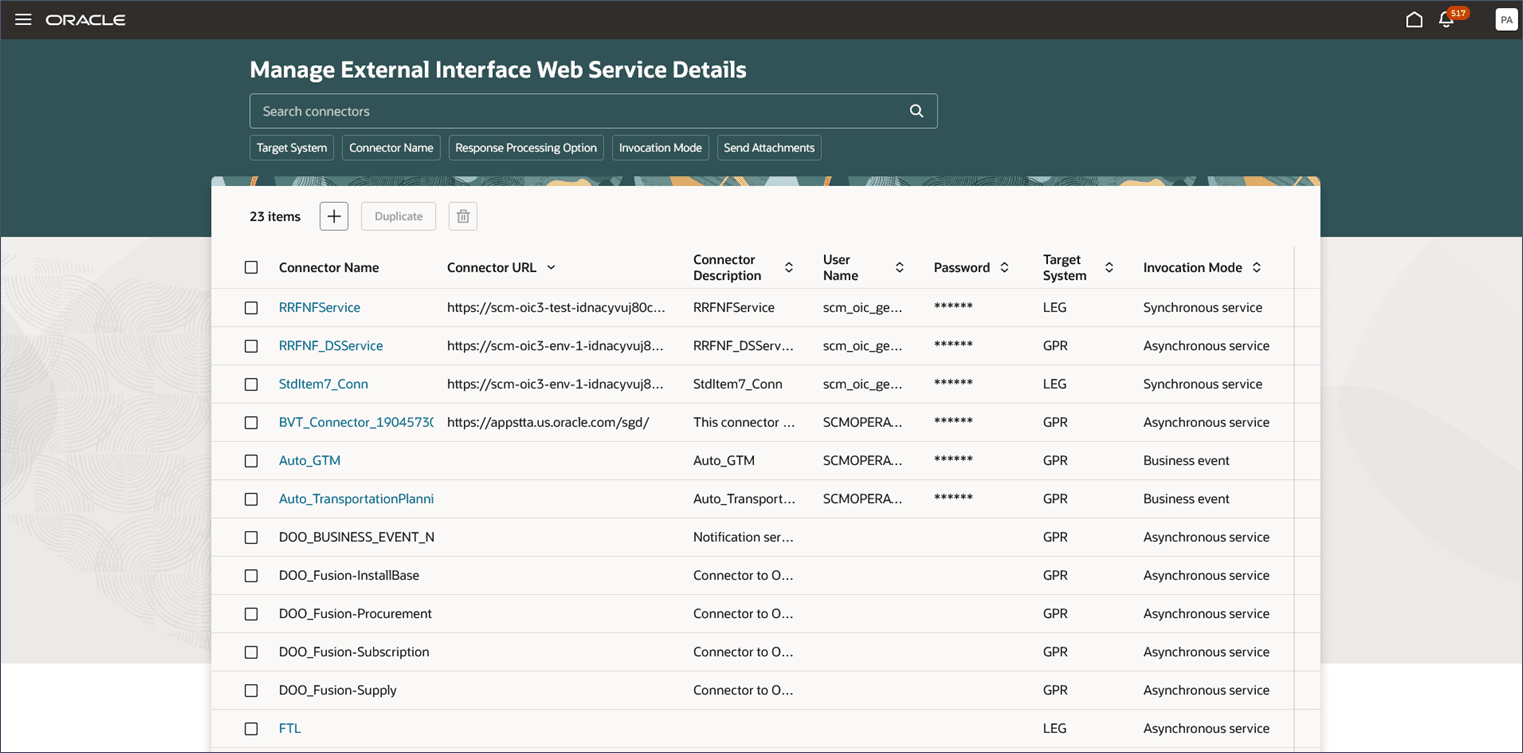
- Once the profile is enabled, the new Redwood Manage External Interface Web Service Details page opens where you search for the connector you add a new connector.
- Click the + button and the Connector details drawer opens.
- Add your details and click Done.
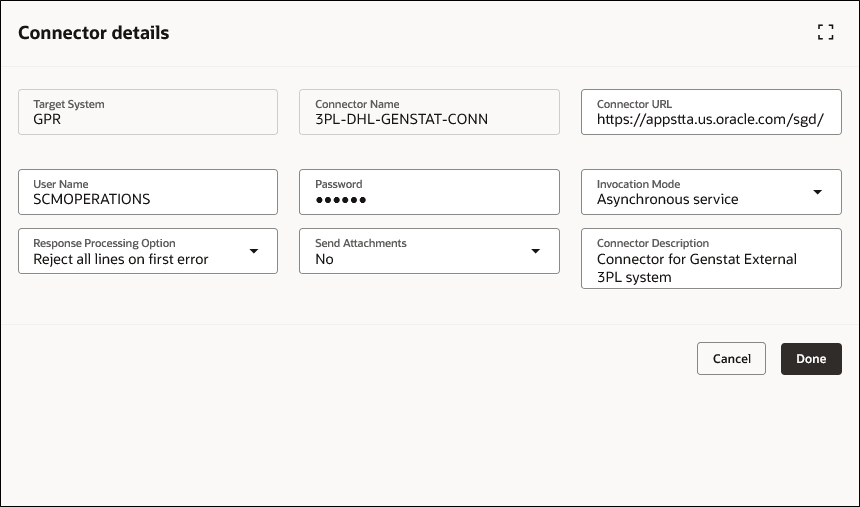
- Confirm new connector details back on the manage web service landing page.
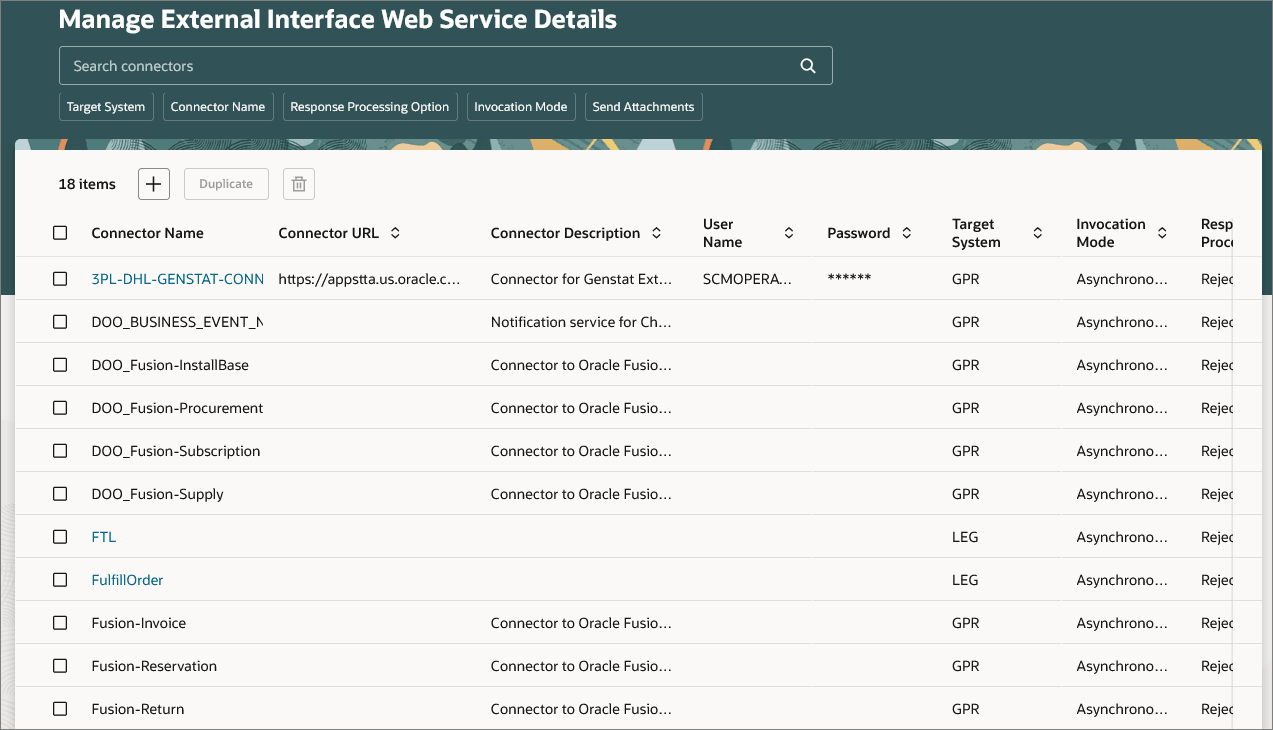
Tips and considerations
- When creating a new connector the connector name:
- Cannot have a prefix which is reserved for predefined connectors.
- Cannot be a duplicate
- Cannot reference an Oracle internal Web Service
- Cannot be changed after the data is saved.
- If you are setting up a connector to communicate a business event, then set the Invocation Mode attribute to Business Event.
- If you are setting up a connector with a web service, then set Invocation Mode to Asynchronous Service or Synchronous Service.
- User Name, Password and Connector URL must be specified when Invocation Mode is set to Synchronous Service or Asynchronous Service.
- Duplicate - This action can be used for one connector at at a time. Duplicate action copies all the information except Connector Name and Password.
- Search - Keyword search is supported for User Name, Connector Description, Connector URL.
- Delete - This action can be used for multiple connectors at a time however you cannot delete predefined connectors.
- When a connector associated to a Business Event is to be deleted the user is prompted to proceed with the deletion or not. Based on user response either (a ) The connector and it's association to the business event is deleted or (b) Delete action is not performed.
Key resources
Access requirements
You would need Order Management setup privilege "Manage External Interface Web Service Details" in Fusion Setup and Maintenance to access this setup page.