Redwood: Use the Transaction Console to Manage Approval Rules for Sales Orders
You can now use the Transaction Console to create and manage approval rules for sales orders.
Get these benefits
- Streamline sales order approval setup and maintenance with an approval configuration experience that is consistent with other Fusion applications.
- Manage complex, multi-stage, multi-participant sales order approval workflows.
- Use AI-assisted rule generation for faster and accurate rule configuration.
- Improve approval rule governance by using AI-assisted rule summarization that generates concise rule descriptions.
How it works
Before you can use this feature you need to opt in to “Redwood: Use the Transaction Console to Manage Approval Rules for Sales Orders”. Once you have the required roles/privileges, you can navigate to the Transaction Console to create new approval rules for sales orders. See Steps to Enable.
1. From the Home page, go to Tools and select the Transaction Console task.
2. On the Transaction Console Summary page, open the Approval Rules tab.
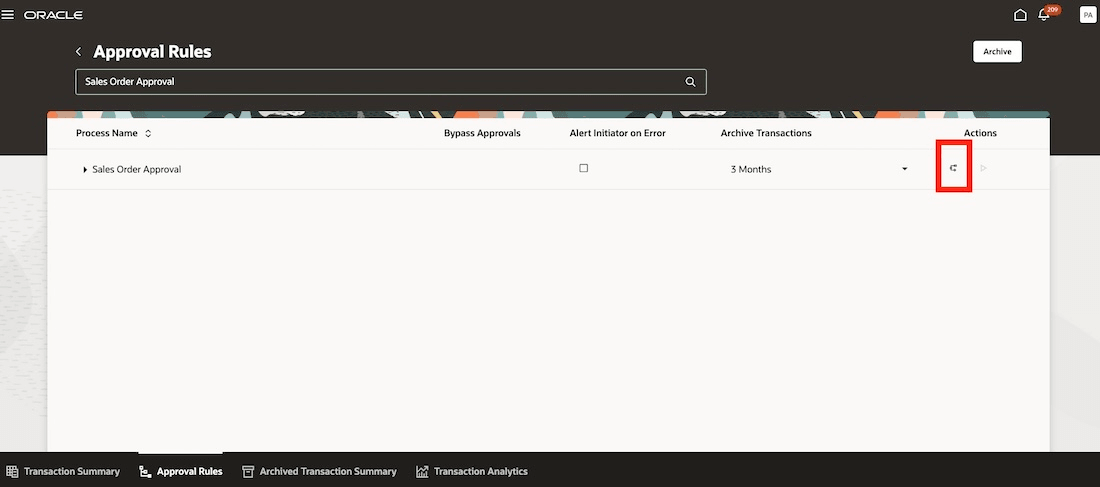
3. Search for the Sales Order Approval process.
4. Click the Configure Rules action, and then click Configure in the dialog box. You will land on the Manage Participants page.
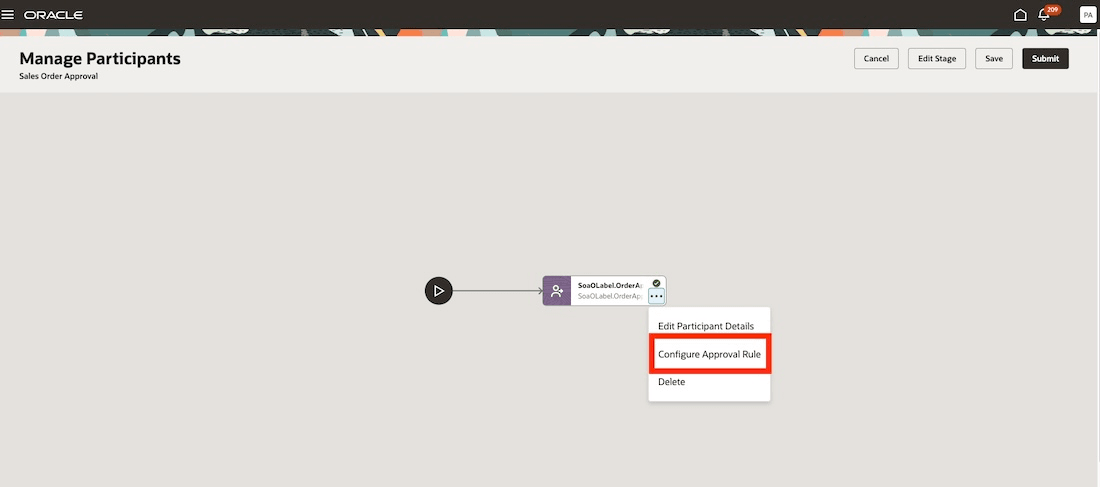
5. Use the Configure Approval Rule action to navigate to the rules page.
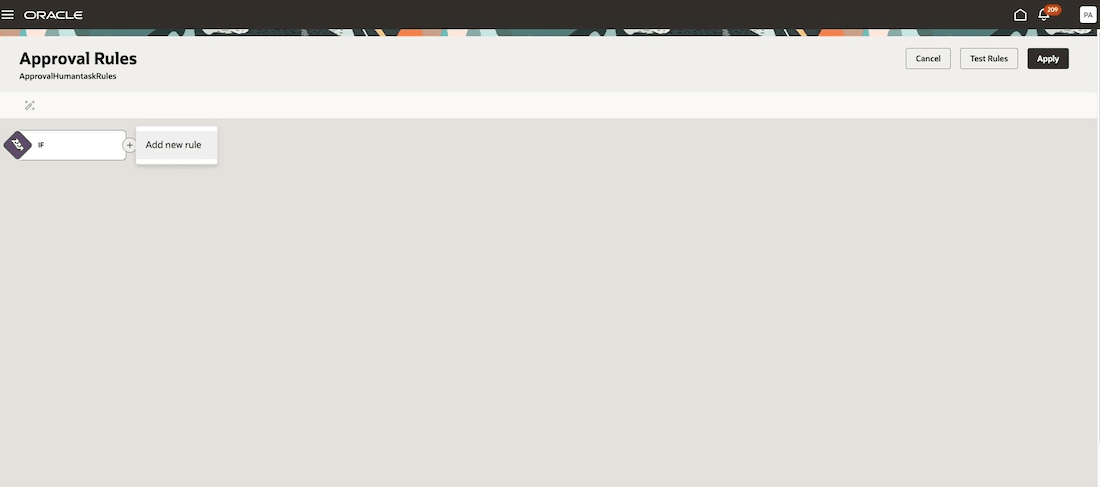
6. Use the Approval Rules page to add a rule and build your rule conditions.
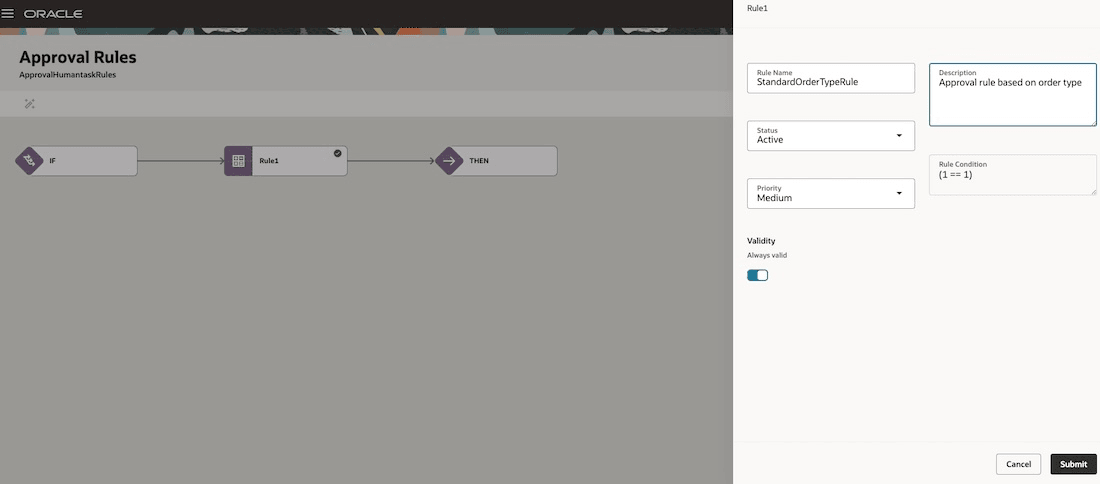
7. Enter basic rule definition information such as rule name, rule description and set the rule status. You can set the rule validity to always valid. If the rule is not set to always valid, from and to dates will appear where you can set the date effectivity for the rule. Click Submit. Note that the rule name does not support spaces or special characters.
8. Click on the box representing the rule to edit/define rule conditions.
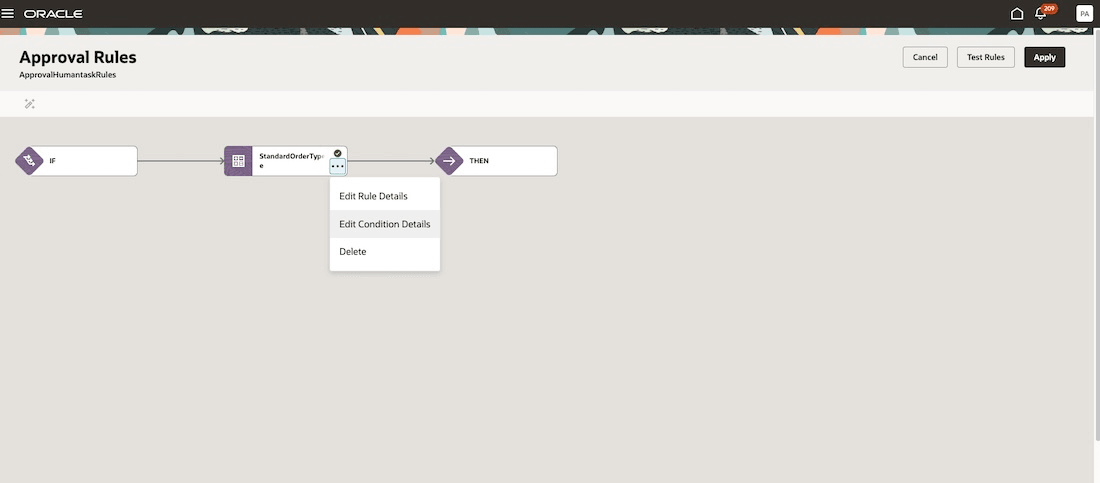
9. In the rule Condition details page click Edit to modify or define rule conditions.
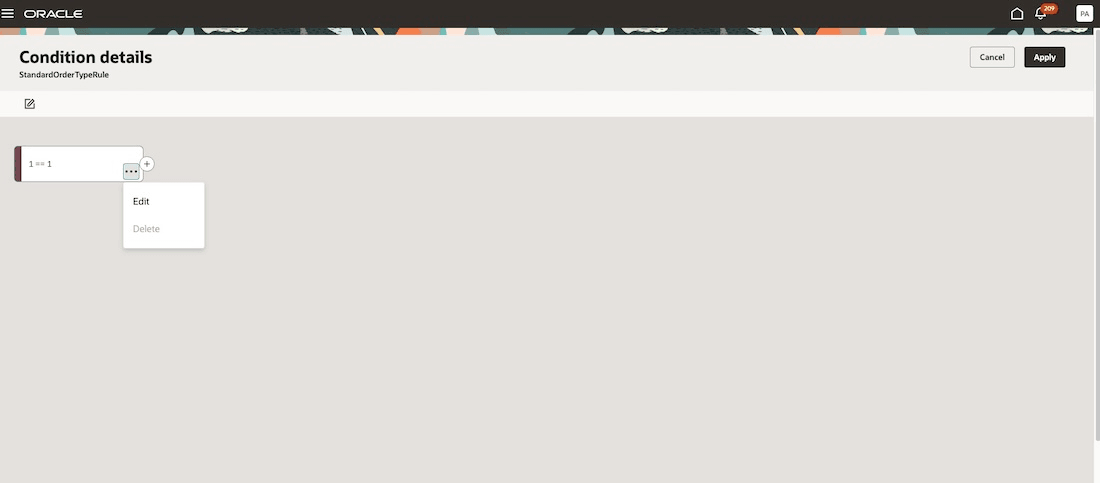
10. In the If condition builder, you should use the Select from attribute value from the Select Value Type field, to use sales order attributes in your rule conditions.
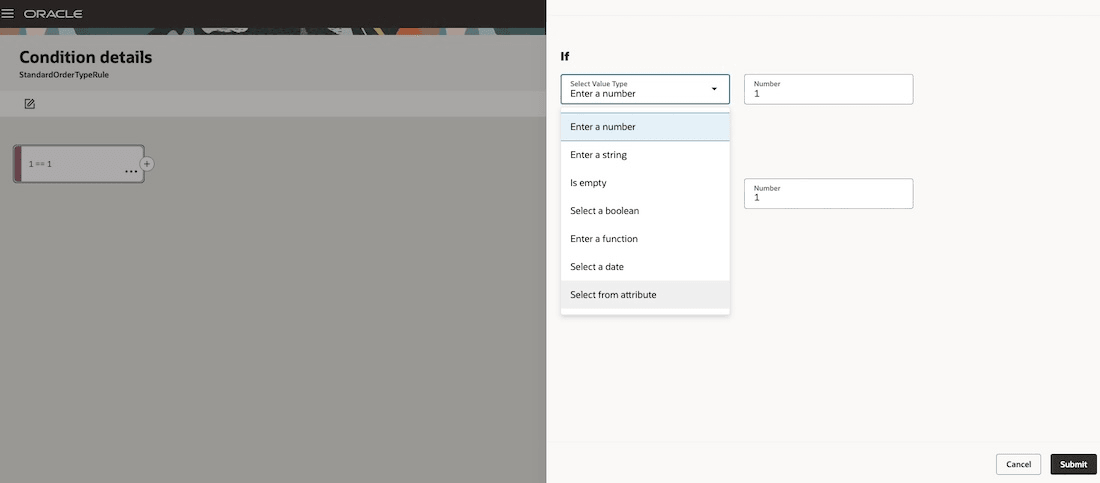
11. The Attribute field displays all the sales order entities such as the Order Header (the order header is called the approvalHeader in the list of values), Order Lines, Order Line Details, Order Charges etc. If you have enabled extensible flexfields, this list also displays all deployed EFF contexts based on which you can define approval rule conditions.
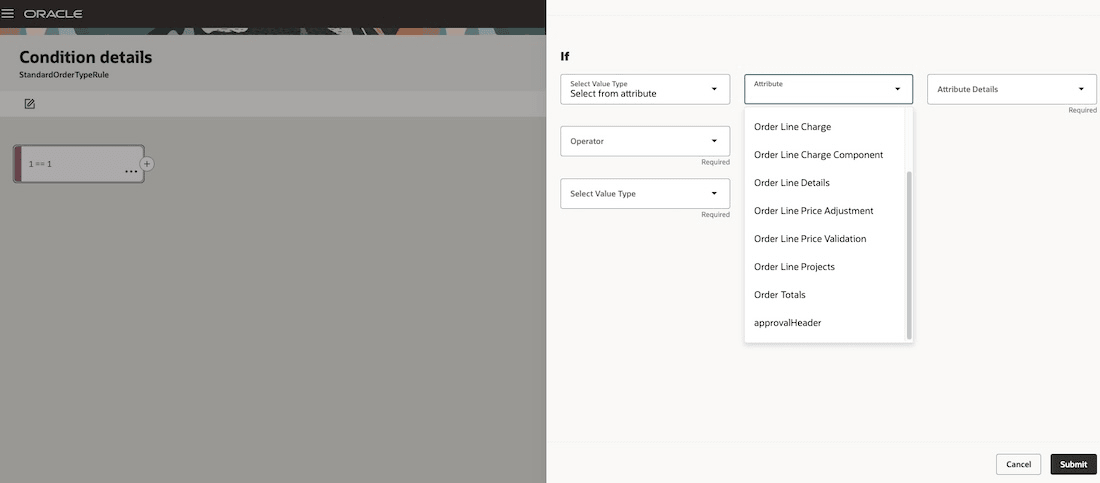
12. Since this example is about creating a rule based on order type which is an order header attribute, select approvalHeader. This displays all order header attributes that you can use in your approval rule conditions. If instead of a standard order entity such as Order Line or Header you had chosen an EFF context in the previous step, you will see the list of EFF segments belonging to the selected contexts.
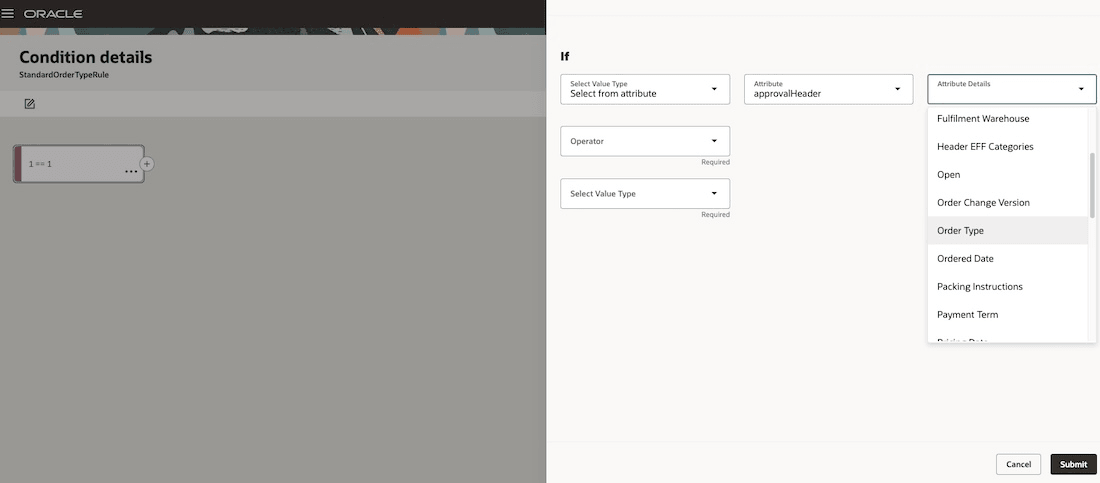
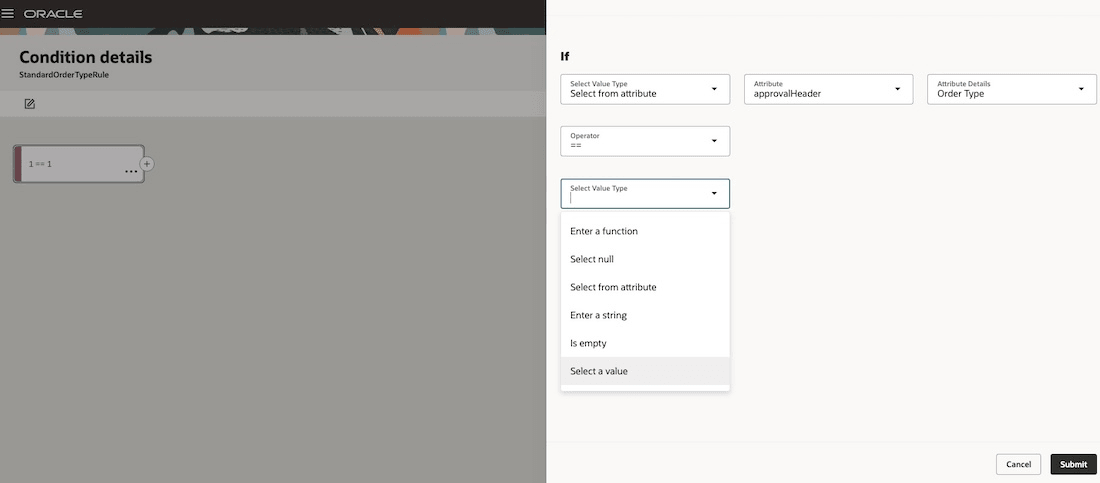
13. In the second Select Value Type field you should choose Select a Value since the condition we are building is based on an order type value.
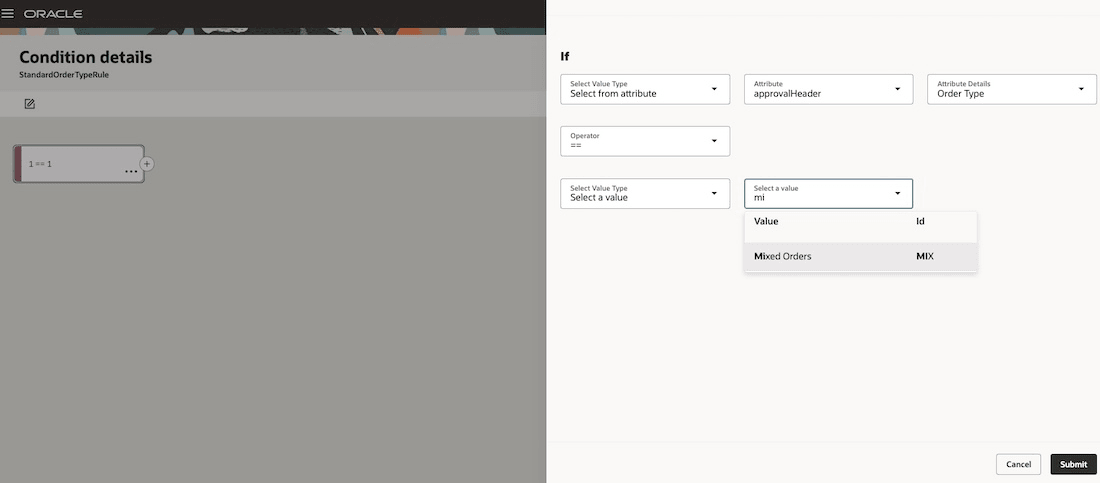
14. Another field opens with a list of all valid order type values. You can enter a few characters of the order type or select from the list.
15. Click Submit on the condition builder, and use the Then node to set up how the approval request is to be routed.
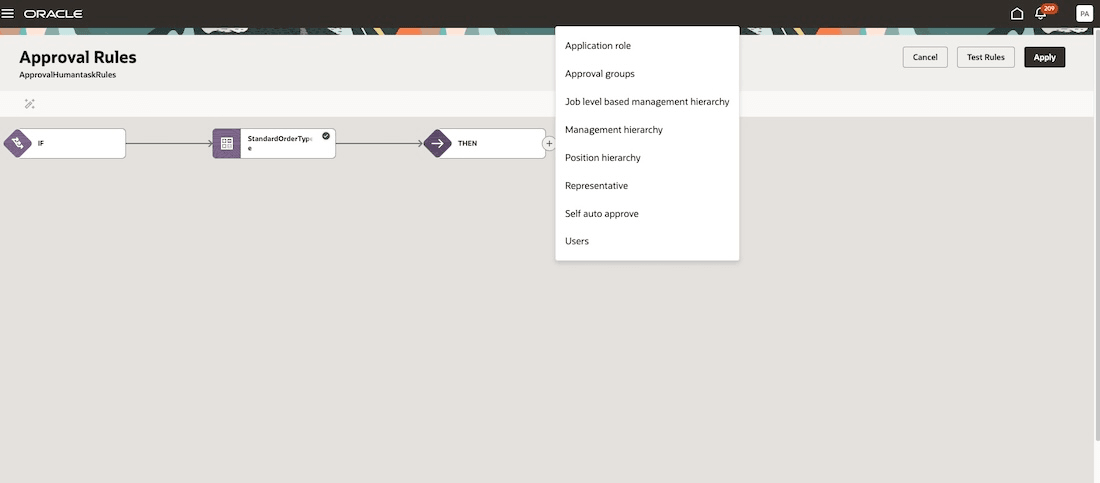
16. Click Apply in the Approval Rules page.
17. Click Save in the Manage Participants page, then Submit to publish the rule.
Steps to enable and configure
Use the Opt In UI to enable this feature. For instructions, refer to the Optional Uptake of New Features section of this document.
Offering: Order Management
To enable this feature, you must opt in to Redwood: Use the Transaction Console to Manage Approval Rules for Sales Orders. Remember these guidelines before you opt in:
- You cannot opt in to this feature if you already have order approval rules that were defined using the classic UI for approval rules set up – Manage Order Approval Rules.
- This is a non-reversible opt-in. Once you have opted in to this feature you cannot opt out.
- The classic UI to set up approval rules – Manage Order Approvals will no longer be accessible once you opt in to the new feature.
- If you already have existing rules defined using the classic UI – Manage Order Approval Rules – the Transaction Console will not allow setting up of sales order approval rules.
To turn on approvals in Order Management you also have to set up an Order Management parameter Start Approval Process for Sales Orders and enable it for one or more source order systems.
Follow these steps to enable Redwood Transaction Console -
- Go to Setup and Maintenance > Search for Task: Manage Administrator Profile Values.
- Search for profile option with code ORA_HRC_TRANSACTION_CONSOLE_REDWOOD_ENABLED.
- Set Site level profile option value to Y. Click Save.
- Logout and login to use the Redwood Transaction Console.
Tips and considerations
- Besides managing approval rules, you can create and manage approval stages and participants in the Transaction Console with limited access to approval task configurations. However, it is recommended that you make all changes in your approval routing, which includes managing stages and participants only from the set-up task Manage Task Configurations for Supply Chain Management.
- If you use extensible flexfields in approval rules you must ensure that flexfield changes are synchronized regularly to make them available in the condition builder. Use the set-up task Manage Task Configurations for Supply Chain Management to run flexfield synchronization.
- Sales Order Approval does not currently support the Test Rules capability in the Transaction Console.
- To know more about the AI capabilities in the Redwood Transaction Console refer to - https://docs.oracle.com/en/cloud/saas/readiness/hcm/26b/hcom-26b/26B-hcm-common-wn-f42696.htm#Steps-to-enable-and-configure
- All order attributes currently supported for use in approval rule conditions in the Manage Order Approval Rules set up UI are supported in the Transaction Console also.
- This feature supports only the creation and management of sales order approval rules through the Approval Rules tab in the Transaction Console. It does not support searching for or viewing sales order approval transactions in the Transaction Summary.
Key resources
Access requirements
Users who are assigned a configured job role that contains this duty role can access the transaction console to view and configure approval rules:
- Review HCM Approval Transactions as Administrator (ORA_PER_REVIEW_HCM_APPROVAL_TRANSACTIONS)
This duty role was available prior to this update.