Redwood: Manage Pick-to-Order Configured Items with Kits on Sales Orders
Use this feature on the Oracle Order Management work area, or REST API to add, manage and fulfill pick-to-order (PTO) configured items that contain a kit component on a sales order or return order.
Get these benefits
- Greater flexibility in product configuration.
- Efficiently sell and fulfill complex PTO configured item that contains a kit as its component.
- Improve order and promising accuracy when you sell PTO configured item that contains a kit as its component or when you sell a standalone kit.
How it works
With this feature you can add kits at any level within a PTO configured item while configuring or reconfiguring it during order placement. The kit within a PTO configured item can be:
- An option item
- An included item
- A single level or multi-level (nested) kit
- At any level in the PTO configured item hierarchy
Working with PTO models is faster and more efficient because you can now:
-
Capture, price, manage and fulfill a PTO configured item with a kit component on a sales order just as you would one without a kit.
-
Order Management can automatically schedule a PTO configured item with a kit using the schedule task after you submit the order.
-
Apply Schedule or Unschedule the PTO configured item with a kit component when the sales order is in Draft status or after you submit the order.
-
Use the Check Availability page to review supply and availability for all the components of the PTO configured item, including kits, view availability options, and schedule the item. Similarly, if you order a standalone kit, then you can view the kit’s structure and review supply and availability for all its components.
-
Use Expected Availability to know if the PTO configured item with a kit component is on time or delayed. The expected ship dates or arrival dates for the option and included items determine the expected dates of the PTO configured item.
-
Associate coverage and subscription to the PTO configured item, or specifically to its kit component if the kit is an option item.
-
Create and fulfill a reference return for a PTO configured item with a kit component.
Here’s the sales order for a PTO configured item.
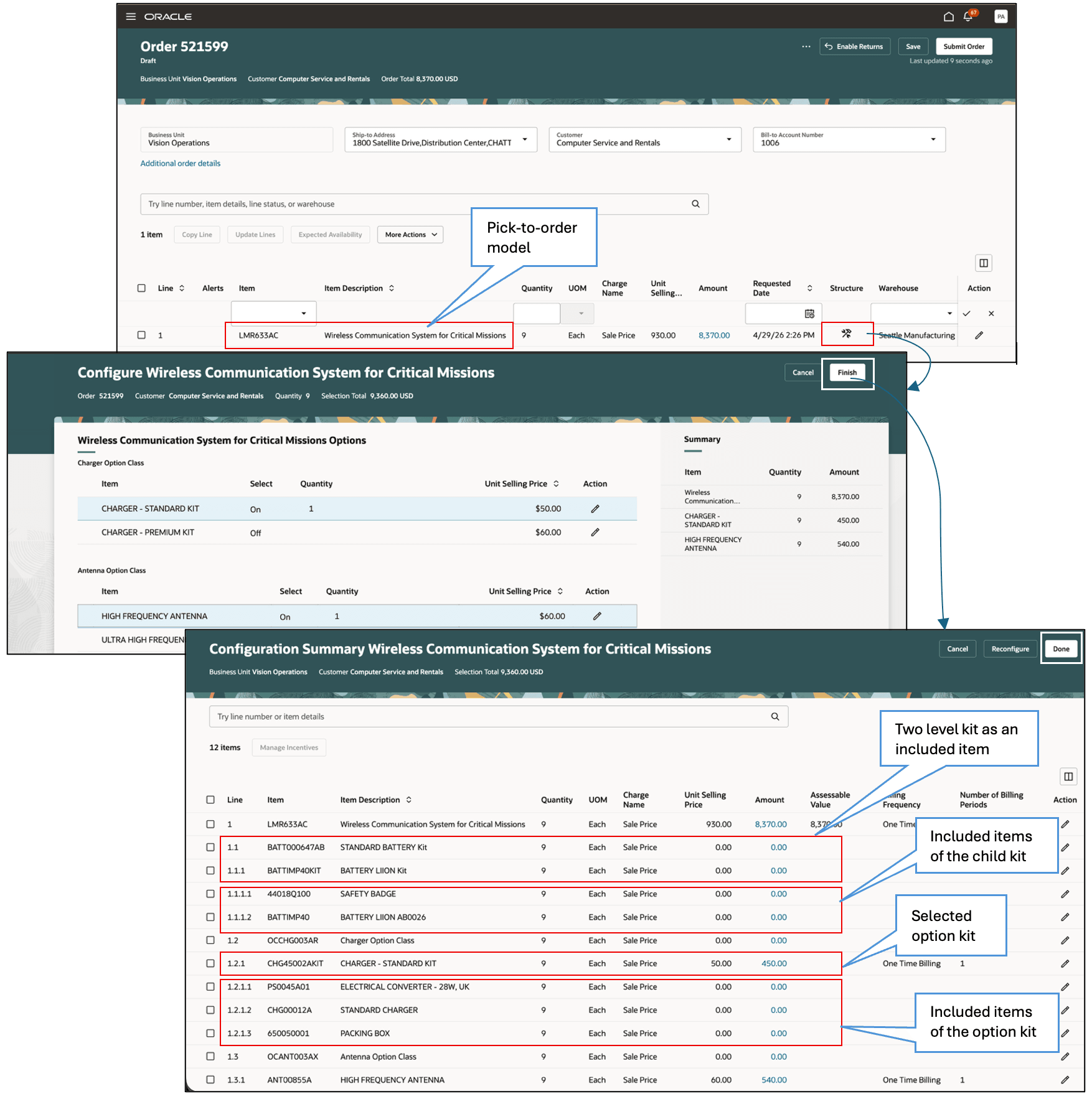
Note: You can select a kit when configuring a PTO configured item (model). You can also have a kit as an included item of your model. Order management explodes these kits and displays them on the configuration summary page.
Here’s the check availability option for a PTO configured item.
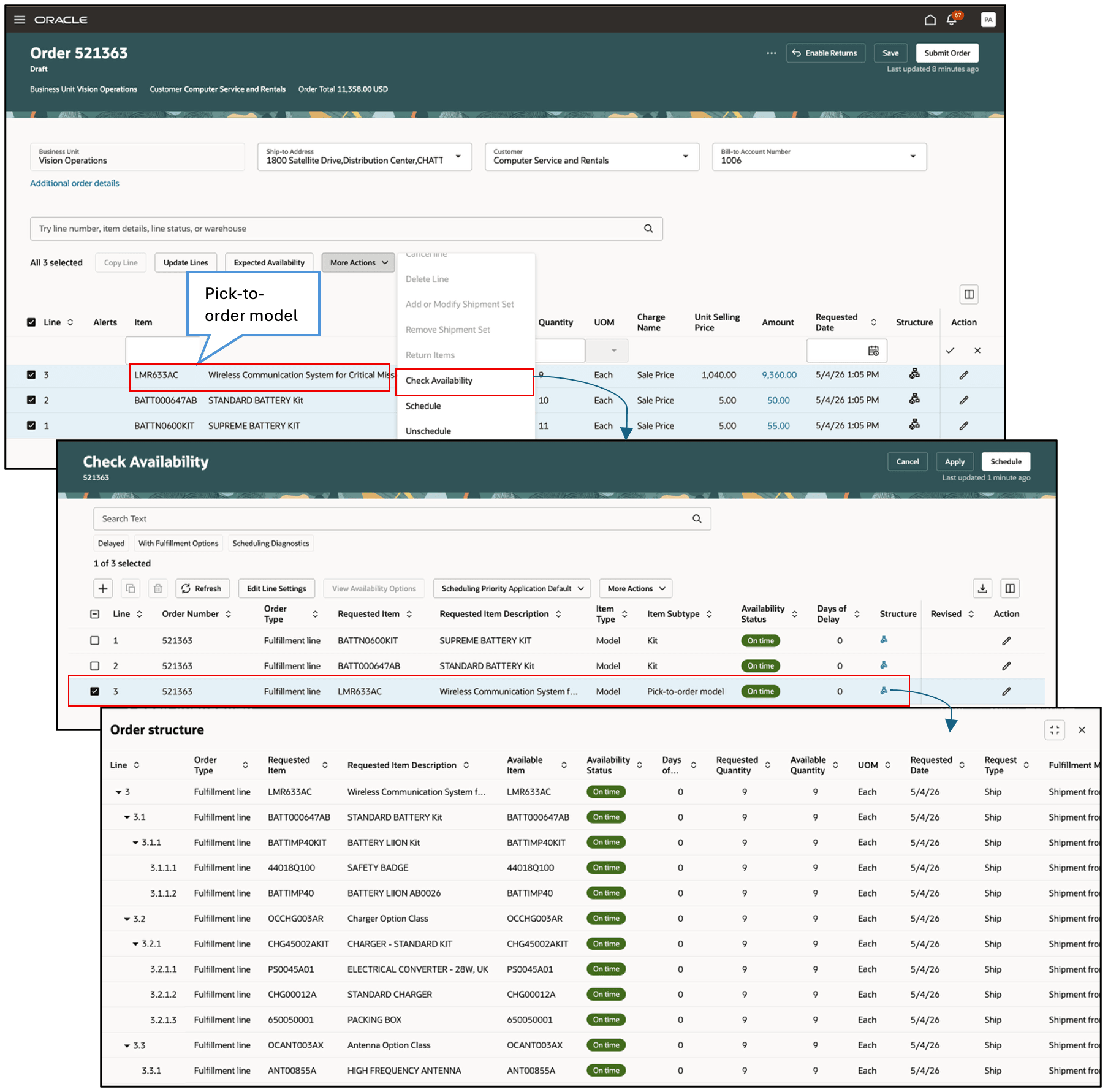
Note: The complete hierarchical structure, including kits and their components is displayed for the PTO configured item (model). Users can review the supply and availability for all the components of the model.
Here’s the check availability option for a kit.
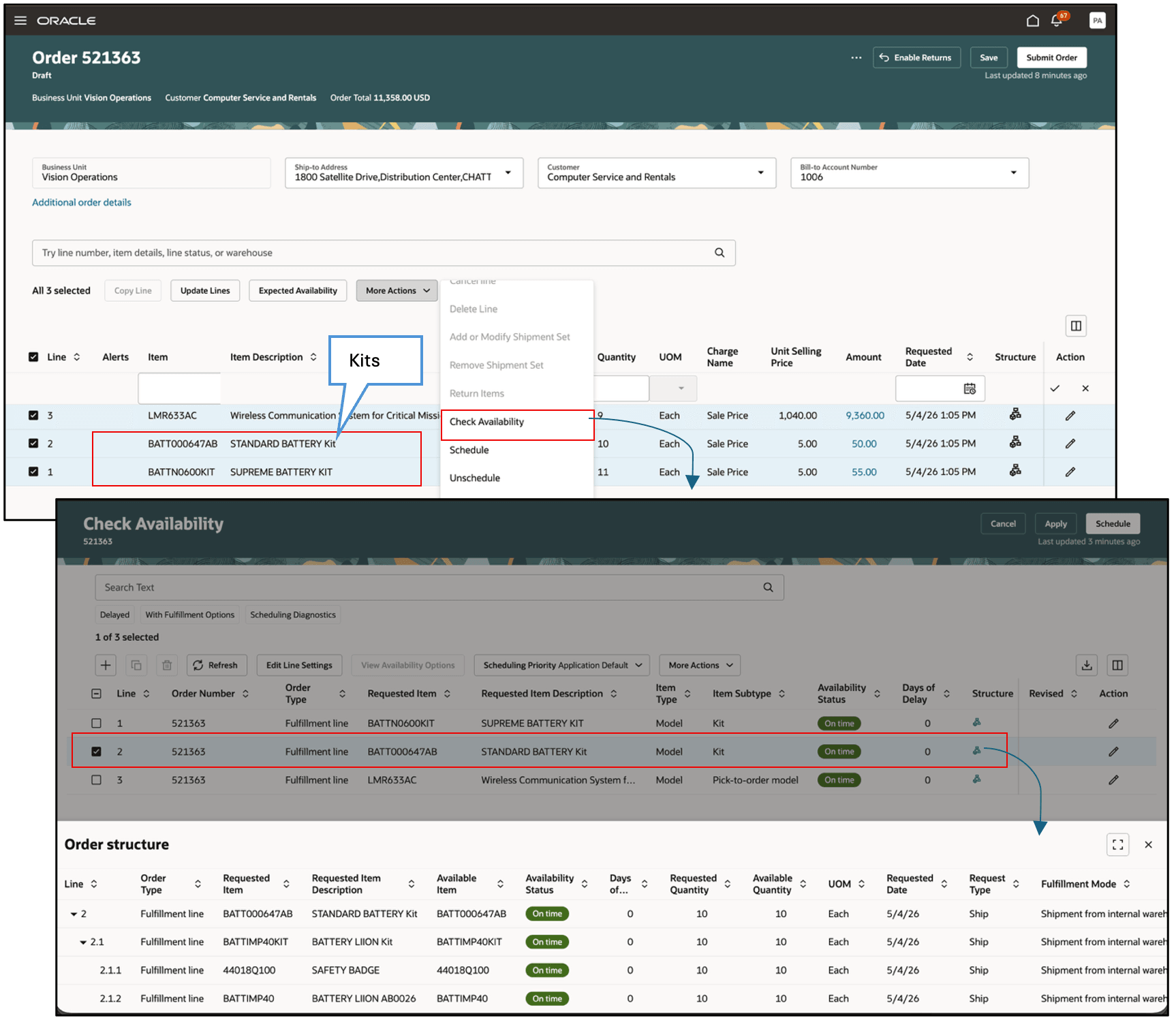
Note: The complete hierarchical structure, including the child kit and its components is displayed for the standalone kit. Users can review the supply and availability for all its components.
Steps to enable and configure
-
You need to set up these prerequisite features to use this feature. You don’t need to set them up again if they're already set up.
- Redwood: Search and Apply Actions on Multiple Sales Orders
- Redwood: Create and Manage Sales Orders
- Redwood: Manage Configured Items on Sales Orders
- Collect all the items, including kits that are components of the PTO configured item, and assign an Available-to-Promise (ATP) rule to them. See:
- As an option, navigate to the Manage Administrator Profile Values task, search the Profile Option Code attribute for ORA_FOM_SEND_KIT_STRUCTURE. Set these values:
Attribue Value Profile Level Site Profile Value Yes Order Management sends the complete kit structure to Global Order Promising for scheduling when you order a standalone kit. You can view the complete kit structure and review supply and availability for all its components on the redesigned Check Availability page.
If you don’t set a value for the profile option, or if you set it to No, then Order Management continues to send only the kit components to Global Order Promising, as it does today. The redesigned Check Availability page will not display the kit structure.
If you set the profile option to Yes, then make sure to collect the kits and its components across all levels and assign an ATP rule to them.
Tips and considerations
- You can use redesigned pages in the Order Management work area or use these REST APIs to create, revise, manage or apply actions on the PTO configured item:
- Sales Orders For Order Hub
- Sales Order Action Requests
- The classic pages in the Order Management work area and order import web service are not enhanced to support this feature.
- Make sure to collect and assign an Available-to-Promise (ATP) rule to all the items including kits that are components of the PTO configured item as well as standalone kits.
- Kits are not supported within an assemble-to-order (ATO) configured item (model).
- Make sure that the kit is set up as a non-shippable item.
Key resources
- See the links in the Steps to Enable section.
- What’s New for the related features in Update 26C for Global Order Promising and Backlog Management, respectively:
- Schedule PTO Kits at Any Level of a PTO Model's Configuration
- Schedule PTO Kits at Any Level of a PTO Model Configuration in Backlog Management
Access requirements
No new privileges were added for this feature.