Redwood: Automate How You Generate Price Books
Automatically maintain a comprehensive price book that you can use for runtime pricing.
Realize these benefits:
- Set a schedule to automate generation of comprehensive price book – weekly, monthly, quarterly, yearly basis.
- Generate a single price book that contains all pricing for all strategies, customers, groups that are active.
- Provide review period before price book is effective.
- Allow for regeneration at any point if pricing requires change.
- Allow for schedule revisions when necessary.
This update adds the ability to schedule the generation of a comprehensive, global, price book containing all available features of pricing. Data limitations continue to include dependencies on data that are only available at the time that the order is placed. This price book contains data for all active strategies and all active customers set up in Customer Pricing.
If you set up a scheduled job in the UI to automatically generate price books for sales order pricing, then you can choose how often the price book is generated (for example, weekly, monthly, quarterly, yearly) and select the specific day within that cycle. As part of the setup, you can define the effective date for the overall schedule to start (for example, pricing for each quarter starting May 1st of this year) and end (continue refreshing each quarter until 2 years from now). You can also configure a review period by setting the generation date ahead of the effective date, so there is a gap between when the price book is created and when it becomes active.
After the price book is generated, you can view a summary of issues, exceptions, or anomalies identified by the system in the process log. The UI notification contains a link to the log, which highlights only the areas that require attention, allowing you to quickly review and address problems without needing to go through the entire price book. After the effective date is reached, the system automatically activates the price book for use in sales order pricing without requiring any additional action from you.
Let’s walk through the steps to set up a schedule to generate the global price book.
There is one initial step prior to setting up the actual schedule – defining the business units for which the price book will contain pricing data. There is a pricing parameter where you will add the business units you want to use for data collection. These business units must be associated with inventory organizations.
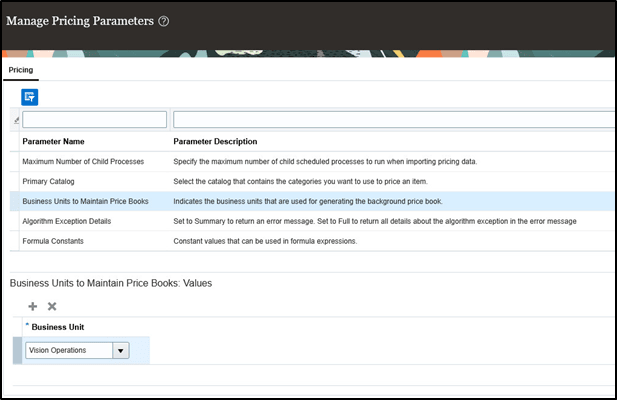
Required Pricing Parameter
Schedule flow
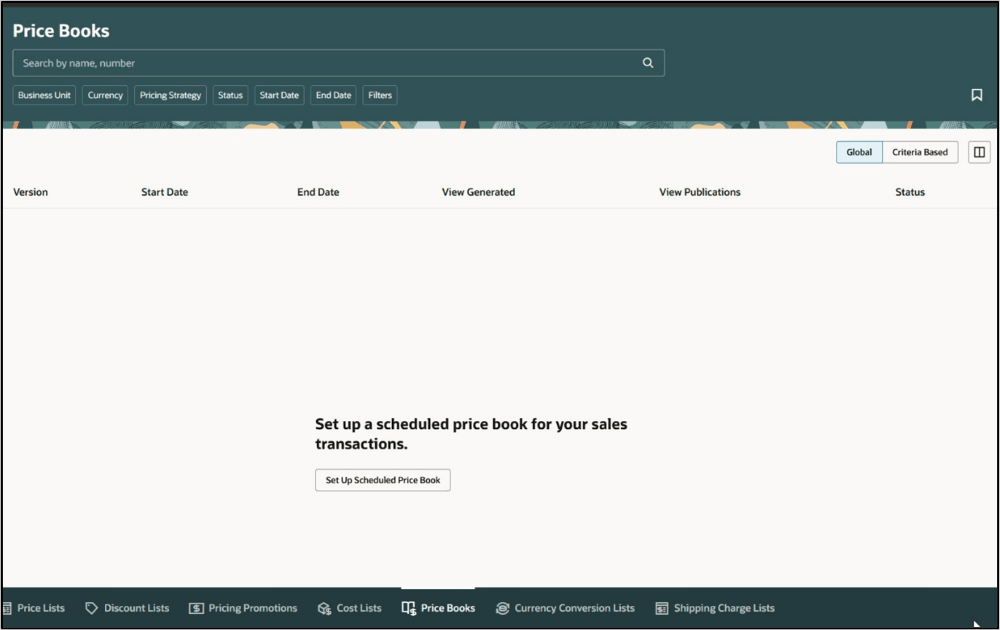
Start Schedule Setup
When you first navigate to the Global price book tab, the page shows no price books because none has been generated yet. Instead, you find the link to set up your first schedule. Click the link.
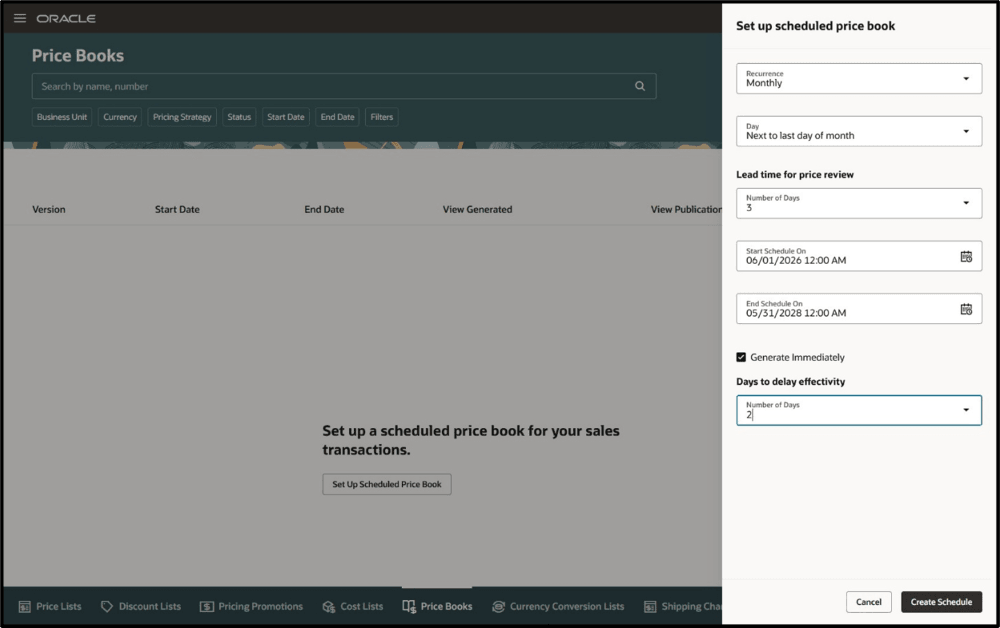
First Schedule for Price Book Including Option to Schedule Immediately
The first option on the panel gives you the choice of frequency for the price book activation:
- Weekly
- Monthly
- Quarterly
- Yearly
The second option gives you the choice of when within that period:
- Which day of the week
- Which day of the month (including last day choices)
- Which month in the quarter
- Which month in the year
The third option provides the choice of the number of days to review the price book data before it becomes active. Note that this means that the price book will be generated this many days prior to the day specified in the previous settings.
The start date and end date parameters refer to the overall start and end dates of the schedule process, not the start and end dates of a specific price book.
For the first schedule, there is an additional option–generate immediately. If you choose this option, then the price book is generated as soon as you click the Create Schedule button. It doesn’t wait until the scheduled date and time. Be sure to set a number in the Days to delay effectivity option if you want to review the price book data before they are active for pricing.
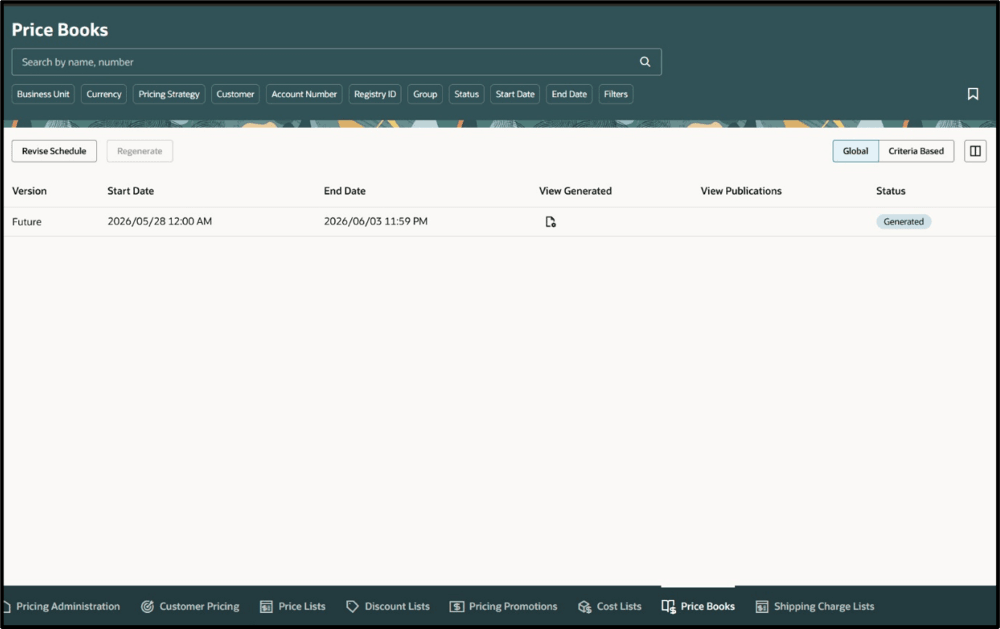
Future Price Book
After the price book is generated, but before the date is reached for it to be active, it’s displayed as the future version. The future price book isn’t available for pricing at runtime or for publication. It’s the review copy. Click the View Generated iconto examine the contents.
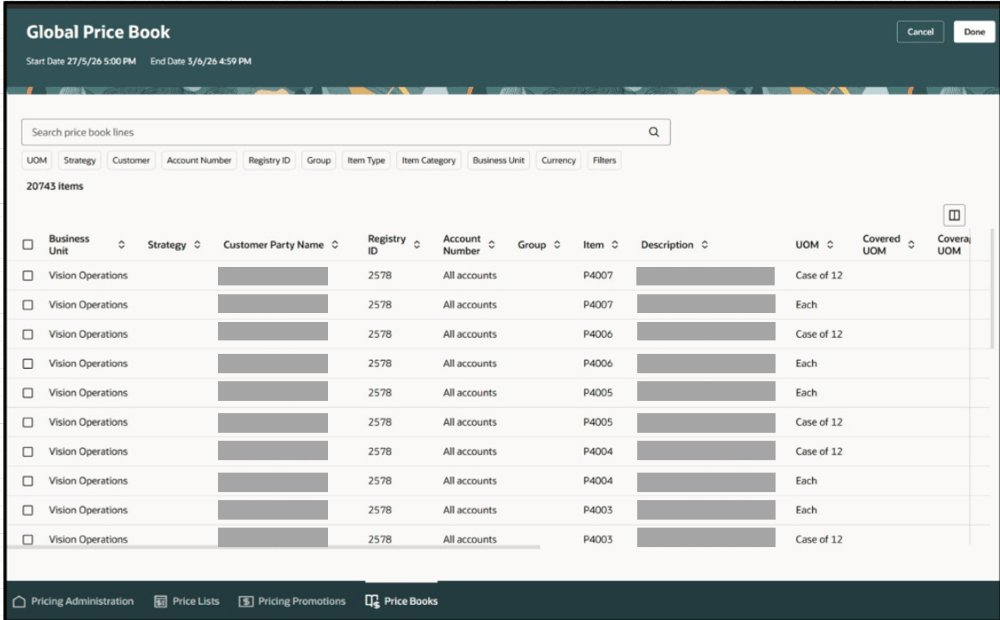
Price Book Line - Customer Pricing
Enhancements were made to the line view for the scheduled price book because the global price book contains lines from all strategies, customers, business units, and currencies. Columns differentiating these attributes are now visible and filter chips are available for searching for specific lines. This figure shows the three attributes that define the customer: Customer party, registry ID, and account. 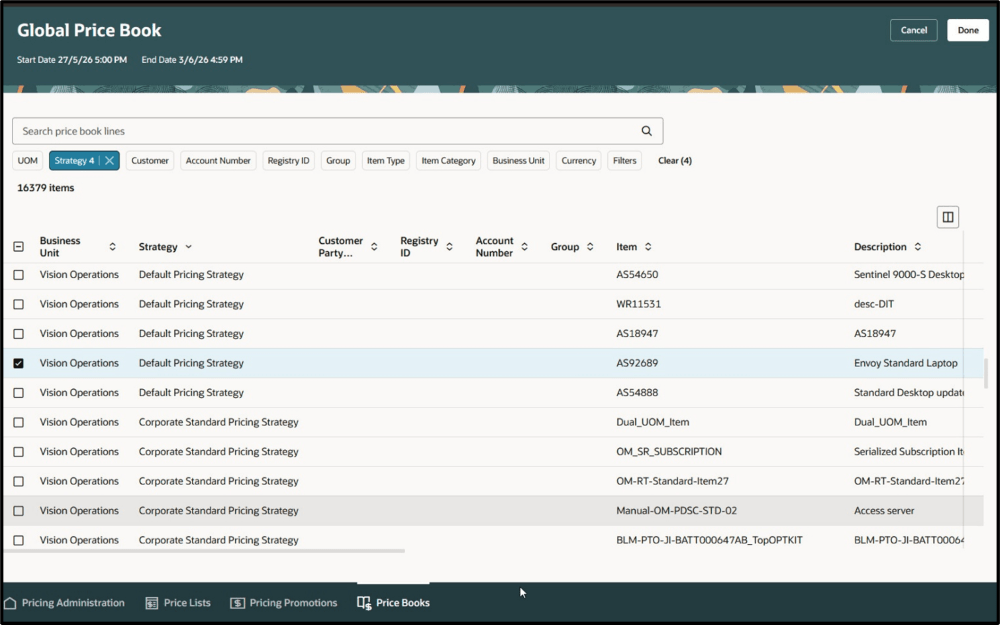
Price Book Lines - Strategy Pricing
This figure shows a set of lines from 2 different strategies. Note that the attributes that specify specific customers are left blank when prices are defined by strategy.
At the top for this and the previous figure, you can see the filter chips and search bar that allow you to access specific lines or groups of lines for more detailed review.
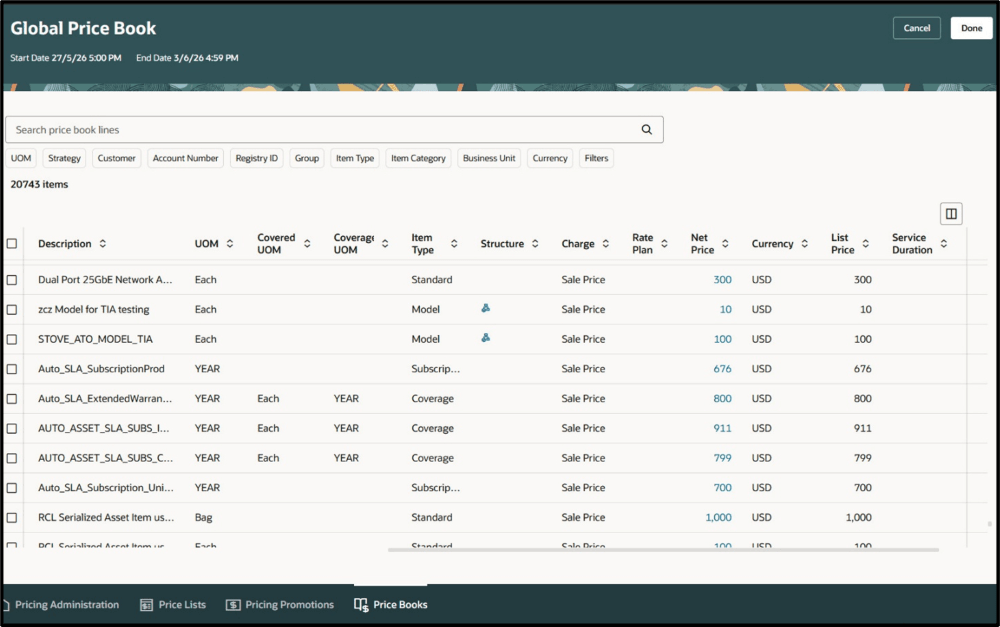
Additional Attributes for Price Book Lines
Scrolling to the right brings visibility to additional columns in the price book. You can see that there are multiple item types provided in this price book and that the currency is specified for each pair of net and list prices. A link is provided for the net price so that details of any discounts can be viewed just as in criteria-based price books.
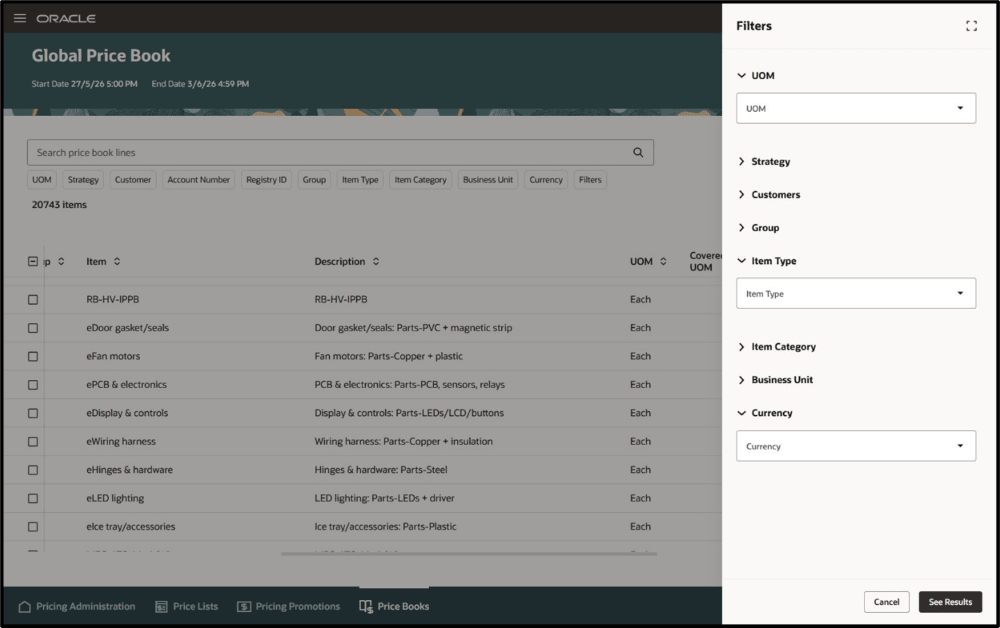
Price Book Line Filters
There is also a separate filter chip to bring up the filter panel so you can set up multiple filters at the same time. With such a large volume of data as the global price book can generate, it can be more efficient to segment before reviewing.
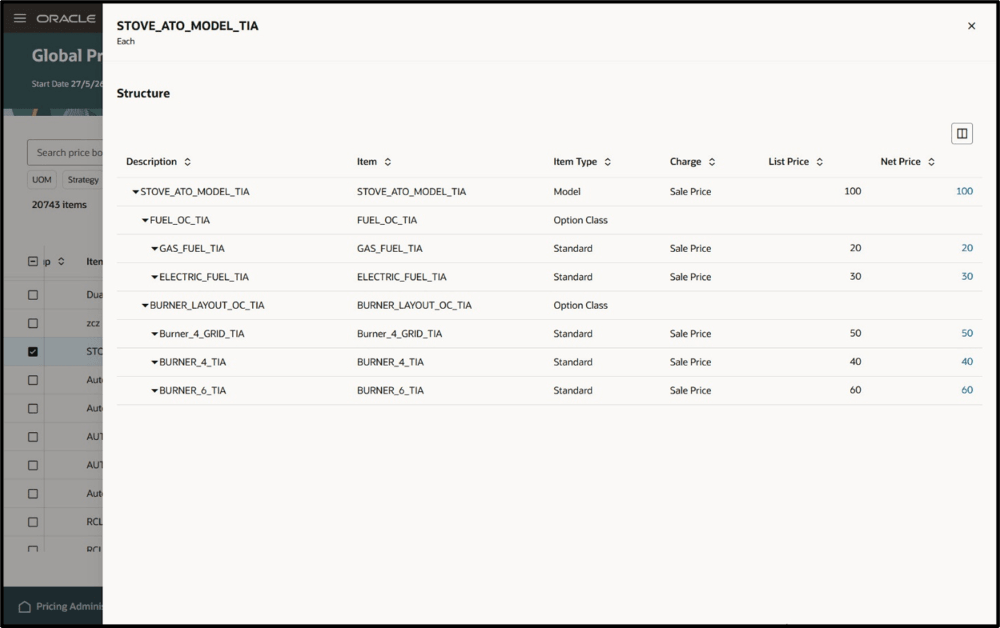
Model Item View in Price Book
If you filter on Item Types and choose Model, then you can view all of the models that are priced in the price book. If you click the model icon, then a panel is opened where you can see the pricing for each component. A link is provided to show the price breakdown for the net price, just as it appears in a sales order.
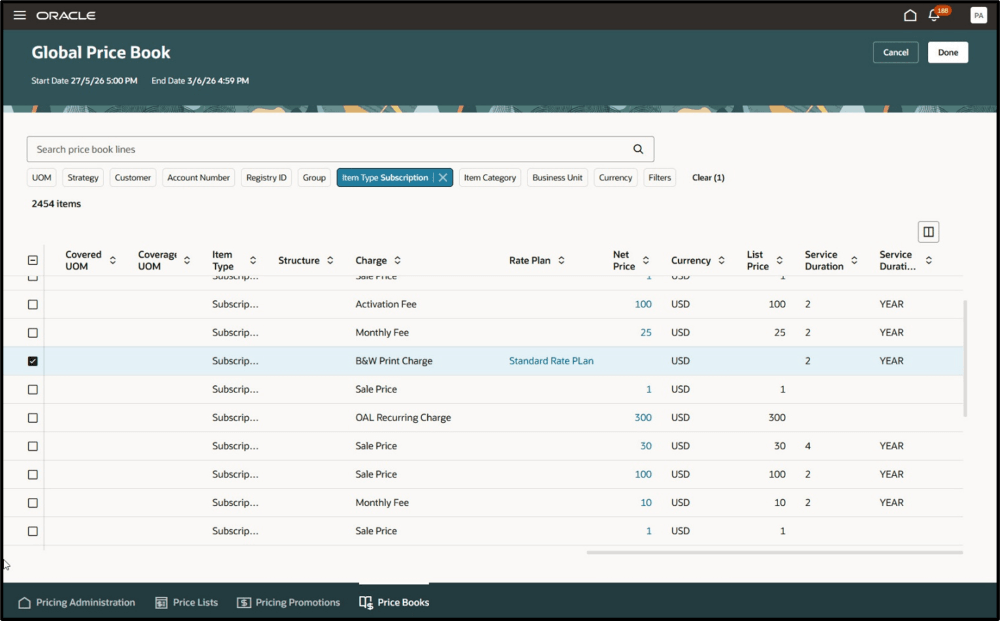
Subscription Items in Price Book
If you filter on Item Types and choose Subscription, then you can view the pricing for every subscription that’s included in the price book. Notice that rate plans also appear in price books if they are part of subscription pricing. Each charge for the subscription, just as each charge for any other item, appears on a separate line.
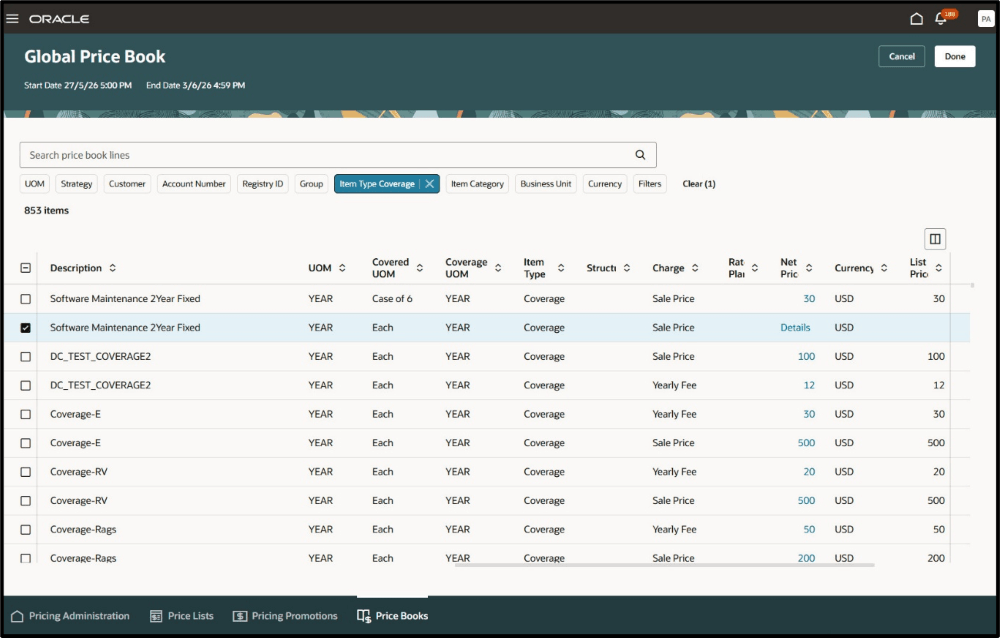
Coverage Items in Price Books
If you filter on Item Types and choose Coverage, then you can view the coverage charges included in the price book. Note that two kinds of coverage charges are available: Flat rate (specific currency value) and percentage of applied item value. The former appears in the price book and is used at runtime. The latter appears in the price book for communication purposes, but is calculated by the pricing engine at runtime.
Coverage Items in Price Books
If you filter on Item Types and choose Coverage, then you can view the coverage charges included in the price book. Note that two kinds of coverage charges are available: Flat rate (specific currency value) and percentage of applied item value. The former appears in the price book and is used at runtime. The latter appears in the price book for communication purposes, but is calculated by the pricing engine at runtime.
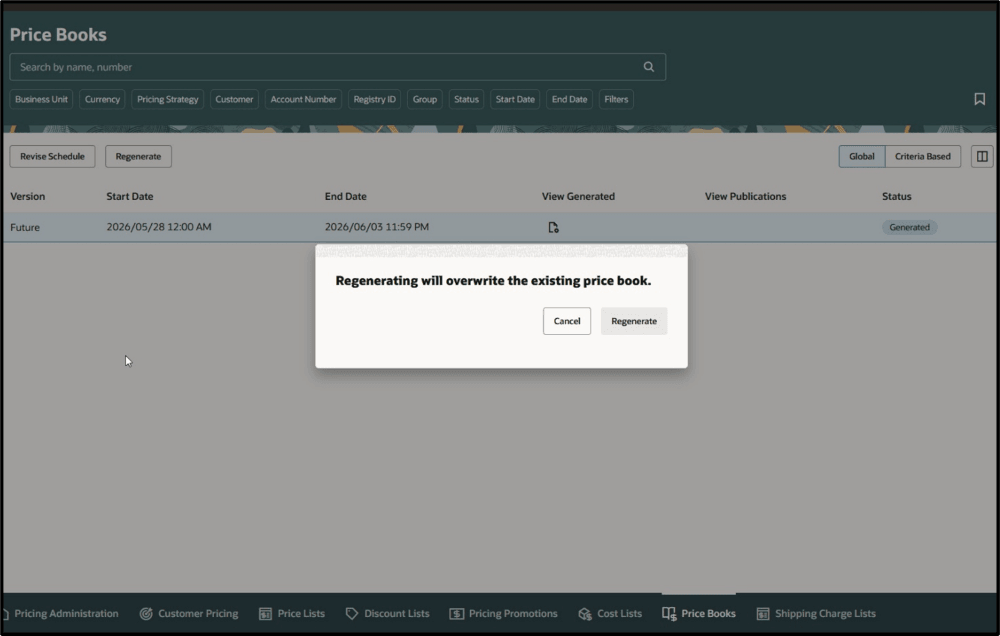
Action to Regenerate Price Books
After you review the price book data, you may notice changes that are required to the pricing setup before it can be used for pricing. You need to make those changes and then regenerate the price book so that your changes are incorporated in the price book data.
After you make the changes, select the price book and click the Regenerate button. The dialog shown above appears to warn you that all the price book data will be overwritten when the new data are generated. Click the Regenerate button to continue. A toast message pops up to let you know the process number so you can track it. Or you can wait for the notification that the process is complete.
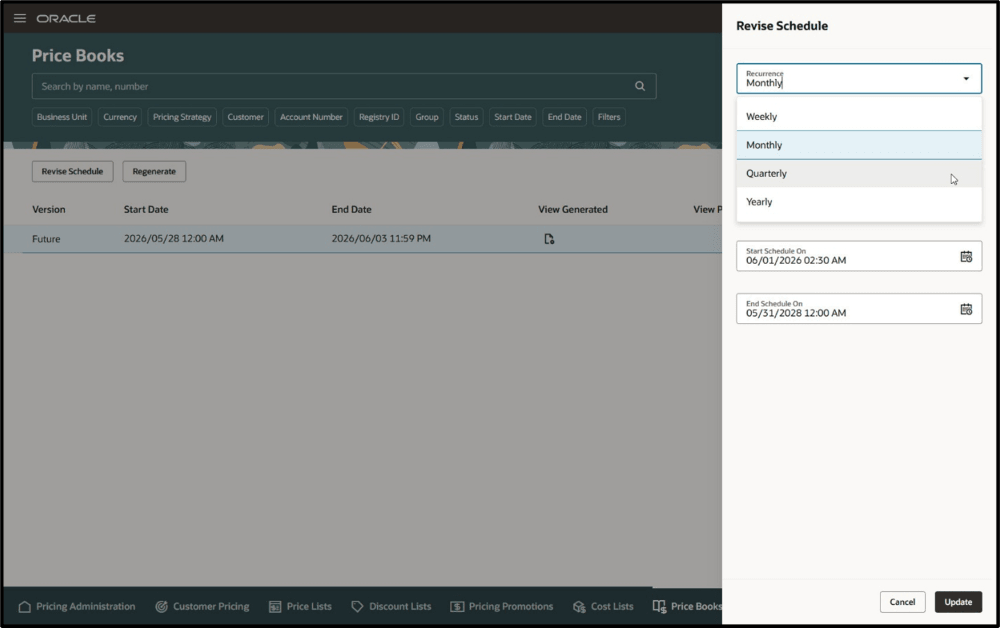
Reschedule Price Book Generation
You also can change the schedule at any point. Click the Revise Schedule button and the pictured selections open. After you make your changes, click the Update button. The current schedule continues until your new schedule begins so that there are no gaps in price book generation.
Note that only the user that created the schedule can modify the schedule. If you log in as a different user, then the action isn’t available.
Steps to enable and configure
Use the Opt In UI to enable this feature. For instructions, refer to the Optional Uptake of New Features section of this document.
Offering: Order Management
This feature has a required opt-in, Redwood: Automate How You Generate Price Books. The Opt-in for Feature Redwood: Create Price Books to Price Sales Orders must be enabled for this feature to be used for generation and publication. If you want to use this feature for sales order pricing, then you must also enable the opt-in for Feature Redwood: Use Price Books to Price Sales Orders. If the latter two features are already enabled, then you don’t have to enable them again.
Tips and considerations
You can create a price book only on redesigned Pricing pages.
Note that you must specify at least 1 business unit in the pricing parameter prior to generation of the global price book or the generation will result in no lines.
The user who schedules the price book is the only user who can reschedule the price book.
You can't include these items or pricing on a price book in update 26C:
- Configured item with discount pricing for pricing rollups. Discounts are taken for components.
- Coverage pricing based on item prices. Pricing shows placeholder values in the price book for communication but won’t use them for pricing at runtime.
- Promotions that contain eligibility rules or additional buy items rules.
If your price list has one of them, then the price book doesn’t include it.
Key resources
- Administering Pricing
- Manage Price Lists
Access requirements
PRICING:
- Manage Pricing Rules (QP_MANAGE_PRICING_RULES)
- View Price Lists (QP_VIEW_PRICE_LISTS_PRIV)
- Manage Price Lists (QP_MANAGE_PRICE_LISTS_PRIV)
- Manage In-Progress Price Lists (QP_MANAGE_IN_PROGRESS_PRICE_LISTS_PRIV)
- Generate Price Book (QP_GENERATE_PRICE_BOOK_PRIV) Generate a price book from user-selected parameters.
- View Price Books (QP_VIEW_PRICE_BOOKS_PRIV) Allows viewing of price books.
- Manage Price Books (QP_MANAGE_PRICE_BOOKS_PRIV) Allows creation, update, deletion, and viewing of price books.
- Delete Price Books (QP_DELETE_PRICE_BOOKS_PRIV) Allows deletion of price books.
- Publish Price Books (QP_PUBLISH_PRICE_BOOK_PRIV) Publish a price book that was previously generated.
These privileges were available before this update.