Redwood: Record History for Catalogs and Categories
You can record the catalog and category history using the Redwood History User Interface for the following entities:
- Catalog
- Category
- Catalog Attachment
- Category Attachment
To view the history of a catalog or category, go to the Product Management History page and select Catalog History in the context switcher as shown in the following screenshot.
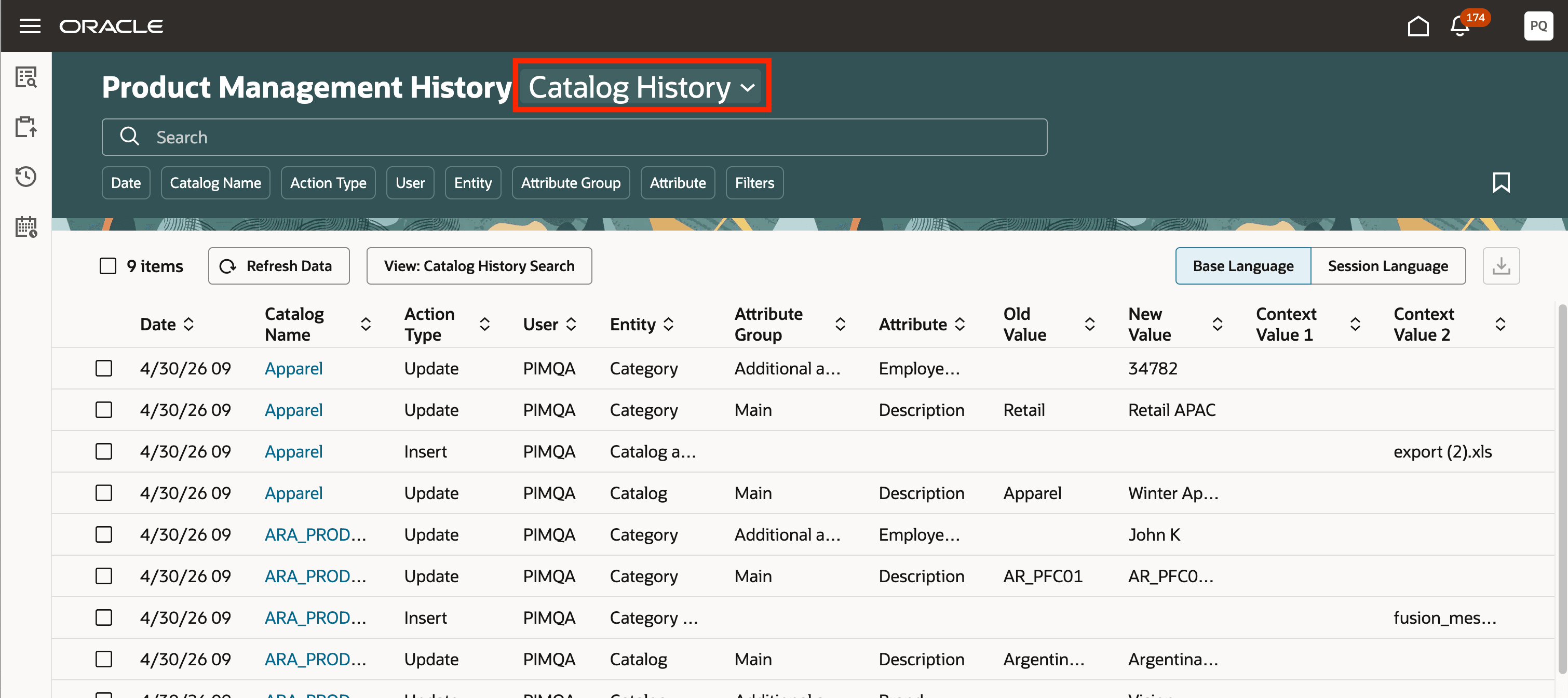
Product Management Catalog History
Changes made to all the catalogs and categories are displayed on the Product Management Catalog History page. You can see when a change was made, who made the change, and the changes that were made.
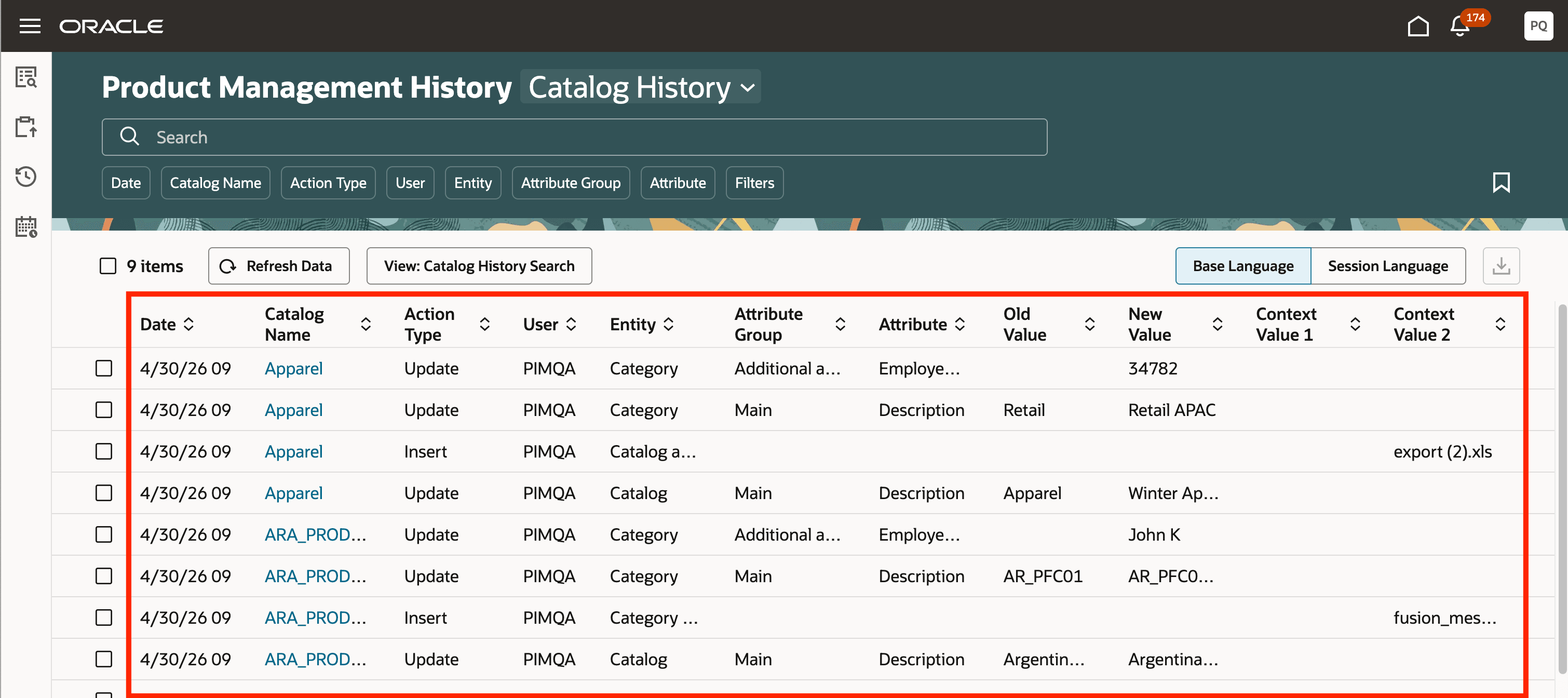
Product Management Catalog History Records
You can also perform the following actions on this page:
- Search for history records based on catalog name, attribute name, or user
- Use the suggested filters beneath the Search box to narrow down the history search results
- Select a predefined View to quickly change the layout of the history table
- View old and new values in session language
- Export the history records
- Save your searches to use them again later
You can also view the history of a catalog or category on the catalog’s History tab.
You can configure the attributes for which you want to record history using the Product Management History Configuration page. On this page, you can also do the following from the Catalog History > Settings tab:
- Disable autocomplete on the Product Management Catalog History page.
- Enable grid table on the Product Management Catalog History page.
- Turn off real-time indexing of the recorded catalog history.
- View the old and new values in session language by default on the Product Management Catalog History page.
This feature benefits your business by strengthening compliance and accountability through a time-stamped audit trail that records what changes were made, by whom, and when. This reduces risk, streamlines audit processes, and accelerates root-cause analysis, ultimately improving data integrity and governance.
Steps to enable and configure
Use the Opt In UI to enable this feature. For instructions, refer to the Optional Uptake of New Features section of this document.
Offering: Product Management
- Enable the Redwood: Record Item History opt in.
- Assign privileges to the users who need to access Product Management History Configuration page for setting up the catalog and category attributes for which history must be captured.
- Assign privileges to the users who need to view the catalog and category history.
- Enable the Catalog History object:
- Go to the Product Management work area.
The Product Management page is displayed. - In the Actions section, search for and select History Configuration.
The Product Management History Configuration page is displayed. - On the Catalog History card, click Enable.
- Set up the catalog and category attributes for which you want the history to be captured:
- On the Product Management History Configuration page, click the Catalog History card.
The Catalog History page is displayed. - Click Add.
The Select and add attributes drawer is displayed. - Select and add the attributes for which you want to capture the history and click Add.
- Click Save.
Tips and considerations
- Use the Upgrade Product Management Data scheduled process to:
- Migrate classic Audit setup to Redwood Catalog History Configuration: Set the Feature option to Migrate classic audit setup to Redwood.
- Migrate classic Catalog Audit data to Redwood Catalog History: Set the Feature option to Migrate classic audit data of catalogs to Redwood.
- Classic Audit setup data for a particular Catalog entity isn’t migrated to Redwood Catalog History Configuration even if one attribute of that Catalog entity is added to Product Management History Configuration.
- After migrating classic Catalog Audit data to Redwood Catalog History, you must rebuild the Catalog history index from the Product Management History Configuration page. Alternatively, after enabling Catalog history from the Product Management History Configuration page for the first time, the index rebuild process is submitted automatically.
- If you disable real-time indexing for Catalog history from the Product Management History Configuration page, you’ve to schedule the Process Product Management History Data scheduled process to run on a periodic basis for converting attribute IDs to values and ingest the Catalog history records into the index.
- If you’ve enabled both classic Audit and Redwood Catalog History and later migrate classic Catalog Audit data to Redwood Catalog History, duplicate rows are created in Redwood Catalog History.
- It’s recommended to assign the history roles or privileges to a super user who has access to all Catalog data.
- Creating, updating, and deleting a category assignment from an item, captures these changes in Item History as well as the Catalog History.
- For insert action type history rows, only one history row is captured for the Catalog entity creation. Similarly, when migrating classic Catalog Audit data to Redwood Catalog History, only one insert action type history row is created in Redwood Catalog History. The Attribute Group, Attribute, Old Value, and New Value columns are blank for these history rows.
- If a category is created or updated with a parent category, then the parent category is captured in Context Value 1 column. If a category is shared with a parent category, then:
- Target catalog is captured in the Catalog column
- Source category is captured in the Category column
- Target parent category is captured in the Context Value 1 column
- Source catalog is captured in the Context Value 2 column
Key resources
- Oracle Fusion Cloud SCM: Using Product Master Data Management Guide, available on the Oracle Help Center.
- Oracle Fusion Cloud SCM: Implementing Product Management Guide, available on the Oracle Help Center.
Access requirements
Users who are assigned a configured job role that contains these duty roles and privileges can access this feature.
Duty role and privileges to access catalog history records:
- Manage Product Management History Reports (ORA_EGP_AUDIT_REPORTS_DUTY)
- View Catalog History Report (EGP_VIEW_CATALOG_HISTORY_REPORT_PRIV)
- View Catalog Context History Report (EGP_VIEW_CATALOG_CONTEXT_HISTORY_REPORT_PRIV)
- View History Reports (EGP_VIEW_HISTORY_REPORTS_PRIV)
- GET Product Management Index REST (EGP_GET_PM_INDEX_REST_PRIV)
- Manage Search View REST (EGP_MANAGE_SEARCH_VIEW_REST_PRIV)
- Manage System Searches (HRC_MANAGE_SYSTEM_SEARCHES_PRIV)
- Use REST Service - Saved Searches (HRC_REST_SERVICE_ACCESS_SAVED_SEARCHES_PRIV)
- Get Redwood Settings REST (EGP_GET_REDWOOD_SETTINGS_REST_PRIV)
- Access HCM Common Components (HRC_ACCESS_HCM_COMMON_COMPONENTS_PRIV)
Duty role and privileges to set up catalog history:
- Manage Product Management History Configuration (ORA_EGP_AUDIT_CONFIGURATION_DUTY)
- Manage Product Management History Configuration (EGP_MANAGE_AUDIT_CONFIGURATION_PRIV)
- Manage Product Management Index REST (EGP_MANAGE_PM_INDEX_REST_PRIV)
- GET Product Management Index REST (EGP_GET_PM_INDEX_REST_PRIV)
- Rebuild Product Management Indexes (EGO_REBUILD_PRODUCT_MGT_INDEXES_PRIV)
- Manage Scheduled Job Definition (FND_MANAGE_SCHEDULED_JOB_DEFINITION_PRIV)
- Grant Search Framework Manager Permissions (FND_SEARCH_FWK_MGR_PRIV)
- Get Redwood Settings REST (EGP_GET_REDWOOD_SETTINGS_REST_PRIV)
- Manage Redwood Product Management Settings (EGP_MANAGE_REDWOOD_PM_SETTINGS_PRIV)
- Manage Redwood Settings REST (EGP_MANAGE_REDWOOD_SETTINGS_REST_PRIV)
A few of these privileges were available prior to this update.