Redwood: Optimized Extensible Flexfield User Experience
You can use the improved user interface that expands Redwood support for extensible flexfield attributes, which is more visually intuitive and makes your actions easier.
This feature was also made available in the May monthly update of 26B.
The following changes have been made:
-
Checkboxes are displayed as switches.

Switch Turned On for Color Option
-
Drop-down list, inline search, List of Values, and pop-up List of Values are displayed as List of Values.
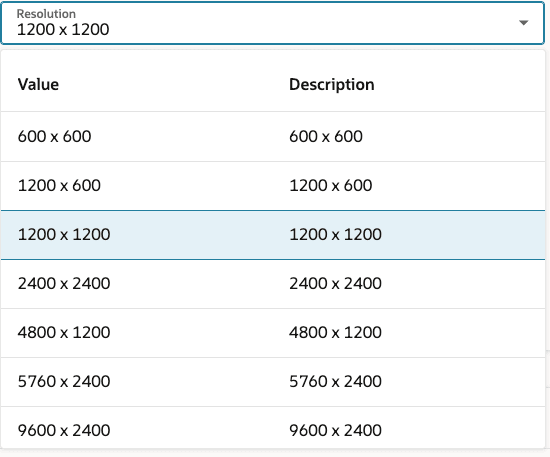
List of Values
Also, in the List of Values:
- Values are filtered dynamically as you type.
- Filtering applies to both Value and Description.
- Text that matches the filter criteria is highlighted.
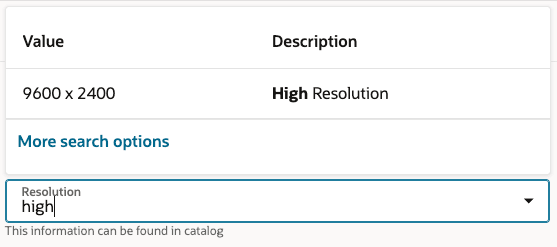
List of Values Search and Filter
-
Instruction help text is displayed beneath the attribute group name on object pages.
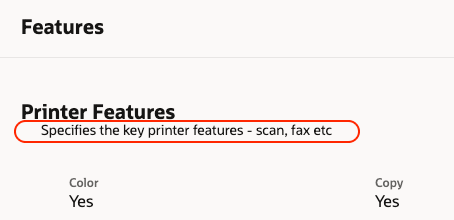
Attribute Group Instruction Help Text
- Attributes associated with a dependent value set remain disabled until a valid value is provided for the corresponding independent value set.
- The UOM field remains disabled until a value is entered for the attribute.

UOM Field Disabled
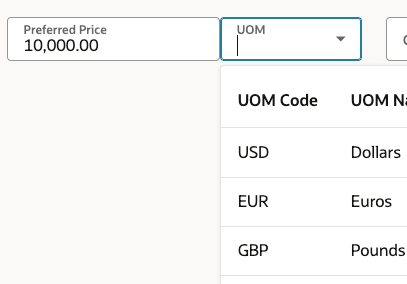
UOM Field Enabled After Providing Attribute Value
Single Row Attribute Groups
- Help Text:
- Definition help text is displayed when you hover over the attribute label.

Single Row Attribute Group Definition Help Text
- Instruction help text is displayed beneath the field.
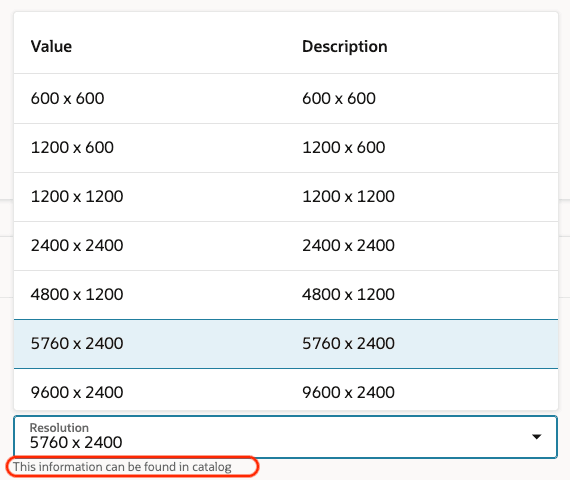
Single Row Attribute Group Instruction Help Text
- Text Area:
- Text areas are wider.
- Modify the height using the Display Height property in attribute setup.
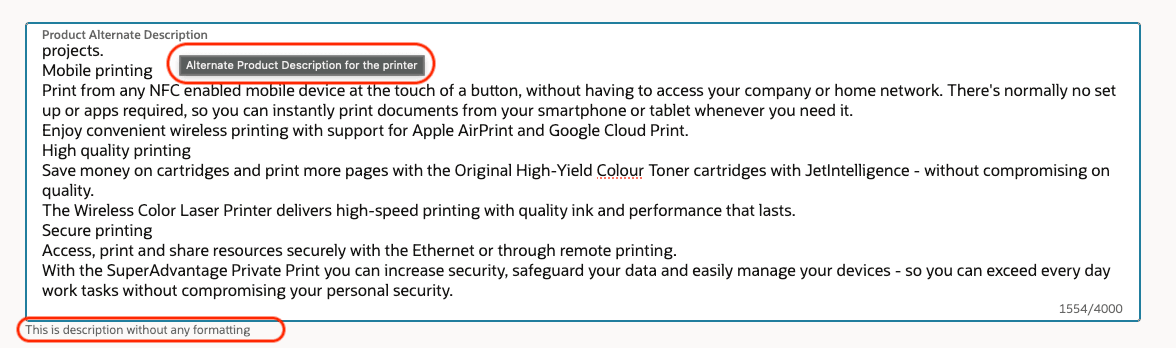
Single Row Attribute Group Text Area
- Rich Text:
- Rich text attributes occupy a full row in the UI by default.
- Modify the height using the Display Height property in attribute setup.

Single Row Attribute Group Rich Text Definition Help Text
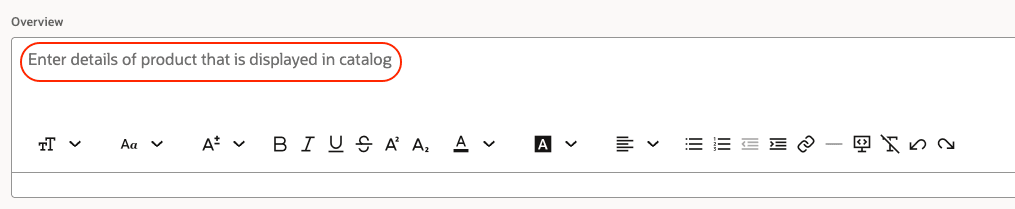
Single Row Attribute Group Rich Text Instruction Help Text
Multirow Attribute Groups
- Toolbar enhancements:
-
- Display the total number of available records. We strongly recommend limiting the number of records to fewer than 500 per multirow attribute group for an object record.
- Row-level actions:
- Add a new row.
- Duplicate a row and modify values (available only when a row is selected).
- Delete a row.
- Maximize the grid to full screen view.
- Download all or selected rows.
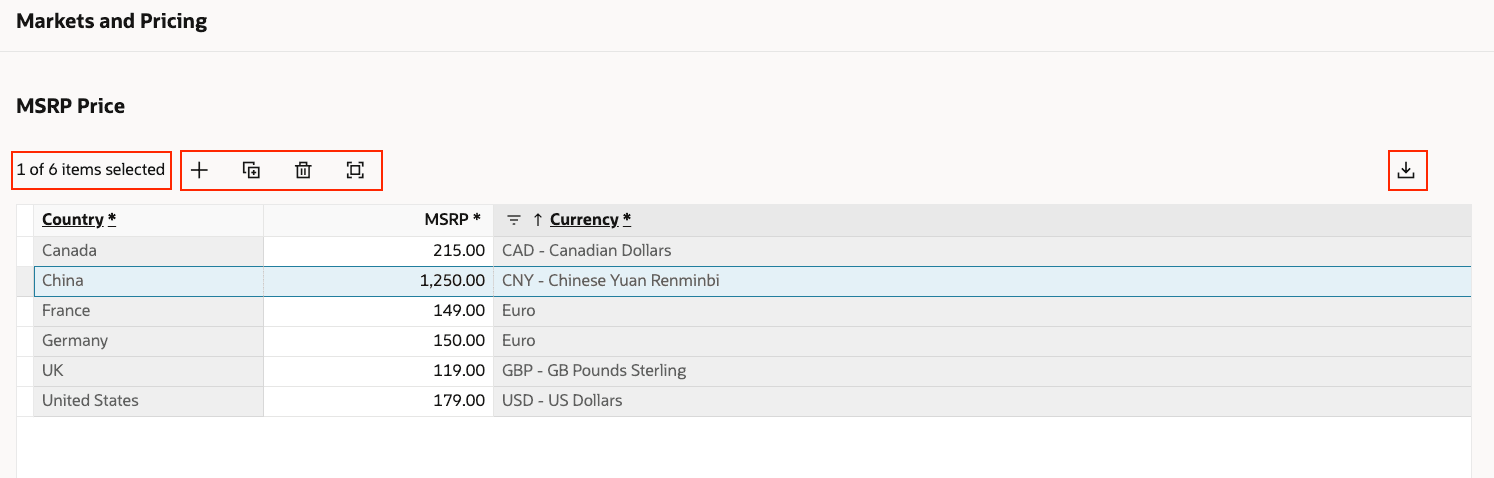
Multirow Attribute Group Toolbar
- Attribute indicators:
- Attributes that are part of the unique key are underlined and marked with an asterisk (*).
- Attributes that are required are marked with an asterisk (*).

Unique Key and Required Attribute Indicators
- Grid capabilities:
- Select column header to sort and filter the data.

Multirow Attribute Group Grid Capabilities
-
- Right-click on the grid for additional actions.
- Right-click on the grid for additional actions.
- Help Text:
- Definition help text appears when you hover over the attribute name.
- Instruction help text is displayed when editing a cell.

Multirow Attribute Group Instruction Help Text
Display of Redlines
- Single Row Attributes: Old value is displayed beneath the new value as strikethrough.
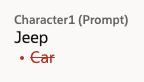
Single Row Attribute Redline
- Multirow Attributes
- Change Action column indicates:
- New rows in green
- Changed rows in beige
- Deleted rows in red
- Change Action column indicates:
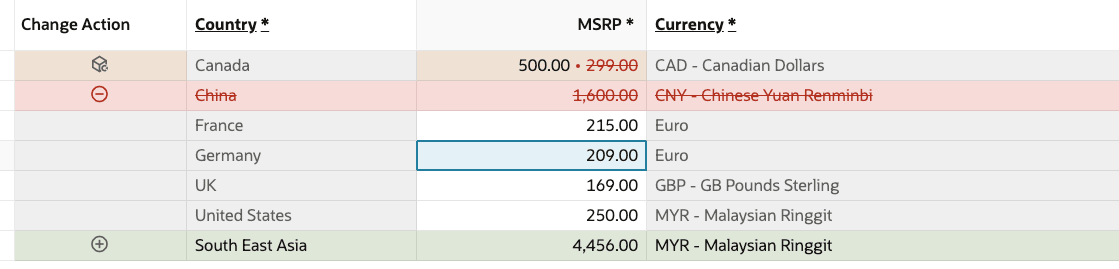
Multirow Attribute Redline
- For Text Area and Rich Text fields, a redline indicator appears in the corner.
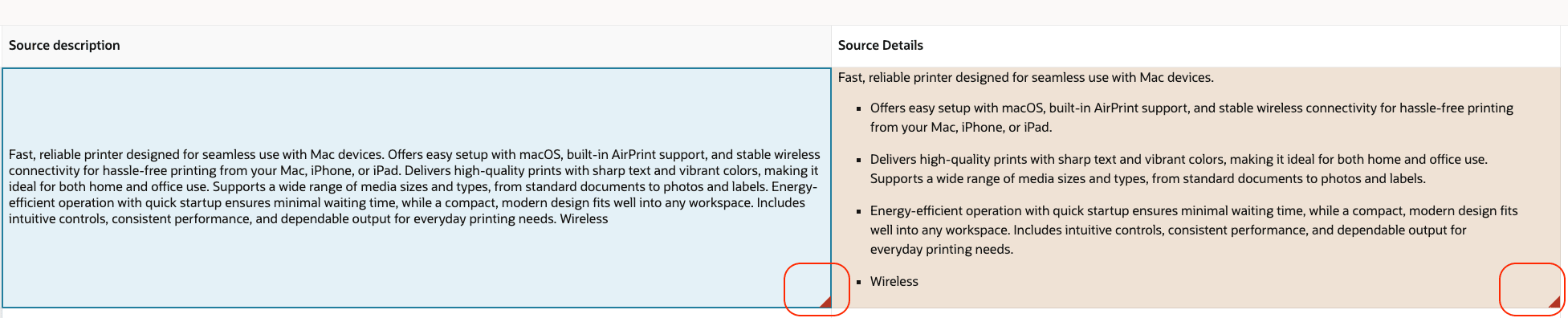
Multirow Text Area and Rich Text Attribute Redline
Clicking the indicator highlights the differences and changes as shown
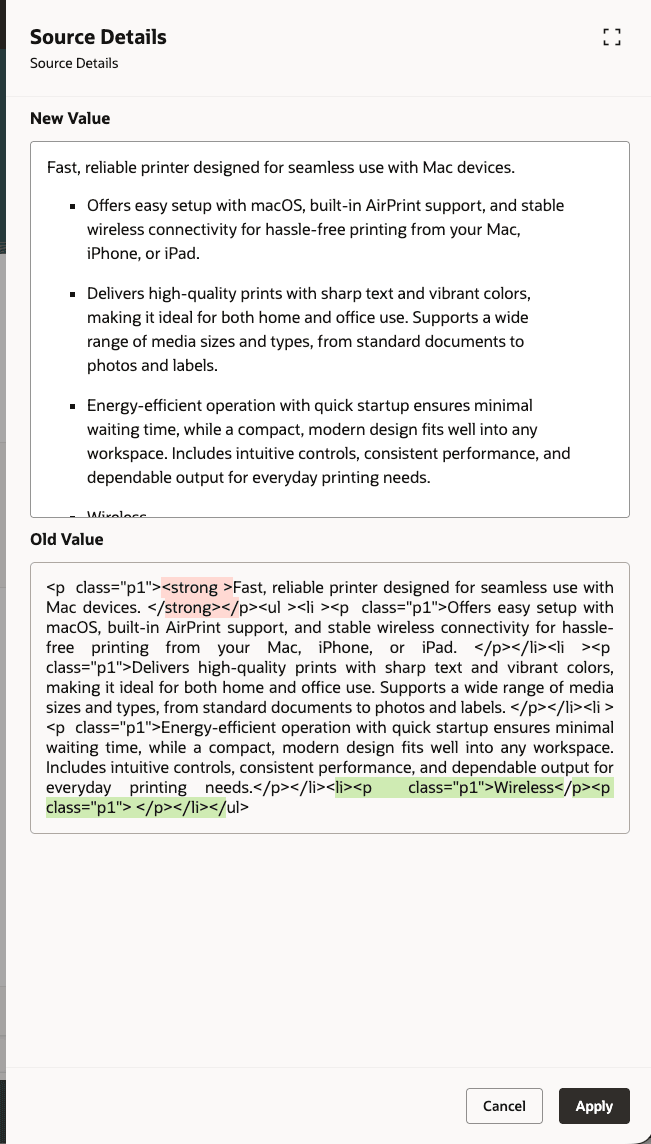
Multirow Attribute Group Text Area and Rich Text Attribute Differences
Leverage these enhancements to deliver a more intuitive, efficient, and guided user experience, driving the following business benefits:
- Clearer, more intuitive interactions: Toggle-style controls, along with support for common extensible flexfield display types, make selections clearer and ensure consistency with the Redwood design system.
- Faster, more accurate data entry: Improved LOVs, dependent fields, UOM behavior, and inline grid editing help you find the right values quickly and minimize errors.
- Better guidance and usability: Built-in help text and instructions provide in-context support, enabling users to understand exactly what to enter without relying external documentation or training.
- Greater efficiency and control: Rich text flexibility, advanced multirow grid capabilities (including resize, sort, filter, inline editing, and detach), and improved redline handling allow users to manage, review, and update information more effectively—boosting productivity and decision-making.
Steps to enable and configure
You don't need to do anything to enable this feature.
Key resources
Refer to the Oracle Fusion Cloud SCM: Using Product Master Data Management guide, available on the Oracle Help Center.
Access requirements
Users who are assigned a configured job role that contains these privileges can access this feature:
- For Items:
- View Items (EGP_VIEW_REDWOOD_ITEM_PRIV)
- Manage Items (EGP_MANAGE_REDWOOD_ITEM_PRIV)
- For Manufacturer:
- Create Manufacturer (EGP_CREATE_MANUFACTURER_PRIV)
- Manage Manufacturer (EGP_MANAGE_MANUFACTURER_PRIV)
- For Trading Partner Items:
- View Trading Partner Items (EGP_VIEW_REDWOOD_TPI_ITEM_PRIV)
- Manage Trading Partner Items (EGP_MANAGE_REDWOOD_TPI_ITEM_PRIV)
- For Change order:
- View Change Orders (ACA_VIEW_CHANGE_ORDERS_PRIV)
- Manage Change Orders (ACA_MANAGE_CHANGE_ORDERS_PRIV)
- Create Change Order (EGO_CREATE_CHANGE_ORDER_PRIV)
- For Change Request:
- View Change Requests (ACA_VIEW_CHANGE_REQUESTS_PRIV)
- Manage Change Requests (ACA_MANAGE_CHANGE_REQUESTS_PRIV)
- For Corrective Actions:
- View Corrective Actions (ACA_VIEW_CORRECTIVE_ACTIONS_PRIV)
- Manage Corrective Actions (ACA_MANAGE_CORRECTIVE_ACTION_PRIV)
- For Problem Reports:
- View Problem Reports (ACA_VIEW_PROBLEM_REPORTS_PRIV)
- Manage Problem Reports (ACA_MANAGE_PROBLEM_REPORT_PRIV)
These privileges were available prior to this update.