Redwood: Secure Trading Partner Items Using Access Control List
You can create your own data access groups to control the users who can view, create, delete, or manage trading partner items using criteria-based access control.
You can:
- Grant access based on a user’s role, to specific users regardless of role, or through filtered lists that group users by location or business unit.
- Control access to each trading partner item by creating conditions based on basic attributes, extensible flexfield attributes, or descriptive flexfield attributes, and by assigning permissions to different trading partner item groups.
- Set up precise access levels to select users in your organization that you want to have access to specific trading partner item data. For example:
- Some users need create, view, and manage access.
- Other users might need only view access.
- Certain users may only need discover access so they can identify related trading partner items without seeing the full details.
Team-Based Access Control
Teams
A team comprises a set of roles, users, filtered lists, and one or more permission sets. You can add members to the team individually, by adding them using roles, or derived from a filtered list of workers who match certain membership conditions.
Permission Sets
Each permission set contains individual permissions. Each permission identifies the object for which permission is given, the conditions that must be met, the type of access to be granted, and the sections of the trading partner item that the team can access.
For example, an administrator can allow manufacturer data stewards in a specific business unit to manage trading partner items for a certain manufacturer while giving suppliers only view access to attachments.
To configure teams, on the Product Management page, from Actions, select Teams as shown in the following screenshot
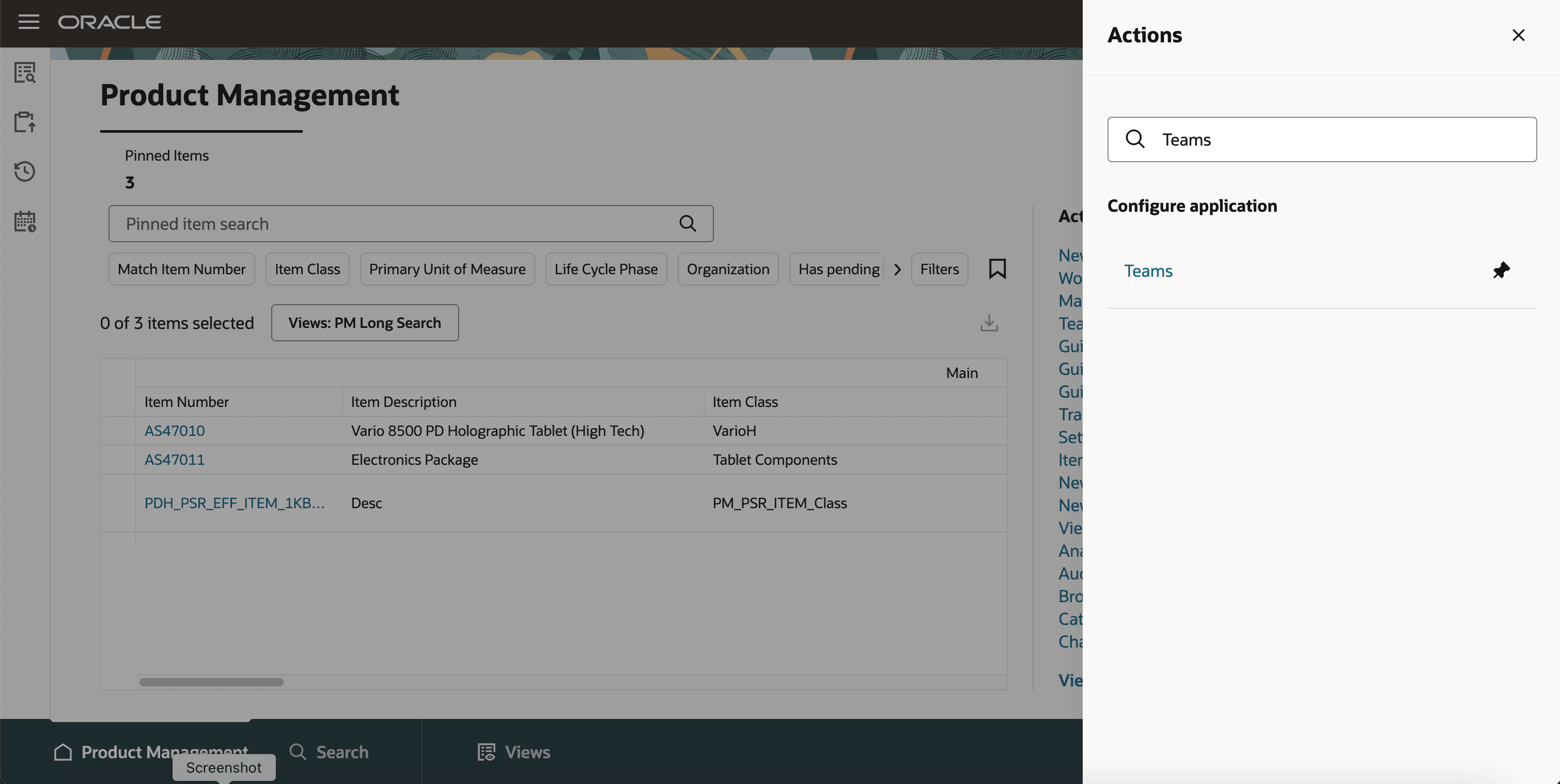
Teams on Product Management Landing Page
On the Search Teams page, you can:
- Search for existing teams
- Create teams that includes defining membership conditions and associating permission sets
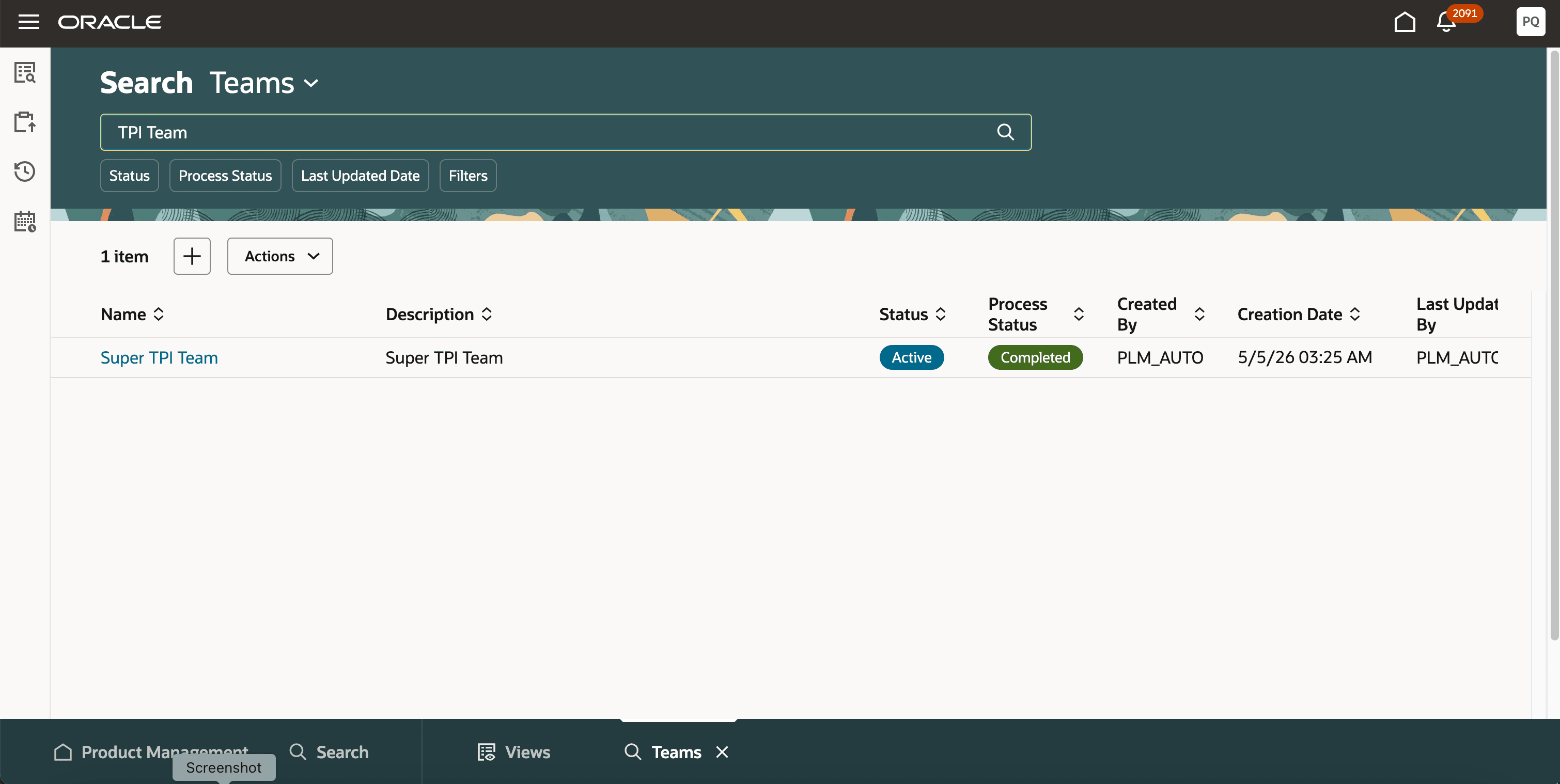
Search Teams Page
Create a Team
To create a team:
- On the Search Teams page, select Create.
The New Team page is displayed.
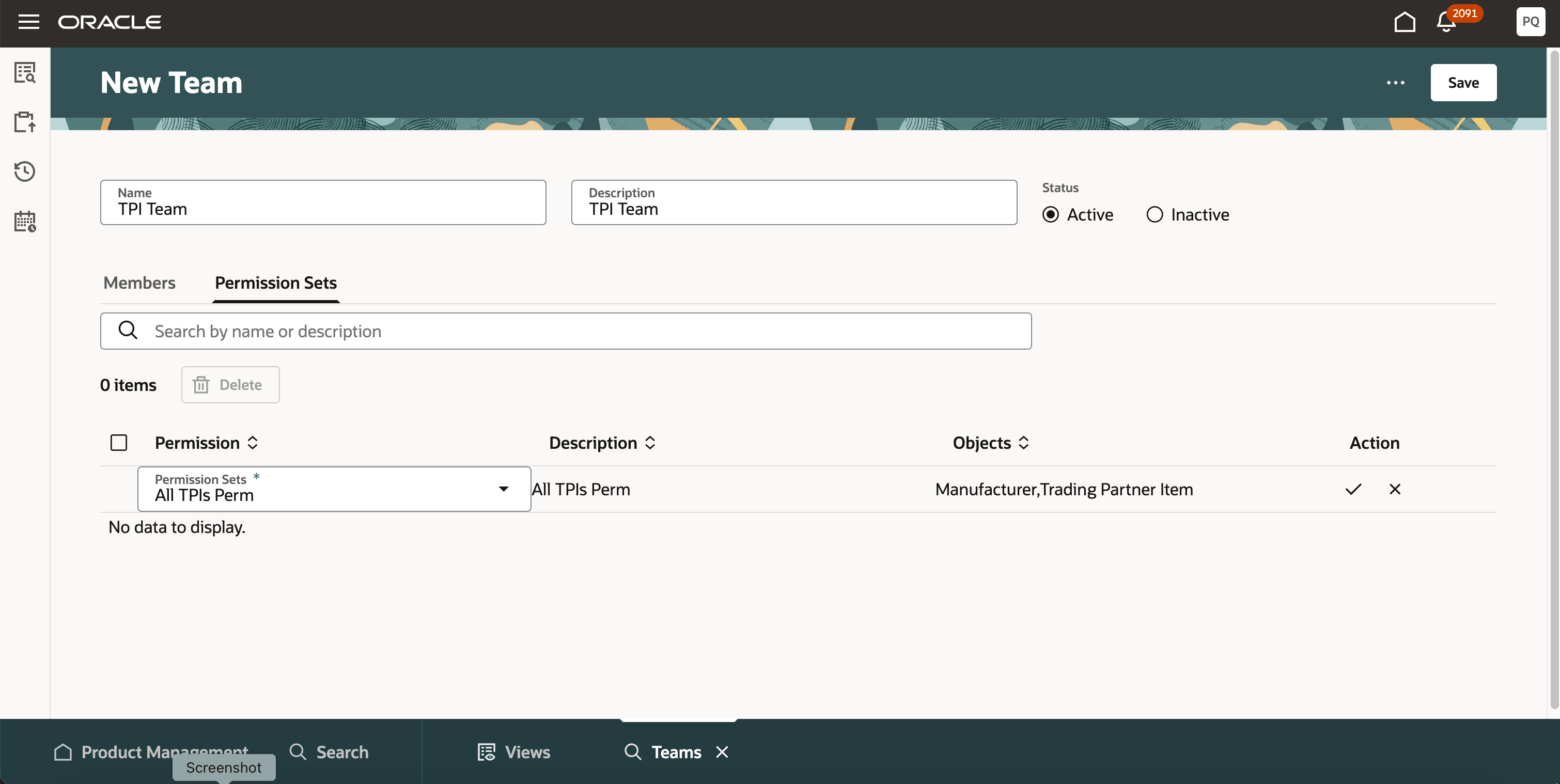
New Team Page
- Enter a unique team name, add a description and set the status to Active.
- On the Members tab, add members using:
- Filtered lists
- Roles
- Individual users
If you add a role to the team, all users assigned to that role inherit access to the trading partner items associated with that team.
- On the Permission Sets tab, add one or more permission sets.
- From More Actions, select Save and Close.
Create Permission Sets With Access Conditions
Permission sets allow you to define access on trading partner items. Each permission set can contain multiple permissions granting different levels of access.
You can provide access using these permissions:
- Create
- View
- Manage
- Delete
- Discover
Using a permission set, you can also control visibility of sections appearing on the Trading Partner Item details page through the Access To configuration.
For Trading Partner Items, the Access To configuration supports:
- Basic Attributes
- Additional Attributes (descriptive flexfields)
- Extended Attributes (extensible flexfields)
- Attachments
- Relationships
For example, if a user is granted access only for Basic Attributes and Attachments, then only those sections are visible and the other sections remain hidden.
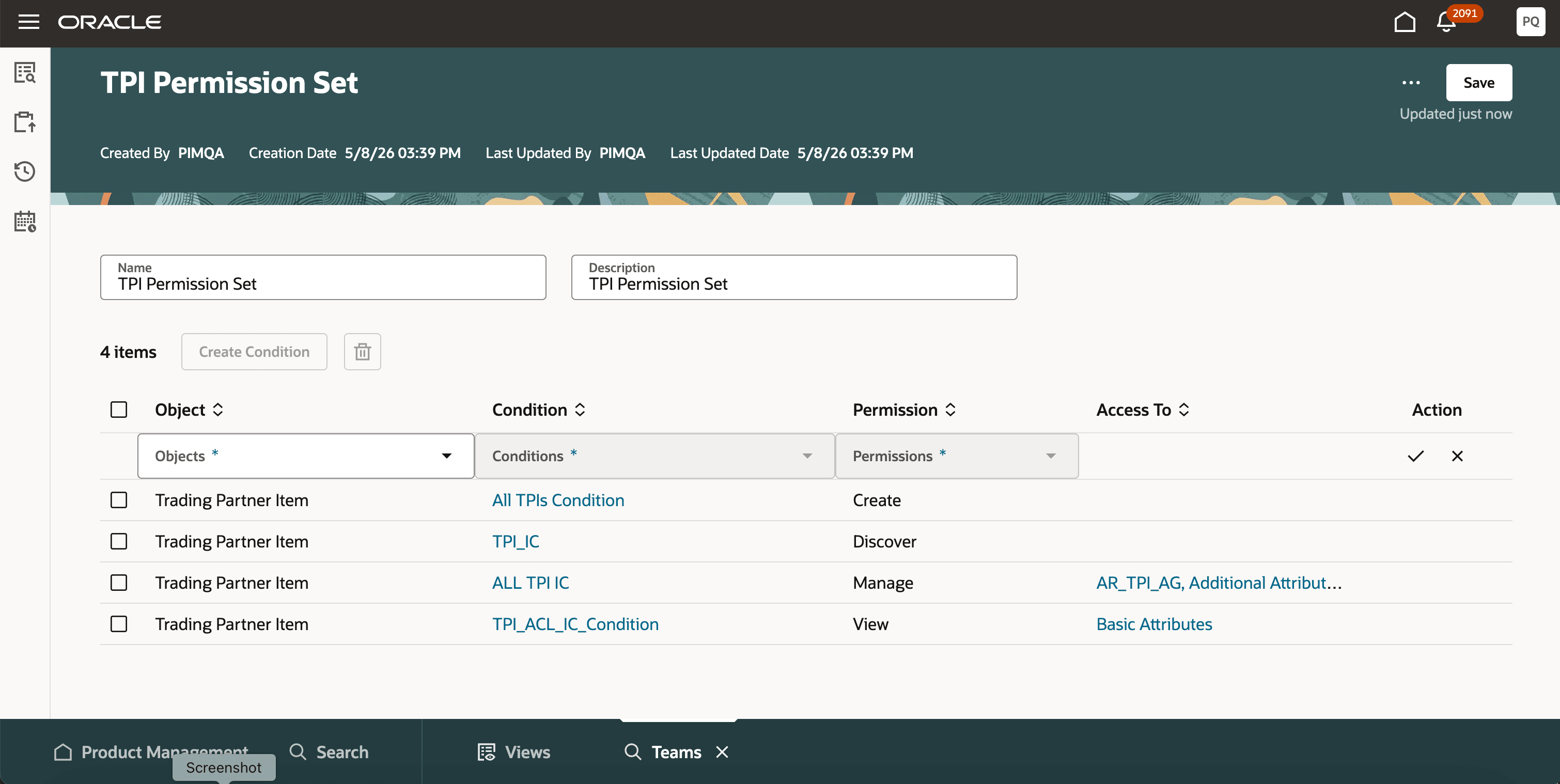
Permission Set Page Showing All Permission Applicable for Trading Partner Items
Create a Permission Set
- Navigate to the Search Permission Sets page and click Create.
- Provide the following details:
- Name: Unique name for the permission set.
- Description: Short description of the permission set.
- Add Permissions:
- Object: Select Trading Partner Item.
- Condition: Select an existing condition or create a new condition.
- Permission: Select one of the following permissions:
- Create:
- Allows users to create trading partner items.
- Conditions for create permission can only be configured using Trading Partner Item Class or Organization.
- Users can create trading partner items with basic attributes, descriptive flexfields (additional attributes, attachments, and relationships.
- Users can’t view or edit the created object unless they also have View or Manage permission.
- View: Allows users to view trading partner item attributes, attachments, relationships, selected descriptive flexfields and extensible flexfield attribute groups in read only mode.
- Manage: Allows users to view and edit trading partner items, manage attachments, manage relationships, and edit selected descriptive flexfields and extensible flexfield attribute groups.
- Delete: Allows users to delete the trading partner item instance
- Discover: Allows users to discover the existence of a trading partner item without viewing full details:
- Users can see only the trading partner item number.
- Users can’t search for the trading partner item.
- Users can identify the trading partner item in relationships.
- No additional attributes are displayed.
- Create:
Notes:
- Access To configuration is available only for View and Manage permissions.
- Create, Delete, and Discover permissions don’t support Access To configuration
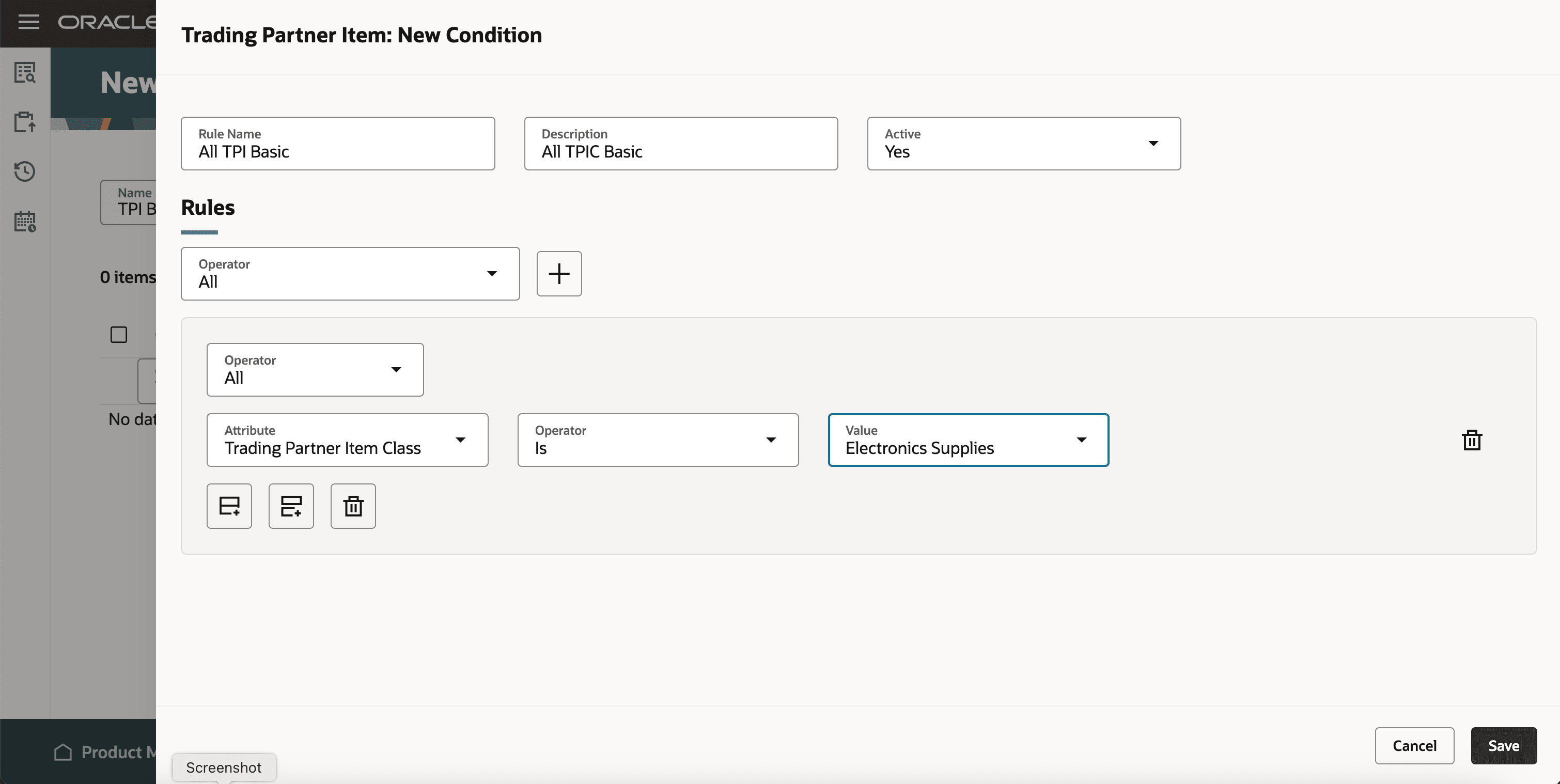
New Condition
Access Control for Trading Partner Item Sections
Trading partner items support access control for:
- Attributes: The Attributes section contains Basic Attributes, Additional Attributes (descriptive flexfields), and Extended Attributes (extensible flexfields). The key behavior are:
- Basic Attributes are always visible when a user has View or Manage access.
- Basic Attributes can’t be deselected.
- Access to Additional Attributes and Extended Attributes is controlled at the attribute group level.
- Attribute groups aren’t displayed if the user doesn’t have permission.
- Users with View permission see attributes in read-only mode.
- Users with Manage permission can edit attributes.
- Attachments: Attachment access is controlled independently:
- Without View access, the Attachments tab isn’t displayed.
- With View access, users can view, download, check in, and check out attachments
- With Manage access, users can add, edit, and delete attachments
- Relationships: Relationship visibility depends on access to both the trading partner item and the related item. Users can view a relationship only if:
- They have View or Manage access to the trading partner item relationships.
- They have at least Discover access to the related item.
- Additional relationship behavior:
- Related items appear as hyperlinks only if users have View or Manage access.
- If users have only Discover access, hyperlinks aren’t displayed.
- Manufacturer access control list security is also evaluated for Manufacturer Part Numbers (MPNs).
REST Service Support
Use the Trading Partner Items V2 REST service to set permissions based on access control lists. The permissions are enforced for:
- Get Trading Partner Item
- Get All Trading Partner Items
- Create Trading Partner Item
- Update Trading Partner Item
- Delete Trading Partner Item
- Trading Partner Item Attachments
- Trading Partner Item Relationships
Examples:
- Users with View permission can retrieve trading partner items in read-only mode.
- Users with Manage permission can update trading partner item attributes.
- Users with Discover permission can view only trading partner item numbers.
- Users with Create permission can create trading partner items with relationships and attachments.
Scheduled Processes
Refresh the Access Control List for the Teams Scheduled Process
This process refreshes access control list assignments for teams.
Run this process when:
- You enable access control list for existing trading partner items.
- You migrate legacy trading partner items.
Specify the following parameters in the Process Details window of the Refresh the Access Control List for the Teams scheduled process:
- Object: Trading Partner Item
- Team: Optional
- Operation: Recreate
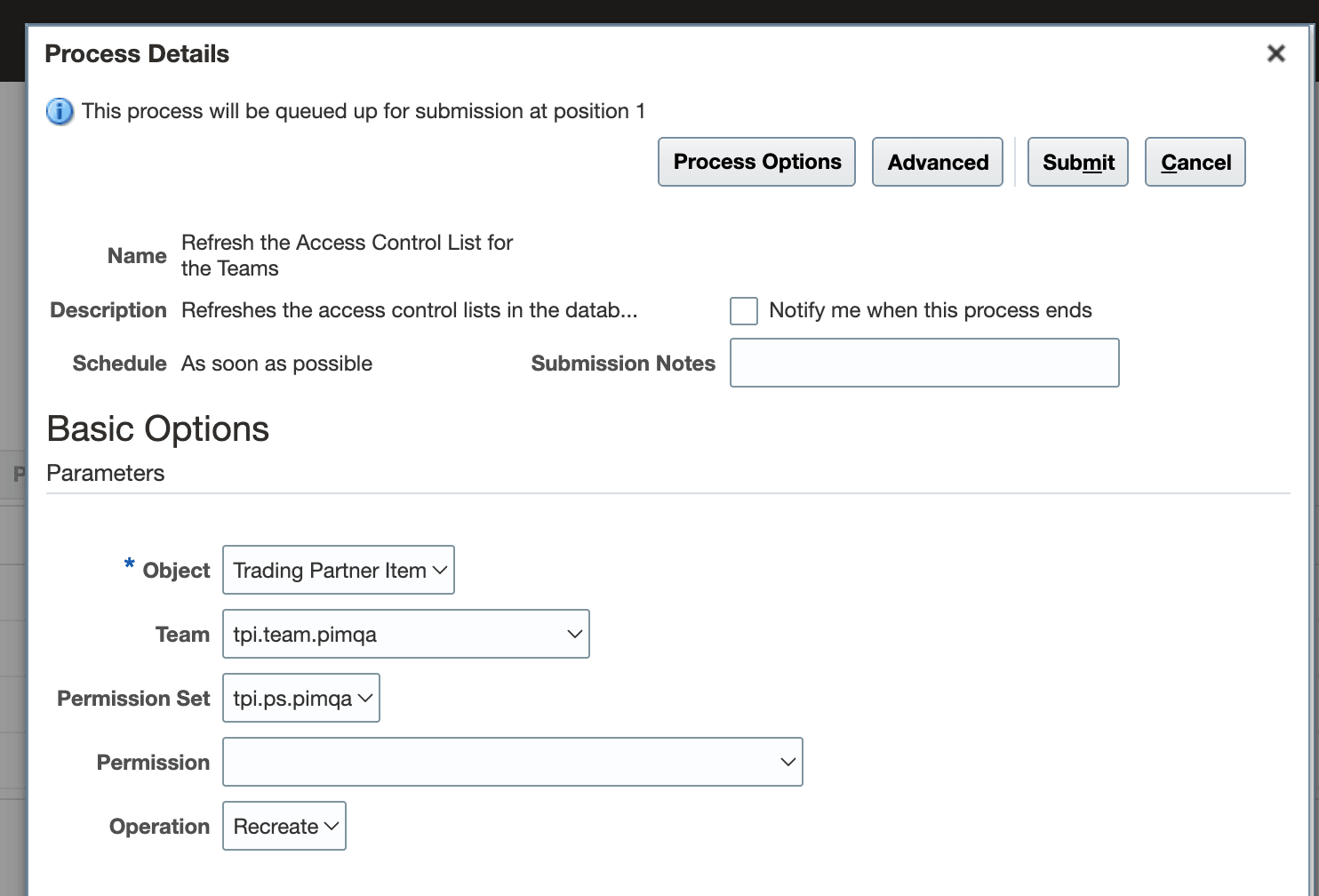
Refresh the Access Control List for the Teams Schedule Process
Rebuild Trading Partner Item Index
After enabling access control list for trading partner items, rebuild the trading partner item index so that access control is applied correctly. To do this:
- On the Product Management page, in Actions, select Indexes.
The Index Management page is displayed. - Select Trading Partner Item.
The Trading Partner Item Configure Index page is displayed. - Select More Actions and then select Rebuild to rebuild the trading partner item index.
This feature helps your organization:
- Define granular access control for trading partner items.
- Restrict sensitive manufacturer and supplier information.
- Control visibility of attributes, attachments, and relationships.
- Reduce administrative effort through reusable teams and permission sets.
- Improve governance and compliance using criteria-based security.
- Enable scalable and flexible access management using roles, users, and filtered lists.
- Secure integrations and reporting through REST, SOAP, import, and OTBI enforcement.
Steps to enable and configure
Access control list security for trading partner items is automatically enabled when the Advanced Trading Partner Items feature is enabled.
After an access control list rule is created, all trading partner items become private. The access is controlled exclusively through access control list permissions.
Until access control list rules are configured, trading partner items continue to follow functional privileges.
Tips and considerations
- Access control applies to Redwood pages.
- Users must have both functional privileges and access control list permissions.
- If you add new flexfields, deploy them before using them in conditions.
- Rebuild the trading partner item index after enabling access control list for the first time.
- Run the Refresh Access Control List for the Teams scheduled process if security changes aren't reflected immediately.
- Filtered lists require users to be associated with worker records.
Key resources
- Redwood: Secure Items Using Access Control Lists What’s New
- Redwood: Manage Trading Partner Items What’s New
- Oracle Fusion Cloud SCM: Implementing Product Management guide, available on the Oracle Help Center.
- Oracle Fusion Cloud SCM: Implementing Product Management guide, available on the Oracle Help Center.
- Watch the Create and Manage Personalized Views in Product Management Search video.
Access requirements
Users who are assigned a configured job role that contains these privileges can access this feature:
- To configure conditions for items using a filtered list:
- Use REST Service - Identity Integration (ASE_REST_SERVICE_ACCESS_IDENTITY_INTEGRATION_PRIV)
- Use Atom Feed - Employees Workspace (PER_ATOM_WORKSPACE_ACCESS_EMPLOYEES_PRIV)
- Manage HCM Lists (HRC_MANAGE_HCM_LISTS_PRIV)
- Human Capital Management Application Administrator (ORA_HRC_HUMAN_CAPITAL_MANAGEMENT_APPLICATION_ADMINISTRATOR_JOB)
- To configure teams, permission sets, and conditions:
- Manage Landing Page Layout (EGP_MANAGE_LANDING_PAGE_LAYOUT_PRIV)
- Access Clipboard (ACA_ACCESS_CLIPBOARD_PRIV)
- Access HCM Common Components (HRC_ACCESS_HCM_COMMON_COMPONENT)
- Manage Search Consumer Applications Rest (EGP_MANAGE_SEARCH_CONS_REST_PRIV)
- Monitor Product Development (ACA_MONITOR_PRODUCT_DEVELOPMENT_PRIV)
- Configure Access Control Teams, Permission Sets, and Conditions (EGP_ACCESS_CONTROL_TEAMS_PRIV)
- Use REST Service - Identity Integration (ASE_REST_SERVICE_ACCESS_IDENTITY_INTEGRATION_PRIV)
- Use Atom Feed - Employees Workspace (PER_ATOM_WORKSPACE_ACCESS_EMPLOYEES_PRIV)
- Manage HCM Lists (HRC_MANAGE_HCM_LISTS_PRIV)
- Manage HCM Rules (HRC_MANAGE_HCM_RULES_PRIV)
- Run Scheduled Processes (HEY_RUN_SCHEDULED_PROCESSES_PRIV)
- Manage Scheduled Processes (FND_MANAGE_SCHEDULED_PROCESSES_PRIV)
- Access Product Management Landing Page (EGP_ACCESS_LANDING_PAGE_PRIV)
- Manage Scheduled Job Definition (FND_MANAGE_SCHEDULED_JOB_DEFINITION_PRIV)
- Access Users (EGP_ACCESS_USERS_PRIV)
- To access the secured trading partner items, users must be assigned the relevant trading partner item privilege along with the following:
- View Advanced Trading Partner Item Search (EGP_VIEW_ADV_TPI_SEARCH_PRIV)
- Product Search (ORA_EGI_PRODUCT_SEARCH_DUTY):
- View Advanced Trading Partner Item Search (EGP_VIEW_ADV_TPI_SEARCH_PRIV)
- View Product Management Trading Partner Item Search (EGP_VIEW_PRODUCT_MGT_TPI_SEARCH_PRIV)
- Get Search View REST (EGP_GET_SEARCH_VIEW_REST_PRIV)
- Get Product Management Index REST (EGP_GET_PM_INDEX_REST_PRIV)
- Manage Search View REST (EGP_MANAGE_SEARCH_VIEW_REST_PRIV)
- Get Item Index Available Attributes REST (EGP_GET_PM_ITEM_AVAIL_REST_PRIV)
- Manage System Searches (HRC_MANAGE_SYSTEM_SEARCHES_PRIV)
- Use REST Service - Saved Searches (HRC_REST_SERVICE_ACCESS_SAVED_SEARCHES_PRIV)
These privileges were available prior to this update.
- Redwood Trading Partner Item Duty (ORA_EGP_REDWOOD_TPI):
- View Product Management Trading Partner Item Search (EGP_VIEW_PRODUCT_MGT_TPI_SEARCH_PRIV)
- View Redwood Trading Partner Item (EGP_VIEW_REDWOOD_TPI_ITEM_PRIV)
- View Trading Partner Item Attachment (EGP_VIEW_REDWOOD_TPI_ATTACHMENT_PRIV)
- View Redwood Trading Partner Item Relationship (EGP_VIEW_REDWOOD_TPI_RELATIONSHIP_PRIV)
- Manage Redwood Trading Partner Item (EGP_MANAGE_REDWOOD_TPI_ITEM_PRIV)
- Manage Redwood Trading Partner Item Attachment (EGP_MANAGE_REDWOOD_TPI_ATTACHMENT_PRIV)
- Manage Redwood Trading Partner Item Relationship (EGP_MANAGE_REDWOOD_TPI_RELATIONSHIP_PRIV)
These privileges were available prior to this update.
- To access journeys setup and configure the roles in role hierarchy:
- Manage Journey (ORA_PER_MANAGE_JOURNEY_TEMPLATE)
- Manage Guided Journeys (ORA_PER_MANAGE_GUIDED_JOURNEYS)
- Use REST Service - Guided Journeys Read Only (ORA_PER_REST_SERVICE_ACCESS_GUIDED_JOURNEYS_RO)
- Use REST Service - Journey Categories List of Values (ORA_PER_REST_SERVICE_ACCESS_JOURNEY_CATEGORIES_LOV)
- To access business rules:
- Administer Sandbox (FND_ADMINISTER_SANDBOX_PRIV)