Redwood: Secure Structures Using Access Control Lists
You can now create your own Teams to control which users can create, view, manage or delete an item’s structure using criteria-based access control. Access can be granted according to roles, to individual users, or users based on filtered lists. You can control access to the item structures by creating conditions based on the Item Structure Name (Type) and assigning permissions to those structures in an item.
You can give access to specific structures to select users in your organization. For example:
- Product Engineers can create and view a primary structure.
- Manufacturing Engineers can be given permission to view a specific alternate structure
To enable criteria-based access control, you must perform these configuration tasks.
- Configure teams
- Create permission sets with data access conditions.
- Create teams, add roles, users or filtered lists, and apply permission sets.
You can add the following members (or users) in your team.
- Roles: These are users assigned to roles created in Security Console.
- Users: These are individual users created in Security Console.
- Filtered Lists: These are workers added to a group using a condition on the Worker attribute.
Note: If you're assigning roles or users directly, there's no need to convert users into workers. However, if you plan to use filtered lists, then the user must be converted to a worker. For details on how to create filtered list refer to Redwood: Secure Manufacturers Using Access Control Lists.
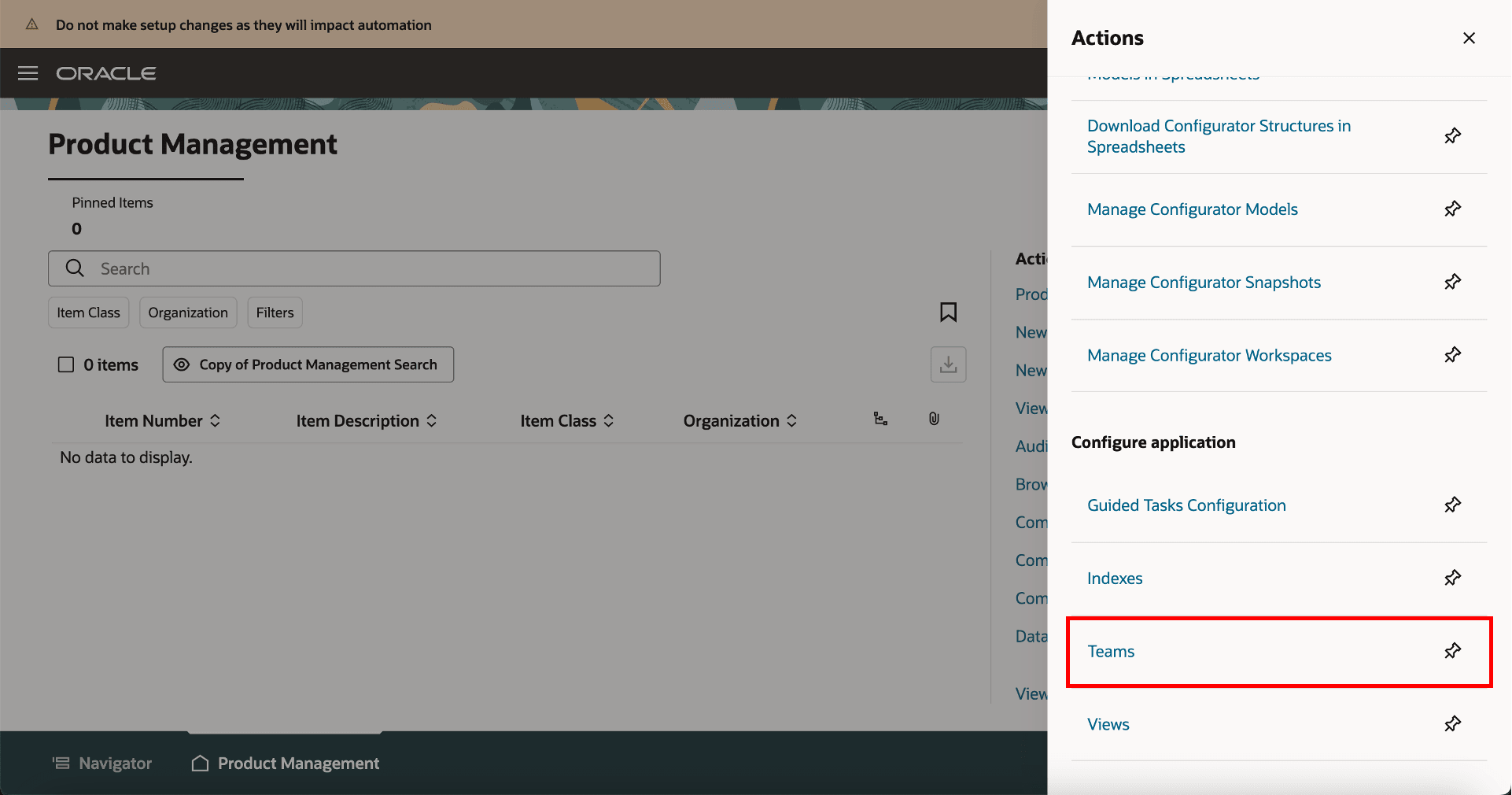
Link for Teams on Product Management Landing Page.
Configure Teams
Navigate to Product Management landing page > In Actions > select Teams.
On the Search Teams page, you can search for existing teams or create new teams. For each team, you can add users and select the applicable permission sets.
To create a new team:
- In the Search Teams page, click Create.
- In the New Team page, provide these details:
- Name - Unique name for the team.
- Description - A short description of the team.
- Status - Set the status of the team to Active.
- In Filtered Lists:
- Add roles that you want in your team.
- Add individual users you want in your team.
- Add members based on the membership conditions defined for your filtered list.
- In the Permission Set tab:
- Add the permissions you created in the Permission Set page.
- Click Save and Close.
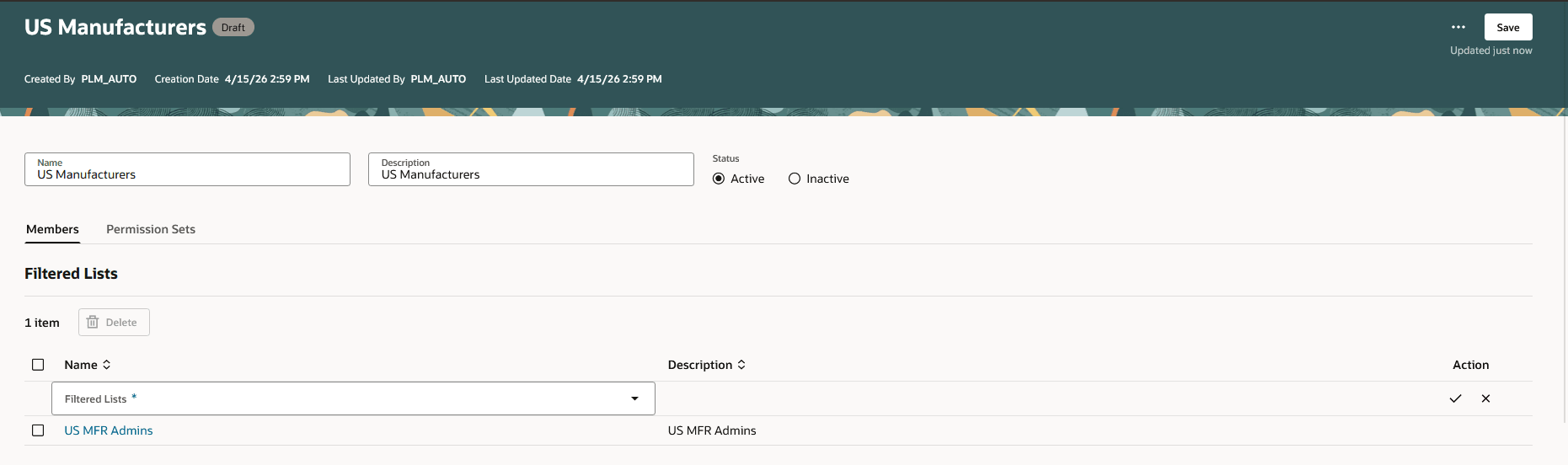
Create Team Page
Create a Condition
Users can create a condition to define control based on the Item Structure Name . You can include one or more structure types and can also use the 'is not' operator to exclude specific Item Structure Name.
Click Create Condition on the Search Condition page and select Structure.
Add these details:
- Rule Name - A unique name for the condition.
- Description - A short description of the condition
- Active - By default, this is set to Yes.
- Add Rule
- Attribute - Select the attribute Item Structure Name.
- Operator - Select an operator is, or not equal to.
- Value - Select the Item Structure Name (or Type)
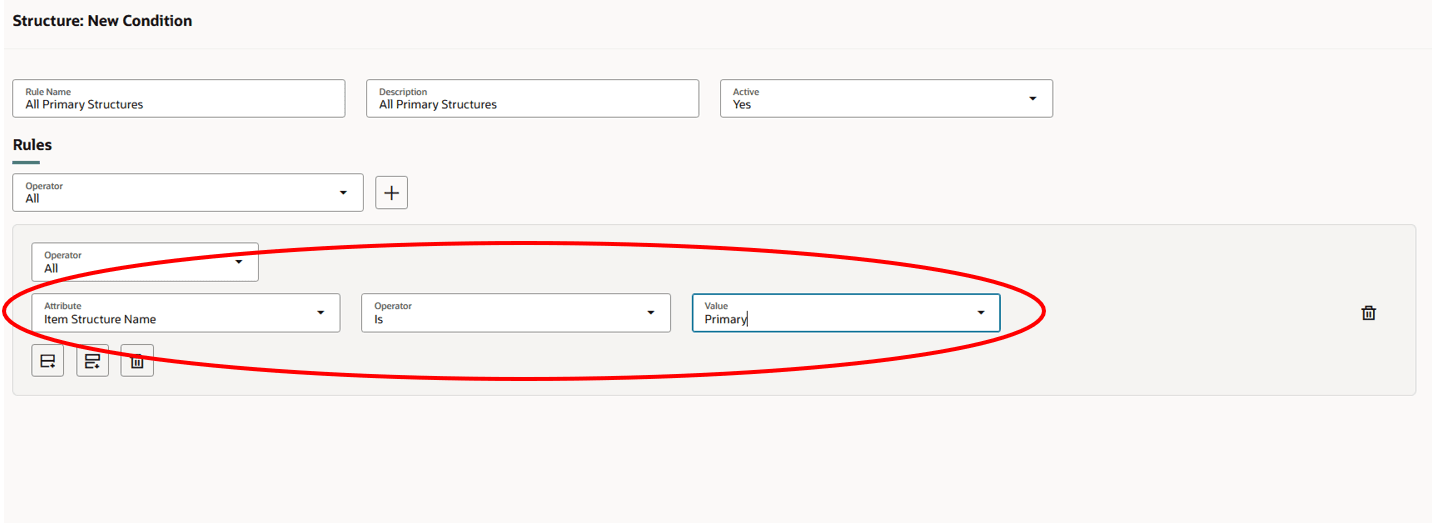
Creating New Condition
Create Permission Sets with Access Conditions
Permission sets enable you to define access on item structures. In each of the permission set, you can add multiple permissions on item structures granting access to the team members.
You can provide access to item structures conditionally using permissions such as create, delete, view or manage.
On the Search Permission Sets page, you will see a listing of the permission sets that've already been created. Here’s what you can do:
- Search for specific permission sets.
- See details of the permission set by clicking the name of the permission set.
- Sort the permission sets by the columns.
To create a permission set, click Create on the Search Permission Sets page and add these details:
- Name - Unique name of the permission set.
- Description - Short description on the permission set.
- Add permissions:
- Object - contains a list of objects in the application. Select Structures.
- Condition - helps narrow down the object by applying filters on the Item Structure Name, Select a condition from the list of available conditions.
- Permission - select one of Create, Delete, View, or Manage, depending on what the team should be able to do.
- Create — allows the user to create a structure for an item in the following ways:
- Create New: The user must've Create permission for the structure type being created on the item.
- Create from Copy or Common: The user must've Create permission for the structure type being created on the item; for the source structures being copied or referenced as common, the user must've the View or Manage access.
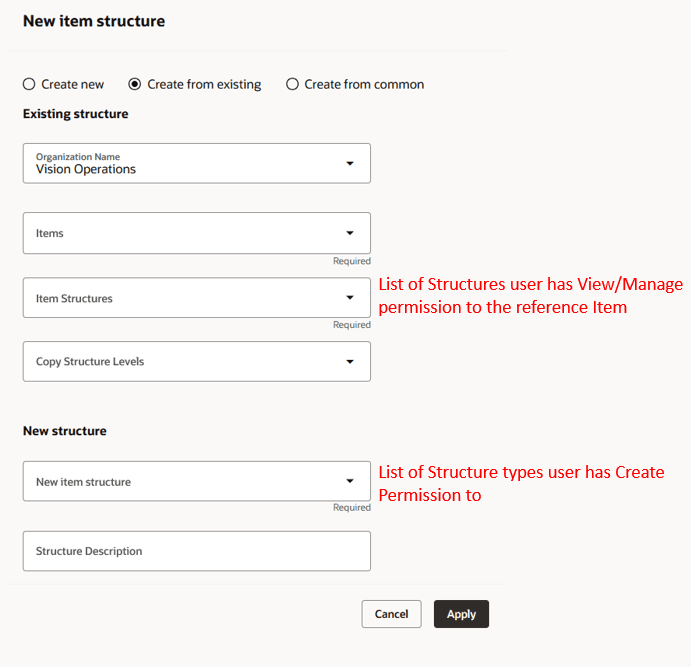
Creating New Item Structure
- Delete — allows the user to assign a structure to a delete group for deletion.
- View — allows the user to view the structure in read-only mode.
- Manage — allows the user to edit the structure, including updating structure details, adding or removing components, and modifying component-related attributes.
How Security is Applied on the Item Structures
You, as a user must first have access to the item to access its structures. In the item access control list, only after you grant the View or Manage access to the structures will the defined permission on the structure access control list be considered. The following table lists all the actions you can perform on a structure with permissions on items and item structures:
| Permission on the Item (with Access to Structure) | Permission on the Structure | What Users Can Do on the Structure |
|---|---|---|
| View | Create |
|
| View | Delete |
|
| View | View |
|
| View | Manage |
|
| Manage | Create |
|
| Manage | Delete |
|
| Manage | View |
|
| Manage | Manage |
|
Here's an example to understand the security applied on an item structure using Structure Access Control List.
Example 1 - Consider an item which has multiple item structures for various reasons like - functionality, manufacturing, cost, and so on.
| Item Name | Item Structure Name |
|---|---|
| Laptop | Primary |
| Alternate | |
| Engineering Specs |
Here, you can grant a set of users specific permission on the structure to control what actions they could perform on the structures - Create, Delete, View, and Manage.
In the example, you could make the Engineering Specs structure private by granting access to the engineering team members, thus ensuring that the rest of the company can't access the Structure.
Item Structures in Workflow
- If users want to redline structure details or components, they must've the Manage permission on the specific structure, in addition to the Manage access to the corresponding item and workflow.
- In the Workflow Summary report, users can view structure-related redlines only if they've the View or Manage permission for the relevant structure types, else they can't view them.
When you enable the structure access control list, the respective structure access control list security is applied to the object in all the interfaces - UI, REST, SOAP and IMPORT. User will be able to update or create a structure through IMPORT only if he has the Manage or Create permission to the respective structure in the item.
Compare
The user can compare any two Structures with either the View or Manage permissions on the structure types he wants to compare.
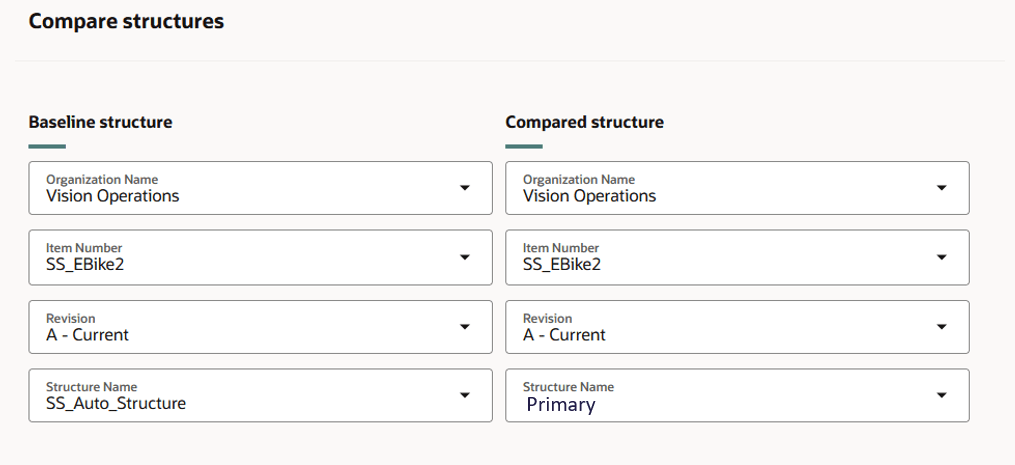
The View or Manage Permission Lets You Compare the Two Structures
This feature benefits your business by the following:
- Allows administrators to define granular access control such as create, view, manage, or delete and provides control to define who has access to Item Structure data.
- Enables or restricts access at only defined Structure Types for a given item or group of items.
- Allows restricted members to make changes and edit on an item structure
Steps to enable and configure
To use criteria-based access control for item structures, you must enable the profile option Enable Access Control List for Item Structure. By default, the profile option is set to No.
On enabling the profile option, the structures continue to honor the existing security settings, if any, till you create a permission and permission set.
Note: Once you enable the profile option and create a permission for the structure, all the structures in the application will become private. You must manually assign user permissions to these structures.
Tips and considerations
- It isn't mandatory to enable the Enable Access Control List for Item Structure profile if your company doesn't have a need to limit access based on structures.
- The user must be granted Access To = Structures in the relevant item access control list permission to access the item’s structure types.
- When a new structure type is created, it's automatically added to the list of secured structures for the user. Similarly, when an existing structure type is deleted, it's automatically removed from that list. This ensures that the user’s existing structure security remains unchanged and unaffected.
- If you opt in to the structure access control list without opting in to the item access control list, then the structure access control list security won’t be considered and they will follow the existing structure security.
- When a user has the Manage Item structure functional privilege, he would also need Manage Permission on the Structure Type in Structure Access Control List to modify its structure header and component attributes.
- Product Development users who work with engineered items, which have only primary structures must be granted the necessary permission to access it.
Key resources
Oracle Fusion Cloud SCM Using Product Development Guide, available on the Oracle Help Center.
Oracle Fusion Cloud SCM Using Product Master Data Management Guide, available on the Oracle Help Center.
Oracle Fusion Cloud SCM Implementing Product Management Guide, available on the Oracle Help Center.
Access requirements
Users who are assigned a configured job role that contains these privileges can access this feature:
To configure conditions for items using a filtered list:
- Use REST Service - Identity Integration (ASE_REST_SERVICE_ACCESS_IDENTITY_INTEGRATION_PRIV)
- Use Atom Feed - Employees Workspace (PER_ATOM_WORKSPACE_ACCESS_EMPLOYEES_PRIV)
- Manage HCM Lists (HRC_MANAGE_HCM_LISTS_PRIV)
- Human Capital Management Application Administrator (ORA_HRC_HUMAN_CAPITAL_MANAGEMENT_APPLICATION_ADMINISTRATOR_JOB)
To configure teams, permission sets, and conditions:
- Manage Landing Page Layout (EGP_MANAGE_LANDING_PAGE_LAYOUT_PRIV)
- Access Clipboard (ACA_ACCESS_CLIPBOARD_PRIV)
- Access HCM Common Components (HRC_ACCESS_HCM_COMMON_COMPONENT)
- Manage Search Consumer Applications Rest (EGP_MANAGE_SEARCH_CONS_REST_PRIV)
- Monitor Product Development (ACA_MONITOR_PRODUCT_DEVELOPMENT_PRIV)
- Configure Access Control Teams, Permission Sets, and Conditions (EGP_ACCESS_CONTROL_TEAMS_PRIV)
- Use REST Service - Identity Integration (ASE_REST_SERVICE_ACCESS_IDENTITY_INTEGRATION_PRIV)
- Use Atom Feed - Employees Workspace (PER_ATOM_WORKSPACE_ACCESS_EMPLOYEES_PRIV)
- Manage HCM Lists (HRC_MANAGE_HCM_LISTS_PRIV)
- Manage HCM Rules (HRC_MANAGE_HCM_RULES_PRIV)
- Run Scheduled Processes (HEY_RUN_SCHEDULED_PROCESSES_PRIV)
- Manage Scheduled Processes (FND_MANAGE_SCHEDULED_PROCESSES_PRIV)
- Access Product Management Landing Page (EGP_ACCESS_LANDING_PAGE_PRIV)
- Manage Scheduled Job Definition (FND_MANAGE_SCHEDULED_JOB_DEFINITION_PRIV)
- Access Users (EGP_ACCESS_USERS_PRIV)
To access items on the Redwood page:
- Manage Item Redwood Items (EGP_MANAGE_REDWOOD_ITEM_PRIV)
- View product management search (EGP_VIEW_PRODUCT_MGT_SEARCH_PRIV)
- Get Item Attribute Control REST (EGP_ITEM_ATTRIBUTE_CONTROL_READ_PRIV)
- Get Item Lifecycle Phases Read Rest (EGP_ITEM_LIFECYCLE_PHASES_READ_REST_PRIV)
- Get Item Status REST (EGP_ITEM_STATUSES_READ_PRIV)
- Get Template REST (EGP_TEMPLATE_READ_PRIV)
- View Global Inventory Organizations List of Values by Web Service (RCS_GLOBAL_VIEW_INV_ORG_LOV_WEB_SERVICE_PRIV)
- View Units Of Measure List of Values by Web Service (RCS_VIEW_UNITS_OF_MEASURE_LOV_WEB_SERVICE_PRIV)
- Get Item Class Rest (EGP_GET_ITEM_CLASS_REST_PRIV)
- View Item (EGP_VIEW_ITEM_PRIV)
- View Feature States Value by Web Service (RCS_VIEW_FEATURE_STATES_WEB_SERVICE_PRIV)
- Use REST Service - Users and Roles Lists of Values (PER_REST_SERVICE_ACCESS_USERS_AND_ROLES_LOVS_PRIV)
To access the item structure on the Redwood page:
- View Product Management Search (EGP_VIEW_PRODUCT_MGT_SEARCH)
- Create Item Structure (EGP_CREATE_ITEM_STRUCTURE_PRIV)
- Manage Item Redwood Structures (EGP_MANAGE_REDWOOD_ITEM_STRUCTURE_PRIV)
- View Item Redwood Structures (EGP_VIEW_REDWOOD_ITEM_STRUCTURE_PRIV
- Get Search View REST (EGP_GET_SEARCH_VIEW_REST_PRIV)
- Access Item Structure Data Using a REST Service (EGP_GET_ITEM_STRUCTURE_REST_PRIV)
- Access Structure Attributes for Indexing Using REST (EGP_GET_PM_STRUCTURE_AVAIL_REST_PRIV)
To configure the index add the reference designator and substitute component attributes:
- Manage Scheduled Job Definition (FND_MANAGE_SCHEDULED_JOB_DEFINITION_PRIV)
- Grant Search Framework Manager Permissions (FND_SEARCH_FWK_MGR_PRIV)
- Access Item Structure Data Using a REST Service (EGP_GET_ITEM_STRUCTURE_REST_PRIV)
- Access Structure Attributes for Indexing Using REST (EGP_GET_PM_STRUCTURE_AVAIL_REST_PRIV)
- GET Product Management Index REST (EGP_GET_PM_INDEX_REST_PRIV)
- Manage Product Management Index REST (EGP_MANAGE_PM_INDEX_REST_PRIV)
To rebuild the index:
- Rebuild Product Management Indexes (EGO_REBUILD_PRODUCT_MGT_INDEXES_PRIV)
To create the structure view with the reference designator and substitute component attributes:
- Manage Scheduled Job Definition (FND_MANAGE_SCHEDULED_JOB_DEFINITION_PRIV)
- Grant Search Framework Manager Permissions (FND_SEARCH_FWK_MGR_PRIV)
- Access Product Development Configurations Using a REST Service (ACA_GET_PD_CONFIGURATIONS_REST_PRIV)
- Manage Search View REST (EGP_MANAGE_SEARCH_VIEW_REST_PRIV)
- Access Structure Attributes for Indexing Using REST (EGP_GET_PM_STRUCTURE_AVAIL_REST_PRIV)
- GET Product Management Index REST (EGP_GET_PM_INDEX_REST_PRIV)
- Get View Available Attribute REST (EGP_VIEW_AVAIL_ATTR_REST_PRIV)
To run the Product Management Search Ingest job:
- Import Item (EGP_IMPORT_ITEM_PRIV)
- Manage Item Grouping (EGP_MANAGE_ITEM_GROUPING_PRIV)
To access business rules:
- Administer Sandbox (FND_ADMINISTER_SANDBOX_PRIV)
These privileges were available prior to this update.