Redwood: View Extensible Flexfield Attributes Inline on Affected Objects
The Affected Objects table now lets you select a configured view that can include item extensible flexfields along with other Affected Object attributes. You can tailor these views to meet your business requirements by selecting the appropriate attributes to display and arrange them in an order that best supports users.
You can select the following attributes when creating or modifying the views:
- Affected Object Attributes
- Affected Object Additional Attributes, including Global and Context Descriptive Flexfields configured for that Change Type
- Item Attributes
- Item Extensible Flexfields
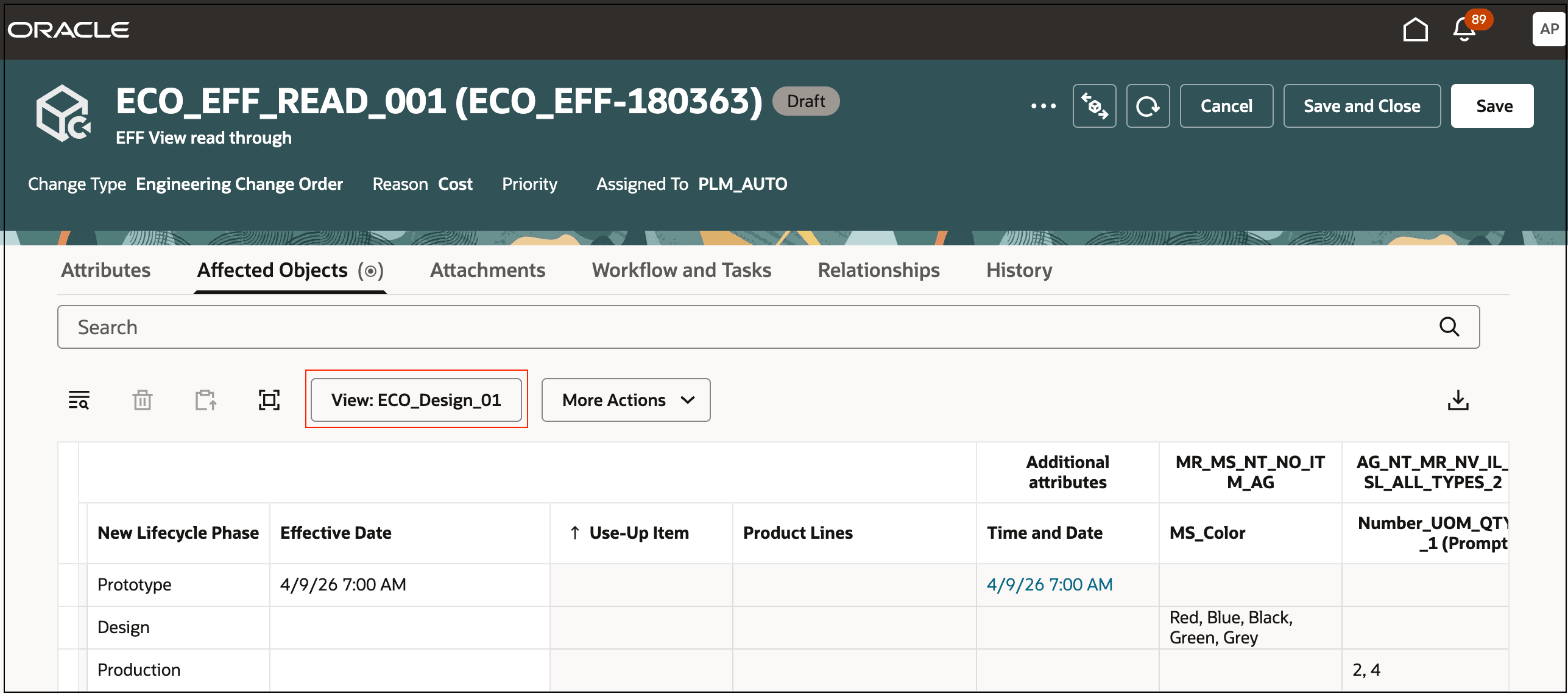
Affected Object View Displaying the Extensible Flexfield
The user interface now lets you freeze columns. By right-clicking on a column and selecting Freeze Column, you can keep that column visible while scrolling horizontally through the rest of the columns on the table.
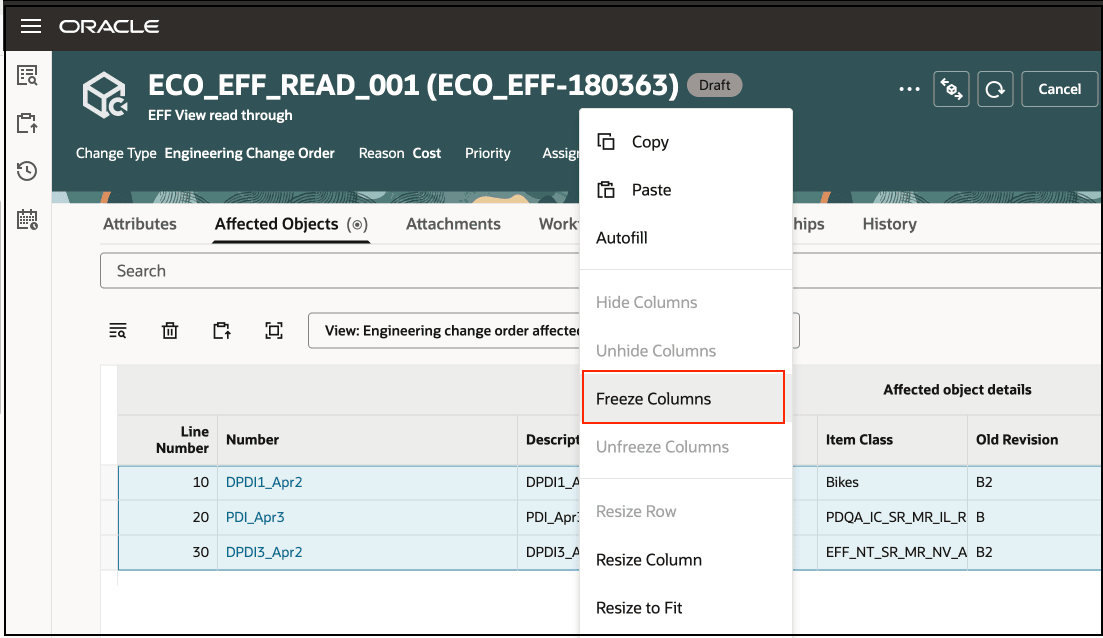
Column Freeze on the Affected Objects Tab
This feature benefits your business by providing users the ability to configure the Affected Objects table to surface the exact attributes they need, including extensible flexfields, reducing time spent searching and improving decision-making. Column freezing further enhances usability by keeping key data visible during navigation, increasing efficiency, and accuracy.
Steps to enable and configure
Use the Opt In UI to enable this feature. For instructions, refer to the Optional Uptake of New Features section of this document.
Offering: Product Management No Longer Optional From: Update 27A
To enable workflow on Redwood:
- Set the administrator profile value for ORA_ACA_WORKFLOW_REDWOOD_ENABLED to Y.
- Create a Data Security Policy
- Sign in to Security Console.
- Search for the configured role on which you want to configure the data security policy. Click Actions > Edit Role.
- On the Edit Role page, click Data Security Policies.
- Click Create Data Security Policy (plus icon). On the Create Data Security Policy dialog box, enter the following:
- Policy Name: <unique name>
- Data Resource: Search for and add the resource named EGO_ENGINEERING_CHANGES_B
- Data Set: Select Select by Instance Set
- Condition Name: Access the item changes for table EGO_ENGINEERING_CHANGES_B for the item changes they have access to
- Actions: Select all the actions.
- Click OK and click Next.
- Save your changes.
The Affected Objects table view depends on the item index; if the item index has already been run and the required item attributes are indexed, you can simply create a new view by selecting the Workflow Affected Objects card, as described here. But, if you need to index additional item attributes, you must first configure those attributes and then rebuild the item index. Running the item index also enables a configured view for each workflow type in the Affected Objects table.
Configure Item Index
You can add extensible flexfield attributes to the currently configured item index if they haven’t already been included, and then rebuild the index. Once the rebuild is complete, these attributes can be added to a Workflow Affected Objects view.
Configure Workflow Affected Object Views
Use the new Workflow Affected Objects card in View Management, to configure attributes for all workflow objects in the Affected Objects table.
When you create the view, you can see following task flows for each workflow object:
- Change order: Engineering change order affected object
- Change order: Change order without revision control affected object
- Change order: Commercialization change order affected object
- Change request: Change request affected object
- Problem report: Problem report affected object
- Corrective action: Corrective action affected object
You also have a choice of applications: Product Management or Supplier Product Management, as the case may be.
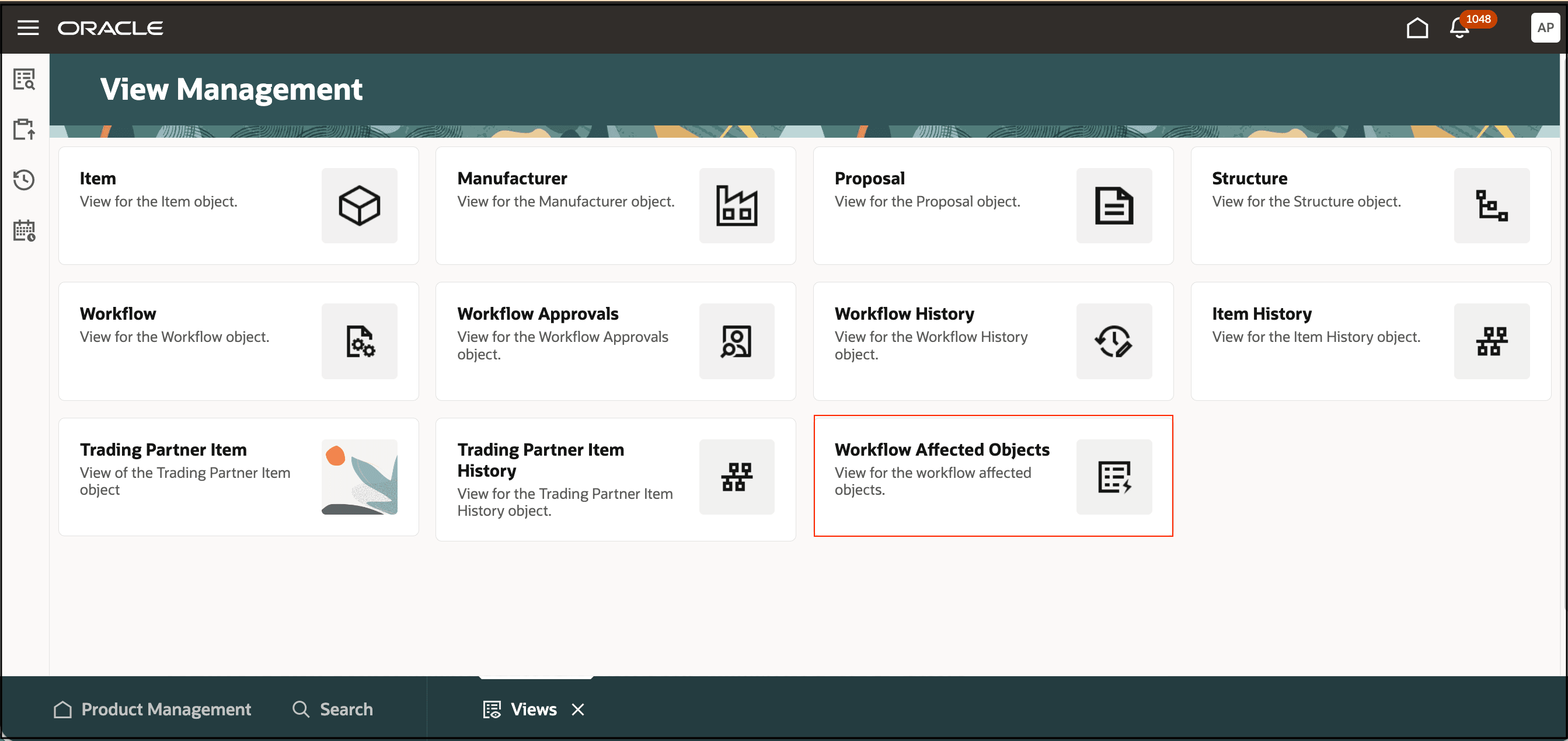
Workflow Affected Object View Management
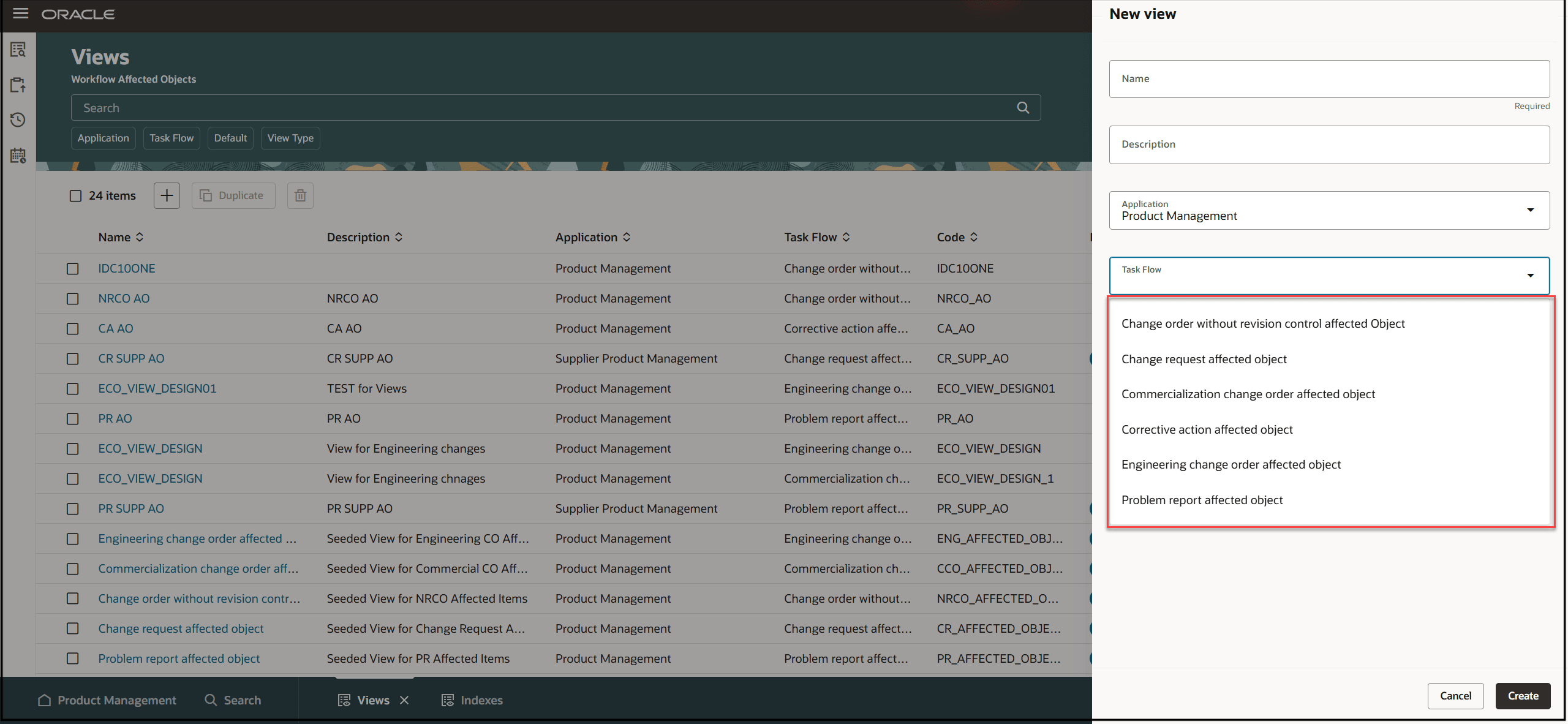
Workflow Affected Object Taskflows for New View Creation
Tips and considerations
- Ensure that your view contains all the attributes required to successfully perform your use case. For example: If your use case is to change the lifecycle phase of the item, you must have the old and new lifecycle phases.
- Navigation from context descriptive flexfields results in a side-panel being invoked. Keep this in mind when ordering the context descriptive flexfields in your views.
- You can create separate views to suit the supplier users in the supplier portal.
- You can freeze columns of attributes sections and not individual attribute columns. You can't freeze the last attribute section on the Affected Objects table.
Key resources
Oracle Fusion Cloud SCM Using Product Development Guide, available on the Oracle Help Center.
Oracle Fusion Cloud SCM Using Product Master Data Management Guide, available on the Oracle Help Center.
Oracle Fusion Cloud SCM Implementing Product Management Guide, available on the Oracle Help Center.
Access requirements
Users who are assigned a configured job role that contains these privileges can access this feature:
To view or edit workflows on the new workflow pages, or to access notifications,
For change orders:
-
- View Change Order (ACA_VIEW_CHANGE_ORDERS_PRIV) or
- Manage Change Orders (ACA_MANAGE_CHANGE_ORDERS_PRIV)
For change requests:
-
- View Change Request (ACA_VIEW_CHANGE_REQUESTS_PRIV) or
- Manage Change Requests (ACA_MANAGE_CHANGE_REQUESTS_PRIV)
For problem reports:
-
- View Problem Report (ACA_VIEW_PROBLEM_REPORTS_PRIV) or
- Manage Problem Report (ACA_MANAGE_PROBLEM_REPORT_PRIV)
For corrective and preventive actions:
-
- View Corrective Action (ACA_VIEW_CORRECTIVE_ACTIONS_PRIV) or
- Manage Corrective Action (ACA_MANAGE_CORRECTIVE_ACTION_PRIV)
To create workflows from the search pages or when using links in Actions on the Product Management home page:
-
- Create Change Order (EGO_CREATE_CHANGE_ORDER_PRIV)
-
Access Change Types Using a REST Service (EGO_GET_CHANGE_TYPES_REST_PRIV)
To search for workflow objects on the Redwood pages:
- Get Search View REST (EGP_GET_SEARCH_VIEW_REST_PRIV)
- GET Product Management Index REST (EGP_GET_PM_INDEX_REST_PRIV)
- Access Product Management Change Search (EGO_VIEW_PRODUCT_MANAGEMENT_CHANGE_SEARCH_PRIV)
To access the item on the Redwood page:
- View Item Redwood Items (EGP_VIEW_REDWOOD_ITEM_PRIV)
- Manage Item Redwood Items (EGP_MANAGE_REDWOOD_ITEM_PRIV)
To manage, or view the item attributes on the Redwood page:
- View Item Redwood Items (EGP_VIEW_REDWOOD_ITEM_PRIV)
- Manage Item Redwood Items (EGP_MANAGE_REDWOOD_ITEM_PRIV)
To configure the index:
- Manage Product Management Index (EGP_MANAGE_PM_INDEXES_PRIV)
- Manage Scheduled Job Definition (FND_MANAGE_SCHEDULED_JOB_DEFINITION_PRIV)
- Grant Search Framework Manager Permissions (FND_SEARCH_FWK_MGR_PRIV)
- Get Item Index Available Attributes REST (EGP_GET_PM_ITEM_AVAIL_REST_PRIV)
To rebuild the index:
- Rebuild Product Management Indexes (EGO_REBUILD_PRODUCT_MGT_INDEXES_PRIV)
To create search views:
- Manage Product Management View (EGP_MANAGE_PM_VIEWS_PRIV)
- Manage Scheduled Job Definition (FND_MANAGE_SCHEDULED_JOB_DEFINITION_PRIV)
- Grant Search Framework Manager Permissions (FND_SEARCH_FWK_MGR_PRIV)
- Access Product Development Configurations Using a REST Service (ACA_GET_PD_CONFIGURATIONS_REST_PRIV)
- Manage Search View REST (EGP_MANAGE_SEARCH_VIEW_REST_PRIV)
- Get View Available Attribute REST (EGP_VIEW_AVAIL_ATTR_REST_PRIV)