Redwood: Use Improved Workflow History and Approval
In this release, the workflow has been enhanced with the following capabilities:
-
Send reminders to approvers who haven't completed their approvals
-
Support expansion of roles and allow selection of users as reviewers or approvers
-
Support redlining of the Approved Manufacturers List for commercialization change orders
-
Support navigation to the exact item revision from the workflow search using the item hyperlink
-
Display workflow object context in the Create drawer panel. For example, when a change request is created, the header displays "New change request".
-
Support display of old and new values for rich text data of Formatted Description in workflow history
-
Capture the date and number formats based on user preferrences in workflow history
You can now send reminders to approvers who haven't yet completed their approvals. This doesn’t apply to roles where all members receive the notification. See Tips and Considerations for the nuances.
When you select the “Send Reminder” action during the Interim Approval or Approval status, a notification is sent to prompt the approvers. This action is recorded in the object's history.
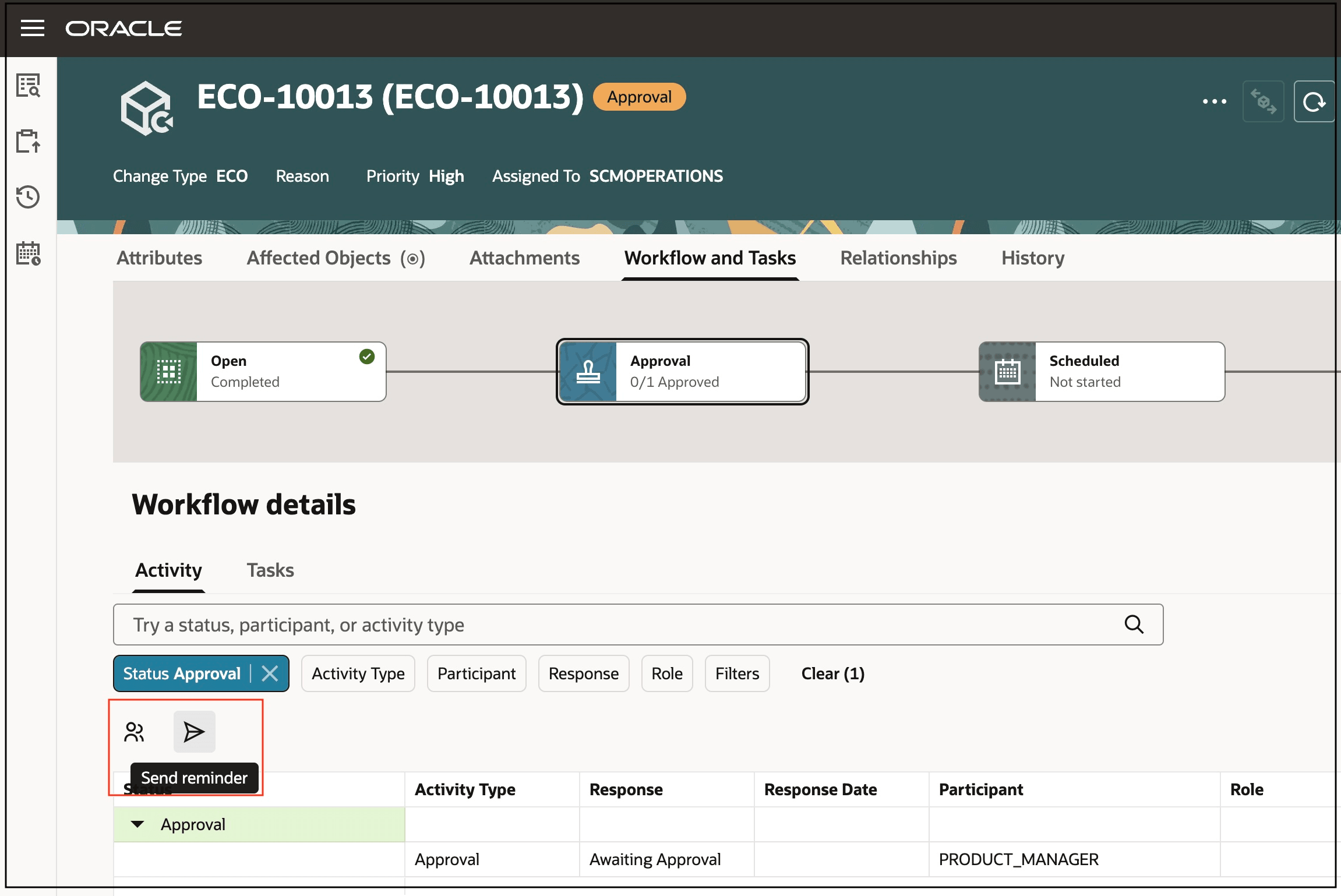
Send Reminder for Pending Approvals
The workflow object now allows you to expand roles and select specific users to assign as reviewers or approvers directly from the Manage Participants and Change Status pages. You can select the group members icon to expand roles so you can choose recipients when sending a workflow object.
Expanding roles functionality is available for change orders, change requests, problem reports, and corrective actions.
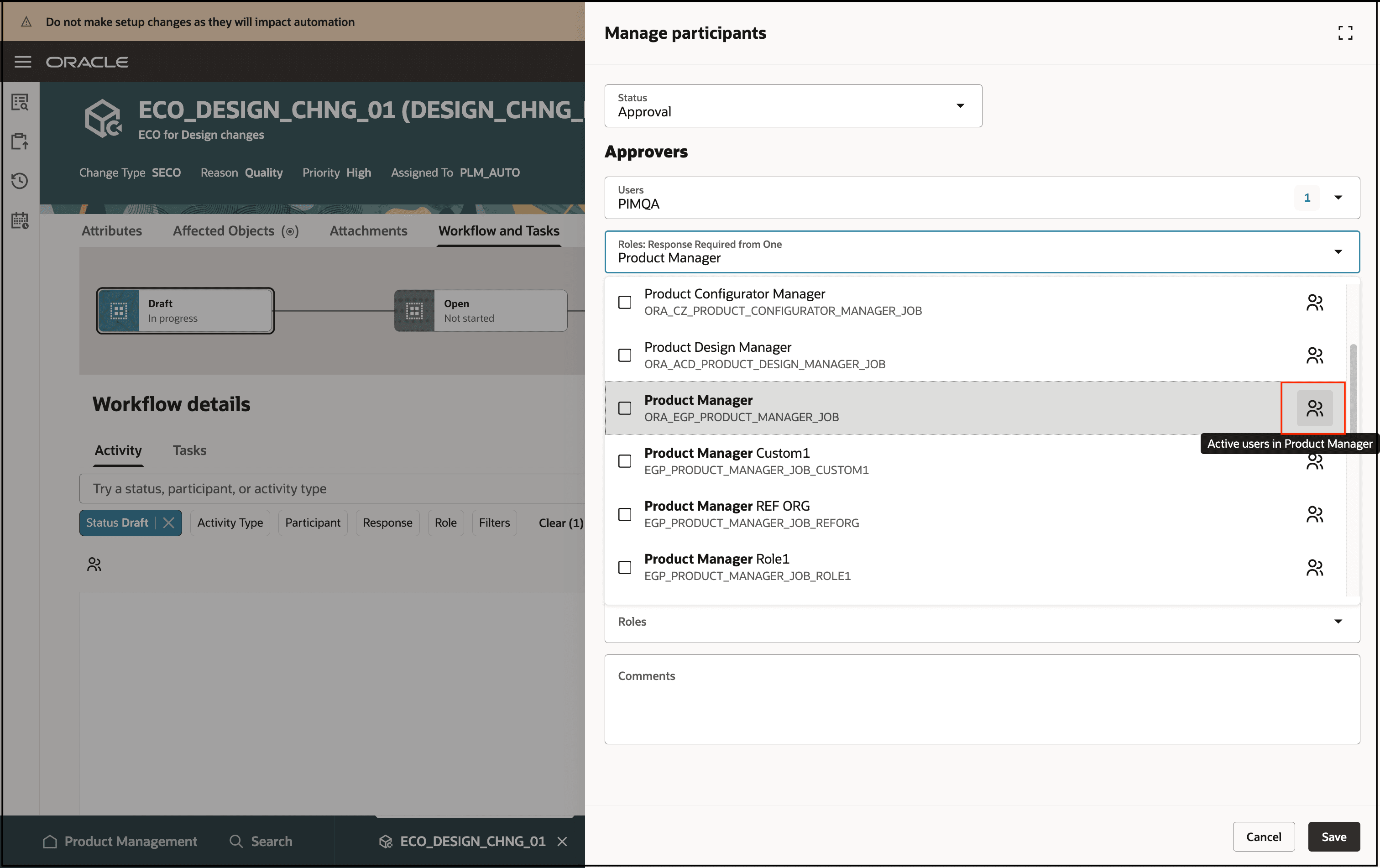
Expand a Role to Select Specific Participants as Approver and Reviewer
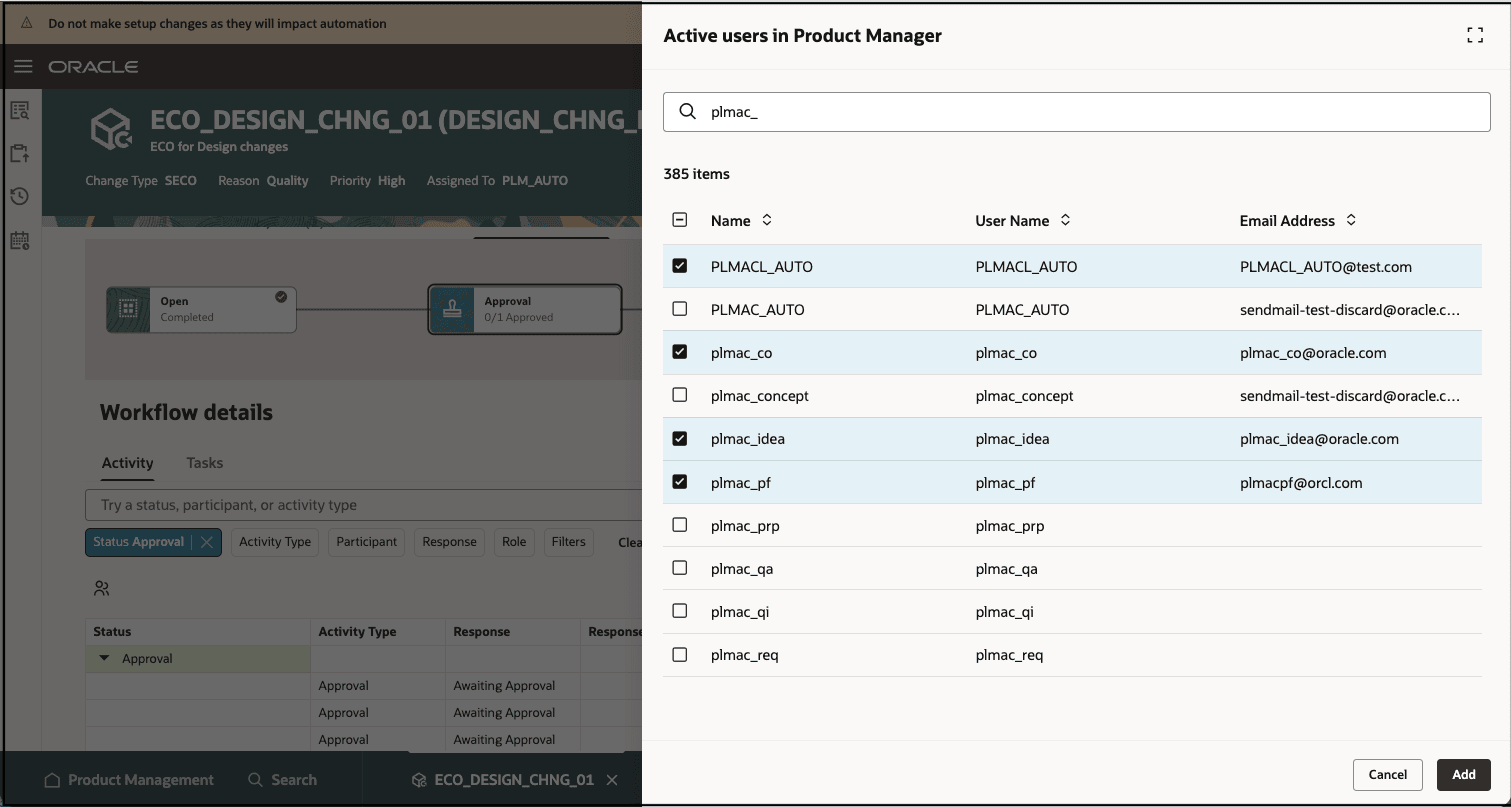
Expanded Role View Showing Selection of Specific Participants
Approved Manufacturers List (AML) can be redlined through a commercialization change order. You can view the redlines in the new user interface.
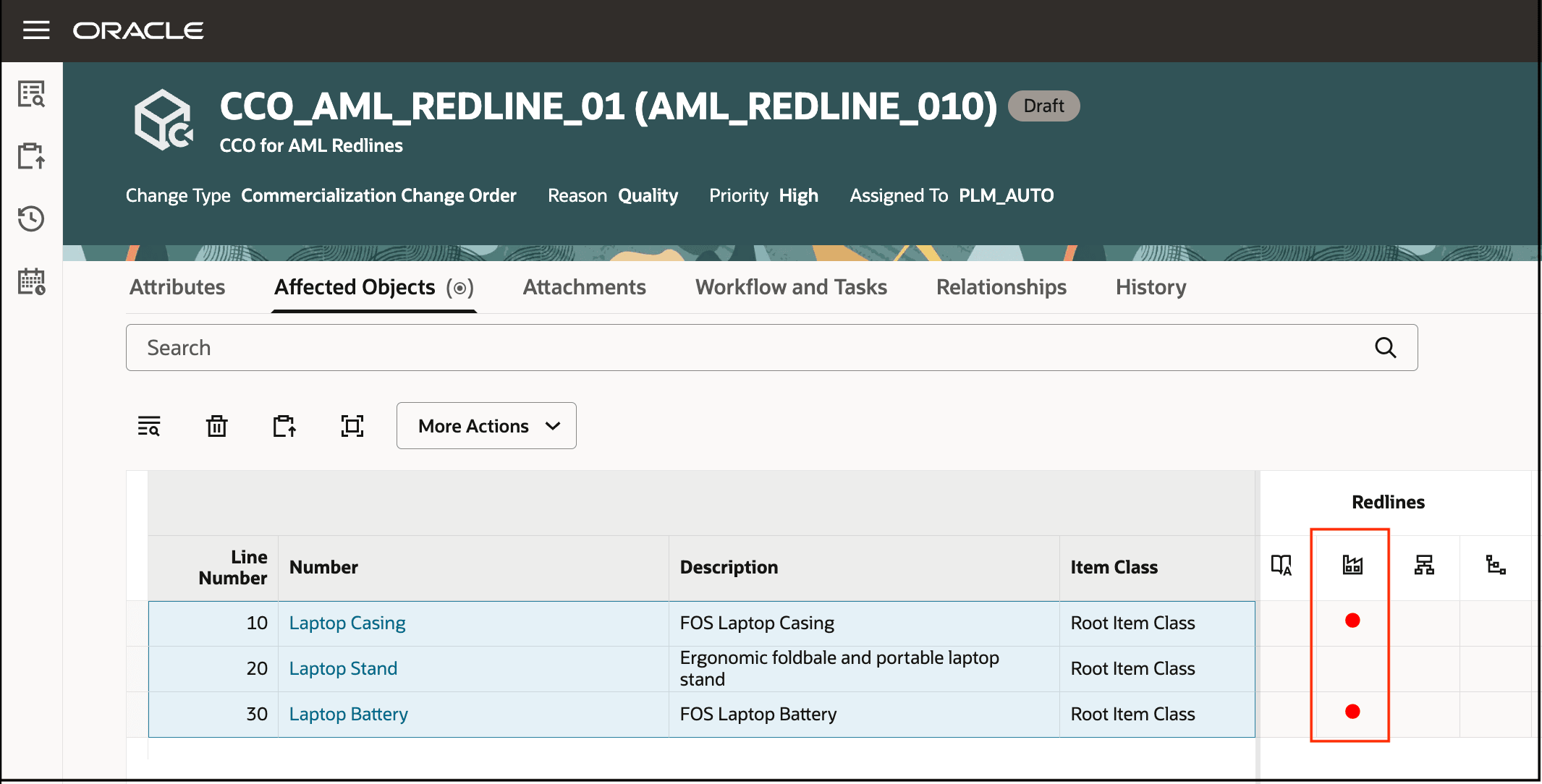
AML Redlines on a Commercialization Change Order.
When you click the same link from a Change Request, Problem Report, or Corrective Action, you’re taken to the revision associated with the workflow in the change context, without any redline information.
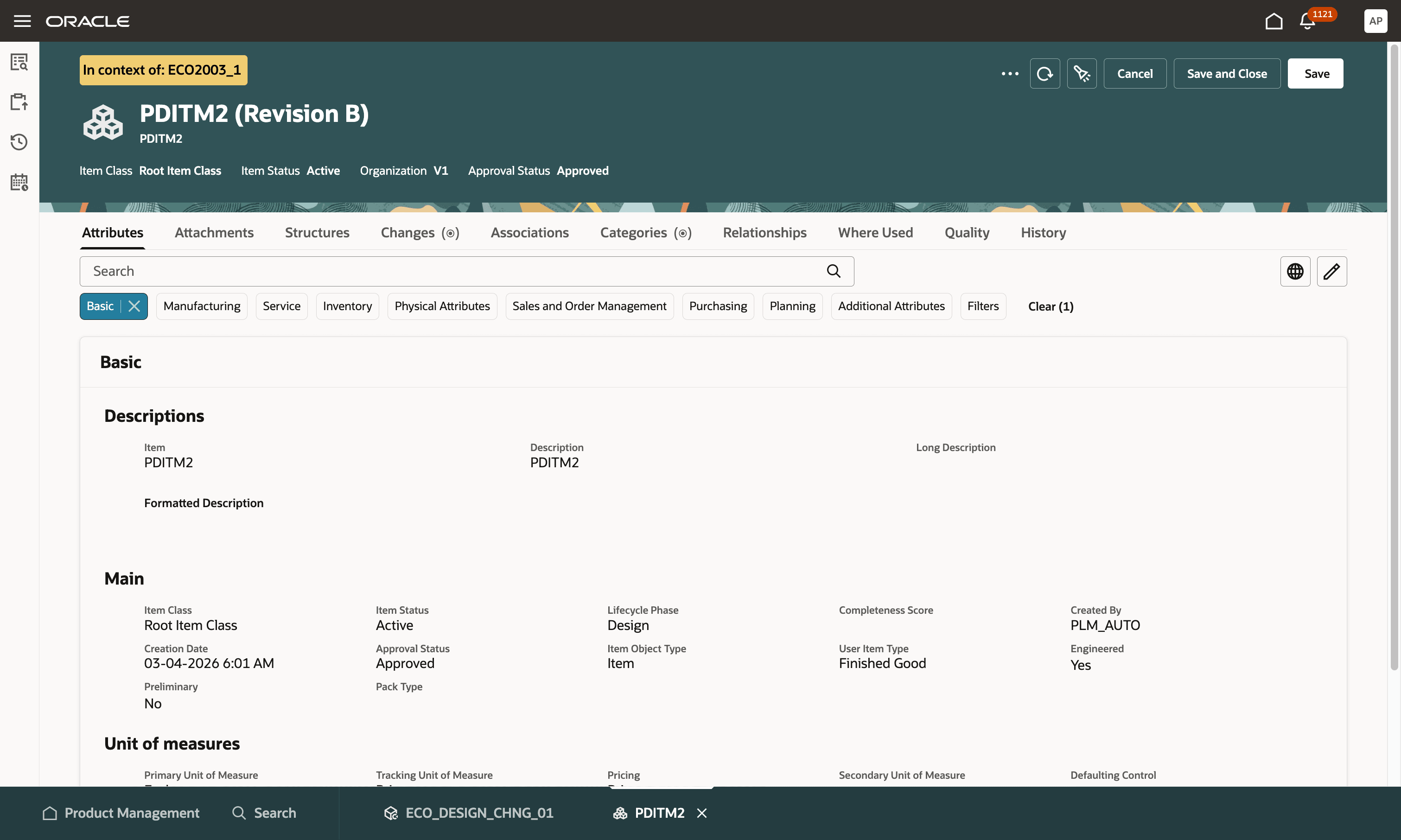
Item Revision Opened in the Change Order Context
Workflow history
Workflow history and audit capabilities have now been improved to record and display rich text data of Formatted Description in the Old Value and New Value columns. This information is available from the History tab of the workflow object and through Workflow History search.
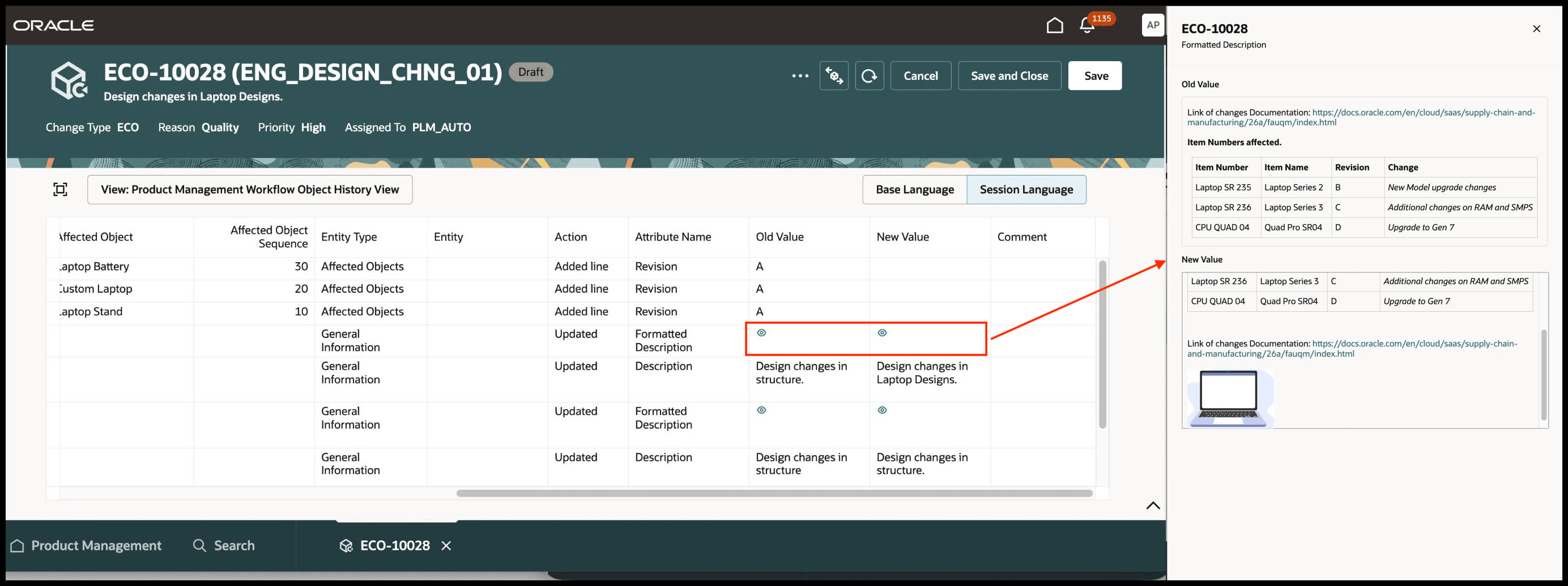
Formatted Description with Old and New Values Captured in Workflow History Tab
The workflow history will now capture the date and number formats as defined in the user preferences.
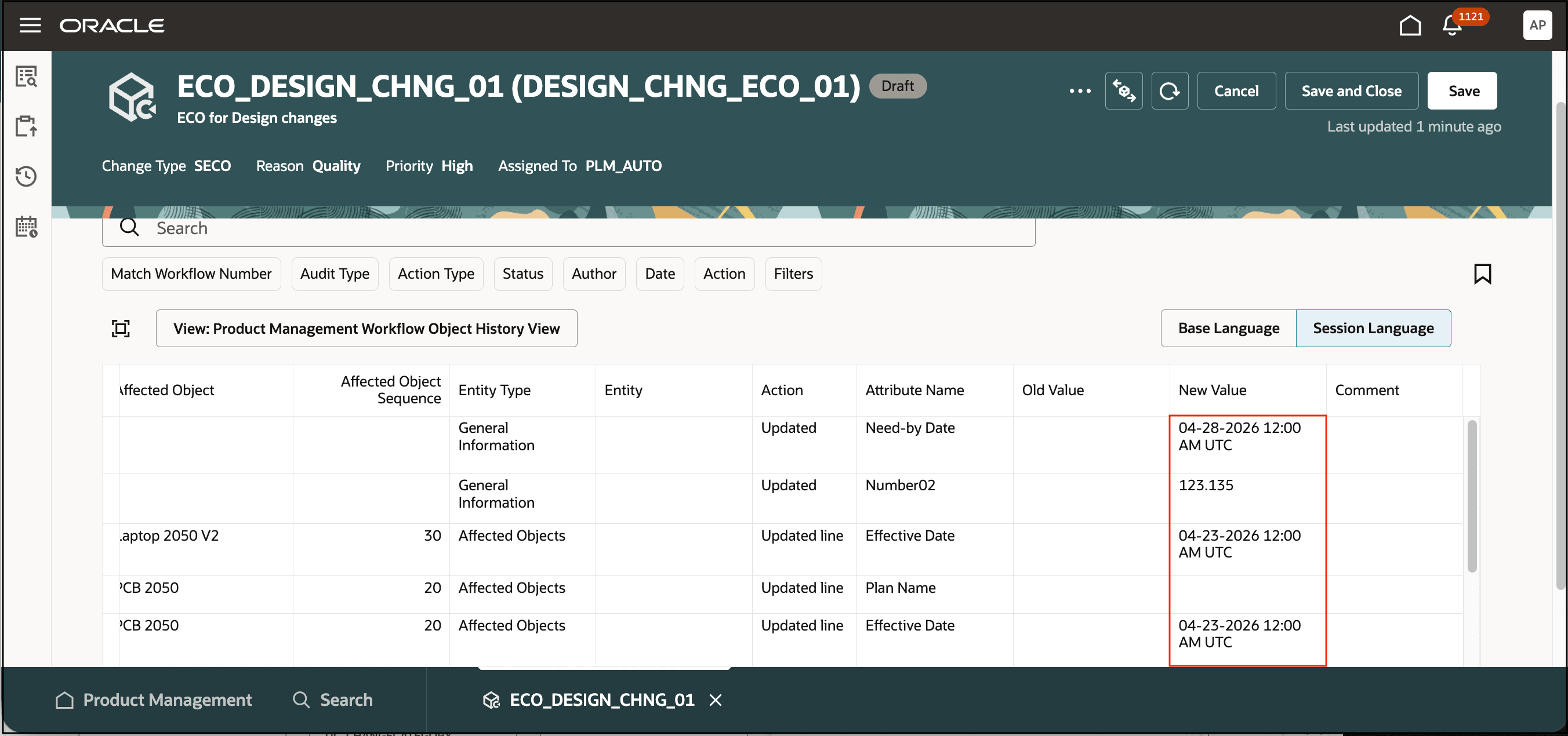
Date and Number Attribute Values Captured in User Preferred Format in Workflow History
The workflow history now captures the updates made to the workflow attachments.
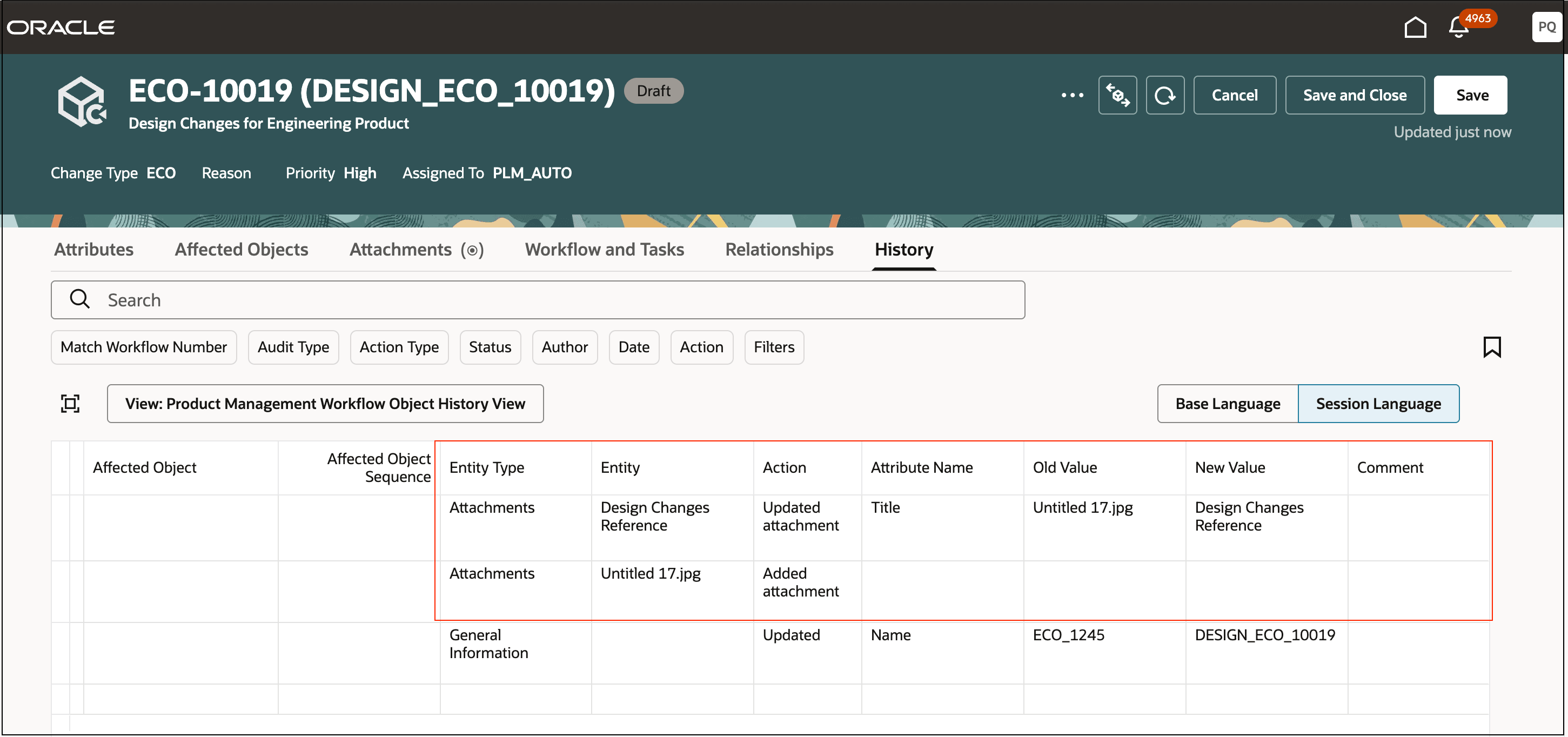
Workflow Attachment Changes Captured in Workflow History
This feature benefits your business by the following:
-
Improves efficiency with one-click reminder notifications: Users can now send reminders to pending approvers instantly, reducing manual effort and saving time by eliminating the need to identify and contact approvers individually.
-
Enhances visibility and auditability of workflow history: Improved formatting of dates and numerical data enables clearer interpretation of workflow history, while also allowing users to easily track changes made to formatted descriptions.
-
Increases control over change management processes: The new redlining capability for Approved Manufacturer Lists (AML) in commercial change orders provides better visibility into modifications, supporting more accurate reviews and decision-making.
Steps to enable and configure
-
Set the administrator profile value for ORA_ACA_WORKFLOW_REDWOOD_ENABLED to Y.
-
Create a Data Security Policy.
-
Sign in to Security Console.
-
Search for the configured role on which you want to configure the data security policy. Click Actions > Edit Role.
-
On the Edit Role page, click Data Security Policies.
-
Click Create Data Security Policy (plus icon). On the Create Data Security Policy dialog box, enter the following:
-
Policy Name: <unique name>
-
Data Resource: Search for and add the resource named EGO_ENGINEERING_CHANGES_B
-
Data Set: Select Select by Instance Set
-
Condition Name: Access the item changes for table EGO_ENGINEERING_CHANGES_B for the item changes they have access to
-
Actions: Select all the actions.
-
Click OK and click Next.
-
-
Save your changes.
-
Tips and considerations
-
When you navigate to an item from the workflow search, you see an option to return to the change context, provided the workflow object is open in a tab.
-
Send Reminder:
-
It is recommended that you don't modify the BIP reminder notification template, WorkflowSendObjectNotifications.rtf. If you were to modify it, say add additional attributes to this template then it will reflect in both "Send Object" and "Reminder" notifications since it's the same template.
-
See the following table to see who gets the notification:
-
|
Original Approver |
Who will get the notification |
|---|---|
|
Delegated |
Both the delegator and delegatee |
|
Individual |
Individual |
|
One response per status |
One notification to all awaiting approval users and roles |
|
Reassigned |
Only the re-assignee |
|
Role, Response Required From = All |
One notification will be sent to all members of the role even the members who have already approved |
|
Role, Response Required From = One |
One notification will be sent to all members of the role |
Key resources
Oracle Fusion Cloud SCM Using Product Development Guide, available on the Oracle Help Center.
Oracle Fusion Cloud SCM Using Product Master Data Management Guide, available on the Oracle Help Center.
Oracle Fusion Cloud SCM Implementing Product Management Guide, available on the Oracle Help Center.
Access requirements
Users who are assigned a configured job role that contains these privileges can access this feature:
To view or edit workflows on the new workflow pages, or to access notifications,
For change orders:
-
-
- View Change Order (ACA_VIEW_CHANGE_ORDERS_PRIV) or
- Manage Change Orders (ACA_MANAGE_CHANGE_ORDERS_PRIV)
-
For change requests:
-
-
- View Change Request (ACA_VIEW_CHANGE_REQUESTS_PRIV) or
- Manage Change Requests (ACA_MANAGE_CHANGE_REQUESTS_PRIV)
-
For problem reports:
-
-
- View Problem Report (ACA_VIEW_PROBLEM_REPORTS_PRIV) or
- Manage Problem Report (ACA_MANAGE_PROBLEM_REPORT_PRIV)
-
For corrective and preventive actions:
-
-
- View Corrective Action (ACA_VIEW_CORRECTIVE_ACTIONS_PRIV) or
- Manage Corrective Action (ACA_MANAGE_CORRECTIVE_ACTION_PRIV)
-
To create workflows from the search pages or when using links in Actions on the Product Management home page:
-
-
-
Create Change Order (EGO_CREATE_CHANGE_ORDER_PRIV)
-
Access Change Types Using a REST Service (EGO_GET_CHANGE_TYPES_REST_PRIV)
-
-
To create change order from the item, either through a Needs Approval rule or by using the Assign to action, and, to duplicate change order and create relationship between source and target workflow objects:
-
-
-
Create Change Order (EGO_CREATE_CHANGE_ORDER_PRIV)
-
Manage Change Orders (ACA_MANAGE_CHANGE_ORDERS_PRIV)
-
Access Change Types Using a REST Service (EGO_GET_CHANGE_TYPES_REST_PRIV)
-
-
To view the history tab on the workflow:
-
-
-
View Change History (EGO_VIEW_CHANGE_HISTORY_PRIV)
-
-
To send a workflow object:
-
-
Use REST Service - Users and Roles Lists of Values (PER_REST_SERVICE_ACCESS_USERS_AND_ROLES_LOVS_PRIV)
-
Manage HR Name Format (PER_MANAGE_HR_NAME_FORMAT_PRIV) (optional)
-
To select users managing participants or changing workflow status:
-
-
Use REST Service - Users and Roles Lists of Values (PER_REST_SERVICE_ACCESS_USERS_AND_ROLES_LOVS_PRIV)
-
Manage HR Name Format (PER_MANAGE_HR_NAME_FORMAT_PRIV) (optional)
-
To search for workflow objects in Redwood pages:
-
-
Get Search View REST (EGP_GET_SEARCH_VIEW_REST_PRIV)
-
GET Product Management Index REST (EGP_GET_PM_INDEX_REST_PRIV)
-
Access Product Management Change Search (EGO_VIEW_PRODUCT_MANAGEMENT_CHANGE_SEARCH_PRIV)
-
These privileges were available prior to this update.
To run workflow OTBI reports, you need the following:
-
-
Product Catalog Transaction Analysis Duty (FBI_PRODUCT_CATALOG_TRANSACTION_ANALYSIS_DUTY)
-
Product Transaction Analysis Duty (FBI_PRODUCT_TRANSACTION_ANALYSIS_DUTY)
-
BI Consumer Role (BIConsumer)
-
Additionally, you will require the new privilege Access Users (EGP_ACCESS_USERS_PRIV), to select users in:
-
-
Requested By or Assigned To attributes in the Attributes tab.
-
Task assignee in Workflow and Tasks on Create or Edit Task drawers.
-
Manage Participants or Change Status drawer.
-
Send Object drawer.
-