Redwood: Validate Taxpayer ID in Supplier Registration with TINCheck by Sovos
Accurate taxpayer IDs are critical to successful procurement operations. Fraudulent taxpayer IDs can lead to payment fraud with monetary losses and increased costs to correct, track, and attempt funds recovery. Even legitimate suppliers that incorrectly enter taxpayer ID information can cause expensive transaction errors and regulatory reporting errors. You can now validate supplier US taxpayer ID in supplier registration with a third-party service, TINCheck by Sovos, to ensure the taxpayer ID is valid, accurate, and matches the supplier that is registering. Validating taxpayer IDs will reduce the risk of payment fraud, improve transaction efficiency, reduce approval cycle time and regulatory reporting errors associated with invalid or incorrect taxpayer ID information.
When this feature is enabled, the taxpayer ID entered during supplier registration or while creating a supplier directly is validated through an external call to the Sovos TINCheck API. Both, the supplier name and taxpayer ID are required to perform the validation.
For supplier registration requests, the validation outcome is displayed to approvers in the approval notification, helping them make informed decisions based on the validation status. When a supplier is created directly, the validation result is displayed to the user creating the supplier. In both scenarios, the validation outcome is stored and displayed on the supplier profile until the taxpayer ID value is later modified by the user.
The validation outcome can be one of the following:
- Valid – Indicates that the taxpayer ID exists and matches the supplier being registered or created.
- Invalid – Indicates that the taxpayer ID is incorrect or does not match the supplier details provided.
- Inconclusive – Indicates that the validation could not be completed, for example due to API unavailability or server issues.
The TINCheck API returns a validation code and corresponding description for each validation request. These responses can be mapped to final validation status categories such as Valid, Invalid, or Inconclusive. Additionally, the returned messages can be converted into more user-friendly text for display in the UI for improved usability and clarity.
In the following screenshot, the displayed message text is user-configured, and the green check icon is shown because the validation response is mapped to the Valid status.
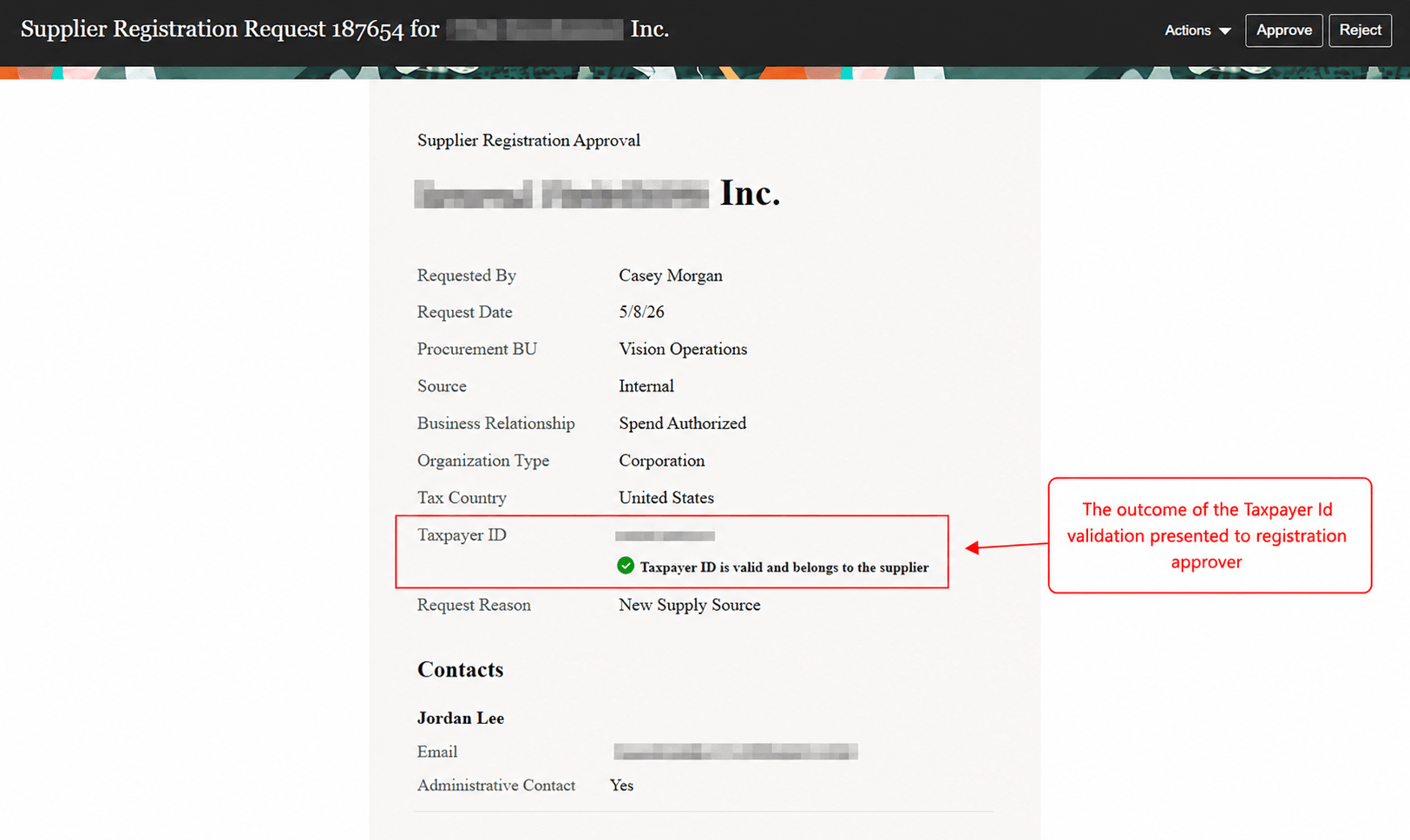
Approval Notification with Taxpayer ID Validation Outcome
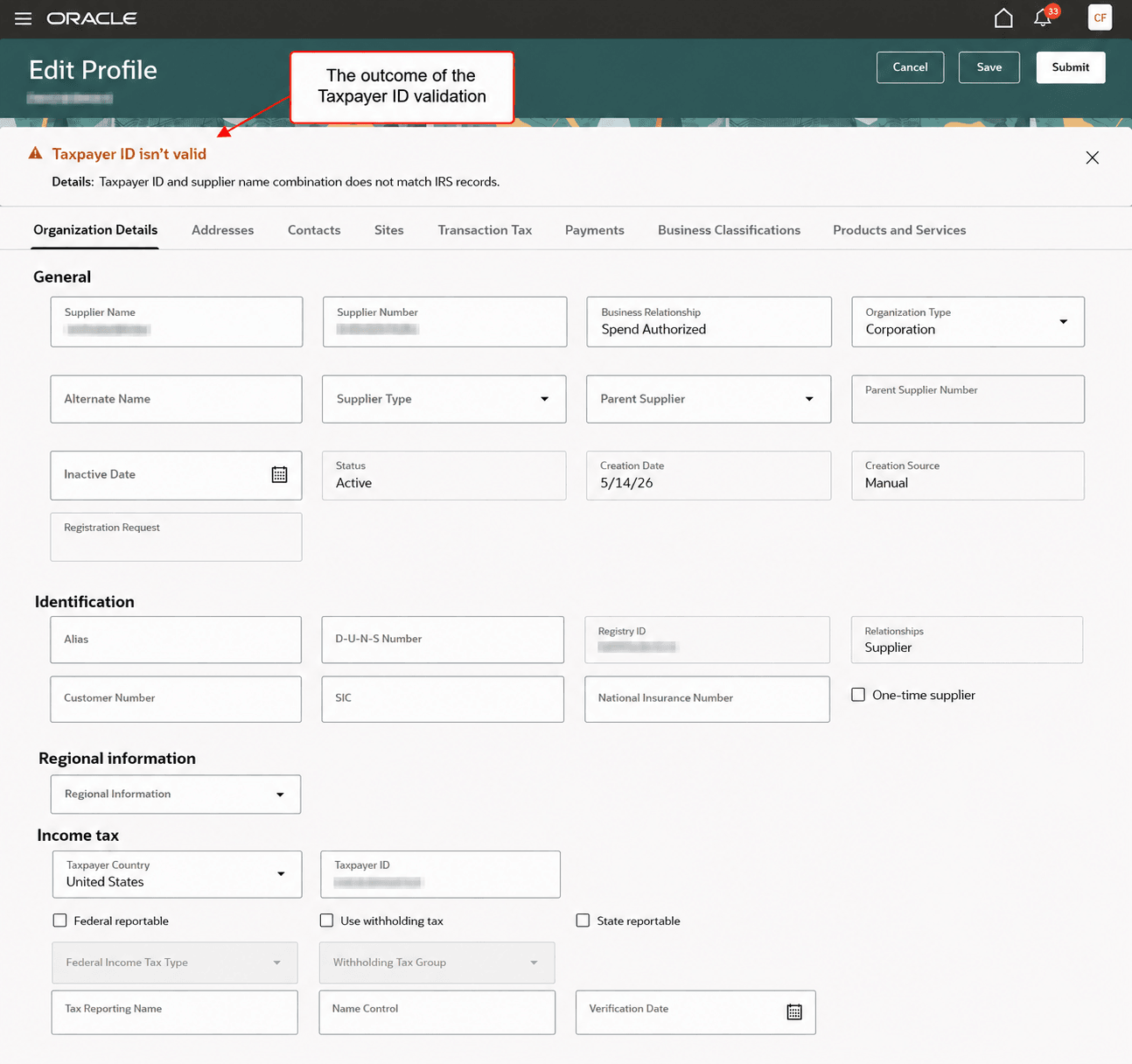
Taxpayer ID Validation Outcome on Creating a Supplier
You can also configure the feature to restrict API calls to specific countries. Since the Sovos TINCheck API supports validation of United States IRS records, the feature should typically be enabled only for suppliers associated with the United States. This ensures that validation requests are not sent for suppliers from countries other than United States, even if a taxpayer ID is mistakenly entered for those suppliers. Restricting the validation by country helps avoid unnecessary API calls and prevents invalid or irrelevant validation attempts.
Validating taxpayer IDs reduces fraud risk, improves transaction accuracy, and provides approvers with supplier validation information to help them make quick and informed decisions.
Steps to enable and configure
This feature is available through a paid subscription with Sovos for the TINCheck API.
Subscription to Sovos TINCheck API
- If you already have a subscription to the TINCheck API, utilize the same API key for authentication in your service provider connection setup (creating backend).
- If you don’t have TINCheck API but have web access and an active plan or subscription:
- The TINCheck Admin user will need to determine a user with an email not already in the system to set up an API user. This user will be set up within TINCheck and will be designated as an API user. This role is limited to API calls only and will not have access to the UI to manually run checks. For directions on how to add a user in TINCheck click here.
- Once the user has been set up in TINCheck, an account will also need to be created here in the Sovos Developer portal. Ensure that the region is set to North America. Details on how to create a developer account, how to add an App to the account, and how to generate an API key can be found here.
- Note: TINCheck does not have a sandbox environment you must set up your developer account in production. TINCheck does not require registration approval.
- If you don't have any TINCheck service:
- You'll need an account to be created; you can create your account here.
- After your account is created and verified, a plan or subscription will need to be purchased to allow full access to TINCheck by adding checks or choosing a plan.
- While subscribing, you can choose the plan and volume that best fit your needs.
- You can enable the TINCheck Cache toggle when selecting your plan if you like to have requests automatically checked against Sovos's cache database when IRS is down.
- Once a plan or subscription has been purchased, add an API user and create an API key following the steps shared in earlier point.
Application setup
Follow the setups in the order described in this section.
- Configure backend integration: In the Manage Backends for Visual Builder Studio setup task, create a backend required for the integration.
- Extension ID: oracle_prc_supplierprotectedUI
- Backend Name: SupplierTaxpayerIDValidationService
- Instance URL: Provided by Sovos.
- Authentication: Configure using the credentials provided by Sovos.
- Configure validation service provider and mapping for supplier taxpayer ID validation. Follow the Cloud Customer Connect post titled Set Up Sovos TINCheck to Validate Supplier Taxpayer ID for more details on these two setups.
- You can also do this setup using the REST APIs directly: External Data Provider for Suppliers and Map External Data Provider and Supplier Attributes REST APIs.
- Configure validation outcome messages: A standard lookup ORA_POZ_TAXID_VAL_STATUSES is provided out of the box with predefined REST error messages. In the Manage Standard Lookups setup task, search for this lookup, add the Sovos TINCheck validation code as the lookup code, define a user-friendly message as the lookup meaning and the final validation outcome as the lookup tag. Ensure that the tag values are one of these: Valid, Invalid, or Inconclusive.
- Note: The predefined REST error codes are configured with the tag Request Failed. These errors are treated as Inconclusive in user communications because they indicate failed service calls, and therefore the taxpayer ID validation outcome cannot be determined. You can also add an outcome code with the tag Request Failed for any additional failed service responses you encounter.
- To validate taxpayer ID during supplier registration, Redwood supplier registration must be implemented:
- Opt in to the Procurement > Suppliers feature Redwood: Next Generation User Experience for Supplier Registration. This feature isn't available in the classic experience for supplier registration.
- Opt in to the Procurement > Suppliers feature Redwood: Configure Supplier Registration Approval Notification Using Oracle Analytics Publisher. The taxpayer ID validation status is shown to approvers on the Redwood supplier registration approval notification. If the feature is already enabled but you've personalized the notification by modifying the RTF template, you need to download the latest RTF template, supplier registration approval notification report, and redo your changes.
- To validate taxpayer ID during supplier creation, Redwood supplier management and profile must be enabled using these profile options. For instructions on profile options, refer to the Set Profile Option Values topic.
- Redwood Page for Supplier Management Enabled (ORA_POZ_SUPPLIER_MANAGEMENT_REDWOOD_ENABLED).
- Redwood Pages for Supplier Profile Enabled (ORA_POZ_SUPPLIER_PROFILE_REDWOOD_ENABLED).
Tips and considerations
- As required by the IRS, the Sovos TINCheck API expects the taxpayer ID to be sent as an absolute numeric value without formatting characters. The system automatically converts the entered value into the required format before sending the validation request. For example, a taxpayer ID entered as 123-123-123 is sent as 123123123.
- Validation outcomes caused by integration or service issues that are not already mapped in the message lookup can be mapped with the Inconclusive or Request Failed tag to indicate that additional review of taxpayer ID is required. Examples include external validation service unavailable, invalid credentials, incorrect service URL, incomplete request mappings, or other service-related errors.
- In this release, taxpayer ID validation is supported only in the Redwood experience for the supplier registration and supplier creation flows. Updates made later to the taxpayer ID through supplier profile maintenance flows aren’t automatically revalidated by this feature.
- The taxpayer ID validation result is informational and intended to assist the supplier onboarding review process. Your organization’s supplier approval policies and business process continue to determine the final supplier registration approval outcome.
Key resources
- For information about External Data Provider for Suppliers REST API, see External Data Provider for Suppliers REST.
- For information about Map External Data Provider and Supplier Attributes REST API, see Map External Data Provider and Supplier Attributes REST.
- Refer to the What's New for details on enabling and using the Redwood: Manage Supplier Profile feature released in the Update 26A.
Access requirements
To set up this feature, you'll need a configured job role that contains these existing privileges:
- Manage External Data Providers for Suppliers (POZ_DIRECTCONNECT_DATA_PROVIDERS_SETUP_PRIV)
- Create and Edit Backends for Visual Builder Studio (ORA_FND_TRAP_PRIV)