Redwood: Show Latest Item and Category Descriptions on Blanket Purchase Agreement Lines
Show the latest item category and item description from the item master on blanket purchase agreement lines in the user’s session language.
With this update, you can view two new attributes, item category and item description, on the blanket purchase agreement lines that display the latest item category and item description from the item master in the user’s session language.
Before this update, blanket purchase agreement lines displayed the item category and item description values captured at the time the agreement was created. The item category was presented in the user’s session language, while the item description was displayed in the language in which the agreement was created.
You can view these attributes when you view or edit purchase agreement lines on Redwood pages as a buyer, supplier, or catalog administrator.
This enhancement enables buyers, suppliers, and catalog administrators to view the most up-to-date item information from the item master directly on blanket purchase agreement lines.
These screenshots illustrate the feature.
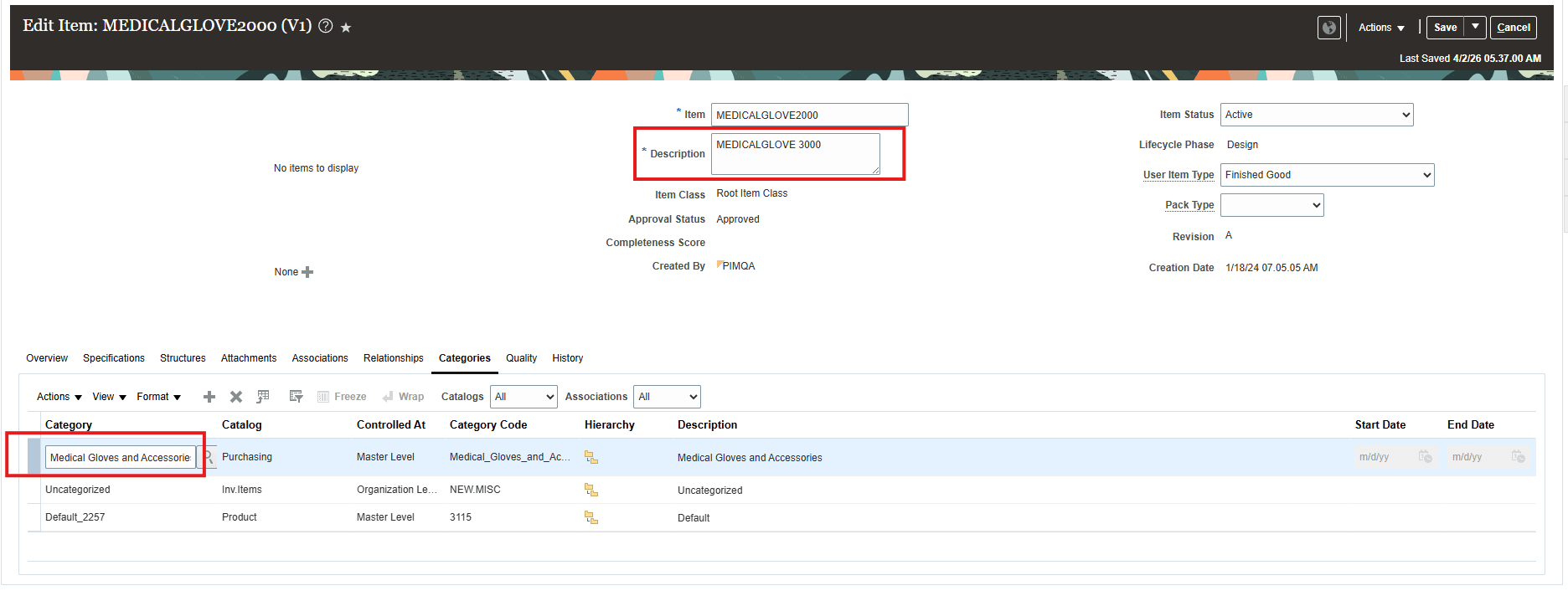
Latest Item Category and Item Description in the Item Master
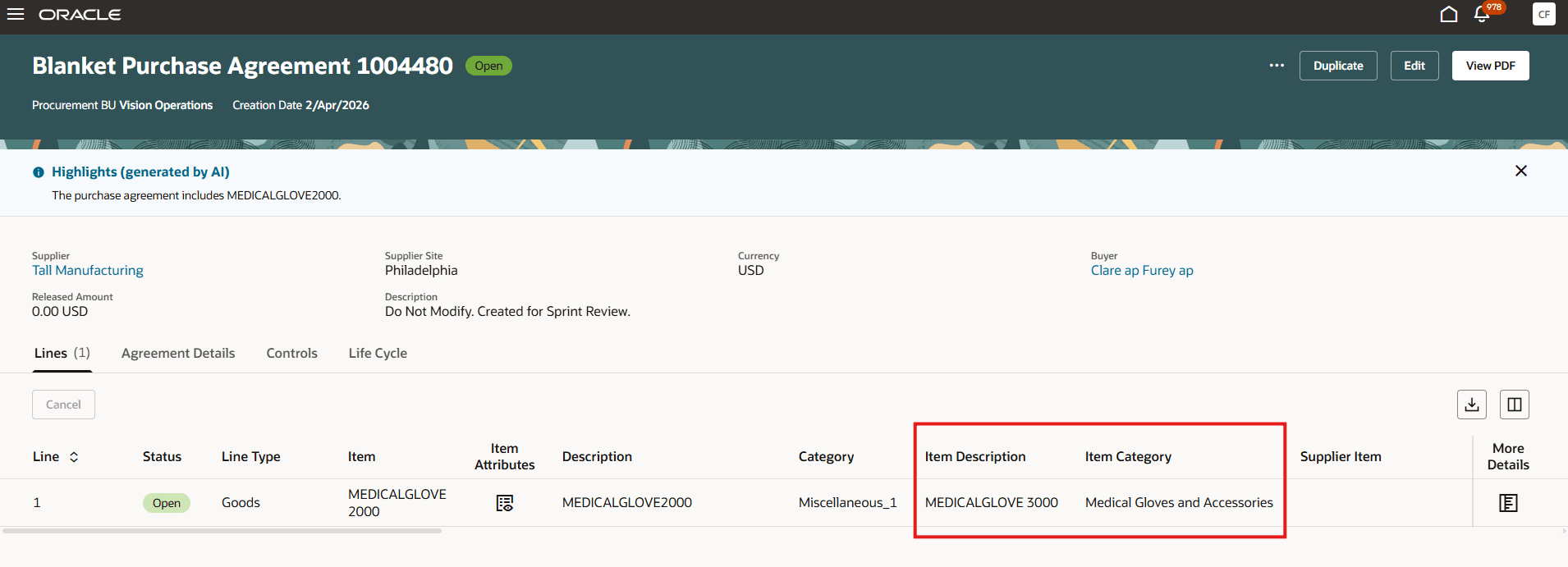
BPA Showing Latest Item Category and Item Description from the Item Master in Logged In Buyer's Session Language
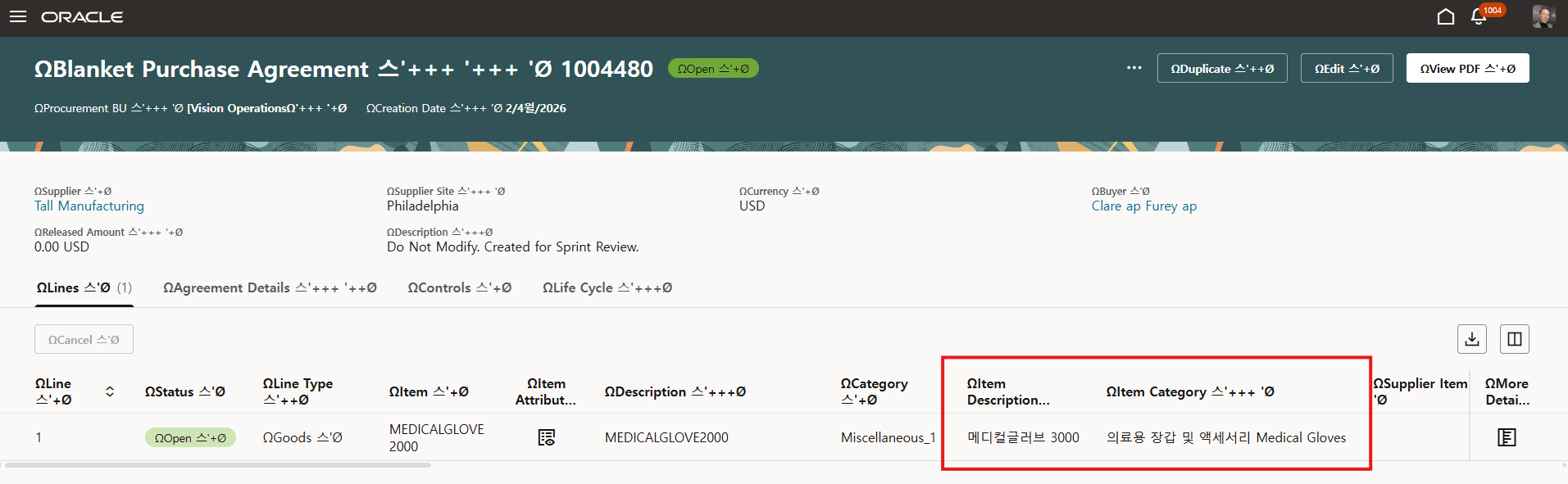
BPA Showing Latest Item Category and Item Description from the Item Master in Logged In Buyer's Session Language (Korean)
Steps to enable and configure
- These new attributes are always hidden on blanket purchase agreement lines. You must make these attributes visible on the blanket purchase agreement lines using business rules. Follow these steps:
- Go to Procurement > Purchase Agreements (New).
- On the Purchase Agreements Search page, search for a blanket purchase agreement and open it in Edit mode.
- From the Edit Agreement page, start Oracle Visual Builder Studio for page editing.
- Create a new collection rule. In the collection rule configuration:
- Search for the PimItemCategory attribute and set it to Visible by Default.
- Search for the PimItemDescription attribute and set it to Visible by Default.
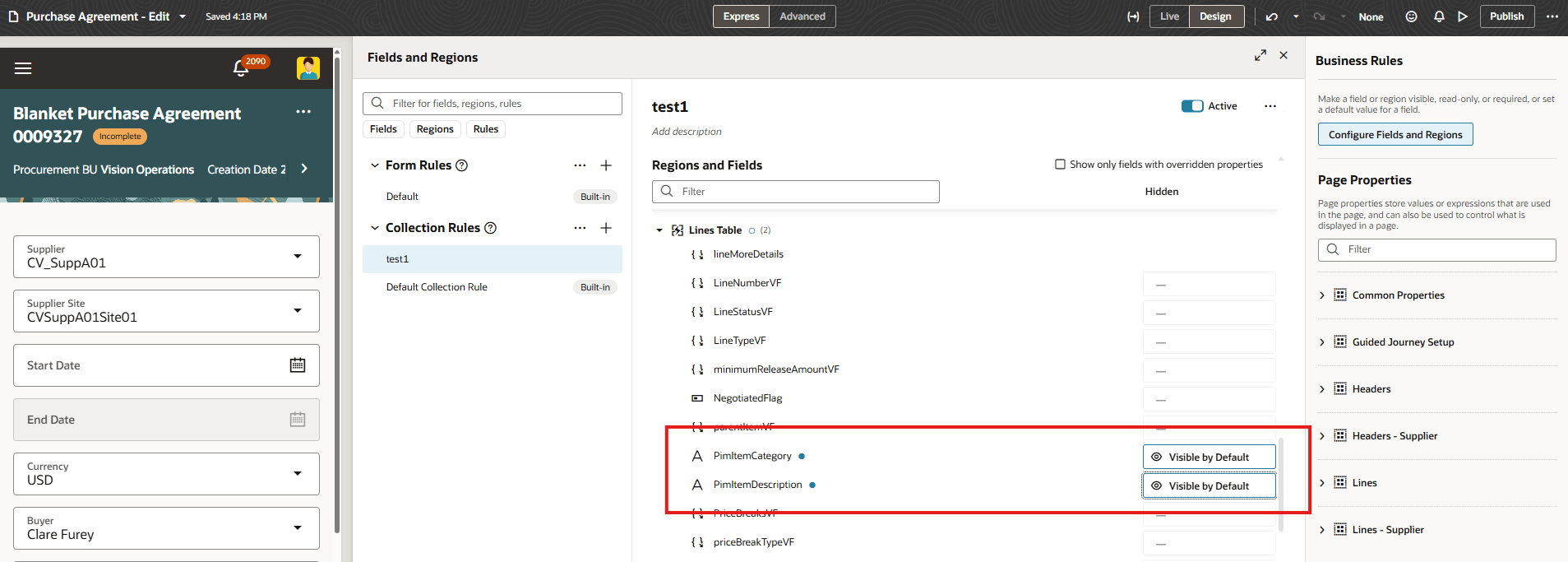
- Return to the Edit Agreement page and verify that the changes appear there as expected.
- Preview the page changes in Oracle Visual Builder Studio.
- Confirm that both attributes are visible and then click Publish.
- If you haven't enabled Redwood for Purchasing, see the Getting Started with Redwood in Purchasing topic on the SCM Resource Center in Customer Connect.
Tips and considerations
- The item description and item category attributes are read-only and are provided for display purposes only. You can't modify them on blanket purchase agreement lines.
- Attributes in tables must be modified using collection rules.
Key resources
For information about using Oracle Visual Builder Studio to extend your Redwood application pages, see Oracle Fusion Cloud HCM and SCM: Extending Redwood Applications for HCM and SCM Using Visual Builder Studio
Access requirements
Admin users who are assigned a configured job role that contains these privileges can extend the Redwood pages.
- View Administration Link (FND_VIEW_ADMIN_LINK_PRIV)
- Administer Sandbox (FND_ADMINISTER_SANDBOX_PRIV)
These privileges were available prior to this update.