Redwood: Evaluate Assessments
Evaluate supplier assessments using the new Redwood user experience. Assessments allow you to evaluate suppliers across a group of qualifications to determine an overall outcome.
Search Assessments
As a qualification manager or an evaluator, use the Assessments page to easily search for and manage assessments.
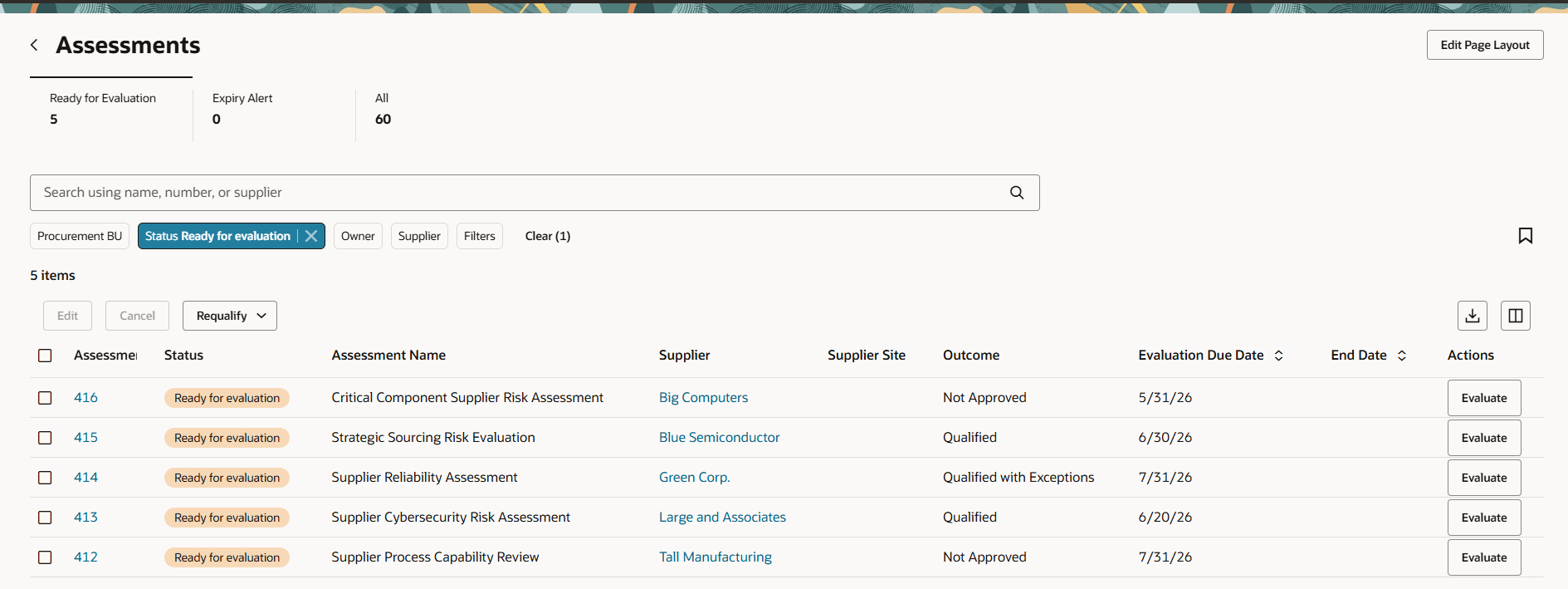
You can enter keywords in the search box to find a specific assessment by name, number, or supplier. Narrow your search results by using filters such as Procurement BU, Status, Owner, and Supplier. Additional filtering options are available in the Filters panel. You can also save your search using the Saved Searches icon to create a personalized list and set a default search for future use.
Search results are presented in a dynamic table, accompanied by a record count which can be exported to Microsoft Excel. You can drill down to view, edit, or evaluate an assessment. Select Requalify to create a new initiative or revise the assessment using the same qualification model revision.
Assessments Page
The scorecard provides an overview of the key performance indicators (KPIs) to help you monitor and manage assessments across stages. These scorecard values displayed are based on the privileges assigned to you.
- Ready for Evaluation: The count of all assessments that are ready for evaluation.
- Expiry Alert: The count of assessments that have expired or will expire within the configured expiration period.
- All: Total number of assessments that you have access to.
You can select a scorecard to view the associated assessments.
Select Edit Page Layout to create custom assessment scorecards by adding OTBI based KPIs and data visualizations relevant to your business.
Evaluate Assessment
After you have evaluated and finalized all the qualifications for a supplier, the assessment moves to the Ready for Evaluation status. As an evaluator, you can review the individual qualifications, including their responses and assigned outcomes to determine the supplier's overall assessment result.
Evaluate Assessment Page
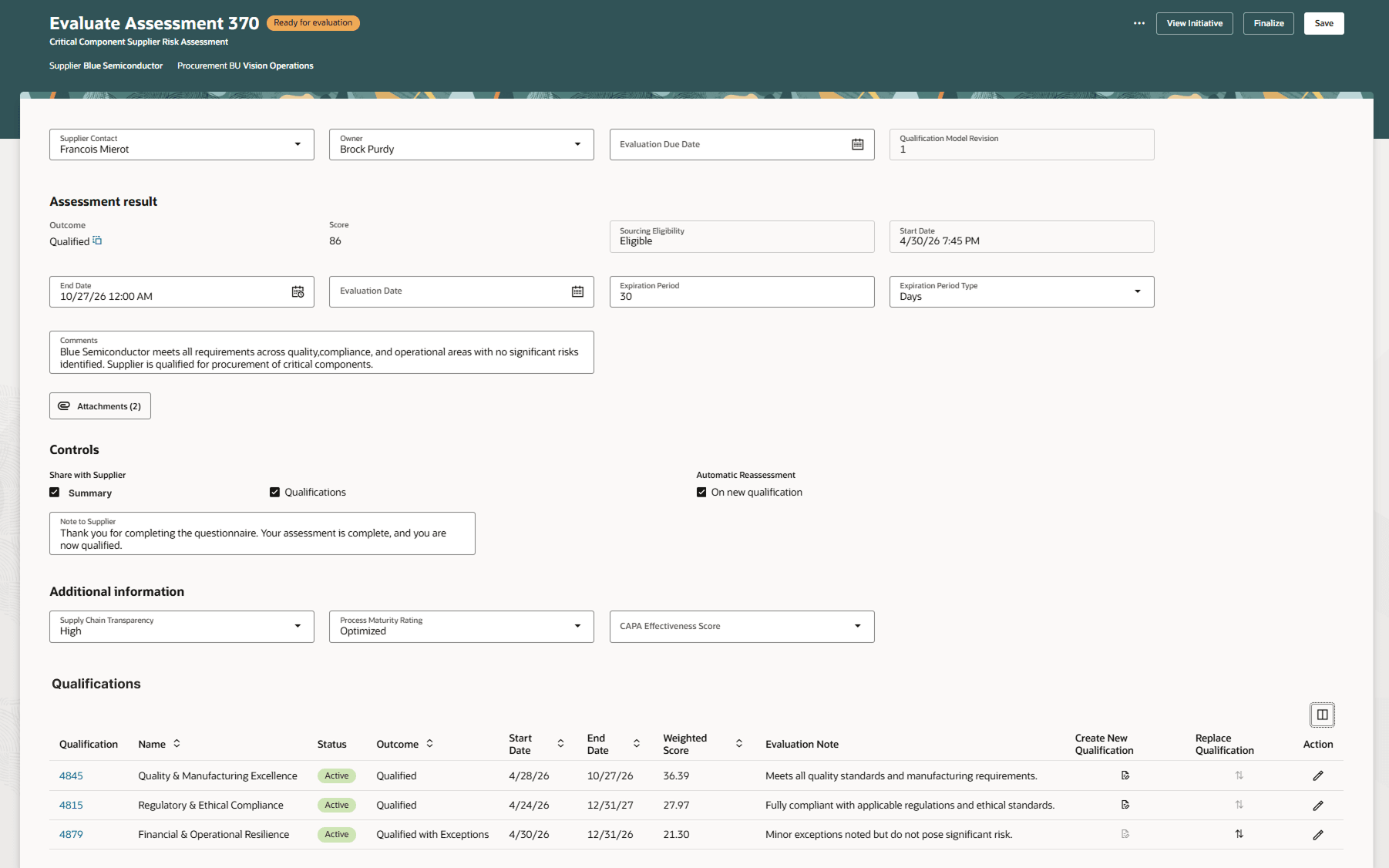
The Evaluate Assessment page provides easy access to all the sections of an assessment, including assessment results, controls, additional information, and qualifications.
The assessment start and end dates must cover the entire date range for all qualifications included in the assessment.
The application automatically derives the assessment outcome based on qualification scores and weights defined in the qualification model. However, evaluators can manually override the assessment outcome by clicking the Override Outcome icon. In such cases, the application maintains a complete audit trail by recording the user who performed the override, the date and time of the override, as well as the reason provided for the change. Once the assessment is finalized, the assessment score and outcome become fixed and can no longer be modified.
Evaluators can opt to share the evaluation decisions with the supplier. For assessments used to determine supplier eligibility for sourcing activities, the supplier’s sourcing eligibility status is automatically derived from the assessment outcome. When the assessment is finalized, the supplier’s sourcing eligibility is recorded for the applicable Procurement Business Unit and is enforced when selecting suppliers for negotiation events in sourcing.
In the Qualifications table, all qualifications are displayed along with their status, outcome, start date and end date. Enter your evaluation notes for each qualification in the context of the assessment being evaluated. The Create New Qualification action allows you to create a new qualification when the current reused qualification is nearing expiration. The Replace Qualification action allows you to replace the current qualification when a more recent qualification is available for the supplier, ensuring the assessment reflects the latest information.
Once ready, select Finalize to complete the assessment. The application will perform the necessary validations and, if successful, mark the evaluation as complete.
You can also view the initiative associated with the assessment by selecting the View Initiative button. Additionally, from the More Actions menu, select View Assessment History to review past, current, and future-dated assessments for the supplier within the procurement business unit.
These evaluation capabilities help organizations enforce consistent supplier governance, maintain audit compliance, and ensure sourcing decisions are based on accurate and validated supplier qualification data.
If desired, you can enable guided journeys to give tailored instructions and scoring guidance to assessment evaluators.
View and Edit Assessment
After you finalize your assessment, you can view all the details on the Assessment page.
You can edit an active assessment to update attributes such as the supplier contact, assessment owner, and assessment end date. Additionally, in the Controls section, you can configure how assessment details are shared with the supplier, and you can enable the automatic reassessment process.
Steps to enable and configure
To use this feature, you must enable the following profile options.
- Redwood Supplier Qualification Page Enabled (ORA_POQ_SUPPLIER_QUALIFICATION_REDWOOD_ENABLED). Enable this existing profile option if you haven't already.
- Redwood Assessment Initiatives Page Enabled (ORA_POQ_ASSESSMENT_INITIATIVES_REDWOOD_ENABLED). By default, this new profile option is disabled.
For instructions on enabling a profile option, refer to the Set Profile Option Values topic.
Key resources
- Refer to the What's New for Update 26C: Redwood: Create and Monitor Assessment Initiatives for details on the related feature.
- For information about using Oracle Visual Builder Studio to extend your Redwood application pages, see Oracle Fusion Cloud HCM and SCM: Extending Redwood Applications for HCM and SCM Using Visual Builder Studio.
- Refer to Overview of Guided Journeys in the Oracle Fusion Cloud Human Resources: Implementing and Using Journeys guide, available on the Oracle Help Center.
- For details about adding your own key performance indicators (KPIs) and visualizations to your page, see Flexible Reporting in Redwood Dashboards.
Access requirements
Users who are assigned a configured job role that contains these privileges can access this feature.
- Search Supplier Assessment (POQ_SEARCH_SUPPLIER_ASSESSMENT)
- Cancel Supplier Assessment (POQ_CANCEL_SUPPLIER_ASSESSMENT)
- View Supplier Assessment (POQ_VIEW_SUPPLIER_ASSESSMENT)
- Edit Supplier Assessment (POQ_EDIT_SUPPLIER_ASSESSMENT)
- Evaluate Supplier Assessment (POQ_EVALUATE_SUPPLIER_ASSESSMENT)
- Finalize Supplier Assessment (POQ_FINALIZE_SUPPLIER_ASSESSMENT)
- View Supplier Qualification Initiative (POQ_VIEW_SUPPLIER_QUALIFICATION_INITIATIVE_PRIV)
These privileges were available prior to this update.
Users who are assigned a configured job role that contains this privilege can edit the page layout to add custom KPI and visualizations.
- Edit Page Layout of the Supplier Qualification Page (POQ_EDIT_SUPPLIER_QUALIFICATION_LANDING_PAGE_LAYOUT_PRIV)
This privilege was available prior to this update.